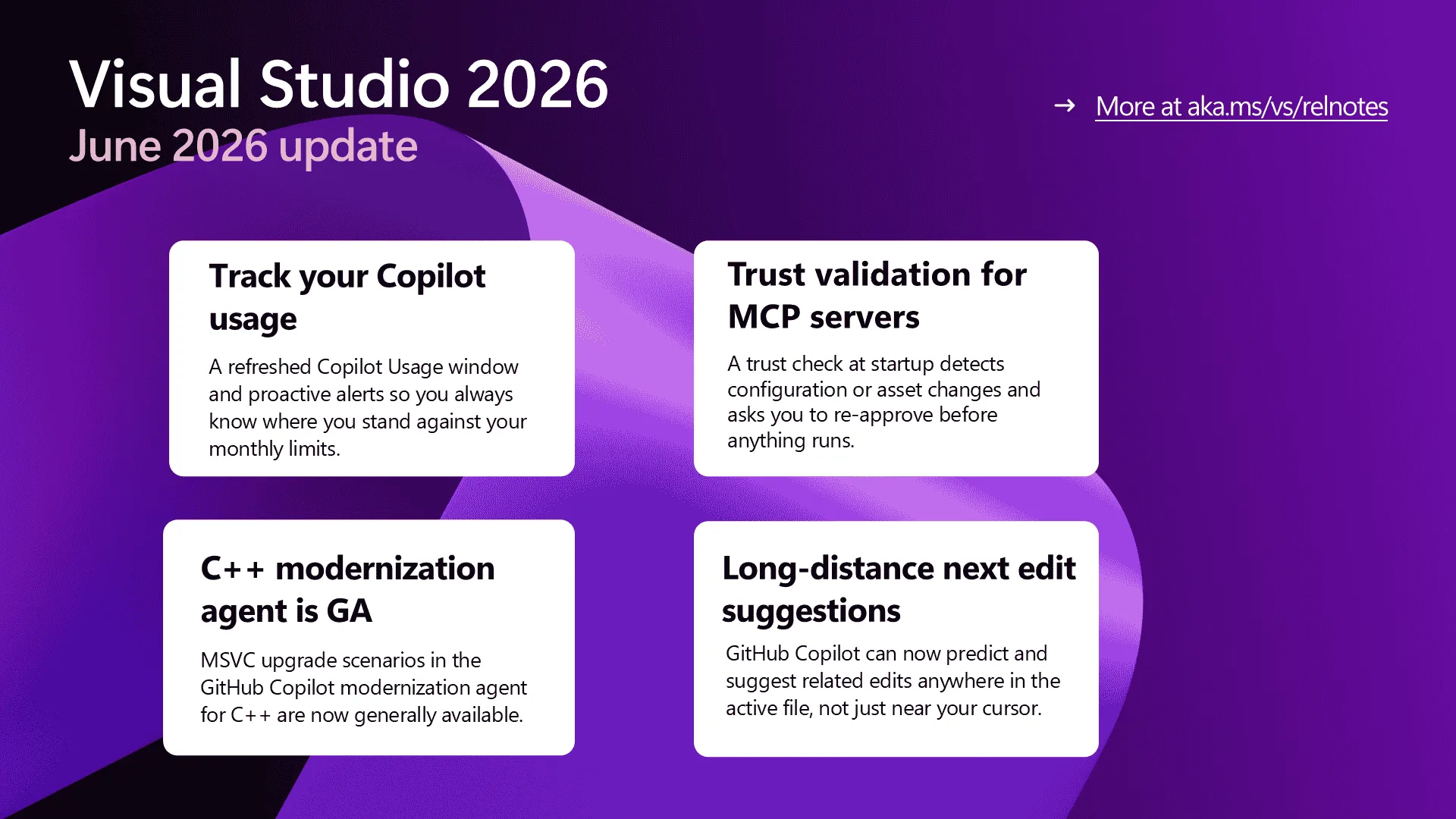
Visual Studio works best when you can see what’s happening and trust the tools you’ve added to your workflow. The June update is built around both. The Copilot Usage window gets a refresh with proactive alerts as you approach your limits, MCP servers now get a trust check before they run anything new, and the GitHub Copilot modernization agent for C++ graduates to general availability for MSVC upgrades.
We’ve also extended next edit suggestions across the entire active file and brought full-color emojis everywhere the editor renders text. Install the June Stable Channel update when you’re ready, then take a look at what’s new below.
Copilot usage tracking and alerts
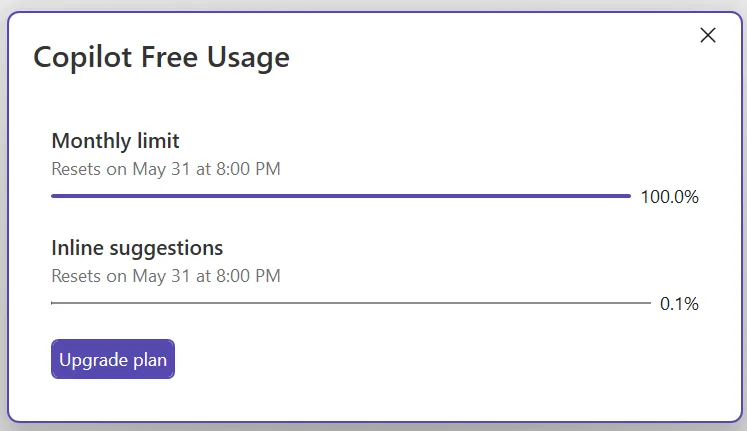
GitHub Copilot usage is now calculated based on token consumption rather than by request, as part of its usage-based billing model. The refreshed Copilot Usage window in Visual Studio gives you a clearer view of where you stand against that model, with real-time updates as you work. Open it any time from the Copilot badge menu > Copilot Usage.
You’ll also see proactive alerts as you approach a limit, when you hit it, and when additional usage (overages) activates. The quota warning threshold is configurable, so you can decide how early you want the heads-up.
This is the start of a broader investment in Copilot usage visibility. Expect more in upcoming releases, and let us know on Developer Community what would help most.
Trust validation for MCP servers
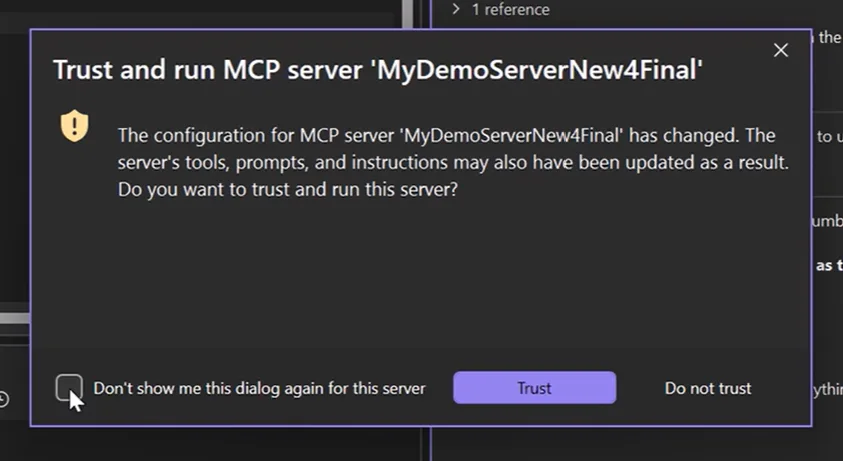
MCP servers extend Copilot’s reach, and as more of your day-to-day workflow runs through them, the question of whether they’ve quietly changed underneath you becomes worth asking. Visual Studio now validates MCP server trust in two places during startup. Before the server process starts, the current configuration is compared against a previously trusted baseline. After it starts, the fingerprint of its tools, prompts, resources, and instructions is compared to the last-trusted fingerprint. If anything has diverged, a trust dialog asks you to review the changes before the server is allowed to run.
From the dialog you can accept the changes (which updates the baseline), check Don’t show me this dialog again for this server and pick Trust to always trust the server going forward, or pick Do not trust to reject the changes and abort startup. First-time connections are implicitly trusted and seed the initial baseline. Built-in servers, servers under a RegistryOnly policy, and any server you’ve explicitly set to always-trust skip the prompt entirely.
Trust validation is on by default. You can manage it at Tools > Options > GitHub > Copilot > Copilot Chat > Show trust dialog before running tools from an updated MCP server.
GitHub Copilot modernization agent for C++
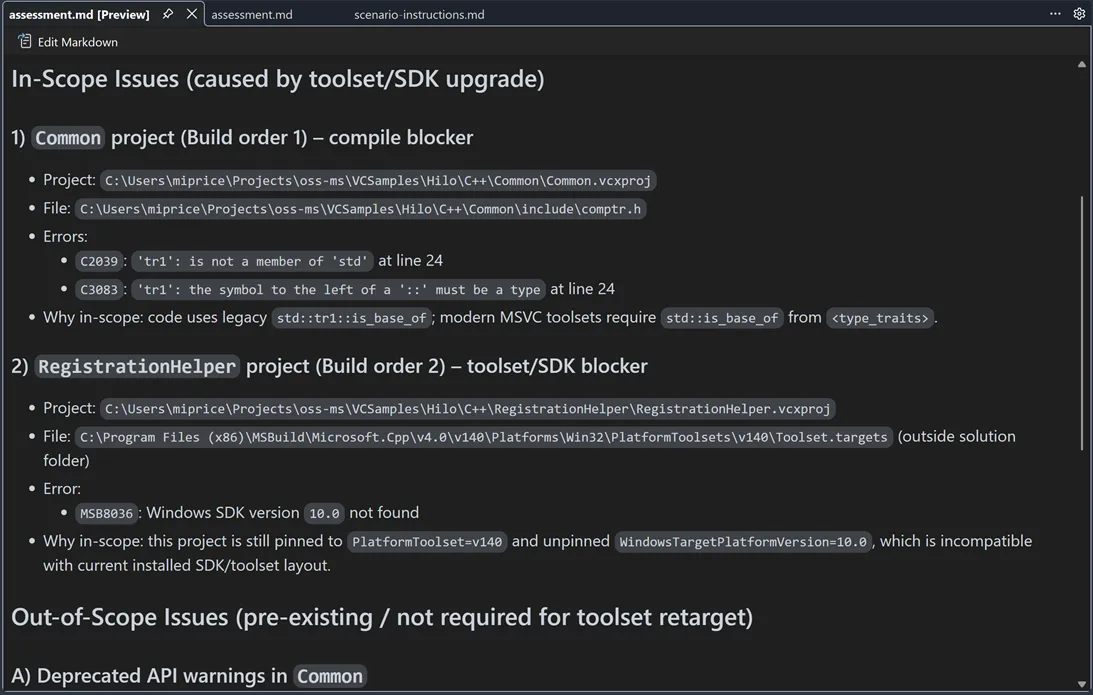
The first C++ scenarios for the GitHub Copilot modernization agent are now generally available. These are the flows that upgrade your C++ projects to the latest version of the Microsoft C++ (MSVC) Build Tools, where the new features, performance improvements, and security updates live.
The agent analyzes your project, identifies compatibility issues, and lays out an upgrade plan. Run it in Automated mode to let it carry out the upgrade end to end, or in Guided mode to review and approve the assessment, plan, and execution steps before each one runs. Right-click a solution or project in Solution Explorer and pick Modernize, or open Copilot Chat and type @Modernize followed by your upgrade request.
Thanks to the developers who put the preview through its paces on real C++ projects — your feedback shaped where this landed. Let us know which C++ modernization scenarios you want next on the C++ Developer Community.
Long-distance next edit suggestions
Make a change in one place, and you usually know there are related edits to make further down the same file. GitHub Copilot’s next edit suggestions (NES) have always anticipated the next change, but until now they were limited to the area immediately around your cursor. That’s often not where the related edits actually are.
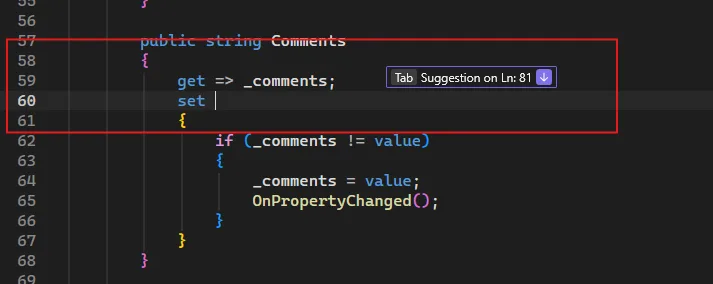
Long-distance next edit suggestions extends NES across the full active file. Copilot can predict and propose edits anywhere in the current file, helping you keep related code in sync without manually hopping between sections.
The feature is off by default for now. Turn it on under Tools > Options > Text Editor > Inline Suggestions by checking Enable extended range suggestions. The deep dive on the model training and evaluation behind long-distance NES is worth a read if you want the back story. Give it a try and tell us how it lands.
Color emojis
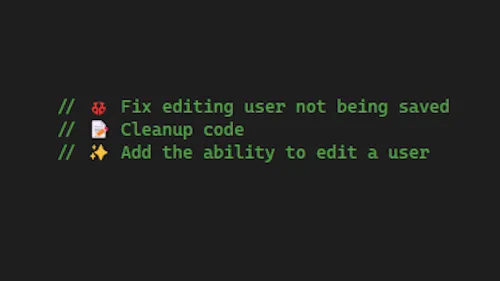
Emojis are now rendered in full color across Visual Studio. The same emoji you use to flag a bug, mark a section header, or highlight a TODO shows up with its real colors in the editor, in markdown previews, in GitHub Copilot Chat, in build output, and in Solution Explorer.
A red ❌ stands out as a warning, and a green ✅ reads as confirmation. The rendering uses modern font technologies, so what you see matches what your teammates see regardless of which Windows version they’re on.
From our entire team, thank you for choosing Visual Studio! For the latest updates, resources, and news, check out the Visual Studio Hub and stay in touch.
If you’re building and maintaining Visual Studio extensions, you’ve probably ended up with some sort of build and publishing workflow – whether it’s manual, scripted, or stitched together over time.
This post is for extension authors who want a simple, repeatable way to build, version, and publish their VSIX files using GitHub Actions.
I’m going to show how I do this across my own extensions.
I’ve been using this approach for a long time, and over time I pulled the most repetitive pieces into a few small reusable actions, so I don’t have to keep rewriting the same logic in every repo.
Those are:
vsix-version-stamp – keeps your versioning in sync
publish-vsixgallery – publishes CI builds for testing
publish-marketplace – publishes to the Visual Studio Marketplace
You can use them independently or together, but I tend to use all three.
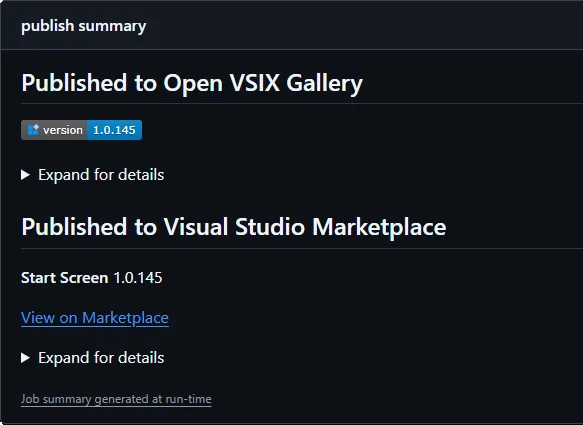
If you want to see this wired up in a real repo, take a look at Start Screen.
A real workflow
Here’s a simplified setup very similar to what I use across my extensions today:
Over the last six months, we have run the same tiny eval more than 50,000 times. It gives the VS Code agent one instruction: write a string to a file. No large codebase to understand, no test suite to debug, no architectural decision to make. It is our smoke test, a quick way to confirm that the end-to-end model interaction still works.
A task this simple gives us an immediate read on the health of the system: how reliably the agent finishes the work and what kinds of failures show up in practice. We didn’t intend it to be more than that. But at this scale, it became a surprisingly rich source of insight into how models approach even the simplest request.
In our previous post, we introduced VSC-Bench, the offline evaluation suite we use to measure agent behavior in VS Code. In this blog post, we look at how models solve a simple task and what it tells us about efficiency, model selection, and the value of small, stable evals.
The five-line eval
A simple task is valuable precisely because it removes variables. When the work is unambiguous and the correct answer is fixed, anything that changes between runs comes from the model or the system around it, not from the task itself. That makes a small eval a sensitive instrument: it reacts to harness regressions, infrastructure incidents, and differences in model behavior, without the noise of a complex problem to interpret.
The say_hello task we use for this is built around that idea. Every run starts in the same empty workspace, with the same tools and the same fixed prompt, using our VS Code agent harness. The task asks the agent to “Add HELLO to HELLO.txt” and checks two assertions: that the file exists and that it contains the expected content.
Because say_hello runs as a smoke test before every benchmark suite, it quietly accumulated 50,974 runs across 30 models over six months. That volume turned a basic sanity check into a useful dataset on how differently models handle even the simplest work.
A developer doing this task would recognize that the workspace is empty, create HELLO.txt, and add the requested content. In the most direct VS Code agent path, this translates into a single create_file tool call with HELLO as the file content.
The VS Code eval harness includes the workspace state in the initial prompt context. We assume that the model should not perform redundant existence checks.
How models solve say_hello
As expected, the say_hello task is easy enough that all models pass it most of the time. The interesting part is not whether they can do the work, but how they do it. Can the model recognize that this is a basic request that only requires a simple solution? Or does it still treat it like a complex problem that requires planning, exploration, and search?
To establish a baseline, we filtered for passing runs that used this one-tool-call path and looked at the lowest output-token counts in that group. Those runs averaged roughly 50 output tokens, including the tool-call structure. We then measured how often each model took that path.
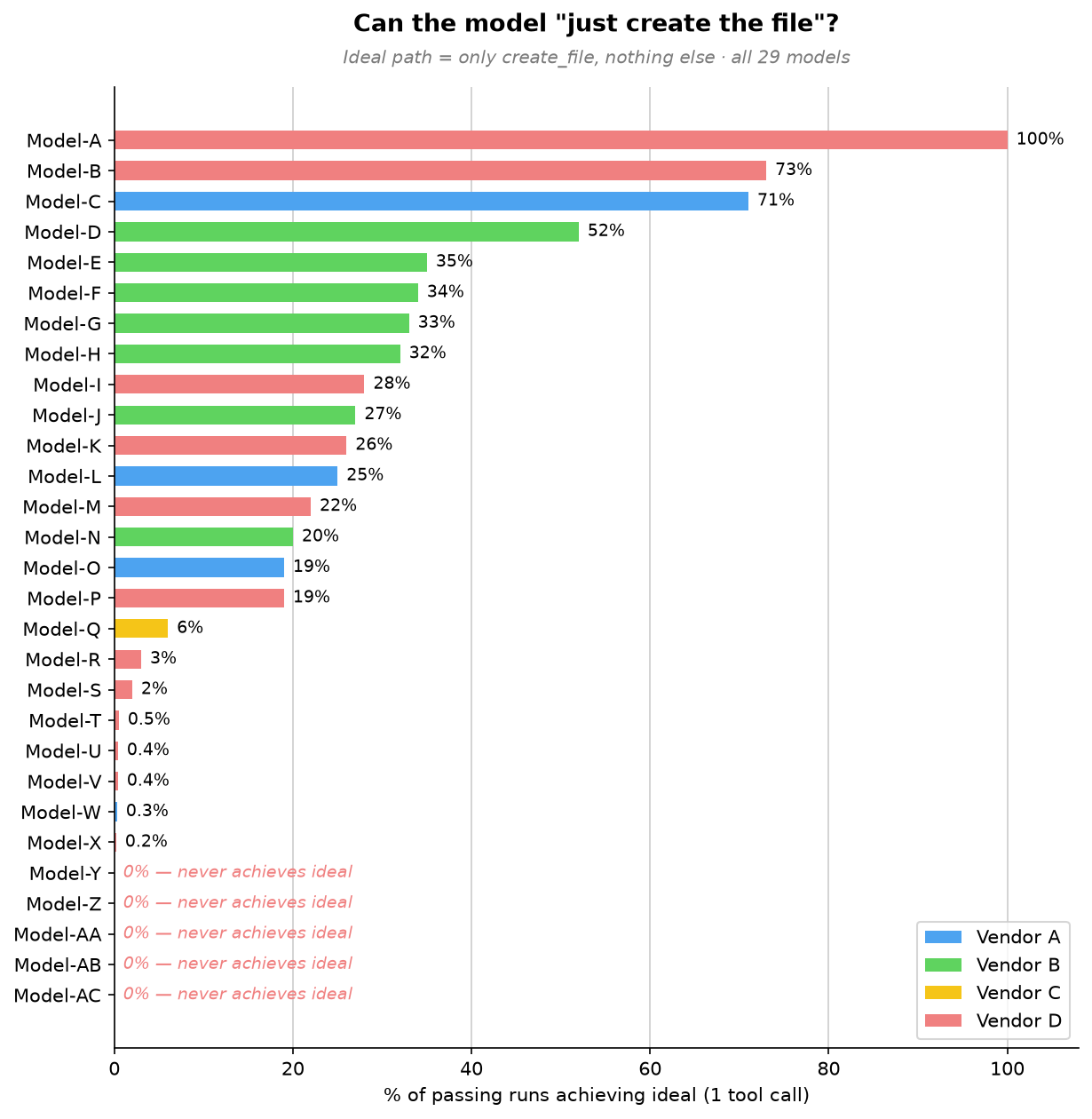
One model takes the direct path every time. The broader trend is what stands out: a few models often take the direct path, most do so only occasionally, and five never do.
At the top, Model-A stands alone. It goes straight to file creation in 100% of passing runs, using a single tool call every time. For this simple request, Model-A always creates the file directly without planning or exploring first. Model-B and Model-C follow at 73% and 71%, respectively.
The large middle cluster, Model-D through Model-P, takes the direct path somewhere between 19% and 52% of the time. These models can recognize a simple task, but not consistently. More often than not, they add a small step first, such as reading internal state or doing light workspace exploration, before creating the file.
Below them, Model-Q through Model-X rarely take the direct path, doing so in 0.2% to 6% of passing runs, with five models falling below 1%. For these models, extra work is the default. They almost always plan, explore, or search before producing the same five-character file.
At the bottom, five models, Model-Y through Model-AC, never take the direct path across thousands of passing runs. They always do something else first: plan, reach for a patch tool instead of simple file creation, search and plan, or narrate at length before creating the file. For them, even the simplest request triggers the full machinery of a complex one.
All models create the file with the right content, but they reach the same outcome with very different amounts of work. Even on a task with almost no ambiguity, some models still plan, search, or choose a more complex editing tool. They all pass the eval, but they do not use the same amount of effort to pass it.
How models spend their overhead
Because our offline eval harness captures the complete tool-call sequence, we can turn those traces into model behavior patterns. Across runs, models tend to spend their extra effort in a few familiar ways:
Overhead pattern
Frequency
Representative models
What happens
Planning before acting
52-99%
Model-AC, Model-Z, Model-S, 13 other models
Drafts a checklist or reads internal state before creating a 5-character file. Every one of the 16 models we could measure does this in at least half of its runs; Model-AC reaches 99% and Model-Z 96%. On one occasion, four planning steps in a single run for a one-step task.
Exploring an empty workspace
56-96%
Model-T, Model-Q, Model-AA
Lists directories or searches for files in an empty workspace. Model-T lists the directory in 96% of runs; Model-AA both lists and searches in 56%, looking for clues in an empty room.
Narrating the reasoning
1,441-3,676 tokens
Model-AB, Model-M, Model-U
Emits far more text than any tool call needs, walking through its reasoning and reconfirming the task. These three top the output-token chart at 29-74 times the realistic floor, even though the file itself is five characters.
Using the wrong tool for the job
About 95%
Model-AA
Uses a complex patch/edit tool (designed for modifying existing files) instead of simple file creation. Like using a CNC machine to cut a piece of paper.
Running a terminal command
3-14%
Model-W, Model-Z, Model-V
Runs a terminal command (echo HELLO > HELLO.txt) when a simpler file-creation API is available.
These are not correctness failures. They are signs that the model does not consistently recognize when the shortest path is enough. On longer tasks, planning and exploration can be valuable. On a one-step task, they add latency and cost without improving the result.
The cost of overthinking
Why should you care about how many extra steps a model takes to write a five-character file? Because those extra steps are not free and translate directly into output token usage, which has an actual cost.
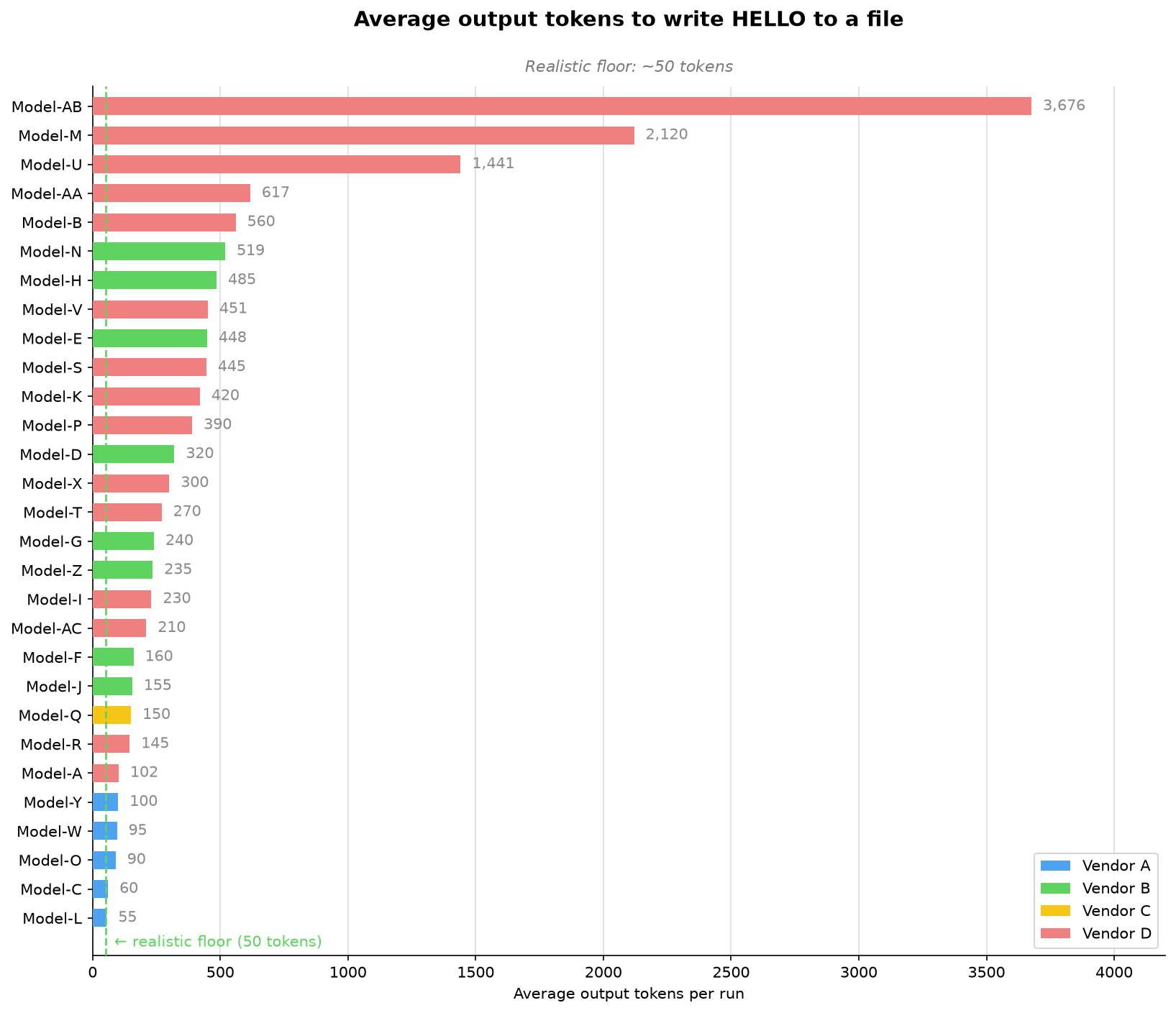
For this simple task, about 50 output tokens is a realistic minimum. The following chart shows the range of output tokens used by different models. The selected models range from that minimum to thousands of tokens for the same five-character result!
The chart falls into four clear bands. The extreme group includes Model-AB, Model-M, and Model-U, which average 3,676, 2,120, and 1,441 output tokens, respectively. That is 29 to 74 times more than the realistic minimum for the same five-character result. The high-overhead group, from 400 to 1,000 tokens, includes Model-AA, Model-B, Model-N, Model-H, Model-V, Model-E, Model-S, and Model-K. These models are not in the thousands, but they still spend roughly 8x to 12x the realistic minimum.
The moderate group, from 150 to 400 tokens, includes Model-P, Model-D, Model-X, Model-T, Model-G, Model-Z, Model-I, Model-AC, Model-F, Model-J, and Model-Q. They add overhead, but stay far closer to the task’s natural size. The efficient group is below 150 tokens: Model-R, Model-A, Model-Y, Model-W, Model-O, Model-C, and Model-L. Model-L comes closest to our realistic minimum at 55 tokens, showing that a model can complete the task with very little extra narration even when it does not always take the direct tool path.
Choosing a model that overthinks less saves both time and money, but knowing which one is most efficient for a task usually means running your own benchmark. To take that burden off you, the VS Code and GitHub Copilot teams keep investing in optimizations and model routing. For example, automatic model selection lets VS Code pick the best model for your task.
Model size does not predict overhead
Our first hypothesis was that larger models overthink more, but our data contradicts this:
Model-F (a larger model) uses 160 output tokens on average and 2.1 tool calls. The most disciplined model in its family.
Model-H (a smaller model from the same family) uses 485 output tokens on average and 3.7 tool calls. More overhead than its larger sibling.
Model-AB (a “mini” model) is the single highest-overhead model at 3,676 output tokens on average. The smallest model in this sample does the most work.
Our read is that newer generations within each model family trend more disciplined, regardless of parameter count. This points to training maturity: how well a model scales its effort to the task in front of it. And that calibration isn’t an academic curiosity. It shows up directly on the bill.
Where do we go from here?
We wanted to share a few key insights our team took from these runs, and a few learnings you might be able to apply to your own day-to-day flow.
Note
The say_hello eval gives us great insights but it represents only one task. For harness optimization, we avoid optimizing too narrowly around a single task. We still run the full benchmark regularly across a diverse task set to validate whether changes improve our harness broadly.
Match the model to your task
With usage-based billing, output tokens represent both money and time. The difference between the leanest and heaviest model on this task is roughly 70× for identical output. The obvious lesson would be “don’t reach for the biggest model to write HELLO.” But that lesson is too blunt, and seeing why is the most useful thing say_hello taught us.
There is an important caveat to these results. say_hello is a short-horizon task with one step and one correct answer. On long-horizon work, planning, exploration, and reasoning can prevent expensive mistakes and improve the odds of finishing. The goal is not to eliminate planning. It is to understand whether a model can tell the difference between a one-step task and a 30-step task.
That is one reason why we think model selection should not become the developer’s burden. Signals like effort calibration, token efficiency, and tool discipline can help automatic model routing pick the right model for the task at hand without asking developers to reason about every tradeoff.We continue to invest in and research automatic model selection in VS Code, so the product can make more of these choices for you over time.
Start small, measure well
Most teams do not start with a private offline benchmark suite they can run every day. Even a simple task, run consistently and logged well, can reveal useful changes in model or system behavior.
Start with the smallest task that has an unambiguous correct answer. Then run it constantly: use it as a preflight check before nightly evals, model onboarding, and infrastructure changes. The task does not need to be clever; it needs to be stable enough that changes in pass rate, latency, tool use, or failure mode mean something.
The important part is to capture enough structure to explain what changed. Record the tool-call sequence, not just the count. Knowing there were 4 tool calls is useful, but incomplete. Knowing that the model planned, explored, searched, and then created the file tells you where the overhead came from and why the run cost more.
// What most harnesses log:{ "tool_calls": 4, "pass": true }// What you actually need:{ "tool_sequence": ["plan", "list_directory", "search_files", "create_file"], "output_tokens": 617, "pass": true}
From smoke test to signal
The surprising part of say_hello was not that models could write HELLO.txt. It was that a five-character edit made effort visible: which models scaled down, which kept planning or searching, and which system failures only appeared after thousands of runs.
Try the same request with your preferred model in VS Code, inspect its tool calls in the Chat Debug View, and consider what your own smallest useful task might be. Share what you find in the VS Code repository.
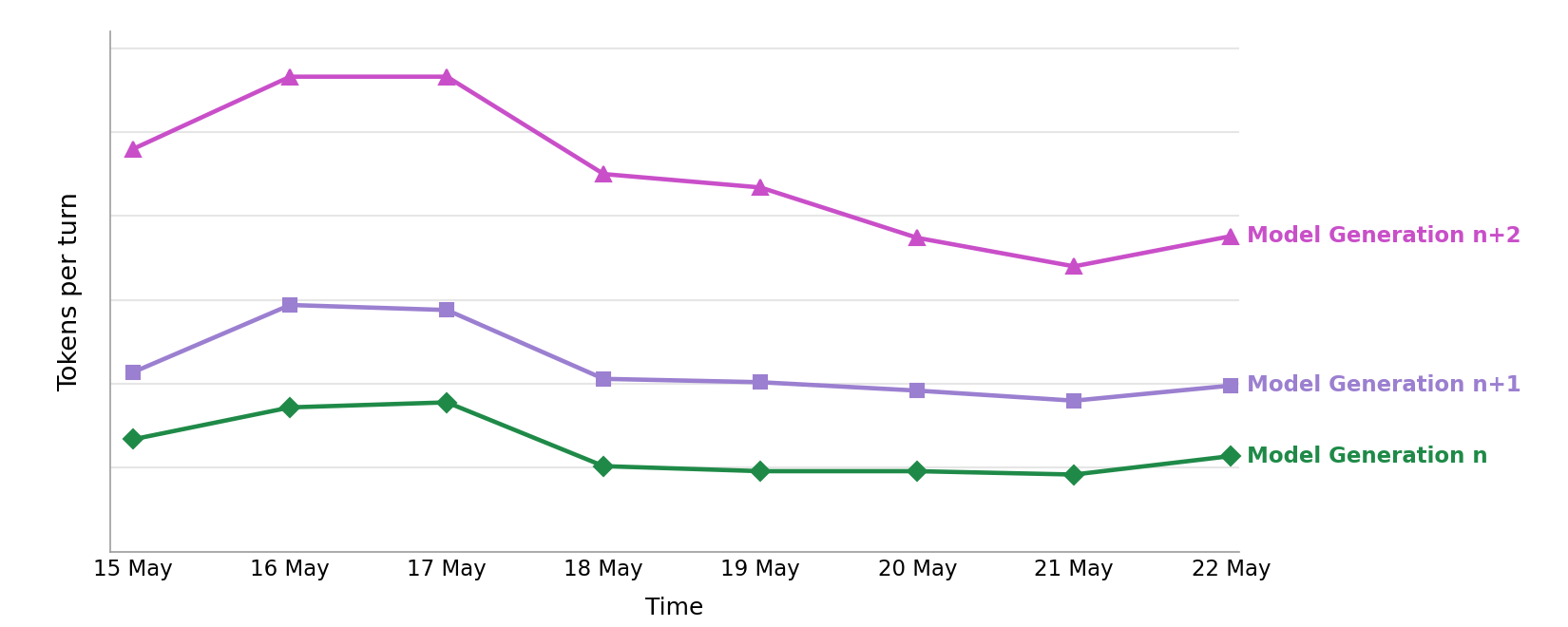
With the recent move to usage-based billing for GitHub Copilot, every token in an agentic session matters. They affect your credits, latency, and the context window an agent has left to finish the task. Each new model generation tends to consume more tokens per task than the last, as we’ve witnessed in our own data. This means that harness-level efficiencies are increasingly important to counter this trend. As agents take on longer, more autonomous work, an inefficient harness adds up fast.
Making the GitHub Copilot agentic harness in VS Code more token-efficient is continuous work, and it’s the best way to counter this trend. For most changes, we run A/B experiments in production and offline evaluations against task suites, confirming that task success rate holds or improves while token usage drops. It’s rarely one big win, usually a steady stream of small ones. Below, we walk through recent gains, first for OpenAI models and then for Anthropic models.
How agentic requests spend tokens
Two costs sit at the heart of every agentic request, and two ideas help us reduce them. Both apply across OpenAI and Anthropic models, even though each provider exposes them differently.
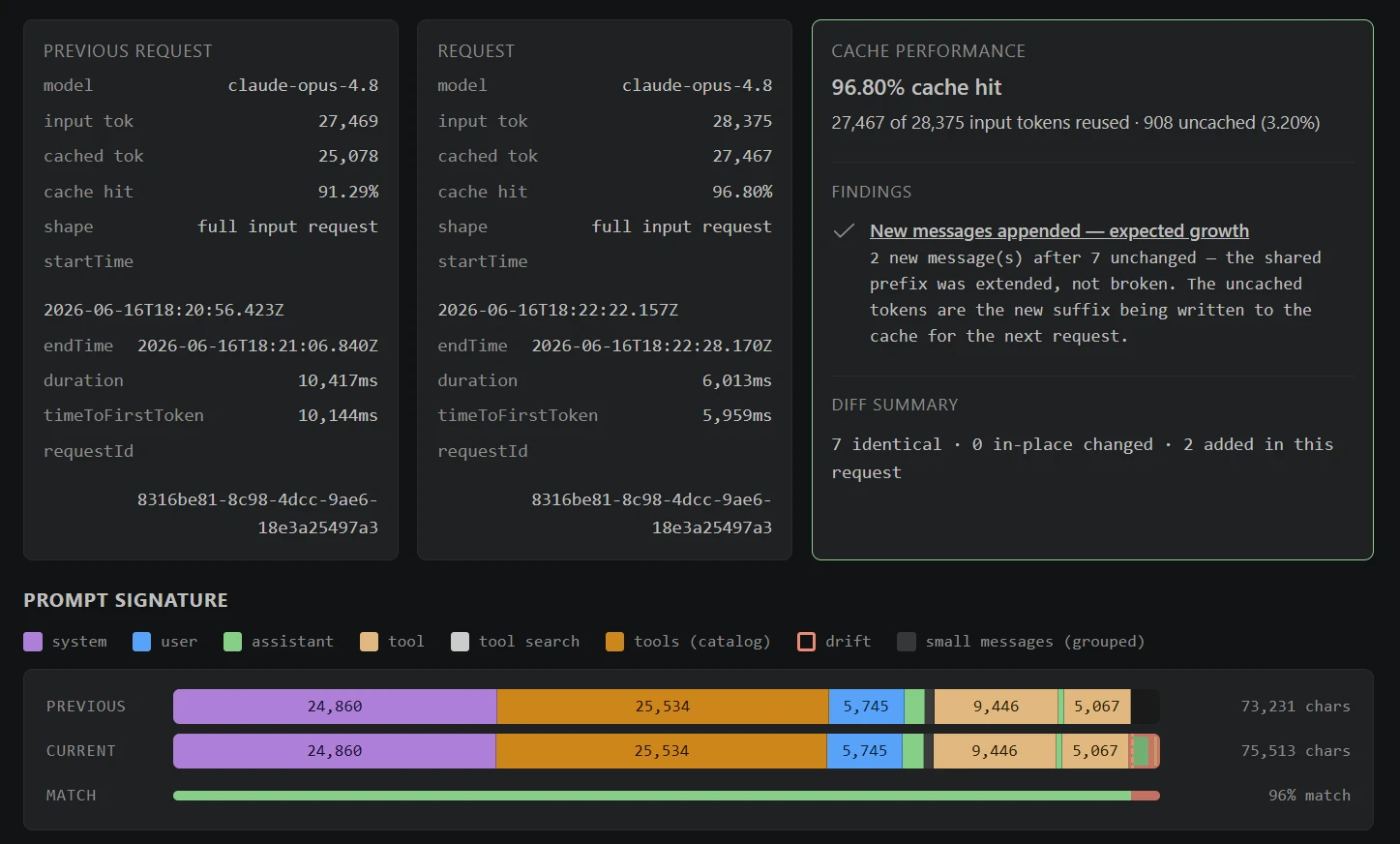
Graphical overview of the prompt signature highlighting the different parts of the prompt.
The prompt prefix and caching. In an agentic coding session, a large share of every request repeats across turns: system instructions, tool definitions, repository context, and conversation history. This repeated beginning is the prompt prefix. When requests share the exact same prefix, the inference provider can reuse cached model state instead of recomputing it from scratch on each request. Despite the name, the cached artifact is not a human-readable copy of the prompt. It is the model state computed while processing that prefix, represented internally as key/value tensors. Reusing the prefix cuts both cost (cached tokens can be up to 10 times cheaper) and latency, which is why we work to keep the prompt cache hit-rate high.
Tool-definition overhead. Agents can pull in a large number of tools: those exposed by MCP servers, built-in tools, or extension-provided tools. Each tool is sent to the model with a full definition (a name, a description, and a complete JSON parameter schema), and historically every one was loaded into context on every request. Even when that data is cached, the context window overhead is fixed on each turn and grows as the toolset does.
Tool search. Tool search reduces that overhead by letting the model load tool definitions on demand instead of all at once. Upfront, the model sees only lightweight metadata, the name and description of each deferred tool, and the heavier parameter schemas stay out of context until the model searches for a tool and loads it. Because deferred tools are added at the end of the context window rather than the prefix, the cached prompt prefix stays reusable and the caching gains keep working across turns. The payoff is a leaner context window: the model spends fewer tokens on tools it never uses, leaving more room and budget for the actual task.
Efficiency wins for OpenAI models
For OpenAI models, our recent work focused on reducing usage costs and latency for Copilot users through improved token efficiency. We pursued that through three changes: retaining cached model state for longer, reducing tool-definition overhead, and replacing repeated HTTP requests with persistent WebSocket connections.
Extended prompt caching
OpenAI models cache the prompt prefix automatically: the provider infers the reusable prefix and reuses its model state across requests. That reuse has a direct cost benefit. For most OpenAI models that support cached input pricing, uncached input tokens cost 10 times as much as cached input tokens.
Caching the prefix happens on its own, but how long that cache survives is something we can configure. After careful evaluation, we enabled extended prompt caching for supported models through the prompt_cache_retention body parameter. By default, the cache lives in fast GPU memory, where it is dropped after about 5 to 10 minutes of inactivity (up to an hour in some cases) to make room for other work. Setting "prompt_cache_retention": "24h" moves the cache to slower but roomier GPU-local storage and keeps it for up to 24 hours.
The benefit is simple. With the default cache, a pause of more than a few minutes throws the cache away, so your next request has to reprocess the whole prefix at the full, uncached price. Extended retention keeps the cache warm, so picking up where you left off is still fast and cheap, even after a long break.
After enabling extended prompt caching for supported OpenAI models in VS Code, we measured the following relative increases in cache hit rate. These are relative changes, not percentage-point increases: a 919% increase means the cache hit rate was 10.19 times higher than its previous value.
Time between requests
GPT-5.2
GPT-5.3-Codex
GPT-5.4
10-20 min
+13%
+32%
+10%
20-30 min
+135%
+142%
+137%
30-40 min
+301%
+203%
+679%
40-60 min
+338%
+279%
+919%
The increase was largest after longer gaps between requests, when cached model state that would otherwise have expired remained available for reuse. In practice, this increase means more of your prompt is processed at the lower cached-input rate, reducing the cost of requests even after longer pauses.
Tool search
To avoid sending all tool definitions on every request, tool search makes this on-demand. Available to models GPT-5.4 and newer, OpenAI’s native tool search implements this deferral with a defer_loading flag.
Upfront, the model only sees lightweight metadata: the name and description of each deferred function or, when deferred functions are grouped into a namespace, only the namespace’s name and description.
During a four-day VS Code experiment with GPT-5.4 and GPT-5.5, tool search reduced per-turn token utilization, time to first token, and time to complete:
Metric
Model
Delta
P50 Total tokens used per turn
GPT-5.4
-9.81%
P50 Total tokens used per turn
GPT-5.5
-8.61%
P50 Time to first token (TTFT)
GPT-5.4
-6.88%
P50 Time to first token (TTFT)
GPT-5.5
-7.34%
P50 Time to complete (TTC)
GPT-5.4
-5.31%
P50 Time to complete (TTC)
GPT-5.5
-5.42%
Aggregated across an entire session, total token usage for the median Copilot user decreased by 8.97% with GPT-5.4 and 10.92% with GPT-5.5.
WebSockets
An agentic coding turn can involve many sequential requests to the inference provider; one for each step the model takes as it calls tools and works toward a solution. Even when the underlying HTTP connection is reused, each step remains a separate API request.
Responses API WebSocket mode keeps a persistent connection open and provides a lower-latency continuation path for those sequential requests. On an active connection, OpenAI can also reuse the most recent response state from a connection-local in-memory cache, reducing continuation overhead across long chains of tool calling.
A few months ago, OpenAI announced WebSocket support in the Responses API. Initial documentation showed large latency improvements, so we experimented with it early and saw consistent latency reductions in our own A/B test. This was one of those ideas that feels obvious in retrospect. Agentic coding sessions make repeated requests over a long-lived interaction, which is exactly what WebSockets are designed to handle.
During the initial rollout of WebSockets to VS Code Stable, the latency gains from the A/B experiment held in production. The table below shows the latency gains from WebSockets relative to HTTP during that rollout. Since then, improvements elsewhere in the stack, including improved prompt caching, have further reduced latency and usage costs. For each metric, lower is better:
Tracking metric
Percentile
GPT-5.3-Codex
GPT-5.4
Time to first token (TTFT)
p50
-19.46%
-16.37%
Time to first token (TTFT)
p95
-12.92%
-15.78%
Time to complete (by turn)
p50
-13.55%
-11.74%
Time to complete (by turn)
p95
-7.86%
-6.26%
We also observed statistically significant relative increases in user engagement. For GPT-5.3-Codex and GPT-5.4, respectively, active users increased by 1.27% and 2.17%, while two-day engagement increased by 1.90% and 3.14%.
These gains led us to make WebSockets the default transport for OpenAI models GPT-5.2 and newer across Copilot products including VS Code, Copilot CLI, the GitHub app, and more.
Efficiency wins for Anthropic models
For Anthropic models, our recent work targeted the same two repeating costs: the prompt prefix we keep warm in cache, and the tool payload we send on every turn. We pursued that through two changes: spending our prompt-cache breakpoints more deliberately, and deferring tool definitions through tool search.
Smarter prompt caching
Anthropic’s prompt caching works differently from the automatic prefix caching that OpenAI models use. Rather than the provider inferring the reusable prefix, the caller places explicit cache_control breakpoints, and the API caches everything up to each marker.
The budget of breakpoints per request is small and fixed, so where you place them matters as much as whether you use them. We reworked our Messages API caching to spend up to four breakpoints deliberately, anchored at the prompt’s most stable boundaries:
The end of the tool definitions and the end of the system prompt, the parts that change least between turns.
A pair of rolling anchors on the two most recent cacheable messages.
That second, older anchor is a safety net. If the freshest anchor misses (a slow tool call lets its cache lapse, or content drifts slightly), the older anchor still serves a hit covering everything up to it. We typically give up a single exchange instead of cold-starting the whole conversation cache.
These changes produced a steady few-percentage-point increase in cache hit rate. For agentic workloads, where the prefix is long and turns come in quick succession, it now sits at around 94%, which means that only a small fraction of each request’s input has to be recomputed instead of served from cache. This reduces both usage cost and time to first token.
Tool search
Anthropic’s tool search tool applies the same deferral idea. Tools are marked with defer_loading: true, and alongside the deferred catalog we keep a small, curated set of core tools loaded (reading and editing files, running terminal commands, searching the workspace) so the most common actions never require an extra step.
We first rolled this out using Anthropic’s server-side tool search, where the model searches the deferred catalog on Anthropic’s side and the API expands matches into tool_reference blocks inline. In a seven-day VS Code experiment, deferring tool definitions reduced both prompt-token and total-token usage and trimmed time to first chunk:
Metric
Percentile / scope
Delta
Time to first chunk
p50 (by turn)
-2.45%
Total prompt tokens
p50 (by turn)
-11.30%
Total prompt tokens
p95 (by turn)
-8.85%
Total prompt tokens
p50 (by user)
-18.32%
Total tokens
p50 (by turn)
-11.09%
Total tokens
p95 (by turn)
-8.74%
Total tokens
p50 (by user)
-18.03%
For the median Copilot user, overall prompt-token and total-token usage each fell by roughly 18% across a full session.
With the approach proven, we moved the search itself client-side, backing it with the same tools-grouping system we built for VS Code’s reduced toolset. The model still calls a tool_search tool, but instead of Anthropic matching against the deferred catalog, we run the search locally and return tool_reference blocks for the best matches.
The local search is also smarter. Rather than lexical matching over tool names and descriptions, we use our internal Copilot embedding model, the same model that powers our embedding-guided tool routing, to compare the query against vector representations of every available tool. Because it matches intent rather than literal keywords, a request like “find all references to this symbol” surfaces the right tool even when its name and description share no words with the query.
Moving the search client-side gave us some extra benefits beyond the original token savings:
Responsiveness: the search runs locally against cached embeddings, so discovering a tool no longer depends on a server-side search round trip.
Dynamic MCP tool discovery: because we own the candidate set, tools that connected MCP servers add or remove mid-session are reflected immediately, without waiting on a fixed server-side catalog.
Better quality: the embedding-guided search is more likely to surface the right tool for a given query, which reduces user error and improves task success, as shown in the metrics below.
That responsiveness showed up directly in the numbers. In a two-week VS Code Stable rollout, the client-side tool search reduced latency on top of the token savings already gained from deferral.
Metric
Model
Delta
Time to first token (p50)
Claude Opus 4.6
-1.91%
Time to complete (p50)
Claude Opus 4.6
-1.97%
Time to complete (p95)
Claude Opus 4.6
-2.57%
Time to complete (p50)
Claude Sonnet 4.6
-1.30%
Time to complete (p95)
Claude Sonnet 4.6
-3.35%
User error rate
Claude Sonnet 4.6
-4.01%
In both variants, deferred tools sit outside the cached prompt prefix, so the prefix is never rewritten and the caching gains above keep working across turns. And once a tool has been discovered, it stays available for the rest of the conversation, so the model does not pay to search for it again.
What’s next
The work above makes our agentic harness leaner: a higher cache hit rate, fewer tool definitions per request, and less transport overhead. The next step is to move whole classes of work off the main agent entirely. We’re building specialized subagents, and exploring custom-trained ones, for narrow tasks like searching the workspace, running commands, and summarizing results. Each runs on the smallest, cheapest model that can do the job, instead of the main model paying for that work in its own context. The result is a lower overall cost per task.
In addition, we’re working to improve transparency around token usage and cache state in the product. This includes flagging actions that quietly drive up cost, such as resuming a session after a long pause with its cache expired, or changing the reasoning effort in the middle of a session. That way, you can make an informed choice before paying for a cache cold start.
Making the agentic harness more token-efficient is ongoing work, and we’ll keep investing, one small win at a time.
At Microsoft Build this year, I had the opportunity to present in the opening keynote. One thing I showed was using local models inside VS Code on the new Surface RTX Spark Dev Box. My model was periodically analyzing my log files and giving me summaries, so I could easily diagnose issues without having to look through the logs myself. Check out the recording at 12:18.
Using local models gives you even greater flexibility when working with agents. Sometimes you want the built-in models available through GitHub Copilot. Sometimes you want to try a new model from a provider your team already uses. Sometimes you want to experiment locally. VS Code allows you to do all of these workflows with bring your own language model key (BYOK) and bring your own local model.
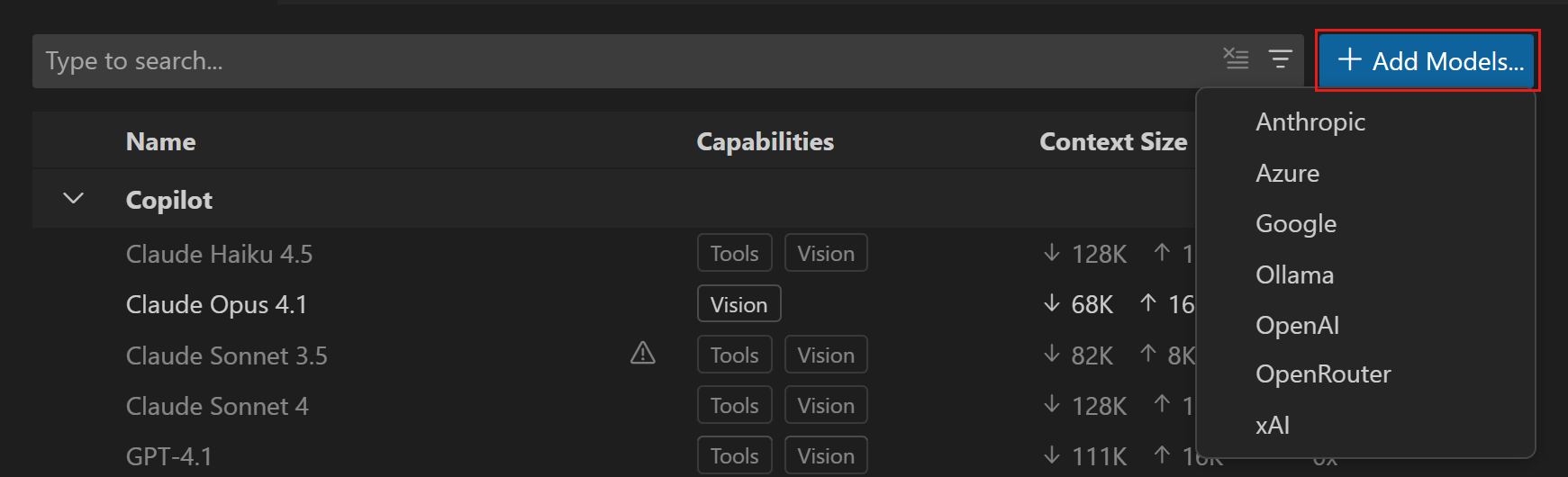
With BYOK in VS Code, you can add models from providers like Azure, Anthropic, Huggingface, Gemini, OpenAI, OpenRouter, or you can run a model locally with Ollama, Foundry Local, and more, then use them directly from the Chat model picker.
What is BYOK?
BYOK lets you use a language model from a supported provider by adding your own API key or endpoint configuration in VS Code. Once configured, those models appear in the same Chat model picker you already use for Copilot. Support is built in for several providers and VS Code is extensible, so any model provider can enable support through an extension.
This gives you more choice for chat and agent workflows. For example, you can:
Try models that are not built into VS Code.
Use a provider your organization already has billing or governance set up for.
Connect to local models through providers such as Ollama or Foundry Local.
Pick different models for different tasks, such as quick Q&A, planning, or multi-step agent work.
The goal is to allow you to choose the right model and keep working.
What BYOK works with
BYOK models are available for VS Code chat experiences, including agent workflows when the selected model supports the required capabilities.
There are a few important details to keep in mind:
BYOK models work without signing into a GitHub account and without a Copilot plan. You can add and use models entirely with your own API keys, including fully offline scenarios with local models.
BYOK applies to chat and utility tasks, not standard code completions.
Some AI features, such as semantic search, inline suggestions, and features that rely on embeddings, still require a GitHub account or Copilot support.
Usage for provider-backed BYOK models is billed directly by that provider and does not count against GitHub Copilot request quotas.
For Copilot Business and Enterprise, organization administrators can control BYOK availability through Copilot policy settings.
In other words, BYOK expands model choice in VS Code Chat, but it does not replace every Copilot-powered feature in the editor.
Getting started with BYOK
The easiest way to get started is through the Language Models editor.
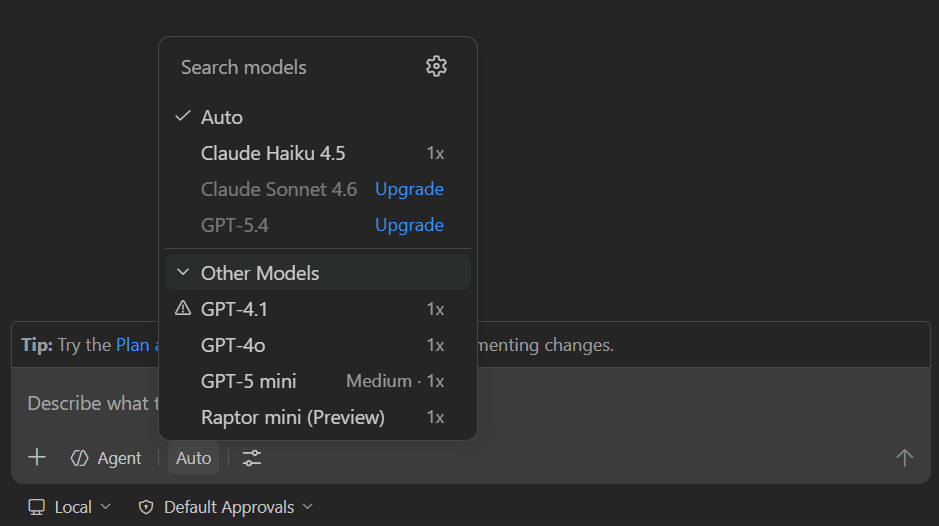
You can open it from the Chat model picker by selecting the Manage Language Models gear icon, or you can run Chat: Manage Language Models from the Command Palette.
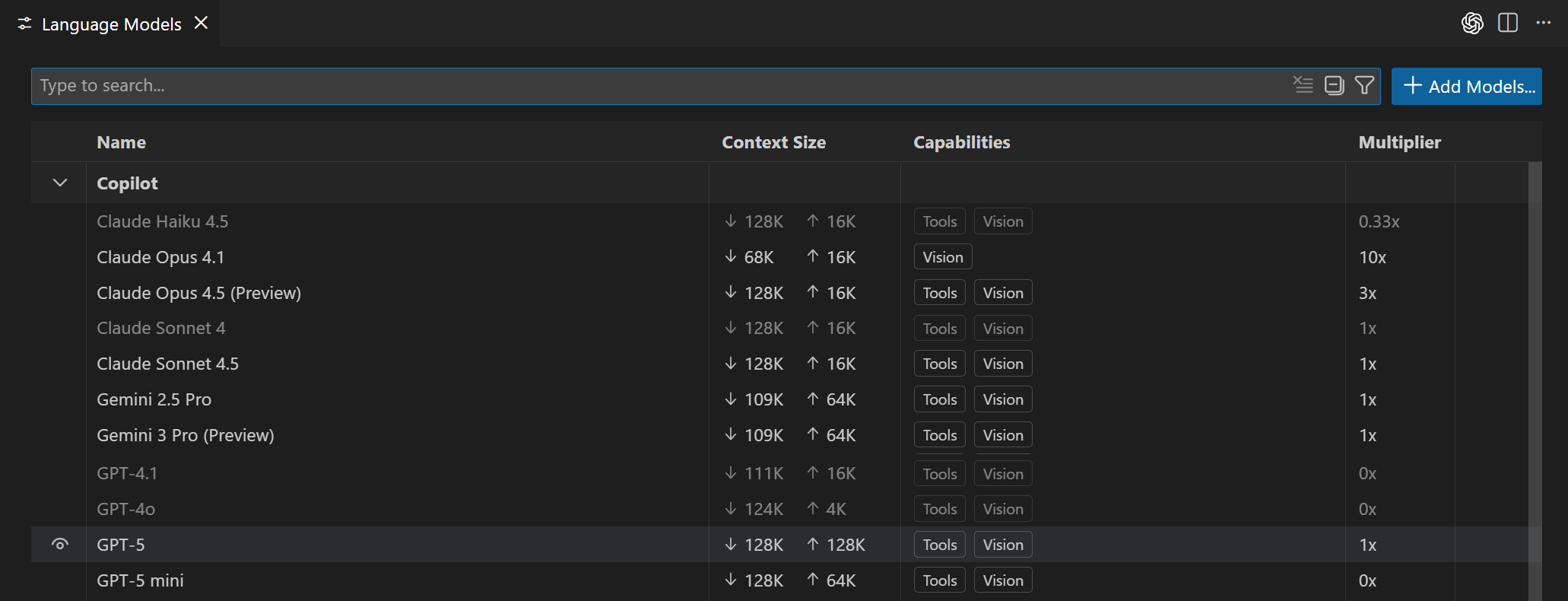
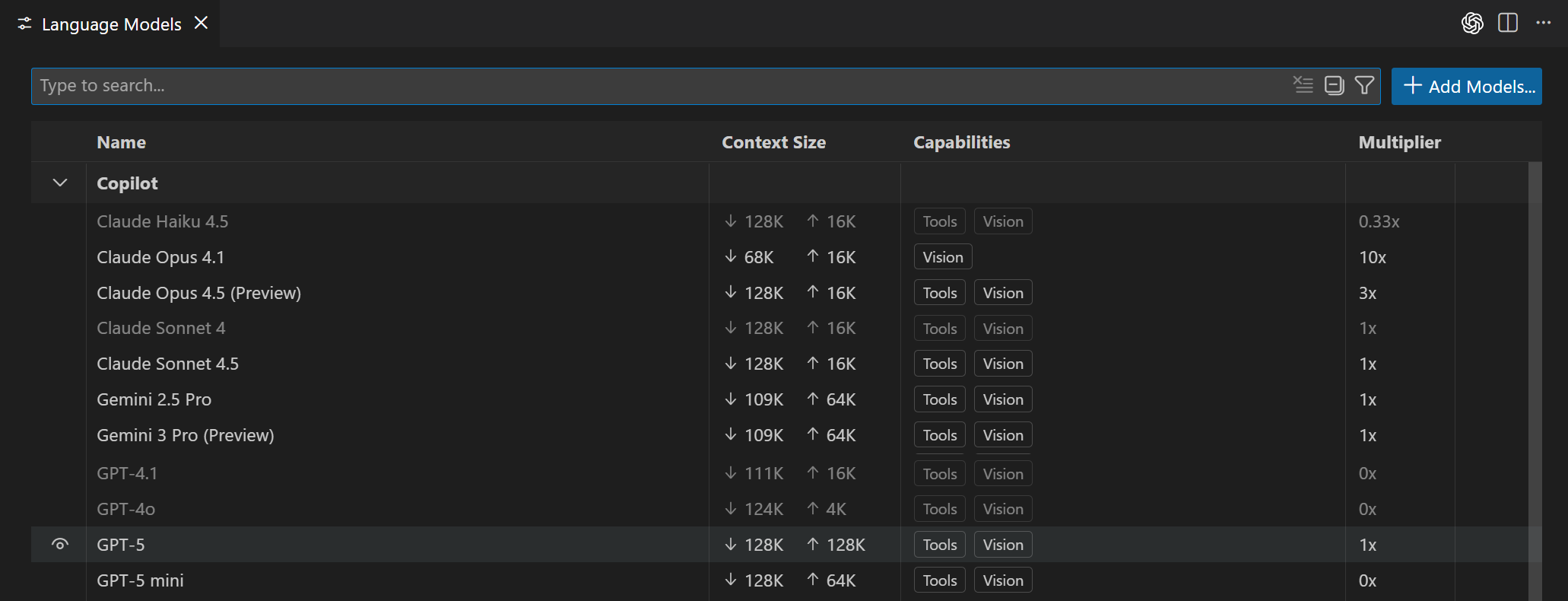
The Language Models editor shows the models available to you, grouped by provider. It also shows useful details like model capabilities, context size, billing information, and whether a model is visible in the picker.
This is also where you can keep the model picker focused. If you are testing several providers, you can hide models you do not use often and keep your day-to-day models easy to find.
Adding models from a built-in provider
If the provider you want is built into VS Code, setup is a few clicks.
Open Chat: Manage Language Models.
Select Add Models.
Choose a provider.
Enter a group name for the models. This is the label shown in the model picker and Language Models editor.
Enter the provider details, such as an API key, endpoint, deployment name, or other required configuration.
Select the model from the Chat model picker.
Depending on the provider, VS Code might open a chatLanguageModels.json file so you can finish configuring model details.
For example, a Mistral configuration specifies the endpoint URL, API type, and model capabilities:
The exact fields depend on the provider and model. The important part is that after the provider is configured, the model becomes available from the same picker you use for the rest of Chat. For more information, check out the Language Model docs.
Adding models from extensions
VS Code also supports language model provider extensions. These extensions can contribute models directly into the Language Models editor and Chat model picker.
To find provider extensions:
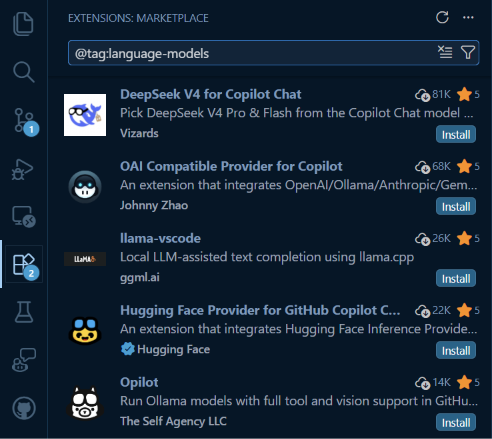
Open the Extensions view.
Search for @tag:language-models.
Install the provider extension you want to use.
Follow the extension’s setup instructions.
Select the model from the Chat model picker.
This extensibility is a big part of the BYOK story. Instead of every provider needing to be hard-coded into VS Code, extensions can bring new model providers into the editor as the ecosystem evolves.
Leveraging utility models
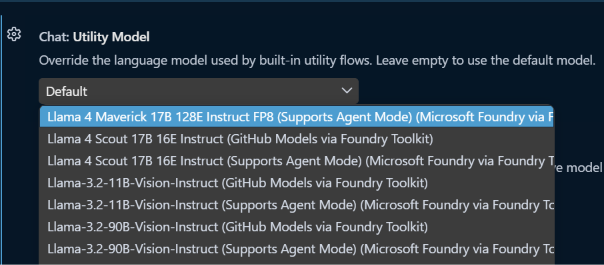
VS Code also uses lightweight models in the background for small tasks like generating chat titles, commit messages, and rename suggestions. These default to built-in Copilot models and most users won’t need to touch them. But if you’re using BYOK without signing into a GitHub account, those defaults aren’t available. VS Code will show a notification in the Chat view prompting you to configure them. Set
chat.utilityModel
and
chat.utilitySmallModel
to one of your BYOK models to keep those features working. A fast, inexpensive model works well here.
Choosing the right model
One of the best parts of BYOK is that you do not have to use one model for everything.
For everyday work, you might choose:
A fast model for quick questions, summaries, and small edits.
A reasoning model for planning, debugging, or complex refactors.
A local model when you want to experiment offline.
A provider-specific model when your team already has workflows around that provider.
Simply choose which model you want to use in the model picker below the Chat box.
Try it out
BYOK gives you more flexibility in VS Code without adding more tools to your workflow. You can keep using the built-in Copilot models, add models from providers you already use, experiment with local models, and choose the right model for each task from one place.
We are continuing to improve model choice in VS Code, and your feedback helps shape what comes next. Try BYOK with your workflow and let us know what you think in the VS Code repository.
Themes are personal. Some of us live in dark mode, some swear by high contrast, and some of us have very strong opinions about that one shade of blue from years ago. The new themes in Visual Studio 2026 are built on Fluent, which gives us a much more consistent and accessible foundation, but we have heard from plenty of you who want more control over specific colors. Accent colors, hover states, the line between the shell and the tab headers… the small things that make an IDE feel like yours.
So, we did something about it.
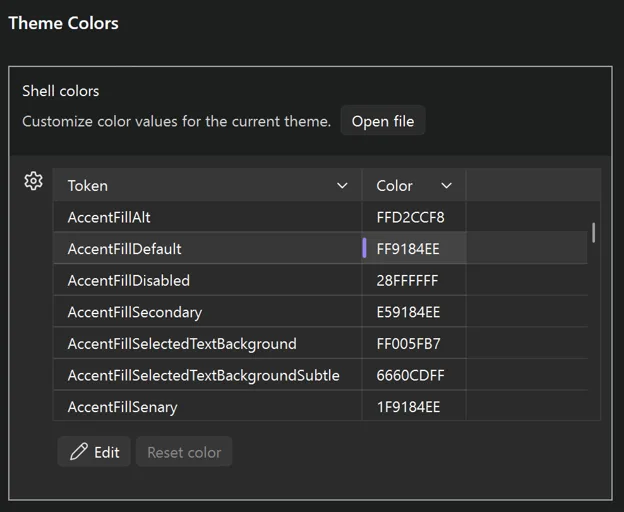
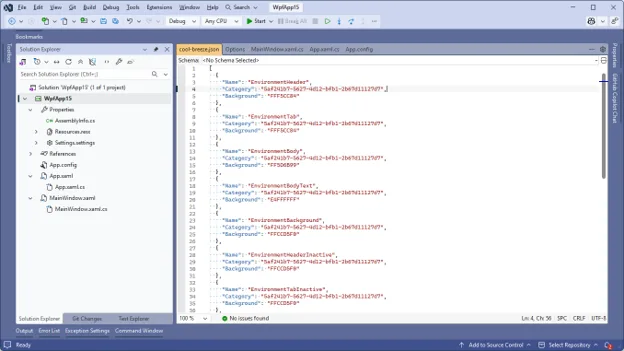
Visual Studio now has a new Theme colors options page that lets you customize any Fluent color token directly inside the IDE. No extensions, no JSON files to hunt down, no restarts. Just open the page, find the token you want, and pick a new color.
Where to find it
Open it from Tools > Options > Environment > Visual Experience > Theme colors. You’ll see every Fluent color token in the active theme listed in a searchable grid. Pick one, change the color, and the change applies live.
Customizations are per-theme
This is the part we like the most. Whatever you change is saved against the current theme, not globally. So, you can have your own personal twist on Dark, a different twist on Light, and a wildly different one on a tinted theme, and switching between them brings your customizations along automatically.
If you go too far down a rabbit hole, there’s a per-color reset so you can revert a single token without throwing away the rest of your work.
New tokens for more granular control
Alongside the options page, we also added some new color tokens that give you more separation between parts of the shell. The most commonly asked-for one is being able to color the tab and window headers independently from the rest of the shell chrome, which, among other things, lets you get pretty close to a classic retro look if that’s what you’re after.
…and Visual Studio will use it to override the theme it’s named after. The file name has to match the theme you want to override – so cool-breeze.json overrides Cool Breeze, dark.json overrides Dark, and so on. Restart Visual Studio and the overrides take effect on top of that theme.
Here’s an example set of overrides that leans Cool Breeze in a more retro, blue direction. Save it as cool-breeze.json in the folder above:
Share that file with a teammate, and they’ll see the same look the next time they launch Visual Studio – no extension to install, no theme to package up.
You can also grab the Blue Steel theme pack that ships with these new colors to mimic the retro blue theme.
Why this matters
Themes used to be an all-or-nothing thing. If you didn’t love one of the built-in options, your only real path was an extension that replaced the entire theme. That’s a lot of overhead for what is often a very small change (“I just want this one color to be a little less bright.”).
The new options page is meant to fix exactly that. Quick, one-off customizations should feel quick. Bigger overhauls still belong in extensions, and the marketplace is full of great ones, but most of the feedback we get is about a handful of specific tokens. Now you can fix those in about ten seconds.
Availability
This is now in latest version of Visual Studio 2026 (18.7). Give it a try, break things in interesting ways, and let us know in the comments what tokens you ended up changing – we’re always curious how people set up their IDEs.
Pull request integration in Visual Studio has been one of the most requested Git features. Developers have been asking for a way to open a PR, inspect the changes, discuss feedback, and finish the review without switching to the browser. The feedback on that request has played a big role in shaping this experience over time.
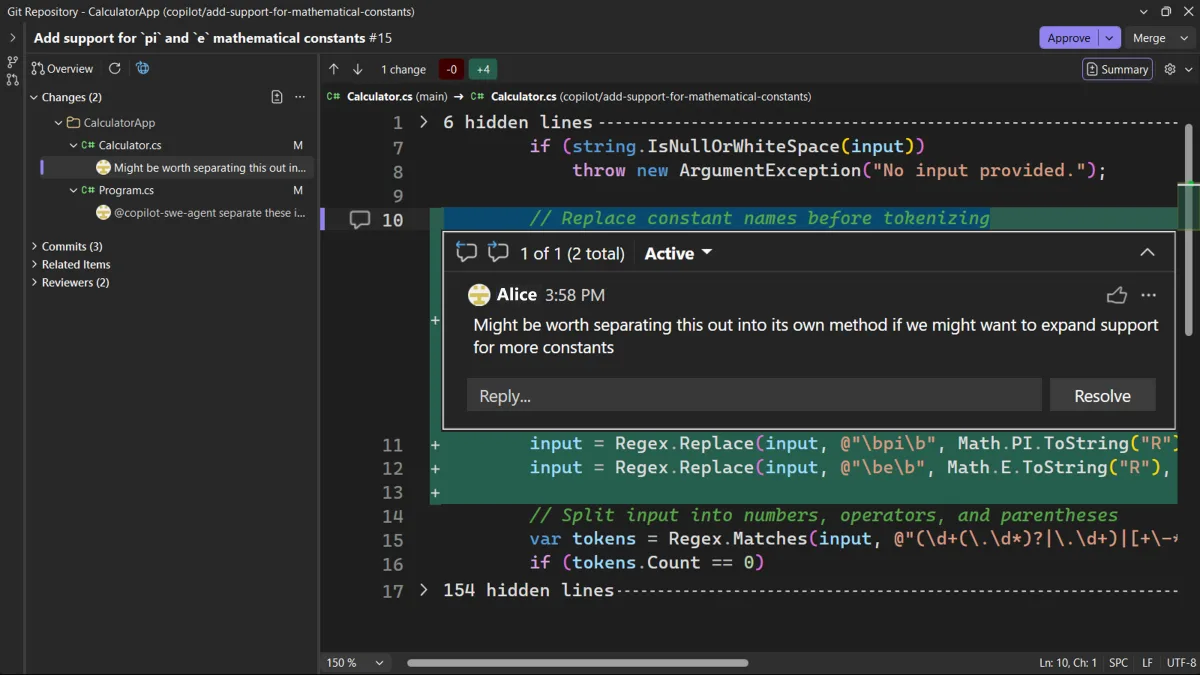
You’ve been able to create pull requests in Visual Studio since 2024. Now you can also review, comment on, and approve pull requests from both GitHub and Azure DevOps, all without leaving the IDE.
Find and open pull requests
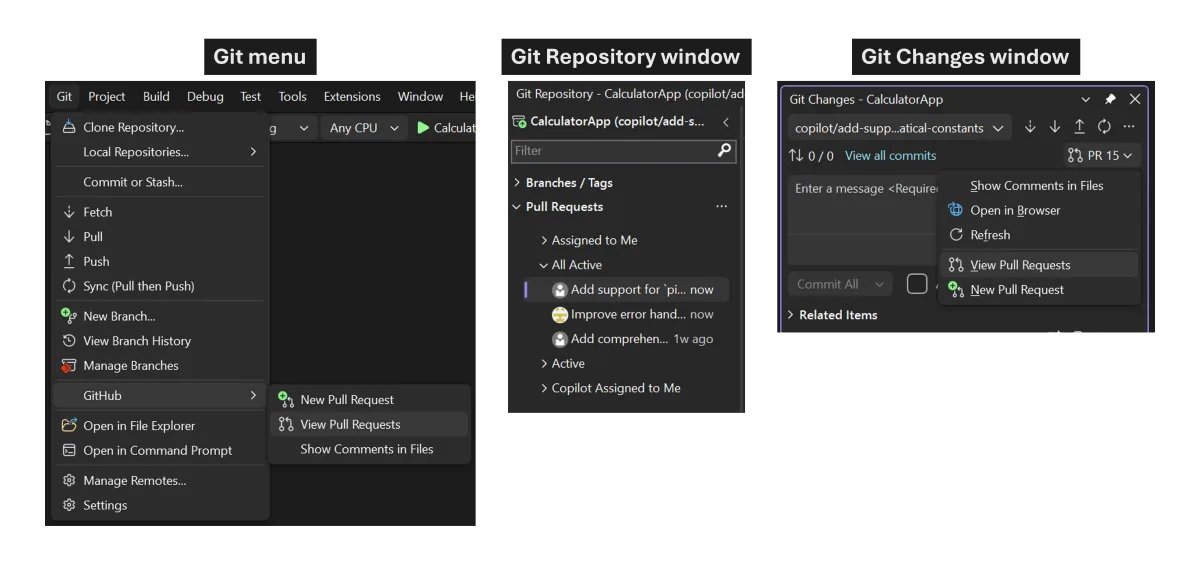
You can view the list of pull requests for the open repository from the Git Repository window, the Git Changes window, or the Git menu. If your current branch already has an active PR, you can also open it directly from Git Changes.
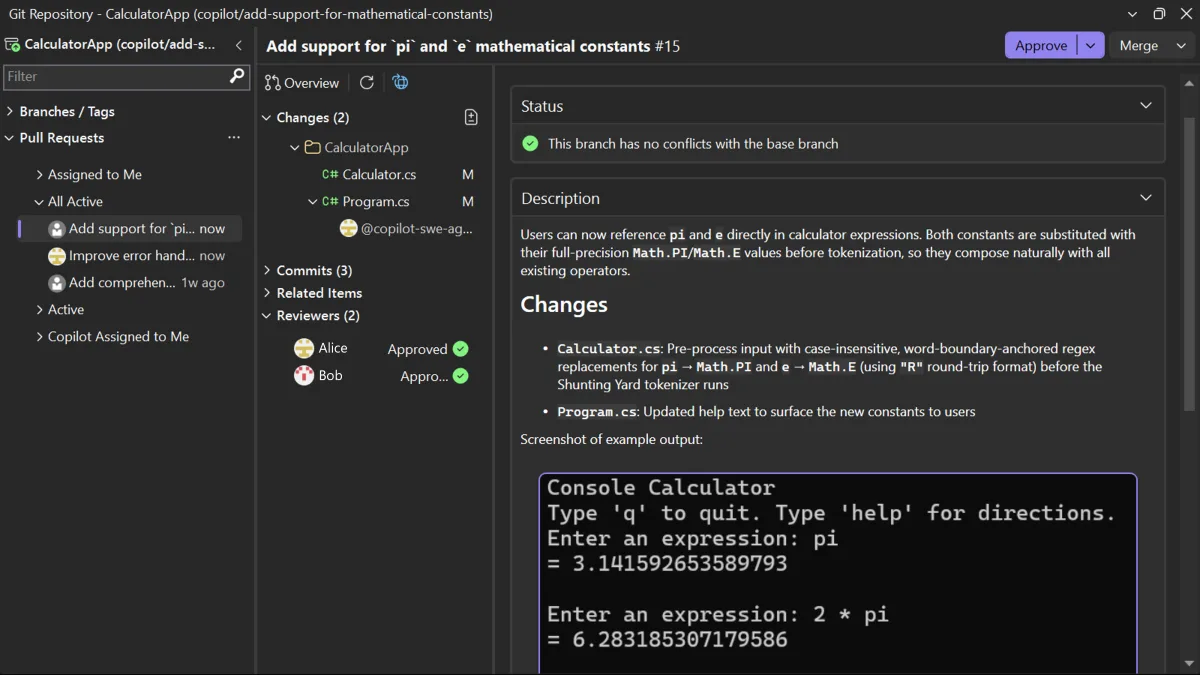
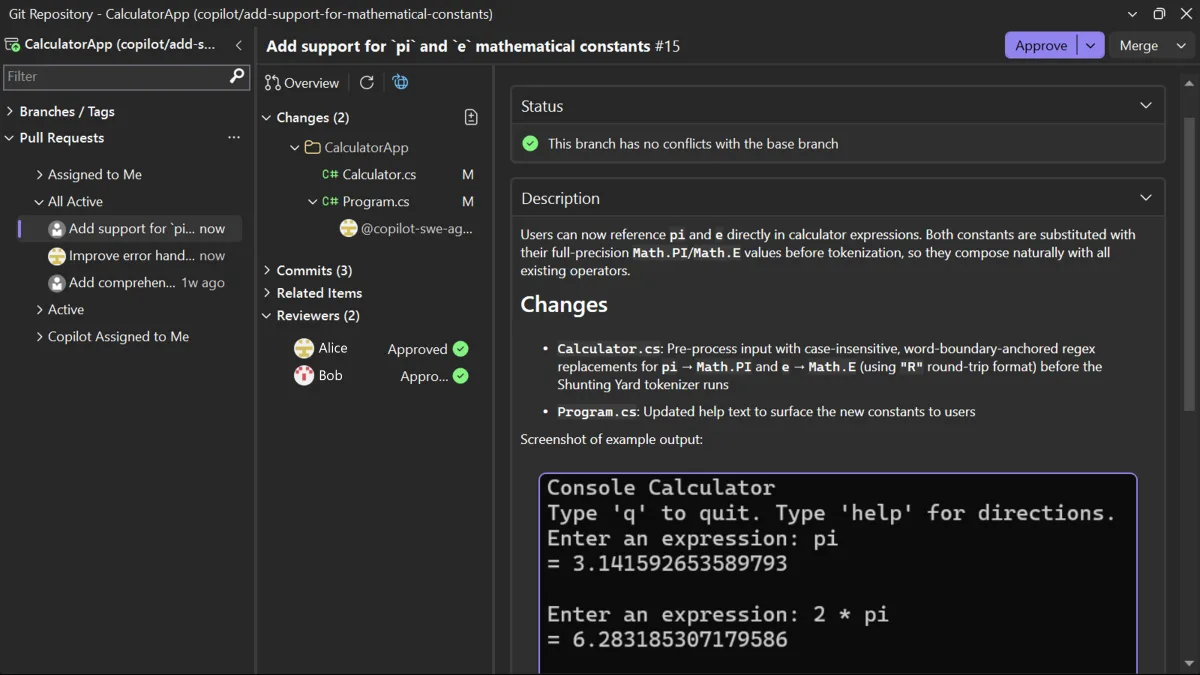
When you open a pull request, you can see the overview, changes, commits, and reviewers together in one place. If a teammate asks for a quick review, you can open Visual Studio, find the PR, and get straight to what you need.
From there, you can choose how deep you want to go. You can review the pull request without checking out the branch, which lets you inspect the changes while keeping your current branch, uncommitted changes, and working state intact.
If you want a closer look, you can also check out the PR branch and use Visual Studio’s navigation, build, and debugging tools to dig into the code. Reviewing without checking out is great for a quick pass, while checking out the branch is better when you want to investigate more deeply.
When you’re juggling multiple reviews, you can switch between active pull requests without having to check out all of them. That makes it easier to jump in on reviews during the day, then get back to your own work.
Browse the changes
The pull request view is designed to help you move through a pull request quickly. Open any changed file to see the diff inline or side by side, or use the multi-file summary view to see all changes at a glance.
Tip: If you want a wider view of the diff, collapse the left panel and focus on the code.
You can also review commit by commit, which is useful when a pull request covers several logical steps and you want to understand how the change evolved.
Comment and discuss
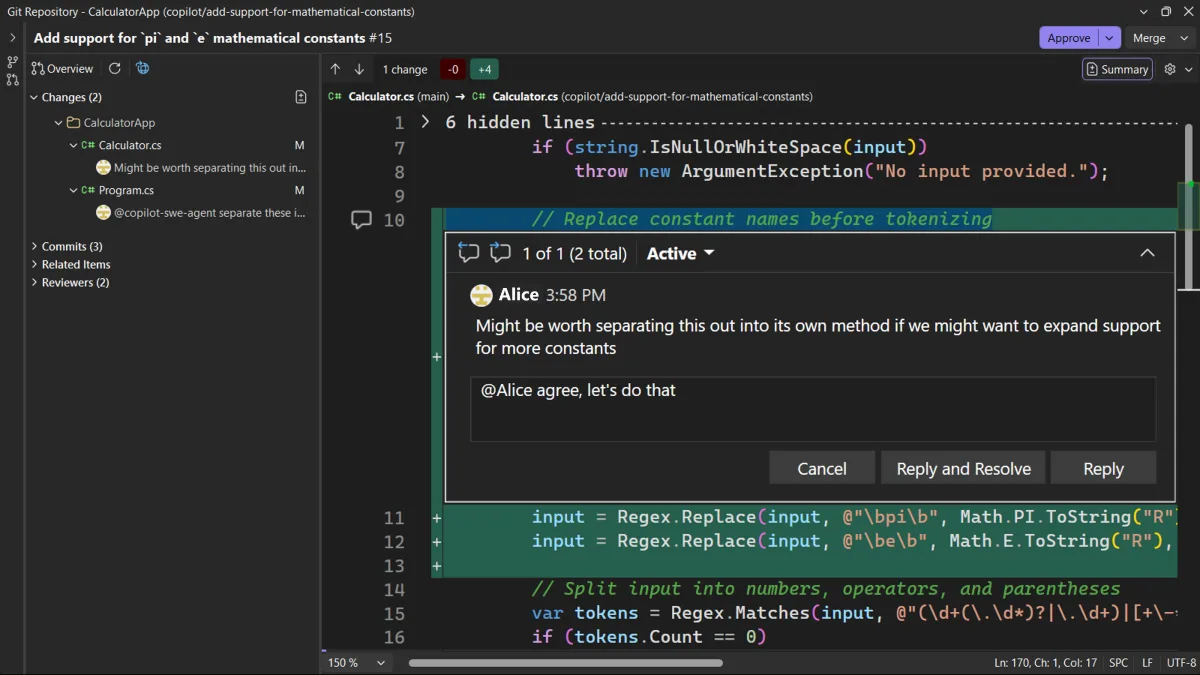
You can leave comments on specific lines, reply to threads, and resolve conversations when the discussion is done. Files with active comments are marked in the Changes list, so it’s easy to spot where discussions are happening. Everything syncs between Visual Studio and the browser.
When you’re reviewing a pull request in checked-out code, you can apply a code suggestion directly to your working copy with one click. When there isn’t one, Copilot can generate a fix based on the comment and surrounding code, so you can evaluate and test it right away.
Approve, complete, and merge
When you’re ready to decide, you can see the information you need and act without leaving the review. On the Overview tab, you can see status checks, merge conflicts, and whether any required approvals are still missing. You can approve the pull request from the diff view, with additional vote options for Azure DevOps pull requests.
You can also complete or merge the pull request right in the IDE. If plans change, you can convert it to draft or close it. Once you open the pull request, you can get all the way through the review in one place.
Try pull request review in 18.7
This is a big step forward for pull request review in Visual Studio, but we’re not done. We’re still working on features like comment filtering, a timeline of PR activity, and a smoother checkout flow for deeper review. We’re also keeping a close eye on feedback to figure out what’s next.
The pull request review experience is now available in the June 18.7 stable release. Try it out, and let us know what you want to see next on Developer Community or through our survey at aka.ms/ReviewPR.
Thanks to everyone who shared feedback and tried out pull request review in Insiders along the way. Your feedback helped shape the experience we’re shipping now.
Welcome to the 1.125 release of Visual Studio Code.
Happy Coding!
June 9, 2026
Add the /chronicle command set to the Agent Host, providing session history insights — standup, search, tips, cost-tips, improve, and reindex — directly from chat. #320648
Improve the display of file paths in the Agent Host for better readability. #316541
June 8, 2026
Enhance the Cache Explorer view to make multi-agent sessions easier to understand and navigate, and to surface more detailed prompt-signature allocation information. #320137
Add support for qualified tool names in tool sets. #271589
We really appreciate people trying our new features as soon as they are ready, so check back here often and learn what’s new.
Welcome to the 1.124 release of Visual Studio Code.
Happy Coding!
June 4, 2026
Scope chat input history to the current session in the Agents window. Pressing Up/Down in the chat input only navigates prompts submitted in that same session, instead of including prompts from other sessions. #319341
June 2, 2026
Multi-chat support for local sessions in the Agents window. #319602
Background send in the Agents window. Press Alt+Enter or Alt-click Send to start a session without navigating into it, so you can immediately compose your next message. #319598
Sessions grid keyboard navigation and bulk close. Use Ctrl+1–Ctrl+9 (Cmd+1–Cmd+9) to focus sessions by position, and Ctrl+K Ctrl+W (Cmd+K Cmd+W) to close all sessions at once. #319596
June 1, 2026
Regex flags for folding markers. Folding marker patterns in language-configuration.json now support a { pattern, flags } object form, enabling flags like case-insensitive matching. #72989
We really appreciate people trying our new features as soon as they are ready, so check back here often and learn what’s new.
Microsoft Build kicks off today in San Francisco, June 2 and 3. If you cannot make it in person, the sessions are streaming online for free, and I want to walk you through what we are announcing for Visual Studio this week.
One idea tie most of it together. Code is an asset, not just an artifact. The tools around it should help you keep it healthy, correct, and easy to evolve as your codebase grows. Every announcement below is a step toward that.
Agents that participate in the work, not next to it
GitHub Copilot in Visual Studio is moving beyond chat and completions. The direction is agents that can participate more actively in the development lifecycle, helping with debugging, profiling, and testing alongside you.
This is not about replacing the tools you already rely on. It is about connecting them more effectively. The debugger, profiler, and test tools already provide deep insight. Agents help turn that insight into action:
Identify issues faster
Explain what is going on
Suggest concrete fixes
Help validate the results
This matters most if you work in large C# or C++ codebases where the hard problems are not “write this function” but “figure out why this thing is slow under load.” That is the work Visual Studio has always been built for. Agents extend it.
Catching errors before the build starts
This one is small and I think you will notice it daily.
Today, a build can still run even when there are obvious errors already sitting in the Error List. The build runs, you wait, the build fails on something you could have seen up front.
We are changing that flow so Visual Studio checks errors and warnings before the build starts. Simple change. Real time saved. The kind of thing that adds up across a week.
Merge conflicts with less manual work
Merge conflicts are something every developer runs into, and they are rarely a good use of anyone’s time.
We are working on AI-assisted conflict resolution to reduce the manual effort these situations require. The goal is not to auto-merge everything. The goal is to help you understand the conflict, make a sensible decision, and get back to the work you were actually doing.
Modernization that moves your apps forward
This summer, we are bringing new capabilities to GitHub Copilot modernization, the integrated agent experience built into Visual Studio that helps you upgrade your applications to the latest .NET stack.
You can migrate Web Forms applications to Blazor for a modern, component-based web stack. You can add Aspire to existing apps for cloud-ready observability and orchestration. The modernization agent assesses your project, builds a plan, and executes upgrades step by step, helping you improve performance and security without starting from scratch.
If you have been carrying a Web Forms app for years because the rewrite math never penciled out, this is worth a fresh look.
Skills that show up when you need them
One of the harder problems with AI tooling is that the right capability often exists, but it shows up at the wrong moment, or you have to know to ask for it.
We are introducing Microsoft-authored skills that apply automatically based on your project type and the task at hand. Less prompting. Less guesswork. A more helpful experience overall. The right capabilities show up when you need them, without requiring you to already know they exist.
Bring your own key, bring your own model
This is the one I have been waiting to talk about.
Historically, AI integration in Visual Studio has been limited to a small set of sanctioned endpoints. That works for a lot of developers, but it has left real customers behind, including teams whose environments call for different choices.
We are moving toward a BYOK approach, bring your own key or model, so you can use different AI models whether they run locally or in the cloud. That gives you more flexibility around performance, cost, and compliance based on the needs of your environment.
If you have been waiting for Visual Studio to meet your environment instead of asking your environment to bend, this is the announcement to watch.
Built on the GitHub Copilot SDK
Underneath all of this is a more unified foundation. Visual Studio is moving to the GitHub Copilot SDK as the foundation for its AI integration going forward.
This one sits below the surface. You will not see it in a menu. What it means in practice is that we can move faster, stay aligned with the broader ecosystem, and bring new capabilities into Visual Studio sooner. Worth knowing about, even though you will mostly feel it through everything else getting better.
Where this is heading
If there is one way to sum up this roadmap, it is this. We are focused on a set of meaningful improvements that remove friction from the inner loop and make day-to-day development feel better.
Code that compiles by default. Faster feedback before you build. Smarter handling of real-world pain points like merge conflicts. AI that works with your tools, not next to them. Flexibility in how you bring AI into your environment.
All of it is designed to fit how you already use Visual Studio, not force you into a different workflow.
Watch it live at Build this week
If you want to see this work in action, here are the sessions I would put on your schedule. All times in Pacific.
Microsoft Build opening keynote (KEY01) Tuesday, June 2, 9:30 AM to 12:00 PM PT Satya Nadella and Microsoft leaders open the week with how Microsoft is creating new opportunities for developers across our platforms in this era of AI. This is the one that sets the frame for everything else.
GitHub, Copilot, VS Code, and More: Live from San Francisco (LIVE104) Wednesday, June 3, 9:00 AM to 11:00 AM PT The closest thing Build has to a hallway conversation with the engineers shipping the work. Live demos, surprise guests, live coding, straight from the teams. Watch this one live if you can.
GitHub Copilot in Visual Studio: Agents That Debug, Profile, and Test (BRK207) Wednesday, June 3, 4:00 PM to 4:45 PM PT This is the demo-heavy session on the agents work above, with Mads Kristensen and Nik Karpinsky from the Visual Studio team. You will see agents root-cause bugs using live runtime behavior, pinpoint performance bottlenecks, and build test coverage to catch regressions before they ship. If you work in enterprise C#, .NET, or C++, this is the one.
Make GitHub Copilot Work Your Way: Custom Tools, Context and Workflows (LAB502D) Self-paced lab, opens Tuesday, June 2, at 12:00 PM PT Build custom Copilot agents from scratch, create reusable Agent Skills, and connect to external services via MCP. Works across VS Code, Visual Studio, CLI, and Copilot coding agent. Complete it on your own schedule.
The full Build schedule, including everything streaming online for free, is at build.microsoft.com.
If something we announced today changes how you think about your day-to-day in Visual Studio, I want to hear about it.