Insiders (version 1.111)


VS Code Insiders banner

Last updated: March 5, 2026

These release notes cover the Insiders build of VS Code and continue to evolve as new features are added. To try the latest updates, download Insiders.
To read these release notes online, go to code.visualstudio.com/updates.

You can still track our progress in the Commit log and our list of Closed issues.

These release notes were generated using GitHub Copilot and might contain inaccuracies.

Happy Coding!


March 5, 2026

  • VS Code now recursively searches for *.instructions.md files in subdirectories under .github/instructions/, matching the behavior of Copilot CLI and web-based GitHub Copilot agents. Previously, only files in the root .github/instructions/ directory were discovered. #295944

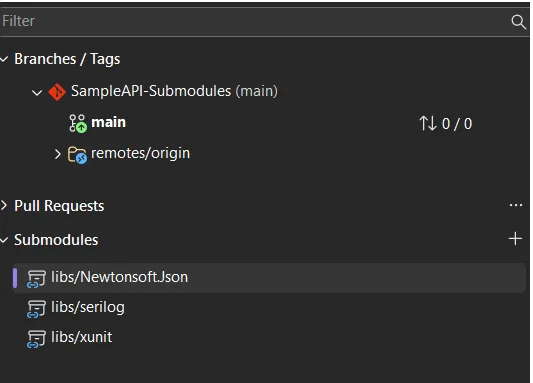
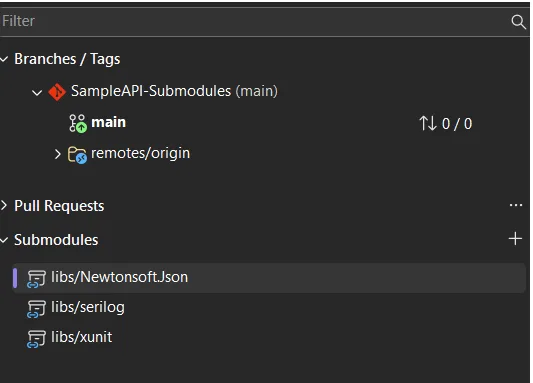
  • You can now copy the name of an item in the Source Control Repositories view by using the context menu option Copy Stash Name, Copy Branch Name, or other. #289824

  • Custom agent frontmatter now supports agent-scoped chat hooks. These hooks only run when the custom agent is selected or invoked via runSubagent. #299337

  • A new /troubleshoot slash command injects agent mode event logs into the chat context. Use it to ask the agent which customizations are loaded, how many tokens are consumed, debug instructions, and more. #299344

  • CLI sessions now support folder and repository isolation, in addition to worktree isolation. #299376

March 4, 2026

  • AI CLI terminal profiles now get a dedicated group in the terminal dropdown, making them easier to discover instead of being listed among other profiles. #293554

March 3, 2026

  • MCP Apps now support file downloads. #298836

  • Add Ctrl+F5 keyboard shortcut for a page refresh in the integrated browser, instead of unexpectedly opening the browser debugger. #291219

March 2, 2026

  • Added OpenTelemetry instrumentation support for Copilot Chat, enabling observability and performance tracing. #298834

  • Chat tips now only appear when a single chat session or the welcome view is visible, avoiding tips in sessions where multiple chat editors are open. #297759

  • After a user acts on or dismisses a chat tip, no more tips are shown for the rest of that session. #297682

  • You can now Go to Definition on localization placeholder strings (for example, %config.settingName%) in package.json to jump directly to the corresponding entry in package.nls.json. #297496

  • Selecting an agent plugin in the Extensions view now opens a detail view with an uninstall button, rendered README, and a list of contributed features. #297246

March 1, 2026

  • Markdown tables in chat now render with a horizontal scrollbar and improved column widths. #265062

February 28, 2026

  • Full-width CJK punctuation characters now render with consistent widths. #242138

  • Add a new foldedLine unit to the cursorMove command, enabling vim-like cursor movement that treats each folded region as a single step. #81498

February 27, 2026

  • Adjusts chat accessibility announcements so the accessibility.verboseChatProgressUpdates setting is respected, reducing unintended speech output (e.g. auto-synthesized TTS) for in-progress “thinking”/progress content. #296720

  • The confirm button in the ask_questions tool’s multi-page UI is repositioned on the last page to prevent overlap with the next-page arrow. #292404

  • Theme token customization now supports relative numeric values for font sizes and weights, instead of requiring absolute numbers. #285891


We really appreciate people trying our new features as soon as they are ready, so check back here often and learn what’s new.

Visual Studio February Update – Visual Studio Blog


This month’s Visual Studio update continues our focus on helping you move faster and stay in flow, with practical improvements across AI assistance, debugging, testing, and modernization. Building on the momentum from January’s editor updates, the February release brings smarter diagnostics and targeted support for real world development scenarios, from WinForms maintenance to C++ modernization.

All of the features highlighted are available in the Visual Studio 2026 Stable Channel as part of the February 2026 feature update (18.3). Please update to the latest version to try out these new features!

WinForms Expert Agent

The WinForms Expert agent provides a focused guide for handling key challenges in WinForms development. It covers several important areas:
Designer vs. regular code: Understand which C# features apply to designer-generated code and business logic.

  • Modern .NET patterns: Updated for .NET 8-10, including MVVM with Community Toolkit, async/await with proper InvokeAsync overloads, Dark mode with high-DPI support, and nullable reference types.
  • Layout: Advice on using TableLayoutPanel and FlowLayoutPanel for responsive, cross-device design.
  • CodeDOM serialization: Rules for property serialization and avoiding common issues with [DefaultValue] and ShouldSerialize*() methods.
  • Exception handling: Patterns for async event handlers and robust application-level error handling.

The agent serves as an expert reviewer for your WinForms code, providing comprehensive guidance on everything from naming controls to ensuring accessibility. The WinForms Agent is automatically implemented and included in the system prompt when necessary.

Smarter Test Generation with GitHub Copilot

Visual Studio now includes intelligent test generation with GitHub Copilot, making it faster to create and refine unit tests for your C# code. This purpose-built workflow works seamlessly with xUnit, NUnit, and MSTest.

GitHub Copilot Chat pane in Visual Studio showing a new chat thread. The Copilot Chat welcome screen appears with a message about checking accuracy, a prompt asking ‘generate tests for my entire solution,’ and the selected model labeled Claude Haiku 4.5. The input box includes a reference button and test generation command.

Simply type @Test in GitHub Copilot Chat, describe what you want to test, and Copilot generates the test code for you. Whether you’re starting fresh or improving coverage on existing projects, this feature helps you write tests faster without leaving your workflow.

Slash Commands for Custom Prompts

Invoke your favorite custom prompts faster using slash commands in Copilot Chat. Type / and your custom prompts appear at the top of the list, marked with a bookmark icon for easy identification.

Copilot Chat slash command menu in Visual Studio showing available commands such as quality check, clear, explain, fix, and generate, with Agent mode enabled and Claude Sonnet 4.5 selected in the chat input area.

We’ve also added two additional commands:

/generateInstructions: Automatically generate a copilot-instructions.md file for your repository using project context like coding style and preferences

/savePrompt: Extract a reusable prompt from your current chat thread and save it for later use via / commands

These shortcuts make it easier to build and reuse your workflow patterns.

C++ App Modernization

GitHub Copilot app modernization for C++ is now available in Public Preview. GitHub Copilot app modernization for C++ helps you update your C++ projects to use the latest versions of MSVC and to resolve upgrade-related issues. You can find our user documentation on Microsoft Learn.

Split view in Visual Studio showing a Markdown file on the left and a rendered preview on the right with an Executive Summary and Key Findings for an MSVC Build Tools upgrade including errors and warnings.

DataTips in IEnumerable Visualizer

You can now use DataTips in the IEnumerable Visualizer while debugging. Just hover over any cell in the grid to see the full object behind that value, the same DataTip experience you’re used to in the editor or Watch window.

When you hover over a cell, a DataTip shows all the object’s properties in one place. This makes it much easier to debug collections with complex or nested data. Whether it’s a List<T> of objects or a dictionary with structured values, one hover lets you quickly inspect everything inside.

Visual Studio IEnumerable Visualizer showing the expression lpvm.Posts. A table displays one row with columns for PostViewModel properties, including Categories with a count of one, AllCategories, NewCategory, and AllowComments set to True. A tooltip shows a CategoryViewModel object with an option to view raw data.

Analyze Call Stack with Copilot

You can now Analyze Call Stack with Copilot to help you quickly understand what your app is doing when debugging stops. When you pause execution, you can select Analyze with Copilot in the Call Stack window. Copilot reviews the current stack and explains why the app isn’t progressing whether the thread is waiting on work, looping, or blocked by something.

This makes the call stack more than just a list of frames. It becomes a helpful guide that shows what’s happening in your app so you can move faster toward the real fix.

Profiler agent with Unit Test support

The Profiler Agent (@profiler) now works with unit tests. You can use your existing tests to check performance improvements, making it easier to measure and optimize your code in more situations. The agent can discovers relevant unit tests/BenchmarkDotNet benchmarks that exercise performance-critical code paths.

If no good tests or benchmarks are available, it automatically creates a small measurement setup so you can capture a baseline and compare results after changes. This unit-test-focused approach also makes the Profiler Agent useful for C++ projects, where benchmarks aren’t always practical, but unit tests often already exist.

GitHub Copilot Chat showing profiler suggestion to optimize code step identify scope message requesting permission to run CPU performance profiler with confirm and deny buttons and model selector visible

Faster and More Reliable Razor Hot Reload

Hot Reload for Razor files are now faster and more reliable. By hosting the Razor compiler inside the Roslyn process, edits to .razor files apply more quickly and avoid delays that previously slowed Blazor workflows. We also reduced the number of blocked edits, with more changes now applying without requiring a rebuild, including file renames and several previously unsupported code edits. When a rebuild is still required, Hot Reload can now automatically restart the app instead of ending the debug session, helping you stay in flow.

We are continuing to invest in features that help you understand, test, and improve existing code, not just write new code. Try these updates in the Visual Studio 2026 Stable Channel and let us know what is working well and where we can improve. Your feedback directly shapes what we build next.

Custom Agents in Visual Studio: Built in and Build-Your-Own agents


Agents in Visual Studio now go beyond a single general-purpose assistant. We’re shipping a set of curated preset agents that tap into deep IDE capabilities; debugging, profiling, testing alongside a framework for building your own custom agents tailored to how your team works.

Each preset agent is designed around a specific developer workflow and integrates with Visual Studio’s native tooling in ways that a generic assistant can’t.

  • Debugger – Goes beyond “read the error message.” Uses your call stacks, variable state, and diagnostic tools to walk through error diagnosis systematically across your solution.
  • Profiler – Connects to Visual Studio’s profiling infrastructure to identify bottlenecks and suggest targeted optimizations grounded in your codebase, not generic advice.
  • Test – (when solution is loaded) Generates unit tests tuned to your project’s framework and patterns, not boilerplate that your CI will reject.
  • Modernize (.NET and C++ only) -Framework and dependency upgrades with awareness of your actual project graph. Flags breaking changes, generates migration code, and follows your existing patterns.

Access them through the agent picker in the chat panel or using ‘@’ in chat.

The presets cover workflows we think matter most, but your team knows your workflow better than we do. Custom agents let you build your own using the same foundation—workspace awareness, code understanding, tools accessed by your prompts, your preferred model, and your tools.

Where it gets powerful is MCP. You can connect custom agents to external knowledge sources internal documentation, design systems, APIs, and databases so the agent isn’t limited to what’s in your repo.

A few patterns we’re seeing from teams:

  • Code review that checks PRs against your actual conventions, connected via MCP to your style guide or ADR repository
  • Design system enforcement connected to your Figma files or component libraries to catch UI drift before it ships
  • Planning helps you think through a feature or task before any code is written. Gathers requirements, asks clarifying questions, and builds out a plan that you can hand off

The awesome-copilot repo has community-contributed agent configurations you can use as starting points.

Get started

Custom agents are defined as .agent.md files in your repository’s .github/agents/ folder:

your-repo/
└── .github/
    └── agents/
        └── code-reviewer.agent.md

A few things to note:

  • This is a preview feature; the format of these files may change over to support different capabilities
  • If you don’t specify a model, the agent uses whatever is selected in the model picker
  • Tool names vary across GitHub Copilot platforms- check the tools available in Visual Studio specifically to make sure your agent works as expected
  • Configurations from the awesome-copilot repo are a great starting point, but verify tool names before using them in VS

Tell us what you’re building

Share your configurations in the awesome-copilot repo or file feedback here.

asp.net – IIS express serves one .asmx service, but always returns 404 on another


I upgraded an old solution to Visual Studio 2015, and ran into trouble with one of the .asmx web services. I have a number of them in this solution, and IIS express loads and runs them all correctly, except one. This one service always returns a 404 if I try to load the .asmx URL in IIS express. It runs correctly in full-blown IIS.

None of the problems I’ve found online solve my situation. Here are the details:

  1. The web.config files of the working and non-working web services are identical.
  2. The IIS express/.csproj configuration is identical, except for the port and project names, and a few different assembly references.
  3. The projects are virtually identical as well, with only a single .asmx service file with a code behind .asmx.cs and .asmx.resx files.
  4. The C:\Users[my username]\IIS Express\config\applicationhost.config doesn’t list any of the working or non-working services, so that can’t be the difference.
  5. Examining the complete trace from C:\Users[my username]\IIS Express\TraceLogFiles[service]\fr000040.xml for a request on working and non-working services, they are virtually identical right up to step 109, AspNetMapHandlerEnter. The working service goes right to AspNetMapHandlerLeave at step 110, where the non-working service sets a few cache headers and then at step 112 sets the status code to 404 with a “warning” label on it.

I’m not sure what’s going on here or what I can do next, so any suggestions would be much appreciated.

How to configure Visual Studio 2022 to sign Git commits for GitHub using SSH or GPG keys?


I am having trouble configuring Visual Studio 2022 to sign Git commits for GitHub using SSH or GPG keys.

I tried setting up GPG signing using the following commands:

git config --global user.signingkey 3AA5C34371567BD2
git config --global commit.gpgsign true

However, when I try to make a commit in Visual Studio.

I get the following error:

Your Git hook is not supported. This is probably because the first line is not "#!/bin/sh".

I checked all the files in the .git/hooks directory and they all have #!/bin/sh as the first line.

If I don’t set git config --global commit.gpgsign true, the commit goes through but on GitHub it is marked as unverified.

How can I properly configure Visual Studio to sign Git commits for GitHub using SSH or GPG keys? Any help would be greatly appreciated.

Update:

I found a solution for signing commits with SSH in Visual Studio 2022. Here are the steps I followed:

  1. Edit the gitConfig file using the command git config --global --edit.
  2. Add the following line: [gpg "ssh"] sshCommand = C:/Windows/System32/OpenSSH/ssh.exe.
  3. Run the following commands:
    git config --global gpg.format ssh,
    git config --global user.signingkey /C:/Users/Admin/.ssh/id_signinged25519.pub and
    git config --global commit.gpgsign true.

Now, when I do a PUSH with Visual Studio, the commits have the verified label in GitHub.

c# – How to activate installation of an apk through my MAUI app


.Net 9.0 maui – 2026

AndroidManifest.xml

<!-- to App update apk -->
<provider
  android:name="androidx.core.content.FileProvider"
  android:authorities="com.companyname.xxxx.fileprovider"
  android:exported="false"
  android:grantUriPermissions="true">
  <meta-data
        android:name="android.support.FILE_PROVIDER_PATHS"
        android:resource="@xml/file_path"/>
</provider>

add /Android/Resources/xml/file_path.xaml

<paths>  
    <files-path name="my_files" path="." />    
    <cache-path name="my_cache" path="." />   
    <external-path name="my_external" path="." />    
    <root-path name="root" path="." />
</paths>

add clsse /Android
//https://learn.microsoft.com/en-us/answers/questions/2141510/how-to-update-version-in-apk-maui-application-auto

public static class apkInstallHelper
{

     private const int RequestCode = 200;
       public static void InstallAPK(string filepath)
       {

        if (Build.VERSION.SdkInt >= BuildVersionCodes.R && !Platform.CurrentActivity.PackageManager.CanRequestPackageInstalls())

        {
            Intent intent = new Intent(Settings.ActionManageUnknownAppSources);

            intent.SetData(Uri.Parse("package:" + Platform.CurrentActivity.PackageName));

            Platform.CurrentActivity.StartActivityForResult(intent, RequestCode);
        }

        installApk(filepath);
    }

private static void installApk(string filepath)
{

        Java.IO.File file = new Java.IO.File(filepath);

        Intent intent = new Intent(Intent.ActionView);
        Uri apkUri = FileProvider.GetUriForFile(Platform.CurrentActivity, "com.companyname.micropresdev.fileprovider", file);

        intent.SetDataAndType(apkUri, "application/vnd.android.package-archive");
        intent.SetFlags(ActivityFlags.NewTask | ActivityFlags.GrantReadUriPermission);
        Platform.CurrentActivity.StartActivity(intent);
    }
}

go to update:

{
            string urlS3 = "https://your server/update.apk"; 
            string caminhoPrivado = Path.Combine(FileSystem.AppDataDirectory, "update.apk");

        try
        {
               using var client = new HttpClient();

   
               var data = await client.GetByteArrayAsync(urlS3);

              await File.WriteAllBytesAsync(caminhoPrivado, data);

              MicroPresDEV.Platforms.Droid.apkInstallHelper.InstallAPK(caminhoPrivado);


           }
            catch (Exception ex)
            {
               await Shell.Current.DisplayAlert("Erro S3", "Falha no download: " +  ex.Message, "OK");
         }


}

visual studio – One .hlsl to many .cso


This is a visual studio problem not a MSBuild problem. So the solution is just to factor out the duplicate items into a separate MSBuild file

.vcxproj

<Import Project="MyShader.targets" />

MyShader.targets

<Project xmlns="http://schemas.microsoft.com/developer/msbuild/2003">
  <ItemGroup>
    <FxCompile Include="MyShader.hlsl">
      <PreprocessorDefinitions>USE_X=1</PreprocessorDefinitions>
      <ObjectFileOutput>MyShader_USEX.cso</ObjectFileOutput>
    </FxCompile>

    <FxCompile Include="MyShader.hlsl">
      <PreprocessorDefinitions>USE_Y=1</PreprocessorDefinitions>
      <ObjectFileOutput>MyShader_USEY.cso</ObjectFileOutput>
    </FxCompile>

    <FxCompile Include="MyShader.hlsl">
      <PreprocessorDefinitions>USE_X=1;USE_Y=1;USE_Z=1</PreprocessorDefinitions>
      <ObjectFileOutput>MyShader_XYZ.cso</ObjectFileOutput>
    </FxCompile>
  </ItemGroup>
</Project>

I have a python script to generate the .targets file


Edit:

My project didn’t load when I opened up visual studio this morning 🤦‍♂️. I’ve opened a ticket

https://developercommunity.visualstudio.com/t/Cannot-load-project-with-an-import-with/11045727

I’m just going to have my python script generate a file for each permutation.

visual studio – Conditionally include .cpp file per Configuration|Platform and hide it completely from Solution Explorer


I’m using MSVC with a .vcxproj project.

I want a specific file (xyz.cpp) to:

  • Be included only for a specific Configuration|Platform (e.g. Debug|x64)

  • Be completely absent in other configurations

  • Not appear in Solution Explorer

  • Not be searchable in the project when not active

I do not want to use <ExcludedFromBuild> because the file still shows up in the editor and search, which creates noise.

So far I tried conditioning the ItemGroup in the .vcxproj:

<ItemGroup Condition="'$(Configuration)|$(Platform)'=='Debug|x64'">
  <ClCompile Include="path\to\xyz.cpp" />
</ItemGroup>

However:

  • Switching configurations does not update the UI

There are no other explicit references to xyz.cpp in the project file (as far as I can see).

Question:

What is the correct way in a C++ .vcxproj project to conditionally include a source file so that it is completely hidden from the project (including Solution Explorer) when the configuration/platform condition does not match?

Is this even supported reliably by the VC project system?

iis express – “Process with an Id of #### is not running” in Visual Studio


TL;DR: if you do have the right .NET Core (or .NET I guess) runtime installed, install any patch updates or reinstall the latest version if there aren’t any.

Detail:
Similar to a couple of other answers where they just didn’t have the right .NET core installed. I was trying to run a .NET Core 3.1 web app which had worked fine previously for months, and this suddenly started happening.

I did have 3.1 (runtimes 3.1.21 and 3.1.22) installed. However a new one (3.1.23) had been released 12 days earlier, and installing that fixed the problem.

I have no idea if this was because it’s aware that there’s a new patch and I didn’t have it so it wouldn’t run, or if there was just something wrong with my 3.1.22 installation. Worth trying installing latest patch, or reinstalling existing installations.

visual studio – How to find all the hardcoded values in a C# project(solution)?


What you could do is program Roslyn, the (not so) new cool kid in town. It allows you to parse C# (or VB.NET) projects quite easily. Then you can visit the detected nodes and check what you really want to check. Detecting magic literals for a machine is not always as easy as it seems for a human. For example, is 1 really a magic number? I personally consider it’s not, but 2 is more suspect…

Anyway, here is a small sample that does a good part of the job I believe, but it could/should be improved, maybe to tailor your exact business needs or rules (which is very interesting).

Note Roslyn can also be used directly in the context of Visual Studio, so you could turn this sample into what’s called a diagnostic (an extension to Visual Studio) that can help you directly live from within the IDE. There are samples for this: Samples and Walkthroughs

internal class Program
{
    static void Main(string[] args)
    {
        var text = @" 
public class MyClass 
{ 
public void MyMethod() 
{ 
    const int i = 0; // this is ok
    decimal d = 11; // this is not ok
    string s = ""magic"";
    if (i == 29) // another magic
    {
    }
    else if (s != ""again another magic"")
    {
    }
}
}";
        ScanHardcodedFromText("test.cs", text, (n, s) =>
        {
            Console.WriteLine(" " + n.SyntaxTree?.GetLineSpan(n.FullSpan) + ": " + s);
        }).Wait();
    }

    public static async Task ScanHardcodedFromText(string documentName, string text, Action<SyntaxNodeOrToken, string> scannedFunction)
    {
        ArgumentNullException.ThrowIfNull(documentName);
        ArgumentNullException.ThrowIfNull(text);
        ArgumentNullException.ThrowIfNull(scannedFunction);

        var ws = new AdhocWorkspace();
        var project = ws.AddProject(documentName + "Project", LanguageNames.CSharp);
        ws.AddDocument(project.Id, documentName, SourceText.From(text));
        await ScanHardcoded(ws, scannedFunction);
    }

    public static async Task ScanHardcodedFromSolution(string solutionFilePath, Action<SyntaxNodeOrToken, string> scannedFunction)
    {
        ArgumentNullException.ThrowIfNull(solutionFilePath);
        ArgumentNullException.ThrowIfNull(scannedFunction);

        var ws = MSBuildWorkspace.Create();
        await ws.OpenSolutionAsync(solutionFilePath);
        await ScanHardcoded(ws, scannedFunction);
    }

    public static async Task ScanHardcodedFromProject(string solutionFilePath, Action<SyntaxNodeOrToken, string> scannedFunction)
    {
        ArgumentNullException.ThrowIfNull(solutionFilePath);
        ArgumentNullException.ThrowIfNull(scannedFunction);

        var ws = MSBuildWorkspace.Create();
        await ws.OpenProjectAsync(solutionFilePath);
        await ScanHardcoded(ws, scannedFunction);
    }

    public static async Task ScanHardcoded(Workspace workspace, Action<SyntaxNodeOrToken, string> scannedFunction)
    {
        ArgumentNullException.ThrowIfNull(workspace);
        ArgumentNullException.ThrowIfNull(scannedFunction);

        foreach (var project in workspace.CurrentSolution.Projects)
        {
            foreach (var document in project.Documents)
            {
                var tree = await document.GetSyntaxTreeAsync();
                if (tree == null)
                    continue;

                var root = await tree.GetRootAsync();
                foreach (var n in root.DescendantNodesAndTokens())
                {
                    if (!CanBeMagic(n.Kind()))
                        continue;

                    if (IsWellKnownConstant(n))
                        continue;

                    if (IsMagic(n, out var suggestion))
                    {
                        scannedFunction(n, suggestion);
                    }
                }
            }
        }
    }

    public static bool IsMagic(SyntaxNodeOrToken kind, [NotNullWhen(true)] out string? suggestion)
    {
        var vdec = kind.Parent?.Ancestors().OfType<VariableDeclarationSyntax>().FirstOrDefault();
        if (vdec != null)
        {
            if (vdec.Parent is MemberDeclarationSyntax dec)
            {
                if (!HasConstOrEquivalent(dec))
                {
                    suggestion = "member declaration could be const: " + dec.ToFullString();
                    return true;
                }
            }
            else
            {
                if (vdec.Parent is LocalDeclarationStatementSyntax ldec)
                {
                    if (!HasConstOrEquivalent(ldec))
                    {
                        suggestion = "local declaration contains at least one non const value: " + ldec.ToFullString();
                        return true;
                    }
                }
            }
        }
        else
        {
            var expr = kind.Parent?.Ancestors().OfType<ExpressionSyntax>().FirstOrDefault();
            if (expr != null)
            {
                suggestion = "expression uses a non const value: " + expr.ToFullString();
                return true;
            }
        }

        // TODO: add other cases?

        suggestion = null;
        return false;
    }

    private static bool IsWellKnownConstant(SyntaxNodeOrToken node)
    {
        if (!node.IsToken)
            return false;

        var text = node.AsToken().Text;
        if (text == null)
            return false;

        // note: this is naïve. we also should add 0d, 0f, 0m, etc.
        if (text == "1" || text == "-1" || text == "0")
            return true;

        // ok for '\0' or '\r', etc.
        if (text.Length == 4 && text.StartsWith("'\\") && text.EndsWith('\''))
            return true;

        if (text == "' '")
            return true;

        // TODO add more of these? or make it configurable...

        return false;
    }

    private static bool CanBeMagic(SyntaxKind kind) => kind == SyntaxKind.CharacterLiteralToken || kind == SyntaxKind.NumericLiteralToken || kind == SyntaxKind.StringLiteralToken;
    private static bool HasConstOrEquivalent(SyntaxNode node)
    {
        var hasStatic = false;
        var hasReadOnly = false;
        foreach (var tok in node.ChildTokens())
        {
            switch (tok.Kind())
            {
                case SyntaxKind.ReadOnlyKeyword:
                    hasReadOnly = true;
                    if (hasStatic)
                        return true;
                    break;

                case SyntaxKind.StaticKeyword:
                    hasStatic = true;
                    if (hasReadOnly)
                        return true;
                    break;

                case SyntaxKind.ConstKeyword:
                    return true;
            }
        }
        return false;
    }
}

It requires the following nuget packages:

  • Microsoft.CodeAnalysis.CSharp
  • Microsoft.CodeAnalysis.CSharp.Workspaces
  • Microsoft.CodeAnalysis.Workspaces.MSBuild

If you run this little program (I’ve also provided helper methods to use it on solution or projects), it will output this:

 test.cs: (6,20)-(6,22): local declaration contains at least one non const value:         decimal d = 11; // this is not ok

 test.cs: (7,19)-(7,26): local declaration contains at least one non const value:         string s = "magic";

 test.cs: (8,17)-(8,19): expression uses a non const value: i == 29
 test.cs: (11,22)-(11,43): expression uses a non const value: s != "again another magic"