Built-in Agent Skills Bring .NET and Azure Expertise into Visual Studio


Visual Studio now includes built-in Agent Skills, created by experts from the .NET and Azure teams, to help you better customize your agentic workflow and complete development tasks more efficiently, starting with the 18.8 Release. Agent Skills are reusable capabilities that enable your agent to perform structured tasks more reliably (to learn more about what are Agent Skills, see this previous post).

We’ve heard that getting started with skills can feel unclear, especially when deciding which ones to use and how to apply them. To simplify this experience, we’ve introduced a set of built-in skills for common .NET and Azure scenarios, so you can immediately benefit from them in your workflow.

You can find these skills in the Built-in category in the tool picker. Hover over each skill to view its description and path, or use the three-dot menu to open the full skill or its folder location. These skills will only appear when the corresponding .NET and Azure development workloads are installed in Visual Studio.
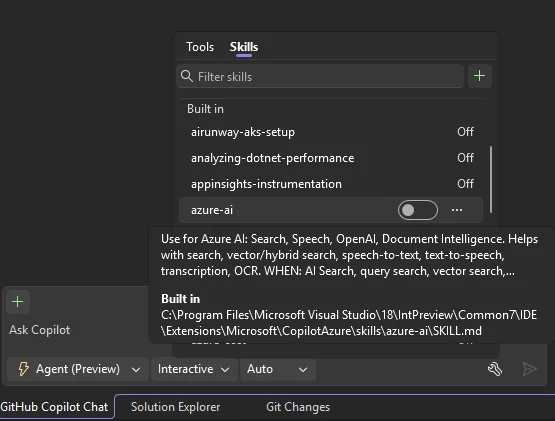
From tool picker pop up, showing the Skills tab which includes a built-in category of skills. The cursor is hovered over the "azure-ai" skill which displays a tool tip that includes the description and path of this skill.

Currently, built-in skills are off by default, so you can review and enable only the ones that suit your tasks. We are actively evaluating the effectiveness and cost of enabling these skills by default. As we transition into the new usage-based billing model for Copilot, we want to make sure every token you spend is meaningful and are tracking efficacy through a dashboard. We will turn on the skills when we find evidence that these skills would improve your agent performance.
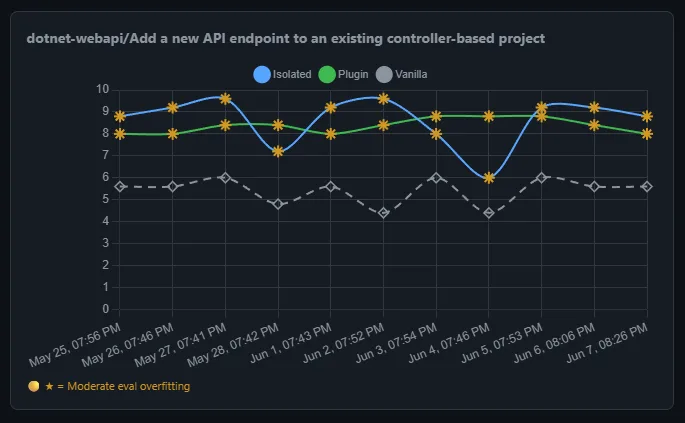
A chart displaying the evaluation result of dotnet-webapi skill.

If you want to learn more about Agent skills and built-in skills in Visual Studio through live demos, please watch our VS Live Toolbox show featuring this topic!

.NET Skills

The dotnet/skills provides skills that help agents be more successful no matter what type of .NET app you are working to develop, taking you from scaffolding new applications to adding new features, to diagnosing issues with existing applications, whether you are working in ASP.NET Core or MAUI or developing AI-based applications.

Included with Visual Studio, we are first providing you with dotnet-webapi and analyzing-dotnet-performance.

1. Get more from your API development

When you are working with ASP.NET Core HTTP APIs, the dotnet-webapi skill guides creation and modification of endpoints with correct HTTP semantics, OpenAPI metadata, and error handling. This helps you get clean, modern .NET code from the agent on the first pass.

Try it: “Add an endpoint to the API to handle moving the entries from current to archived. Include proper error handling.”

2. Review the performance of your application

For every .NET developer, performance of the application you’re building is extremely important. With the analyziing-dotnet-performance skill, agents can more easily scan .NET code for ~50 performance anti-patterns across async, memory, strings, collections, LINQ, regex, serialization, and I/O with tiered severity classification.

Try it: “Review this application for performance optimization opportunities and provide me with the top 3 changes I should make for the biggest improvement.”

Azure Skills to Try First

The Azure skills covers the whole journey of getting an app onto Azure—from scaffolding infrastructure to securing, analyzing, and extending it with AI. If you’re not sure where to start, here are a few built-in skills that fit naturally into a Visual Studio developer’s workflow. Each one packages real Azure expertise—workflows, decision trees, and guardrails—so your agent does genuine Azure work instead of handing back generic cloud advice.

1. Go from app to deployed: azure-prepare → azure-validate → azure-deploy

These three skills form one deployment chain that hands off automatically:

  • azure-prepare generates the infrastructure your app needs—Bicep or Terraform, azure.yaml, Dockerfiles, and managed identity.
  • azure-validate runs preflight checks before anything deploys—configuration, Bicep/Terraform, RBAC and managed identity permissions, and a what-if/build verification—so problems surface before they hit Azure.
  • azure-deploy executes the deployment (azd up, azd deploy, Bicep, or terraform apply) with built-in error recovery instead of leaving you stuck on a cryptic message.

The result: a single path from “it builds locally” to “it’s running in the cloud.”

Try it: “Deploy my ASP.NET Core app to Azure Container Apps with managed identity.”

2. Analyze logs and telemetry with azure-kusto

Once your app is live, query its data in Azure Data Explorer (Kusto/ADX) with KQL for log analytics, telemetry, and time-series analysis. Describe what you want in plain language and let the agent write and run the query—the fast way to answer “what happened, when, and how often.”

Try it: “Query my logs for the error rate per endpoint over the last 24 hours and show the spikes.”

3. Build and ship AI features with microsoft-foundry

Adding AI to your app? This skill takes you end-to-end with Microsoft Foundry: discover and deploy models, create and invoke agents, run evaluations, and fine-tune—removing the guesswork around which model fits, how to deploy it, and how to wire up an agent.

Try it: “Deploy my hosted agent to Foundry.”

We hope these built-in skills could further improve your agentic workflow. Please give them a try, and let us know if they were helpful for your workflow. Also let us know what additional built-in skills you would like to see, or how we can future support your agentic workflow in Visual Studio!
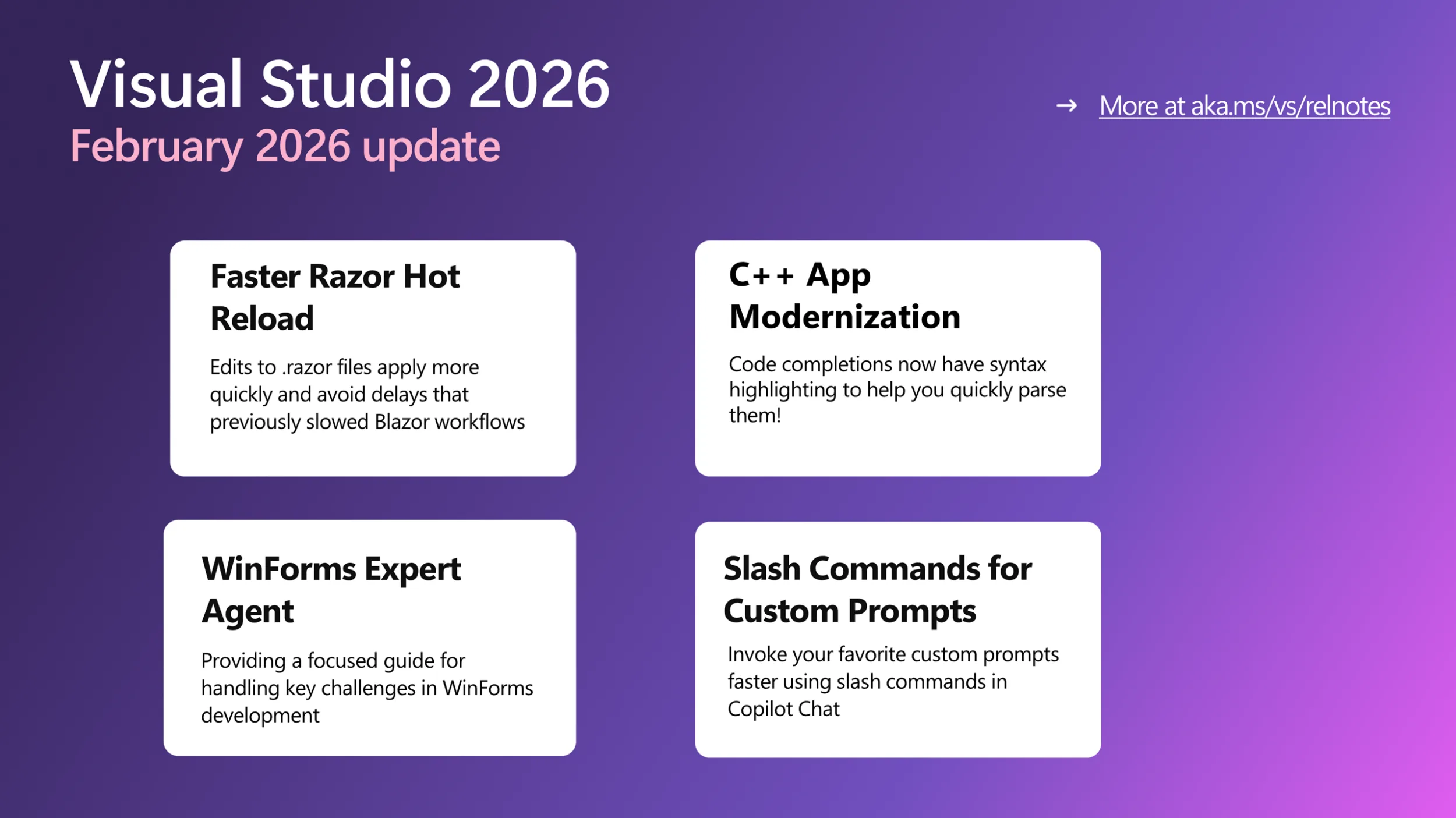
Visual Studio February Update – Visual Studio Blog


This month’s Visual Studio update continues our focus on helping you move faster and stay in flow, with practical improvements across AI assistance, debugging, testing, and modernization. Building on the momentum from January’s editor updates, the February release brings smarter diagnostics and targeted support for real world development scenarios, from WinForms maintenance to C++ modernization.

All of the features highlighted are available in the Visual Studio 2026 Stable Channel as part of the February 2026 feature update (18.3). Please update to the latest version to try out these new features!

WinForms Expert Agent

The WinForms Expert agent provides a focused guide for handling key challenges in WinForms development. It covers several important areas:
Designer vs. regular code: Understand which C# features apply to designer-generated code and business logic.

  • Modern .NET patterns: Updated for .NET 8-10, including MVVM with Community Toolkit, async/await with proper InvokeAsync overloads, Dark mode with high-DPI support, and nullable reference types.
  • Layout: Advice on using TableLayoutPanel and FlowLayoutPanel for responsive, cross-device design.
  • CodeDOM serialization: Rules for property serialization and avoiding common issues with [DefaultValue] and ShouldSerialize*() methods.
  • Exception handling: Patterns for async event handlers and robust application-level error handling.

The agent serves as an expert reviewer for your WinForms code, providing comprehensive guidance on everything from naming controls to ensuring accessibility. The WinForms Agent is automatically implemented and included in the system prompt when necessary.

Smarter Test Generation with GitHub Copilot

Visual Studio now includes intelligent test generation with GitHub Copilot, making it faster to create and refine unit tests for your C# code. This purpose-built workflow works seamlessly with xUnit, NUnit, and MSTest.

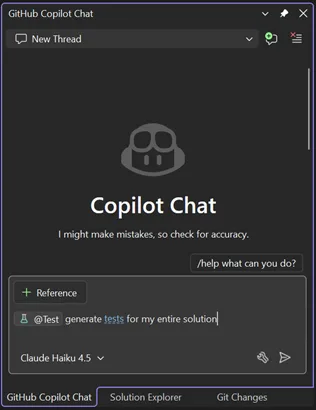
GitHub Copilot Chat pane in Visual Studio showing a new chat thread. The Copilot Chat welcome screen appears with a message about checking accuracy, a prompt asking ‘generate tests for my entire solution,’ and the selected model labeled Claude Haiku 4.5. The input box includes a reference button and test generation command.

Simply type @Test in GitHub Copilot Chat, describe what you want to test, and Copilot generates the test code for you. Whether you’re starting fresh or improving coverage on existing projects, this feature helps you write tests faster without leaving your workflow.

Slash Commands for Custom Prompts

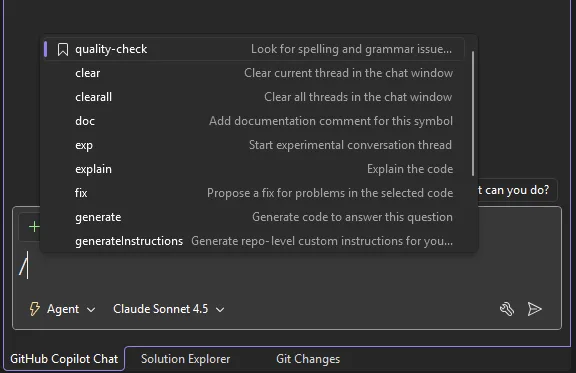
Invoke your favorite custom prompts faster using slash commands in Copilot Chat. Type / and your custom prompts appear at the top of the list, marked with a bookmark icon for easy identification.

Copilot Chat slash command menu in Visual Studio showing available commands such as quality check, clear, explain, fix, and generate, with Agent mode enabled and Claude Sonnet 4.5 selected in the chat input area.

We’ve also added two additional commands:

/generateInstructions: Automatically generate a copilot-instructions.md file for your repository using project context like coding style and preferences

/savePrompt: Extract a reusable prompt from your current chat thread and save it for later use via / commands

These shortcuts make it easier to build and reuse your workflow patterns.

C++ App Modernization

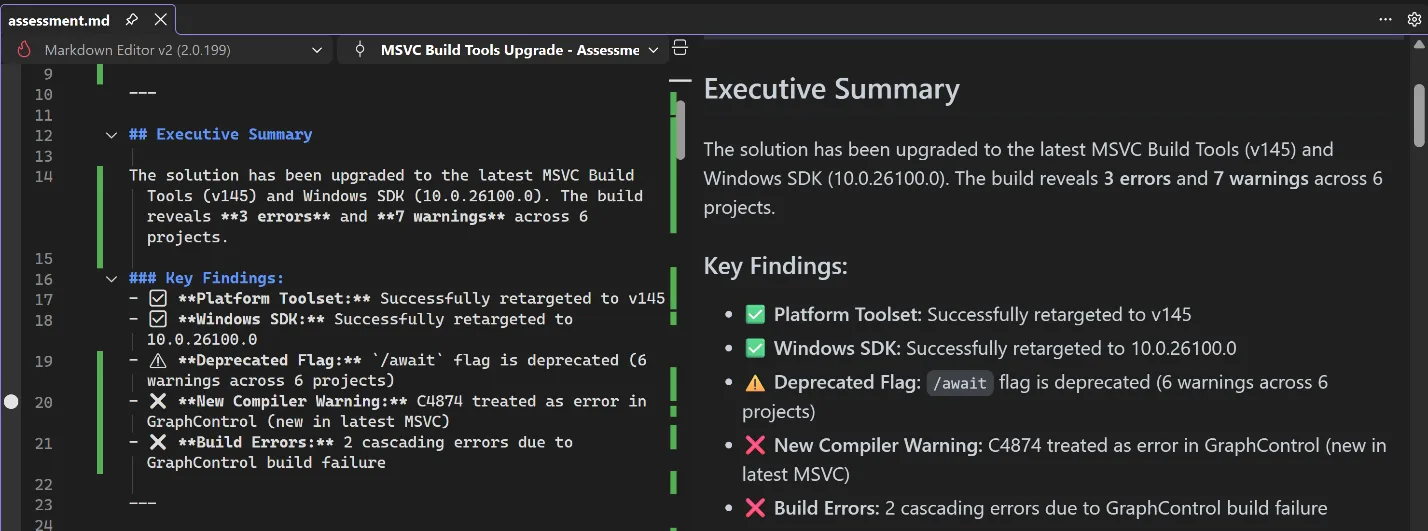
GitHub Copilot app modernization for C++ is now available in Public Preview. GitHub Copilot app modernization for C++ helps you update your C++ projects to use the latest versions of MSVC and to resolve upgrade-related issues. You can find our user documentation on Microsoft Learn.

Split view in Visual Studio showing a Markdown file on the left and a rendered preview on the right with an Executive Summary and Key Findings for an MSVC Build Tools upgrade including errors and warnings.

DataTips in IEnumerable Visualizer

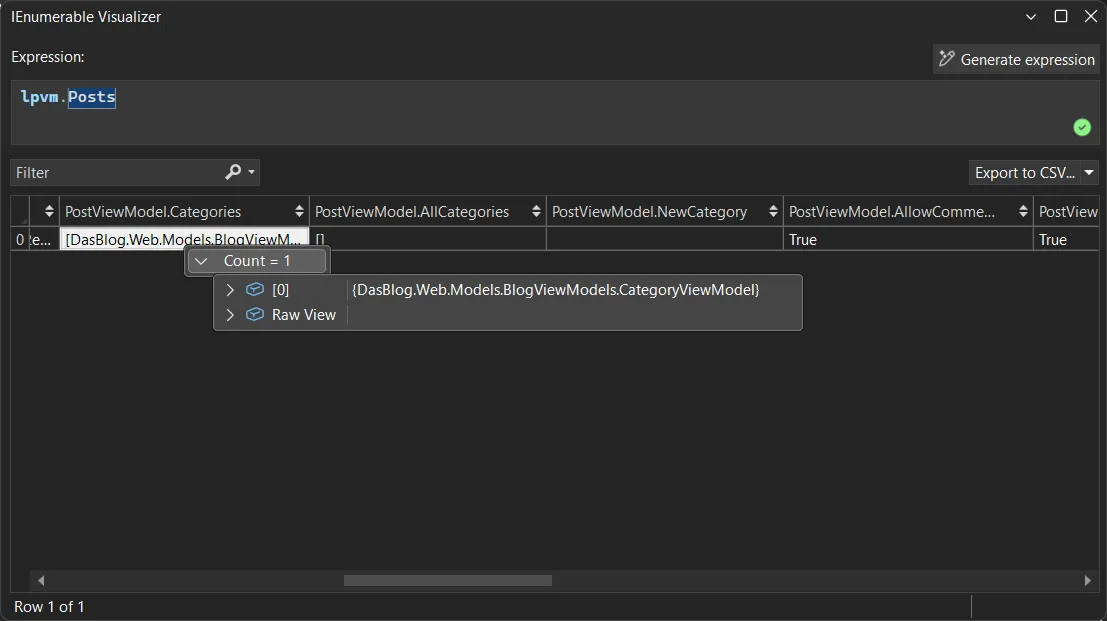
You can now use DataTips in the IEnumerable Visualizer while debugging. Just hover over any cell in the grid to see the full object behind that value, the same DataTip experience you’re used to in the editor or Watch window.

When you hover over a cell, a DataTip shows all the object’s properties in one place. This makes it much easier to debug collections with complex or nested data. Whether it’s a List<T> of objects or a dictionary with structured values, one hover lets you quickly inspect everything inside.

Visual Studio IEnumerable Visualizer showing the expression lpvm.Posts. A table displays one row with columns for PostViewModel properties, including Categories with a count of one, AllCategories, NewCategory, and AllowComments set to True. A tooltip shows a CategoryViewModel object with an option to view raw data.

Analyze Call Stack with Copilot

You can now Analyze Call Stack with Copilot to help you quickly understand what your app is doing when debugging stops. When you pause execution, you can select Analyze with Copilot in the Call Stack window. Copilot reviews the current stack and explains why the app isn’t progressing whether the thread is waiting on work, looping, or blocked by something.

This makes the call stack more than just a list of frames. It becomes a helpful guide that shows what’s happening in your app so you can move faster toward the real fix.

Profiler agent with Unit Test support

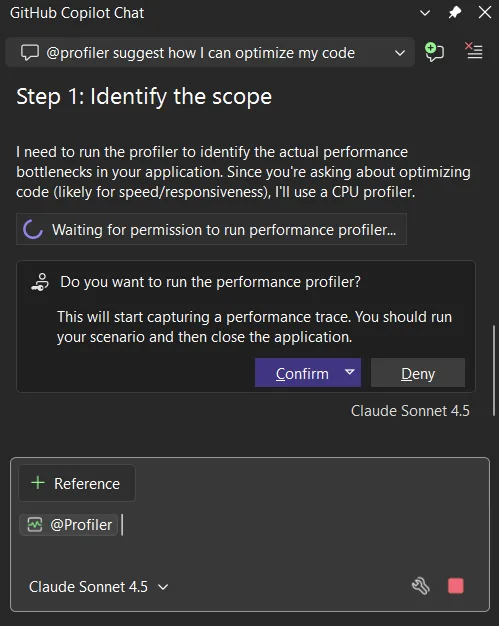
The Profiler Agent (@profiler) now works with unit tests. You can use your existing tests to check performance improvements, making it easier to measure and optimize your code in more situations. The agent can discovers relevant unit tests/BenchmarkDotNet benchmarks that exercise performance-critical code paths.

If no good tests or benchmarks are available, it automatically creates a small measurement setup so you can capture a baseline and compare results after changes. This unit-test-focused approach also makes the Profiler Agent useful for C++ projects, where benchmarks aren’t always practical, but unit tests often already exist.

GitHub Copilot Chat showing profiler suggestion to optimize code step identify scope message requesting permission to run CPU performance profiler with confirm and deny buttons and model selector visible

Faster and More Reliable Razor Hot Reload

Hot Reload for Razor files are now faster and more reliable. By hosting the Razor compiler inside the Roslyn process, edits to .razor files apply more quickly and avoid delays that previously slowed Blazor workflows. We also reduced the number of blocked edits, with more changes now applying without requiring a rebuild, including file renames and several previously unsupported code edits. When a rebuild is still required, Hot Reload can now automatically restart the app instead of ending the debug session, helping you stay in flow.

We are continuing to invest in features that help you understand, test, and improve existing code, not just write new code. Try these updates in the Visual Studio 2026 Stable Channel and let us know what is working well and where we can improve. Your feedback directly shapes what we build next.