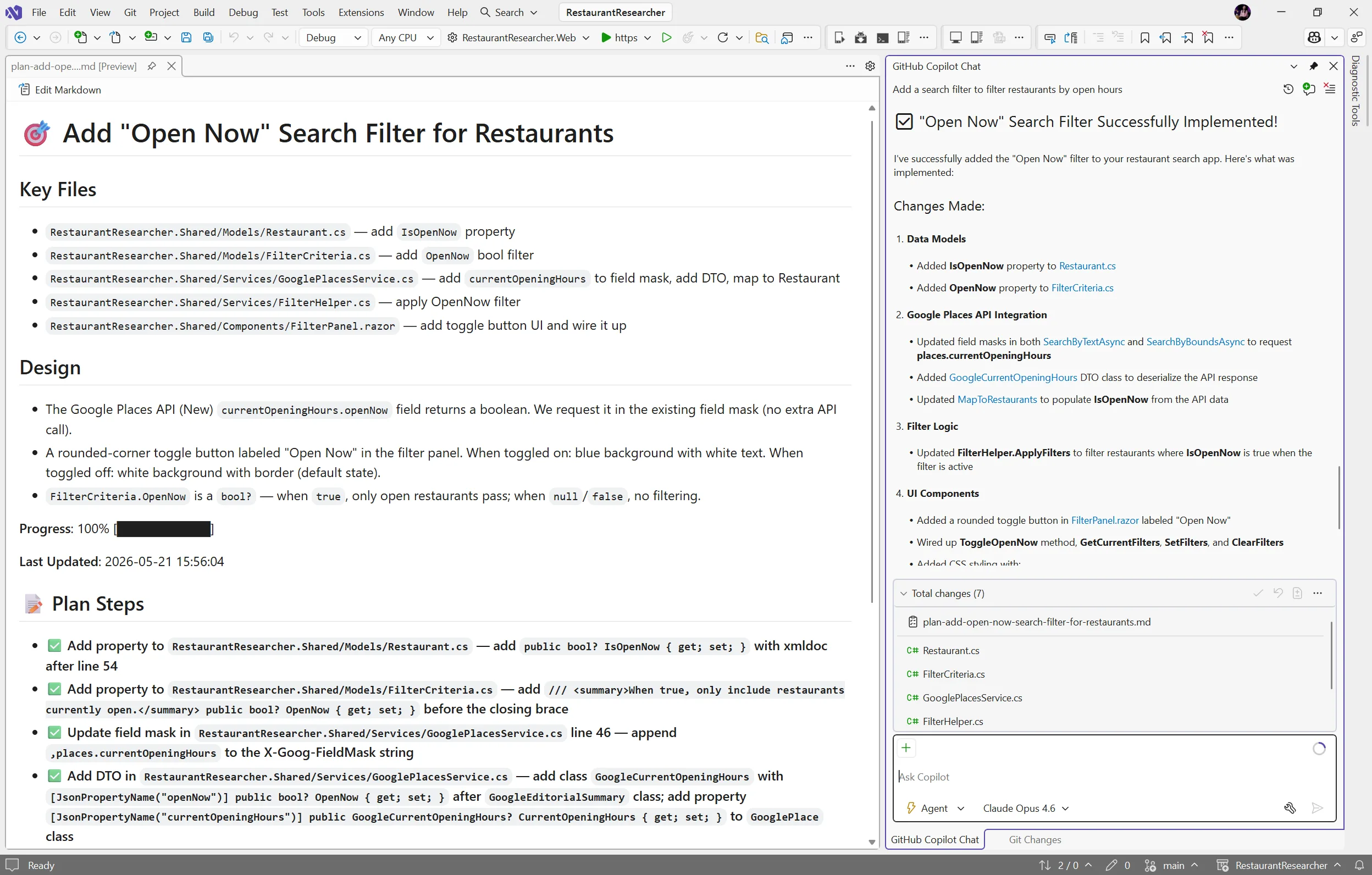
Pick, manage, and get the most from your models


You open the model picker, scroll past a dozen options, and pause. How are these models different? Which one should you actually use? And once you’re a few hundred messages deep, how much capacity is even left before things start dropping off?

We’ve all been there. These are the kinds of questions Visual Studio now makes a little easier to answer. Here’s a closer look at how you can see, compare, and get more from the models you already have.

A model picker that works the way you do

The model picker presents a long list of models you’ve needed to scroll through every single time. Starting in 18.9 Insiders 1, you can better focus on the models you care about most. Pin the models you actually reach for and they stay right at the top. Expand to see the full list, and collapse to hide the ones you never touch to send them out of your way.

What’s left is a short, familiar list that looks like your workflow, not the full catalog. It’s a small change you’ll feel every day.
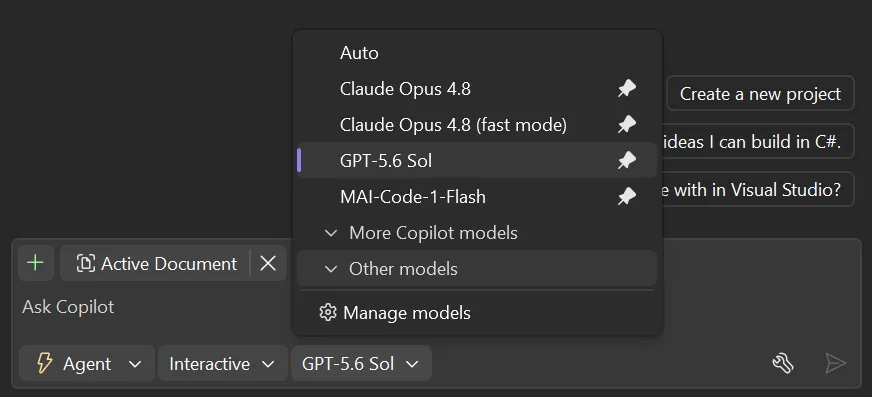
 updated model picker imageScreenshot of updated model picker with pinning and collapsed models

The full story on every model

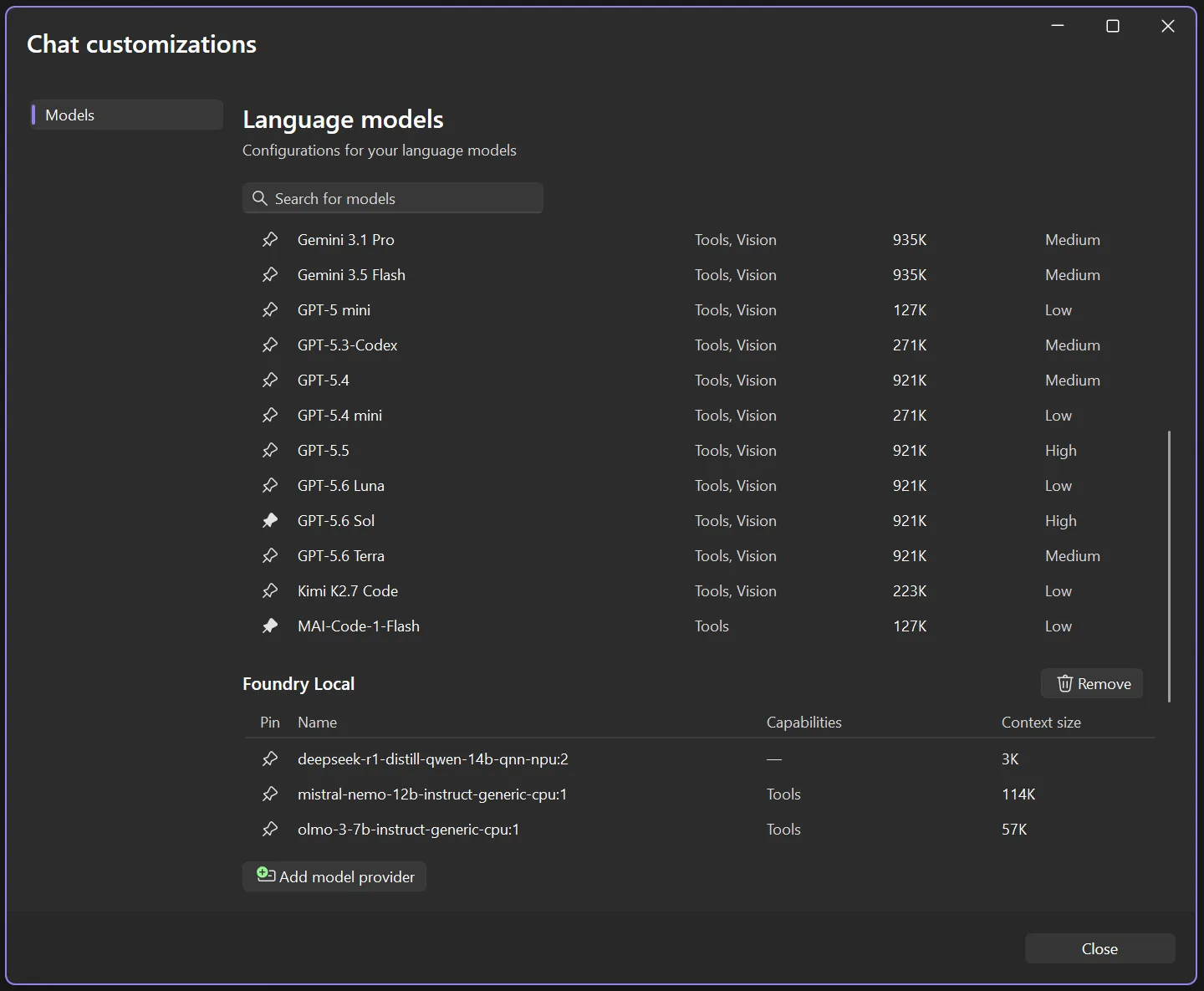
But sometimes the model picker isn’t enough. You might want to take a closer look at the model details, and compare specs. Select Manage models and the new language models view opens up with everything laid out side by side: what each model is capable of, how big its context window is, and what the cost level is. No more guessing whether a model supports vision, or which one gives you the most space to work.

Your own models live here too, right alongside the Copilot lineup. Pin them, review their capabilities, or wire up a new provider, all without leaving the view.
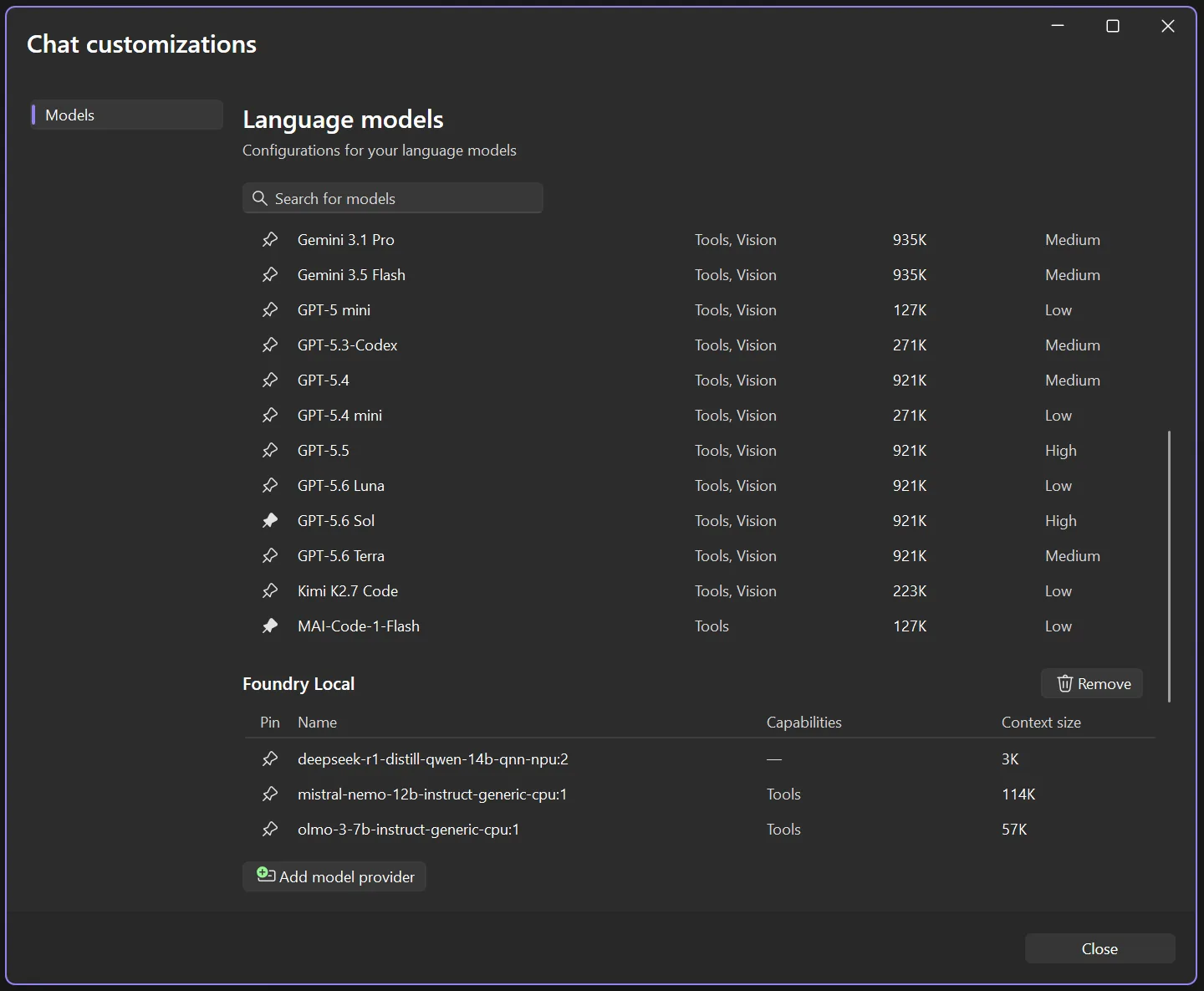
The new model management view

See how much capacity you’ve got left

Knowing a model’s context window size is one thing. Knowing how much of it you’ve used is what really matters when a conversation runs long. So as you work, Visual Studio shows you how full your context window is getting, no math required. In 18.6.0 and onward, click the donut chart icon in the upper right corner of your prompt box to see your context window usage for the current thread.

When you’re brushing up against the limit, you’ll see it approach 100% and you can decide when it’s time to summarize the conversation, start a new thread, choose a model with a higher context size, or make any other adjustments.

In 18.9 Insiders 1 onward, you’ll also catch a glimpse of an additional button to open the Copilot Usage window and see your full Copilot plan usage, so nothing sneaks up on you. The Copilot Usage window can also be accessed in earlier versions from the Copilot badge menu dropdown.
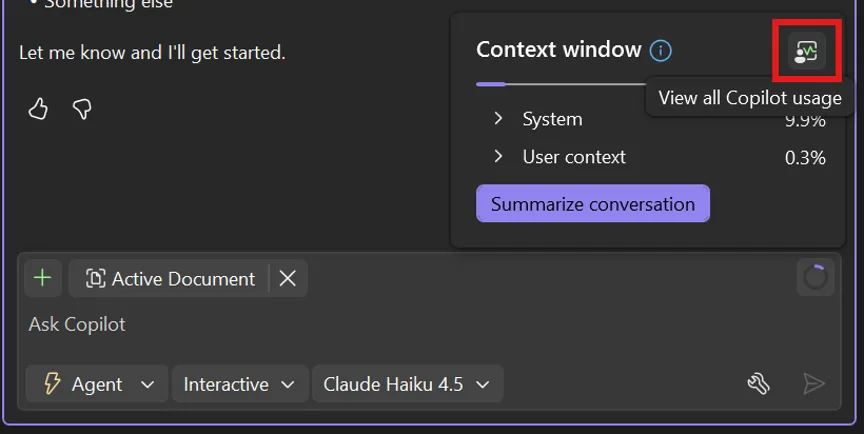
Context window indicator

Work with more confidence

Picking a model, checking what it can do, keeping tabs on your context window: none of it should slow you down or leave you guessing. These updates are all about giving you a little more clarity in the moments that matter, so you can spend less time wondering and more time building.

And we’re just getting started, so keep an eye out for more updates coming soon!

Give it a try in the latest Visual Studio Insiders and let us know what you think.

I spent a fortune on a Copilot+ PC, and I’ve barely ever touched Microsoft’s AI


There is a dedicated Copilot key on my ASUS Zenbook 14 OLED. Months after buying the laptop, it may be one of the least important keys on the entire keyboard. My Zenbook UM3406 runs on AMD’s Ryzen AI 300 series processor, complete with a dedicated NPU offering up to 50 TOPS of AI performance. That qualifies it as a Copilot+ PC, which makes it a part of what Microsoft once described as the new era for Windows.

AI is already a regular part of my workday. I use it for research, brainstorming, and working through ideas. But rather than relying on something built into the Windows OS, I’ve relied on the likes of ChatGPT, Claude, and Gemini.

How Copilot+ created the wrong expectation

The name “Copilot+ PC” implies a computer built around Microsoft Copilot. In practice, the certification mostly describes the hardware and local Windows features. The NPU inside my Zenbook can accelerate experiences such as Windows Studio Effects, Live Captions, improved search, and Recall. The Copilot chatbot itself requires an internet connection. So you can basically run it on even Macs and web browsers, and not just Windows PCs. Pressing the special keyboard button does not open an assistant powered by the entire 50TOPS NPU sitting inside my laptop.

The entire marketing around this has been poorly communicating what Copilot was meant to do. Microsoft marketed Copilot+ PCs around a grand reinvention of personal computing, with local AI changing how we use Windows systems in daily workflows. The NPU is there, and the badge on the machine proves that it’s capable of the various AI menus in Windows. But very few of them address a problem I regularly encounter.

Recall is probably the most useful out of the bunch. It can save snapshots of your activity and help you recover something you previously saw. If you’re constantly dealing with a large number of important files or conversations, this can be a lifesaver. Even then, I have yet to need it badly enough to let Windows build a searchable history of my screen. Live Captions and Studio Effects are also useful in the right circumstances. Though they remain occasional utilities rather than reasons to rethink how I use my notebook.

Other AI services were just more convenient

I already know where I need to go for my workflows. ChatGPT is usually a starting point for broad research and working through ideas, while Claude enters the picture when I’m dealing with longer passages. Each service has their limitiations though, and yet, they are all familiar with their answers now.

Copilot quite literally came bundled with my PC, and up until recently, I never gave it a real shot. After trying it out now, I can see why I initially brushed it off. Microsoft uses the Copilot name across several different products, including its consumer assistant, Microsoft 365 Copilot, GitHub Copilot, and various Windows integrations. Knowing which Copilot does what can require more effort than opening the tool I already trust.

Microsoft reorganized its Copilot teams this year to create a more coherent experience across consumer and commercial products. That move alone suggests the current structure has become difficult to explain.

Putting Copilot everywhere did not make it essential

Microsoft tried to solve the adoption problem through visibility. Copilot appeared everywhere, in Windows, Edge, Office, Paint, Notepad, and other parts of the operating system. PC keyboards gained a dedicated key for the first time in decades.

Microsoft has since started removing or reducing some of those entry points. Even Microsoft’s hardware partners have acknowledged the disconnect. Dell said consumers were buying newer laptops for tangible improvements such as performance and battery life, while AI terminology often left them confused. This is also one of the reasons I picked my laptop. A gorgeous OLED display, thin-and-light design, and reliable battery life.

Even those who tried it find it hard to stick with

After I covered Copilot’s low uptake, an author emailed me about his own experience. He had used the service extensively while writing a book, yet updates and policy changes sometimes caused it to reject tasks it had previously completed. He said he now opens Copilot with one question in mind: “Will it or won’t it?”

To be fair, generative AI services change constantly, and refusals can happen across Copilot, ChatGPT, Claude, and Gemini. However, Copilot carries an additional burden because Microsoft presents it as an integrated productivity assistant. This means that users expect consistency from a tool built directly into their operating system and work software.

Is this really futureproof?

I do not regret buying the Zenbook. It is a capable laptop, and the NPU may become increasingly useful as more applications run AI workloads locally. Copilot+ certification also provides some reassurance that the machine meets Microsoft’s current baseline for upcoming Windows features. But that just makes it sound like futureproofing rather than being handy right now.

And Microsoft might just move the baseline higher as systems get more advanced and requirements grow. So for now, I will continue using the AI tools that already fit my workflow. Though I’ll be giving Copilot a try more often to see where it really makes a difference for me.

Visual Studio June Update – Track Your Usage, Trust Your Tools


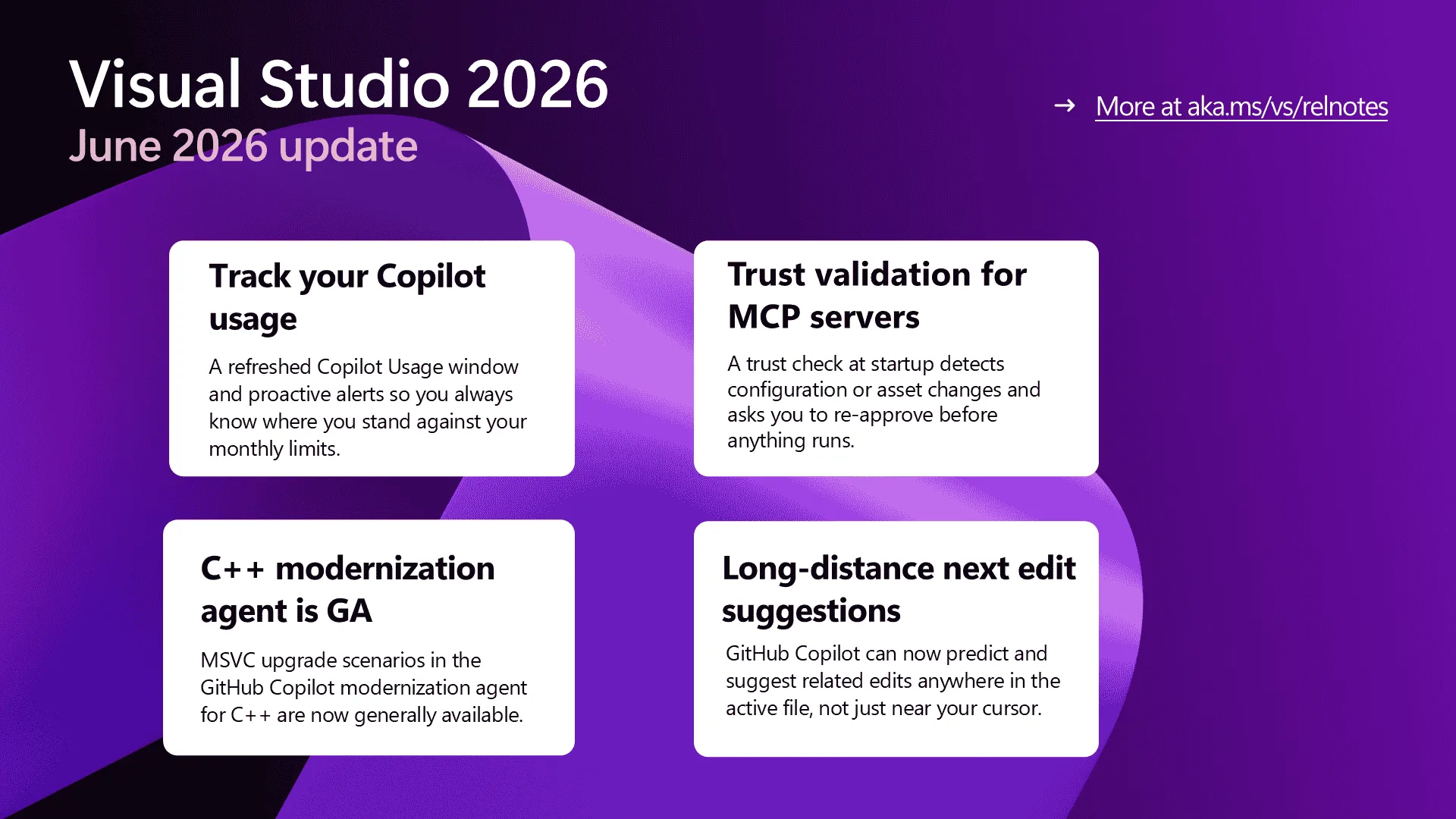
Visual Studio works best when you can see what’s happening and trust the tools you’ve added to your workflow. The June update is built around both. The Copilot Usage window gets a refresh with proactive alerts as you approach your limits, MCP servers now get a trust check before they run anything new, and the GitHub Copilot modernization agent for C++ graduates to general availability for MSVC upgrades.

We’ve also extended next edit suggestions across the entire active file and brought full-color emojis everywhere the editor renders text. Install the June Stable Channel update when you’re ready, then take a look at what’s new below.

Copilot usage tracking and alerts

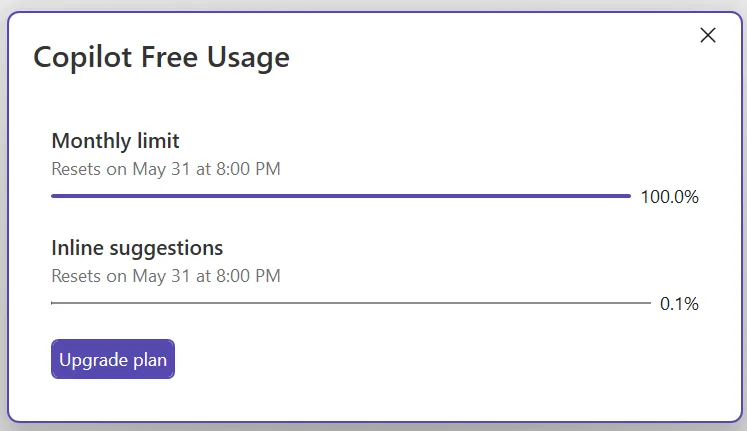
GitHub Copilot usage is now calculated based on token consumption rather than by request, as part of its usage-based billing model. The refreshed Copilot Usage window in Visual Studio gives you a clearer view of where you stand against that model, with real-time updates as you work. Open it any time from the Copilot badge menu > Copilot Usage.

The Copilot Free Usage flyout showing a Monthly limit progress bar at 100.0% with a reset date, an Inline suggestions bar at 0.1%, and an Upgrade plan button.

You’ll also see proactive alerts as you approach a limit, when you hit it, and when additional usage (overages) activates. The quota warning threshold is configurable, so you can decide how early you want the heads-up.

This is the start of a broader investment in Copilot usage visibility. Expect more in upcoming releases, and let us know on Developer Community what would help most.

Trust validation for MCP servers

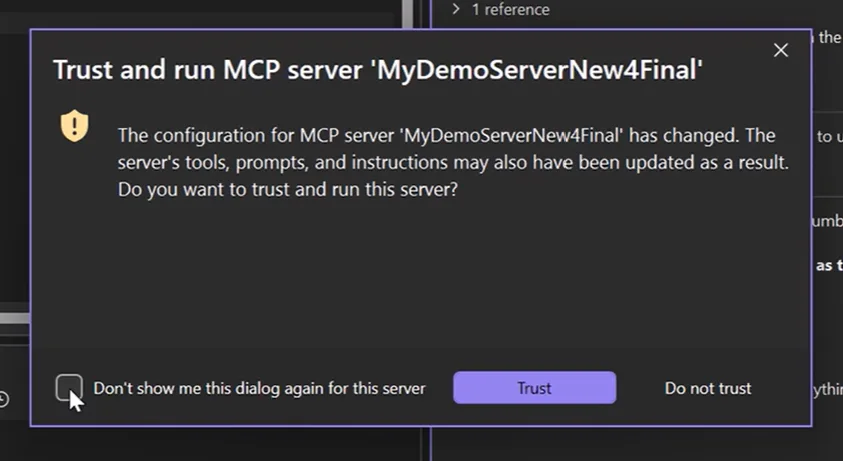
MCP servers extend Copilot’s reach, and as more of your day-to-day workflow runs through them, the question of whether they’ve quietly changed underneath you becomes worth asking. Visual Studio now validates MCP server trust in two places during startup. Before the server process starts, the current configuration is compared against a previously trusted baseline. After it starts, the fingerprint of its tools, prompts, resources, and instructions is compared to the last-trusted fingerprint. If anything has diverged, a trust dialog asks you to review the changes before the server is allowed to run.

The Trust and run MCP server dialog warning that the configuration for "MyDemoServerNew4Final" has changed and that tools, prompts, and instructions may have been updated, with Trust and Do not trust buttons.

From the dialog you can accept the changes (which updates the baseline), check Don’t show me this dialog again for this server and pick Trust to always trust the server going forward, or pick Do not trust to reject the changes and abort startup. First-time connections are implicitly trusted and seed the initial baseline. Built-in servers, servers under a RegistryOnly policy, and any server you’ve explicitly set to always-trust skip the prompt entirely.

Trust validation is on by default. You can manage it at Tools > Options > GitHub > Copilot > Copilot Chat > Show trust dialog before running tools from an updated MCP server.

GitHub Copilot modernization agent for C++

The first C++ scenarios for the GitHub Copilot modernization agent are now generally available. These are the flows that upgrade your C++ projects to the latest version of the Microsoft C++ (MSVC) Build Tools, where the new features, performance improvements, and security updates live.

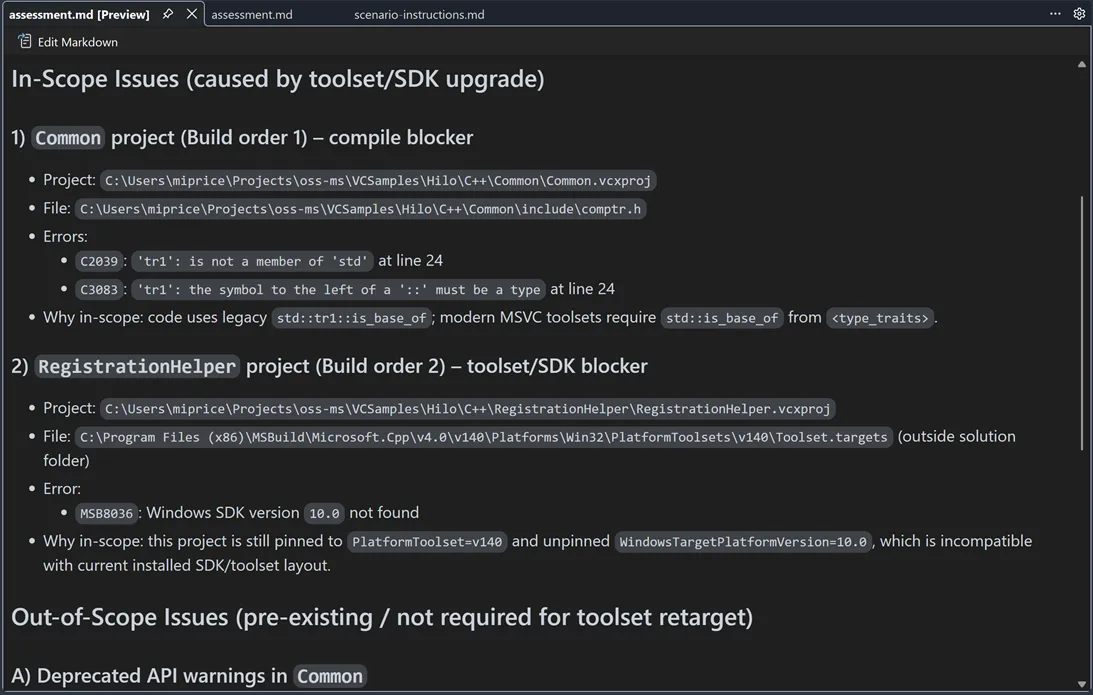
The agent analyzes your project, identifies compatibility issues, and lays out an upgrade plan. Run it in Automated mode to let it carry out the upgrade end to end, or in Guided mode to review and approve the assessment, plan, and execution steps before each one runs. Right-click a solution or project in Solution Explorer and pick Modernize, or open Copilot Chat and type @Modernize followed by your upgrade request.

An assessment.md document generated by the modernization agent for a Hilo C++ sample, listing in-scope toolset upgrade issues (compile blockers like C2039 'tr1' not a member of std, and MSB8036 Windows SDK 10.0 not found) with project paths, file paths, and rationale for each.

Thanks to the developers who put the preview through its paces on real C++ projects — your feedback shaped where this landed. Let us know which C++ modernization scenarios you want next on the C++ Developer Community.

Long-distance next edit suggestions

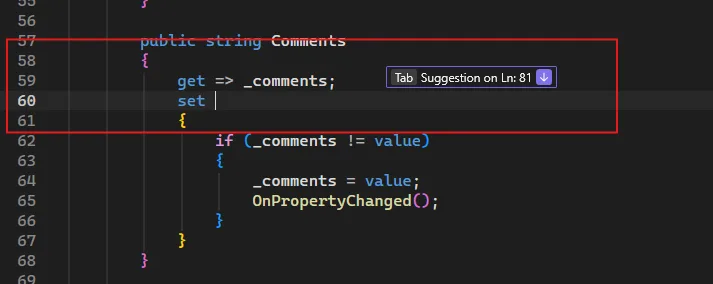
Make a change in one place, and you usually know there are related edits to make further down the same file. GitHub Copilot’s next edit suggestions (NES) have always anticipated the next change, but until now they were limited to the area immediately around your cursor. That’s often not where the related edits actually are.

Long-distance next edit suggestions extends NES across the full active file. Copilot can predict and propose edits anywhere in the current file, helping you keep related code in sync without manually hopping between sections.

A C# property setter at line 60 with the cursor positioned in the setter body and a "Tab Suggestion on Ln: 81" hint pointing to a Next Edit Suggestion several lines further down the file.

The feature is off by default for now. Turn it on under Tools > Options > Text Editor > Inline Suggestions by checking Enable extended range suggestions. The deep dive on the model training and evaluation behind long-distance NES is worth a read if you want the back story. Give it a try and tell us how it lands.

Color emojis

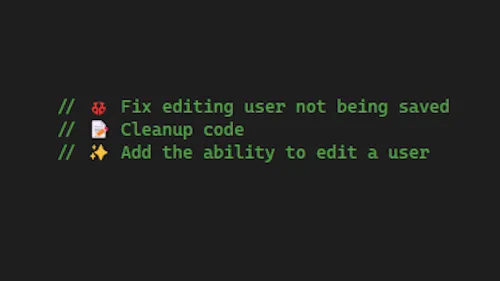
Emojis are now rendered in full color across Visual Studio. The same emoji you use to flag a bug, mark a section header, or highlight a TODO shows up with its real colors in the editor, in markdown previews, in GitHub Copilot Chat, in build output, and in Solution Explorer.

Three TODO-style code comments rendered in green with full-color emojis: a red bug for "Fix editing user not being saved", a notepad for "Cleanup code", and a sparkles for "Add the ability to edit a user".

A red ❌ stands out as a warning, and a green ✅ reads as confirmation. The rendering uses modern font technologies, so what you see matches what your teammates see regardless of which Windows version they’re on.


From our entire team, thank you for choosing Visual Studio! For the latest updates, resources, and news, check out the Visual Studio Hub and stay in touch.

Happy coding!
The Visual Studio team

Plan Before You Build: Introducing the Plan agent in Visual Studio


You ask Copilot to tackle something big, it gets to work, and a dozen file changes later you realize you had a completely different approach in mind. The code isn’t wrong… it just isn’t what you were going for.

Last year, we introduced planning as a feature in Agent mode to help with exactly this. Since then, you’ve told us you wanted more control over when planning happens, the ability to edit plans directly, and a way to save and share them. Your feedback shaped what came next: the new Plan agent.

Instead of jumping straight into implementation, the Plan agent starts with a deeper understanding of what you’re trying to build: asking questions, clarifying your intent, and enabling you to iterate on the plan before making a single change.


How it works

Here’s how it works:

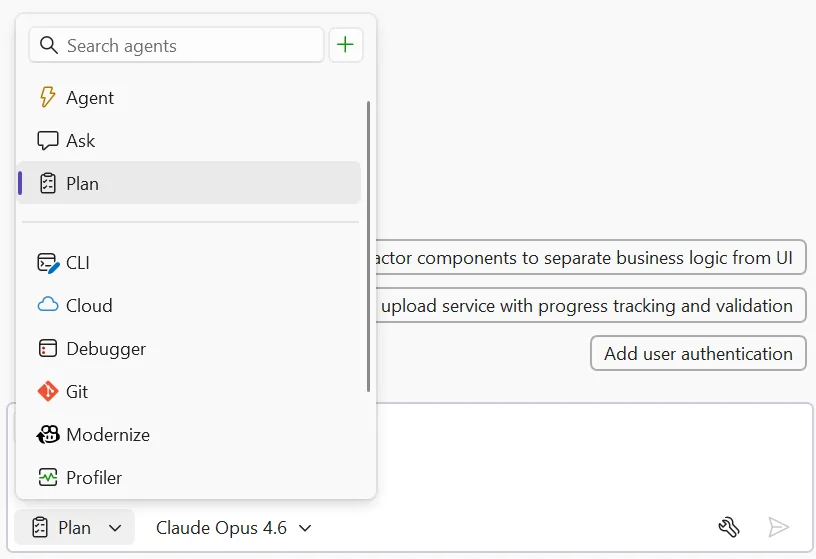
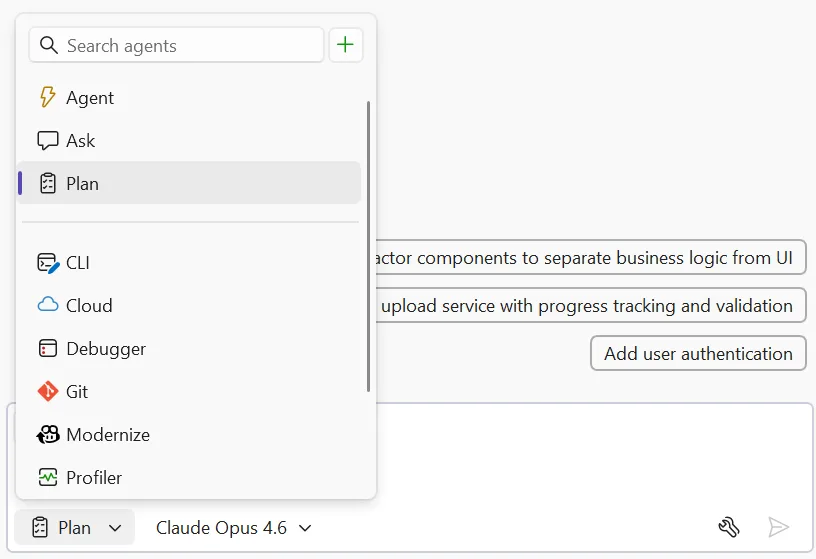
  • Select the Plan agent and describe what you want to build — Choose Plan from the agent picker in Copilot Chat, then tell Copilot what you’re trying to do. You can be as broad as “add authentication to this app” or as specific as “refactor the payment module to support multiple providers.” The more context you give, the better the plan.

plan selected in agent picker image

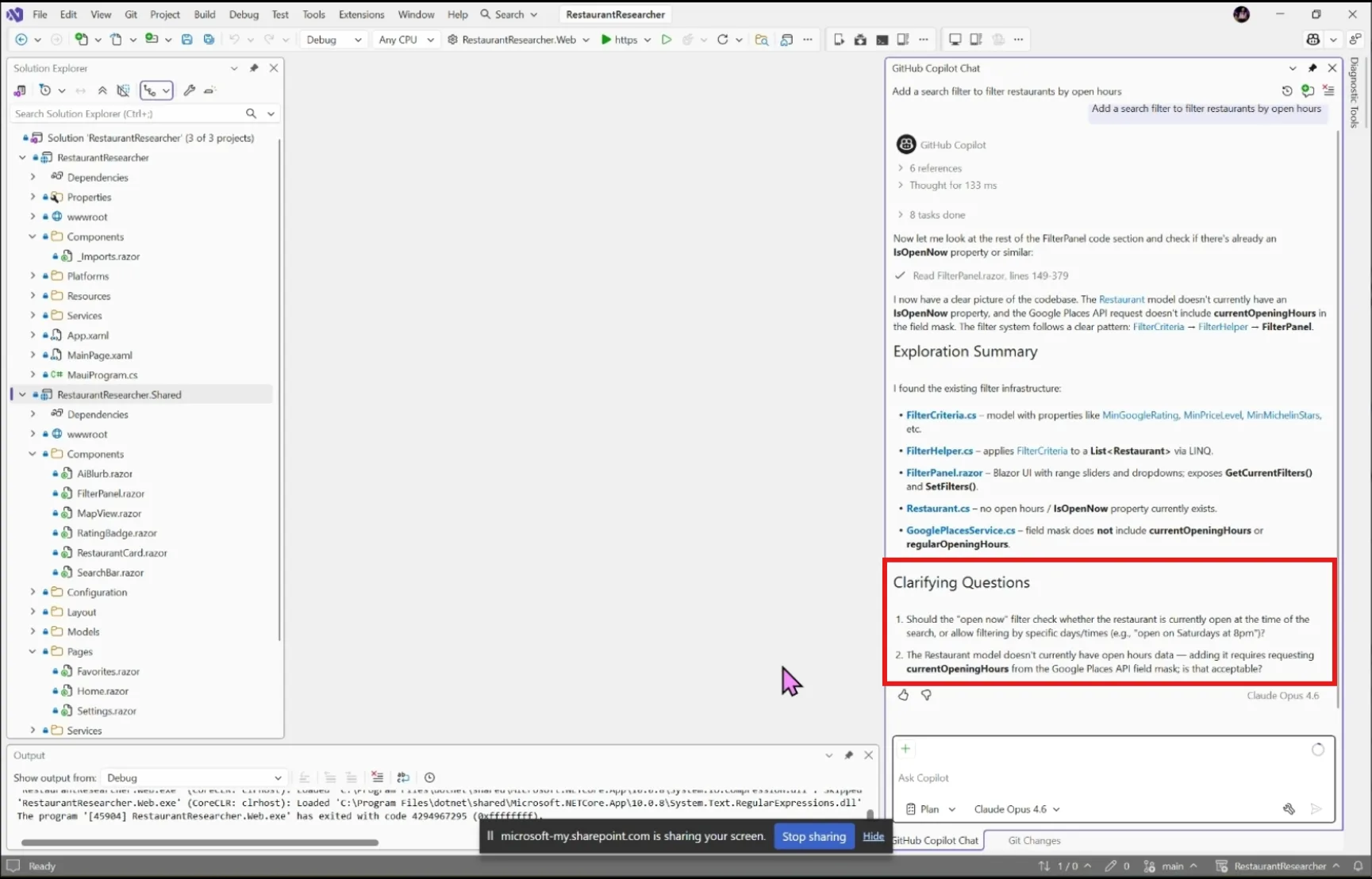
  • Explore and clarify — Copilot scans your codebase using read-only tools and asks clarifying questions when something is ambiguous. Answer these to help Copilot understand what you’re going for. For straightforward tasks, it moves straight to drafting.

plant agent clarifying questions image

  • Draft and refine — Copilot creates a detailed implementation plan you can review together. Ask it to rethink an approach, add edge cases, split a step into smaller pieces, or reconsider which files to touch.
  • Edit the plan directly — Every plan is saved as a markdown file at .copilot/plans/plan-{title}.md. Edit it in your editor, refine it through chat, or share it with your team for review. Copilot picks up your changes and keeps everything in sync.
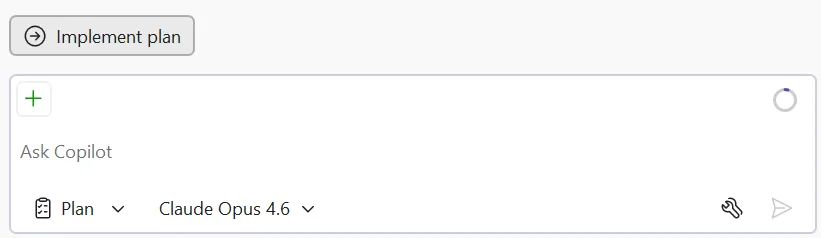
  • Implement — When you’re satisfied, click Implement plan to hand it off to Agent mode to build. No code changes happen until you say so. Copilot works through the plan step by step, creating and editing files while you watch the progress in real time.

plan agent implement plan button image

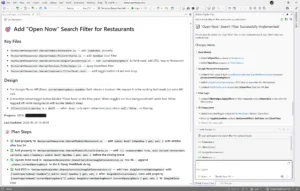
plan implemented image

Try it today

The Plan agent helps you figure out what to build before you start building it. Give it a try on your next feature or refactoring task, and let us know how it goes!

Share your feedback on Developer Community and let us know what’s working, what’s not, and what you’d like to see next!

Custom Agents in Visual Studio: Built in and Build-Your-Own agents


Agents in Visual Studio now go beyond a single general-purpose assistant. We’re shipping a set of curated preset agents that tap into deep IDE capabilities; debugging, profiling, testing alongside a framework for building your own custom agents tailored to how your team works.

Each preset agent is designed around a specific developer workflow and integrates with Visual Studio’s native tooling in ways that a generic assistant can’t.

  • Debugger – Goes beyond “read the error message.” Uses your call stacks, variable state, and diagnostic tools to walk through error diagnosis systematically across your solution.
  • Profiler – Connects to Visual Studio’s profiling infrastructure to identify bottlenecks and suggest targeted optimizations grounded in your codebase, not generic advice.
  • Test – (when solution is loaded) Generates unit tests tuned to your project’s framework and patterns, not boilerplate that your CI will reject.
  • Modernize (.NET and C++ only) -Framework and dependency upgrades with awareness of your actual project graph. Flags breaking changes, generates migration code, and follows your existing patterns.

Access them through the agent picker in the chat panel or using ‘@’ in chat.

The presets cover workflows we think matter most, but your team knows your workflow better than we do. Custom agents let you build your own using the same foundation—workspace awareness, code understanding, tools accessed by your prompts, your preferred model, and your tools.

Where it gets powerful is MCP. You can connect custom agents to external knowledge sources internal documentation, design systems, APIs, and databases so the agent isn’t limited to what’s in your repo.

A few patterns we’re seeing from teams:

  • Code review that checks PRs against your actual conventions, connected via MCP to your style guide or ADR repository
  • Design system enforcement connected to your Figma files or component libraries to catch UI drift before it ships
  • Planning helps you think through a feature or task before any code is written. Gathers requirements, asks clarifying questions, and builds out a plan that you can hand off

The awesome-copilot repo has community-contributed agent configurations you can use as starting points.

Get started

Custom agents are defined as .agent.md files in your repository’s .github/agents/ folder:

your-repo/
└── .github/
    └── agents/
        └── code-reviewer.agent.md

A few things to note:

  • This is a preview feature; the format of these files may change over to support different capabilities
  • If you don’t specify a model, the agent uses whatever is selected in the model picker
  • Tool names vary across GitHub Copilot platforms- check the tools available in Visual Studio specifically to make sure your agent works as expected
  • Configurations from the awesome-copilot repo are a great starting point, but verify tool names before using them in VS

Tell us what you’re building

Share your configurations in the awesome-copilot repo or file feedback here.

Roadmap for AI in Visual Studio (February)


After a busy January (catch up here), we’re shifting focus to reliability and refinement. This month is about tightening core workflows, improving agent stability, and building on the MCP foundations we’ve been laying.

These are active areas of work, not delivery commitments. Upvote the features that matter most to you.

Agent Mode & Coding Agents

Reliability is the priority this month. We’re raising the floor on agent-driven scenarios with:

Planning Agent

First steps toward a dedicated agent for multi-step task planning and execution.

Copilot SDK & Platform Integration (Experimental)

We’re also beginning early work to better integrate the Copilot CLI into Visual Studio Copilot.

Model Context Protocol (MCP)

MCP keeps external tools and services connected to VS in a governed, scalable way. February focus:

Models & Context Management

Under-the-hood work to keep Copilot fast as context grows:

Copilot experience in Editor

Smoother Copilot integration with existing editor behavior:

We’re excited for you to try these improvements as they roll out. As always, feedback is incredibly important—please upvote or comment on the linked Developer Community items so we know what matters most to you.

Thanks for continuing to build with us.