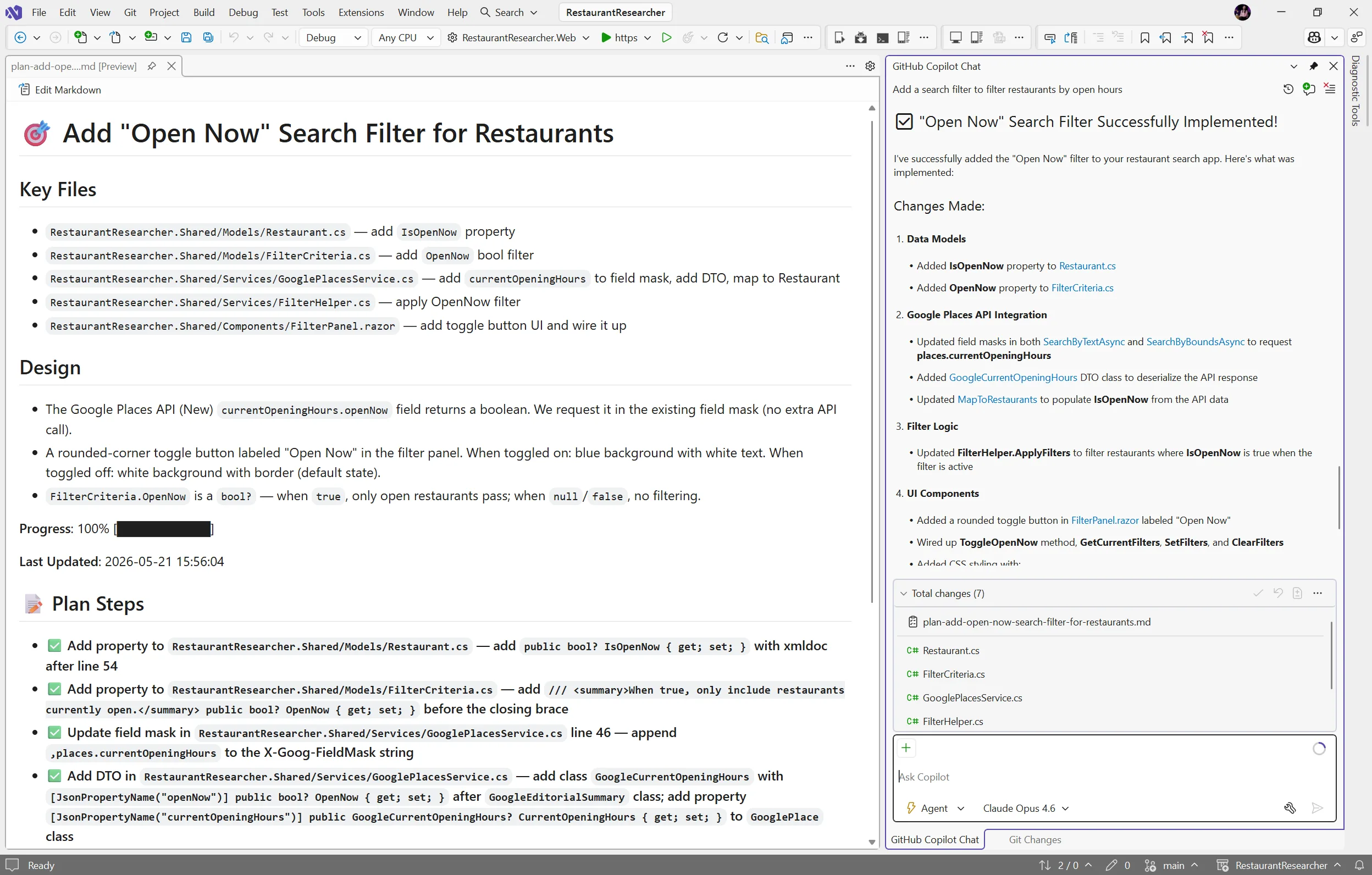
You ask Copilot to tackle something big, it gets to work, and a dozen file changes later you realize you had a completely different approach in mind. The code isn’t wrong… it just isn’t what you were going for.
Last year, we introduced planning as a feature in Agent mode to help with exactly this. Since then, you’ve told us you wanted more control over when planning happens, the ability to edit plans directly, and a way to save and share them. Your feedback shaped what came next: the new Plan agent.
Instead of jumping straight into implementation, the Plan agent starts with a deeper understanding of what you’re trying to build: asking questions, clarifying your intent, and enabling you to iterate on the plan before making a single change.
How it works
Here’s how it works:
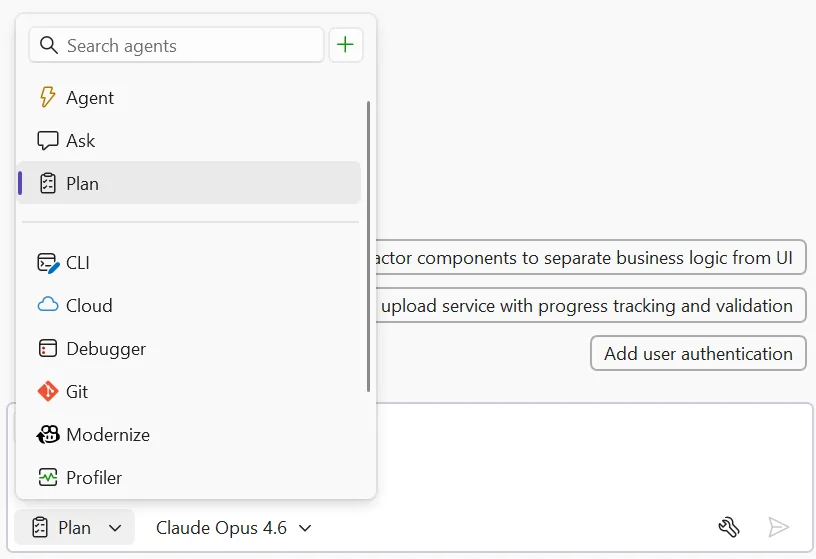
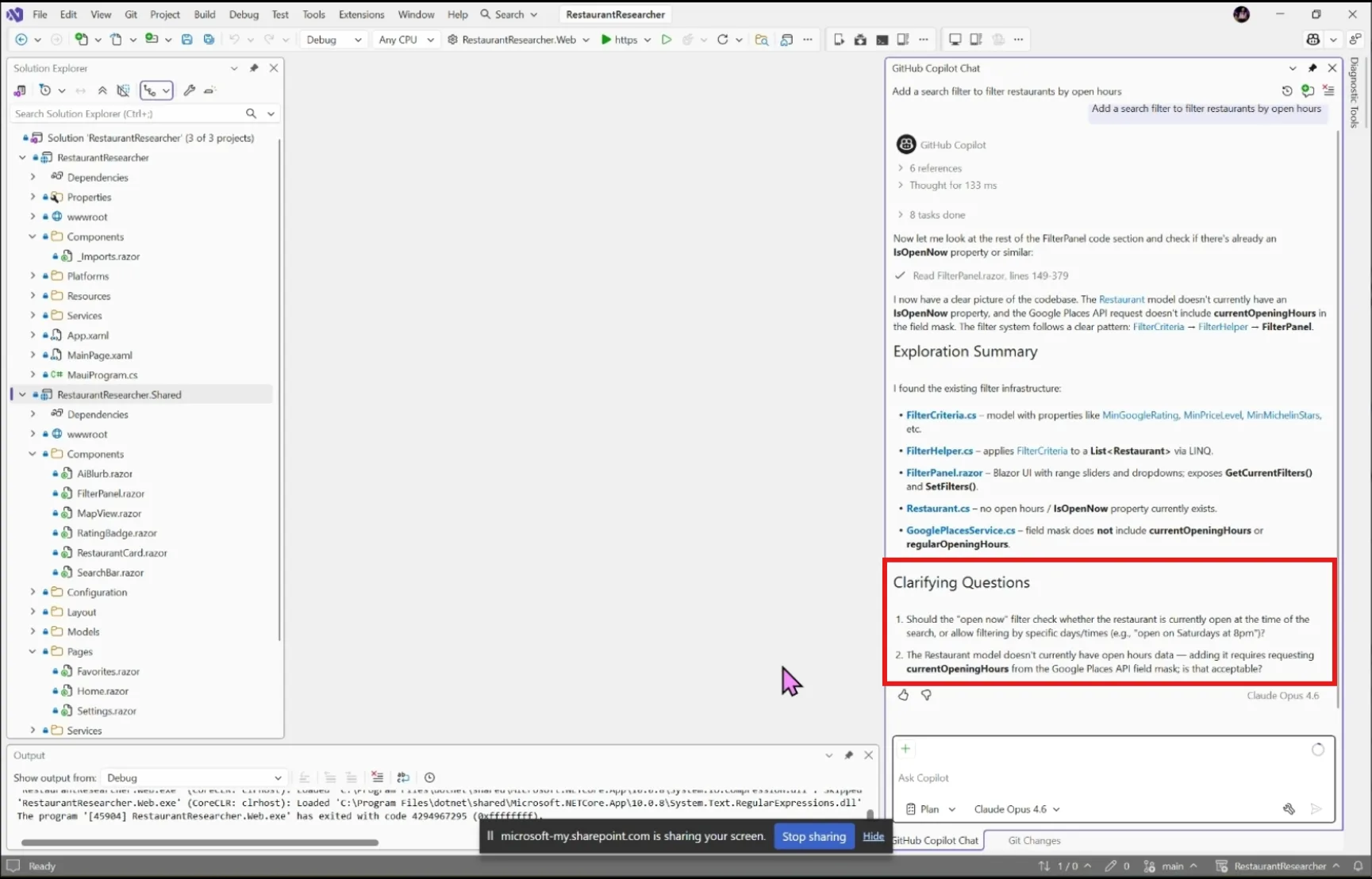
- Select the Plan agent and describe what you want to build — Choose Plan from the agent picker in Copilot Chat, then tell Copilot what you’re trying to do. You can be as broad as “add authentication to this app” or as specific as “refactor the payment module to support multiple providers.” The more context you give, the better the plan.
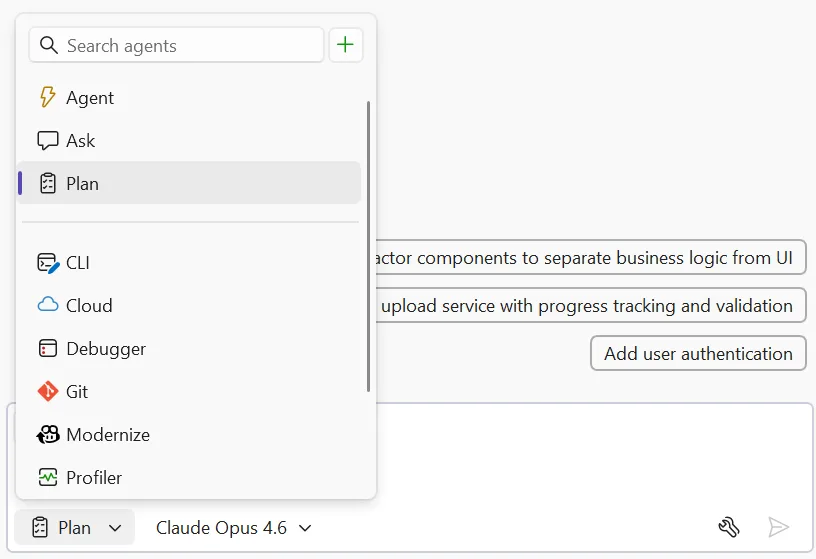
- Explore and clarify — Copilot scans your codebase using read-only tools and asks clarifying questions when something is ambiguous. Answer these to help Copilot understand what you’re going for. For straightforward tasks, it moves straight to drafting.
- Draft and refine — Copilot creates a detailed implementation plan you can review together. Ask it to rethink an approach, add edge cases, split a step into smaller pieces, or reconsider which files to touch.
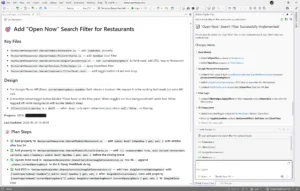
- Edit the plan directly — Every plan is saved as a markdown file at
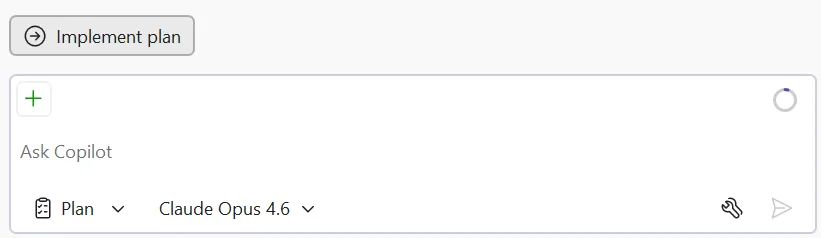
.copilot/plans/plan-{title}.md. Edit it in your editor, refine it through chat, or share it with your team for review. Copilot picks up your changes and keeps everything in sync. - Implement — When you’re satisfied, click Implement plan to hand it off to Agent mode to build. No code changes happen until you say so. Copilot works through the plan step by step, creating and editing files while you watch the progress in real time.
Try it today
The Plan agent helps you figure out what to build before you start building it. Give it a try on your next feature or refactoring task, and let us know how it goes!
Share your feedback on Developer Community and let us know what’s working, what’s not, and what you’d like to see next!