Visual Studio Geeks | Publish Helm 3 charts to Azure Container Registry (ACR) using GitHub Actions


In my previous post, we briefly covered how to publish a Helm chart to ACR using Azure DevOps. In this post we will use GitHub actions to build and publish Helm chart to ACR using GitHub Actions. We will also take a sneak peak how GitHub environments work.
Pre-requisites

I am going to assume ACR instance is setup using repository scoped tokens. Since we already covered setting up of ACR this way in the earlier post, I will not include the steps here.

Setting up secrets at GitHub

We would like store Azure Container Registry’s tokens as GitHub repository level secrets. To do that, click on Settings on the repository page and head to Secrets tab. Finally click on New repository secret and add the token name and the password. I have stored token name as ACR_PUSH_USER and token password as ACR_PUSH_TOKEN.
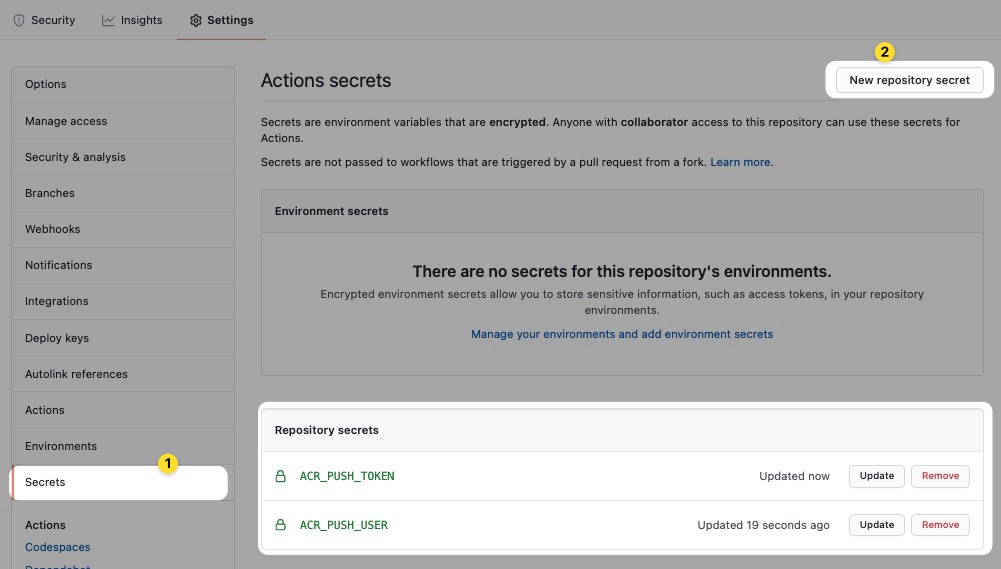
Add repository secrets

Creating the workflow in GitHub Actions

Publish chart to ACR

The first step is to create an yaml file under .github\workflows folder and setup a basic structure. The first things (see the yaml below) are defining name for the action, currently set to trigger via manual trigger using workflow_dispatch and define few environment variables which we are going to use later in the action.

name: ci

on: 
  workflow_dispatch:

env:
  HELM_EXPERIMENTAL_OCI: 1
  HELM_VERSION_TO_INSTALL: 3.5.0
  ACR_NAME: acrdemoutkarsh
  ACR_REPO_NAME: helmdemo/vote-app

The first environment variable conveys to ACR that we are going to publish a OCI package. Next couple of variables just define version of Helm we need on the runner, our ACR name to which we are going to publish this chart and finally to the repository we are publishing this chart to (used in below sections).

Installing Helm 3 on the agent

Now that we have all the variables defined, we need add jobs and steps to build our workflow to publish charts to ACR. We then need to install Helm tool on the agent before we can run the Helm commands. We do that using yaml below.

jobs:
  build:
    name: publish acr
    runs-on: ubuntu-latest
    environment: prod
    steps:
      - uses: actions/checkout@v2
        name: checkout repo
      
      - name: install helm
        uses: Azure/setup-helm@v1
        with:
          version: ${{ env.HELM_VERSION_TO_INSTALL }}# default is latest

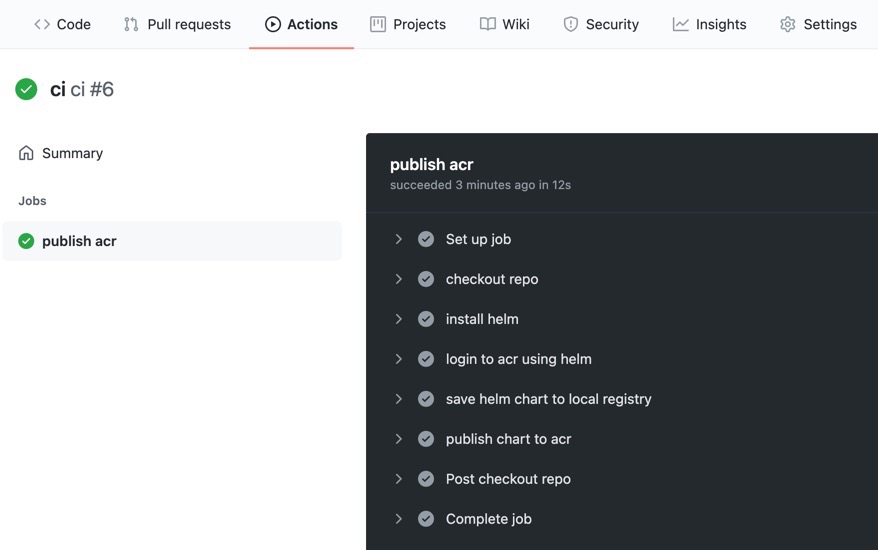
As you can see, we have one job named build (which will be displayed as publish acr – see screenshot below) which runs on ubuntu-latest agent. We also are targeting our deployment to an environment prod. Environments in GitHub are cool because you can have approvers, additional protection rules for environments and environment specific secrets. In the screenshot below, notice how the flow is waiting for review.
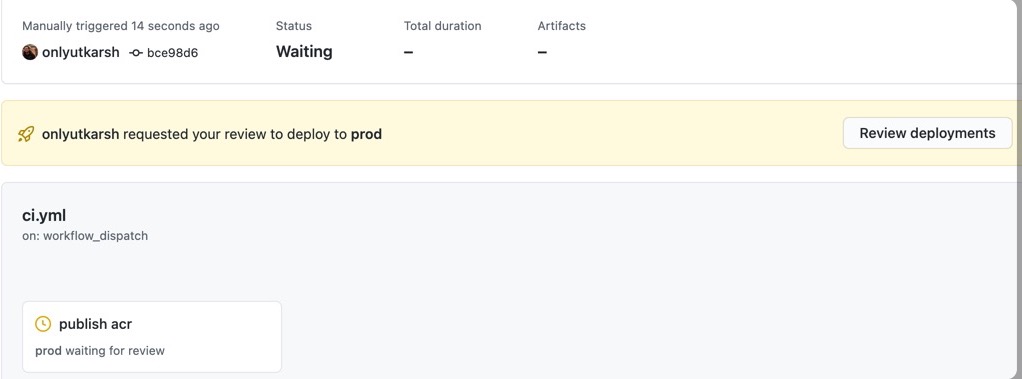
Next, we checkout the repository and using setup-helm task from Azure repo we install the specific version (3.5.0) of Helm.

Login to the ACR using Helm

Next, we need to login to ACR registry using Helm tool.

- name: login to acr using helm
  run: |
    echo $ | helm registry login $.azurecr.io --username $ --password-stdin 

Save and push the chart to ACR

Next we need to save the chart directory to local cache and publish it to ACR.

- name: save helm chart to local registry
  run: |
    helm chart save $/src/azure-vote-helm-chart/ $.azurecr.io/$:latest
      
- name: publish chart to acr
  run: |
    helm chart push $.azurecr.io/$:latest

Run the workflow, and you will see output as below.
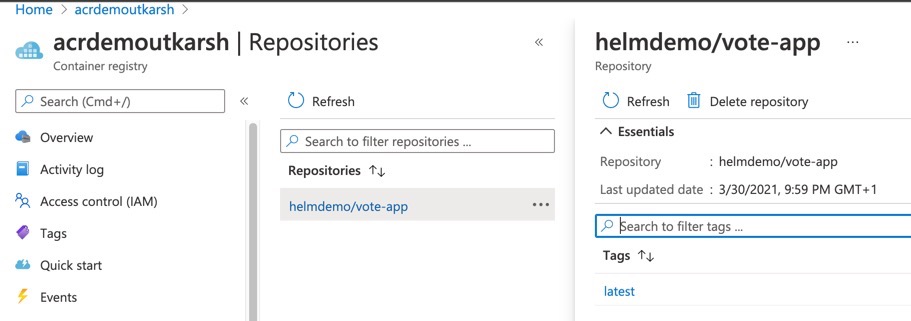
Go to ACR and you will see char correctly published to helmdemo/vote-app repository as declared in the env section above.
Conclusion

In this post, you saw how easily we can deploy a OCI package (helm3 chart) to ACR using GitHub actions. We also saw how GitHub environments help you approve changes to the environment. Hope you enjoyed reading this post.
Visual Studio Geeks | Keep your workflow actions up to date using GitHub Dependabot


GitHub Actions is great in automating your workflows. However, as you start using various actions from GitHub Marketplace in your workflow, it will soon become necessary for you to keep the actions up-to-date. Actions might contain security fixes, bug fixes etc and manually keeping track of updates or updating them when a newer version is available is a lot of hassle. This is where we can use Depndabot, which can help by automatically raising PR’s whenever there is a newer version of action is available used in the workflow. In this post, we will see quick way to keep the actions up-to-date using GitHub Dependabot.

For this post, I am using my Git Config User Profiles repository. I have workflow setup which builds and releases the VS Code extension to VS Marketplace.

Create dependabot.yml file

To setup Dependabot scan, first got to .github folder in your root and create a depndabot.yml file. Then add the following content. This will ensure GitHub Dependabot raise a PR whenever there is a newer version of action is available

version: 2
updates:
  - package-ecosystem: "github-actions" # search for actions - there are other options available
    directory: "/" # search in .github/workflows under root `/`
    schedule:
      interval: "weekly" # check for action update every week

Commit the file

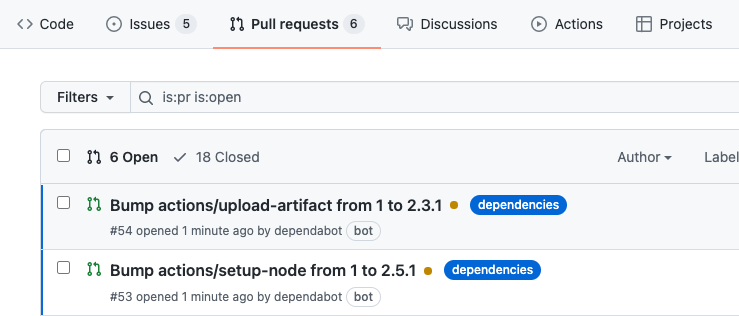
Commit the file created above and wait for few seconds. Based on your workflow, you will see a bunch of PR’s raised.

Dependabot Alerts as PR

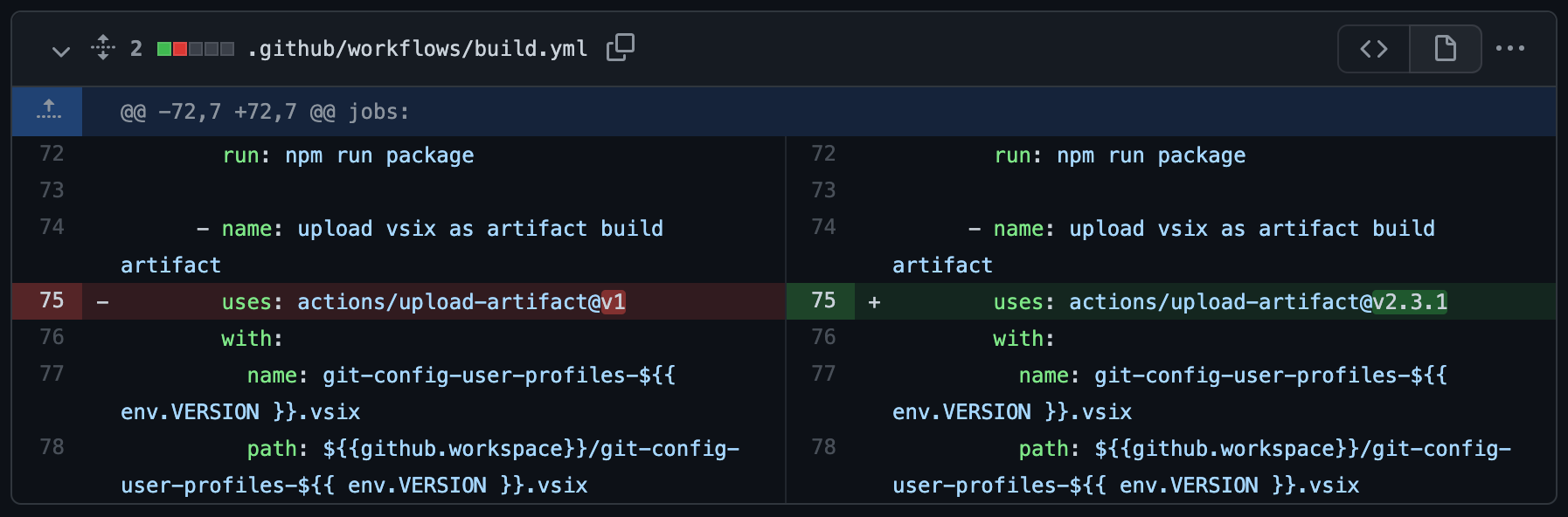
If you look at the PR, you will be able to see the change and take a decision whether you want to upgrade the specific action or not. If you decide to accept the change, merge the PR and the changes on the workflow file will be made.

Commit Details

Conclusion

Isn’t it cool? This saves a lot of time, if you have a number of workflows and don’t want to keep checking the latest versions of actions. BTW, not only GitHub actions, you can use the same approach to update npm, docker and many more using various package ecosystems. Do check it out!


Visual Studio Geeks | Trigger a Netlify build every day using GitHub Actions


I host this blog on Netlify. Often, I end up writing few blog posts on the same day, but not necessarily want all of them published together. Jekyll allows to add future date to the posts, and those posts will not get published until the date set. This lets me write blog posts on the same day, but publish them later based on the date set for the post.

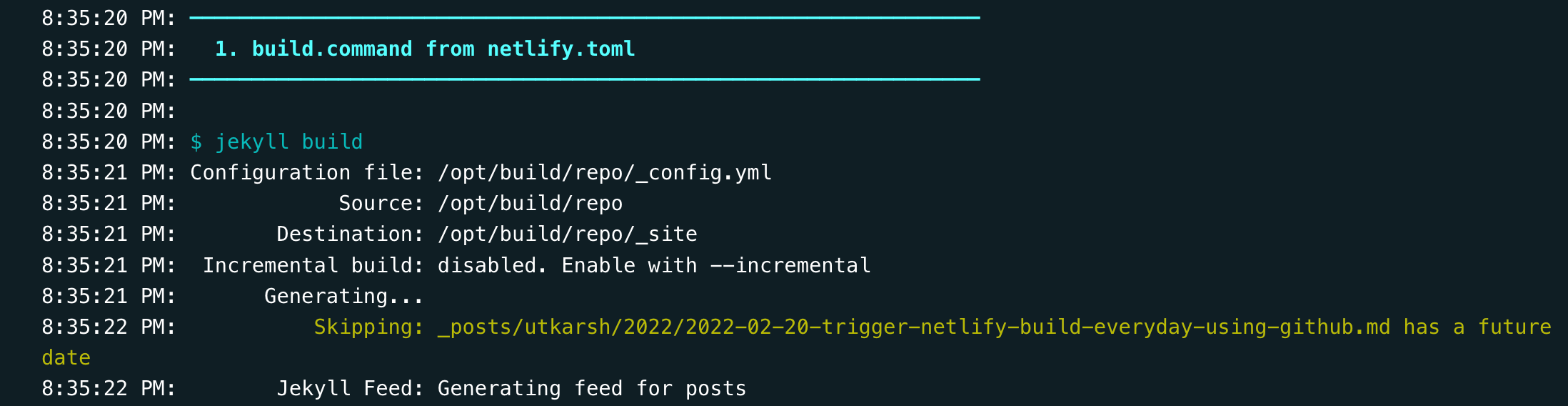
However, this means that when you build the site (locally or on Netlify), posts with future dates will be skipped from the generated site. You will need to run build again on the blog post date to publish the blog posts. One way is to schedule a build on Netlify so that blog posts with future date can be included in the site. Curious how to do this?

Jekyll skipping posts with future date

Create Netlify build hook

Netlify supports build hooks, which lets you trigger new builds and deploys by making a request to a URL.

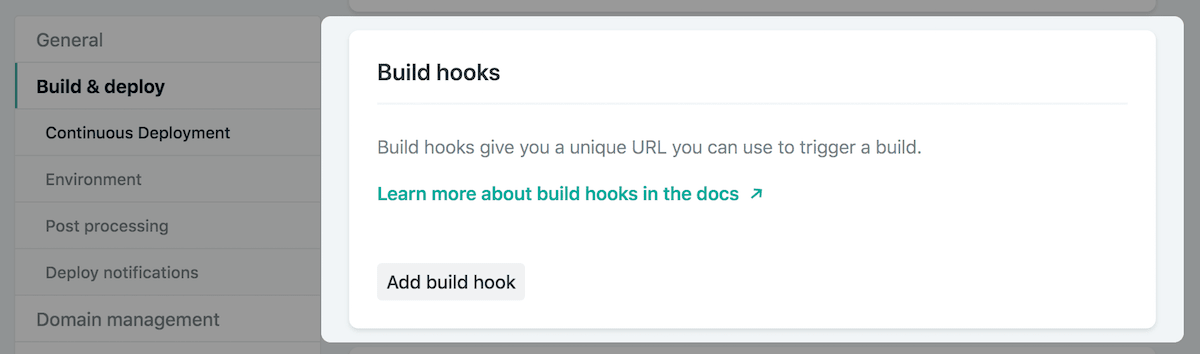
Configure build hooks

Go to Site Settings and Build Hooks section and click Add Build Hook button.

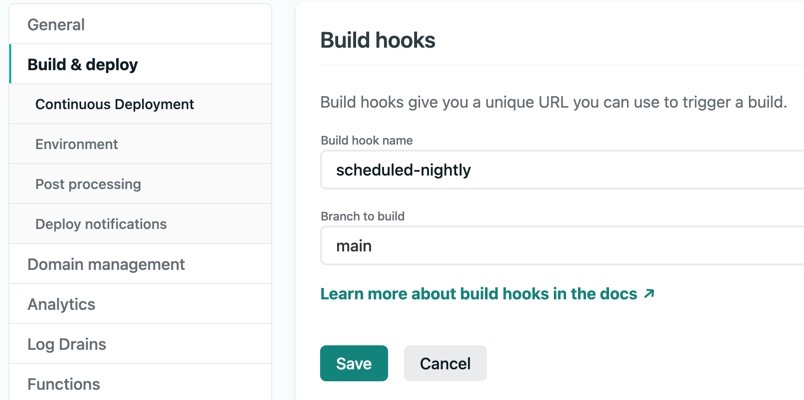
Add build hook

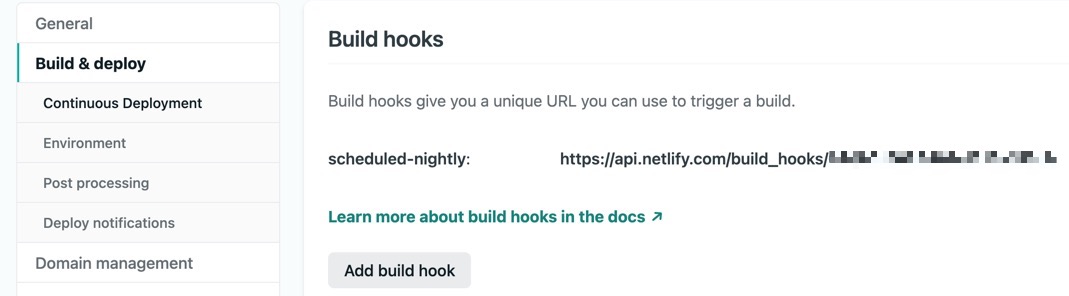
Give a name and select a branch to trigger the build and click Save. You will see the URL which you can use to trigger the build.

URL of the build hook

Create GitHub Actions workflow

Go to GitHub repo and create a actions yaml file under .github\workflows folder. GitHub Actions supports scheduled jobs, which lets you run a job at a specific time. See the below example. I am using cron expression to run the build every day at 04:00 AM UTC timezone.

name: nightly-netlify-build

on:
  schedule:
    - cron: "1 4 * * *"

jobs:
  build:
    runs-on: ubuntu-latest

    steps:
      - name: trigger netlify build
        run: |
          curl -X POST -d '{}' https://api.netlify.com/build_hooks/2eae8d5c79506d0213a38be0e

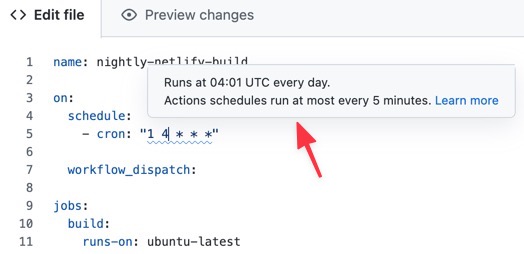
Note, if you hover over the cron expression, GitHub nicely displays the tooltip explaining the cron expression.

GitHub shows cron expression detail

Save the file and push the changes. That is it, you have created a GitHub Actions workflow which can trigger nightly build of the blog.
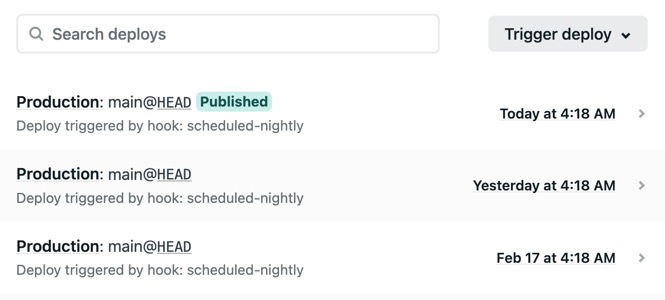
Go to Netlify and see the Deploys tab. You will see the deploys triggered by the build hook.

Deploys triggered by the build hook

Isn’t that cool? If you liked the post, do share it in your social channels. Thanks for reading.