A lot of people started to care about “high resolution” digital audio when Apple launched its upgraded music service to the masses. Call that the “Apple effect,” as infuriating as it may be, but the iPhone maker isn’t the only one in the hi-res audio game: Qobuz, Tidal and Deezer have been doing it for a while, and Spotify has been toying with releasing its own version for a while. However, as many were quick to point out, some of Apple’s own products don’t necessarily support the higher sample rate and bit-depths on offer. No worries, there’s a dongle for that, and there are options for Android and desktop, too. We’ve tested dozens of these devices and the best DACs listed in this guide will play nice with any of the aforementioned services (aside from Tidal’s MQA, which is a little more specific).
What is a DAC?
James Trew / Engadget
A digital-to-analog converter takes the digital (D) music from your phone or computer and converts (C) it into analog (A) sound you can hear. All phones and PCs have them, but since handsets moved to USB-C, Lightning or Bluetooth for music, the task of converting that signal was generally outsourced to either your adapter or your wireless headphones.
DACs can be used with phones, laptops and desktops but tend to be much simpler than a regular external audio interface. One basic distinction is that DACs are usually for listening only whereas an audio interface might have ports to plug in microphones and instruments (but an external audio interface is also technically a DAC). Some high-end DACs even include XLR outputs for better connectivity with professional audio equipment.
The best DACs tend to be lightweight, making them more suitable for mobile use, although it still gets a little tricky with the iPhone as you still might need to add another dongle to make it play nice with Lightning. Also, not all DACs support all the higher audio resolutions like DSD. Most standalone DACs require external power or an onboard battery, though some can use the power from whatever you plug them into — in which case expect a hit to your battery life.
Best DACs for 2024
HiFiGo
Outputs: 3.5mm singled-ended | Inputs: Available in USB-C and Lightning versions | Max file support: 32-Bit/384kHz | Bluetooth: No
If you’re looking for the simplest way to listen to Apple Music Lossless, then the company’s own $8 dongle is hard to beat in terms or quality to price. But it has a maximum resolution of 24-bit/48 kHz. If you want to break into Hi-Res Lossless then the KA11 from Fiio — with support for audio at an eye-watering 32bit/384KHz — is the easiest way. At $30, it’s also pretty affordable, too.
Fiio’s years of experience making portable hi-fi has been distilled into this tiny little dongle. Available in both Lighting and USC-C models (love the color of the Apple model), the KA11 packs a lot of punch for something so small. On top of the support for extremely high audio resolutions, the KA11 also has a much higher output than most adapters — including Apple’s. The result is much louder music than your phone offers for most headphones, and with a better DAC like this, you’ll notice a significant improvement in your audio system. If you already have a pair of expensive headphones with a low sensitivity (as many higher end models tend to be) then the KA11 will likely still be able to drive them. You might even consider pairing it with a headphone amp for even more power.
This little dongle isn’t restricted to phones: the USB-C model is compatible with laptops and PCs, too. In fact, it’s likely a decent upgrade over the built-in sound for almost anything you plug it into. That’s true for all of the products recommended in this guide, but you might be surprised to find that something this small can give your PC’s audio system a serious boost. If there was a minor negative, it would be that the KA11 doesn’t support headset microphones, so if you were hoping to be able to handle calls with your headphones then bear that in mind.
With the KA11 being so small, there are no physical controls, so you’ll adjust volume directly on the phone or computer. The only feedback you have is a single LED that will change color depending on the audio it’s receiving (yellow indicates Hi-Res). Fiio also has a mobile app to access additional settings for its mobile products which, right now does include the KA11, but only on Android at time of publication.
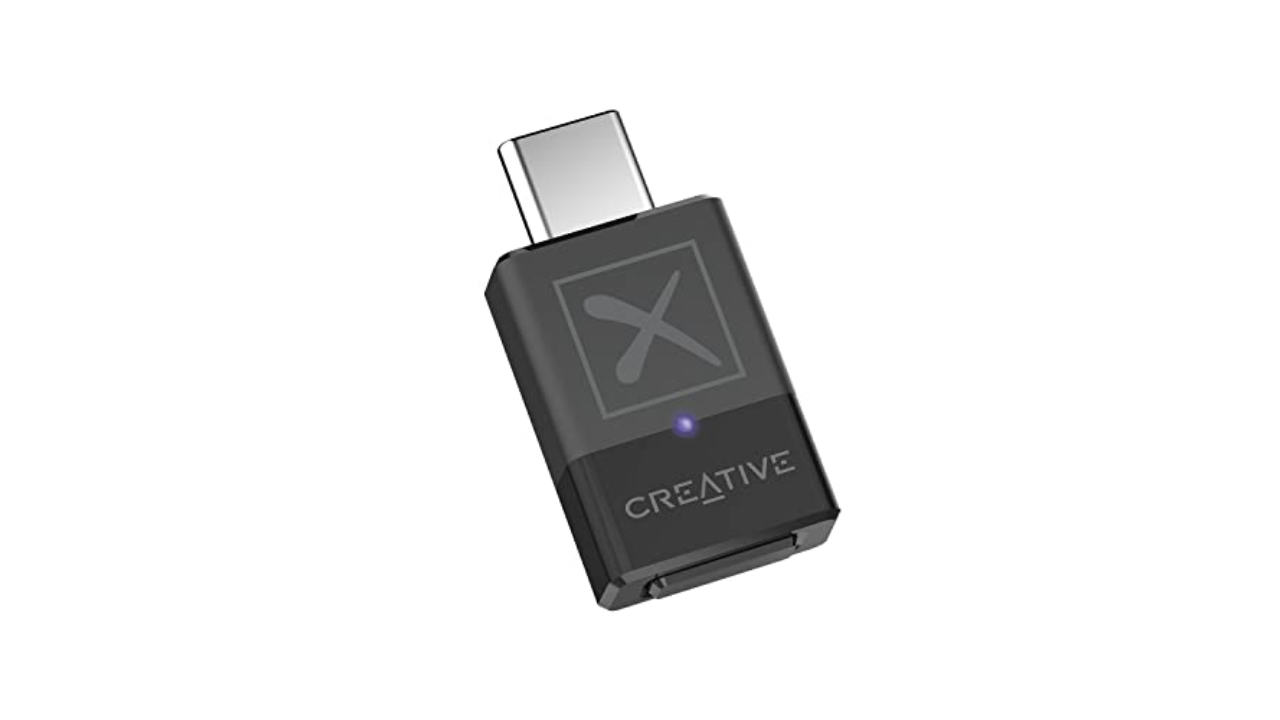
Outputs: Bluetooth | Inputs: USB-C | Max file support: 24-Bit/96kHz | Bluetooth: Yes | Weight: 0.16 ounces
While most Android devices support some form of aptX, your PC might not. If you have an iPhone, it definitely doesn’t support aptX and neither will any Macs — Apple devices only offer standard Bluetooth with AAC encoding (320 kbit/s max bitrate). If you want to make sure you’re getting more bits (up to 430 kbit/s) out of your music, across all your devices, Creative’s BT-W5 Bluetooth adapter is both practical and affordable.
The BT-W5 offers aptX, aptX HD and aptX Adaptive (which supports up to 24-bit/96 kHz) and it’ll automatically choose the best one for your headphones. Once you pair them with the adapter you can plug the BT-W5 into any music source with USB-C for improved Bluetooth audio — there’s even a low latency mode perfect for streamers or playing games on Switch, for example, without any lag.
If you have an iPhone with a Lightning connector, the BT-W5 won’t work without an adapter, but it’s a neat way to get the most out of your headphones without having to upgrade everything else. The BT-W5 can remember up to four sets of headphones, too, so if you have a pair for the commute and another set for the gym, just plug in the dongle and you’re all set.
Pros
Designed for use with Bluetooth headphones
Low-latency mode for use with devices like Nintendo Switch
Cons
Will not work with Lightning iPhones without adapter
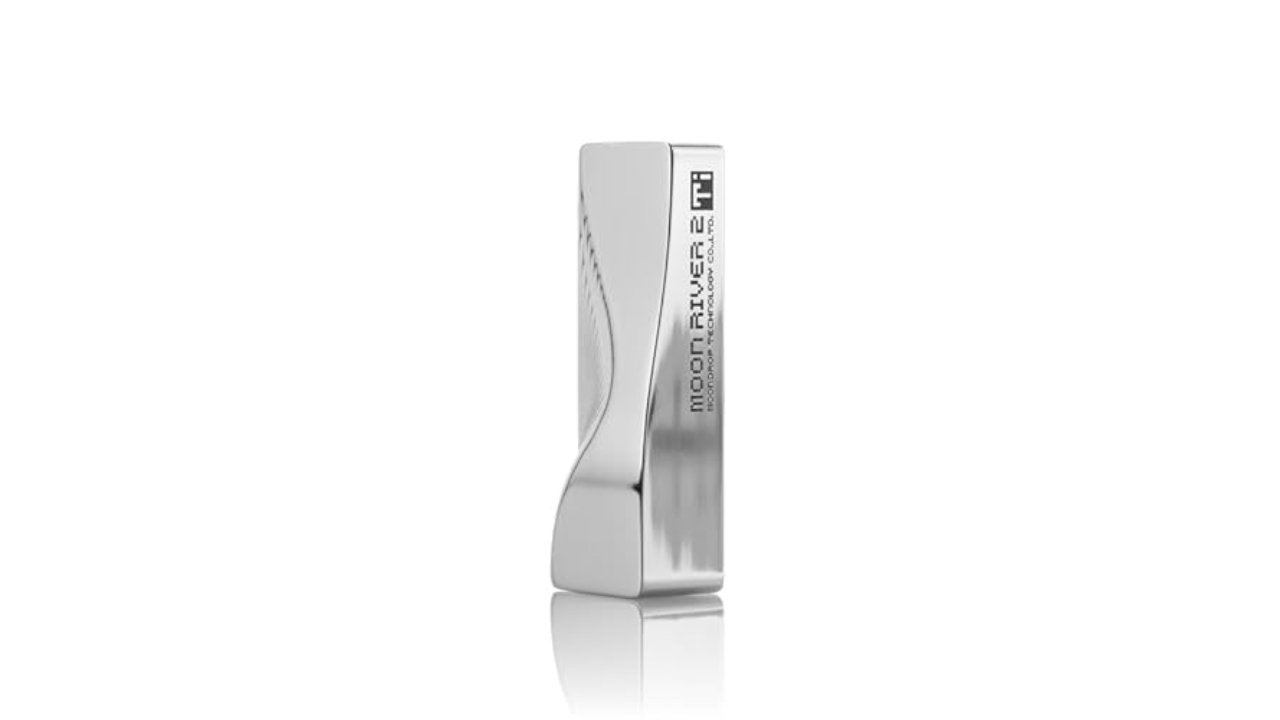
While you can squeeze an impressive amount of audio tech into a headphone adapter, a slightly bigger device affords a decent step up in both specs and features. Moondrop’s Moonriver T2i DAC is slightly larger than a pack of gum, and it has a stylish design that doesn’t look like a boring, generic dongle.
Importantly, the Moonriver T2i builds on the success of the company’s Moonriver 2 DAC. The “2” partly refers to the use of dual DAC chips here, which delivers a “balanced” signal. Each channel can handle up to 32bit/384KHz resolution and there are two headphone ports. One for standard 3.5mm headphones and another for 4.4mm connections — making use of that balanced output. If this is your first step into the world of Hi-Fi DACs, you’re totally fine with 3.5mm headphones, but some prefer the 4.4mm connector as it provides more power and potential signal benefits, especially if you’re using a headphone amp.
With the Moonriver T2i you have a couple more practical advantages. For one, there are physical volume controls on the device itself. If you ever felt that the 16 levels of loudness on the iPhone (I just counted) weren’t enough, then the 100 steps of adjustment on the Moonriver T2i (via companion software) eliminate any worries about setting the music to the perfect level. If your headphones have an in-line microphone, the good news is that this dongle will pass that through to your phone or PC so you won’t need a separate device for calls.
Most importantly, the sound that comes out of the Moonriver T2i is bright and bold. You’ll hear audiophiles talk about sound stage, detail and width, all you need to know is that this DAC ticks off all the buzzwords and serves up bright, robust sound that’s going to make any lossless/hi-res music really shine.
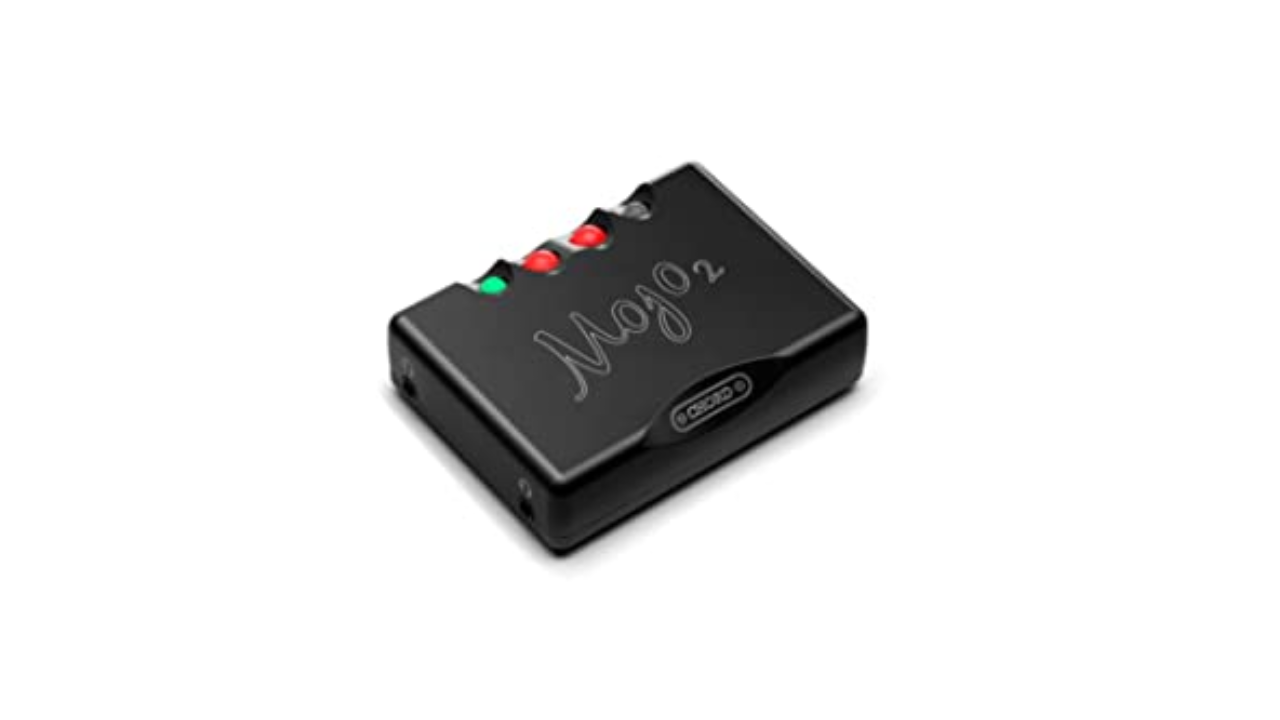
If you’ve had some experience with DACs and are looking to ratchet things up a notch or three, then the Mojo 2 from British company Chord wants to have a word. At $650, this is definitely in the high-end price range, but the experience and features it offers make it worth considering for serious audiophiles. But the brains behind the Mojo 2 have been making digital to analog converters pretty much since there was digital music to even convert. That experience is what makes the Mojo 2 a favorite among music fans.
Most options in this guide are designed for mobile devices first, the Mojo 2 is more of a hybrid device. The mobile dongles above all take their power from the player you connect them to, which is convenient, but obviously is less kind to your phone’s battery life. The Mojo 2 has an internal cell so won’t tax the one in your phone or laptop. It’s small enough to be portable, but substantial enough to live on your desk.
Unlike most DACs that use off the shelf chips to handle the digital-to-audio conversion, the Mojo 2 uses field programmable gate array (FPGA) technology to create its own custom “chip.” It’s also powerful enough to act as both a DAC and a preamp, driving even power-hungry headphones with ease. We’ve seen FPGA gain popularity in gaming circles for its ability to imitate various consoles, but that same flexibility is what makes it interesting to the audio engineers at Chord.
If you need something that’s capital L loud, then the Mojo 2 will not disappoint. Proceed with caution here. It’s actually powerful enough to drive two pairs of headphones at the same time and has two 3.5mm ports so you can do exactly that. The curious circular buttons can also be used to change sound profiles with an excruciating level of detail.
The Mojo 2 has standard USB-C, microUSB, optical and coax inputs so it’s more flexible than a lot of its competition in this regard. Although it’s worth noting that you can only charge the Mojo 2 via microUSB. Of course, there’s a cable provided for this, but if you’ve fully made the switch to USB-C, it’ll mean you have to guard the charging cable closely.
Outputs: 1x 3.5mm singled-ended, 1x 4.4mm balanced | Inputs: 1x USB, 1x optical, 1x coaxial, 1x AUX | Max file support: 32-Bit/384kHz | Bluetooth: No | Weight: 2.51 pounds
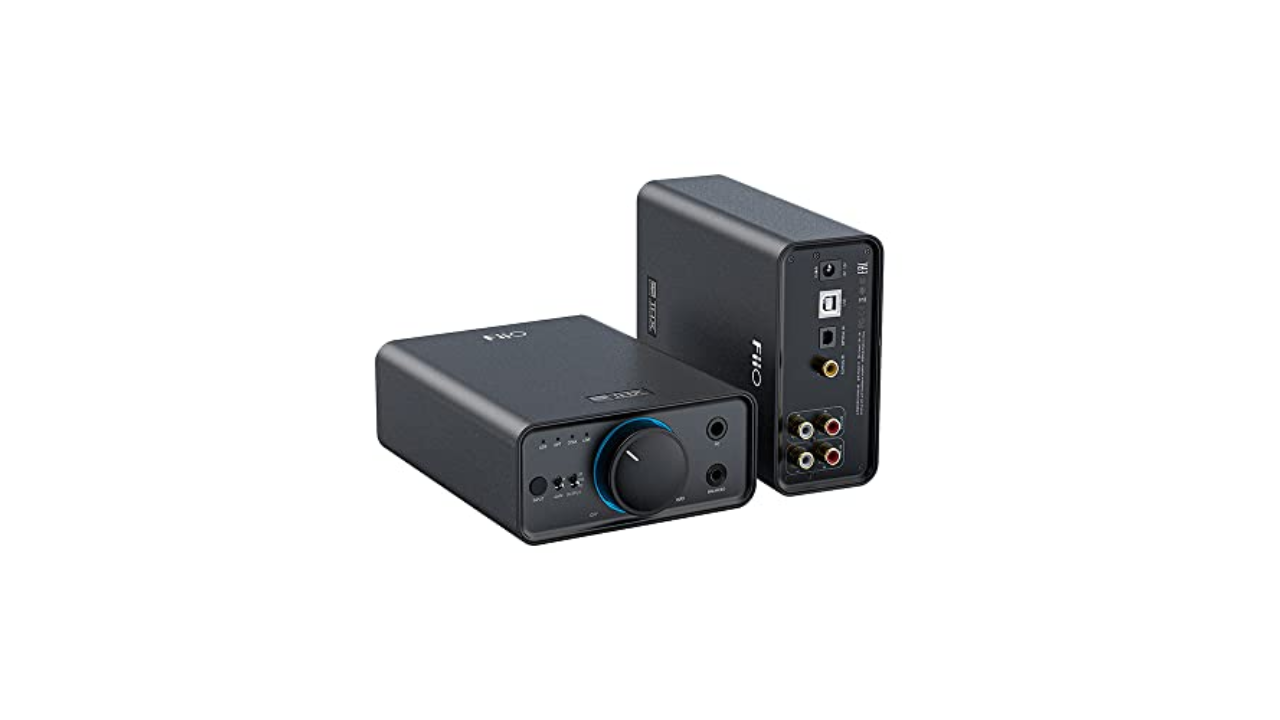
If you do most of your listening at home, the K7 from Fiio is a great place to start. The world of desktop DACs and headphone amplifiers could fill its own guide, but the K7 is both capable, feature-filled and reasonably priced. It functions as both a DAC and a headphone amp, making it a solid all-in-one solution for audiophiles building a home audio system.
With phono, coaxial, optical and USB inputs, the K7 from Fiio is able to handle music and audio from almost any high fidelity source. Most traditional desktop audio interfaces support playback of up to 24 bit/48 kHz, the K7 can handle files all the way up to 384 kHz at 32-bit – perfect for those who demand a better DAC for high-resolution files, whether you’re listening via headphones or a full audio system.
On the front you’ll find two inputs: a 1/4-inch jack and a 4.4mm balanced headphone port along with a big ol’ volume dial. While its Hi-Fi aesthetic might not be the most razzle-dazzle, it does have an RGB LED around the dial to give it a pop of color (it also changes color depending on the “quality” of your audio source).
There are two versions of the K7, and if you plonk down another $50 you get Bluetooth receiver functionality. This doesn’t mean you can connect wireless headphones, rather you can listen to music from wireless sources, such as your phone while maintaining a physical connection to your PC. If your phone can serve up music in higher-resolution codecs like aptX HD, aptX Adaptive or LDAC (or if it can’t, read about the BT-W5 above) you can listen to it through the K7.
DAC stands for digital to analogue converter. It’s a device that takes digital files, stored on a laptop, computer, etc., and converts them into audio that we can listen to with better clarity and depth. Devices that provide sound, like a CD player, Blu-ray player, TV box, and so on, require good DACs so that the digital files can be decoded in order to output audio. Most of the time, a DAC is built-in to these devices, but sometimes they are external and require a power supply.
Why do I need new hardware to listen to music?
The short answer is, you don’t. You can play “hi-res” audio files on most phones and PCs, you just might not be getting the full experience. If your device’s audio interface tops out at 44.1 or 48kHz (which is fairly common and covers the vast majority of music online) then that’s the experience you’ll get. If you want to enjoy better sounding music at a higher sample rate and bit-depth (aka resolution), you’ll need an interface that supports it and wired headphones, potentially using a headphone amp for an enhanced experience.
It’s worth pointing out that “lossless” and “hi-res” are related terms, but not the same thing and will vary from service to service. Apple uses ALAC encoding which is compressed, but without “loss” to the quality (unlike the ubiquitous .aac or .mp3 file formats). CDs were generally mastered to at least 16-bit / 44.1kHz which is the benchmark that Apple is using for its definition of lossless. In audio circles, a general consensus is that hi-res is anything with a sample rate above 44.1kHz. Increasingly, though, the term is being used for anything 96kHz and above.
This, of course, isn’t only about Apple’s new streaming formats. External DACs and audio interfaces are a great way to get the best sound and upgrade your listening experience generally. Especially if you want to get into the world of more exotic (read: pricey) headphones, as they often even require a DAC to provide enough clean digital signal to drive them. For audiophile headphones, a phone or laptop’s internal sound chipset often doesn’t have the oomph needed to deliver a hi-fi experience, meaning a better DAC could make all the difference in sound quality.
Okay, but can’t I just use the headphone adapter for my phone?
No. Well, yes, but see above. A Lightning or USB-C to 3.5mm headphone adapter often is an audio interface and most of the ones you’re buying for $7 (or that come free in the box) do not support hi-res audio beyond 48kHz / 24-bit. Android is a little more complicated, as some adapters are “passive” and really just connect you to the phone’s internal DAC like old school headphones. Others (active ones) have a DAC built-in and good luck finding out what your specific phone and the in-box adapter delivers. (Hint: connect it to a PC and see if it comes up as an audio interface. You might find some details there if it does).
What about Bluetooth headphones?
Chances are that over the last few years you’ve migrated from wired to wireless headphones (thanks, Apple). The world of Bluetooth headphones changes things a little when it comes to seeking better audio performance. What matters here is twofold, the headphones you’re using (as those will technically be the “DAC”) and the codec — the method used to send the musical data over to the headphones. It’s worth checking to see if your headphones support aptX and which version — aptX HD, aptX Adaptive are better than standard and becoming more common. Other systems exist, like Sony’s LDAC, but Qualcomm’s AptX has wider support thanks to its prevalence in Android devices. Some high-end wireless headphones might even come with a headphone jack for wired connections when higher-quality audio is needed.
While no gaming mouse will magically stop you from getting wrecked in Counter-Strike or Call of Duty, the right model can give you a greater feeling of control and make your downtime altogether more comfortable. Which one is “best” for you ultimately comes down to preference: Shape is king, as they say, and everyone’s hands are different. Nevertheless, we’ve tested dozens of well-regarded gaming mice over the past several months and picked out a few options that glided above the rest. After countless hours in CS2, Overwatch 2, Halo Infinite, Final Fantasy XIV and more PC games, these are our picks for the best gaming mice you can buy, plus some general tips to keep in mind during your search.
Best gaming mouse
Photo by Jeff Dunn / Engadget
If money is no object, the best gaming mouse with a symmetrical design that we’ve tested is the Razer Viper V3 Pro. It costs a hefty $160, but it’ll give you little to complain about if you play a ton of competitive PC games and can stomach the price.
With its lightly grooved sides, noticeable but not aggressive hump and gentle flare-outs toward the back, the Viper V3 Pro’s shape should be comfortable for a wide range of hand sizes and grip types. It’s a bit on the wider side, and it probably works best with a claw or fingertip grip, but it’s not so short or flat that it can’t accommodate palm grippers. The main mouse buttons are contoured in a way that gives your fingers a natural resting place, and there are little ledges on either side to subtly nudge them to the right spot when you’re scrambling in-game. Put another way, this is one of the safer shapes we’ve tested.
The Viper’s build quality is excellent. It’s impressively light at 54 grams, which makes it a breeze to flick around in fast-paced games, yet its matte plastic frame isn’t covered in dust-inviting holes like many other options around the same weight. We’ve seen zero hints of creaking, flexing or rattling after months of testing. The finish picks up some finger smudges but is grippy and delightfully soft to the touch. The main click buttons use durable optical switches but aren’t especially loud. Though they aren’t quite as full or crisp as the absolute best mechanical switches, they’re still snappy to press, neither too firm nor too light. The two programmable side buttons are well-sized and easy to reach. The scroll wheel, meanwhile, is tight and quiet, with clearly defined steps and a textured finish.
Performance, as is the case with many high-end gaming mice these days, is effectively flawless. Razer’s Focus Pro 35K Optical Sensor Gen-2 — say that five times fast — is basically overkill from a technological perspective but makes the mouse exceptionally accurate and consistent all the same. It’s aided by amply-sized, smooth-gliding PTFE feet and a rock-solid connection to an included “HyperPolling” dongle. The latter lets the mouse reach a maximum polling rate of 8,000Hz, but as noted below, few people will actually noticed any benefit from jumping that high. Mostly, it’ll just zap battery life: Razer says the Viper V3 Pro can get up to 95 hours at 1,000Hz, which is fine for this market and roughly consistent with our experience, but that drops to just 17 hours at 8,000Hz.
If the price didn’t make it obvious, the Viper V3 Pro is for gaming enthusiasts. As such, it gives up some of the perks you’d find on more mainstream mice: There’s no RGB lighting or Bluetooth, while the power button/DPI switcher is located on the bottom of the device to make it harder to hit by accident. Since the device uses a special dongle instead of a traditional receiver, it still requires you run a separate USB-C cable from your PC. You can connect over that cable when the battery is low, thankfully, but it’s relatively thick. And while Razer’s Synapse software makes it simple enough to adjust settings, it’s something of a resource hog. It’s also Windows-only. These are all nitpicks, though. The Viper V3 Pro is outstanding, and it should feel right at home in the hands of committed FPS players.
If you want a premium gaming mouse with a more ergonomic shape, get the Razer DeathAdder V3 Pro. It packs most of the same strengths as the Viper V3 Pro but has a taller, slightly wider and more dramatically flared design that’s tailored to right-handed users. Most people with medium to large hands should find it to be a natural fit with a palm or claw grip, though it’ll probably be a touch too fat for smaller-handed folks and fingertip grippers. This kind of shape isn’t as easy to whip around as the Viper, but its high, sideways-sloping hump should provide a more relaxing place to rest your hand over the course of the day.
Razer sells two variants of the DeathAdder V3 Pro: one with a similar soft-touch finish as the Viper V3 Pro, and one with a more textured matte plastic coating. We tested the latter; it’s not as grippy or smooth to the touch, but it’s still good, and it’s much less of a fingerprint magnet.Also, the side buttons are bigger, closer together and a smidge less tight, but they’re still difficult to hit by accident. The design is heavier at 63 grams, too, but still seriously lightweight. The PTFE feet are smaller but still glide reliably. And while the sensor is technically a generation older, performance is effectively flawless.
Otherwise, you’re looking at a similar feature set. The optical main buttons are satisfying and consistent but not overly sensitive. The lightly notched scroll wheel is soft, quiet and resistant enough, if not firm. Battery life is rated at a decent 90 hours, and you can connect a lighter and more flexible USB-C cable in a pinch. Both versions of the mouse also support polling rates up to 8,000Hz, though only the SKU with the “smooth-touch” texture comes with a dongle that enables those higher rates in the box. The textured “classic base” model comes with a smaller USB receiver that “only” goes up to 1,000Hz, but since it’s often available for less at third-party retailers, it’s probably a better value. In general, the biggest knock against the DeathAdder V3 Pro is that it’s expensive, with the 8,000Hz model priced at $160.
The newer DeathAdder V3 HyperSpeed, which costs $99, is a “1B” pick here. Although it’s positioned below the Pro in Razer’s lineup, it’s more of a “DeathAdder V3 Pro Mini” than a clear downgrade. It doesn’t give up the rechargeable battery, cutout-free shell, optical switches and soft (if smudge-heavy) coating of its bigger sibling, and while its sensor is technically worse, it still performs wonderfully. Its battery life rating is actually 10 hours higher at 1,000Hz, plus it has a built-in storage compartment for its USB receiver. The major difference is that it’s lighter (55g) and more compact, with a lower-profile scroll wheel and a marginally shorter hump. If your hands are on the smaller side, it’s worth grabbing instead.
If you don’t mind connecting over a cable, our favorite wired gaming mouse with a symmetrical design is the Endgame Gear OP1 8K. It weighs just 50 grams and has a simple design with flat sides and a reasonably-sized hump sloping down the back. It’s a bit smaller and more narrow than most mice we’ve tested, so it’ll be comfiest with a claw or fingertip grip, though a palm grip can also work in smaller hands. The whole thing is incredibly sturdy, with no flex or rattle, while the smooth matte plastic coating gives a fair bit of grip. The built-in cable is light, flexible and cleverly titled upwards at the base of the mouse, all of which helps reduce any dragging sensation as you throw your hand around.
The OP1 8K uses mechanical switches, but the mouse is designed in a way that makes them (relatively) easy to swap out in a worst-case scenario. In general, the device’s openness to customization is commendable — there are readily exposed screws on the bottom and a screwdriver, optional side grips and larger PTFE feet in the box.
By default, the main clicks are on the stiffer side but fast to actuate and noticeably crisp. You can actually set these switches to use a “speed mode” that reduces click latency even further, but either way the buttons are easy to spam. The right mouse button on our unit does sound a little sharper than the left, but the difference isn’t severe and you can pop in quieter switches on the cheap if you want a different noise profile. The notched scroll wheel and two side buttons are well-tensioned, too. The latter feel somewhat hollow, but they’re hard to hit by accident.
Sensor performance is predictably excellent; we saw no accuracy or motion delay issues across a range of games. With its light weight, fast clicks and smooth stock skates, everything about it feels tailor-made for snapping around in esports-style games like Counter-Strike 2 that prioritize quick reactions. The mouse also supports polling rates up to 8,000Hz — that’s still far from essential, but it’s at least easier to turn on when there’s no battery drain to worry about. We also like Endgame Gear’s configuration software, which looks like something out of the Windows 95 era but is simple to grok and takes up next to no resources.
At $75, the OP1 8K certainly isn’t the cheapest wired mouse, but it’s still a good way less than wireless high-performance models. The most pressing issue may be that it can fall out of stock from time to time, as Endgame Gear is a relatively small company out of Germany.
It’s a few years old, but the Razer Basilisk V3 remains our favorite wired gaming mouse with an ergonomic design. This one is more aggressively contoured than “ergo” mice like the DeathAdder V3 Pro, with a large rubberized thumb rest, long main buttons and a rounded, moderately-sized hump running down its middle. It’s fantastically comfy for palm grippers with medium- to large-sized hands, but it’ll also play well with claw grips. Those who prefer a fingertip grip or just have smaller hands will likely find it too chunky, however.
The design as a whole feels robust; there’s some minor flexing on the bottom-right side when you press down hard, but you’d have to go out of your way to notice it. The matte plastic finish is pleasingly textured and sufficiently grippy. The cable is plenty flexible, while the PTFE feet glide smoothly. We also dig the fun-but-not-garish RGB lighting around the mouse’s underside and scroll wheel. There are 11 customizable buttons in total, including two easy-to-reach side buttons and a dedicated “sensitivity clutch” that lets you momentarily drop to a lower DPI for moments where you may need to aim more precisely. The latter will be particularly tough for the smaller-handed to reach comfortably, though.
The Basilisk V3 uses older optical switches than our other Razer top picks, but we haven’t had any double-clicking issues after well over a year of testing. While main clicks aren’t nearly as fast as those on the Endgame Gear OP1 8K, they strike an agreeable balance between firmness and speed. They aren’t all that loud, either. Similar to the Viper V3 Pro, the buttons are grooved in a way that naturally invites your index and middle fingers.
The scroll wheel might be the weakest element: It has clearly defined steps and an easily identifiable texture, but it’s fairly loud and a bit wobbly. That said, it can tilt side-to-side — which helps explain the wobbliness — and there’s a built-in toggle that lets you swap between a normal ratcheted scroll and a free-spin mode. That can be handy outside of games — say, when you need to scroll through a giant document or Excel sheet.
Razer’s Synapse software is still naggy with updates and Windows-only, but it makes customizing DPI levels, macros and RGB effects simple enough. You can save up to five different profiles to the mouse itself, though your lighting customizations won’t carry over.
We haven’t had any major issues with sensor accuracy, either, but at roughly 100 grams, the Basilisk V3 is obviously heftier than the ultralight mice we highlight above. While you absolutely can go off in Counter-Strike or Valorant with it, the mouse’s weight and wide frame mean it’s not expressly designed for games like those. It also can’t go above a 1,000Hz polling rate. In many ways, this is the exact opposite of the OP1 8K, a device that feels designed from the ground up for competitive fare. Instead, the Basilisk V3 makes sense for righties who want a comfy and reliable mouse they can turn to for more casual gaming across genres. Razer sells it for $70, but since it’s usually available for less than $50 at third-party retailers these days, you can consider it our favorite “value” model as well.
If you want a mouse specifically designed for MMO and MOBA games, get the Corsair Scimitar RGB Elite. It does the most important thing any MMO mouse can do, which is let you access several in-game actions with minimal effort. That’s thanks to its 12 programmable side buttons, all of which deliver a comfortable, firm-but-not-stiff sensation when pressed. Two of the panel’s four button rows are textured, which makes them easier to distinguish without having to look down. Uniquely, you can physically reposition this side panel with an Allen key included in the box, so if you find the buttons difficult to reach by default, you can address that. Either way, having a host of buttons right under your thumb makes it much easier to play MMOs like Final Fantasy XIV or even single-player RPGs like Baldur’s Gate 3, which ask you to navigate multiple “hotbars” of commands at any given time.
Like most MMO mice, the Scimitar RGB Elite is on the larger and heavier (108g) side, but it’s not the bulkiest model we’ve seen. Its shape should be accommodating to palm and claw grips, and most hand sizes. The middle has a rounded, not-overly-aggressive hump, while the bottom is more gently sloped than rivals like Razer’s Naga lineup. The overall construction feels well-built, with a smooth matte finish, a grippy pinky rest and decent PTFE feet. Internally, its optical sensor (the Pixart PMW 3391) isn’t exactly advanced these days, but it’s more than consistent enough for MMOs and MOBAs, which don’t rely on precise, quick-twitch movements. It has no significant issues with latency, either.
However, there are a few downsides. The braided cable feels durable but somewhat stiff. The scroll wheel is grippy and accurate enough, but it’s a touch too recessed between the main buttons, and it could be firmer. Those main buttons never feel mushy, but they use mechanical switches, so they carry more of a long-term durability risk than optical alternatives. (Corsair rates them at 50 million clicks.) And Corsair’s iCue software is, frankly, the worst: You can use it to customize key bindings, assign macros, adjust the (mild) RGB lighting and save profiles to the mouse, but figuring out how is wildly unintuitive.
Nevertheless, the MMO gaming mouse market doesn’t really have one killer option these days. At a price that usually hovers in the $60 to $75 range, the Scimitar RGB Elite offers better value than most. If you hate cables, Corsair sells a wireless version of the device too.
Pros
Cleverly textured side buttons make MMOs easier to navigate
While our top wireless picks are great, we realize that they aren’t cheap. If you want a performance-focused model with a symmetrical shape that isn’t as pricey, consider the Lamzu Atlantis OG V2 4K. Clunky name aside, it tracks accurately and feels well-built. Its mechanical clicks are crisp and full, while its scroll wheel is quiet and sufficiently tight. The design is lightweight (57g) and soft in the hand, though it’s another one that can pick up smudges fairly easily. It has a wider and lower-profile shape than the Viper V3 Pro, particularly toward the front, with a centered hump that isn’t quite as aggressive. It’ll feel at home with a claw grip for any hand size, but fingertip grippers should find it comfortable too. (Just stick with the Viper if you use a palm grip.) Beyond that, Lamzu’s companion software is ugly but functional, and the included charging cable is suitably flexible.
The main knock against the Atlantis is the set of cutouts strewn about its baseplate, which reduce the weight but leave the mouse’s interior open to dust and debris. It’s better to have these holes on the bottom than the top if they must be there, but the Viper avoids this risk entirely. That said, the Atlantis costs $60 less, so it’s a decent value for a premium mouse.
Pros
Satisfying clicks and quiet scroll wheel
Comfy for claw or fingertip grips
Decent value
Cons
Holes in baseplate leave interior open to dust and debris
The Pulsar Xlite V3, meanwhile, is an excellent alternative to the DeathAdder V3 Pro if you want a right-handed design. It has a similar contoured shape, so it’s great for palm and claw grips, but it’s a pinch lighter. Notably, Pulsar sells mini, medium and large variants, so you can choose a size that fits your hands best. Each have rigid outer shells and snappy optical buttons, though the smooth plastic coating isn’t as grippy as either of the DeathAdder’s finishes and the side buttons aren’t as crisp.
Like the Atlantis, the Xlite V3 also has cutouts across the bottom, making it more susceptible to gunk. Still, this is a light, comfortable and highly responsive ergo mouse. For a typical street price of $70, it’s a strong buy.
Pros
Solid value
Well-suited for palm and claw grips
Available in different sizes
Cons
Holes in baseplate leave interior open to dust and debris
The Logitech G Pro X Superlight 2. (Photo by Jeff Dunn / Engadget)
Note: The following is a selection of especially noteworthy mice we’ve tested, not a comprehensive list of every single model we’ve put through its paces.
Logitech G Pro X Superlight 2
The Logitech G Pro X Superlight 2 is a close rival to the Razer Viper V3 Pro for those who want a no-frills, high-end wireless gaming mouse. It has a similar “potato”-style shape, its tracking is similarly tremendous and its optical-mechanical switches have a distinct feel. Unlike the first Superlight, it also charges over USB-C. But the Viper’s main clicks are crisper and more pleasant-sounding, its side buttons aren’t as mushy and its scroll wheel is both firmer and grippier. It’s also slightly lighter.
Razer ViperV3 HyperSpeed
Much like the DeathAdder V3 HyperSpeed, Razer’s ViperV3 HyperSpeed is a lower-cost variant of the top-end Viper V3 Pro. (Confusing, we know.) At $70, it’s a solid value. Its symmetrical shape and soft-touch finish are virtually identical to the more premium model, and though it technically has a worse sensor, the drop-off is hardly noticeable. The main trade-off is that it’s heavier (about 82g), as it requires a AA battery for power. That doesn’t make it outright hefty, but you can feel the difference in twitchier games. It uses older mechanical switches and smaller PTFE feet, too, plus it lacks a port for connecting a cable. So it’s not as close to its big sibling as the mid-tier DeathAdder. Some may prefer that its DPI button is located on the top of the mouse, though, and its simpler on-off switch is nice.
Razer Basilisk V3 X HyperSpeed
The Razer Basilisk V3 X HyperSpeed is a more affordable wireless version of the Basilisk V3 with the same comfortable shape and layout, plus a quieter scroll wheel. Because it requires a AA battery for power, though, it weighs around 115g. That’s not great for fast-paced games. The scroll wheel can’t tilt left or right, either, nor can it switch between a ratcheted and free-spin mode. It also uses less durable mechanical switches and only supports one onboard profile. All that said, it’s a decent value at $70.
Left to right: the Logitech G309 Lightspeed, the Razer Viper V3 HyperSpeed and the Pulsar X2 V2. (Photo by Jeff Dunn / Engadget)
Pulsar X2 V2
The Pulsar X2 V2 is a good alternative to the Lamzu Atlantis OG V2 4K if you want a high-performing symmetrical mouse for less than the Viper V3 Pro. It has a broadly similar shape as Lazmu’s mouse but is marginally lighter. Its plastic shell is nice and sturdy, but we find its flatter sides and hump make it a little less inviting to palm and claw grips. It does use optical switches, but its main clicks aren’t as quiet or full-feeling as those of the Atlantis. It, too, has cutouts across the bottom shell. We’ve seen the X2 V2 go for $70 on Amazon in recent months — at that price, it’s still better for FPS players than the Viper V3 HyperSpeed, but we prefer the Atlantis when both are at their normal MSRP of $100.
Pwnage Stormbreaker
The Pwnage Stormbreaker is a superlight (51g), exceptionally sturdy and premium-feeling wireless mouse that’s largely made from magnesium alloy instead of plastic. It performs about on par with our top picks, which is excellent, while its right-handed, medium-sized shape should suit palm and claw grippers well. (If you know BenQ’s Zowie EC line, the shape is basically that.) However, the extensive cutouts all over the sides and top shell are noticeable in the hand and make the device more susceptible to debris buildup than the DeathAdder V3 Pro. While the buttons and scroll wheel are impressively tight, the main clicks are a bit too stiff and high-pitched for our liking. We also noticed more connection stutters than usual on our test PC, and it’s expensive at $169.
Zowie U2
Speaking of BenQ, its Zowie U2 is a perfectly decent alternative to the Viper V3 Pro that costs about $30 less. It tracks great, it’s lightweight (60g) and its mechanical clicks feel fine. It also comes with two receivers, one of which doubles as a handy charging dock. It has a symmetrical shape with sides that curve inwards and a decently-sized hump at the back; BenQ says it’s designed for claw grips, and it is indeed good for that, but it should also work for fingertip grippers with larger hands or palm grippers with smaller ones. Alas, the scroll wheel is gratingly loud and the plastic coating picks up smudges and hand oils like it’s its job. There’s also no configuration software, which can make adjusting settings a little cumbersome, though some may prefer not having to install any extra bloat on their PC. This mouse also maxes out at a fairly basic 1,000Hz polling rate — that’s not a huge deal in practice, but it is technically behind many other mice in this price range.
The Pwnage Stormbreaker (left) and BenQ Zowie U2 (right). (Photo by Jeff Dunn / Engadget)
Logitech G309 Lightspeed
There isn’t much wrong with the Logitech G309 Lightspeed in a vacuum. It’s built like a tank, its sensor is accurate and its egg-like shape should feel OK, if not superlative, in most hand sizes and grip types. It uses the same hybrid switches as the G Pro X Superlight 2, so the clicks don’t sound great but are fast. It also has a supercapacitor inside, which gives it effectively infinite battery life if you own Logitech’s (costly) PowerPlay charging mat. That’s neat! Most people, though, will need to pop in a AA battery, which pushes the weight up around 85 grams. As most of that weight is felt toward the back, the mouse can feel relatively clunky to fling around in FPS games. We’re not fans of the ugly recess across the middle of the device, either, as it creates a space for dust to collect. At $80, the G309 is still fine for more casual types who’ll only buy from a name brand. But unless you use PowerPlay, it doesn’t do much to stand out from other options around the same price.
HyperX Pulsefire Haste 2
The HyperX Pulsefire Haste 2 is a decent wired model for those who want a flatter ambidextrous shape. It performs well for competitive play, and it’s plenty light (53g) thanks to a clever design with cutouts on the bottom that are covered by the mouse’s label. But the Endgame Gear OP1 8K is better-built and more comfortable, so we think it’s worth the extra cash. The Razer Viper 8KHz was another solid, albeit heavier, option with a similar shape, but it’s no longer available for purchase.
A few more gaming mice we’ve tested. Left to right: the Glorious Model I 2 Wireless, the Razer Cobra Pro, the Razer Basilisk V3 X HyperSpeed and the HyperX Pulsefire Haste 2. (Photo by Jeff Dunn / Engadget)
HyperX Pulsefire Haste 2 Core Wireless
The HyperX Pulsefire Haste 2 Core Wireless is a budget-friendly wireless variant of the Haste 2. It may be OK if you must go wireless and only have $50 to spend, as its shell feels sturdy and its low-profile shape is well-suited to claw or fingertip grips. It’s a bit weightier than the wired Haste 2 (about 70g) since it runs on a AAA battery, but that’s nowhere near heavy. That said, its main buttons feel somewhat mushy, and we observed a few sensor hiccups and inconsistencies, particularly when we had HyperX’s Ngenuity software open.
Logitech G502 X
The Logitech G502 X has a generally similar shape as the Razer Basilisk V3, with a lower weight (84g) and more side buttons. However, its main buttons are noisier, it’s a slightly more awkward fit for most hands, its rubber cable isn’t as flexible and it lacks RGB.
Logitech G203 Lightsync
The Logitech G203 Lightsync is our former budget pick. It’s often available in the $30 range these days, and at that price it’s still fine if you want a competent gaming mouse for as little money as possible. You can feel the cost cutting in its rubbery cable and mushy scroll wheel, however, and its shape is a bit too small and flat for larger hands. The Logitech G305 Lightspeed is a wireless model with more or less the same shape, but it requires a AA battery to work and thus weighs just over 100g. It, too, feels somewhat outdated in 2024.
Razer Cobra
The Razer Cobra is another value-oriented wired option with a compact shape. It’s much lighter (58g) than the Logitech G203, with a more flexible cable and optical switches instead of mechanical ones. It’s priced at $40, though, putting it in something of a no man’s land between the G203’s and Basilisk V3’s usual going rates. The Endgame Gear OP1 8K still feels higher-quality across the board, but if you have smaller hands, use a fingertip grip and want a symmetrical mouse on the cheap, go for it.
The Logitech G203 Lightsync (Jeff Dunn / Engadget)
Glorious Model I 2 Wireless
There’s plenty to like about the Glorious Model I 2 Wireless: an ergonomic shape that’s reminiscent of the Basilisk V3/Logitech G502 X but lighter at 75g, four customizable side buttons, the ability to connect over a USB receiver or Bluetooth, a smooth scroll wheel and tasteful RGB lighting, all for $100. However, its honeycomb-style design and mechanical switches both raise concerns about its long-term durability.
Glorious Model D 2 Wireless
The Glorious Model D 2 Wireless also has holes all over its shell yet doesn’t perform or feel significantly better than other mice around the $100 mark. Reviews from other sites say it has latency issues, too. The ergonomic Model D 2 Pro and symmetrical Model O 2 Pro aren’t loaded with cutouts, but their main buttons are relatively loud and sticky-feeling.
Razer Naga Left-Handed Edition
The Razer Naga Left-Handed Edition isn’t nearly as good of a value as the Scimitar RGB Elite, but it’s one of the few MMO mice that’s actually built for lefties.
Logitech G600
We would continue to recommend our former MMO pick, the old but wonderfully versatile Logitech G600, but sadly it’s been discontinued.
What to look for in a gaming mouse
Wired vs. wireless
Buying a wireless gaming mouse used to mean sacrificing a certain level of responsiveness, but thankfully, that’s no longer the case. Over the last few years, wireless connectivity has improved to the point where the difference in latency between a good wireless model and a tried-and-true wired gaming mouse is barely perceptible.
Note, however, that we’re strictly talking about mice that use a 2.4GHz connection (over a USB dongle), not Bluetooth. Many of the best wireless gaming mouse models support both connection options, which is great for travel, but Bluetooth’s latency is generally too high to be reliable for gaming.
Going wireless still has other trade-offs, too. Battery life is improving all the time, but with their higher performance demands and RGB lighting, most wireless gaming mice usually don’t last as long as “normal” wireless models. You shouldn’t expect more than a few days of power from a rechargeable gaming mouse you use regularly. Some gaming mice offer wireless charging too, which makes things a bit easier. Good wireless gaming mice usually come at a much higher cost than their wired counterparts as well.
That’s not to say the premium is never worth it: Who wants yet another cable on their desk? You may need a wireless model if you hate the feel of “cable drag” or if your gaming PC is located in an awkward spot. Many wireless gaming mice come with a cable you can hook up in a pinch as well. But if price is your primary concern, a good wired mouse is usually a better value.
Comfort and grip types
Everyone’s hands are different, so at the end of the day, calling one mouse “more comfortable” than another is mostly subjective. Ensuring your comfort is the most essential step when buying any mouse, though, so we’ve done our best to consider how each device we tested works with smaller, average-sized and larger hands alike.
We also considered how each device accommodates the three grip styles most people use while holding a mouse: palm, fingertip and claw. As a refresher, a palm grip is when your whole hand rests on the mouse, with your fingers resting flat on the main buttons. A fingertip grip is when you steer the mouse solely with the tips of your fingers, with your palm not in contact with the device at all. A claw grip is when your palm only touches the back edge of the mouse, with your fingers arched in a claw-like shape toward the buttons.
In general, most people use a palm grip, which tends to offer the greatest sense of control — though, depending on the size of your hand, you may need your mouse to be a specific length to use it comfortably. A fingertip grip can allow for more rapid movements, while a claw grip is something of a balance between the two. Switch and Click has a good breakdown if you’d like a bit more detail, but we’ve noted above if a mouse isn’t well-suited for a particular grip style. For what it’s worth, yours truly is a claw gripper most of the time.
Build quality and design
A good gaming mouse feels sturdy and won’t flex or creak when used strenuously. We valued mice without any overly sharp angles or grooves that could be awkward for most people to hold. And while most gaming mice have plastic exteriors, not all plastic is created equal, so we looked for finishes that were smooth, not too slick and capable of withstanding the sweaty palms that often come with competitive gaming sessions.
The gaming mouse market is mostly split between two design styles: ergonomic and ambidextrous. Ergonomic mice are almost always made with right-handed users in mind and often feature dedicated thumb rests. Ambidextrous mice are more symmetrical and designed to be used with either hand (though they may not have extra buttons on both sides). Whether an ergonomic or ambidextrous gaming mouse works best for you is largely a matter of personal preference.
A gaming mouse’s feet, meanwhile, should provide a consistent glide and reduce the friction between your mouse and mouse pad beneath it as much as possible. For the best performance, look for feet made from PTFE (aka Teflon). All feet will eventually wear down, but many mice come with spares, and most manufacturers sell replacements if needed.
As for flashy RGB lighting, it’s a nice bonus, but little more than that. Still, if you’ve already kitted out your setup with RGB, having a mouse with adjustable lighting effects can add to the gaming experience (and more consumer tech could stand to do things for pleasure’s sake). More practically, some mice let you assign custom lighting settings to separate profiles, which can make it easier to see which one you’re currently using.
Weight
Gaming mice have gotten lighter and lighter over the years, with some recent releases weighing less than 40 grams. Your mouse doesn’t need to be that feathery — anything under 80g is still reasonably light, and it’s not like a 100g mouse feels like a total anchor. Regardless, a lightweight mouse makes it easier to pull off fast movements repeatedly, with less inertia. That said, some players still enjoy a little bit of bulk in their gaming mouse (relatively speaking), especially with games that aren’t as reliant on twitchy reactions.
To reach those lightest weights, some manufacturers have released gaming mice with “honeycomb”-style designs, which feature an array of cutouts in the outer shell. These mice can still perform great, but having a bunch of holes that expose the internal circuit board to possible sweat, dust and detritus isn’t the best for long-term durability.
Switches, buttons and scroll wheel
A growing number of gaming mice use optical switches instead of mechanical ones. Since these involve fewer bits making physical contact, they should generally be more durable and less prone to unwanted “double-clicks” over time. Many gamers still find good mechanical switches more satisfying to press, so it’s not like you should avoid mechanical mice altogether. They just carry a little more long-term risk in a vacuum.
Since most people will use their gaming mouse as their mouse-mouse, you may want main buttons that have a softer feel when pressed, with enough travel to make inadvertent actuations less frequent. But even that is a matter of preference: You may want lighter buttons if you play games that call for constant clicking. We also looked to testing from sites like Rtings to ensure each mouse we recommend has a sufficiently low click latency, meaning your clicks will register with minimal lag.
Beyond the standard click panels, a good gaming mouse should also have programmable buttons for quick macros or shortcuts. For most games, shoot for at least two extra buttons on the thumb-side panel that are easy to reach and difficult to press by accident. Many mice have more buttons, which can be a plus, but not if they force you to contort your fingers to avoid hitting them. For MMO mice, having at least 12 side buttons is preferable in order to access as many hotbar commands as possible.
As for the scroll wheel, it should have distinct, ratcheted “steps” that aren’t too resistant but make it clear when you’ve actually scrolled. Its texture should be grippy, and it shouldn’t make a distracting amount of noise when used. The wheel should also be clickable, giving you another input to customize for certain games (e.g., to control the zoom on a sniper rifle).
Sensors and performance
Some are more proficient than others, but generally speaking, the optical sensors built into most modern gaming mice are more than fast and accurate enough for most people’s needs.
While shopping for gaming mice, you’ll see a number of terms related to sensor performance. To be clear, a gaming mouse’s responsiveness doesn’t come down to just one spec. But for clarity’s sake, here’s a rundown of the more noteworthy jargon:
DPI, or dots per inch, is a measure of a mouse’s sensitivity. The higher the DPI setting, the more your cursor will move with every inch you move the mouse itself. Many of the best gaming mice advertise extremely high DPIs that top out above 30,000, but that’s largely marketing fluff: Few people play above 3,000, with 800 a common sweet spot. This concept is also referred to as CPI (counts per inch), which is probably the more accurate term, though DPI is used more often.
IPS, or inches per second, refers to the maximum velocity a mouse sensor supports. The higher the IPS, the faster you can move the mouse before it becomes incapable of tracking motions correctly.
Acceleration goes with IPS. In this context, it refers to how many Gs a mouse can withstand before it starts to track inaccurately.
Polling rate is a measure of how often a mouse tells a computer where it is. In general, the more frequently your mouse reports information to your PC, the more predictable its response time should be. Anything at 500Hz or above is fine for gaming. The sweet spot for most is 1,000Hz. Many newer mice can go all the way up to 8,000Hz, but you start to see diminishing returns the higher you go unless own a powerful PC and play on a gaming monitor with a particularly high refresh rate.
Lift-off distance is the height at which a mouse’s sensor stops tracking the surface below it. Many competitive players like this to be as low as possible in order to avoid unintended cursor movements while repositioning their mouse.
Software and onboard memory
It doesn’t take long to find horror stories about bugs and other niggling issues caused by gaming mouse software, so the ideal app is one that doesn’t force you to use it all the time. It should let you adjust as many of the aspects above as possible, ideally to several distinct profiles. Preferably, you can save your settings directly to the mouse itself, letting you pick your customizations back up on another device without having to redownload any software. All this is most important on Windows, but Mac compatibility is always good to have.
Warranty and customer support
Most major gaming mice brands offer warranties between one and three years. The longer and more extensive a manufacturer’s program is, the better. This is the case with most consumer tech, but we note it here because the gaming mouse market is particularly flush with products from less-than-household names, many of which you may see hyped up on YouTube, Reddit or elsewhere around the web. A bunch of these more obscure mice are genuinely great, but if you ever buy from a more niche brand, it’s worth checking that some level of customer support is in place. We’ve made sure our picks for the best gaming mice aren’t riddled with an abnormal amount of poor user reviews.
Recent updates
September 2024: We’ve completely refreshed this guide for late 2024, adding new main picks based on shape alongside notes on several other gaming mice we’ve tested in recent months. We’re now in the process of testing Logitech’s new G Pro X Superlight 2 DEX, a flagship ergonomic mouse that the company announced right as we were putting the finishing touches on this update.
Once you’ve decided which Apple iPad you want, the next step is finding the right accessories. For getting work done, you’ll likely want a mouse and keyboard. For drawing and note-taking, a stylus is the obvious choice, but we also recommend a paper-like screen protector for added texture. Power banks let you recharge your slate whenever you need to and a hub helps you get the most out of your iPad’s processing power with connections for wired peripherals. After testing (and owning) iPads over the years, we’ve singled out a dozen-plus accessories that help expand what Apple’s tablets can do.
Which iPad generation do you own?
Before you splurge on a bunch of accessories, you should double check which iPad generation you own. There are a couple of ways to do this: first, you can check the back of your tablet for its model number, which will start with an “A” and end with a series of numbers. You can also go into Settings on your iPad, then General and look up the model number in the top section. If you see a series of letters and numbers with a slash (“/“) in it, just tap that to reveal the iPad’s true model number.
The most important iPad details to consider before buying accessories are the charging port, screen size and Apple Pencil compatibility. Most iPads now have USB-C charging, save for the 9th-gen iPad that still uses a Lightning connector (and is on the way out anyway). Make sure to double check your iPad’s screen size before buying a case or a screen protector. As for the Apple Pencil, check out this guide to how to choose the right Apple Pencil to make sure you’re getting the right one for the tablet you have.
Best iPad accessories for 2024
OtterBox
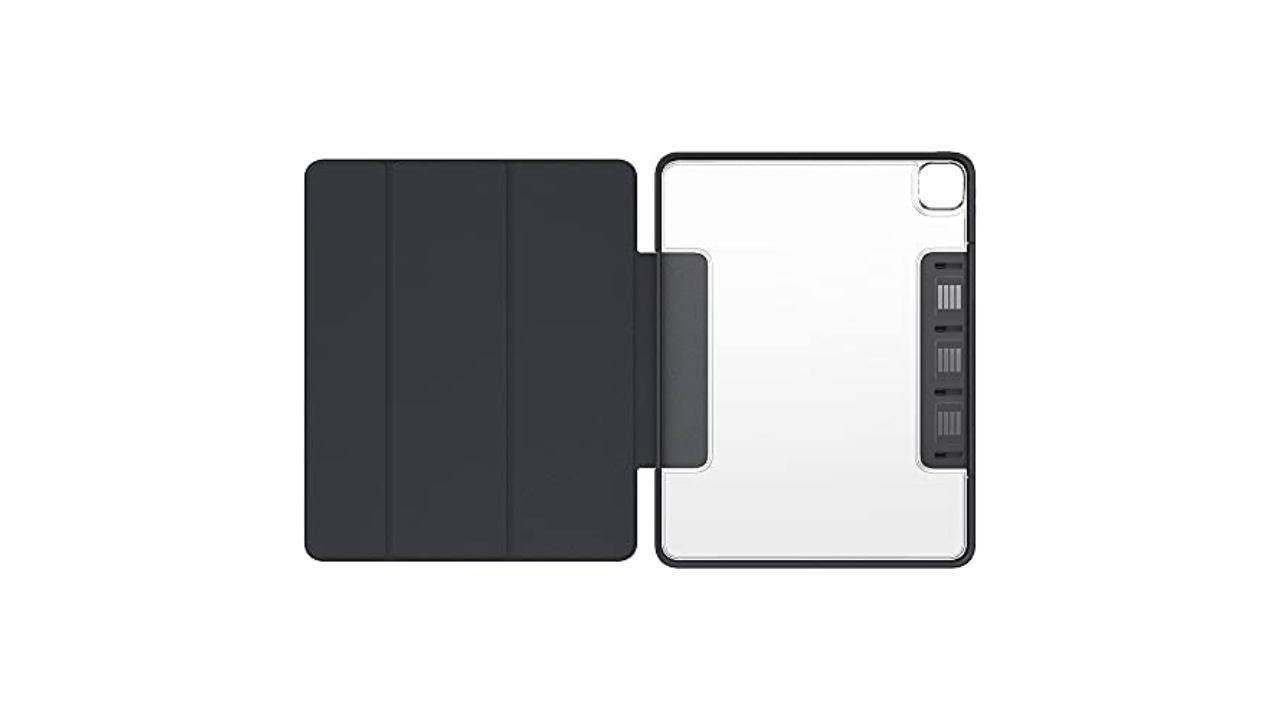
Otterbox is an expert when it comes to protection, as seen with their phone cases, but its Symmetry Series 360 series shows that it has design chops, too. Symmetry cases look similar to the Apple’s Smart Cover, but the clear, scratch-resistant back is sturdy without adding a lot of weight to the iPad. Plus, the edge protection is substantial, so you won’t have to worry about damage from the inevitable, accidental bumps your tablet takes. I also like the extra flap Otterbox added that keeps the iPad screen cover closed and holds the second-generation Apple Pencil to the side of the iPad Pros. Symmetry Series 360 cases are available for most iPad models, and while they’re more expensive than some no-name iPad case you might find on Amazon, they’re worth it if you want a great balance of protection and style.
Speaking of cheaper iPad cases that fill up Amazon’s search result pages, some that are actually worthwhile are from Moko and ProCase. If you like the look and feel of Apple’s Smart Cover, but don’t want to drop $50-plus on one, both of these brands have dupes that give you that style at a fraction of the cost of the first-party option. — Valentina Palladino, Deputy Editor
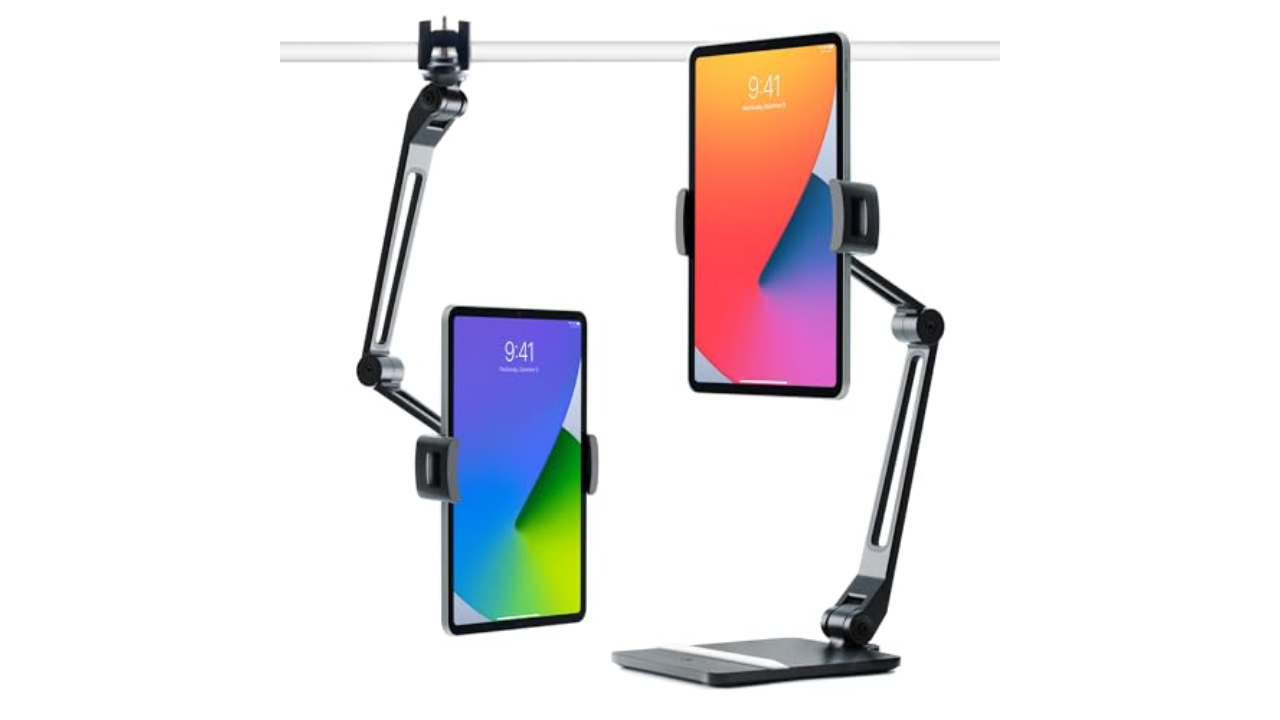
Of the plethora of iPad stands I’ve used, Twelve South’s HoverBar Duo is the one that has come closest to perfect. The “duo” in the name refers to the fact that the gadget can either prop your iPad up using an arm attached to a weighted base, or the same arm just attached to a desk or table using its included clamp. The stand comes fully assembled on the weighted base, but it’s pretty easy to switch to the clamp thanks to the included instructions and basic tools in the box. If you spring for the latest model, it’ll be even easier thanks to a new quick-switch tab that lets you swap between the weighted base and the clamp attachment with any extra tools.
It wasn’t hard to secure my 11-inch iPad Pro in the vice-grip that is the HoverBar Duo’s tablet clip, although it did take some force to move the arm into the right position. That’s probably for the best because it showed how strong the arm is; it stayed in place without buckling, sliding down or otherwise breaking a sweat. I mostly used the HoverBar Duo with the clamp attachment, which allowed me to use my iPad Pro as a secondary screen while working. The included clamp should fit most desks and tables too, as it can accommodate surface thickness from 0.4 inch to 1.4 inches.
If you’re willing to sacrifice flexibility for something more elegant, Elago’s P2 stand for iPad may be a good fit. It’s made of a single piece of aluminum with a ledge for your iPad and a few well-placed cutouts that you can snake a charging cable through. The ledge is also wide enough to accommodate most iPad cases. It may not be foldable or adjustable, but its minimalist design will make it an attractive addition to your desk. — V.P.
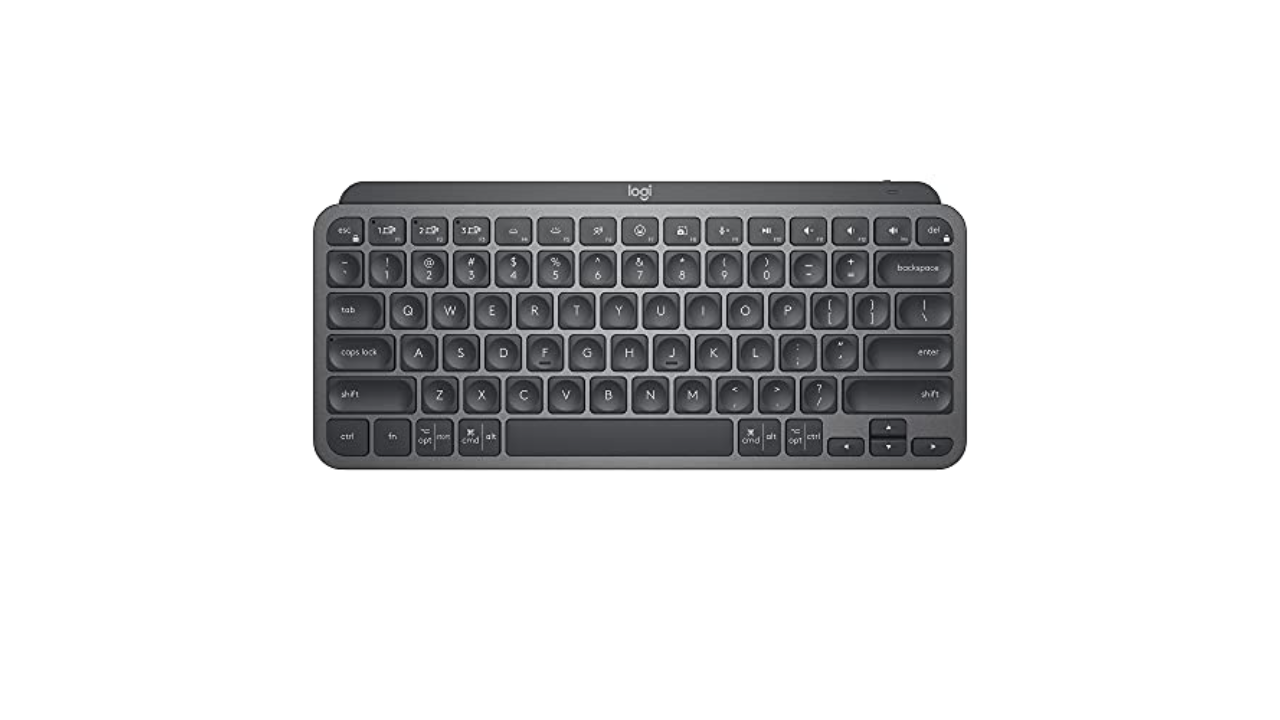
One of the best Bluetooth keyboards I’ve used recently is the Logitech MX Keys Mini. It’s not designed specifically for the iPad, but it works quite well with it. It combines a lot of the ergonomics and the general look and feel of the MX lineup into a compact and portable keyboard. The Keys Mini has a slim profile that’s slightly raised due to its top bar, plus comfortable backlit keys that are a dream to type on. The backlight is one of my favorite features because it automatically comes on when it senses your hands getting close to the keyboard. That way it only stays illuminated when you’re typing, conserving battery life in the long run. Logitech estimates the Keys Mini will last up to 10 days, depending on backlight use, or up to five months without any backlight use.
Logitech’s $100 MX Keys Mini may be on the expensive side, but it’s one that could be both your iPad keyboard and your main desk typing device. It can connect to up to three devices at the same time, allowing you to swap between them quickly with just a press of a key, and it has a few other handy keys too like one that brings up the emoji picker and another that mutes your microphone (quite useful on Zoom calls). But if you want an iPad keyboard that’s even more affordable, or even thinner, we still like the Logitech Keys to Go, which we’ve recommended in the past and you can usually find for between $50 and $70. — V.P.
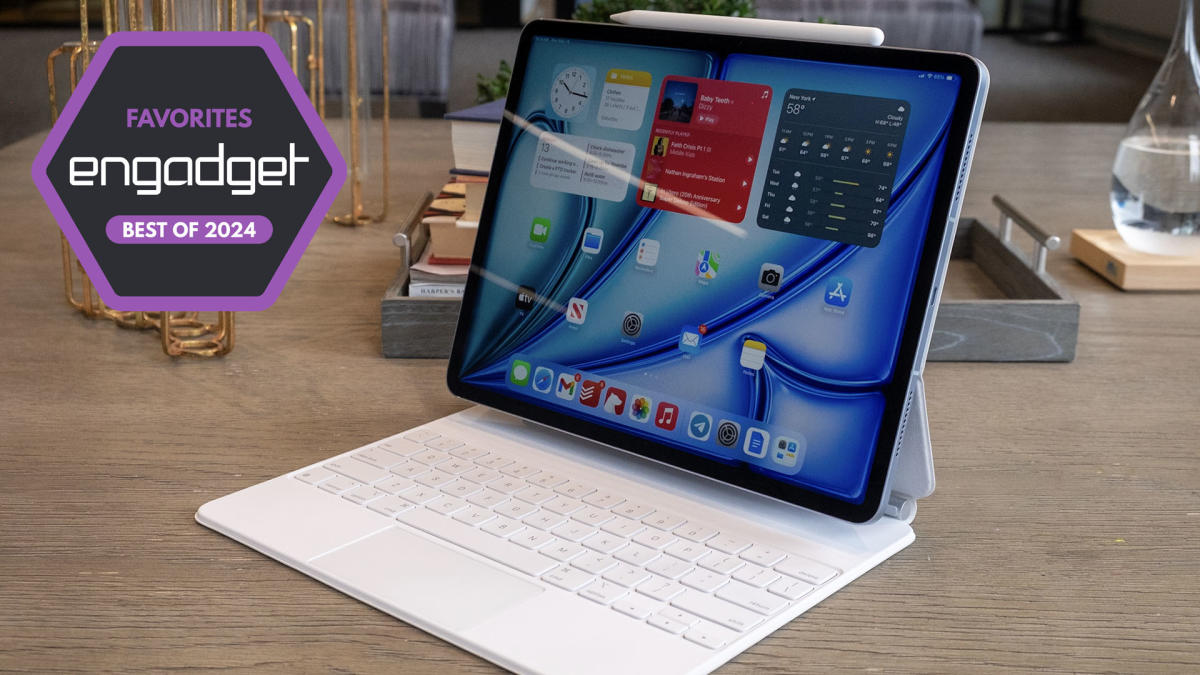
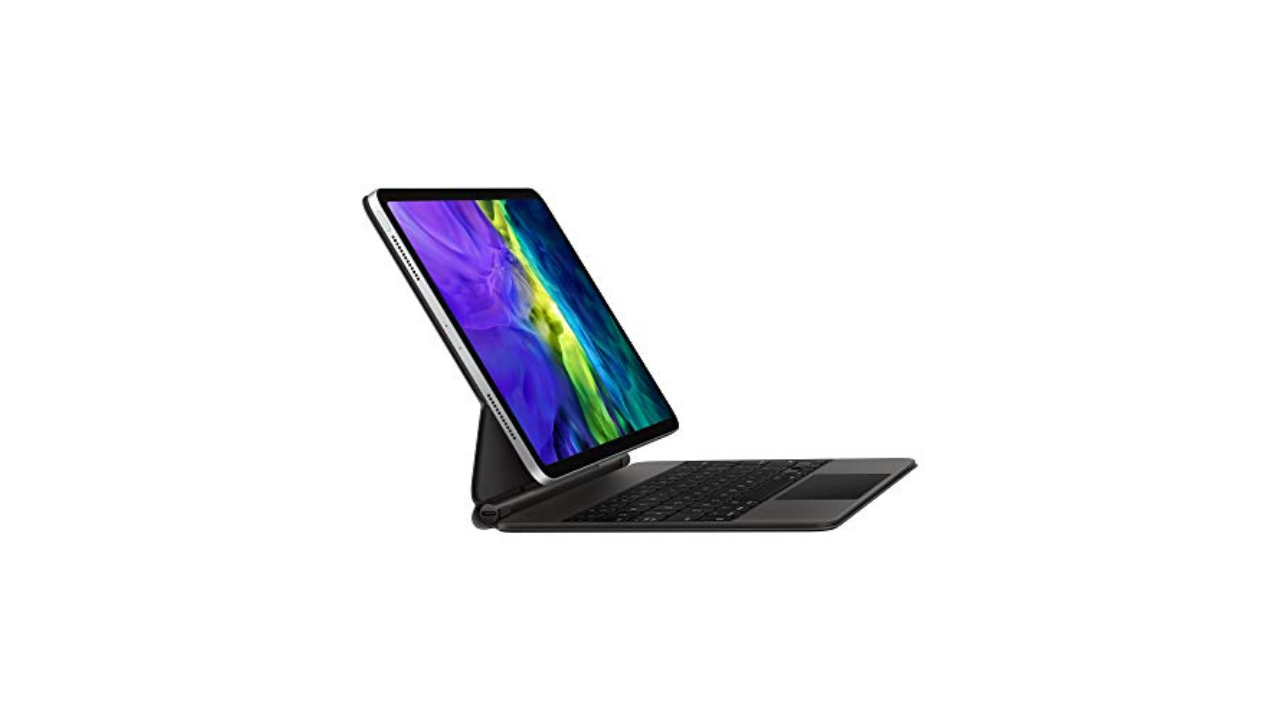
If you really want to indulge, Apple’s own Magic Keyboard is the way to go. This expensive keyboard case magnetically attaches to the latest iPad Pros and keeps them “floating” above the keyboard and trackpad. We praised the Magic Keyboard for its typing comfort and precise trackpad, but dinged it for its limited range of motion. It’s easily the fanciest keyboard case available for the iPad and it’s one to consider if money is no object — or if you want the most stylish iPad keyboard money can buy. — V.P.
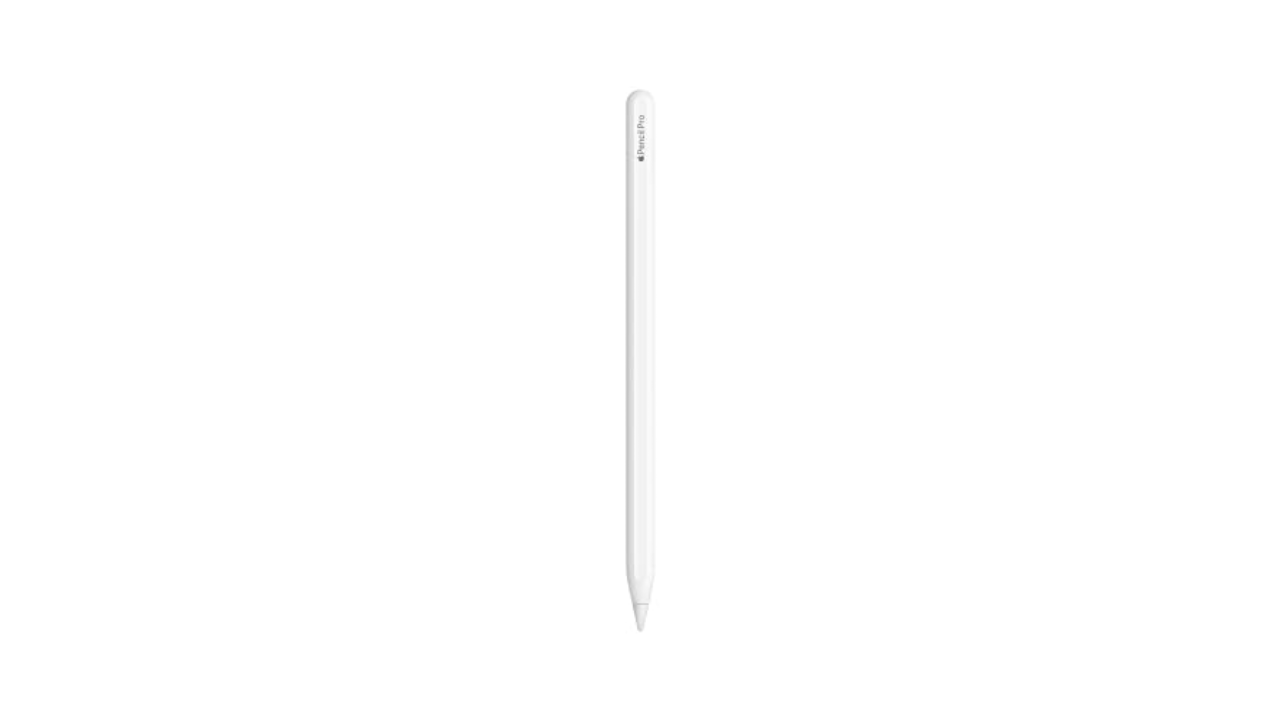
This likely won’t come as a surprise, but the Apple Pencil Pro is the best stylus you can get for the iPad. All models of the Apple Pencil are designed to work specifically with iPads and it shows in their smooth writing performance. The latest stylus has a double-tap feature that you can customize to a certain degree, and pressure-sensitivity allows you to add as much or as little detail as you want to digital artwork. Plus, it still supports wireless charging when you snap it magnetically to the side of your tablet. I highly recommend shelling out the extra money for an Apple Pencil if you’re an artist — you won’t be disappointed. — V.P.
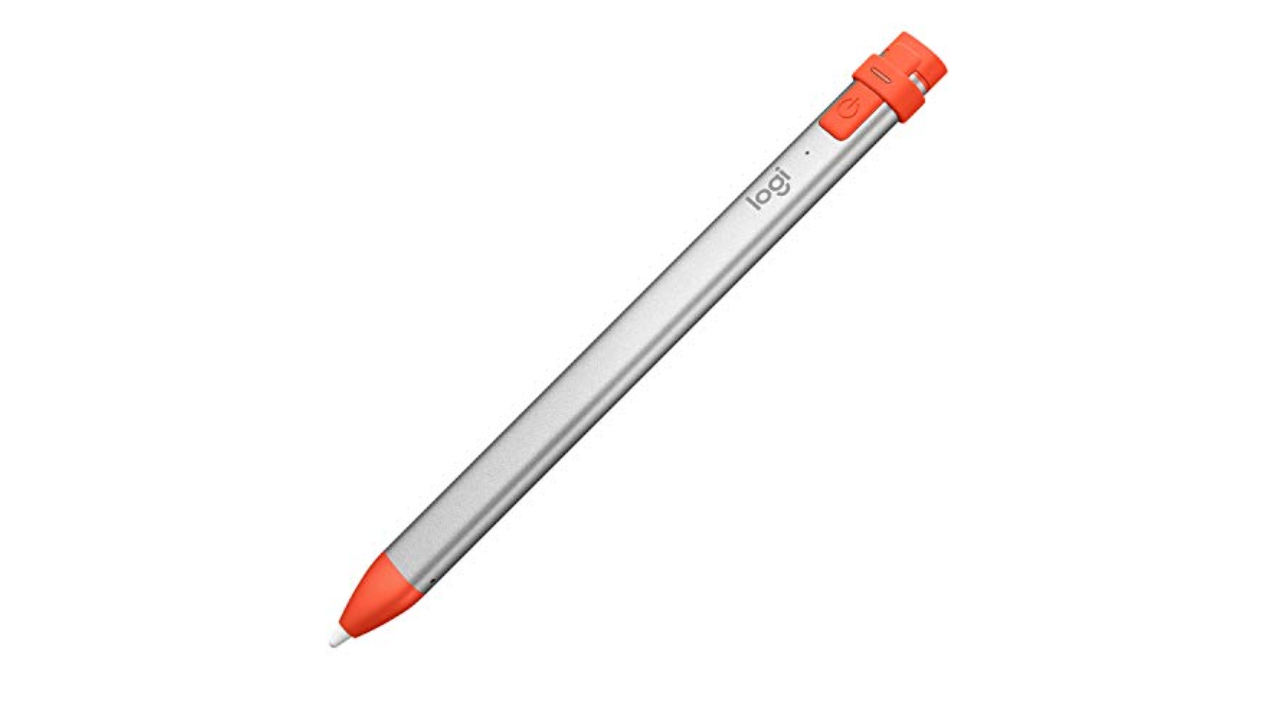
There are other options that are more affordable than the Apple Pencil, though, like Logitech’s Crayon. It’s just as good in terms of latency and accuracy — drawing in Procreate was a lag-free experience and my strokes always ended up exactly where I wanted them to be – and it’s even more grippy by default thanks to its oval-shaped design. But as someone who primarily uses an Apple Pencil for digital art, I missed pressure sensitivity when using the Crayon.
Aside from that, the other biggest annoyance is that you have to use a Lightning or USB-C cable to charge it. (Even the newest model for the iPad Pros doesn’t magnetically attach to the tablet for charging.) While I wouldn’t suggest the Crayon for serious artists, I would recommend it for anyone who’s on a strict budget, especially digital journal-keepers, committed note-takers and the like. — V.P.
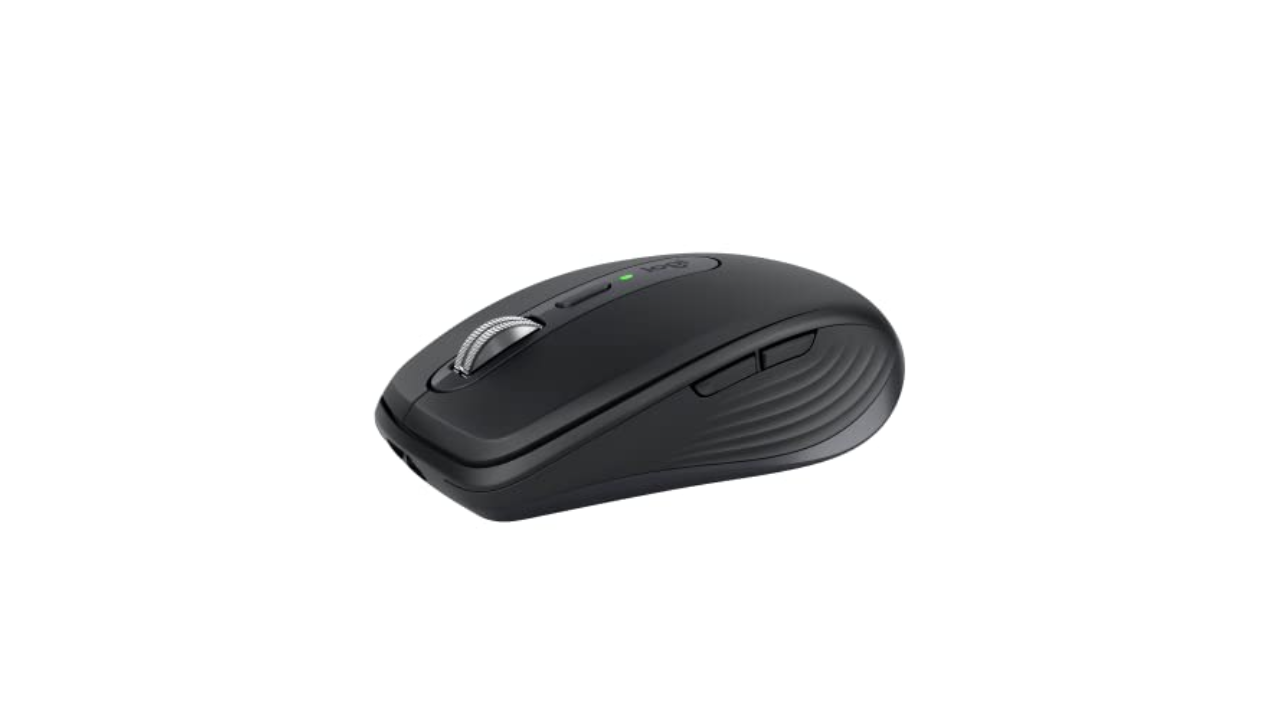
We called Logitech’s MX Anywhere 3S a “nearly ideal travel mouse.” It’s light at just 95 grams and the buttons are nearly silent so you won’t bug anyone in the room with your furious clicking. The improved 8K DPI optical sensor works on just about any surface — including, for example, the upholstered arm of your couch. Depending on the color you pick, the MX Anywhere 3S is made from between 61 and 78 percent post-consumer recycled plastic. And the rechargeable battery lasts around 70 days on a charge. This generation doesn’t include a USB dongle (which wouldn’t work with your iPad anyway) but we never noticed any lag in Bluetooth performance in our tests anyway. — Amy Skorheim, Reporter
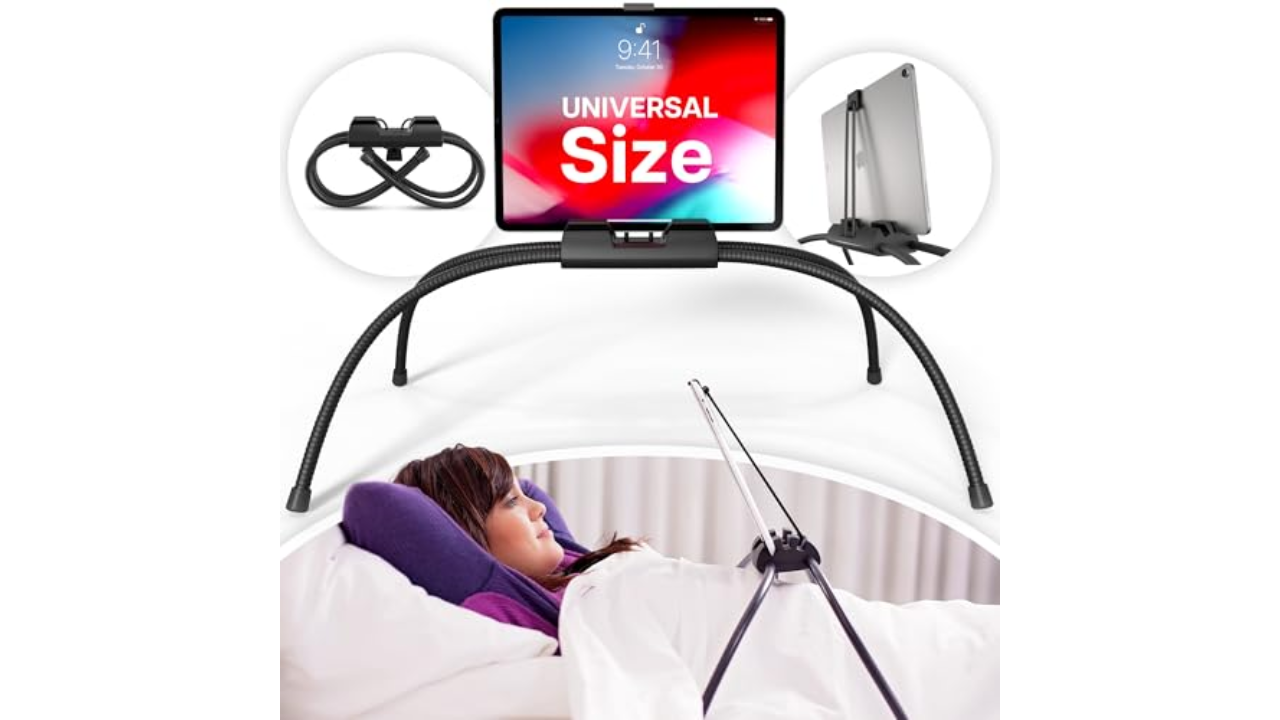
Working at a computer can be a pain in the neck (literally), so I wanted a way to play with my iPad after work without having to lift my head off the couch. Sure, I could use my arms, but that gets tiring. This Tablift iPad holder looks a little funny, like some mech-spider attacking your chest, but it works exactly as I’d hoped. The adjustable legs are repositionable but quite sturdy once they’re in place, and three slots hold your tablet at different angles, including a forward-leaning one that’s particularly nice for lying down. It’s a little bulky, so I curl up the legs and store it under my couch. The slots and securing clip perform best if your device is naked, though I’ve been able to use it with a Smart Folio attached with little issue. — A.S.
If you plan on pushing your iPad Pro to its limits as a daily driver, you’ll probably need more than the tablet’s single USB-C port. Apple has provided little guidance to which USB-C hubs and adapters work best with the iPad Pros — there’s no MFi certification for accessories like this yet. Some hubs specifically advertise that they work with the newest iPad Pros, and if you want to be extra safe, I recommend buying one of those that comes from a reputable brand.
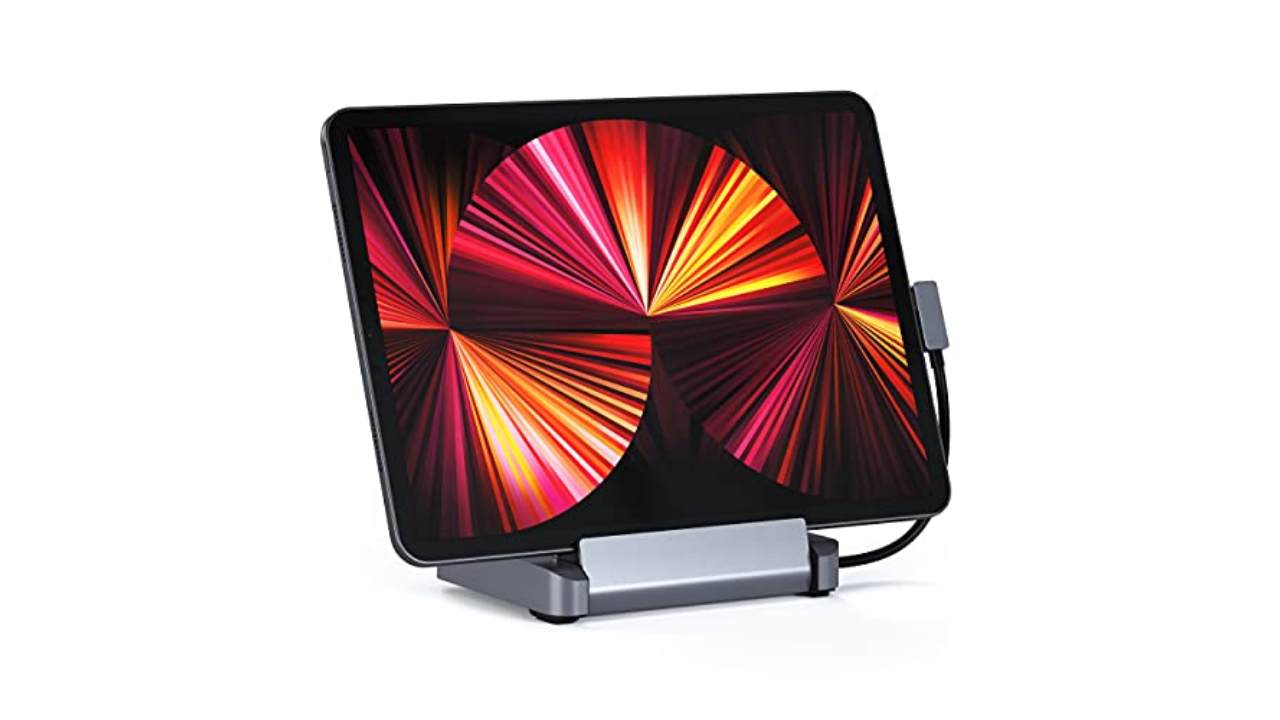
Satechi’s $100 Aluminum Stand and Hub is a favorite for its foldable design and how it packs ports and charging capabilities into a compact iPad accessory. The holder itself rotates outward, revealing a hidden, attached USB-C cable and a rubber bumper that keeps the stand in place in your desk. On the back edge are a 4K HDMI socket, one USB-A port, a headphone jack, both SD and microSD card slots and a 60W USB-C connection for charging.
I liked the versatility of Satechi’s hub. I could easily use it when I needed to prop my iPad up to watch a YouTube video, and by just plugging in the attached cable, I could switch to using my iPad as more of a work device with all of the necessary connectors in place. It’s also surprisingly light at 10 ounces. Combine that with its foldable design and you have a full-featured hub that can easily be stuffed in a bag. — V.P.
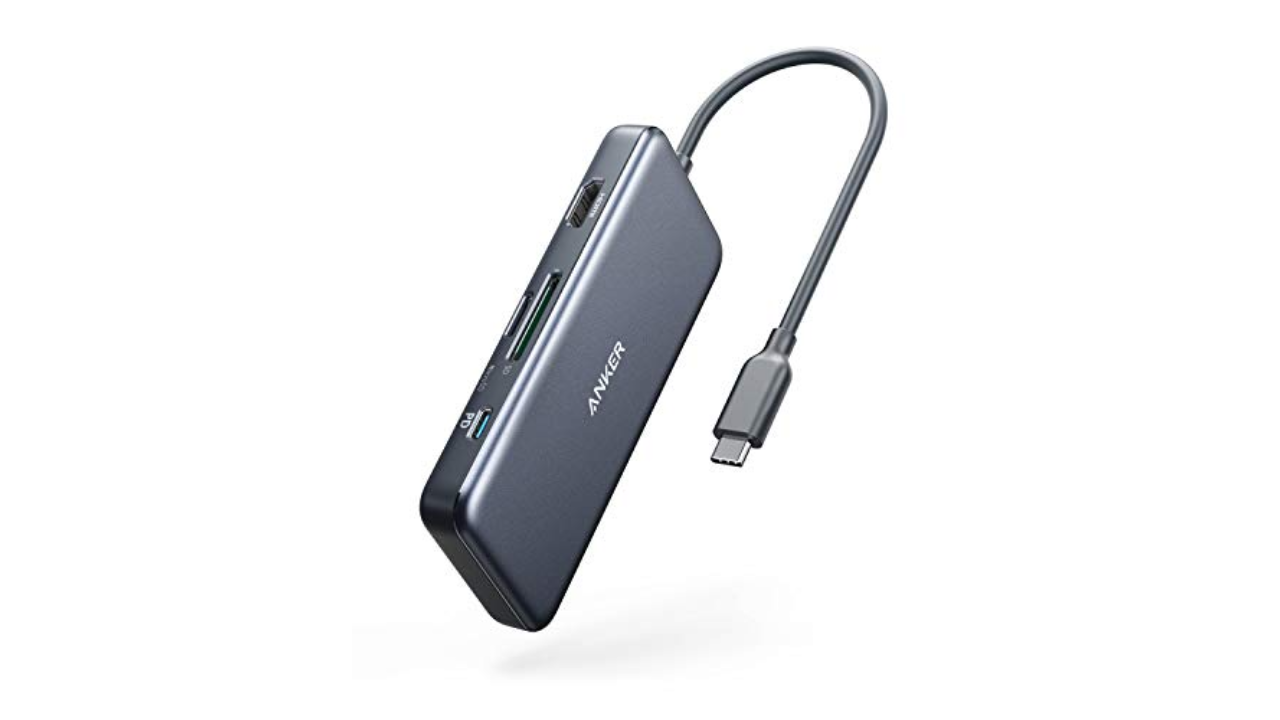
Not everyone needs, or wants, to spend $100 on a dock for their iPad. (If you’re using it as a laptop replacement, it’s worth the investment.) If you’d rather spend less, or just want something a bit more lightweight, Anker’s 7-in-1 USB-C hub is a good choice. It has most ports that you could ever want, with the only exception being an Ethernet jack. The slim dongle houses two USB-A ports, two USB-C connections, SD and microSD card slots and a 4K/30Hz HDMI port. We also like that it provides up to 85W of pass-through charging, which means you can power up your iPad while using Anker’s hub as the main connector between the tablet and its charging cable. Anker makes a couple of versions of this hub, including one that does have that coveted Ethernet port, but it’s hard to beat $35 for the standard 7-in-1 model. — V.P.
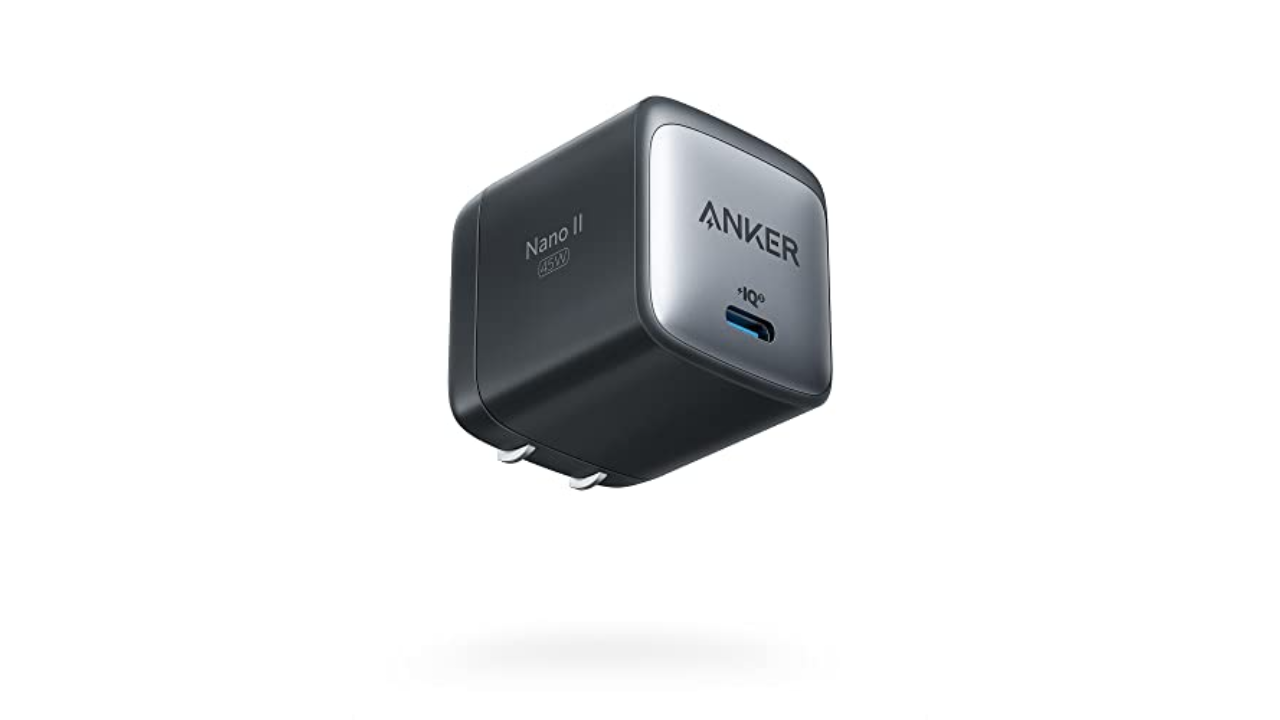
Apple and other tech companies are increasingly leaving wall adapters out of their devices’ boxes, so it’s worth picking up a couple that can handle charging a couple of pieces of tech as quickly as possible. Anker’s 45W Nano II GaN adapter is a good one because it can fast-charge iPhones and iPads, plus the gallium nitride technology built into it helps prevent overheating. In just a half hour of charging, I got about a 33 percent boost in battery life on my 11-inch iPad Pro when using this accessory. Gallium nitride is also a big reason why the 45W adapter is smaller than a lot of competing adapters available now, including Apple’s. We also like its foldable design, which will allow it to fit better in cramped spaces and in travel bags. — V.P.
Of all the power banks we tested, the Nimble Champ Pro was the second fastest to refill an iPad. The fastest overall was Mophie’s massive Powerstation Pro, but that one is really overkill if you’re just using it for a tablet. The Champ Pro, on the other hand, has a slim profile, a handy carrying strap and two USB-C ports. On a fifth-generation iPad Air, it moved the battery gauge from five percent to full in under two hours — and it still had enough juice leftover to give it another 75 percent bump. This is the pack I grab when I’m enjoying my iPad on the couch and don’t want to get up to revive its dying battery. — A.S.
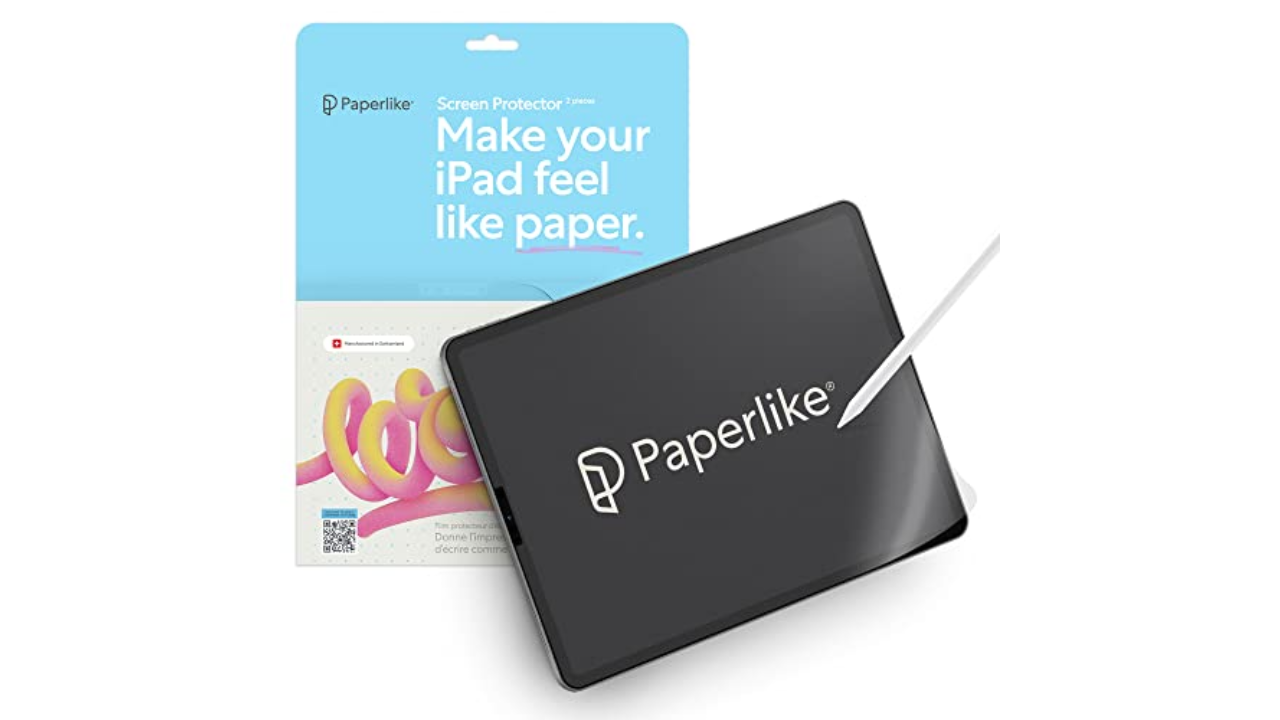
If you’re a heavy user of the Apple Pencil or some other stylus, you should consider getting a screen protector for your new iPad. They pull double-duty: Not only do they act as a first line of defense if your iPad goes careening onto concrete, but they can also enhance the digital drawing and writing experience. Using a stylus on an iPad is strange at first because gliding the stylus nib over a glass surface feels nothing like “normal” writing. Matte screen protectors can get closer to replicating the pen-on-paper experience, and they also prevent the stylus nib from wearing down as quickly.
Paperlike
Paperlike is the most popular brand in this space, with matte screen protectors for every model of iPad. A set comes with two sheets and includes guide stickers to help you get the protector positioned properly. The two-pack typically sells for $40 ro $45, depending on the size of your iPad. For something a little cheaper, Bersem’s screen protectors are a great value at $11 for a pack of two. Not only does the matte finish help when you’re drawing or taking digital notes, but it also reduces screen glare and doesn’t interfere with FaceID on the newest iPads. — A.S.
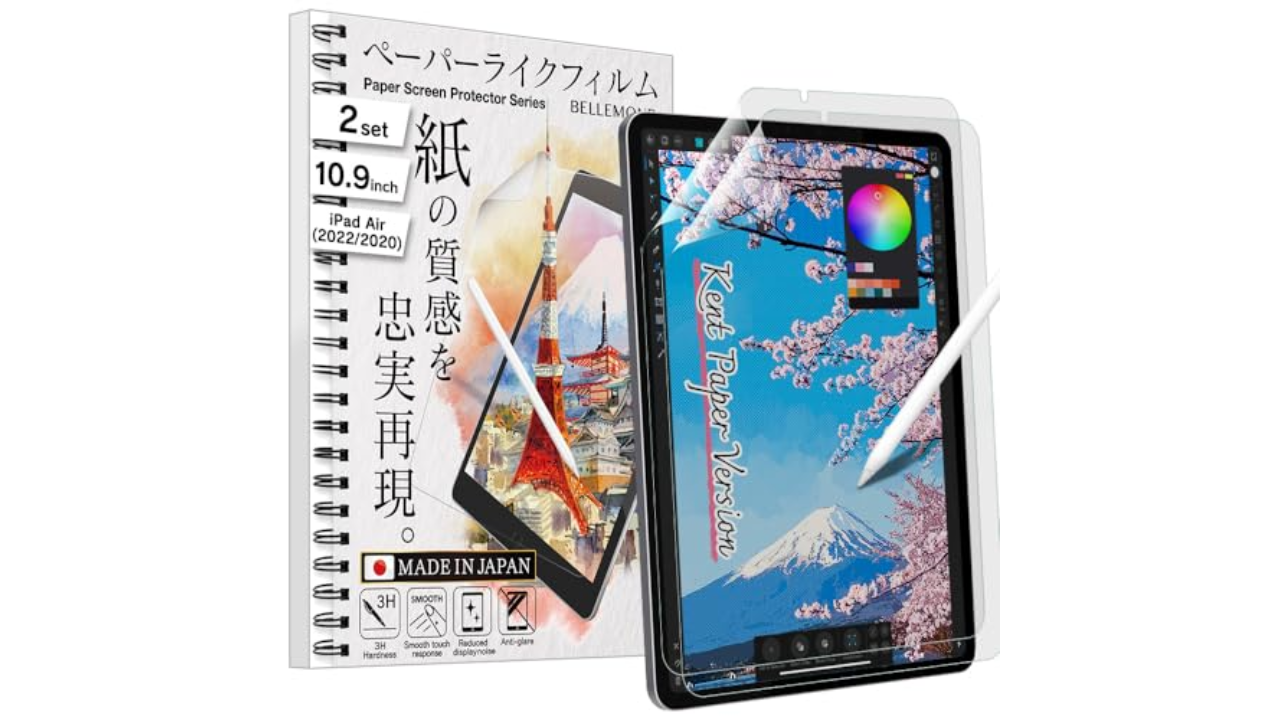
Bellemond’s “Kent Paper” overlay has the most satisfying texture of the paper-feel screen protectors I’ve tried. The blur is minimal and the friction between the stylus and the screen is just right for drawing. I miraculously managed to get the Bellemond affixed with minimal bubbles after watching the video linked with the QR code on the box. Two sheets come in a pack, so you can revert to a naked screen for a while then go back to the paper-feel down the road. If you’d like a little more help with proper placement of your screen protector, you might appreciate Zagg’s GlassFusion+ Canvas which comes with a mounting tray for application. It’s also made from a polymer designed to absorb and protect your screen from impact. — A.S.
All paper-feel protectors impart a slight blur, which is why magnetic covers that you can reposition make solid alternatives. They offer texture when you’re drawing or writing, but you can remove them easily when you want to watch Star Trek with full clarity. The PenMat from PenTips uses thin magnets along the edges to affix the film to your screen and comes with a plastic sleeve to store the cover when you’re not using it. Application and removal is dead simple, and also, there are no bubbles! The hold is surprisingly secure and the mat has a pleasing, velvety texture. I did notice a few faint squeaks when drawing with the Pencil, which didn’t bother me but might bug those who are sensitive to sounds. — A.S.