Creating a React TODO app in Visual Studio 2022


In this tutorial we will create a React front-end, with JavaScript, of a TODO web app using a Visual Studio 2022. To get started install Visual Studio with the Node.js development workload. This will include the JavaScript/TypeScript (JSTS) projects and the associated support. The code for this app can be found at sayedihashimi/todojswebapp (github.com). Create a new React project using the New Project Dialog in Visual Studio 2022. Use File > New > Project … to open that dialog. For this tutorial select the React App JavaScript template which is shown below.
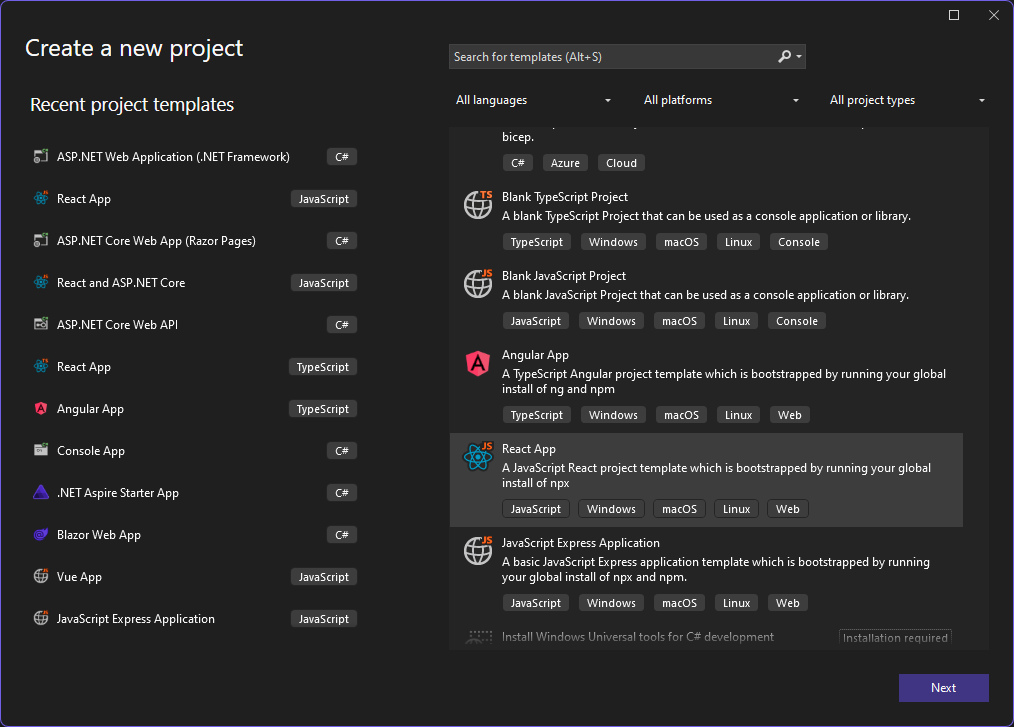
Image of React App in Visual Studio start screen

After clicking Next, give the project the name TodoWebApp and click Create. This will create the JavaScript project using the vite command line tool. Now create a new component to encapsulate the todo list functionality. First create a new folder named components under the src folder. This is the folder where all components will go. It’s a common convention to place components in a components folder, but this is not required. Right click on this new folder and select Add > React JSX Component File, give it the name TodoList as shown in the following image.

Image selecting the React JSX Component file

This will create a new jsx file in the components folder. For now, replace the Hello World content with the h2 as shown in the snippet below.

function TodoList() {
    return (
        <h2>TODO app contents</h2>
    );
}

This component displays a header for now. We will replace this soon. Let’s wire up this component in the app and then later replace the contents with the desired functionality. Let’s add this component to the app and remove the boilerplate content that is no longer needed.

Open the App.jsx file. This is the main component that is loaded which represents the todo application. This is used in the main.jsx file. For this tutorial we will not need to modify the main.jsx file. In App.jsx, remove all the imports from the top and clear out the contents of the return statement. The file should look like the snippet below.

function App() {
    const [count, setCount] = useState(0)
    return (

    )
}

export default App

To add the TodoList component, place your cursor inside the fragment and then type <TodoL RETURN. This will add the component and the import statement. You can see this in the below animation.
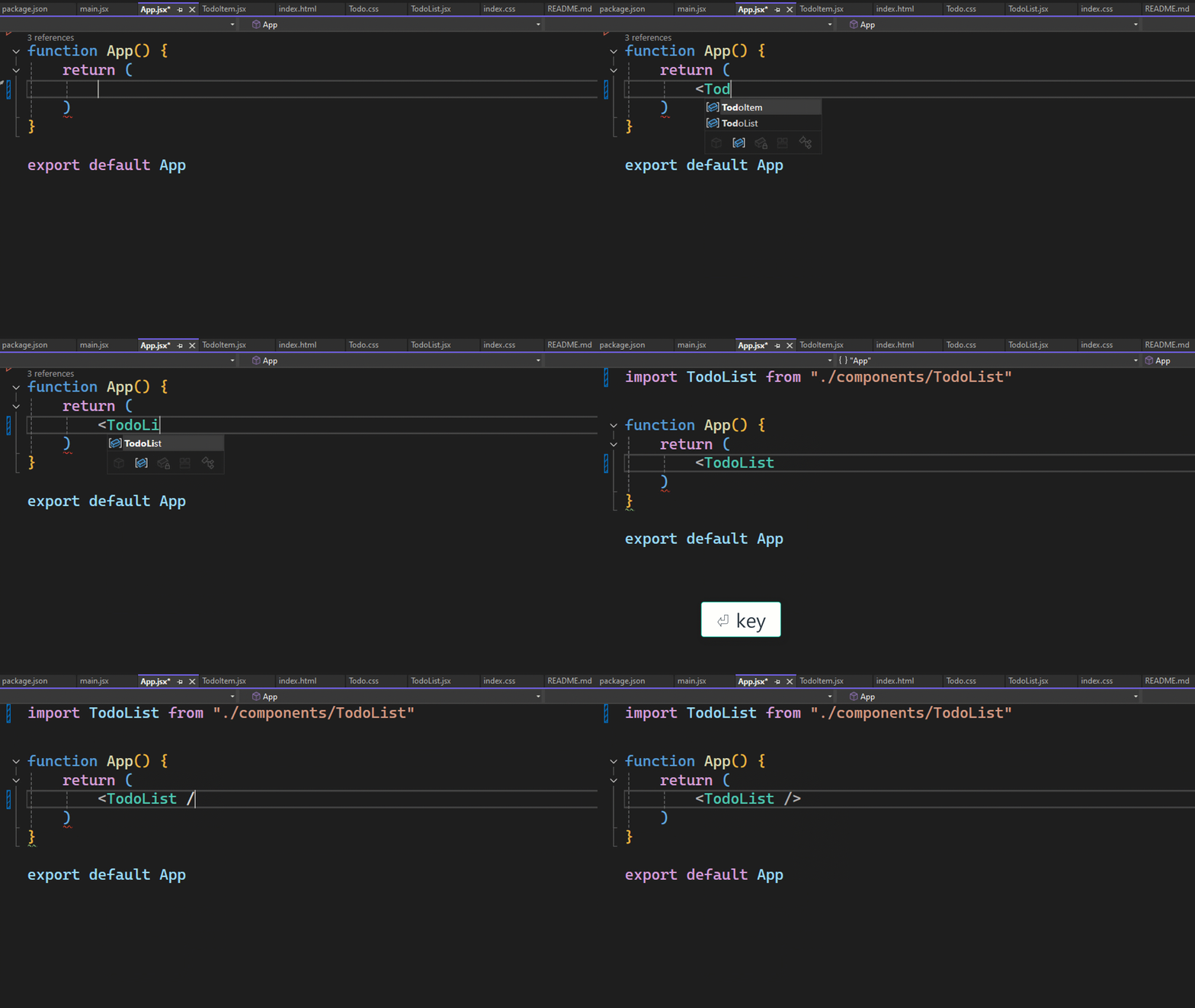
Gif showing the return TodoList in function App()

Now let’s clear out the CSS files so that we can start with a fresh start. Open the App.css file and delete all the contents. In the Index.css file remove all contents except the styles for :root. The Index.css file should look like the following.

:root {
    font-family: Inter, system-ui, Avenir, Helvetica, Arial, sans-serif;
    line-height: 1.5;
    font-weight: 400;
    color-scheme: light dark;
    color: rgba(255, 255, 255, 0.87);
    background-color: #242424;
}

Now run the app to ensure that everything is working as expected. You can use the Start Debugging button from the toolbar or the F5 keyboard shortcut. After that a browser window should open with the following content.
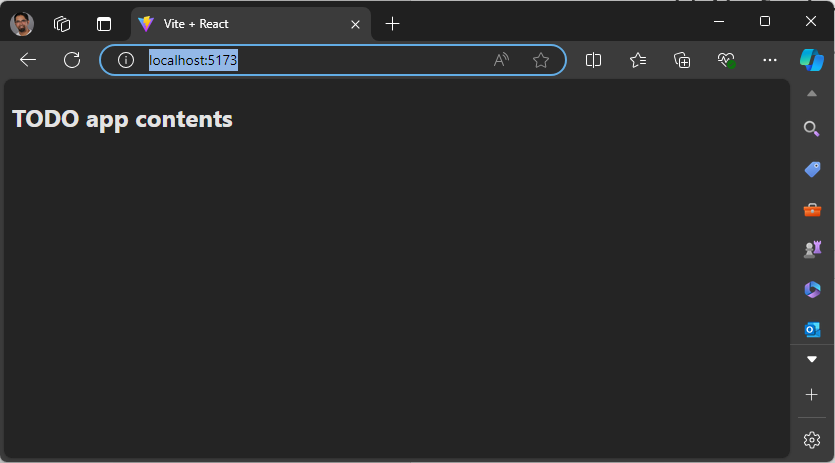
Image showing localhost todo list

This would be a good time to create a commit in case you need to roll back to a good state later. Now that you’ve started the app you can leave it running, as you make changes the app will automatically refresh with the latest content using the Hot Module Replacement support. Some actions like adding folders or renaming files will require that you stop debugging and then restart it but in general you can leave it running in the background as you develop your app. Open the TodoList.jsx component so that we can start to define that.

In TodoList.jsx first add the UI needed to show and manage todo entries and then hook it up to store the values after that. Update TodoList.jsx to have the following content.

function TodoList() {
    return (
        <div>
            <h1>TODO</h1>
            <div>
                <input
                    type="text"
                    placeholder="Enter a task"
                    required
                    aria-label="Task text" />
                <button className="add-button" aria-label="Add task" >
                    Add
                </button>
            </div>
            <ol id="todo-list">
                <p>existing tasks will be shown here</p>
            </ol>
        </div>
    );
}

export default TodoList;

We have added an input box for the todo item as well as a button to submit that. The existing tasks will be displayed under the input and button, but we will get to that soon. Now that we have the input field to get a new task added, we will wire up the Add button. We will use the useState React hook to add two state variables, one for the task which is getting added and another to store the existing tasks. For this tutorial the tasks will be stored in memory we will not add a database for persistent storage. Add the following import statement to TodoList.jsx to import useState.

import { useState } from 'react'

Now we can use that hook to create the state variables. Add the following code in the TodoList function above the return statement.

const [tasks, setTasks] = useState([
    "Drink some coffee",
    "Create a TODO app",
    "Drink some more coffee"]);

const [newTaskText, setNewTaskText] = useState("");

This will setup two variables, tasks and newTaskText, for the data and two functions that you can call to update those variables, setTasks and setNewTasks. When a value for a state variable is changed React will automatically re-render the component. We are almost ready to update TodoList.jsx to show the todo items as a list, but there is an important React concept that we must explain before doing so.

In React when you display a list of items you will need to add a key to uniquely identify each item in the list. This is explained in depth in the React docs at Rendering Lists, but we will cover what is needed for this tutorial. We have a list of todo items that we want to display, and we need to associate a unique key for each item, the key for each item should not change. Since the key for each item should not change, we cannot use the index of the item in the array as the key. We need an id which will not change through out the lifetime of those values. We will use randomUUID() to create a unique id for each todo item.

Now let’s create TodoList.jsx using a uuid as the key for each todo item. Update TodoList.jsx to contain the following code.

import React, { useState } from 'react';
import './Todo.css';
import TodoItem from './TodoItem';

const initialTasks = [
    { id: self.crypto.randomUUID(), text: 'Drink some coffee' },
    { id: self.crypto.randomUUID(), text: 'Create a TODO app' },
    { id: self.crypto.randomUUID(), text: 'Drink some more coffee' }
];

function TodoList() {
    const [tasks, setTasks] = useState(initialTasks);
    const [newTaskText, setNewTaskText] = useState("");
    function handleInputChange(event) {
        setNewTaskText(event.target.value);
    }
    return (
        <article
            className="todo-list"
            aria-label="task list manager">
            <header>
                <h1>TODO</h1>
                <form className="todo-input" aria-controls="todo-list">
                    <input
                        type="text"
                        placeholder="Enter a task"
                        value={newTaskText}
                        onChange={handleInputChange} />
                    <button
                        className="add-button">
                        Add
                    </button>
                </form>
            </header>
            <ol id="todo-list" aria-live="polite" aria-label="task list">
                {tasks.map((task, index) =>
                    <li key={task.id}>
                        <span className="text">{task.text}</span>
                    </li>
                )}
            </ol>
        </article>
    );
}
export default TodoList;

Since the id values are assigned outside the TodoList function, we can be sure the values will not change if the page is rerendered. When you try the app in this state, you will notice that you cannot type into the todo input element. This is because the input element is bound to newTaskText which has been initialized to a blank string. To allow users to add new tasks, we will need to handle the onChange event on that control. We also need to implement the Add button support. Add the functions immediately above the return statement in the TodoList function.

function handleInputChange(event) {
    setNewTaskText(event.target.value);
}

function addTask() {
    if (newTaskText.trim() !== "") {
        setTasks(t => [...t, { id: self.crypto.randomUUID(), text: newTaskText }]);
        setNewTaskText("");
    }
}

In the handleInputChanged function, the new value from the input field is passed in via event.target.value and that is used to update the value for the newTaskText variable with setNewTaskText. In the addTask function we add the new task to the list of existing tasks using setTasks and we set the id of the item as a new uuid value. Update the input element to include onChange={handleInputChange} and update the Add button to include onClick={addTask}. This will wire up the event to the function that handles that event. Following this you should be able to add a new task to the task list. New tasks are added to the bottom of the list. To make this app more useful, we need to add support to delete tasks and to move a task up or down. Let’s get started on that.

We will add the functions to support delete, move up and move down and then update the markup to show a button for each action. Add the following in the TodoList function above the return statement.

function deleteTask(id) {
    const updatedTasks = tasks.filter(task => task.id != id);
    setTasks(updatedTasks);
}

function moveTaskUp(index) {
    if (index > 0) {
        const updatedTasks = [...tasks];
        [updatedTasks[index], updatedTasks[index - 1]] = [updatedTasks[index - 1], updatedTasks[index]];
        setTasks(updatedTasks);
    }
}

function moveTaskDown(index) {
    if (index < tasks.length) {
        const updatedTasks = [...tasks];
        [updatedTasks[index], updatedTasks[index + 1]] = [updatedTasks[index + 1], updatedTasks[index]];
        setTasks(updatedTasks);
    }
}

The delete function takes in the task id and deletes that one from the list and uses the Array filter() method to create a new array excluding the selected item and then calls setTasks(). The other two functions take in the index of the item since this is specific to the item ordering. Both moveTaskUp() and moveTaskDown() use array destructuring assignment to swap the selected task with its neighbor. Now we will update the view to include these buttons. Update the return statement to contain the following.

return (
    <article
        className="todo-list"
        aria-label="task list manager">
        <h1>TODO</h1>
        <header>
            <h1>TODO</h1>
            <form className="todo-input" onSubmit={addTask} aria-controls="todo-list">
                <input
                    type="text"
                    required
                    autoFocus
                    placeholder="Enter a task"
                    value={newTaskText}
                    aria-label="Task text"
                    onChange={handleInputChange} />
                <button
                    className="add-button"
                    aria-label="Add task">
                    Add
                </button>
            </form>
        </header>
        <ol id="todo-list" aria-live="polite">
            {tasks.map((task, index) =>
                <li key={task.id}>
                    <span className="text">{task.text}</span>
                    <button className="delete-button" onClick={() => deleteTask(task.id)}>
                        🗑️
                    </button>
                    <button className="up-button" onClick={() => moveTaskUp(index)}>
                        ⇧
                    </button>
                    <button className="down-button" onClick={() => moveTaskDown(index)}>
                        ⇩
                    </button>
                </li>
            )}
        </ol>
    </article>
);

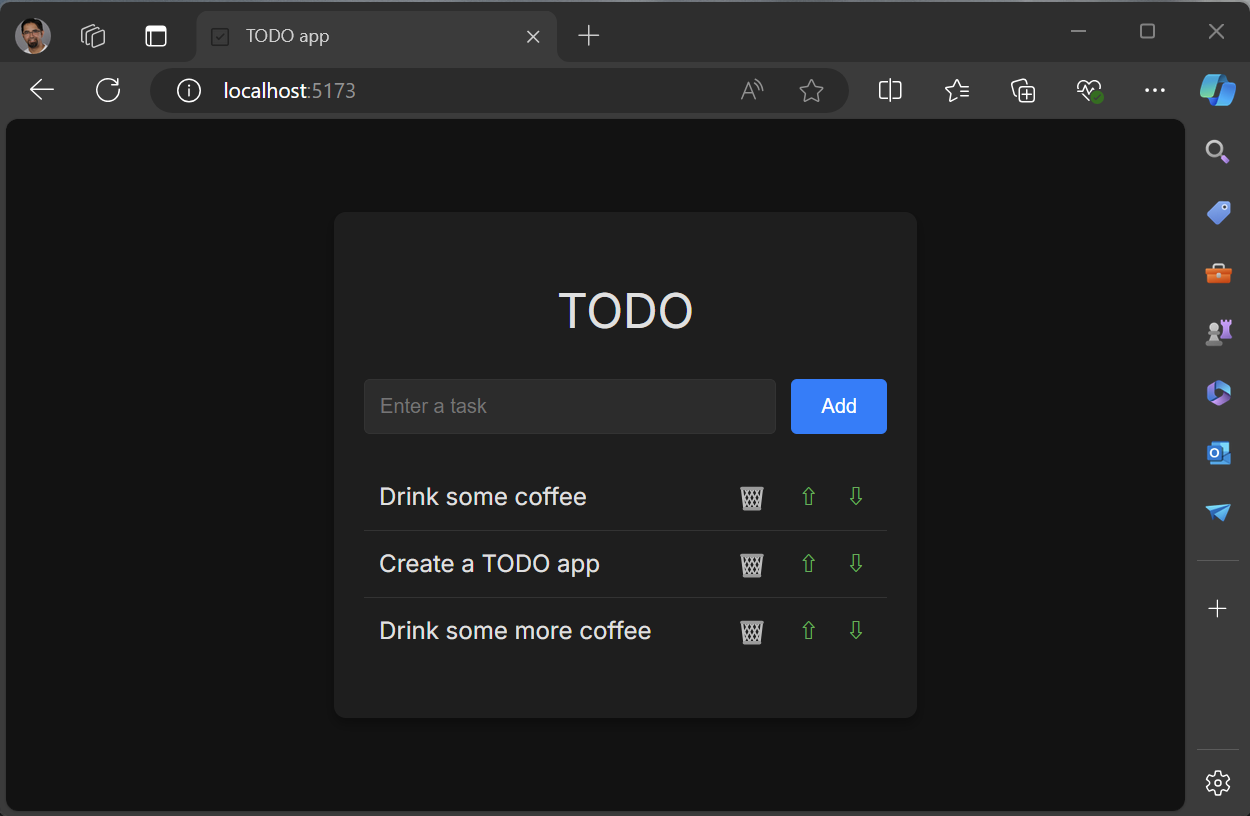
We have added the buttons needed to perform the tasks we discussed above. We are using Unicode characters as icons on the buttons. In the markup there are some attributes added for when we add some CSS later. You will also notice the use of aria attributes to improve accessibility, the are optional but highly recommended. If you run the app it should look like the image below.

Image showing the UI for the todo list with the garbage icon and the up/down arrows

You should now be able to perform the following in the TODO web app.

  • Add task
  • Delete task
  • Move task up
  • Move task down

This is working well, but we can refactor this so that we have a reusable component to display the todo items. The markup for the todo item will go into a new component, TodoItem. Since the management of the list will stay in the Todo component, we will pass callbacks to the delete and move buttons. To get started, right click the components folder in the Solution Explorer and select Add > New Item. In the dialog that opens select the React JSX Component File. Give it the name TodoItem and click Add. We will pass in the task and callbacks as props to this new component. The TodoItem should contain the following code.

import PropTypes from 'prop-types';

function TodoItem({ task, deleteTaskCallback, moveTaskUpCallback, moveTaskDownCallback }) {
    return (
        <li aria-label="task" >
            <span className="text">{task}</span>
            <button
                type="button"
                aria-label="Delete task"
                className="delete-button"
                onClick={() => deleteTaskCallback()}>
                🗑️
            </button>
            <button
                type="button"
                aria-label="Move task up"
                className="up-button"
                onClick={() => moveTaskUpCallback()}>
                ⇧
            </button>
            <button
                type="button"
                aria-label="Move task down"
                className="down-button"
                onClick={() => moveTaskDownCallback()}>
                ⇩
            </button>
        </li>
    );
}

TodoItem.propTypes = {
    task: PropTypes.string.isRequired,
    deleteTaskCallback: PropTypes.func.isRequired,
    moveTaskUpCallback: PropTypes.func.isRequired,
    moveTaskDownCallback: PropTypes.func.isRequired,
};

export default TodoItem;

The code above contains the markup from the Todo component and at the bottom we declare the propTypes. Props are used to pass data from a parent component to child components. For more info on props the docs are available at Passing Props to a Component – React. Since the delete and move functions are being passed in as callbacks, the onClick handler will need to be updated to call into those callbacks. The full code for TodoList is below that uses the TodoItem component.

import React, { useState } from 'react'
import './Todo.css'
import TodoItem from './TodoItem'

const initialTasks = [
    { id: self.crypto.randomUUID(), text: 'Drink some coffee' },
    { id: self.crypto.randomUUID(), text: 'Create a TODO app' },
    { id: self.crypto.randomUUID(), text: 'Drink some more coffee' }
];

function TodoList() {
    const [tasks, setTasks] = = useState(initialTasks);
    const [newTaskText, setNewTaskText] = useState("");
    function handleInputChange(event) {
        setNewTaskText(event.target.value);
    }
    function addTask() {
        if (newTaskText.trim() !== "") {
            setTasks(t => [...t, { id: self.crypto.randomUUID(), text: newTaskText }]);
            setNewTaskText("");
        }
        event.preventDefault();
    }
    function deleteTask(id) {
        const updatedTasks = tasks.filter(task => task.id !== id);
        setTasks(updatedTasks);
    }
    function moveTaskUp(index) {
        if (index > 0) {
            const updatedTasks = [...tasks];
            [updatedTasks[index], updatedTasks[index - 1]] = [updatedTasks[index - 1], updatedTasks[index]];
            setTasks(updatedTasks);
        }
    }
    function moveTaskDown(index) {
        if (index < tasks.length) {
            const updatedTasks = [...tasks];
            [updatedTasks[index], updatedTasks[index + 1]] = [updatedTasks[index + 1], updatedTasks[index]];
            setTasks(updatedTasks);
        }
    }
    return (
        <article
            className="todo-list"
            aria-label="task list manager">
            <header>
                <h1>TODO</h1>
                <form onSubmit={addTask} aria-controls="todo-list">
                    <input
                        type="text"
                        required
                        placeholder="Enter a task"
                        value={newTaskText}
                        aria-label="Task text"
                        onChange={handleInputChange} />
                    <button
                        className="add-button"
                        aria-label="Add task">
                        Add
                    </button>
                </form>
            </header>
            <ol id="todo-list" aria-live=polite>
                {tasks.map((task, index) =>
                    <TodoItem
                        key={task.id}
                        task={task.text}
                        deleteTaskCallback={() => deleteTask(task.id)}
                        moveTaskUpCallback={() => moveTaskUp(index)}
                        moveTaskDownCallback={() => moveTaskDown(index)}
                    />
                )}
            </ol>
        </article>
    );
}

export default Todo;

Now the TodoItem component is used to render each todo item. Notice that we set the key to task.id which contains the uuid value for that task. When you run the app, you shouldn’t see any changes to the look or behavior of the app since we refactored it to use TodoItem. Let’s move on to styling.

Now that we have all the basic functions supported, it’s time to start adding some styling to this to make it look nice. Now would be a good time to create a commit to save your progress. Let’s first start by adding a link in the Index.html for a font family, Inter, that we will use for this app. In the Index.html there are some other items that need to be cleaned up. Specifically, the title should be updated and vite.svg file is still being used as the icon. Update the Index.html file to have the following content.

<!doctype html>
<html lang="en">
    <head>
        <meta charset="UTF-8" />
        <link rel="icon" type="image/svg+xml" href="https://devblogs.microsoft.com/checkmark-square.svg" />
        <meta name="viewport" content="width=device-width, initial-scale=1.0" />
        <title>TODO app</title>
        <link href="https://fonts.googleapis.com/css?family=Inter" rel="stylesheet">
        <script type="module" defer src="/src/main.jsx"></script>
    </head>
    <body>
    </body>
</html>

In addition to these changes the file checkmark-square.svg was added to the public folder. This is an SVG from the FluentUI checkmark square image which I downloaded directly. There is a package that you can use for a more integrated experience but that’s outside the scope of this post.

Now let’s update the styles of the TodoList component. Add the following to TodoList.css.

.todo-list {
    background-color: #1e1e1e;
    padding: 1.25rem;
    border-radius: 0.5rem;
    box-shadow: 0 0.25rem 0.5rem rgba(0, 0, 0, 0.3);
    width: 100%;
    max-width: 25rem;
}

.todo-list h1 {
    text-align: center;
    color: #e0e0e0;
}

.todo-input {
    display: flex;
    justify-content: space-between;
    margin-bottom: 1.25rem;
}

.todo-input input {
    flex: 1;
    padding: 0.625rem;
    border: 0.0625rem solid #333;
    border-radius: 0.25rem;
    margin-right: 0.625rem;
    background-color: #2c2c2c;
    color: #e0e0e0;
}

.todo-input .add-button {
    padding: 0.625rem 1.25rem;
    background-color: #007bff;
    color: #fff;
    border: none;
    border-radius: 0.25rem;
    cursor: pointer;
}

.todo-input .add-button:hover {
    background-color: #0056b3;
}

.todo-list ol {
    list-style-type: none;
    padding: 0;
}

.todo-list li {
    display: flex;
    justify-content: space-between;
    align-items: center;
    padding: 0.625rem;
    border-bottom: 0.0625rem solid #333;
}

.todo-list li:last-child {
    border-bottom: none;
}

.todo-list .text {
    flex: 1;
}

.todo-list li button {
    background: none;
    border: none;
    cursor: pointer;
    font-size: 1rem;
    margin-left: 0.625rem;
    color: #e0e0e0;
}

.todo-list li button:hover {
    color: #007bff;
}

.todo-list li button.delete-button {
    color: #ff4d4d;
}

.todo-list li button.up-button,
.todo-list li button.down-button {
    color: #4caf50;
}

This should improve the styling of the app. The app should look like the following screenshot.
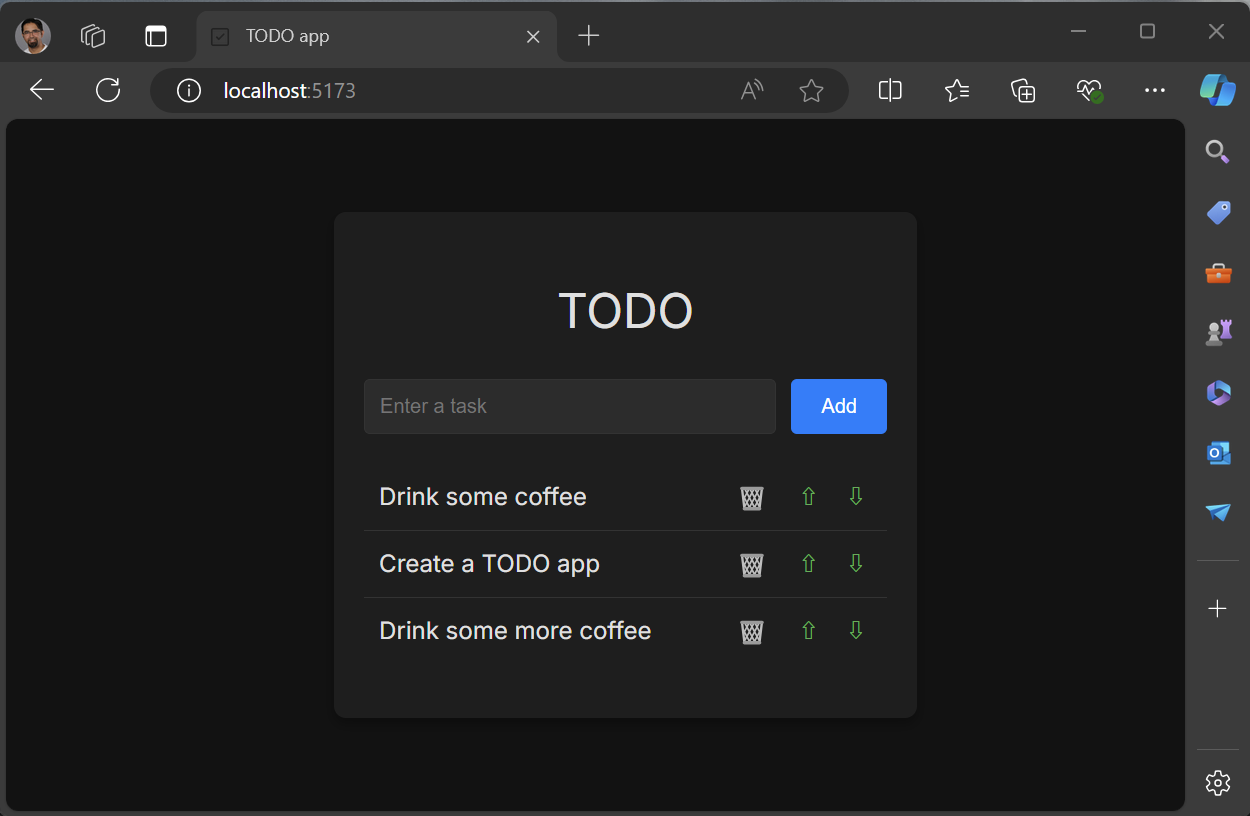
Image showing the final todo list cleaned up view

Now you have built a working Todo app which stores the todo items in memory. From here you could update the app to store the todo items in localStorage/IndexedDb, or integrate this with a server-side database, or other backend, for more permanent storage.

Recap

In this tutorial you have created a new React app using Visual Studio 2022. The app consists of a todo list, which includes support to add tasks, delete tasks and to reorder them. You created two new React components and used those throughout this tutorial.

Resources

Below are some links to related resources.

Feedback

You can share feedback with us via Developer Community: report any bugs or issues via report a problem and share your suggestions for new features or improvements to existing ones. You can also leave a comment here or reach out to Sayed on Twitter at @SayedIHashimi.
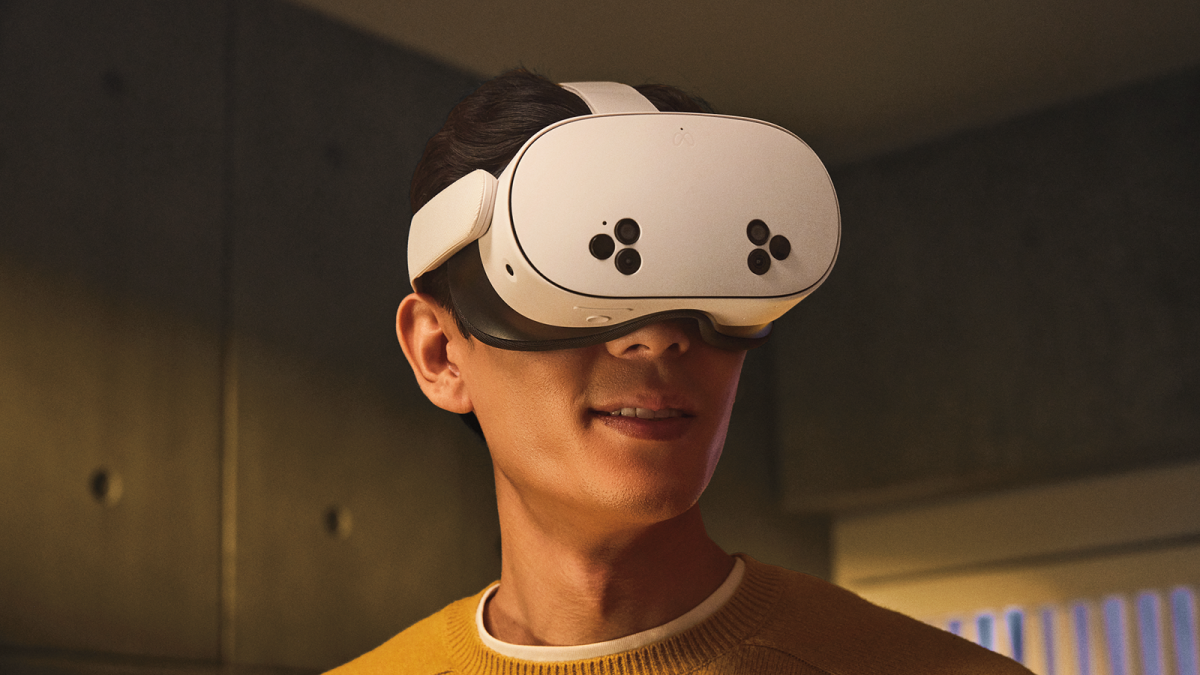


Meta Announces Quest 3S VR Headset Starting at $300


Meta’s Connect conference kicked off today with the announcement of a product that surprises no one. After numerous leaks, Meta has revealed the new budget-oriented Meta Quest 3S. This VR headset looks like a chunkier version of the Quest 3, and Meta says it’s just as fast. However, it’s substantially less expensive, and you can pre-order one today.

The new headset has all the same software features as the Quest 3, and even most of the internals are identical. The Quest 3S has 8GB of RAM and the Qualcomm Snapdragon XR2 Gen 2 chip. The Quest 3 brought a significant graphical upgrade over the Quest 2, so all the games designed for that device will work just as well on the Quest 3S.

This headset comes with the same Touch Plus controllers as the Quest 3, and it runs a bit longer on a charge compared with the more expensive unit. However, you’ll still run out of juice after 2.5 hours—or less, depending on what you’re running. Like the Quest 3, this headset emphasizes passthrough video and augmented reality experiences. Although, Meta didn’t use the word “Metaverse” even once. The 3S has the same stereoscopic cameras as the more expensive Quest, but they’re arranged differently on the front.

The biggest downgrade is in the visuals. The Quest 3S is physically larger because it uses the Fresnel lenses seen in the Quest 2 and earlier. The Quest 3 switched to more compact pancake lenses. That makes the 3S a bit heavier, and it sticks out farther when strapped to your face. The displays also take a step down from the 4K+ displays in the Quest 3. The 3S has the same 1,832 by 1,920 per-eye resolution as the Quest 2. The 3S also has a narrower field of view.

Meta says that the Quest 3S will benefit from the latest software enhancements like the Quest 3. The company says it has “drastically improved” the contrast and color of passthrough video, and latency is down by 15%. It also has the airplane-friendly Travel Mode released for Quest 3 earlier this year, and Meta promises to add optimizations for train travel and offline video support.

The Quest 3S looks like a compelling option for people interested in VR but can’t justify the $499.99 Quest 3. The Quest 3S starts at a comparatively reasonable $299.99 with 128GB of storage. A 256GB upgrade is $399.99. Meta says the device will ship on Oct. 15. If you buy the Quest 3 or 3S before April 30, 2025, Meta will throw in a copy of the forthcoming game Batman: Arkham Shadow and three months of Meta Quest+. You can also pay monthly for a bundle including the Quest 3S, Quest+, and Meta Warranty Plus for $20 per month. That works out to $480 over two years.

Critical Niche Market Mistakes to Avoid as an Entrepreneur


Home Business Magazine Online

If you’re an entrepreneur, then you will know how competitive the business landscape is right now. The internet boom has made it easier than ever for people to start businesses out of their homes while facilitating remote work. Although this has led to a sharp rise in the amount of new businesses being created, it has also made it harder for existing businesses to remain competitive. One way to work around this would be to target a niche market, but there are some pitfalls you need to avoid.

High Competition and Low Demand

Avoid niches with high competition and low demand. The casino sector is a good example of how this is possible. Let’s say you go online and discover the Starburst slot casino game. This particular game is one of the most popular video slots on the market, with expanding wilds and Win Both Ways feature. Although it faces competition from thousands of other slot games, the niche theme, combined with space elements and vibrant graphics helps it to stand out from other titles, such as fishing-themed slots like Big Bass Splash. Although the target market is the same for both titles, each one targets a different niche audience, very well. The key to experiencing success like this is to simply make sure that there is enough demand for your product, service, or offering. People need to be willing to spend money on whatever it is you are trying to sell. The last thing you want is to try and convince people to be interested in buying something from you.

Source: Pexels

Double-Down on a Trending Niche

Identifying a niche, as explained here by HubSpot, is imperative for business success. At the same time, you need to narrow down your niche even further if you want to succeed. For instance, instead of targeting all men or women in a specific age group, focus on individuals over 25 who share a specific interest, such as travel. This way, you could target male or female entrepreneurs who travel frequently and have a high income. To refine your niche further, you could narrow your focus to individuals from particular countries or working in specific professional roles. Taking charge of a trending niche, and doubling down on it, is also a good idea. TomboyX, on this list of examples, did this very well, by creating genderless apparel for the LGBTQ+ community. It’s a very specific niche, but one that’s more prevalent than ever right now.

The key to doubling down on your already concentrated niche would be for you to make sure that you’re not going too far with it. Like everything, there is a sweet spot and as a business owner, it’s your job to find it. Taking risks is important, as with risk comes opportunity, but there is a point where the risk simply outweighs the rewards, or cost investment you’re making. If you can keep this in mind, and if you can track your results through A/B testing, or even just through keyword metrics, it’ll help you in your journey to success while avoiding certain pitfalls.

The post Critical Niche Market Mistakes to Avoid as an Entrepreneur appeared first on Home Business Magazine.

Ancient Martian Atmosphere May Be Sequestered In Clay


New research suggests that Mars’ missing atmosphere may have been absorbed by minerals in the planet’s clays, in a process similar to geological reactions on Earth. It may explain Mars’ loss of its atmosphere and potential to support life, with methane possibly still present and usable as an energy source. Longtime Slashdot reader Baron_Yam writes: Conditions on early Mars were highly likely to have had CO2 carried down into the ground by water, where reactions with rock resulted in iron oxide (and Mars’ rust-red surface) and released hydrogen, which in turn reacted with the water to form methane that was bound in smectite clays. It’s all still there, just under the surface. The research has been published in the journal Science Advances.

Don’t worry, the Legacy of Kain: Soul Reaver remasters are also coming to PC


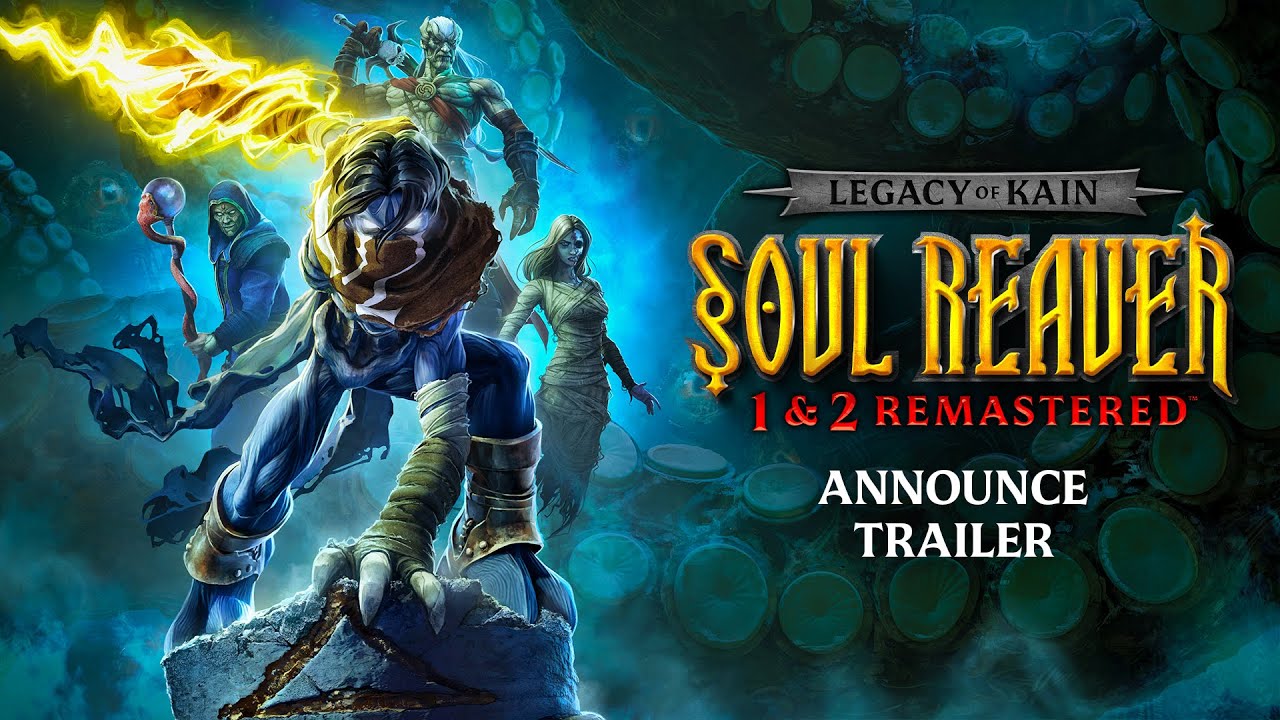
Over 25 years after the first Legacy of Kain: Soul Reaver launched, Crystal Dynamics has announced a remaster package collecting the first and second games in the series. The HD ports are the work of Aspyr, the studio responsible for the well-received remasters of the first three Tomb Raider games. The package was unveiled at Sony’s State of Play yesterday, but they’ve now been confirmed for PC.

Until recently the original versions of these games were available on Steam; they’ve since been removed, presumably to be replaced by their modernised versions. The trailer below shows what to expect: both games still look very much like late ’90s 3D action games, though they’ll enjoy sharper textures, smoother framerates, and upgraded models and visual effects. 

Visualize Beautiful Gardens with 3D Landscape Rendering Services and Designers


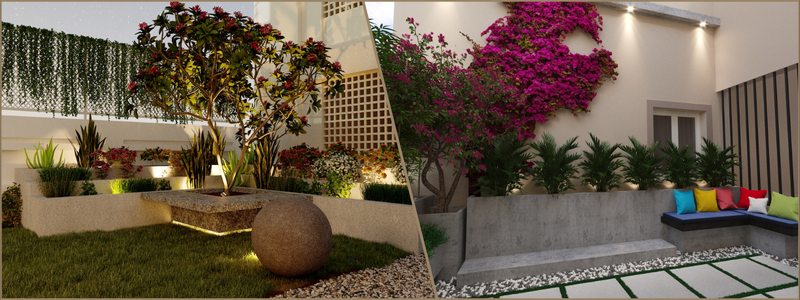
Gardening has always been a favorite hobby among many enthusiasts. After all, nothing beats it in terms of being rewarding and therapeutic at the same time. Unfortunately, it also takes a lot of work. If you want to design the perfect garden, 3D landscape rendering services can help turn your visions into reality.

Popular landscape designs and styles

At the start of your collaboration with a landscape designer, the first thing you have to do is decide on the landscape style you want. The following are some of the most popular landscape designs and ideas to choose from:

RELATED: Landscape design and visualization considerations for company landscape projects 

Coastal landscape style

Airy and light designs best characterize the coastal landscape style. It focuses on salt-tolerant native plants that thrive in distinct coastal environments. The sandy paths are reminiscent of the beach. The hues of green and blue mimic the sky and the ocean. This rich combination forms a casual elegance that enhances the sense of relaxation while also celebrating the seashore and its undeniable beauty. A good tip here is to choose plants that can endure the air even if they have some salt in them. Choose decorations and colors that remind you of the tranquility of the seaside.

Modern landscape architecture

Modern landscape architecture creates a space that nurtures the combination of sophistication and simplicity. Think of uncluttered spaces and sleek lines that highlight functionality. The landscape architecture expert uses a neutral color palette to direct the spotlight to the architectural elements as well as the carefully handpicked plant life. Opt for a neutral palette, add contemporary materials such as glass and metal, and don’t hesitate to play with geometric patterns and shapes.

RELATED: How 3D landscape rendering design services will enhance your landscape architecture

Traditional landscape design

Imagine a garden where all décor, paths, and plants are placed where they are intended. Think of neatly trimmed hedges, organized plantings, and manicured lawns. Color palettes are understated and refined. All elements are meticulously placed to achieve a cohesive and balanced look. Use classic shrubs and flowers, rustic or antique decorations, and symmetrical layouts to capture the evergreen style.

Xeriscaping

Xeriscaping is a sustainable smart landscape design approach tailored for drought-prone areas. Traditional lawns are replaced with artistic sweeps of stones and gravel. You can create a sustainable and visually appealing landscape that can thrive even during dry conditions if you choose native plants, place hardscape features strategically, and incorporate mulch or gravel. Your main focus should be drought-resistant native plants. Stones and gravel can also reduce your need for water.

Fundamental landscape design principles

The following are the core principles a 3D landscape designer adheres to in order to breathe life into their designs.

RELATED: Hire a landscaping architect for CAD drafting & design work

Symmetry and balance

Symmetry and balance play critical roles in producing a harmonious landscape design. Balance has two primary types – asymmetrical and symmetrical. Symmetrical balance creates mirrored or identical elements on both sides of the central point to achieve a sense of order and formality. Meanwhile, asymmetrical balance involves the arrangement of different elements that evenly distribute visual weight without being identical. Both types can be used to create balanced and visually pleasing landscapes. A good example of symmetrical balance is a sidewalk with both sides lined with matching shrubs.

3d-landscape-rendering-firm

Color theory in landscaping

The colors a 3D architectural rendering professional chooses can significantly impact the visual appeal and mood of any landscape. Warm colors like yellow, orange, and red create an energetic and vibrant atmosphere. Cool hues such as purple, green, and blue evoke a sense of tranquility and calm. Consider the contrasts, color combinations, and strategic placements of flowers and plants to produce a visually dynamic landscape. For instance, in a garden basking in the warm sun, combining cool-toned plants such as blue and lavender hydrangeas with marigolds in their warm tones can create a harmonious and vibrant color palette.

RELATED: Why landscape rendering and visualization is important for company landscaping projects

Focal points

Focal points are critical elements that give the landscape a sense of interest. These focal points, such as a well-designed seating area, a water feature, or a striking sculpture, serve as the visual anchor that guides the gaze of the viewer. Consider factors like placement, contrast, and scale in the landscape to make the focal points more effective. By highlighting and emphasizing the central elements, you can make the outdoor area more aesthetically appealing. Imagine a tranquil garden with a massive fire ring and a sunken conversation pit as its focal point.

Proportion and scale

Proportion and scale describe how different landscape elements relate to one another. It’s crucial to consider the mass, height, and size of the plants, hardscape features, and structures in the entire space. A pleasing visual balance can achieved if there is proper scaling and proportion of these elements. This prevents disproportionate arrangements or overcrowding that may detract from the design. See to it that larger plants or features don’t dwarf the focal points of a tiny garden.

Common challenges in landscape design

It’s common for landscape design services to encounter stumbling blocks during the process. The following are some of these challenges and how to overcome them:

RELATED: How landscape design services can help companies with 3D landscape design projects 

Limited budget

It can be very challenging to work within a set budget. The good news is that there are a few tips to address these budget constraints.

1. Transparency and communication

From the start, landscape designers openly communicate with their clients about budget limitations. They should be upfront regarding possible cost implications and provide alternative recommendations that meet their requirements without exceeding the set budget.

2. Long-term planning

Many don’t realize that after some time, the initial project costs are cheaper than the maintenance costs. Landscape designers suggest low-maintenance landscapes and durable materials that can help their clients save more money down the road.

3. Prioritize vital elements

Architectural designers determine the design’s critical elements that align with the budget and goals of their clients. They then allocate additional resources to the focal points while looking for cheaper alternatives to not-so-essential features.

RELATED: What does it Cost to hire a landscape design architect expert for your company?

landscape-design-services

4. Value engineering

A landscape designer also looks for creative solutions to achieve the preferred outcome while cutting down costs. This may involve using more affordable materials that still offer the same aesthetic or designing in phases to distribute expenses.

Client expectations

Landscape designers know that managing client expectations requires a delicate balancing act. The following are some tips to ensure creativity and meet client needs.

1. Communication during the entire process

3D Rendering companies regularly communicate with clients to update them on the construction and design progress. They address any issues right away and clarify expectations and timelines.

2. Educate clients

A landscape designer also guides clients during the design process. They explain every reason behind their design recommendations, educate clients about challenges, and help them understand possibilities and limitations.

RELATED: The best landscape design rendering software available for architectural companies

3. Create a clear brief

Landscape designers start the design process with a thorough understanding of their clients’ desired outcomes, preferences, and vision. These details are documented to ensure that both parties are on the same page.

4. Present design ideas

Landscape designers develop various design concepts that showcase their creative ideas. They present these to clients and request their feedback. A collaborative approach is followed that merges their expertise with the client’s preferences. A good tip here is that rather than relying only on verbal explanations and the client’s imagination, 3D architectural visualization services can help showcase ideas. This helps prevent miscommunications throughout the planning stage.

Weather and climate concerns

Landscape designers address weather and climate concerns through the following strategies:

1. Drought-tolerant landscape

Landscape designers integrate xeriscaping methods and drought-tolerant plants to reduce water use. Proper irrigation systems and mulching can also help conserve water.

RELATED: The best 3D rendering software and services for outdoor living & deck design projects 

2. Research local climate

A landscape designer understands the region’s climate patterns, including precipitation levels, wind conditions, and temperature ranges.

3. Sun and shade considerations

Use the natural shade of structures and trees to create cozy outdoor areas. See, plants that need lots of sun won’t be under shade.

4.  Wind-resistant features

The exterior rendering artist can also use trellises, walls, or hedges as windbreaks to protect the landscape from the strong winds.

Space limitations

Efficient planning and creativity are required to design limited or small outdoor areas. The following ideas can make the most out of small spaces.

RELATED: 3D Landscape design services: cost, rates, and pricing for companies and firms

1. Multipurpose elements

Integrate multifunctional design elements such as seating that also offers storage. Planters can also be dividers to form separate spaces in smaller gardens.

2. Optimize choices of plants

Choose plants suitable for small spaces, like dwarf or compact varieties. Container gardening is also a great option, as it allows you to reconfigure and move plants when necessary.

3. Strategic lights

Use lights to create additional space and attract attention to certain areas. The right lights can visually expand smaller outdoor spaces to make them feel more welcoming.

4. Vertical gardening

3D Visualization firms use vertical space by integrating hanging plants, living walls, and trellises. This adds greenery and creates visual interest while making the most of the available space.

How Cad Crowd can help

Cad Crowd is the leading resource for reliable 3D landscape rendering services, which can help you turn your dream gardens into reality!

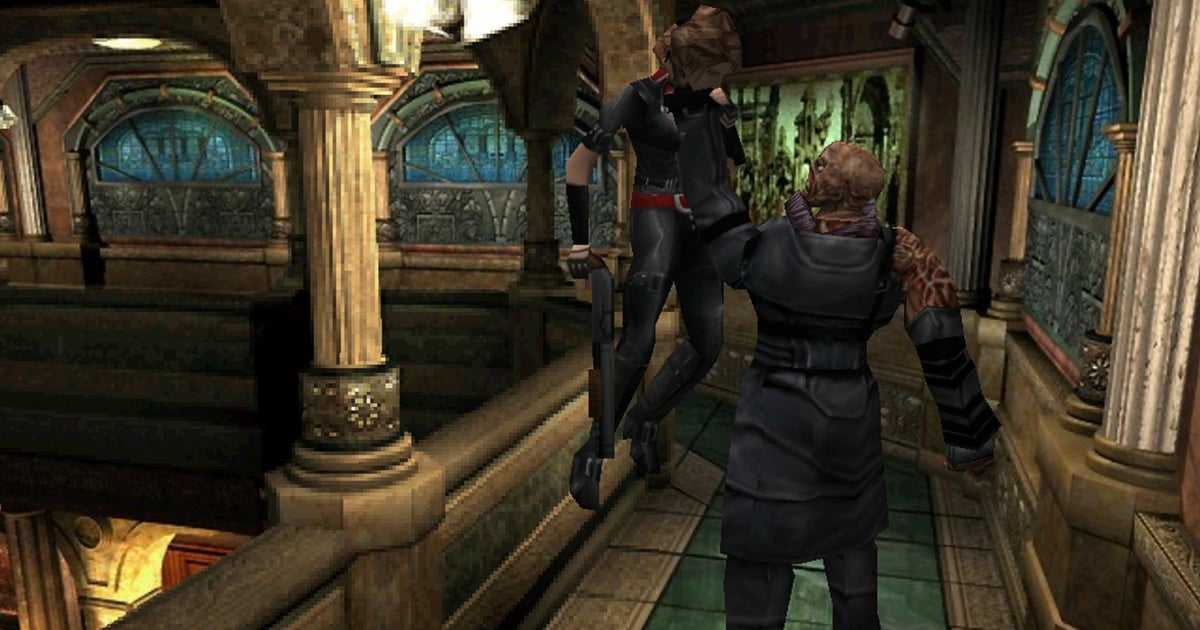
The original Resident Evil 3 is now available via GOG, following the arrivals of its predecessors


Resident Evil’s awkward middle child, Resident Evil 3: Nemesis, is now available via GOG. It follows in the leaking, shambling footsteps of Residents Evil 1 and 2, which likewise oozed onto the platform in June and in August respectively.

Continue reading “The original Resident Evil 3 is now available via GOG, following the arrivals of its predecessors”

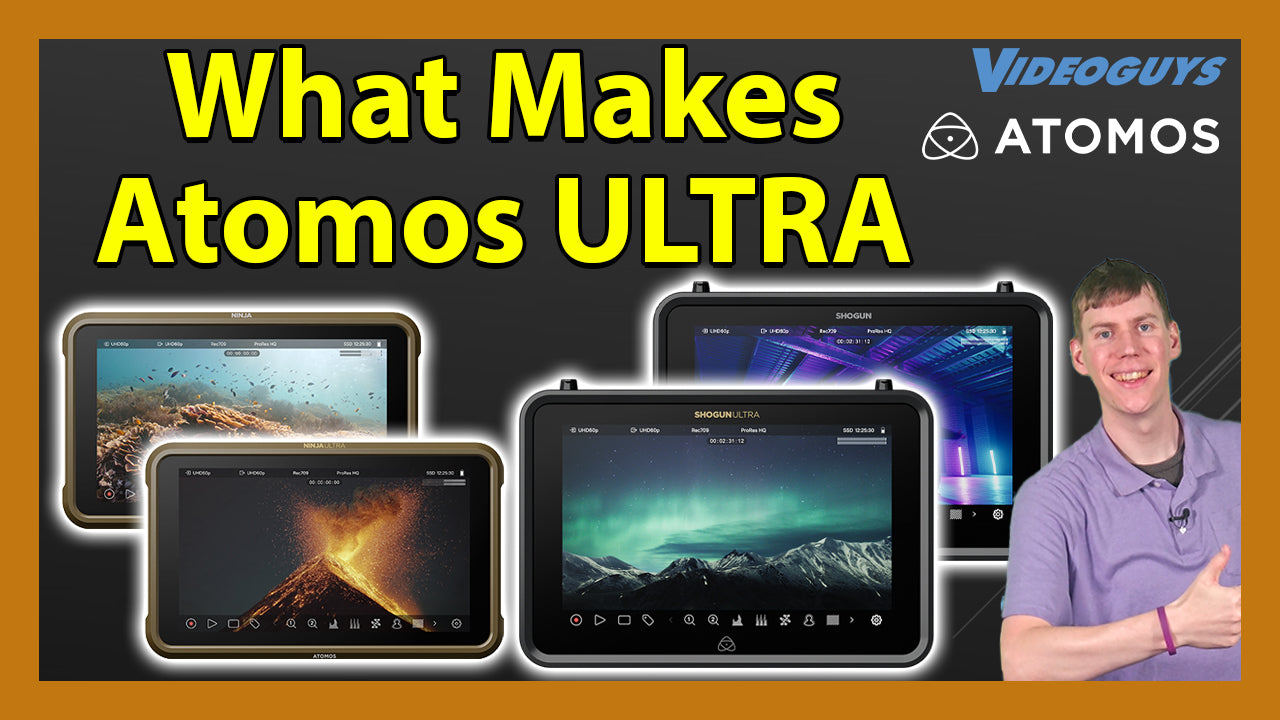
What Makes the Atomos Ninja & Shogun Ultra, Ultra?


On this Week’s Videoguys Live, James takes us through what’s new at Atomos and discussing their new products, the Ninja Phone and Shinobi II as well as promotions they are currently running on their ULTRA monitors. Tune in to learn more!

Watch the full webinar below:


Atomos On Board Monitors / Recorders

Why Go Ultra?

High Frame Rate/Resolution Recording
Ninja Ultra and Shogun Ultra capture RAW inputs up to 8K at 30fps, 6K at 60fps, and 4K at 120fps and 1080 at 240p.​ Ninja can record up to 6k30p, 4k60p and Full HD120p

​Included Codecs
If you’re not sure what codec you’ll need for a particular job, don’t worry we’ve got you covered. We offer a choice of ProRes RAW, ProRes, DNxHR, DNxHD, and 8-bit or 10-bit HEVC (H.265) right out of the box.

Dual record

  • ProRes RAW Recording: Capture in ProRes RAW even if the camera lacks this capability.
  • Camera to Cloud: Enhances collaborative workflows.
  • Dual Recording: Record up to 4K 60p in ProRes RAW and HD 60p in H.265 simultaneously.
  • Auto-Matched Filenames: Compatible with ARRI, Canon, RED, Sony (via SDI), and Nikon Z9 (via HDMI).

Matched camera filenames

  • Dual Recording: Simultaneously record R3D RAW on RED Komodo and 10-bit, 4:2:2 HEVC (H.265) on Atomos.
  • Quick Edits: High-quality, smaller file size clips for easy editing.
  • Auto Conforming: File name matching simplifies the process.

Camera to Cloud

  • Proxy Recording: Now up to 4K 60p to match original files.
  • Efficient: H.265 files are half the size of H.264.
  • Immediate Use: Ideal for social media, sports, and news.
  • Fast Publishing: Quickly reach viewers.

Connectivity for all productions
For Camera to Cloud, streaming and live production, Shogun Ultra has integrated Wi-Fi 6E and GigE. Adding Atomos Connect to Ninja Ultra gives you Wi-Fi 6 and GigE.

Now with NDI 6​
NDI video will look more life-like than ever with the addition of fully native HDR support and 10- bit color depth. Ninja Ultra and Shogun Ultra will support NDI 6 in both send and transmit modes.​


New Products from Atomos means there is a perfect solution for every workflow

Ninja Phone

Now your phone can be a Ninja too!

Turn your smartphone into a high‑end 10‑bit recorder, monitor and streamer for your pro HDMI video camera.

Now available for iPhone 15/16 Pro and 15/16 Pro Max
  • Work with a larger, brighter, world-class monitor
  • The perfect companion for cloud connected workflows straight from the camera
  • Perfect the shot on set with less to fix in the edit
  • Position the monitor to suit your rig
  • Use the intuitive app interface and avoid complex internal camera menus
  • Bypass internal compression and record directly from the sensor
  • A choice of recording formats

Shinobi II

Slimmer. Brighter. Camera control.

The slim, lightweight, high brightness, 5-inch 1500nit HDR monitor that’s perfect for vloggers, creatives and photographers

  • Bright HDR Display: 1500nit peak brightness for outdoor use.​
  • Extensive Camera Control: Manage various cameras and trigger recording from Shinobi II.​
  • Power Options: Charge your camera via USB-C PD port.​
  • User-Friendly Interface: AtomOS 11 touchscreen.​
  • Long Battery Life: All-day usage.​
  • Lightweight & Adaptable: Easily position the monitor.​
  • Secure Connectivity: Unique cable locking system.

​Shogun Classic

The versatile, 7-inch workhorse that enables you to monitor, record, and switch all in the one device. It’s the perfect tool for live production, multi-camera shoots, and in-the-field event coverage.
  • 3000nit HDR screen: Zone backlight provides exceptional detail, color, and contrast.
  • Real-time 4K recording: In ProRes, Cinema DNG, and Avid DNx formats
  • High performance HDR: Preview your images in glorious 10-bit HDR
  • 4 x SDI input: For seamless transitions between live video streams
  • 4 x ISO recording: For individual input control and post-production flexibility
  • XLR audio: 2-channel XLR Input and output

Sun Dragon

The world’s first sun spectrum, HDR, waterproof, wireless DMX, 2000 lumen 5-color LED, mount-anywhere, lightweight flexible production and cinema rope light

Zato Connect

Zato Connect is packed with all the features you’d expect from Atomos, and streamlined for speed. A brilliant monitor, essential I/O and onboard recording are just the start of it. Connecting to the cloud with Zato gives you superpowers. That’s because you can capture, edit and post your social media content in the fastest possible way.

Shogun Studio 2

The highly flexible Shogun Studio 2 takes state of the art Atomos multi-channel recording technology and combines it with two premium 7-inch HDR 2000nit high bright touchscreen displays, all in a single 3RU unit. Its unique combination of features makes it perfect for live events, outside broadcast vehicles, production galleries and MCRs, post production facilities, video wall playout, on-set DITs and sports officiating. Connect to practically any SDI or HDMI source including camera channels, PTZ cameras and vision mixers.

SUMO 19SE

A bright (1200nit), HDR touchscreen covering the DCI-P3 (P3) Color Gamut, and able to record Apple ProRes RAW up to 6Kp30. With its rugged and versatile design, the Sumo 19SE is the perfect addition to an on-set video village.

c# – VisualStudio 2022 No Debug Output from AutoCAD Assembly


VisualStudio fails to display any output written via Trace.WriteLine() or Debug.WriteLine(). I want to be able to write to, and view, debugging information for my assembly.

I have created a .dll that I load into AutoCAD using the ‘NETLOAD’ command. Within Visual Studio I then attach my debug output window to the process by going to ‘Debug–>Attach to Process’. I see output from the acad.exe process, but none of my messages are displayed.

The output window has Program Output checked, and is set to show output from Debug. I believe all my other settings are correct but I must be missing something. Any ideas?

13 companies from YC Demo Day 1 that are worth paying attention to


Famed Silicon Valley startup accelerator Y Combinator on Wednesday kicked off its two-day “Demo Day” event that showcases what the most recent YC batch, S24, companies are building.

Unsurprisingly, AI companies dominated the day, with startups looking to apply the technology to problems like estate planning and settlements, Elayne; automating clinical trial data, Baseline AI; and helping companies get goods through customs, Passage.

Sectors like fintech, healthcare, and web3, which dominated YC cohorts of the past, were noticeably quieter, or completely absent, from Wednesday’s presentation.

Here are the companies worth paying attention to from the first day of Demo Day. Spoiler alert: Pretty much all use AI.

What it does: Automates moving baggage at airports with robots

Why it’s a fave: This seems like an ideal use case for robots, considering that collecting and moving baggage at airports is an entirely manual process, which can also be dangerous. This may also be technology that airports would actually be willing to pay for.

What it does: AI automation of clinical trial documents

Why it’s a fave: I’m a fan of anything that is aiming to make clinical trials work better and run faster, considering how important they are in the process of getting new drugs and treatments to market. The company claims it can save companies $18 million in costs and lost revenue, which seems like a notable improvement.

What it does: AI-powered estate planning and settlements

Why it’s a fave: As someone who has watched a family member navigate this process, I’m glad someone is building a better solution. Plus, the fact that Elayne is looking to reach consumers through their employers is a smart way to get more people thinking about this before they have to.

What it does: Automated testing for AI voice agents

Why it’s a fave: There are so many startups building customer support AI systems, but do they work? I think Hamming’s strategy of testing out these AI customer service bots is a needed service in this growing ecosystem.

What it does: Data centers in space

Why it’s a fave: This company stood out because it seems like an extreme moonshot, and yet it’s already landed customers and is launching a demonstrator satellite next year. The concept of using solar energy to power data centers may be one we might want to consider doing on Earth, too.

What it does: Helps cities optimize transit

Why it’s a fave: Ontra Mobility’s quest to help local governments better utilize their public transit options is a solid one. Most cities don’t have the budget to expand public transit options despite population growth, so figuring out a smarter way to utilize what options they already have makes sense.

What it does: AI-assisted customs support

Why it’s a fave: Considering how easy it is for consumers to get packages held up by customs, I can only imagine how complicated the importing process is for companies moving a lot of goods across the border all the time.

What it does: AI Price optimization

Why it’s a fave: This is a super interesting approach to ecommerce pricing. Promi’s AI looks to help companies offer data-informed fluctuating discounts to customers that change based on interest and activity. This makes a lot of sense.

What it does: TurboTax for building rebates

Why it’s a fave: Personally I’m a fan of any company that helps consumers or other companies unlock the government incentives they are eligible for. I like RetroFix’s approach in particular because it’s unlocking government money for contractors to make buildings more sustainable.

What it does: Automates government approvals for construction projects

Why it’s a fave: This is the kind of application AI was made for. SchemeFlow’s software helps construction companies automate technical reports shrinking the process to minutes. Further impressive, the young company has already generated reports for more than 400 construction projects.

What it does: Synthetic datasets for vision models

Why it’s a fave: There is only so much quality data available for large language models to train on, which leaves many LLM companies tempted to get data from sources they shouldn’t — or aren’t allowed to. Help stop AI companies from illegally scraping data? Sounds like a good goal to me.

What it does: Network of in-space refueling stations

Why it’s a fave: The space industry is booming; many entrepreneurs are looking to build and send satellites, rockets, and other devices up into space. Building a company that services this growing economy seems like a smart strategy.

What it does: Helps businesses become employee owned

Why it’s a fave: The company’s mission to help companies transition into employee owned is a novel one. Selling a company to its employees helps create wealth for the employees and generally results in a bigger payout for the seller. Sounds like a win-win.