Hey All,
Do you ever have weeks or days where every time you sit down to work you feel like you’re already behind?
I’ve had this happen more times than I’d like to admit.
You open a file from a consultant or an old project…
And it’s just chaos.
Files seem to be taking longer to open than ever…
Messes of Duplicate lines and exploded blocks everywhere.
Text stacked on top of text.
Layers you don’t recognize.
Before you even start designing, you’re already in cleanup mode.
Over time, I’ve realized something:
The difference between a frustrating drawing and a smooth workflow usually comes down to a few simple tools.
Not more effort… just better commands.
That’s why the focus of today’s video and email is Speed and Organization!
Before we jump in, I had a small favor to ask. I want to get to know you better over the coming weeks, this way I can tailor the content specifically for you and the majority of my readers, just answer this poll here:
(No right or wrong answer, and just pick whichever is closest to the type of work you do)
Quick Tip: Clean Your Drawing in Seconds
If you’re not using OVERKILL regularly — start today.
This command will:
Remove duplicate lines
Combine overlapping geometry
Clean up unnecessary objects
It’s one of the fastest ways to fix messy drawings (especially from external sources).
Pro Tip:
Pair OVERKILL with PURGE for a full drawing cleanup.
It’s basically “declutter mode” for AutoCAD.
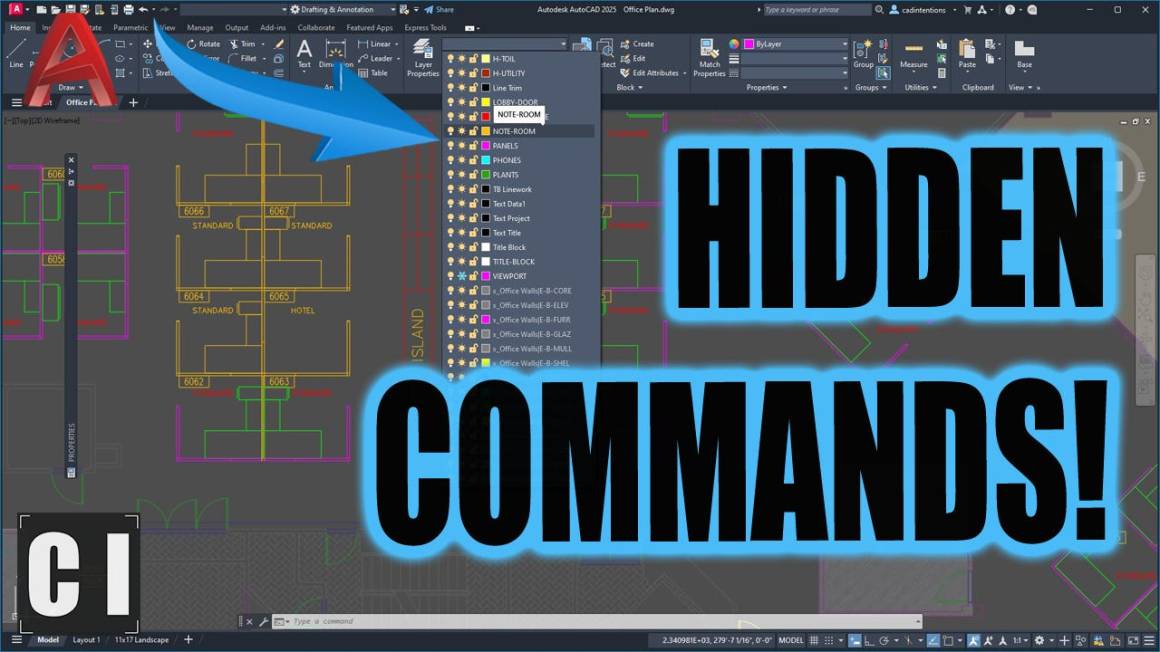
Hidden AutoCAD Commands You Should Be Using
This week’s video breaks down some of my favorite and most used lesser-known commands that can seriously improve your workflow:
- OVERKILL
- LAYISO (Object Isolation is a true gamechanger!)
- MATCHPROP (with settings)
- NCOPY
- CHSPACE
- Q……
- and more..
These aren’t flashy… but they’re the kind of tools that quietly keep things organized and save you hours over time.
If you want to work faster, cleaner, and with less frustration, this is a must-watch.
Watch the full video here: AutoCAD Commands That Will Change Your Workflow

Tech Tool of the Week: Bluebeam
If you’re working with PDFs, markups, or large drawing sets, Bluebeam Revu is a game changer.
Here’s where it really shines:
Faster Markups & Review
Quickly add comments, highlights, and check off completed items without going back into CAD.
Seamless Collaboration
Share drawings, assign markups, and track progress across your team, even across different locations.
Built-In Measurements & Takeoffs
Measure distances, areas, and quantities directly from your PDFs, no manual calculations needed.
Compare Drawings Instantly
Easily spot changes between revisions without hunting through sheets.
Personally, I use Bluebeam to:
- Review checkplots
- Track completed markups
- Coordinate with PMs and teams
- Handle quick takeoffs without reopening CAD
It’s one of those tools that quietly saves hours every week.
Check it out and get a free trial here: https://cadintentions.com/bluebeam
That’s it for this week!
Are you using Bluebeam? If not give it a try and let me know what you think.
Cheers and happy drafting,
Brandon

Brandon is a Civil Designer, Aspiring Blogger/Creator, Husband, Father to two Amazing Kids and Tech Aficionado from a small town in Canada. He has been obsessed with design and technology since he can remember and working as a Civil Designer for nearly as long. Brandon’s blog and Youtube channel, CADIntentions.com has been his outlet and excuse for keeping up with new tech and trends in the CAD design world for the last 10 years growing to more than 60,000 subscribers and over 15,000,000 views, while also being the source of many great friendships and unique opportunities.
If you would like to Sponsor CAD Intentions or Work together in some way, Please visit my About Page and send me an email: http://cadintentions.com/about-me/