Your phones ring all day with the same questions. Hours, address, “are you open,” “can I book for Saturday.” Your staff stop serving the customer in front of them to pick up, or the call rolls to voicemail and the caller dials the store down the road.
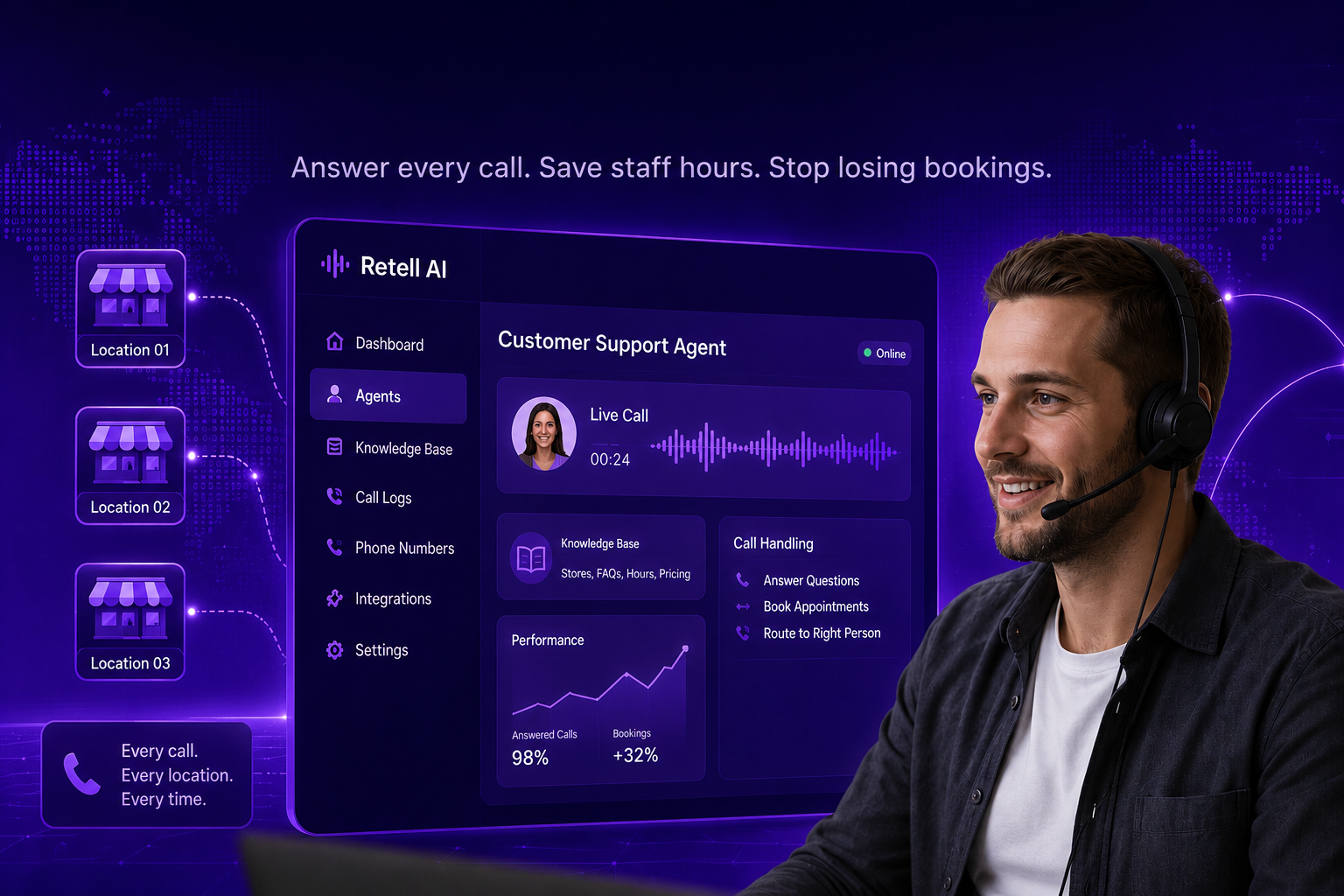
A customer support voice agent answers every call on the first ring, at every location, day and night. It handles the routine questions and hands the rest to a person. This guide shows you how to set one up in Retell AI for a single location, in steps you can follow without a technical background.
Honest part first. It will not replace your team. It clears the repetitive calls so your staff can serve customers and close bookings. Plan for a couple of hours of setup and about a week of listening before it runs smoothly.
What a customer support voice agent handles
store hours, address, and directions
A voice agent does best on predictable calls:
- store hours, address, and directions
- whether a location is open that day
- simple bookings and reservations
- sending the caller to the right person or store
It is weak on judgment calls. Upset customers, refunds outside policy, and anything unusual belong with a person. Set that handoff from the start, and the agent earns its keep on the calls you were losing.
What you need before you start
- A Retell AI account. Sign up at retellai.com. New accounts include a small amount of free usage, so you can test before you pay.
- A list of the questions your locations get on the phone.
- Your hours, address, and a plan for what the agent says when it cannot help.
Step 1: Create your account and open the dashboard
Sign up on the Retell website and log in. You land on the main screen where everything is managed. A menu runs down the left side. That menu is your map for this whole series

Step 2: Start a new phone assistant
Open the section for assistants, which Retell calls agents, and click to create a new one. Retell asks what type you want. For answering common questions, pick the basic option built for support. You can switch to a more advanced type later once you see how it behaves.

Step 3: Tell it how to behave
A box lets you write the agent’s instructions in plain English. You do not need clever wording. Cover four things:
- Who it is. “You answer the phone for [Your Business] in [Town].”
- What it should and should not do. “Answer questions about this location only. If you do not know, take a message or pass the caller to a person.”
- What a good call looks like. “Help the caller get an answer and book or reach the right person.”
- How it sounds. “Friendly, short, and clear. Repeat back details to confirm them.”
Add your hours, address, and after-hours line right here.

Tip: Always tell it what to do when it is stuck. A line like “If you cannot answer, offer a callback” stops it from guessing.
Step 4: Pick a voice
Retell gives you a list of voices, and you can play each one. Choose the voice that fits how you want your stores answered. Warmer for a salon or restaurant, steadier for a clinic or service brand.

Step 5: Leave the speaking settings alone for now
A panel controls fine details, such as how fast it replies and how it handles interruptions. The defaults work for a first build. Adjust them after you hear a real call, not before.

Step 6: Give it your information
Rather than typing every detail into the instructions, give the agent a folder of information to read from. Retell calls this a knowledge base. Think of the training binder you hand a new front-desk hire. Add your FAQ, your prices, or a link to your website.
The next post in this series covers this in depth, including how to share one set of information across every location.

Step 7: Test it before you connect a phone number
A button lets you talk to the agent from your computer before any real call comes in. Use it. Ask the real questions your stores get. Check three things. Does it answer correctly? Does it stay on topic? Does it handle “I do not know” without inventing an answer?

Tip: Have two or three staff test it in their own words. People rarely ask the way you expect.
Step 8: Connect a phone number
Go to the phone numbers section. Buy a number through Retell or use one you already own. Set your new agent to answer that number.

Step 9: Call it yourself and confirm
Call the number. Run a few real situations: ask your hours, try to book, and ask one thing it should not know. Confirm it answers, sounds right, and handles the hard question the way you set up.
What this saves you
You now answer every call at one location, day or night, with no one tied to the phone. The calls you used to miss, the ones that quietly became a competitor’s customer, now get picked up. For a multi-unit operator, that gap repeats across every store, so the saving multiplies as you roll out.
Set up one location well, then use the rest of this series to route callers to the right store, keep every location’s answers correct, and make them all sound the same.
Next step: If you would rather skip the setup, Weam builds and runs customer support voice agents for franchise and multi-unit brands, plugged into the tools you already use. Book a cost-saving audit to see what it would save across your locations.