AutoCAD Object Properties: AutoCAD Foundations | AutoCAD Blog


Objects in a drawing share several general properties that determine their appearance. These include color, linetype, linetype scale, lineweight, and more. Properties, such as color and linetype, can be changed per individual object or across many objects with the use of layers.

In our next installment of the AutoCAD Foundation blog series, we have a quick tip on how to change AutoCAD object properties. For the full tutorial on changing object properties and using layers, you can check out the AutoCAD Foundations article.  

How to Change AutoCAD Object Properties

All objects that you create have properties. Object properties control the appearance and geometric characteristics of an object. The general properties that are common to most objects are as follows:

  • Color
  • Linetype scale
  • Hyperlink
  • Layer
  • Plot style
  • Lineweight
  • Linetype
  • Thickness

All other properties are object type specific.

When objects are selected, you can use the Properties palette to verify and change property values. If you select an object in your drawing, here is what you might see in the Properties palette.

Screenshot of properties palette

Notice that the current properties for the selected object are displayed in the Properties palette. You can change any of these properties by clicking it and changing the value. A property that is set to “ByLayer” inherits its value from its assigned layer. In the previous example, the line object’s color of magenta is inherited from its assigned layer of 20 ELECTRICAL.

If you select several objects, only their common properties are listed in the Properties palette. If you change one of these properties, all selected objects are changed in one operation.

When the Properties palette is displayed and no objects are selected, the current property values are of those to be assigned to newly created objects. Property values listed as ByLayer, indicate properties that inherit their values from the layer to which the object is assigned. For example, changing the Color property value from ByLayer to Red causes all subsequent objects to be assigned the Red color which overrides the value of the assigned layer.

Screenshot of AutoCAD properties palette by layer

The Properties palette takes up a lot of space. For quick access to the most common properties, you can use the Properties panel on the ribbon. As you can see in this example, the listed properties will all be determined by the current layer.

Screenshot of AutoCAD properties palette ribbon

Keep Going

There’s much more to learn about object properties and layers. Check it out in Change Object Properties and Organize Objects with Layers: AutoCAD Foundations.

How to Create 2D Objects: AutoCAD Foundations | AutoCAD Blog


2D objects are fundamental to creating designs in AutoCAD and include many forms such as lines, arcs, circles, rectangles, and polygons.

For our AutoCAD Foundations blog series, we’re sharing four quick exercises to help get you started learning the basics of 2D objects. For the full tutorial on how to create 2D objects, you can check out the AutoCAD Foundations article.

2D Objects Exercise #1: Create a Line in AutoCAD

Let’s start at the very beginning. A line is the most common 2D object in a drawing.

Draw a Line

In this exercise, you’ll try out multiple ways to start the LINE command and draw a line.

From the ribbon, click Home tab > Draw panel > Line.

Screenshot of Line icon in AutoCAD

Or enter LINE at the Command prompt and press Enter.

When prompted for the first point, you can type in a coordinate or click in the drawing area where you’d like to begin the line. Once you specify your first point, the Command prompt will ask where you’d like to end the line. Here, you can type in a coordinate or click in the drawing area.

Screenshot of Line command in AutoCAD

The LINE command continues to prompt you for additional points. Press Enter or the Spacebar to end the command.

2D Objects Exercise #2: How to Create a Polyline in AutoCAD

Now that you have the line down, let’s move on to a polyline. A polyline is a connected series of line or arc segments that is created as a single object. They are useful for irregular shapes; borders; contour lines; roads and rivers in maps; and more.

Polylines can be open or closed and have different starting and ending widths for each segment.

Draw a Basic Polyline

In this exercise, you’ll draw a polyline.

From the ribbon, click Home tab > Draw panel > Polyline.

Screenshot of Polyline icon in AutoCAD

Or enter PLINE at the Command prompt and press Enter.

After you specify the first point of the polyline, you can use the Width option to specify the width of all subsequent segments. You can change the width value at any time, even as you create new segments. Continue specifying additional points to define the polyline. Press Enter or the Spacebar to end the command.

Screenshot of Pline command in AutoCAD

2D Objects Exercise #3: How to Create a Rectangle in AutoCAD

Now, let’s move on to see how to draw closed objects such as rectangles and polygons.

Draw a Rectangle

In this exercise, you’ll draw a rectangle.

1. Do one of the following:

  • From the ribbon, click Home Tab > Draw Panel > Rectangle/Polygon drop-down menu > Rectangle
  • Or enter RECTANG at the Command prompt and press Enter

2. Specify the first and then second corner of the rectangle

2D Objects Exercise #4: How to Draw a Polygon in AutoCAD

Once you’ve mastered the rectangle, you can move on to a polygon.

Draw a Polygon

In this exercise, you’ll create a polygon.

1. Do one of the following:

  • From the ribbon, click Home tab > Draw panel > Rectangle/Polygon drop-down menu > Polygon
  • Or, enter POLYGON at the Command prompt and press Enter

2. Enter the number of sides for the polygon.

3. Specify the center of the polygon.

4. Enter c to specify a polygon circumscribed about a circle.

5. Specify the radius of the circle, either by moving the cursor and clicking in the drawing area or by entering a distance.

Learn More: How to Create 2D Objects

Ready to move on to arcs, circles, polyline arcs, donuts, ellipses, and splines? Be sure to check out the entire AutoCAD Foundations article for even more in-depth tutorials on creating these 2D objects. And stay tuned for our entire series here on the blog (or catch up on past articles!) as we highlight even more great tips for getting started with AutoCAD.

AutoCAD Drawing for Beginners: AutoCAD Foundations | AutoCAD Blog


The AutoCAD Foundations guide takes you step-by-step through AutoCAD basics. In our blog series, we’re moving on to AutoCAD drawing for beginners. Here are some quick tips with exercises to get you going, and you can also check out the full article here.

How to Create a New Drawing in AutoCAD

There are two easy ways to create a new drawing by either clicking “New” on the Start tab or on the Quick Access toolbar that will provide drawing template options.

Try it out: In this exercise, open and select a drawing template.

1. On the Quick Access toolbar, click New.

2. In the Select template dialog box, select one of the following drawing template files based your associated industry and click Open.

  • Tutorial-mArch.dwt. Sample architectural template (metric)
  • Tutorial-mMfg.dwt. Sample mechanical design template (metric)
  • Tutorial-iArch.dwt. Sample architectural template (imperial)
  • Tutorial-iMfg.dwt. Sample mechanical design template (imperial)

The metric template files are scaled to use millimeters as the drawing unit, and the imperial template files are scaled to use inches as the drawing unit.

How to Switch Between Model and Layout Tabs

The Model and Layout tabs provide two working environments. In Model space, you can draw a full-size model of your object. With Layout space, you can create a layout of the same object from multiple angles.

Try it out: In this exercise, navigate between model and layout spaces.

1. At the bottom left of your window, see the Model tab. This shows that your drawing is currently in Model space, where you create and modify the geometry for your model.

2. Click the Layout tab to the right of the Model tab.
Layouts are used to generate printed drawings.

3. On the layout, double-click anywhere within the rectangular viewport. This creates Model space within the layout to pan the model space view and add dimensions. To check this, see the bottom right of your window where it should say MODEL.

4. Double-click in a blank area outside the rectangular viewport. This returns you to Paper space, which you can verify at the bottom right of your window.

5. To return to Model space, click the Model tab.

How to View and Navigate Drawings

The easiest way to change the view of and navigate your drawing is to use the wheel on your mouse.

Try it out: In this exercise, you use the Navigation Bar to zoom and pan.

Using the Navigation Bar:

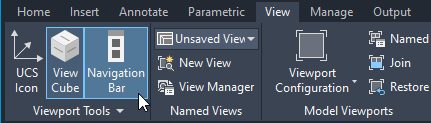
1. In the View tab, check that Navigation Bar is in blue. If not, click Navigation Bar to turn it on.

Screenshot of AutoCAD navigation bar

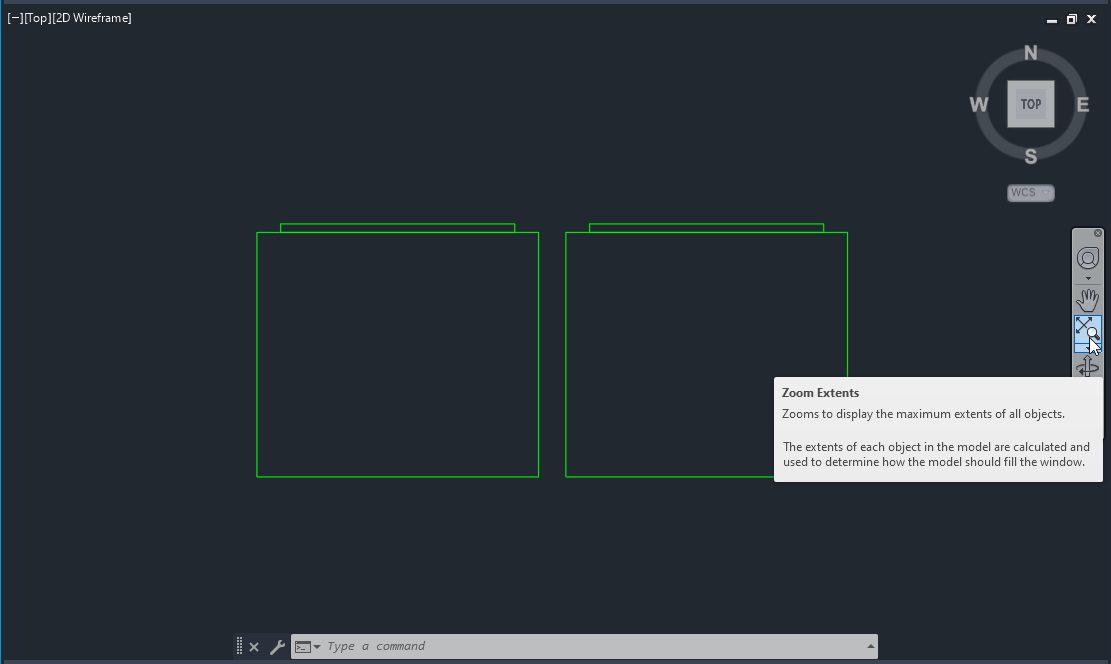
2. On the Navigation Bar, click the Zoom drop-down menu and choose Zoom Extents. 

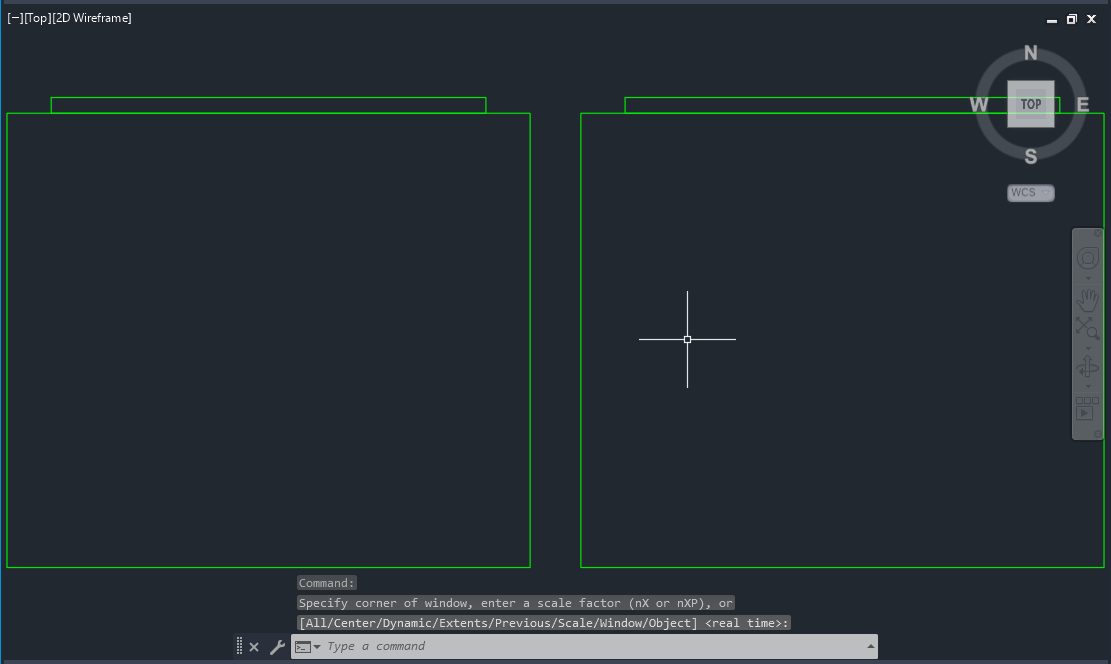
The drawing zooms out/in to its extents.

AutoCAD Zoom Extents screenshot
AutoCAD Zoom Extents Screenshot

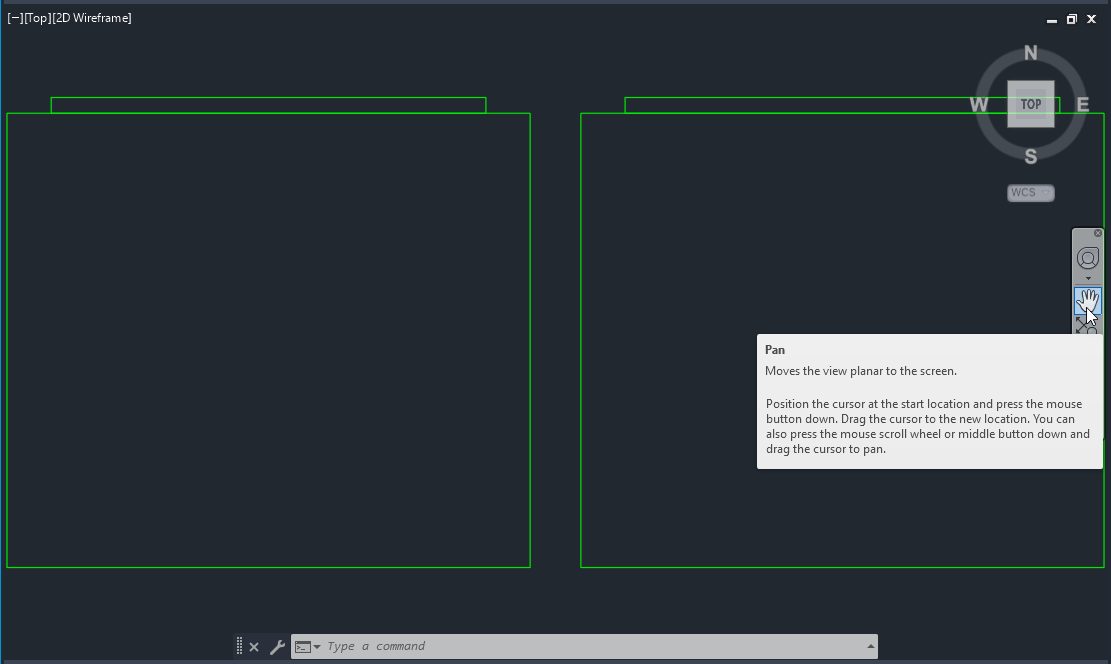
3. On the Navigation Bar, click Pan. 

AutoCAD Pan icon
AutoCAD Pan screenshot

4. Click and drag to move the view to a specific area of the drawing.

AutoCAD drawing screenshot

Learn More: AutoCAD Drawing for Beginners

Be sure to check out the entire AutoCAD Foundations article for even more in-depth tutorials on working with drawings, including how to set units; save, close, and open drawings; view and navigate drawings; and more. And stay tuned for our entire series here on the blog (or catch up on past articles!) as we highlight even more great tips for getting started with AutoCAD.

AutoCAD Tutorial for Beginners: AutoCAD Foundations | AutoCAD Blog


Looking for an AutoCAD tutorial for beginners? We’ve got you covered.

The AutoCAD Foundations learning series takes you step-by-step through AutoCAD basics. In our first article, we shared a video tour of the AutoCAD UI video and additional details on Autodesk Learning videos, AutoCAD online help, and the Autodesk Assistant.

Now, let’s see how you can take your first steps in AutoCAD.

Getting Started with AutoCAD Workflows and Skills

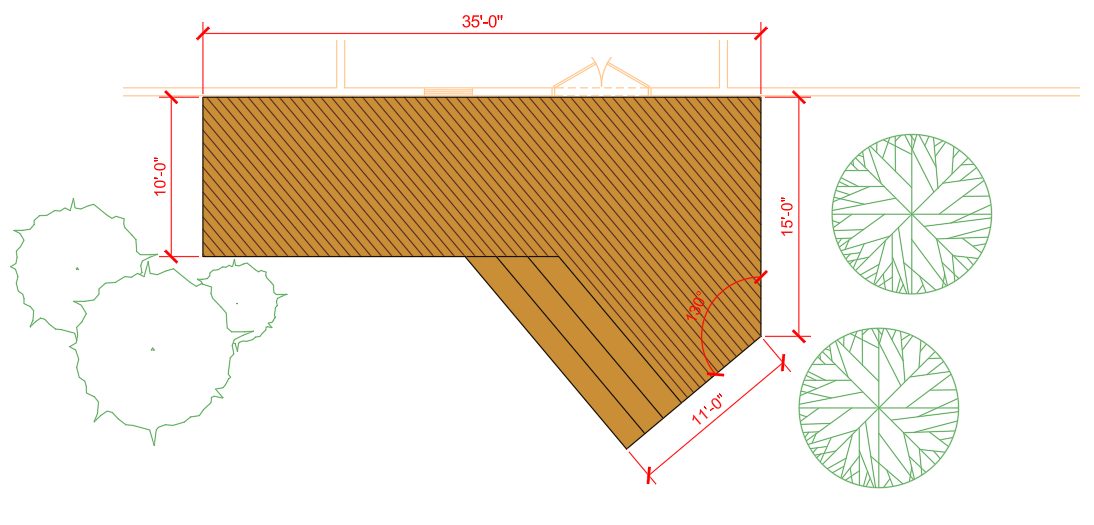
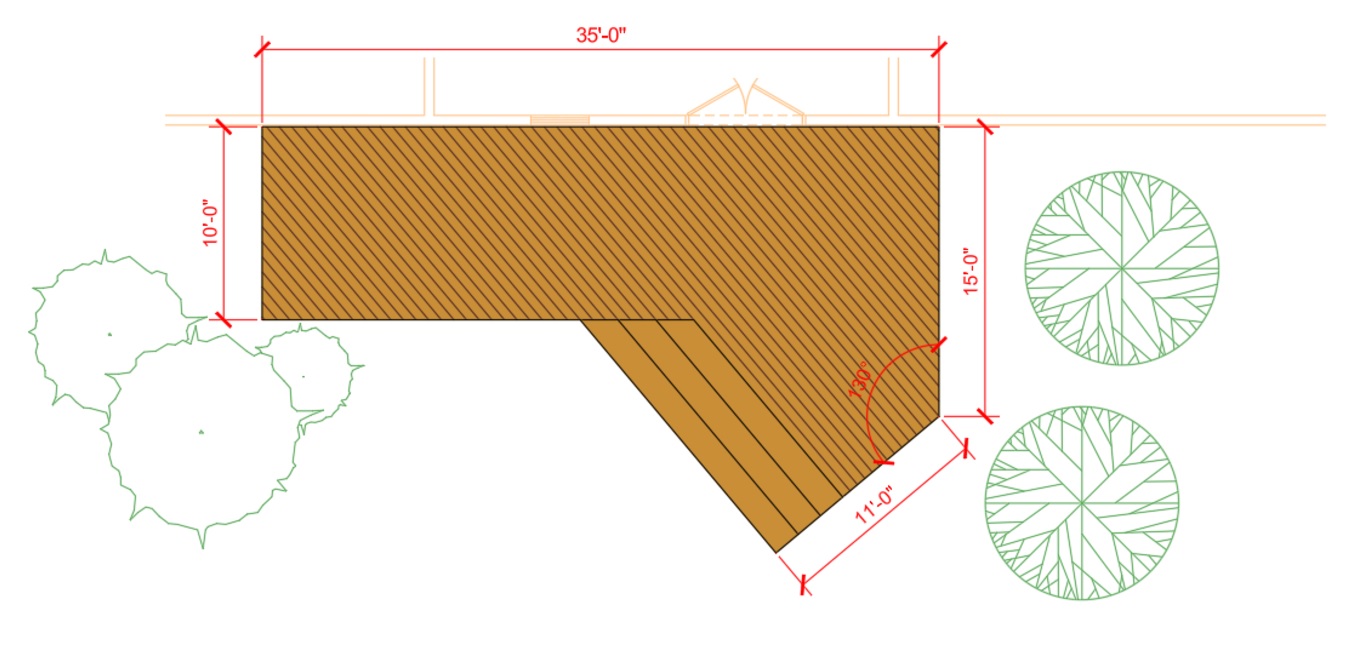
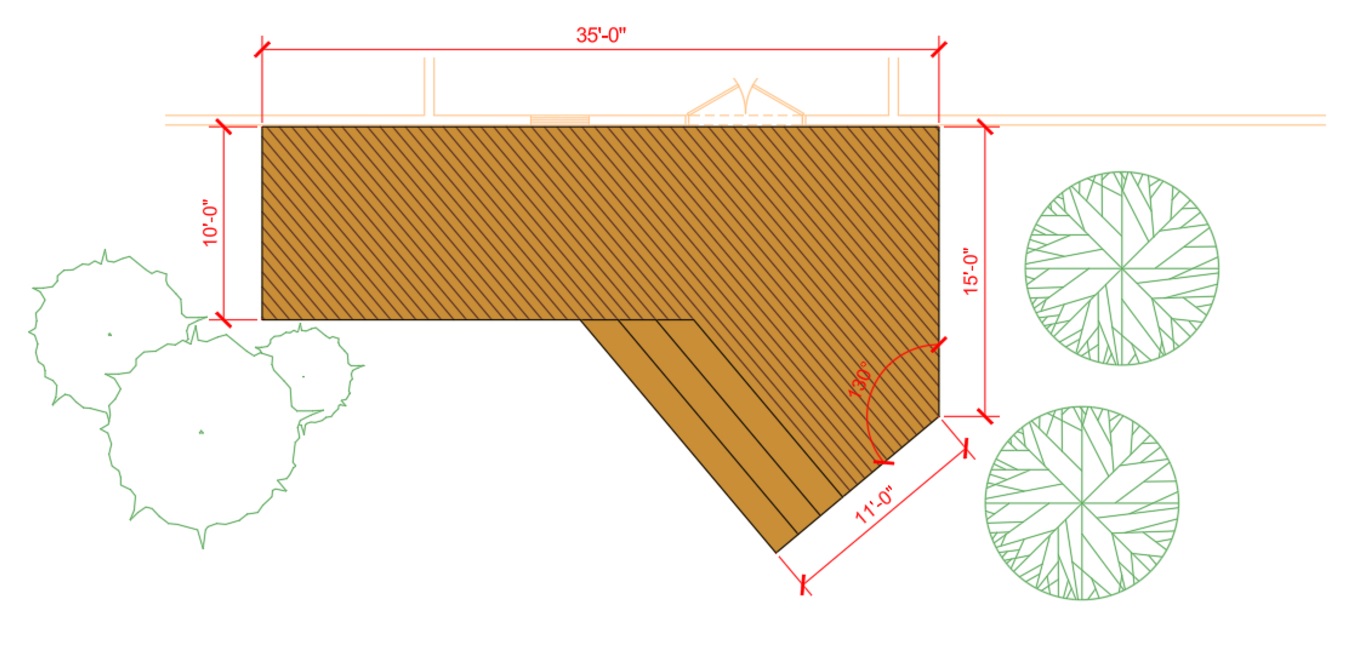
Architectural Design: House Deck

In this exercise, you will create a plan view of a deck, starting with a sample drawing that contains some reference geometry and a set of predefined layers and dimension styles.

After you complete all the exercises, you should have a drawing that looks similar to the following image.

Architecture plan drawing in AutoCAD

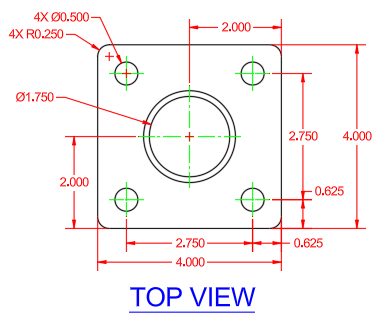
Mechanical Design: Square Flange Plate

In this exercise, you will create a top and side section view of a square flange plate. You’ll create a new drawing from a template, adding the necessary layers, linetypes, and dimension styles to complete the design.

After you complete all the exercises, you should have a drawing that looks similar to the following image.

Mechanical design in AutoCAD

More AutoCAD Tutorials for Beginners

Stay tuned for more articles in our blog series or go to the AutoCAD Foundations learning series directly to keep going!

AutoCAD Foundations: Building a Solid Foundation for Learning AutoCAD | AutoCAD Blog


Are you new to AutoCAD, perhaps primarily a Revit or Inventor user who works in AutoCAD occasionally, or a returning user who simply hasn’t used the product in a while? The Content Experience Designers (CXD) on the AutoCAD team have recently released a new learning series titled AutoCAD Foundations.  

AutoCAD Foundations provides you with just the right amount of information through videos and exercises to get you started on your AutoCAD learning journey. AutoCAD Foundations is learning content that can be found within the AutoCAD Online help. Here on the blog, we’re starting a new series to highlight many of the topics that you can explore with AutoCAD Foundations. 

To get the most out of AutoCAD Foundations and maximize your knowledge of AutoCAD, there are some additional resources and tools you should be aware of. These resources and tools are: 

  • Tour the AutoCAD UI video
  • Autodesk Learning videos 
  • AutoCAD online help
  • Autodesk Assistant

Read on to learn more about each.

Tour the AutoCAD UI

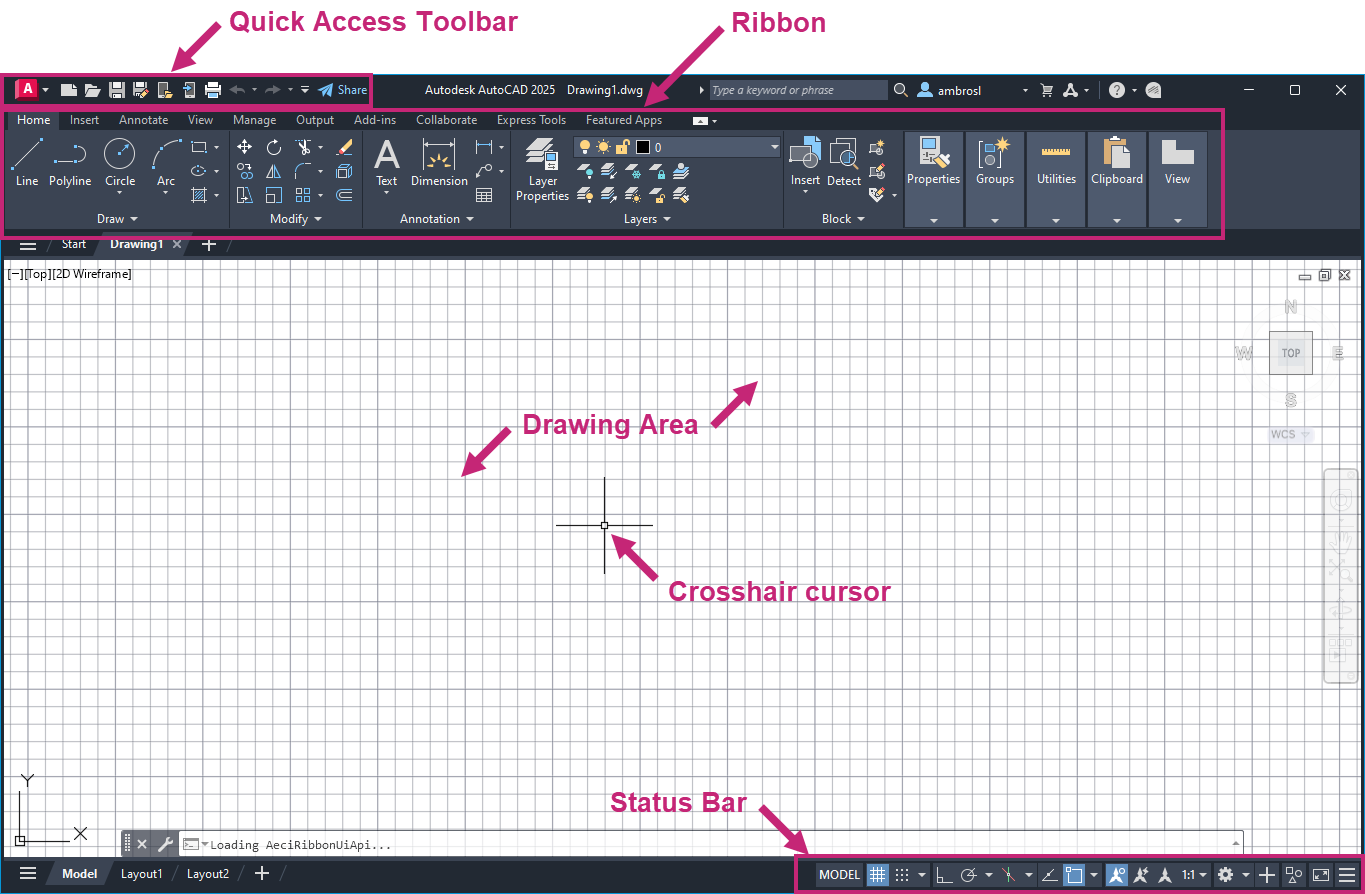
The AutoCAD user interface, or UI for short, can be overwhelming at first glance. While there are many different areas of the AutoCAD UI, there are three main areas to focus on and understand:

  • Ribbon and Quick Access toolbar where you can access commonly used commands and tools.
  • Drawing area where you will work on your designs and respond to prompts for input near the crosshairs.
  • Status bar which provides quick access to frequently used drafting aids.

For a walk-through of the AutoCAD UI, watch the Tour the AutoCAD UI video in the AutoCAD Online help. This video demonstrates the basic tools in the user interface.

Screenshot of AutoCAD UI

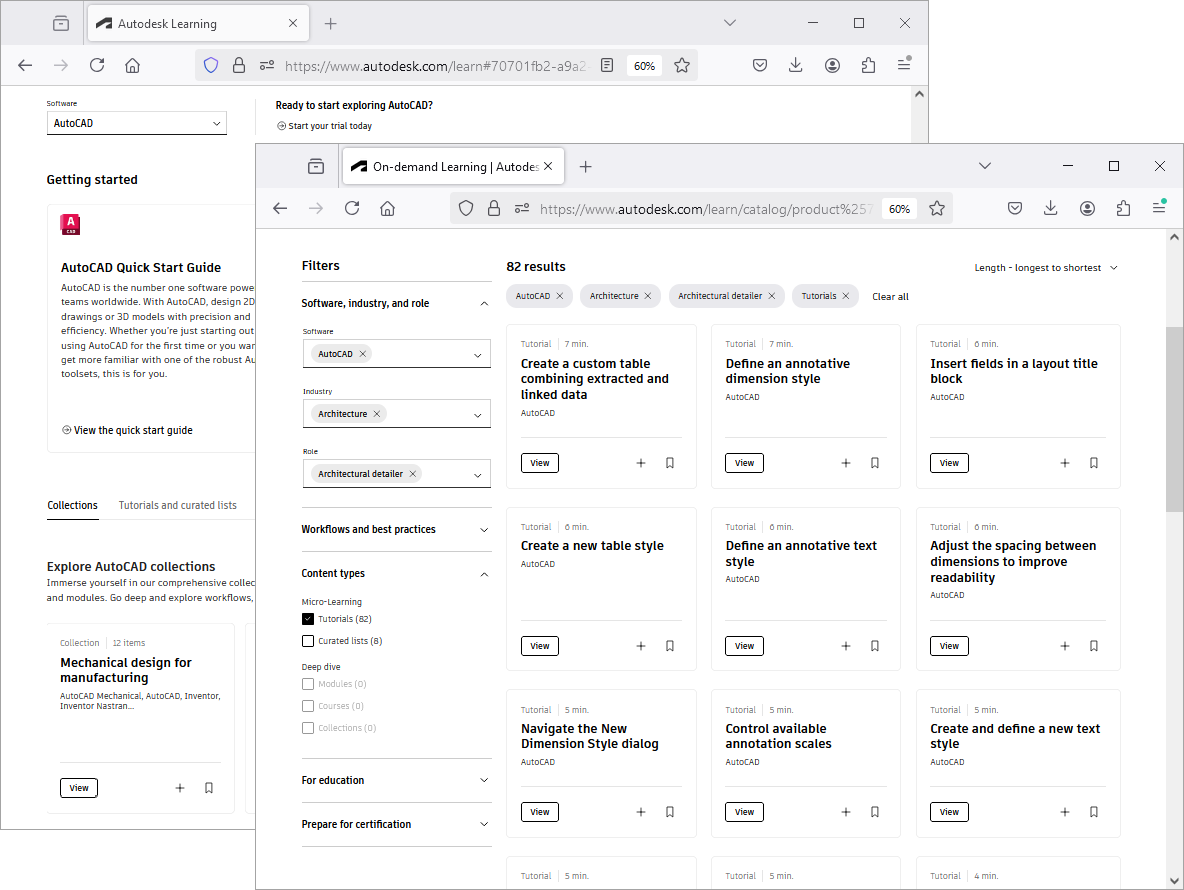
Autodesk Learning Videos

Learning AutoCAD, like many applications, is best done by seeing how it works and then putting those learnings into practice. The Autodesk website offers a large library of learning videos that demonstrate how to use many of the commands and tools in AutoCAD. This area of the website is known as Autodesk Learning. Here you can find videos on drawing and modifying objects, managing layers, plotting your designs, and much more. The video library can be filtered by product (AutoCAD in this case) and can be explored through curated lists which contain a series of short videos or course structures which offer in-depth learning sessions.

AutoCAD Online Help

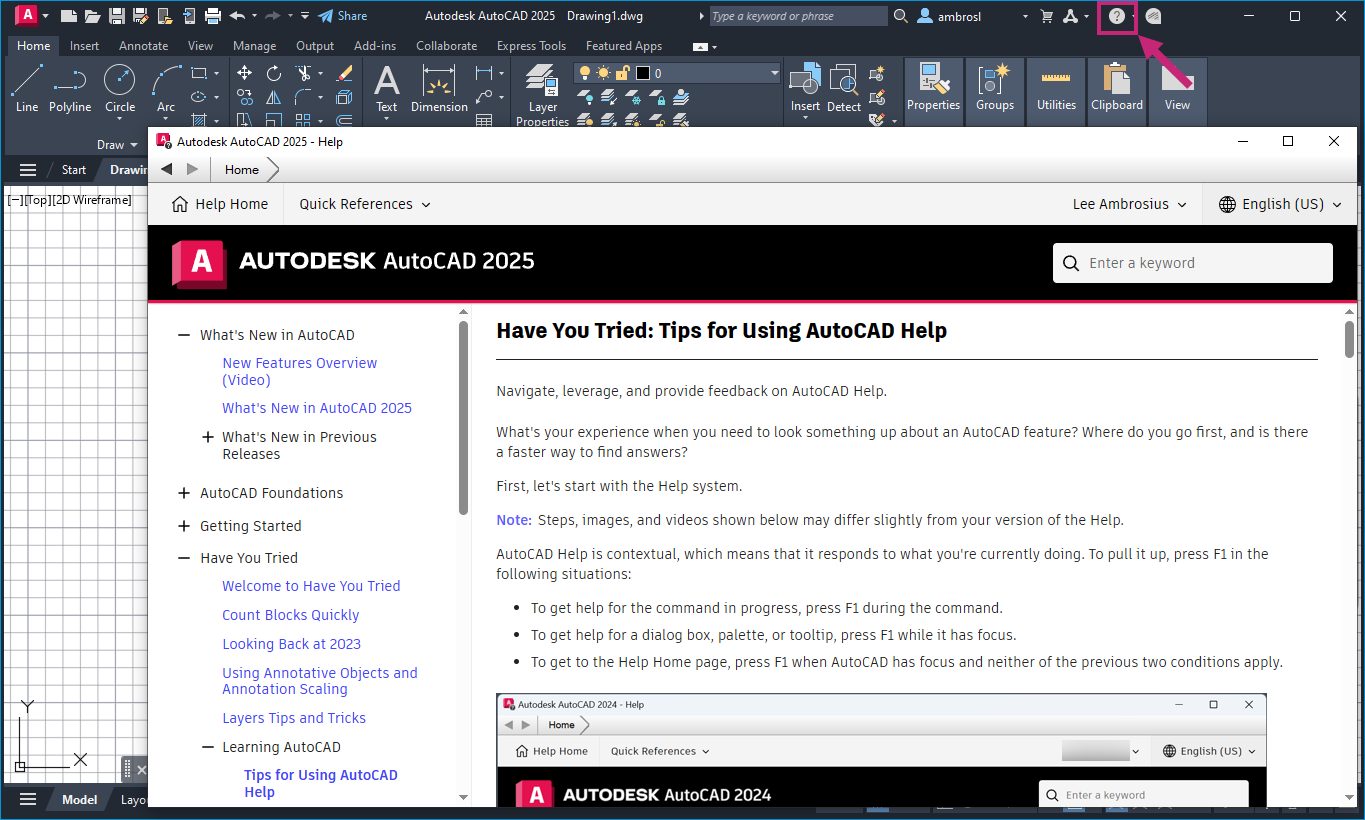
As you use AutoCAD, you may need to look up information on how to use a command, what a specific user interface element does, or even the purpose of a specific option in a dialog box. The AutoCAD Online help is where you will find this information. While in AutoCAD, you can press F1 on the keyboard or click the Help button on the InfoCenter, located in the upper-right corner of the application window, to launch the in-product help window.

Displaying help with the F1 key is context-sensitive, meaning help is displayed for the active command or dialog box or based on where the mouse pointer is in the user interface. Once the in-product help window is opened, you can read the topic displayed, perform a search by keyword, or navigate to another topic using the table of contents along the left side of the window. For more information on using the AutoCAD Online help, see the Have You Tried: Tips for Using AutoCAD Help topic in the AutoCAD Online help.

Screenshot of AutoCAD Online Help

Autodesk Assistant

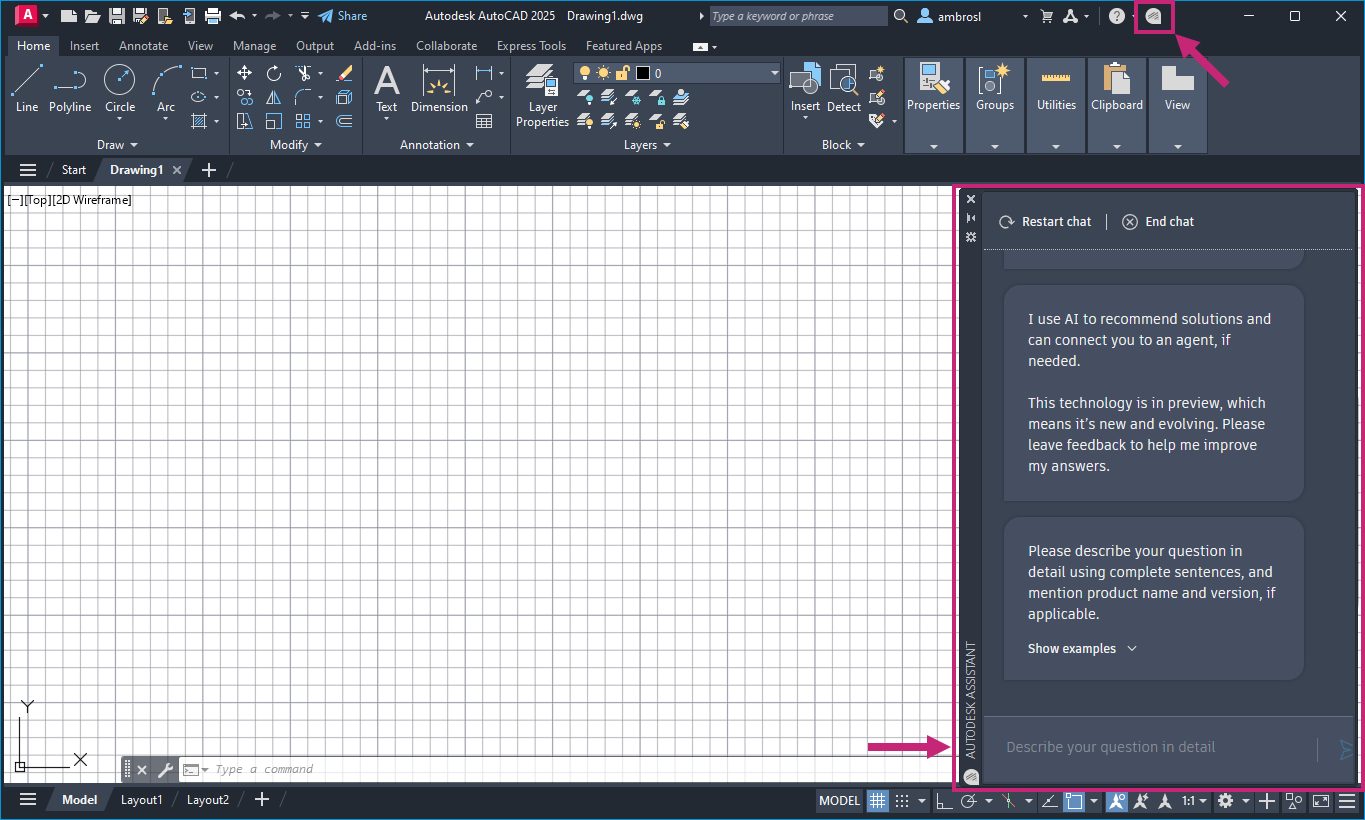
Along with searching for information in the AutoCAD Online help system, AutoCAD also includes the Autodesk Assistant. The Autodesk Assistant offers AI-guided self-service and options to find tailored support from within the product. Depending on the type of account you have, you can find solutions to product questions, engage in a chat with one of our product support agents, request a callback, or create a support case. With the Autodesk Assistant, you use natural language to ask questions and get responses for content that might be located within the AutoCAD Online help or the Autodesk Knowledge Base for support-related questions.

In the upper-right corner of the application window, on the InfoCenter, click Autodesk Assistant to open the Autodesk Assistant palette. With the palette open, simply type your question into the “Describe Your Question in Detail” field and press Enter to get a response. For an introduction on using the Autodesk Assistant, see the Introduction to Autodesk Assistant and AutoCAD Help topic in the AutoCAD Online help.

Screenshot of Autodesk Assistant

Get Started With AutoCAD Foundations

Start exploring AutoCAD Foundations with these resources and tools in hand. Stay tuned as we explore more AutoCAD Foundations topics in the coming weeks.

Learn AutoCAD Basics With the New AutoCAD Foundations Guide | AutoCAD Blog


Just starting out with AutoCAD? Or need a little refresher? We’ve got you covered. The AutoCAD Content Experience Design team recently released a new, 12-part series that details AutoCAD basics from start to finish.

From a tour of the UI to working with commands, creating 2D objects, getting started with blocks, and much more, AutoCAD Foundations helps you gain the knowledge you need to understand essential features and workflows. The topics include in-depth learning objectives, videos, and even exercises to try out and cement your new skills.

The entire AutoCAD Foundations series can be found online at the links below. It’s also available in AutoCAD 2025 as part of the product help.

AutoCAD Basics Covered in AutoCAD Foundations

All topics at-a-glance:

AutoCAD Foundations Guide

Individual topics:

1. Tour the AutoCAD UI

2. Take Your First Steps into AutoCAD

3. Create, Open, Save, and View Drawings

4. Start Working with Commands

5. Create Basic 2D Objects

6. Create Objects with Precision and Accuracy

7. Select, Modify, and Duplicate Objects

8. Change Object Properties and Organize Objects with Layers

9. Place Annotation and Hatch Closed Areas

10. Add Dimensions to a Design

11. Create and Insert Blocks

12. Organize and Output a Design with Layouts

Stay Tuned

Stay tuned for more as we detail each of these topics in future articles.