Just starting out with AutoCAD? Or need a little refresher? We’ve got you covered. The AutoCAD Content Experience Design team recently released a new, 12-part series that details AutoCAD basics from start to finish.
From a tour of the UI to working with commands, creating 2D objects, getting started with blocks, and much more, AutoCAD Foundations helps you gain the knowledge you need to understand essential features and workflows. The topics include in-depth learning objectives, videos, and even exercises to try out and cement your new skills.
The entire AutoCAD Foundations series can be found online at the links below. It’s also available in AutoCAD 2025 as part of the product help.
If you’re ready to access the latest AI and drafting capabilities that AutoCAD has to offer, open the Autodesk Access application to start your update. On behalf of the entire Autodesk team, welcome to AutoCAD 2025:
“Autodesk is committed to creating the most performant CAD tool in the market. In AutoCAD 2025, you’ll be able to open 2D files up to two times faster than in 2024*,” said Marcus O’Brien, Vice President of AutoCAD.
For architecture, engineering, and construction firms, AutoCAD 2025 will deliver deeper connections across the Autodesk portfolio. “When AutoCAD customers use Autodesk Docs, they’ll be able to take advantage of a truly connected experience in the cloud,” said Dania El Hassan, Director of AutoCAD Product Management. “Using Markup Import, customers can share their PDF files in Docs for feedback and instantly see those markups in AutoCAD, making design iterations faster across geographically distributed teams.”
AutoCAD 2025 also enhances your 2D and 3D design experience with features that continue to unlock insights and automation with the help of Autodesk AI. “I’m proud that we are accelerating customers’ work with powerful AI for the CAD industry,” said El Hassan. “By targeting the most used workflows, AutoCAD enables customers to focus on their most creative work, leading to better outcomes and leading the CAD industry in the age of AI.”
Keep reading to learn more about some of the latest capabilities in AutoCAD 2025.
Smart Blocks
First introduced in AutoCAD 2024 with the Placement and Replacement features, Smart Blocks represents just one of the ways AutoCAD continues to leverage Autodesk AI to improve the core 2D drafting experience. AutoCAD 2025 now introduces two new capabilities that will help you improve design efficiency through content reuse and standardization across your drawings.
“The new Smart Blocks features we’ve released in AutoCAD 2025 represent our commitment to innovation and delivering value to our customers,” said El Hassan.
Use Smart Blocks: Search and Convert to quickly organize geometry into blocks. This tool enables you to search drawings by selecting geometry and highlighting all matching objects found on the canvas, providing options to convert them into instances of a block with the help of Autodesk AI.
“Search and Convert allows for a more efficient workflow within AutoCAD. Blocks can get lost or be challenging to work with, and this feature allows for a more efficient approach, saving time and quickly creating new blocks from elements within the drawing.” —Joe VanderPluym, Design Associate
And with the new Smart Blocks: Object Detection Tech Preview, you can scan drawings for objects to convert into blocks. This tool is designed to help you save time when cleaning up drawings that have been drafted without the use of blocks, created with non-AutoCAD-based applications, or imported from other file formats like PDF.
“We’re excited to release Object Detection as a Tech Preview in AutoCAD 2025,” said Britta Ritter Armour, Senior Product Manager, AutoCAD data and AI. “It’s a new type of feature that allows us to enhance capabilities throughout the year, without requiring users to update.”
This feature is a technology preview which is still under development and will continue to evolve and improve with time—including the ability to recognize and distinguish objects to suggest as blocks. At the time of release, this feature only works in plan view and is best at detecting architectural elements on a floorplan. For the latest information, visit the AutoCAD 2025 help page.
Autodesk Assistant
First introduced in the AutoCAD and AutoCAD LT 2024.1 update, Autodesk Assistant gives customers quick access to help resources using the built-in palette. With AutoCAD 2025, Autodesk Assistant is now enhanced with Autodesk AI for a conversational interface that provides generative responses.
“Previously, I had always used other tools for seeking information, but then you always need to specify much more if you want to find something that works for your specific problem. The Autodesk Assistant actually gives me the correct commands directly in the reply, exactly what I would need from an AI assistant.” —Markus Karlsson, Senior Designer, Shipbuilding
Ask questions related to AutoCAD features and troubleshoot your design challenges without leaving the workspace for relevant learning resources based on your queries. For further help, you can get in touch with an Autodesk Customer Support Agent using the same interface—so you can continue to work while communicating with our team.**
Autodesk Assistant with Autodesk AI is only available in English in AutoCAD 2025.
Enhancements for Projects on Autodesk Docs
AutoCAD 2025 introduces several enhancements for customers who manage design projects using Autodesk Docs—our cloud-based common data environment available with the AEC Collection. With Markup Import, you can now connect PDF files with markups made in Autodesk Docs into AutoCAD to continuously synchronize changes made by collaborators using the full set of markup tools available in Docs.
In AutoCAD 2025, Activity Insights has been enhanced to include detailed event properties and the ability to filter by DWG version with robust file comparison capabilities—merging features from the previous DWG History tool—to create one source for exploring all drawing changes over the course of a design. Versioning is now supported for drawings managed on Autodesk Docs, requiring no additional setup or configuration to view Activity Insights. Start tracking over 35 activity types that can be viewed using Activity Insights palette or directly from the AutoCAD Start Tab—without requiring you to open drawings.
We’ve also added more Autodesk Docs capabilities to AutoCAD specialized toolsets. In AutoCAD Plant 3D 2025 you can now collaborate on projects within subfolders and have weld symbols displayed in both the Autodesk Docs Viewer and Navisworks. And both AutoCAD Architecture 2025 and AutoCAD MEP 2025 toolsets now support automatic synchronization of DWG files across multiple users and machines when working with projects hosted on Autodesk Docs. Enhancing productivity for teams that require more than two users to collaborate on files simultaneously regardless of where they choose to connect from.
Core Performance & Drafting
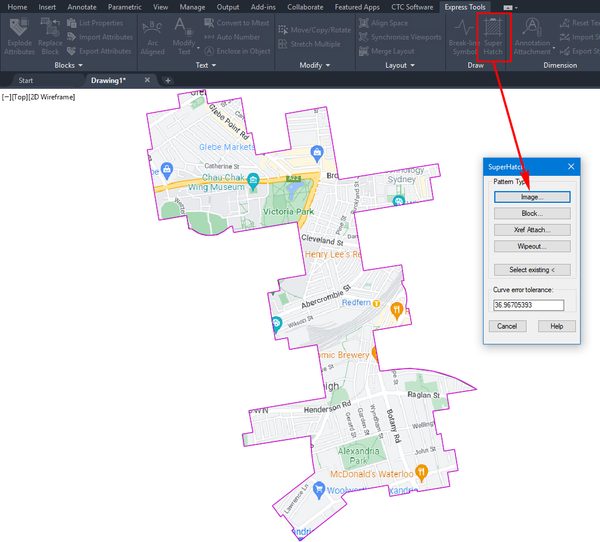
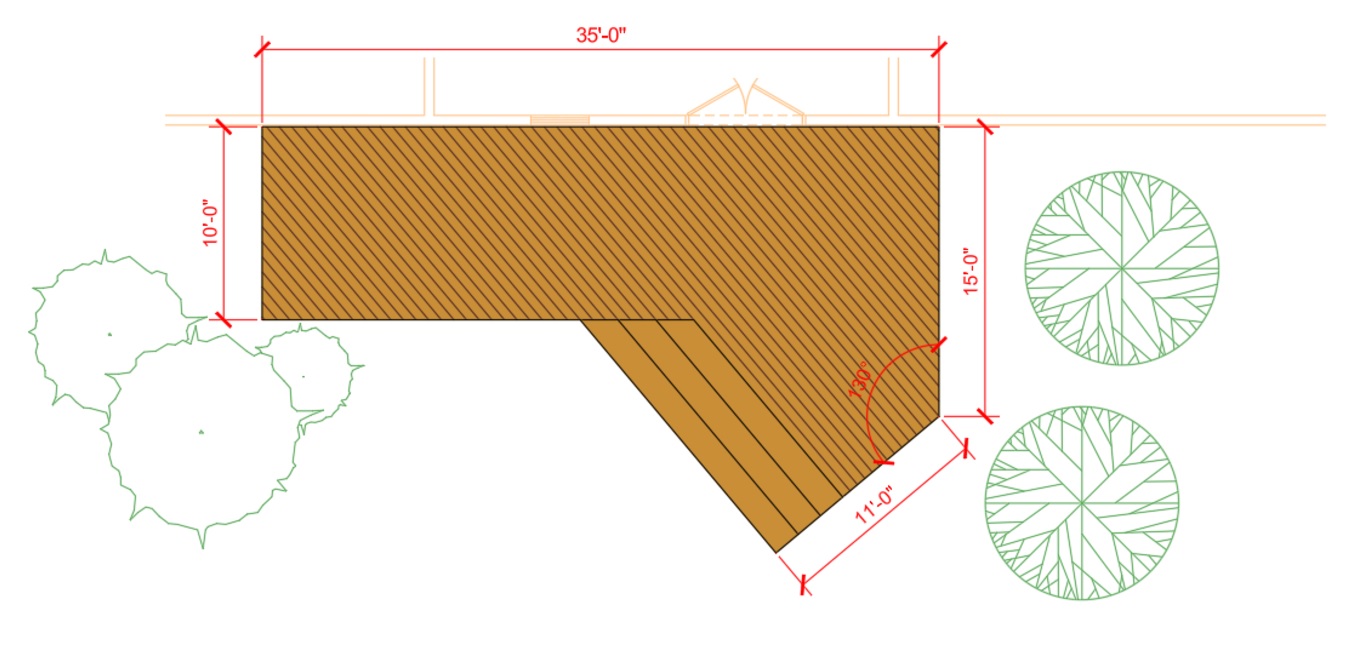
In AutoCAD 2025 and AutoCAD LT 2025, you now have the option to draw boundaries of your hatch after initiating the command—no longer having to rely on existing boundaries within the drawing canvas and ensuring hatches fill only the exact space you need.
In addition to drawing hatch areas, you can now create hatch textures along paths using a specified width—further extending and streamlining the ability use Hatch to create highlights and improve readability in your drawings.
ArcGIS® Basemaps
Ground your projects with real-world geographical information using Esri’s ArcGIS® Basemaps, now available directly in AutoCAD 2025.
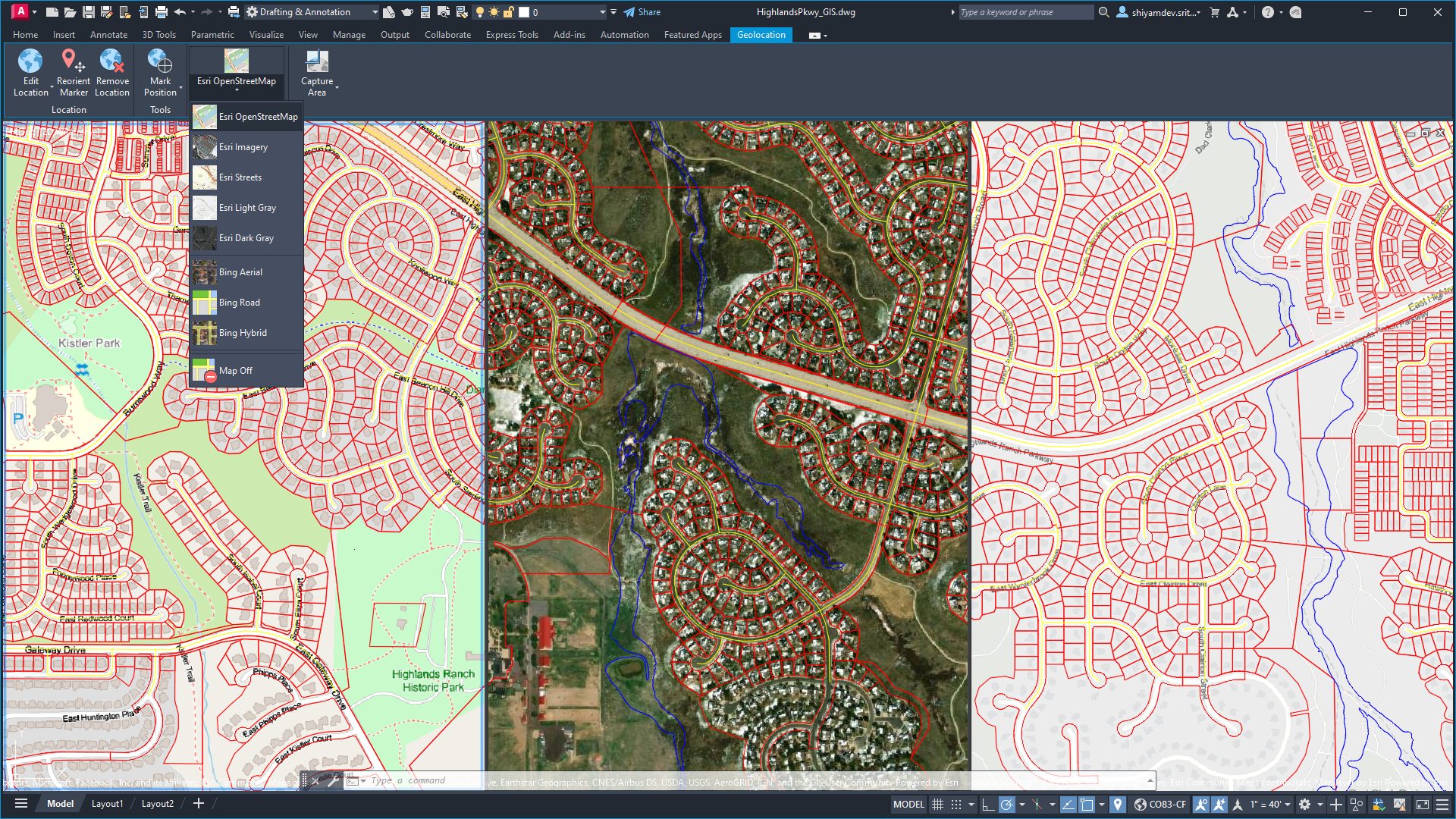
AutoCAD 2025 file displaying three of five available map styles from Esri using the GEOLOCATION command.
Access five Basemaps in the form of high-resolution satellite and aerial imagery, OpenStreetMaps and Streets, along with light and dark gray monochrome map styles, providing architects, engineers, and construction professionals with the foundations to make informed decisions.
Get Started Today
If you already started your update at the beginning of this post, you should be one step closer to experiencing these features first-hand—if not, what are you waiting for? Get started with the Autodesk Access application on your desktop. And if you’re not yet a subscriber, be sure to check out free trials of AutoCAD 2025, AutoCAD LT 2025, and AutoCAD Web.
Learn More
To explore these features and enhancements in detail, along with more updates included in AutoCAD 2025 and AutoCAD LT 2025, take a look at the following pages in the Help section:
And to learn more about these features directly from our experts, join us for a live webinar on the following dates:
**Depending on account type, select accounts can start a live chat with a technical support agent, request a call back at a convenient time, or submit a support case using Autodesk Assistant—giving you the opportunity to attach relevant files to provide the Autodesk support team with additional context to your specific design queries.
AutoCAD LT 2025 is here! We’re excited to share the new enhancements for best-in-class 2D drafting with the latest performance* improvements. All you need to do is open the Autodesk Access application to start your update. Keep reading to learn more about some of the latest capabilities in AutoCAD LT 2025.
Core Performance & Drafting
With the introduction of AutoCAD 2025, we announced the significant improvements that have been made to reduce the time it takes to open files. And we’re excited to let you know that this extends to files opened in AutoCAD LT 2025 as well, an important step to increase productivity for all AutoCAD users.
AutoCAD LT 2025 also shares the convenient updates to the familiar HATCH command—a tool designed to quickly add texture and clarity to your drawings using patterns, solid fills, and gradient fills. Previously Hatch required you to use pre-defined closed boundaries to then fill a space. With the 2025 release, you can now add hatch patterns with custom boundaries after initiating the command—including the ability to draw hatch textures along paths.
Smart Blocks
First introduced in AutoCAD LT 2024 with the Placement feature, Smart Blocks represents just one of the ways AutoCAD continues to leverage Autodesk AI to improve the core 2D drafting experience. AutoCAD LT 2025 now introduces the new Smart Blocks: Search and Convert feature that can be used to quickly organize geometry into blocks. This tool enables you to search drawings by selecting geometry and highlighting all matching objects found on the canvas, providing options to convert them into instances of a block with the help of Autodesk AI.
“Search and Convert allows for a more efficient workflow within AutoCAD. Blocks can get lost or be challenging to work with, and this feature allows for a more efficient approach, saving time and quickly creating new blocks from elements within the drawing.” —Joe VanderPluym, Design Associate
Activity Insights
New to AutoCAD LT 2025, Activity Insights is designed to be the one stop for users to track and compare DWG versions with file comparison capabilities. Merging features from the previous DWG History tool, Activity Insights can be viewed using the new palette while working on a drawing, or directly from the Start Tab without having to open a drawing.
ArcGIS® Basemaps
Now in AutoCAD LT 2025 you can underlay one of five ArcGIS® Basemaps from Esri to ground projects with real-world geographical information. Using the GEOLOCATION command, access high-resolution satellite and aerial imagery, OpenStreetMaps, Streets, dark gray, and light gray monochrome map styles.
A file with three of five available ArcGIS® Basemap styles from Esri displayed in AutoCAD LT 2025.
To explore these features and enhancements in detail, along with more updates included in AutoCAD 2025 and AutoCAD LT 2025, take a look at the following pages in the Help section:
And to learn more about these features directly from our experts, join us for a live webinar on the following dates:
AutoCAD for Mac 2025 and AutoCAD LT for Mac 2025 are here! We’re excited to share the new enhancements and features that provide time savings, collaboration options, and efficiencies for you to get the most out of each and every session. If you’re ready to access the latest capabilities, access your Autodesk Account to start your update.
Start Tab
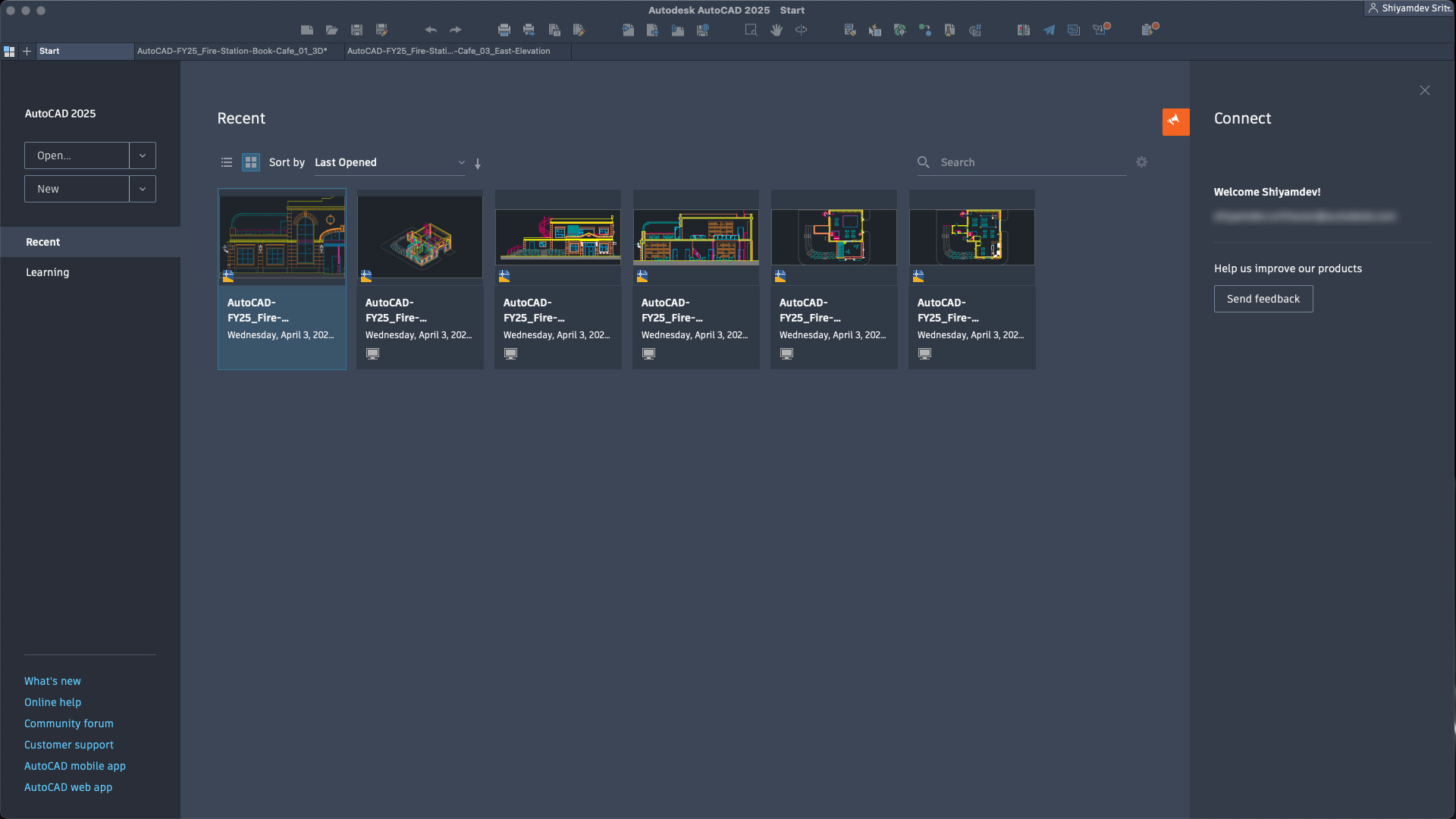
Now available in AutoCAD for Mac 2025 and AutoCAD LT for Mac 2025, the new Start Tab introduces additional efficiencies right as you open AutoCAD. It replaces the Welcome screen, providing a consistent welcome experience across AutoCAD on macOS along with other Autodesk products.
You can use the open button to open a drawing or use the dropdown to open a sheet set or sample drawings. Click new to start a new drawing from the default template or click the dropdown to browse templates or create a new sheet set. View and sort through your recent drawings or explore various online learning content and various online resources like the What’s New Online help, AutoCAD web app, AutoCAD mobile app, and more.
The Start tab highlights the most common needs, such as:
Resume work – Continue working where you left off
Begin new work – Start something new, either from a blank slate, template content, or existing content in a known location
Learn – Explore the product, learn new or improve existing skills, discover what has changed in the product, or receive relevant notifications
Engage – Engage in a customer community, give feedback, or contact customer help or support
The new Start tab in AutoCAD for Mac 2025.
Activity Insights
AutoCAD for Mac 2025 and AutoCAD LT for Mac 2025 now includes Activity Insights, a tool that provides an overview of the actions that users have taken throughout the lifecycle of a DWG file.
Imagine you’re working on a project with a large team. Within that team, you’re responsible for working alongside direct contributors to gather respective edits within a single DWG file. Whether you’re responsible for design, review with annotations, or packaging and submitting the drawings, the team coordinates and communicates their updates to the file via email or manual documentation. This takes time and critical information can get lost from person to person.
With Activity Insights, which requires almost no setup, all that information is automatically logged and displayed for you via the Activity Insights palette while working within a file, or directly from the Start tab. When someone edits, creates a new version, Xrefs to another DWG, plots, or does a variety of other AutoCAD-specific actions to a DWG file, each “event” is automatically logged for everyone to see with enhanced information and the ability to filter by event type, user, and date. Past events performed in the drawing are read from a database and displayed chronologically, and simultaneously written to the database as changes are made to the drawing—keeping the content displayed in the Activity Insights palette up to date.
While AutoCAD LT for Mac only shows Version activities which are created from working with drawings stored on a supported cloud storage provider, the additional information collected in DWG files by this new feature can be viewed on AutoCAD for Mac—surfacing meaningful insights about your workflow and practices, helping you save time across your projects and as you collaborate with team members.
The new Activity Insights palette open in AutoCAD for Mac 2025 showing various event logs with detailed activity properties for the active file.
Drafting With Hatch
In AutoCAD for Mac 2025 and AutoCAD LT for Mac 2025, you now have the option to draw boundaries of your hatch after initiating the command—no longer having to rely on existing boundaries within the drawing canvas and ensuring hatches fill only the exact space you need.
In addition to drawing hatch areas, you can now create hatch textures along paths using a specified width—further extending and streamlining the ability use Hatch to create highlights and improve readability in your drawings.
The improved Hatch command being used to draw hatch textures along paths for egress routes.
Get Started Today
If you already started your update at the beginning of this post, you should be one step closer to experiencing these features first-hand—if not, what are you waiting for? Access your Autodesk Account to start your update. And if you’re not yet a subscriber, be sure to check out free trials of AutoCAD for Mac 2025 and AutoCAD LT for Mac 2025.
Learn More
To explore these features and enhancements in detail, along with more updates included in AutoCAD for Mac 2025 and AutoCAD LT for Mac 2025, take a look at the following pages in the Help section: