AutoCAD Potpourri: Tuesday Tips With Frank | AutoCAD Blog


All of us here at Tuesday Tips Headquarters love getting feedback from our readers. It may take the form of expanding on a tip or maybe explaining how they utilize it at their job. Of course, we get plenty of suggestions for tips (lots of great ideas have made their way into the blog.)

We also get a lot of readers looking for a solution to a particular problem they’re having. Much like Santa at the North Pole, we try to answer as many as we can, but there’s just not enough time. So, occasionally, we like to open up the old mailbag and pick out a few that deserve attention but may not warrant an entire blog post. We like to call it AutoCAD Potpourri because you never know just what you’ll get.

Murray from Minneapolis writes:

I have a co-worker who’s driving me crazy by forgetting to set their newly created Layout Viewports as being locked. Is there an automated lisp routine or something to help me with this? I don’t know how many times the zoom or scale has been messed up because of this.

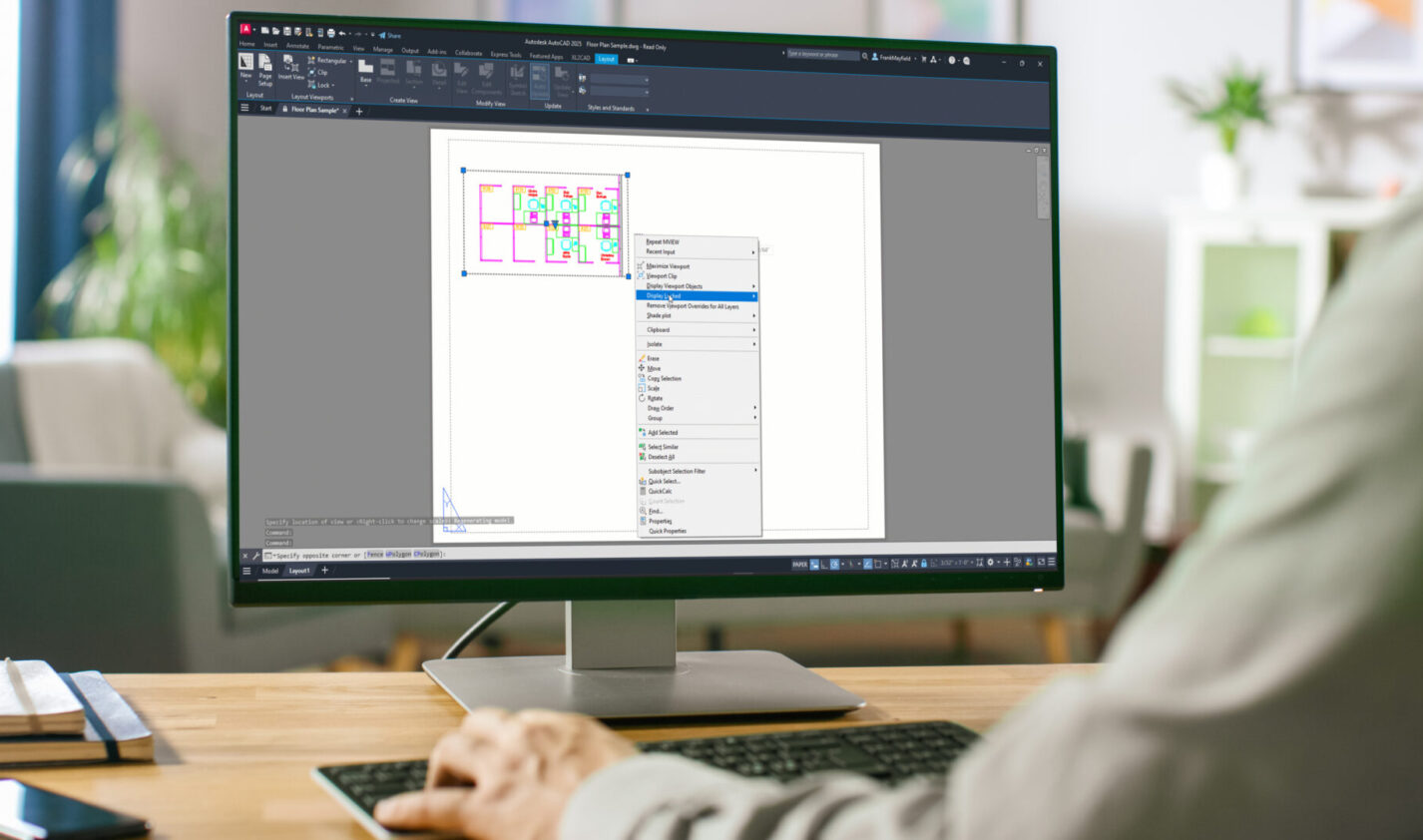
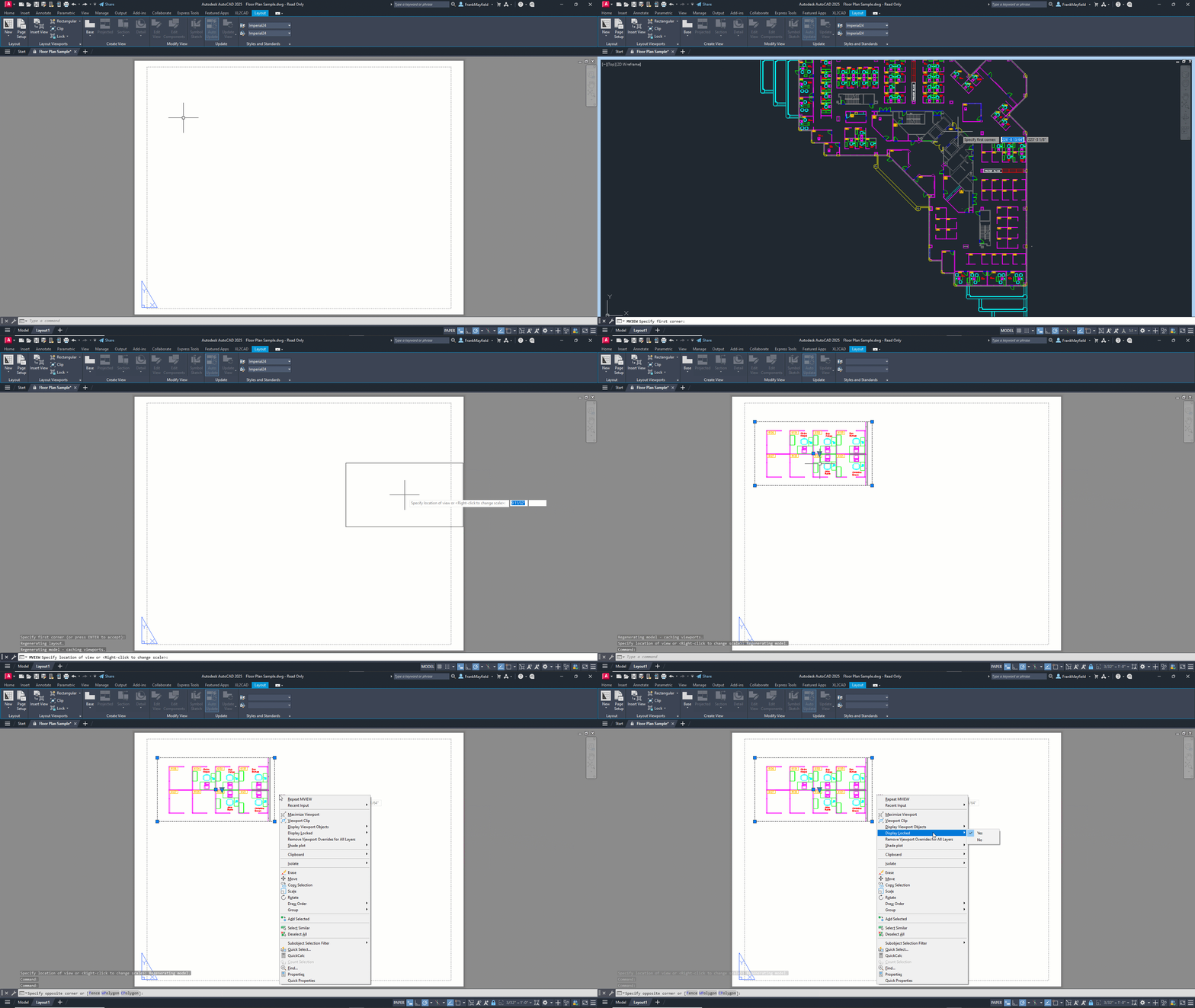
Hi Murray, instead of that, how about you just make an easy change in your workflow? From the blue contextual Layout ribbon tab, you’ll find an Insert View tool in the Layer Viewports panel. This will let you insert any named view as a viewport. You don’t even have to use named views to use it. If you don’t have any views, it will go directly into New View mode, where you can select an area of your model. When you’re satisfied with the selection, hit enter, and you’ll return to your layout, where you can now drop in the viewport.

AutoCAD will do its best to scale it correctly for you, but you can always change it. And, best of all, it will automatically be locked after you insert it using this method. Viola! Problem solved.
Utilize Activity Insights

Emily from Chicago asks us:

Is there an easy way to know who did what in our drawings? In particular, who was working on it, who saved it, and who managed the Xrefs in it?

Emily – you didn’t mention what version of AutoCAD you are using, but if you’re on 2024.1 or higher, you sound like a perfect fit for the new Activity Insights palette. You’ll find it in the View tab of the ribbon. It’s the only icon in the History panel. Turn it on, and you’ll get a palette view of various activities, telling you who did what and when they did it. Click on any entry to get more info on it. Just follow this link to learn more about it.
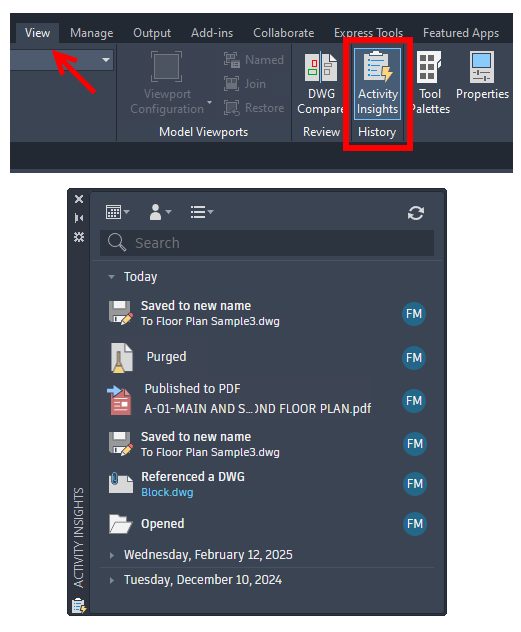
Screenshot of Activity Insights in AutoCAD

Use Paste Special to Insert Image Files

Louie from New York wants to know:

We don’t use externally referenced drawing files in our work, but we do insert numerous images into our drawings. Of course, this references the image, which, in turn, creates problems for our users who aren’t used to working with the image paths. In other words, the path is often broken. Is there a way to attach an image so that it’s not externally referenced (thus pathed?)

Louie, in a word, yes! It’s a simple three-step process. First, open the image file in MS Paint® or pretty much any graphic software. Next, select “all” and perform a clipboard copy. Finally, in AutoCAD, do a “paste special” (not a regular paste) to place the image directly into your drawing. Baddabing! No more lost image files.
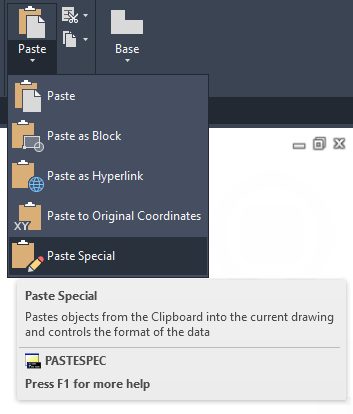
Screenshot of AutoCAD Paste Special

Reset Overridden Dimension Strings

Bailey from Cincinnati asks:

Let me start by saying that I work with that co-worker. The lazy drafter who prefers to override dimension text instead of just doing it right to begin with. Of course, there’s no way to know if it’s been overridden or not (I wish they would get flagged similar to Anno Monitor). Do you have any suggestions for me?

Yes, Bailey, I do! There’s an Express Tool called DIMREASSOC. You can type it into either the Dynamic Input Box or the Command Line. You can also find it as “Reset Text” in the Dimension panel of the Express Tools tab in the ribbon. To use it, select an area of dimensions or just type in ALL since the command filters out anything that’s not a dimension.

Any dimensions that have overridden text will immediately be highlighted for you. Just hit Enter to end object selection, and Boom! All the overridden dimensions now read accurately.

How’s that for an easy fix? I just wish we could do the same with your co-worker!
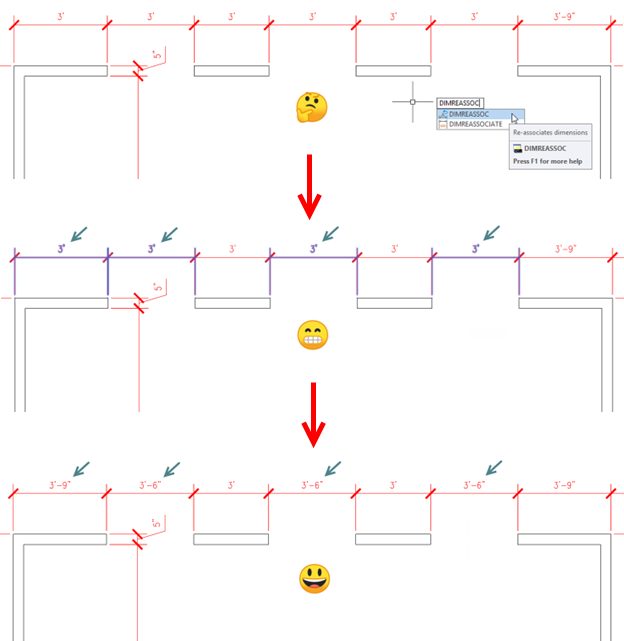
Screenshot in AutoCAD

Coming Clean

If you were paying close attention, you may have noticed a pattern in our questions. They were all from fictional characters in classic TV sitcoms.

That’s right, there’s no actual mailbag full of letters that we pulled from. That’s shocking here in 2025, I know. But we do hear from a lot of you via emails or comments, so we also have plenty of shorter tips to share, so this is always a fun way to get them out there.

I hope to do another AutoCAD Potpourri post someday, so please make sure you keep those letters and questions coming!

Celebrity Guest Stars:

Murray Slaughter – The Mary Tyler Moore Show

Emily Hartley – The Bob Newhart Show

Louie De Palma – Taxi

Bailey Quarters – WKRP in Cincinnati

More Tuesday Tips

Check out our whole Tuesday Tips series for ideas on how to make AutoCAD work for you. 

Introducing AutoCAD 2026: Accelerate with Faster Performance, Autodesk AI, and Connected Design | AutoCAD Blog


Welcome to the future of design with Autodesk AutoCAD 2026!

Whether you’re working on intricate architectural plans or detailed mechanical designs, AutoCAD 2026 provides the tools you need to bring your boldest visions to life. Collaborate and benefit from significant performance enhancements and innovative capabilities that save you time with every DWG file. Discover new insights and automations powered by Autodesk AI. And take advantage of new integrations with Autodesk Docs, tailored workflows, collaboration, and enhancements to stay connected with your designs wherever you are.

If you’re eager to explore the latest AI and drafting capabilities, open the Autodesk Access application to start your update now!

Speed Up Design Time with Performance Enhancements and Autodesk AI

Experience significant performance enhancements and innovative features that save you time on every drawing. This is the fastest release of AutoCAD yet, with 2D and 3D files opening up to 11 times faster compared to AutoCAD 2025 and the application itself starting up 4 times quicker*.

And with the power of Autodesk AI, you can enhance your design processes by leveraging information contained in every design file to build a greater understanding of how your team works, letting you unlock new insights and automations. These performance enhancements mean you can spend more time designing, and less time waiting.

“Overall – Startup in AutoCAD 2026 is blazing fast, particularly opening files.”

Alan Neal, Chief Engineer, Foresite Group, Inc.

New Time Savings and Efficiencies with Smart Blocks and Activity Insights

Powered by Autodesk AI, enhancements to Smart Blocks: Search and Convert and Smart Blocks: Detect and Convert Tech Preview (formerly “Smart Blocks: Object Detection Tech Preview”) help improve design efficiency and standardization across your drawings, letting you enhance drawing clarity and organization by detecting objects that could be converted into blocks.

“These improvements and additional support items to Smart Blocks: Search and Convert will provide users more tools to expedite workflows and the time they work in drawings, freeing up more time to focus on the quality of their design versus software tools and steps or command sequences.”

Chad Franklin, Corporate Drawing Production Coordinator, Associated Engineering

With Smart Blocks: Seach and Convert Tech Preview, you can quickly search your drawings for matching objects, matching text, and variable text to convert into instances of a newly defined block, an existing or recently used block, or a suggested block from your Block Libraries with the help of Autodesk AI.

While Smart Blocks: Search and Convert helps you find instances of exact geometry matches one case at a time, Smart Blocks: Detect and Convert scans your whole drawing at once. Using the power of Autodesk AI, Smart Blocks: Detect and Convert Tech Preview makes intelligent inferences to determine all instances that you may want to convert into blocks.

Detecting these potential blocks all at once is especially helpful in situations when extensive cleanup is required or when geometry may vary slightly, such as for imported drawings. And in AutoCAD 2026, there are additional controls to refine and modify result with the new review toolbar and edit primary capabilities.

The latest updates to Activity Insights in AutoCAD 2026 allow you to stay informed throughout the project cycle with, ensuring that you are always up to date with project progress and changes.

Activity Insights in AutoCAD 2026 now includes the “What’s Changed” insight, giving you a detailed breakdown of activity during an editing session across collaborators. Enhanced search and filter capabilities make it even easier for you to find the drawing activity information you need in seconds.

Autodesk Docs Integrations for Connected Support Files, Markup Import, and Markup Assist

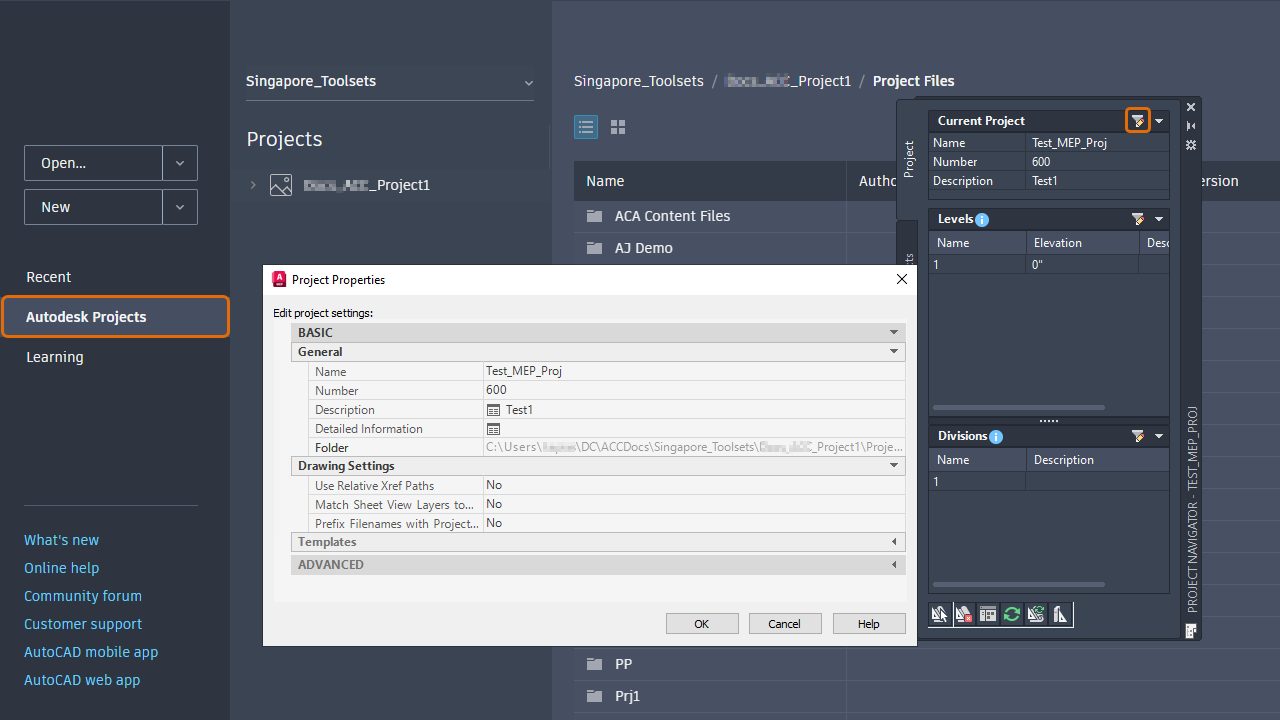
Manage consistent project standards and settings across all collaborators with the new Connected Support Files feature. CAD managers can now define project-aware support files that are unique to a specific Autodesk Docs project, meaning a user can have multiple DWGs from different projects open in AutoCAD each with their own set of support files at the same time! This allows teams to view and edit DWG files with the intended support files without additional configuration. This enables everyone to work with the correct files and settings, reducing errors and improving efficiency.

“This is a fantastic feature and a must have for AutoCAD and ALL verticals.”

Michael Shurgalla, Sr. Design Technology Specialist, Merrick & Company

Markup Import now supports Issues on PDFs from Autodesk Docs. You can see high level issue content with Markup Assist and launch further details in Autodesk Docs.

Multi-User Markups

Streamline collaboration on Autodesk Docs projects with multi-user markups. Collect and share feedback directly on drawings using intuitive Autodesk Docs markup tools—now available in early access with AutoCAD on the web.

The updated SHARE command lets you create markup links for simultaneous access to designs, facilitating efficient collaboration without duplicating or locking files. TRACE layers enable users to markup files that continuously sync back to the designer, providing flexibility for teams to review and markup changes together. This collaborative approach enables all feedback to be captured and addressed, leading to better project outcomes.

Tailor Workflows to Your Needs

Customize AutoCAD with specialized toolsets for discipline-specific features, functionality, and parts, including architectural, mechanical, and electrical design components. Make informed decisions with geographical information from ArcGIS® Basemaps, which can provide critical context for your designs.

Create and run custom automations with AutoLISP routines and access over a thousand third-party apps with the ability to build your own using the AutoCAD API. This level of customization enables AutoCAD to be tailored to meet the unique needs of your projects, improving efficiency and productivity.

Stay Connected Anywhere, Anytime

With AutoCAD 2026, you can stay connected to your designs no matter where you are. Use AutoCAD on desktop, web, or mobile to capture, share, and review ideas on the go. This flexibility allows you to more efficiently manage your projects, whether you’re in the office, at home, or on a job site. And with the latest enhancements to AutoCAD on the web, you can view and markup 2D and 3D DWG files, as well as visualize DWG files authored in architectural toolset. Take a look at our in-depth article where we cover AutoCAD Web in more detail.

Get Started Today

If you’ve already started your update, you’re one step closer to experiencing these incredible new features firsthand. If not, what are you waiting for? Get started today with the Autodesk Access application on your desktop. For those not yet subscribed, be sure to check out free trials of AutoCAD 2026, AutoCAD LT 2026, and AutoCAD Web.

Welcome to the next generation of design with AutoCAD 2026. We can’t wait to see what you’ll create!

Learn More

To explore these features and enhancements in detail, along with more updates included in AutoCAD 2026 and AutoCAD LT 2026, take a look at the following pages in the Help section:

*As with all performance tests, results may vary based on user experience, machine, operating system, filters, and even source material. While every effort has been made to make the tests as fair and objective as possible, your results may differ. Product information and specifications are subject to change without notice. Autodesk provides this information “as is,” without warranty of any kind, either express or implied. © 2025 Autodesk, Inc. All rights reserved.

AutoCAD 2025: Do More With Industry-Specific Toolsets | AutoCAD Blog


The new AutoCAD 2025 is here, and it comes with powerful updates to the following specialized industry toolsets:

  • AutoCAD Architecture
  • AutoCAD MEP
  • AutoCAD Mechanical
  • AutoCAD Electrical
  • AutoCAD Plant 3D
  • AutoCAD Map 3D

AutoCAD specialized toolsets provide access to libraries of detailed components, symbols, parts, and functions tailored to AEC professionals with specific industry requirements.

They can automate repetitive or common tasks such as developing floor plans, sections, elevations, detail drawings, and more. Using the specialized toolsets not only increases productivity thanks to automations and customizations, but also helps ensure consistency among different users working on the same project.

As with every new release, AutoCAD 2025 brings new features and improvements to optimize and improve your workflow. Learn below how you can take advantage of these latest updates.

AutoCAD Architecture 2025 now supports automatic synchronization of changes across multiple users on Autodesk Docs, enhancing productivity and collaboration.

Edits made by one user are automatically synced with others working on the same project, eliminating the need for a restart or refresh, and benefiting teams collaborating within a single office or across different locations.

Edits made to a project hosted on Autodesk Docs by one user automatically sync with other users working on the same project without the need to restart or refresh the production.

The Design Center in AutoCAD Architecture 2025 now has approximately 36 new MVBlocks and block references, including furniture, vehicles, and kitchen appliances. These blocks are available in both US Imperial and Metric content packs.

Along with a significant reduction in export and import times for large IFC files, and improved import quality, we’ve introduced a tech preview which improves geometry fidelity—ensuring cleaner representations as well as smoother lines and edges for specific objects, with the potential for more objects to be supported in future updates.

The new AutoCAD MEP 2025 also supports automatic synchronization of changes across multiple user machines to enable more efficient collaboration among team members and improved IFC workflow times and capabilities.

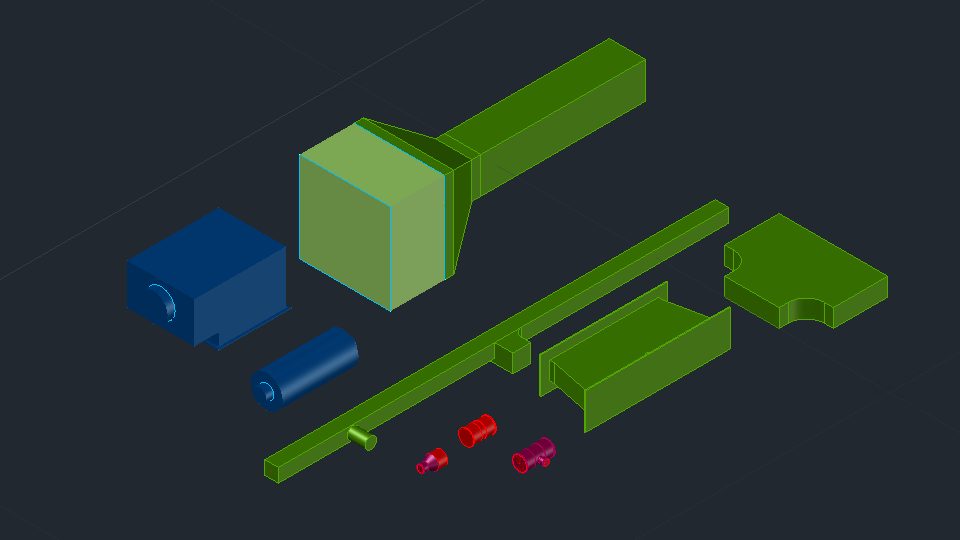
AutoCAD MEP 2025 includes updated content packs with new pipe and pipe fittings, duct fittings, and MVParts.

The MEP content packs include new pipes and pipe fittings, duct fittings, air handling units, VAV units, air terminals (diffusers and grilles), and MVParts—all of which are available in US Imperial and Metric settings.

In AutoCAD Mechanical 2025, surface texture symbols now support the latest revisions of ISO and ANSI/ASME standards. You can annotate documents with the latest ISO 21920-1:2021(E) and ANSI/ASME Y14.36 – 2018 standards while maintaining support for all legacy revisions.

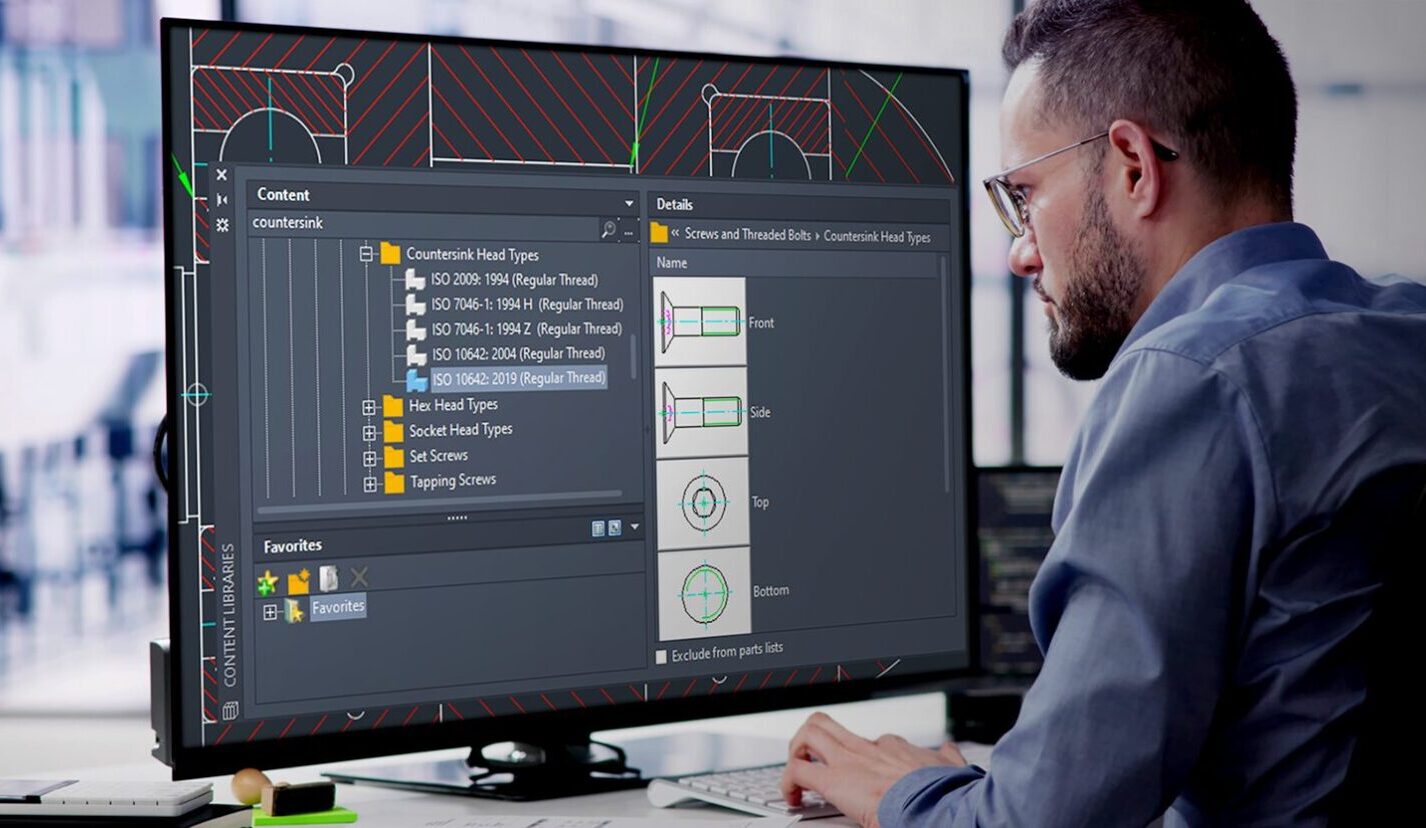
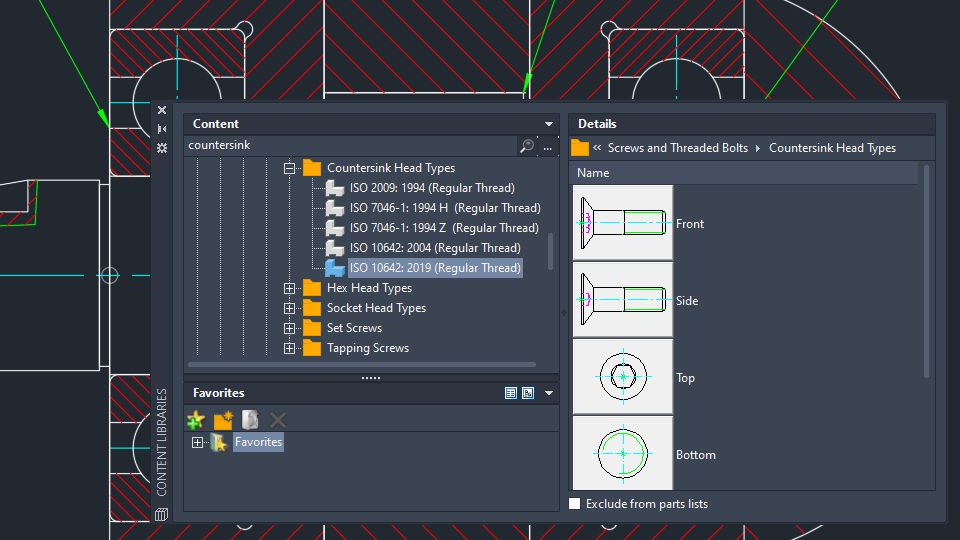
Content-wise, more than 1,197 new mechanical standard parts have been added to the latest version’s content library. These parts, which include specific screws, bolts, and nuts, are available in English and all other languages that are supported in AutoCAD Mechanical. 

More than 1,197 new parts have been added to the content library of AutoCAD Mechanical 2025.

Updated Activity Insights now contain detailed information about drafting standards and symbol revisions. The “Drafting standard changed” and “Symbol revision changed” events are recorded whenever modifications are made through the Options dialog box or the AMSETUPDWG command, provided the changes are committed.

There are also several quality improvements in this release, including

  • Enhanced preservation of mechanical standards when saving to previous formats
  • Improved viewport dimension scaling with chamfer dimensions
  • Optimized functionality for creating blocks with holes
  • Other enhancements in graphics and stability

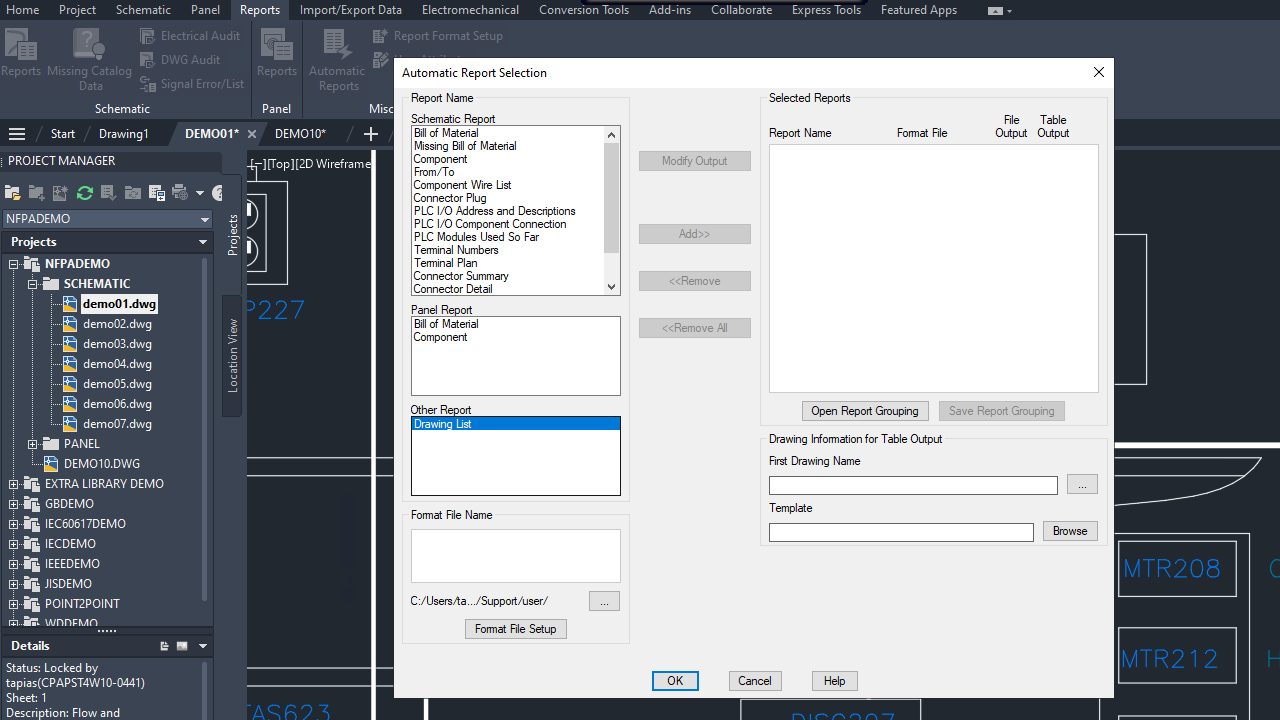
In AutoCAD Electrical 2025, users can now update or create an entirely new drawing list report with the Automatic Reports tool.

To create a drawing list report, which extracts and presents detailed settings for each drawing in the project, navigate to the Reports tab, select Automatic Reports from the Miscellaneous panel, and choose Drawing List in the Automatic Report Selection dialog box.

Easily create or update a drawing list report with the Automatic Reports tool in AutoCAD Electrical 2025.

The Bill of Materials (BOM) report in AutoCAD now includes enhanced sorting by TAG, allowing users to organize the report based on specific tags assigned to components. This new feature offers alphanumeric and numeric-to-alphanumeric sorting options, accessible through the Reports tab in the Schematic panel under Bill of Material settings.

Along with detailed tracking of project-wide updates initiated through specific commands through the Activity Insights palette, improvements to wire type synchronization are also included with this update. Changes to wire layer properties like color, size, and line type now propagate automatically across all synced drawings if the wire type is updated at the source arrow.

AutoCAD Plant 3D 2025 now allows collaboration within subfolders on Autodesk Docs, simplifying cloud sharing of projects. You can search for specific folders, and expanded folders are searchable for improved performance; the project path is displayed for clarity when projects have the same name.

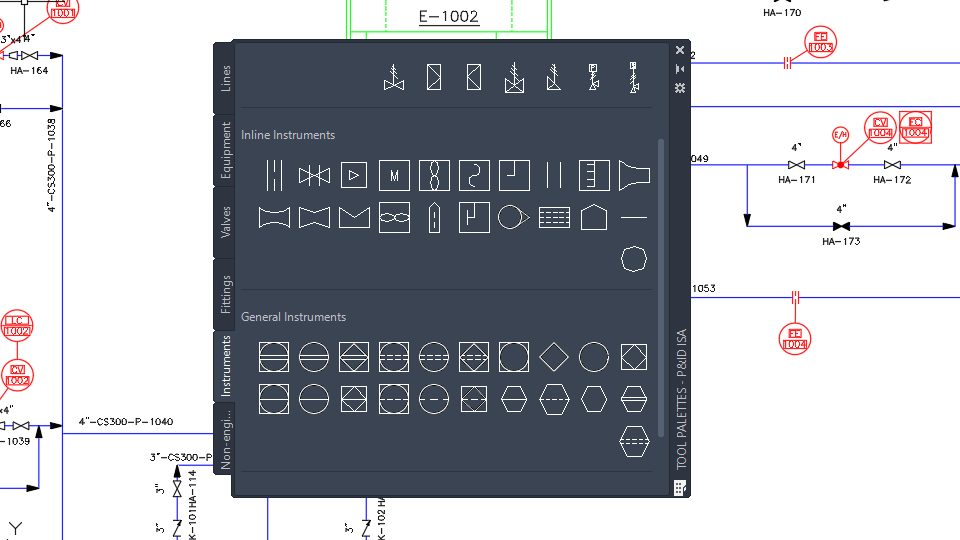
This release also includes updates to the P&ID ISA symbols and their settings across the platform, so that they comply with the latest ANSI/ISA-5.1-2022 standard. More instrumentation symbols have been created and included, along with other updates to ensure the migration — although it is still possible to work with legacy ISA symbols.

P&ID ISA symbols have been updated to match the latest ISA standard in AutoCAD Electrical 2025.

The enhanced P&ID modeler in AutoCAD Plant 3D 2025 provides users with a comprehensive view of all line segments—including inline components, nozzles, start/end equipment models, branches, and off-page connectors. Team members can now easily select P&ID objects from the Line List window and place corresponding Plant 3D counterparts in the 3D model, ensuring accurate transfer of property values.

For an in-depth overview of updates, visit the What’s New in AutoCAD Plant 3D 2025 help resource.

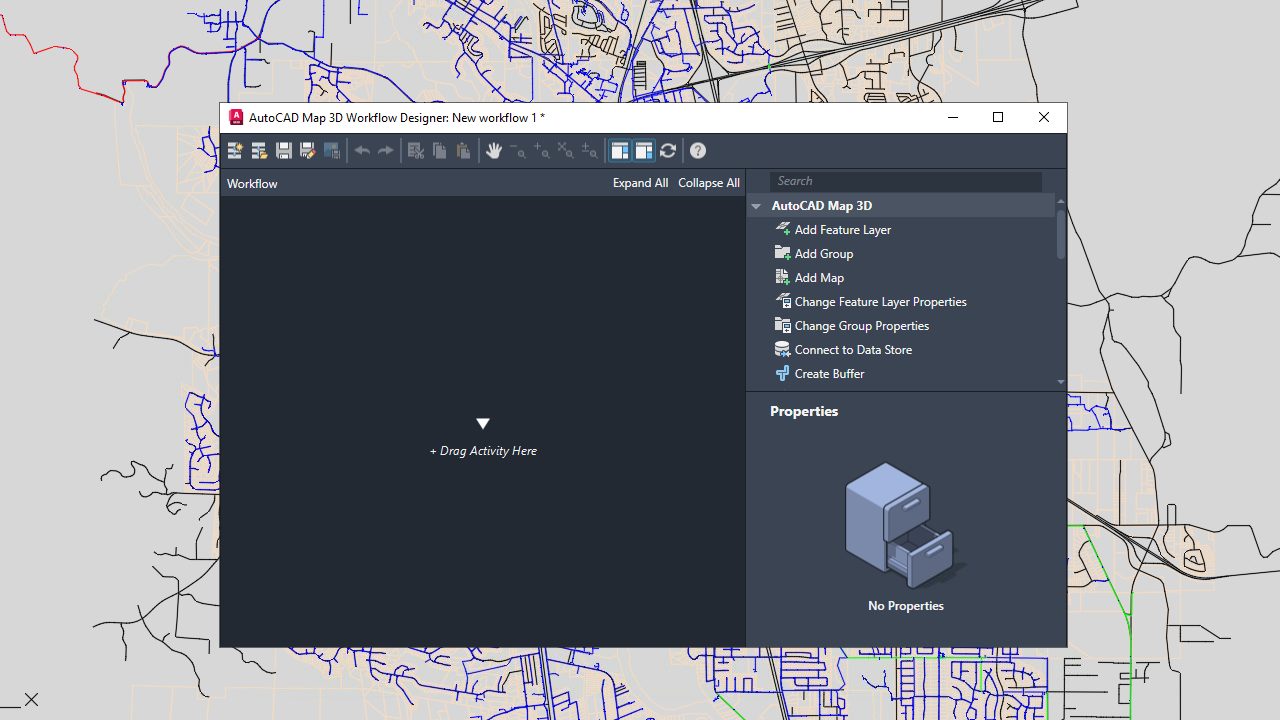
In AutoCAD Map 3D 2025, visibility and workflow are optimized thanks to the option to set dark or light themes in the Workflow Designer, which features updated icons.

What’s more, the redesigned Workflow Designer includes a search box for filtering activities, and it also displays activity properties directly in the interface, streamlining the workflow editing process.

You can now customize the color settings of the Workflow Designer using the Options dialog box in AutoCAD Map 3D 2025.

In addition to the introduction of the FDO GeoPackage, which provides access to GIS data stored in GeoPackage files, the FDO WFS Provider in AutoCAD Map 3D has undergone several enhancements. This will support users with key improvements to BBOX keywords, IGN’s Geoplateforme, and performance with large layer sets.

Finally, the 2025 toolkit release features new coordinate systems across various categories, enabling team members to operate with a broader range of coordinate systems and geographic data. The categories include

  • CGCS2000
  • UKGG951
  • Amtrak Northeast Corridor
  • US Albers NAD83
  • Iceland ISN2016
  • Balkan Zone 7 in Slovenia

Get Started Today

Get started with the Autodesk Access application on your desktop. Not a subscriber yet? Test out these new features and more in free trial of AutoCAD 2025.

Learn More

Enhance Collaboration and Save Time With AutoCAD 2025.1 | AutoCAD Blog


We are excited to announce that AutoCAD 2025.1 and AutoCAD LT 2025.1 are now available! This release builds on the innovation introduced in AutoCAD 2025, providing further enhancements to improve collaboration and save you time. We’ve made several important updates you’ll want to be sure to check out—and if you’re already eager to dive into these new capabilities that AutoCAD has to offer, go ahead and open the Autodesk Access application to start your update while you read this post.

Note: The 2025.1 update is automatically included in every new installation of AutoCAD 2025.

Streamlined Collaboration With Docs

Sheet Set Manager remains one of the most used features by users who include AutoCAD on the web in their workflows, or use Autodesk Docs as their common data environment for DWGs. We’ve introduced several updates to further build on its functionality.

As of today, the Sheet Set Manager now supports publishing using custom linetypes that reference SHP and SHX files. Additionally, it will now display detailed publish information, including job errors and warnings to help troubleshoot sheet sets. The upgraded Sheet Set manager also allows multi-selection for moving and removing sheets and prevents importing of sheets from locked drawing files or unlocking locked drawing files when sheets are removed.

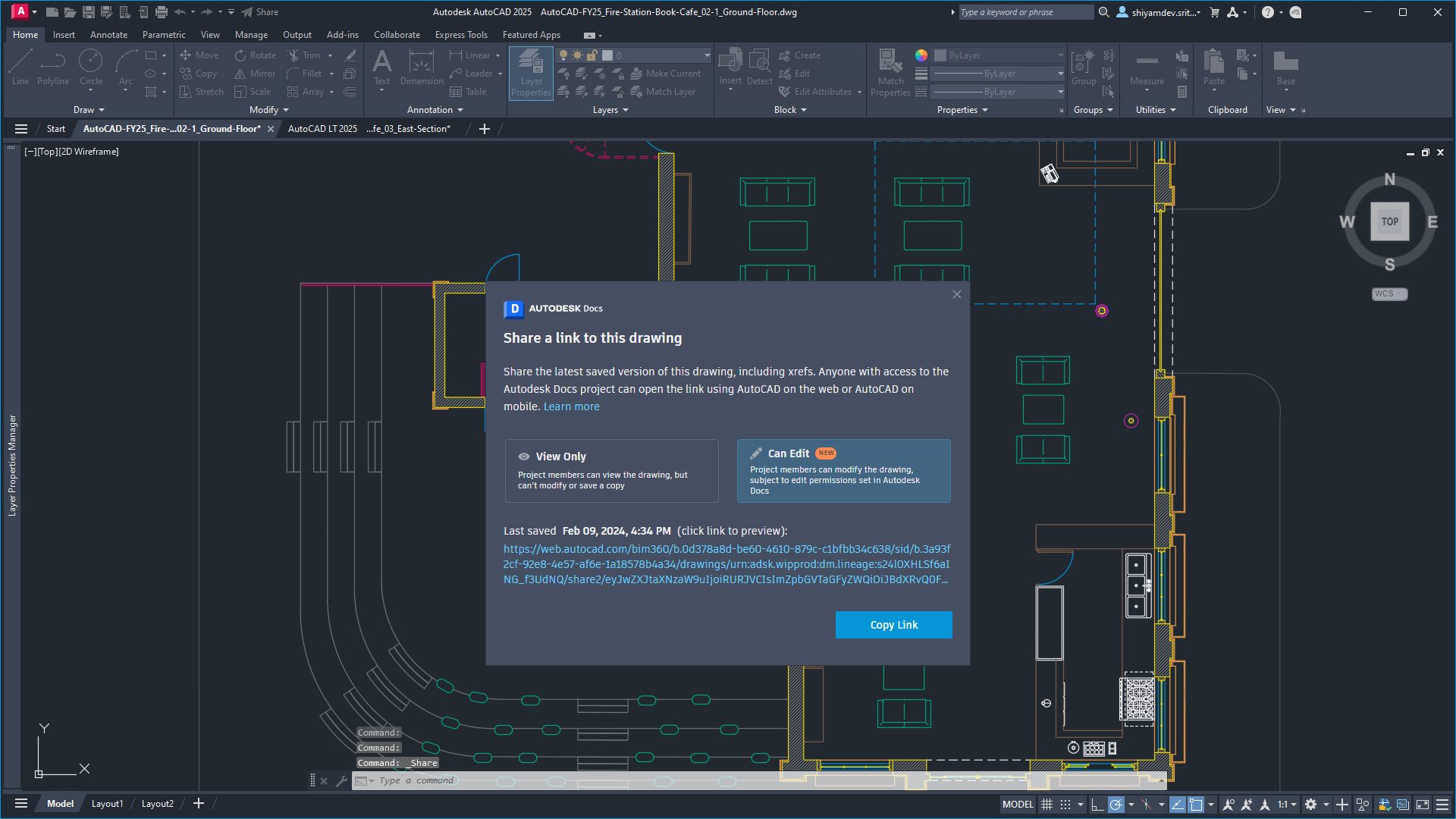
With the release of AutoCAD 2025, we introduced several updates designed to enhance collaboration for teams that manage drawings with Autodesk Docs. With AutoCAD 2025.1 and AutoCAD LT 2025.1, we’ve made significant improvements to the SHARE command. Prior to the update, the SHARE command provided you with the options to create a view-only link or share a link to for a recipient to edit and save a copy of drawing, which would create a new version of the drawing to be managed.

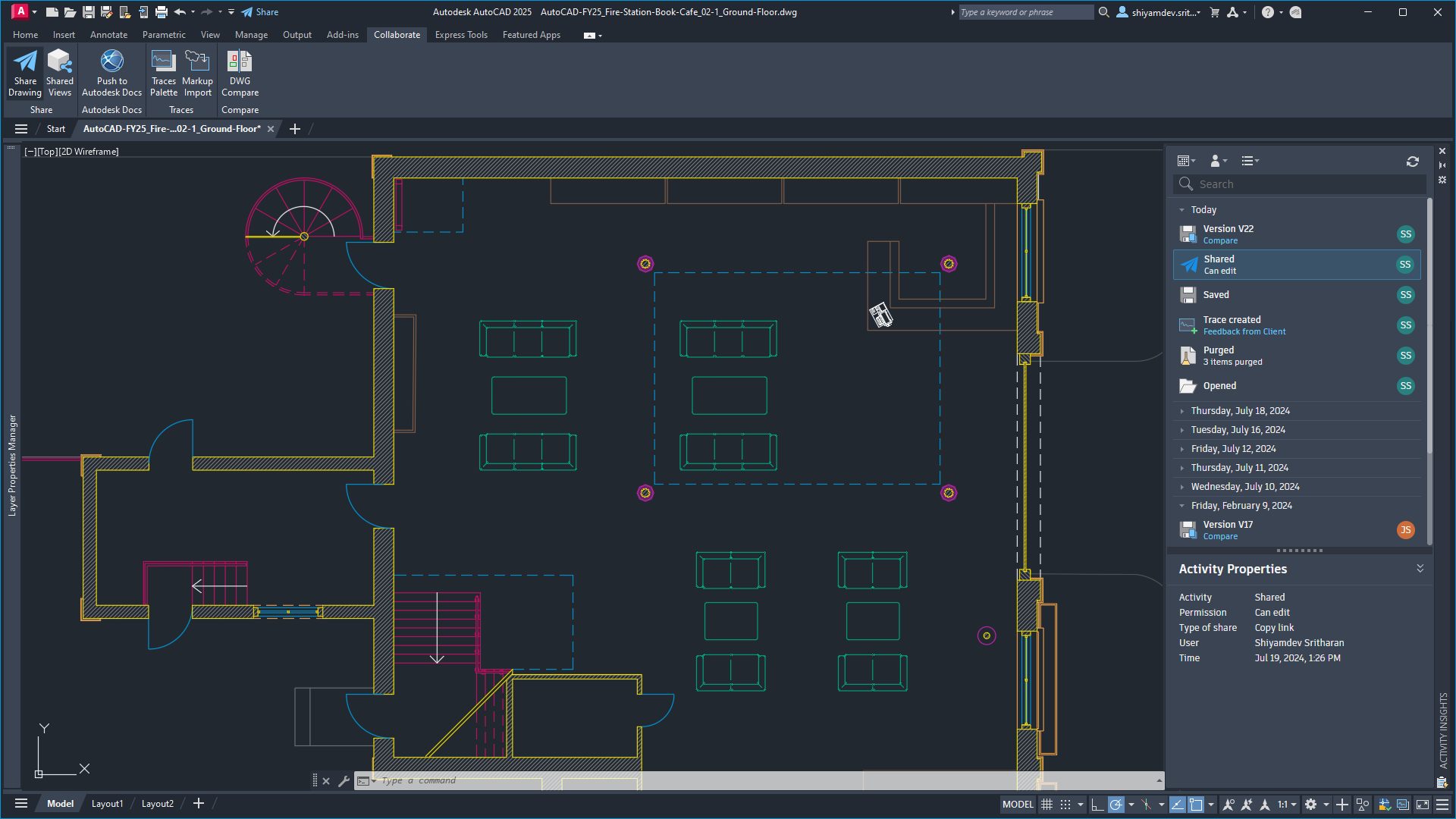
With the update, you can now quickly share access to drawings managed with Autodesk Docs with the new “Can Edit” link type. This allows collaborators within the same Docs project to share and open the same DWG files directly in AutoCAD on the Web with just one click. This makes collaboration an easier experience and reduces the amount of time spent navigating project folders to find the correct link to share with your team and makes DWG versioning easier to track and manage with Autodesk Docs using Activity Insights. Keep reading to learn more about what’s changed.

And with the recently announced data center location in Australia, you now have more options for how you manage your project data using Autodesk Docs. Learn more about how you can use Autodesk Docs to manage CAD standards over on the AEC Tech Drop blog.

Note: The SHARE command updates are not available for AutoCAD and AutoCAD LT for Mac.

Enhanced Activity Insights Palette

Several enhancements have been made to the popular Activity Insights feature which we first introduced in AutoCAD 2024. Activity Insights helps teams bridge the information gap in collaborative workflows by keeping you informed of relevant file changes and access through out a project lifecycle, with detailed event properties and multi-user activities.

With the 2025.1 update, Activity Insights makes your design and collaboration process smoother and more efficient than ever before. And thanks to innovations in Autodesk’s platform, all AutoCAD 2025 and AutoCAD LT 2025 users will be able to experience these changes even before updating to 2025.1.

Have you ever wondered how to use the built-in search function in the Activity Insights palette? You weren’t alone, which is why our team enhanced this feature to help you find information with ease. Whether you’re looking for a specific file name, activity type, trace layer, specific property or value, you can find this now using full or partial search strings.

And if you like keeping track of time and dates, the improved time format has got you covered. While the current day continues to display as “Today”, the Activity Insights palette now uses your operating system’s region format for all other date headers to show the full date, including the year, in a compact format that’s easy to read. Activity timestamps have also been modified to use a compact format, making it easier to read. And these are just a few to start other enhancements have also been made to the following features within Activity Insights:

  • A new Refresh button has been added to update the Activity Insights palette at any time, no longer limiting updates to performing certain activities.
  • The “Viewed” activity has now been renamed to “Opened” and now displays by default, sporting a new icon and a “Read only” description if the drawing is opened in read-only mode.
  • When using the SHARE command, a new activity will appear with information detailing the permission settings and how the link was shared—distinguishing whether it was immediately previewed or if the link was copied.
  • Referenced DWG activity events now double up as links that take you straight to the referenced drawing.
  • “Version” and “Saved” activities with matching timestamps are now merge into one activity event, which includes the version number along with the compare tools originally introduced with the release of AutoCAD 2025—with the merging of the previous DWG History tool.

Enhanced Smart Blocks Conversion Workflow

With the release of AutoCAD 2025 we introduced two new Smart Block features, Search and Convert, and the Object Detection Tech Preview. With the 2025.1 update both features now include enhancements to optimize your design process with a more intuitive and user-friendly workflow.

Starting with Smart Blocks: Search and Convert, the next time you search drawings by selecting geometry, the active viewport will automatically zoom in or out to include all highlighted matching objects found on the canvas. This will give you a quick glance at the results before moving to the next step.

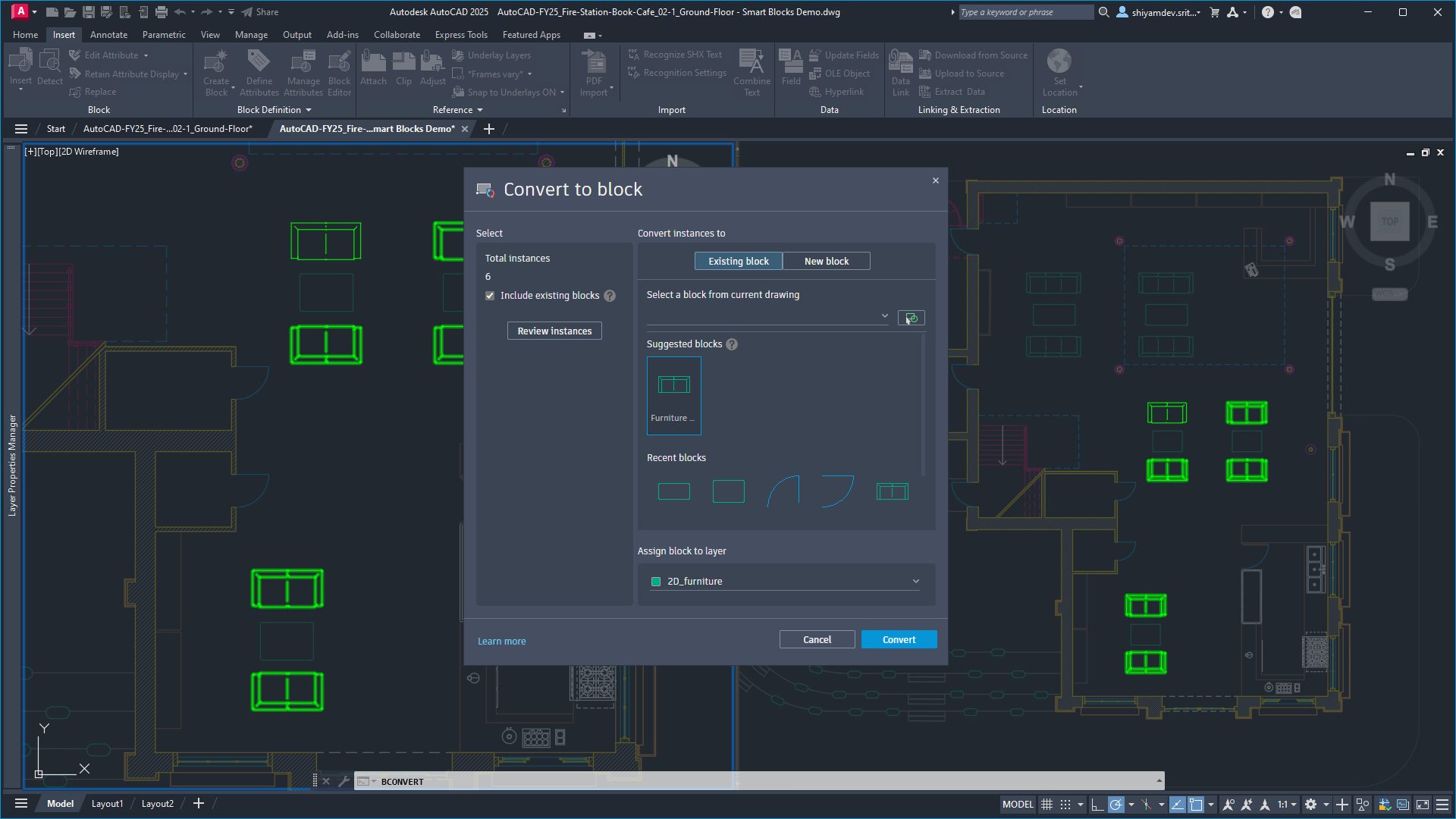
For both Search and Convert and the Object Detection Tech Preview, the updated ‘Convert to block’ dialog now includes the ability to modify your selection before converting. The dialog includes a count of total selected instance which updates as you toggle between including and excluding existing blocks that match the geometry you’ve selected. This provides the added benefit of being able to quickly convert your selection of geometry and blocks into any other existing block you choose. And to provide greater control over your block organization, you now have the capability to assign a block to a specific layer before converting.

Note: If the primary selection is a defined block, using this dialog to define a new block will create a nested block.

With the release of AutoCAD 2025, AutoCAD toolsets included an extensive set of updates designed to better serve users requiring industry specific workflows. And with the AutoCAD Plant 3D 2025.1 update we’ve introduced several key enhancements to features in the toolset:

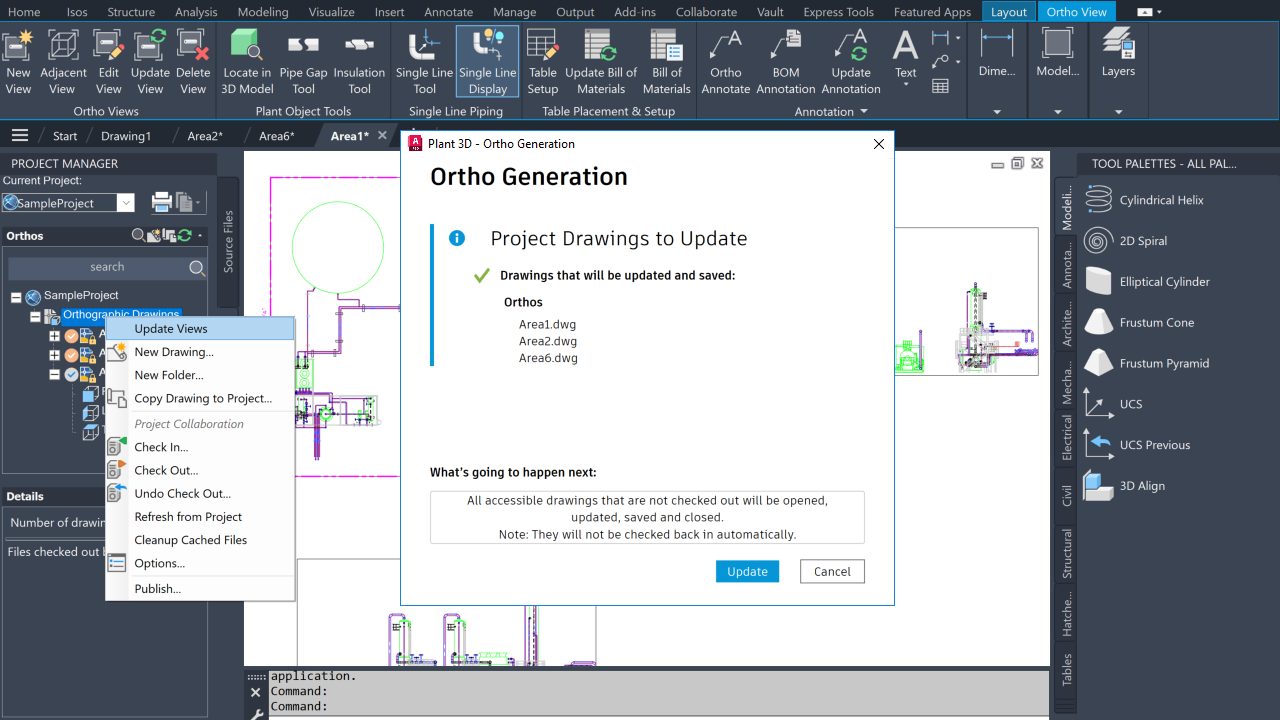
  • Ortho View: You can now update ortho views across multiple ortho drawings or even an entire project with a new, user-friendly dialog interface.
  • Spec Editor: Spec Editor allows you to add a reducer to a reducing tee in the Branch Table.
  • P&ID Painter: P&ID Painter now includes the ability to affect control valve actuators.
  • Layer Control: You can now control ortho objects to inherit only layer names or both layer names and layer properties.

Update to AutoCAD 2025.1 and AutoCAD LT 2025.1 Today

If you already started your update at the beginning of this post, you should be one step closer to experiencing these features first-hand—if not, what are you waiting for? Get started with the Autodesk Access application on your desktop. And if you’re not yet a subscriber, be sure to check out free trials of AutoCAD 2025.1, AutoCAD LT 2025.1, and AutoCAD Web.

Learn More

To explore these features and enhancements in detail along with more additional updates included in the 2025.1 update, take a look at the following pages in the Help section:

Power Your Productivity With AI and More: Introducing AutoCAD 2025 | AutoCAD Blog


If you’re ready to access the latest AI and drafting capabilities that AutoCAD has to offer, open the Autodesk Access application to start your update. On behalf of the entire Autodesk team, welcome to AutoCAD 2025:

“Autodesk is committed to creating the most performant CAD tool in the market. In AutoCAD 2025, you’ll be able to open 2D files up to two times faster than in 2024*,” said Marcus O’Brien, Vice President of AutoCAD.

For architecture, engineering, and construction firms, AutoCAD 2025 will deliver deeper connections across the Autodesk portfolio. “When AutoCAD customers use Autodesk Docs, they’ll be able to take advantage of a truly connected experience in the cloud,” said Dania El Hassan, Director of AutoCAD Product Management. “Using Markup Import, customers can share their PDF files in Docs for feedback and instantly see those markups in AutoCAD, making design iterations faster across geographically distributed teams.”

AutoCAD 2025 also enhances your 2D and 3D design experience with features that continue to unlock insights and automation with the help of Autodesk AI. “I’m proud that we are accelerating customers’ work with powerful AI for the CAD industry,” said El Hassan. “By targeting the most used workflows, AutoCAD enables customers to focus on their most creative work, leading to better outcomes and leading the CAD industry in the age of AI.”

Keep reading to learn more about some of the latest capabilities in AutoCAD 2025.

Smart Blocks

First introduced in AutoCAD 2024 with the Placement and Replacement features, Smart Blocks represents just one of the ways AutoCAD continues to leverage Autodesk AI to improve the core 2D drafting experience. AutoCAD 2025 now introduces two new capabilities that will help you improve design efficiency through content reuse and standardization across your drawings.

“The new Smart Blocks features we’ve released in AutoCAD 2025 represent our commitment to innovation and delivering value to our customers,” said El Hassan.

Use Smart Blocks: Search and Convert to quickly organize geometry into blocks. This tool enables you to search drawings by selecting geometry and highlighting all matching objects found on the canvas, providing options to convert them into instances of a block with the help of Autodesk AI.

“Search and Convert allows for a more efficient workflow within AutoCAD. Blocks can get lost or be challenging to work with, and this feature allows for a more efficient approach, saving time and quickly creating new blocks from elements within the drawing.”
—Joe VanderPluym, Design Associate

And with the new Smart Blocks: Object Detection Tech Preview, you can scan drawings for objects to convert into blocks. This tool is designed to help you save time when cleaning up drawings that have been drafted without the use of blocks, created with non-AutoCAD-based applications, or imported from other file formats like PDF.

“We’re excited to release Object Detection as a Tech Preview in AutoCAD 2025,” said Britta Ritter Armour, Senior Product Manager, AutoCAD data and AI. “It’s a new type of feature that allows us to enhance capabilities throughout the year, without requiring users to update.”

This feature is a technology preview which is still under development and will continue to evolve and improve with time—including the ability to recognize and distinguish objects to suggest as blocks. At the time of release, this feature only works in plan view and is best at detecting architectural elements on a floorplan. For the latest information, visit the AutoCAD 2025 help page.

Autodesk Assistant

First introduced in the AutoCAD and AutoCAD LT 2024.1 update, Autodesk Assistant gives customers quick access to help resources using the built-in palette. With AutoCAD 2025, Autodesk Assistant is now enhanced with Autodesk AI for a conversational interface that provides generative responses.

“Previously, I had always used other tools for seeking information, but then you always need to specify much more if you want to find something that works for your specific problem. The Autodesk Assistant actually gives me the correct commands directly in the reply, exactly what I would need from an AI assistant.”
—Markus Karlsson, Senior Designer, Shipbuilding

Ask questions related to AutoCAD features and troubleshoot your design challenges without leaving the workspace for relevant learning resources based on your queries. For further help, you can get in touch with an Autodesk Customer Support Agent using the same interface—so you can continue to work while communicating with our team.**

Autodesk Assistant with Autodesk AI is only available in English in AutoCAD 2025.

Enhancements for Projects on Autodesk Docs

AutoCAD 2025 introduces several enhancements for customers who manage design projects using Autodesk Docs—our cloud-based common data environment available with the AEC Collection. With Markup Import, you can now connect PDF files with markups made in Autodesk Docs into AutoCAD to continuously synchronize changes made by collaborators using the full set of markup tools available in Docs.

In AutoCAD 2025, Activity Insights has been enhanced to include detailed event properties and the ability to filter by DWG version with robust file comparison capabilities—merging features from the previous DWG History tool—to create one source for exploring all drawing changes over the course of a design. Versioning is now supported for drawings managed on Autodesk Docs, requiring no additional setup or configuration to view Activity Insights. Start tracking over 35 activity types that can be viewed using Activity Insights palette or directly from the AutoCAD Start Tab—without requiring you to open drawings.

We’ve also added more Autodesk Docs capabilities to AutoCAD specialized toolsets. In AutoCAD Plant 3D 2025 you can now collaborate on projects within subfolders and have weld symbols displayed in both the Autodesk Docs Viewer and Navisworks. And both AutoCAD Architecture 2025 and AutoCAD MEP 2025 toolsets now support automatic synchronization of DWG files across multiple users and machines when working with projects hosted on Autodesk Docs. Enhancing productivity for teams that require more than two users to collaborate on files simultaneously regardless of where they choose to connect from.

Core Performance & Drafting

In AutoCAD 2025 and AutoCAD LT 2025, you now have the option to draw boundaries of your hatch after initiating the command—no longer having to rely on existing boundaries within the drawing canvas and ensuring hatches fill only the exact space you need.

In addition to drawing hatch areas, you can now create hatch textures along paths using a specified width—further extending and streamlining the ability use Hatch to create highlights and improve readability in your drawings.

ArcGIS® Basemaps

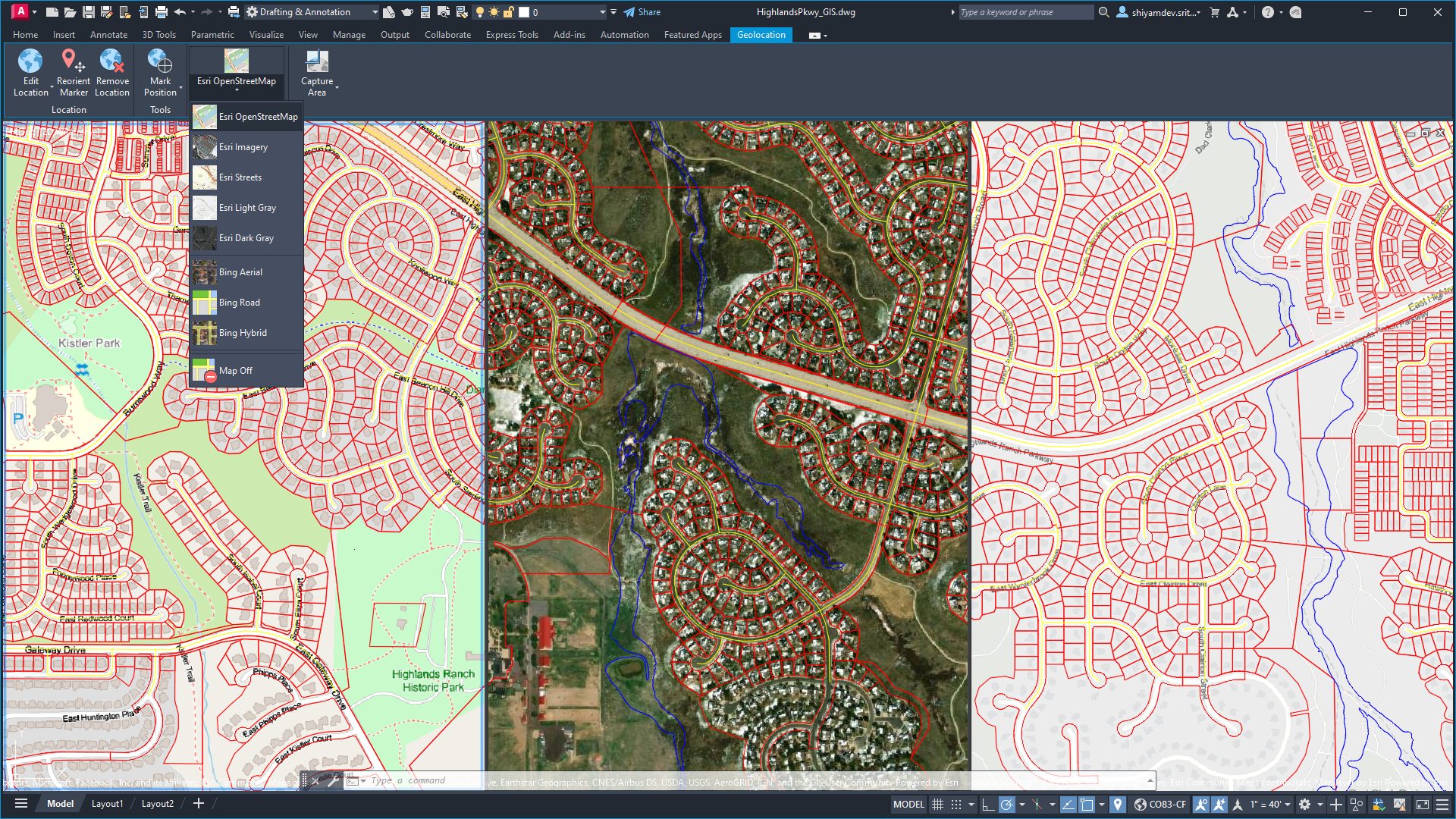
Ground your projects with real-world geographical information using Esri’s ArcGIS® Basemaps, now available directly in AutoCAD 2025.

Screenshot of Esri ArcGIS Basemaps in AutoCAD 2025
AutoCAD 2025 file displaying three of five available map styles from Esri using the GEOLOCATION command.

Access five Basemaps in the form of high-resolution satellite and aerial imagery, OpenStreetMaps and Streets, along with light and dark gray monochrome map styles, providing architects, engineers, and construction professionals with the foundations to make informed decisions.

Get Started Today

If you already started your update at the beginning of this post, you should be one step closer to experiencing these features first-hand—if not, what are you waiting for? Get started with the Autodesk Access application on your desktop. And if you’re not yet a subscriber, be sure to check out free trials of AutoCAD 2025AutoCAD LT 2025, and AutoCAD Web.

Learn More

To explore these features and enhancements in detail, along with more updates included in AutoCAD 2025 and AutoCAD LT 2025, take a look at the following pages in the Help section:

And to learn more about these features directly from our experts, join us for a live webinar on the following dates:

*As with all performance tests, results may vary based on user experience, machine, operating system, filters, and even source material. While every effort has been made to make the tests as fair and objective as possible, your results may differ. Product information and specifications are subject to change without notice. Autodesk provides this information “as is,” without warranty of any kind, either express or implied. © 2024 Autodesk, Inc. All rights reserved.

**Depending on account type, select accounts can start a live chat with a technical support agent, request a call back at a convenient time, or submit a support case using Autodesk Assistant—giving you the opportunity to attach relevant files to provide the Autodesk support team with additional context to your specific design queries.

What’s New in AutoCAD LT 2025 | AutoCAD Blog


AutoCAD LT 2025 is here! We’re excited to share the new enhancements for best-in-class 2D drafting with the latest performance* improvements. All you need to do is open the Autodesk Access application to start your update. Keep reading to learn more about some of the latest capabilities in AutoCAD LT 2025.

Core Performance & Drafting

With the introduction of AutoCAD 2025, we announced the significant improvements that have been made to reduce the time it takes to open files. And we’re excited to let you know that this extends to files opened in AutoCAD LT 2025 as well, an important step to increase productivity for all AutoCAD users.

AutoCAD LT 2025 also shares the convenient updates to the familiar HATCH command—a tool designed to quickly add texture and clarity to your drawings using patterns, solid fills, and gradient fills. Previously Hatch required you to use pre-defined closed boundaries to then fill a space. With the 2025 release, you can now add hatch patterns with custom boundaries after initiating the command—including the ability to draw hatch textures along paths.

Smart Blocks

First introduced in AutoCAD LT 2024 with the Placement feature, Smart Blocks represents just one of the ways AutoCAD continues to leverage Autodesk AI to improve the core 2D drafting experience. AutoCAD LT 2025 now introduces the new Smart Blocks: Search and Convert feature that can be used to quickly organize geometry into blocks. This tool enables you to search drawings by selecting geometry and highlighting all matching objects found on the canvas, providing options to convert them into instances of a block with the help of Autodesk AI.

“Search and Convert allows for a more efficient workflow within AutoCAD. Blocks can get lost or be challenging to work with, and this feature allows for a more efficient approach, saving time and quickly creating new blocks from elements within the drawing.”
—Joe VanderPluym, Design Associate

Activity Insights

New to AutoCAD LT 2025, Activity Insights is designed to be the one stop for users to track and compare DWG versions with file comparison capabilities. Merging features from the previous DWG History tool, Activity Insights can be viewed using the new palette while working on a drawing, or directly from the Start Tab without having to open a drawing.

ArcGIS® Basemaps

Now in AutoCAD LT 2025 you can underlay one of five ArcGIS® Basemaps from Esri to ground projects with real-world geographical information. Using the GEOLOCATION command, access high-resolution satellite and aerial imagery, OpenStreetMaps, Streets, dark gray, and light gray monochrome map styles.

Screenshot of AutoCAD LT 2025 with Esri basemaps
A file with three of five available ArcGIS® Basemap styles from Esri displayed in AutoCAD LT 2025.

Get Started Today

Get started with the Autodesk Access application on your desktop. And if you’re not yet a subscriber, test out these new features and more in the free trials of AutoCAD 2025AutoCAD LT 2025, and AutoCAD Web.

Learn More

To explore these features and enhancements in detail, along with more updates included in AutoCAD 2025 and AutoCAD LT 2025, take a look at the following pages in the Help section:

And to learn more about these features directly from our experts, join us for a live webinar on the following dates:

*As with all performance tests, results may vary based on user experience, machine, operating system, filters, and even source material. While every effort has been made to make the tests as fair and objective as possible, your results may differ. Product information and specifications are subject to change without notice. Autodesk provides this information “as is,” without warranty of any kind, either express or implied. © 2024 Autodesk, Inc. All rights reserved.

Activity Insights and Improvements to Hatch Are Here: AutoCAD for Mac 2025 | AutoCAD Blog


AutoCAD for Mac 2025 and AutoCAD LT for Mac 2025 are here! We’re excited to share the new enhancements and features that provide time savings, collaboration options, and efficiencies for you to get the most out of each and every session. If you’re ready to access the latest capabilities, access your Autodesk Account to start your update.

Start Tab

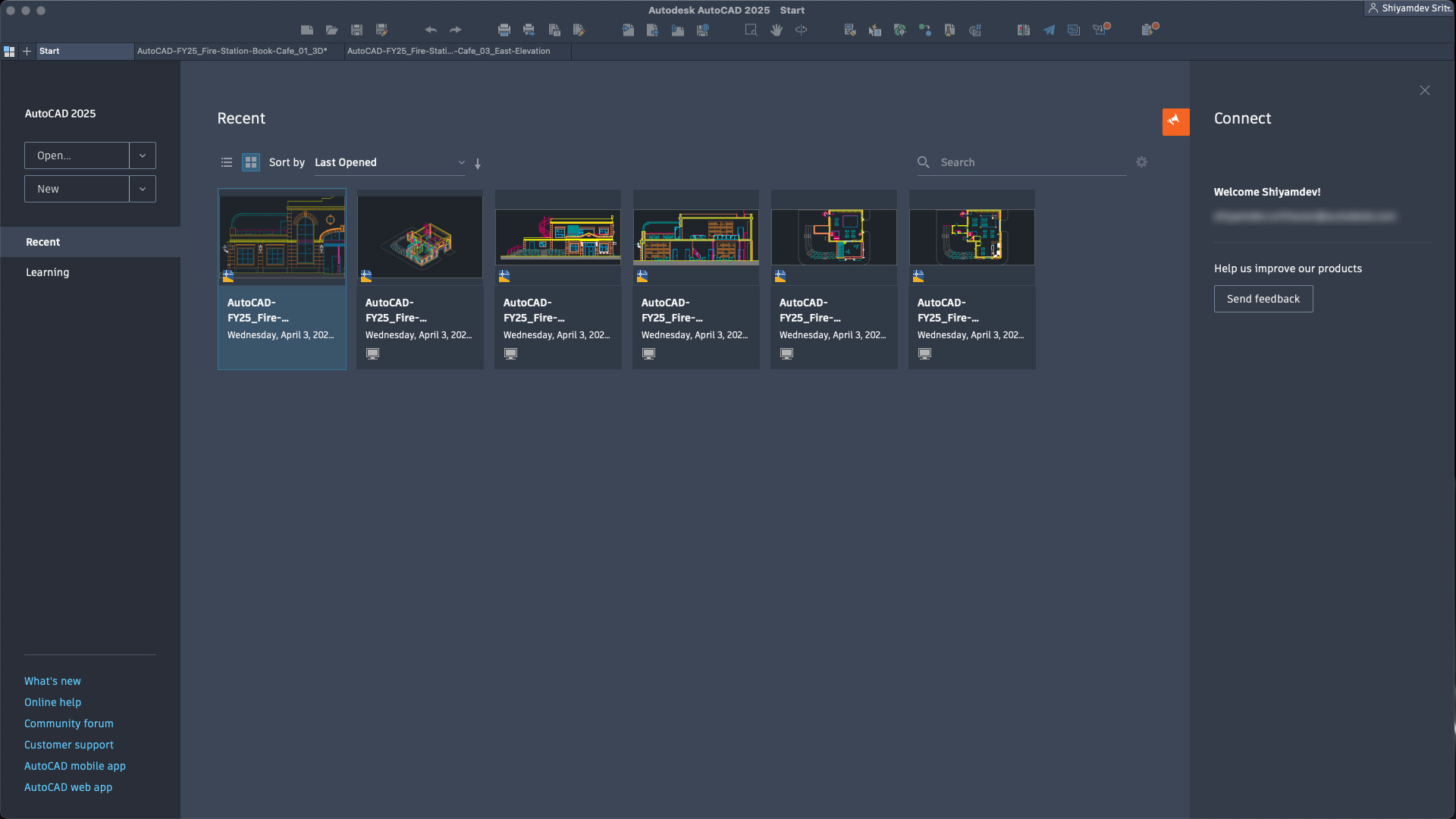
Now available in AutoCAD for Mac 2025 and AutoCAD LT for Mac 2025, the new Start Tab introduces additional efficiencies right as you open AutoCAD. It replaces the Welcome screen, providing a consistent welcome experience across AutoCAD on macOS along with other Autodesk products.

You can use the open button to open a drawing or use the dropdown to open a sheet set or sample drawings. Click new to start a new drawing from the default template or click the dropdown to browse templates or create a new sheet set. View and sort through your recent drawings or explore various online learning content and various online resources like the What’s New Online help, AutoCAD web app, AutoCAD mobile app, and more.

The Start tab highlights the most common needs, such as:

  • Resume work – Continue working where you left off
  • Begin new work – Start something new, either from a blank slate, template content, or existing content in a known location
  • Learn – Explore the product, learn new or improve existing skills, discover what has changed in the product, or receive relevant notifications
  • Engage – Engage in a customer community, give feedback, or contact customer help or support
Screenshot of AutoCAD for Mac 2025 Start Tab
The new Start tab in AutoCAD for Mac 2025.

Activity Insights

AutoCAD for Mac 2025 and AutoCAD LT for Mac 2025 now includes Activity Insights, a tool that provides an overview of the actions that users have taken throughout the lifecycle of a DWG file.

Imagine you’re working on a project with a large team. Within that team, you’re responsible for working alongside direct contributors to gather respective edits within a single DWG file. Whether you’re responsible for design, review with annotations, or packaging and submitting the drawings, the team coordinates and communicates their updates to the file via email or manual documentation. This takes time and critical information can get lost from person to person.

With Activity Insights, which requires almost no setup, all that information is automatically logged and displayed for you via the Activity Insights palette while working within a file, or directly from the Start tab. When someone edits, creates a new version, Xrefs to another DWG, plots, or does a variety of other AutoCAD-specific actions to a DWG file, each “event” is automatically logged for everyone to see with enhanced information and the ability to filter by event type, user, and date. Past events performed in the drawing are read from a database and displayed chronologically, and simultaneously written to the database as changes are made to the drawing—keeping the content displayed in the Activity Insights palette up to date.

While AutoCAD LT for Mac only shows Version activities which are created from working with drawings stored on a supported cloud storage provider, the additional information collected in DWG files by this new feature can be viewed on AutoCAD for Mac—surfacing meaningful insights about your workflow and practices, helping you save time across your projects and as you collaborate with team members.

Screenshot of Activity Insights in AutoCAD for Mac 2025
The new Activity Insights palette open in AutoCAD for Mac 2025 showing various event logs with detailed activity properties for the active file.

Drafting With Hatch

In AutoCAD for Mac 2025 and AutoCAD LT for Mac 2025, you now have the option to draw boundaries of your hatch after initiating the command—no longer having to rely on existing boundaries within the drawing canvas and ensuring hatches fill only the exact space you need.

In addition to drawing hatch areas, you can now create hatch textures along paths using a specified width—further extending and streamlining the ability use Hatch to create highlights and improve readability in your drawings.

Screenshot of Hatch command in use in AutoCAD for Mac 2025
The improved Hatch command being used to draw hatch textures along paths for egress routes.

Get Started Today

If you already started your update at the beginning of this post, you should be one step closer to experiencing these features first-hand—if not, what are you waiting for? Access your Autodesk Account to start your update. And if you’re not yet a subscriber, be sure to check out free trials of AutoCAD for Mac 2025 and AutoCAD LT for Mac 2025.

Learn More

To explore these features and enhancements in detail, along with more updates included in AutoCAD for Mac 2025 and AutoCAD LT for Mac 2025, take a look at the following pages in the Help section: