Performance improvements to MEF-based editor productivity extensions


If you use editor productivity extensions for Visual Studio 2026, there’s good news—they can now load faster! Extension developers with existing MEF-based editor productivity extensions should read this blog to learn about recent changes and how they might be affected. 

We introduced VisualStudio.Extensibility to simplify the creation of Visual Studio extensions for developers. Previously, handling threads in VSSDK-based extensions was often difficult, requiring knowledge of thread affinity and even the ins and outs of COM just to avoid freezing Visual Studio. The new extensibility model abstracts these technical details away seamlessly. 

Despite this advancement, we recognize most Visual Studio extensions still use VSSDK, so we’re striving to make targeted improvements there as well – especially regarding performance. For Visual Studio 2026, we’ve added the ability to load MEF-based editor extensions on a background thread, which significantly speeds up startup times for users. A major highlight of Visual Studio 2026 is its improved performance, and the proposed change we’re making to MEF is just one of many enhancements planned to make it even faster. We hope you’ll be pleased with the results. 

What changed? 

Visual Studio editor components use the Managed Extensibility Framework (MEF), which requires that objects be constructed in a free-threaded manner. Despite official MEF guidelines, we’ve often loaded components on the UI thread, resulting in many extensions relying on this behavior and limiting our ability to enhance startup performance. 

With Visual Studio 2026, we’re shifting to a free-threaded model, loading MEF components on background threads. This means extensions with UI thread dependencies might fail to load. We’ve been rigorously testing this approach in recent Visual Studio 2022 updates, and we are aware that some extensions that expect to load on the UI thread will fail to load with this optimization. To support extension developers through this transition, we’ve provided a setting and an analyzer that allows you to experiment with background loading and detect if your extension could be impacted by this change before we push it out more broadly. This initiative reflects our commitment to reducing disruptive changes and help extenders adapt when updates are necessary for the overall improvement of the product. 

Does it impact my extension? 

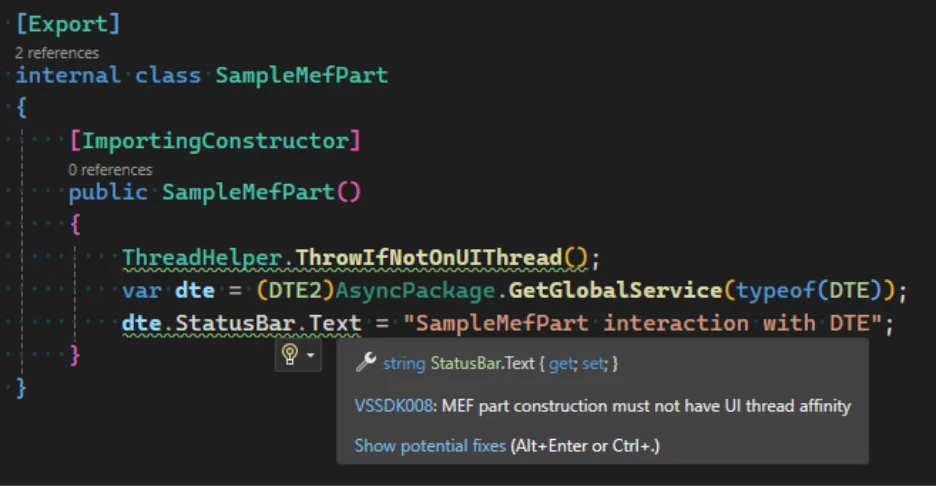
To help extension developers better detect if this change impacts you, we created an analyzer to identify potential issues. We hope that this will give you the opportunity to bring your extension in compliance with MEF rules, so that your extension can also get a startup performance boost like the rest of Visual Studio 2026. 

The example below shows the analyzer running and reporting access to the Microsoft.VisualStudio.Shell.ThreadHelper  and DTE2.StatusBar require UI thread. 
Picture1 image 

 To use the analyzer, add a reference to the latest version of the Microsoft.VisualStudio.SDK.Analyzers package: 

<PackageReference Include="Microsoft.VisualStudio.SDK.Analyzers" Version="17.7.98" PrivateAssets="all" />

To validate your extension can adapt to this change, enable the Preview Feature flag “Initialize editor parts asynchronously during solution load”. 

Picture2 image

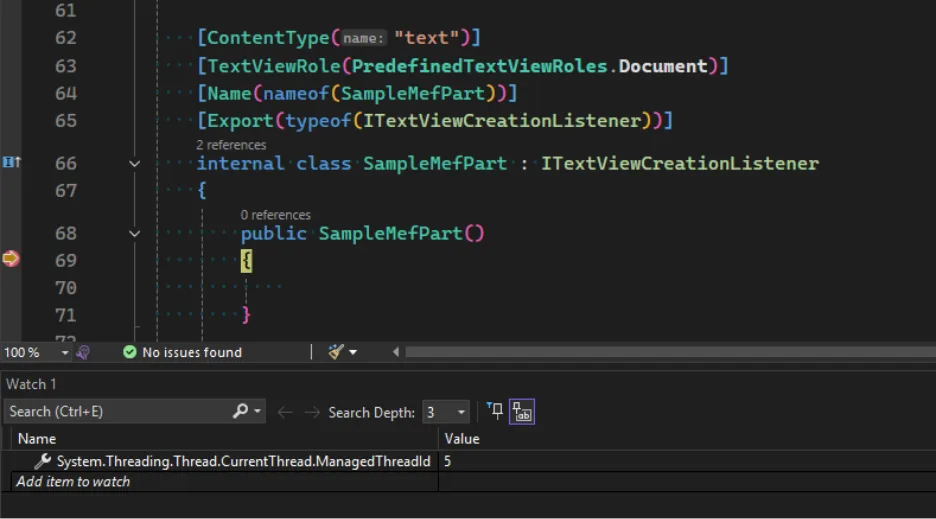
When debugging, you may set a breakpoint in MEF part constructors and evaluate System.Threading.Thread.CurrentThread.ManagedThreadId. If it’s different than 1, then your code executes on the background thread.  
Picture3 image

Call to action 

Loading MEF parts on a background thread is essential for improving Visual Studio’s performance, and we have gradually enabled this change in Visual Studio 2026. We recognize that code changes can be inconvenient, so we’ve made it straightforward to spot and resolve any issues. To see examples of removing UI thread affinity, please see our documentation or a sample PR on how we made this change ourselves.  

We want to hear from you! 

Thank you for sharing your issues and suggestions with us, and we hope you’ll keep providing feedback about what you like and what we can improve in Visual Studio. For those new and experienced to extending Visual Studio, we invite you to visit our documentation to learn more, or watch the video series on Visual Studio Toolbox where Visual Studio engineers take you through how to build extensions using our samples on GitHub. Feel free to share feedback with us viaDeveloper Community: report any bugs or issues viareport a problemandshare your suggestionsfor new features or improvements to existing ones. If you want a closer engagement with other partners in the ecosystem, please visit our GitHub repo to report issues as well. 

Stay connected with the Visual Studio team by following us on YouTubeTwitterLinkedInTwitch and on Microsoft Learn


Introducing AutoCAD 2026: Accelerate with Faster Performance, Autodesk AI, and Connected Design | AutoCAD Blog


Welcome to the future of design with Autodesk AutoCAD 2026!

Whether you’re working on intricate architectural plans or detailed mechanical designs, AutoCAD 2026 provides the tools you need to bring your boldest visions to life. Collaborate and benefit from significant performance enhancements and innovative capabilities that save you time with every DWG file. Discover new insights and automations powered by Autodesk AI. And take advantage of new integrations with Autodesk Docs, tailored workflows, collaboration, and enhancements to stay connected with your designs wherever you are.

If you’re eager to explore the latest AI and drafting capabilities, open the Autodesk Access application to start your update now!

Speed Up Design Time with Performance Enhancements and Autodesk AI

Experience significant performance enhancements and innovative features that save you time on every drawing. This is the fastest release of AutoCAD yet, with 2D and 3D files opening up to 11 times faster compared to AutoCAD 2025 and the application itself starting up 4 times quicker*.

And with the power of Autodesk AI, you can enhance your design processes by leveraging information contained in every design file to build a greater understanding of how your team works, letting you unlock new insights and automations. These performance enhancements mean you can spend more time designing, and less time waiting.

“Overall – Startup in AutoCAD 2026 is blazing fast, particularly opening files.”

Alan Neal, Chief Engineer, Foresite Group, Inc.

New Time Savings and Efficiencies with Smart Blocks and Activity Insights

Powered by Autodesk AI, enhancements to Smart Blocks: Search and Convert and Smart Blocks: Detect and Convert Tech Preview (formerly “Smart Blocks: Object Detection Tech Preview”) help improve design efficiency and standardization across your drawings, letting you enhance drawing clarity and organization by detecting objects that could be converted into blocks.

“These improvements and additional support items to Smart Blocks: Search and Convert will provide users more tools to expedite workflows and the time they work in drawings, freeing up more time to focus on the quality of their design versus software tools and steps or command sequences.”

Chad Franklin, Corporate Drawing Production Coordinator, Associated Engineering

With Smart Blocks: Seach and Convert Tech Preview, you can quickly search your drawings for matching objects, matching text, and variable text to convert into instances of a newly defined block, an existing or recently used block, or a suggested block from your Block Libraries with the help of Autodesk AI.

While Smart Blocks: Search and Convert helps you find instances of exact geometry matches one case at a time, Smart Blocks: Detect and Convert scans your whole drawing at once. Using the power of Autodesk AI, Smart Blocks: Detect and Convert Tech Preview makes intelligent inferences to determine all instances that you may want to convert into blocks.

Detecting these potential blocks all at once is especially helpful in situations when extensive cleanup is required or when geometry may vary slightly, such as for imported drawings. And in AutoCAD 2026, there are additional controls to refine and modify result with the new review toolbar and edit primary capabilities.

The latest updates to Activity Insights in AutoCAD 2026 allow you to stay informed throughout the project cycle with, ensuring that you are always up to date with project progress and changes.

Activity Insights in AutoCAD 2026 now includes the “What’s Changed” insight, giving you a detailed breakdown of activity during an editing session across collaborators. Enhanced search and filter capabilities make it even easier for you to find the drawing activity information you need in seconds.

Autodesk Docs Integrations for Connected Support Files, Markup Import, and Markup Assist

Manage consistent project standards and settings across all collaborators with the new Connected Support Files feature. CAD managers can now define project-aware support files that are unique to a specific Autodesk Docs project, meaning a user can have multiple DWGs from different projects open in AutoCAD each with their own set of support files at the same time! This allows teams to view and edit DWG files with the intended support files without additional configuration. This enables everyone to work with the correct files and settings, reducing errors and improving efficiency.

“This is a fantastic feature and a must have for AutoCAD and ALL verticals.”

Michael Shurgalla, Sr. Design Technology Specialist, Merrick & Company

Markup Import now supports Issues on PDFs from Autodesk Docs. You can see high level issue content with Markup Assist and launch further details in Autodesk Docs.

Multi-User Markups

Streamline collaboration on Autodesk Docs projects with multi-user markups. Collect and share feedback directly on drawings using intuitive Autodesk Docs markup tools—now available in early access with AutoCAD on the web.

The updated SHARE command lets you create markup links for simultaneous access to designs, facilitating efficient collaboration without duplicating or locking files. TRACE layers enable users to markup files that continuously sync back to the designer, providing flexibility for teams to review and markup changes together. This collaborative approach enables all feedback to be captured and addressed, leading to better project outcomes.

Tailor Workflows to Your Needs

Customize AutoCAD with specialized toolsets for discipline-specific features, functionality, and parts, including architectural, mechanical, and electrical design components. Make informed decisions with geographical information from ArcGIS® Basemaps, which can provide critical context for your designs.

Create and run custom automations with AutoLISP routines and access over a thousand third-party apps with the ability to build your own using the AutoCAD API. This level of customization enables AutoCAD to be tailored to meet the unique needs of your projects, improving efficiency and productivity.

Stay Connected Anywhere, Anytime

With AutoCAD 2026, you can stay connected to your designs no matter where you are. Use AutoCAD on desktop, web, or mobile to capture, share, and review ideas on the go. This flexibility allows you to more efficiently manage your projects, whether you’re in the office, at home, or on a job site. And with the latest enhancements to AutoCAD on the web, you can view and markup 2D and 3D DWG files, as well as visualize DWG files authored in architectural toolset. Take a look at our in-depth article where we cover AutoCAD Web in more detail.

Get Started Today

If you’ve already started your update, you’re one step closer to experiencing these incredible new features firsthand. If not, what are you waiting for? Get started today with the Autodesk Access application on your desktop. For those not yet subscribed, be sure to check out free trials of AutoCAD 2026, AutoCAD LT 2026, and AutoCAD Web.

Welcome to the next generation of design with AutoCAD 2026. We can’t wait to see what you’ll create!

Learn More

To explore these features and enhancements in detail, along with more updates included in AutoCAD 2026 and AutoCAD LT 2026, take a look at the following pages in the Help section:

*As with all performance tests, results may vary based on user experience, machine, operating system, filters, and even source material. While every effort has been made to make the tests as fair and objective as possible, your results may differ. Product information and specifications are subject to change without notice. Autodesk provides this information “as is,” without warranty of any kind, either express or implied. © 2025 Autodesk, Inc. All rights reserved.