If you’re building and maintaining Visual Studio extensions, you’ve probably ended up with some sort of build and publishing workflow – whether it’s manual, scripted, or stitched together over time.
This post is for extension authors who want a simple, repeatable way to build, version, and publish their VSIX files using GitHub Actions.
I’m going to show how I do this across my own extensions.
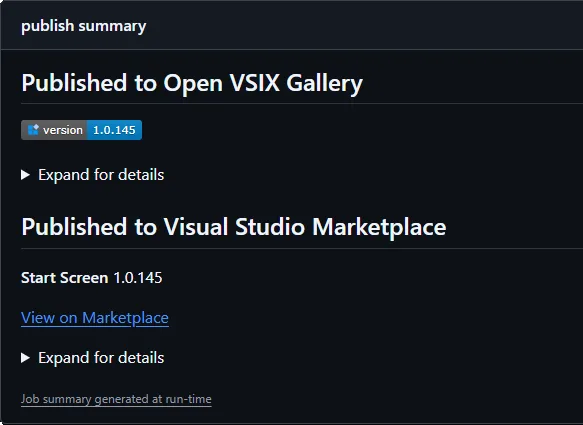
I’ve been using this approach for a long time, and over time I pulled the most repetitive pieces into a few small reusable actions, so I don’t have to keep rewriting the same logic in every repo.
Those are:
- vsix-version-stamp – keeps your versioning in sync
- publish-vsixgallery – publishes CI builds for testing
- publish-marketplace – publishes to the Visual Studio Marketplace
You can use them independently or together, but I tend to use all three.
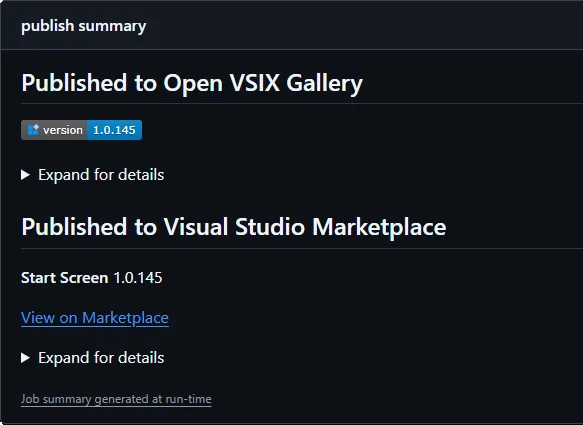
If you want to see this wired up in a real repo, take a look at Start Screen.
A real workflow
Here’s a simplified setup very similar to what I use across my extensions today:
name: Build
on:
  push:
    branches: [ main ]
  pull_request:
    branches: [ main ]

jobs:
  build:
    runs-on: windows-latest

    env:
      Configuration: Release
      VsixManifestPath: src\source.extension.vsixmanifest
      VsixSourcePath: src\source.extension.cs

    steps:
      - uses: actions/checkout@v6

      - name: Setup MSBuild
        uses: microsoft/setup-msbuild@v3

      - name: Restore
        run: msbuild /t:Restore

      - name: Version stamp
        uses: madskristensen/vsix-version-stamp@v2
        with:
          manifest-file: ${{ env.VsixManifestPath }}
          vsix-token-source-file: ${{ env.VsixSourcePath }}

      - name: Build
        run: msbuild /p:Configuration=$(Configuration)

      - name: Publish to VSIX Gallery
        uses: madskristensen/publish-vsixgallery@v1
        with:
          vsix-file: '**/*.vsix'

      - name: Publish to Marketplace
        uses: madskristensen/publish-marketplace@v2
        with:
          extension-file: '**/*.vsix'
          publish-manifest-file: vs-publish.json
          personal-access-code: ${{ secrets.VS_MARKETPLACE_TOKEN }}
This is essentially the full pipeline – version, build, package, and publish.
From here, you can tweak when publishing happens (for example, only on releases), but the core setup tends to stay the same.
Keeping your version in sync
Versioning is one of those things that’s easy to get wrong.
The vsix-version-stamp action updates your version during the build, so you don’t have to think about it.
It works especially well together with the
VSIX Synchronizer extension, which generates a .cs file from your .vsixmanifest.
That gives you:
- A single source of truth
- Version available in code
- No manual edits before publishing
It’s completely optional, but once you start using it, it tends to stick.
Publishing to the Visual Studio Marketplace
Once you have a VSIX, publishing it to the Marketplace is straightforward.
You only need a single secret:
- name: Publish to Marketplace
  uses: madskristensen/publish-marketplace@v2
  with:
    extension-file: '**/*.vsix'
    publish-manifest-file: vs-publish.json
    personal-access-code: ${{ secrets.VS_MARKETPLACE_TOKEN }}
That’s it.
The VSIX contains the extension metadata, and the publish manifest fills in the rest.
Publishing to a VSIX Gallery (for CI builds and testing)
The publish-vsixgallery action serves a different purpose.
It’s for quickly sharing builds.
I primarily use it when I want someone to try out a fix or validate a change before it goes to the Marketplace.
- name: Publish to VSIX Gallery
  uses: madskristensen/publish-vsixgallery@v1
  with:
    vsix-file: '**/*.vsix'
That’s what VSIX galleries are great for – fast, lightweight distribution without the overhead of a full release.
Works with your own gallery too
VSIX Gallery is open source, so you can host your own instance if you want.
The GitHub Action supports a configurable gallery-url, so it’s not tied to a specific hosted gallery.
- name: Publish to VSIX Gallery
  uses: madskristensen/publish-vsixgallery@v1
  with:
    vsix-file: '**/*.vsix'
    gallery-url: 'https://your-gallery.example.com'
That lets you use the same workflow whether you’re targeting a public gallery or something you host yourself.
Mixing and matching
You don’t have to use all three actions.
Some common setups:
Minimal
- Build + Marketplace publish
CI-focused
- Build + VSIX Gallery publish
Full pipeline
- Version stamping + build + gallery + Marketplace
Use what fits your workflow.
When to use what
- VSIX Gallery
Use this for testing, sharing builds, and quick validation - Visual Studio Marketplace
Use this for official releases
Most extensions benefit from using both:
- CI builds go to a gallery
- Stable builds go to the Marketplace
Wrap-up
This is the setup I use across my extensions.
It keeps things predictable, makes it easy to share builds, and removes most of the repetitive steps from the release process.
You don’t need to adopt all of it. Start with the parts that make sense for your workflow and build from there.