
A Guide to AutoCAD Ribbon Customization | AutoCAD Blog


Contributed by Autodesk Community member Arshdeep Singh

One of AutoCAD’s greatest features is its ability to be customized to your specific needs. With a little bit of customization, you can set up your own tabs and commands in the ribbon. Adding your most frequently used tools under a single tab not only saves time but also streamlines your design workflow. In addition, you can organize the commands in a logical grouping to help reduce time spent navigating through different menus.

You don’t need any programming experience. The Custom User Interface (CUI) makes it very easy to build menus and preview the changes. This blog post explains how to get started with AutoCAD ribbon customization, helping you tailor the platform to your specific needs. At the end, you will successfully be able to modify the AutoCAD ribbon.

AutoCAD Ribbon Customization: Understanding the Basics

Before we move any further, it’s important to understand the terms ribbon, tabs, and panels.

Ribbon: The ribbon is the horizontal interface at the top of AutoCAD which contains all the tools. It organizes and displays commands in logical grouping using tabs and panels for easy access.

Tabs: Tabs are part of the ribbon and categorize related groups of commands. For example, Home, Insert, Annotate, etc.

Panels: Panels are subdivisions within tabs that group related commands further. For example, the Block Panel under Home Tab contains tools related to blocks like Insert, Detect, Create, Edit, etc.

AutoCAD screenshot of ribbon, tab, panels

Working with the Customize User Interface Editor

To get started, you will need to open the Customize User Interface (CUI) Editor, which can be accessed under the Manage Tab – Customization Panel. Alternatively, you can also type CUI on the command line to open the Customize User Interface (CUI) Editor.

AutoCAD screenshot of CUI File Location

A cuix file stores all the interface customizations like the menus, ribbon tabs, and workspaces. It controls how the commands are organized and displayed on the Ribbon Tab. In addition, you can also add custom commands, keyboards shortcuts, LISP files, and change command images as well.

Once you open the CUI, All the customization files loaded into your AutoCAD will be listed under Customizations in Main File. The acad.cuix is the default customization file that is used by AutoCAD.

It’s always a good idea to backup the current customization file before making any changes. The customization file path is listed in the Properties Tab under General and Filename. Browse to the folder and make copy the customization file/s to a backup folder of your choice.

In this tutorial, we will add three very helpful commands to the Home Tab:

1. SAVEALL – This command saves all open drawings in your current AutoCAD session.

2. CLOSEALL – This command closes all open drawings, including the one currently displayed.

3. CLOSEALLOTHER – This command closes all drawings except the active one.

These commands are a part of the Express tools library which are provided with AutoCAD 2025 default installation. Enter EXPRESSTOOLS at command line to activate the Express Tools tab.

1. Launch the Customize User Interface (CUI) Editor.

2. In the left panel, expand the Ribbon Tab and the expand the Panels Tab.
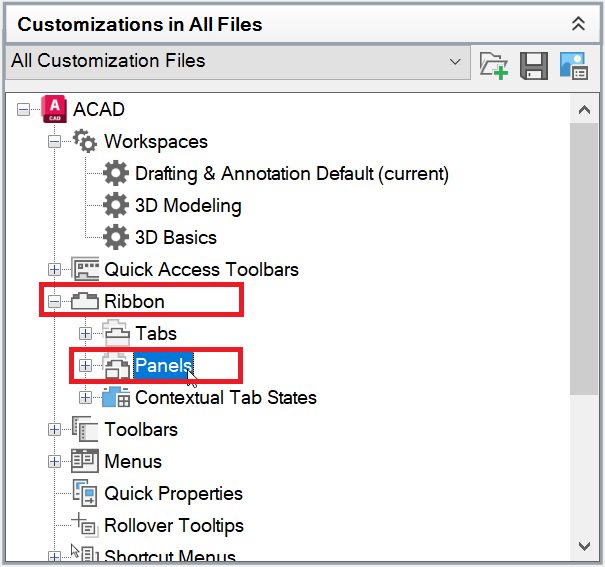
Screenshot of AutoCAD CUI to add a new panel

3. Add a new panel and three rows. Give the panel a meaningful name, such as “Home – Drawing Management.”

4. Add commands to the rows. Simply search the command you want to add in the command List section and drag and drop it to the Row under the new panel we just created. 

Pro Tip: Not all the commands have icons assigned to them by default. You can simply add the icons by clicking on one of the button images while the command is elected under Command List. You can also add meaningful descriptions under the Description field which will display when your hover over the command.
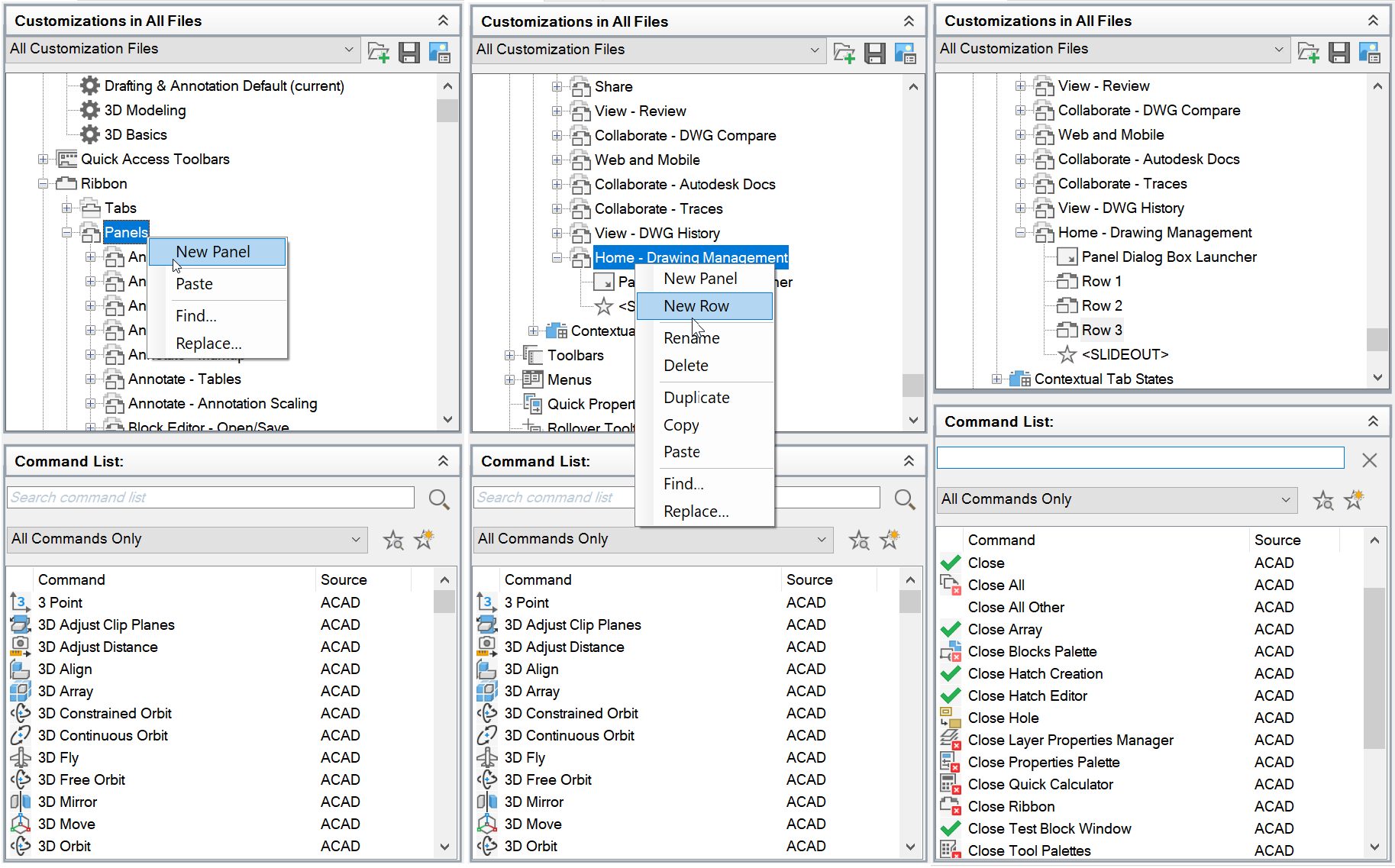
AutoCAD screenshot to add rows to panel

5. Set the Button style to SmallWithText for all commands. Panel Preview window will update the preview on how it would look on the Ribbon.

Screenshot of AutoCAD panel preview

6. Select the “Home – Drawing Management” panel and give it a meaningful display text like Drawing Management.
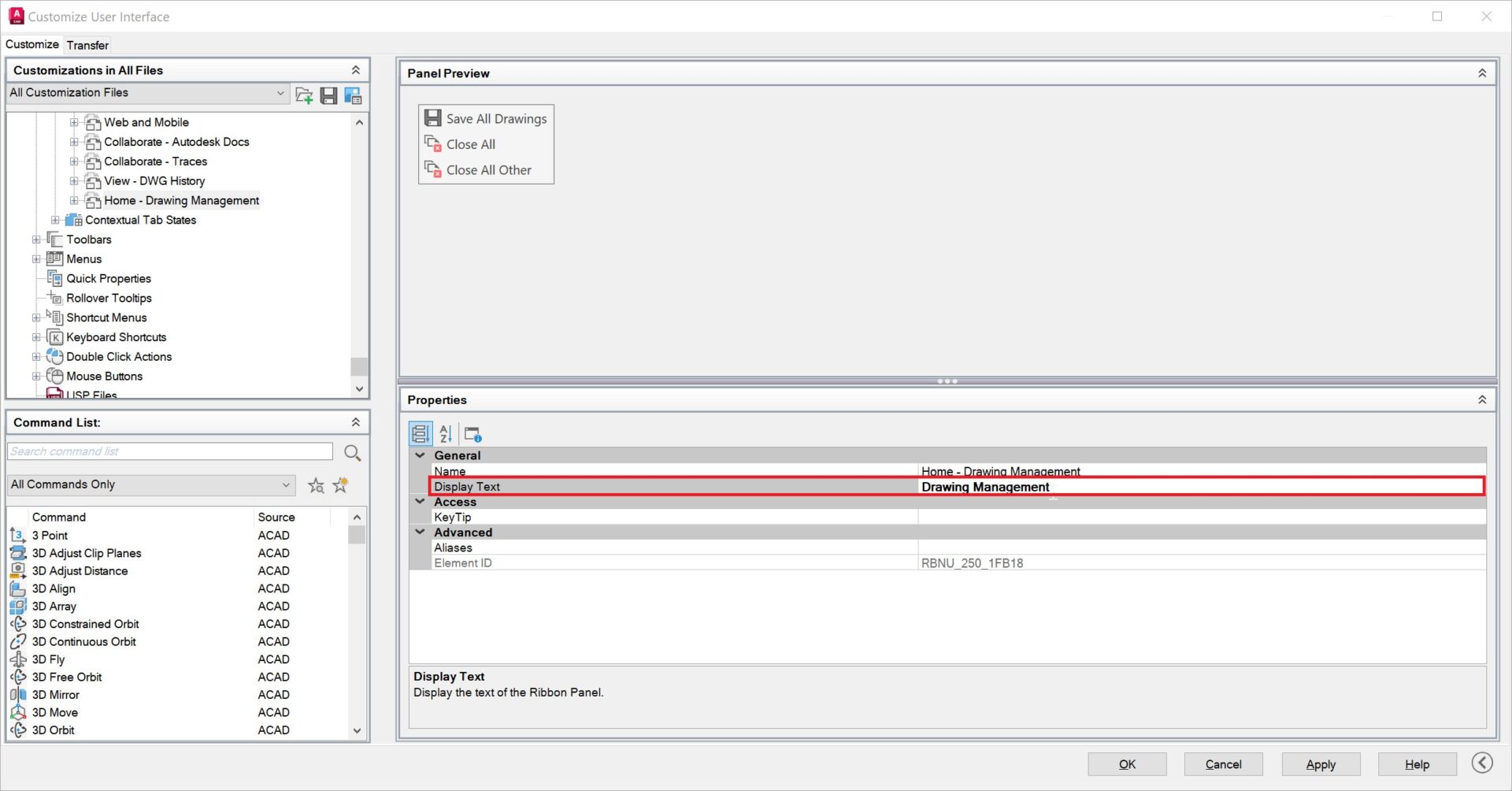
Screenshot of AutoCAD panel display text

7. Drag and drop or copy the new panel “Home – Drawing Management” to the bottom of the Home-2D Tab under Ribbon.

Screenshot of add new panel to ribbon tab

8. Press Apply and OK. Just like that, the new commands are added to the ribbon and are ready to be used.

Whether you are adding commands like “SAVEALL,” “CLOSEALL,” and “CLOSEALLOTHER” as we just covered in this blog or your most frequently used tools, customizing the ribbon can make your AutoCAD experience more tailored and productive.

Learn More

Enjoyed this article? Then check out the Autodesk Community for even more great content from talented users across Design and Make industries.

How to Add Custom AutoLISP Commands Into the AutoCAD Ribbon | AutoCAD Blog


Contributed by Autodesk Community member Arshdeep Singh

In my previous blog post, A Guide to AutoCAD Ribbon Customization, I explained how the built-in commands from AutoCAD can be added to the ribbon to streamline workflows and enhance productivity. This blog is a continuation, where I expand on how to take customization a step further by integrating your own custom AutoLISP commands into the ribbon. This allows you to create a truly personalized and efficient workspace tailored to your unique design needs.

What is AutoLISP?

Before we get started, it’s a good idea to understand AutoLISP. AutoLISP is a very powerful language that has been around for a long time and was designed to allow users to write custom commands that extend the capabilities of AutoCAD. AutoLISP programs are saved as .lsp files. While there are a handful of different methods to load the program into AutoCAD, I particularly like the CUI method where I can also add it to the ribbon after adding.

AutoLISP programs can be loaded into AutoCAD to run as commands. By combining AutoLISP with CUI, you can integrate these commands into the ribbon, making them easily accessible for daily use.

If you are a programming enthusiast, you will love this article by Autodesk where the origins of LISP and AutoLISP are explained: AutoLISP and Visual LISP (AutoLISP)

Writing a Basic AutoLISP Program

We will write a very basic hello world program in which we will add the AutoCAD’s ribbon as a command. Any basic text editor like Notepad can be used to write this program but Visual Studio Code with AutoLISP extension is the recommended way.

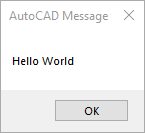
This program displays a message box with the text “Hello World” when the user runs the HELLOWORLD command. You can copy the code below into a text file and save it with the .lsp extension:

Introduction to the Customize User Interface Editor

A cuix file stores all the interface customizations like the menus, ribbon tabs, and workspaces. It controls how the commands are organized and displayed on the ribbon tab. You can also type CUI on the command line to open the Customize User Interface (CUI) Editor.

It’s always a good idea to back up the current customization file before making any changes. The customization file path is listed in the Properties Tab under General  Filename

Browse to the folder and copy the customization file/s to a backup folder of your choice.

Screenshot of AutoCAD CUI File Location

Adding LISP files to CUI

1. Launch the Customize User Interface (CUI) Editor.

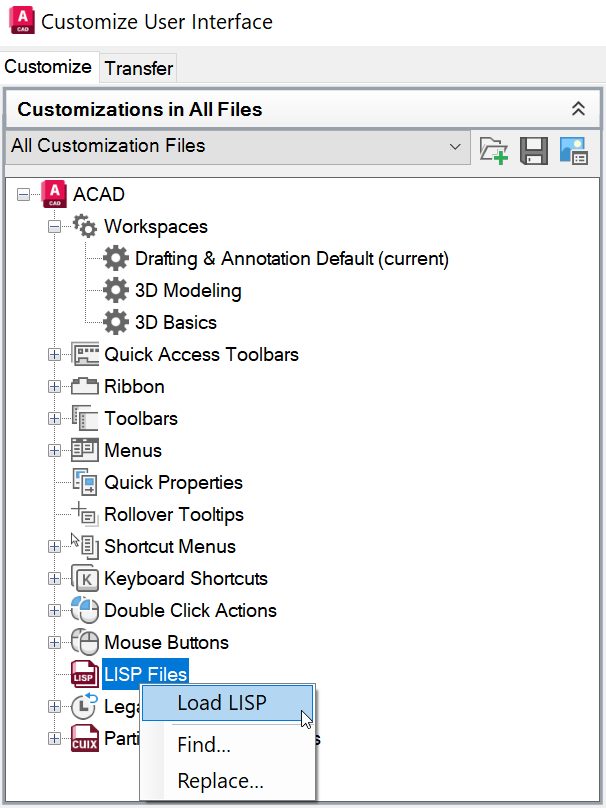
2. In the left panel, right-click on the Lisp Files option and click on Load File.

AutoCAD screenshot load LISP

3. Browse to the folder where you have stored the AutoLISP program and select the program.

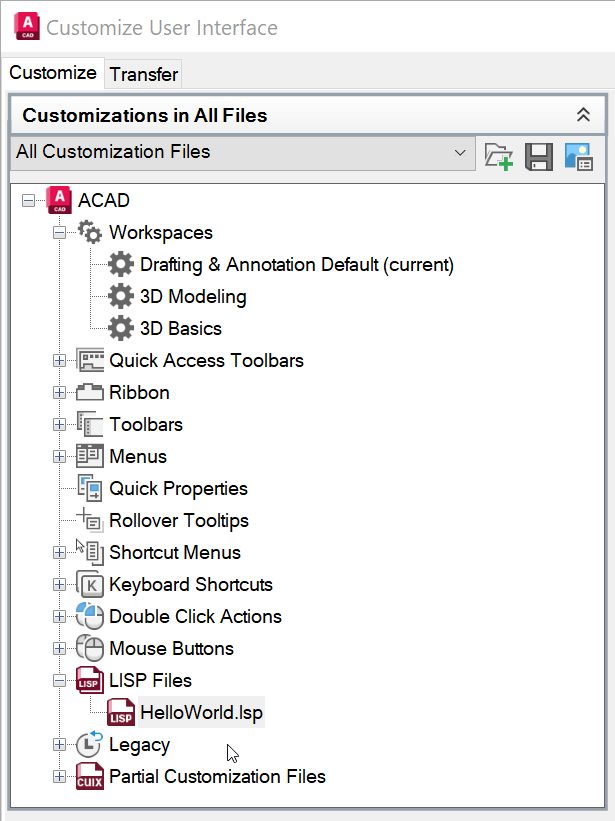
4. Now the program will be listed under LISP files, and it will be automatically loaded every time you start AutoCAD.

AutoCAD Screenshot of LISP File Loaded

5. Click Apply and OK

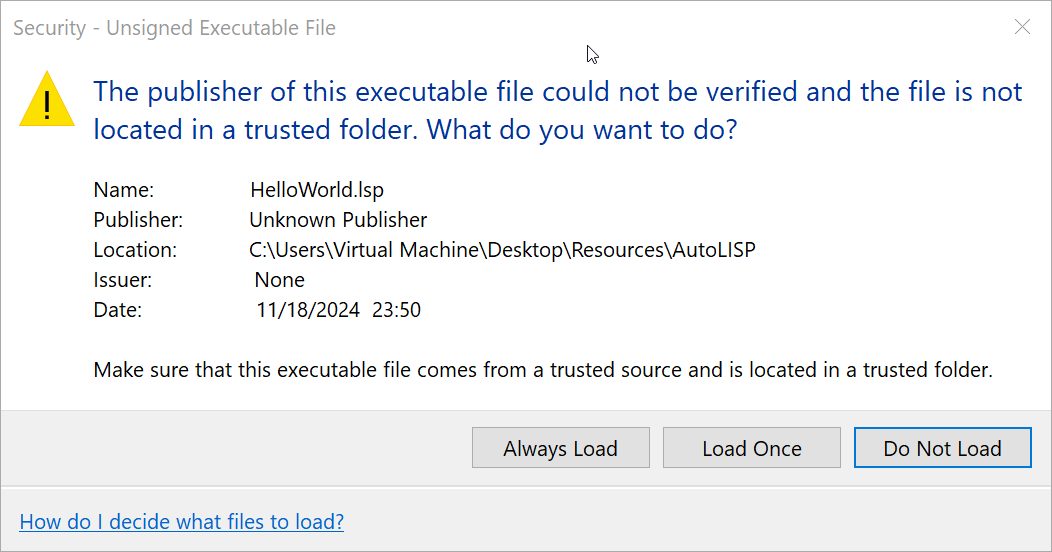
6. A security warning will appear if the AutoLISP program does not have a CA recognized digital signature installed.

Screenshot of AutoCAD security prompt

Clicking on “Always Load” will trust the AutoLISP program and the security warning will not be shown again unless the LISP program is modified.

Clicking on “Load Once” will only trust the AutoLISP program for the current instance of AutoCAD and the warning message will be shown every time the program is loaded.

Important Note: Only load AutoLISP files that you wrote yourself or that come from trusted sources. Loading unverified files can pose security risks or compromise your system.

Now at this point, we have successfully loaded an AutoLISP program into AutoCAD and the HelloWorld command can be called from the command line. Next, we will convert this into an AutoCAD command and assign an icon to it.

Creating a Command from AutoLISP Programs and Assigning an Icon

1. Launch the Customize User Interface (CUI) Editor.

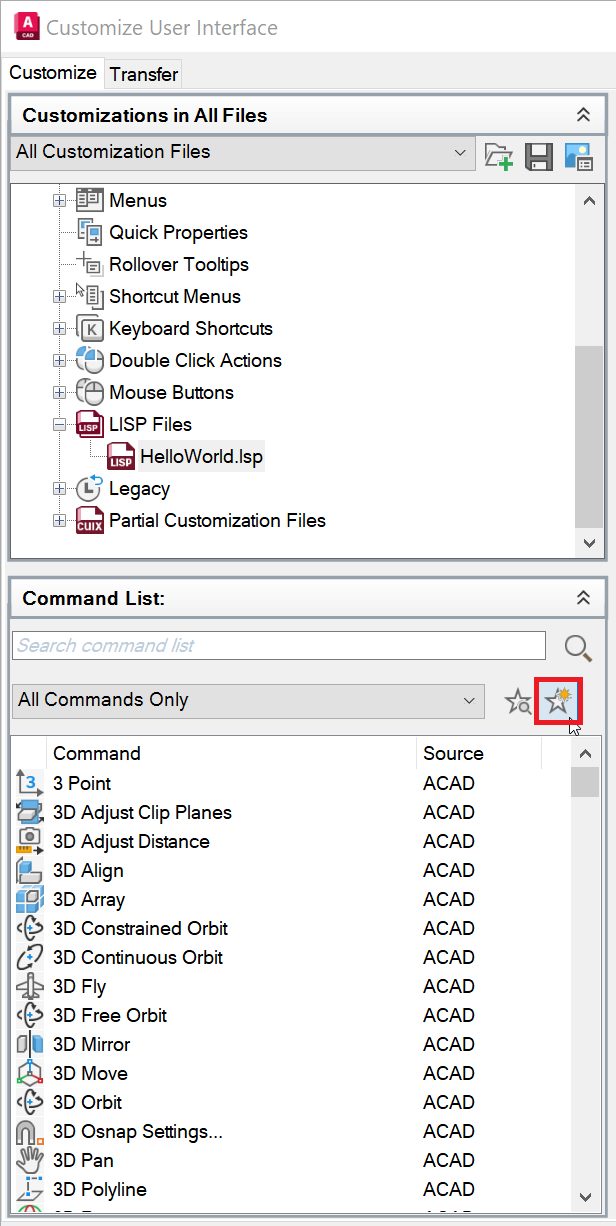
2. In the left panel, Under the Command List menu, click on Add new command.

Screenshot of AutoCAD create a new command

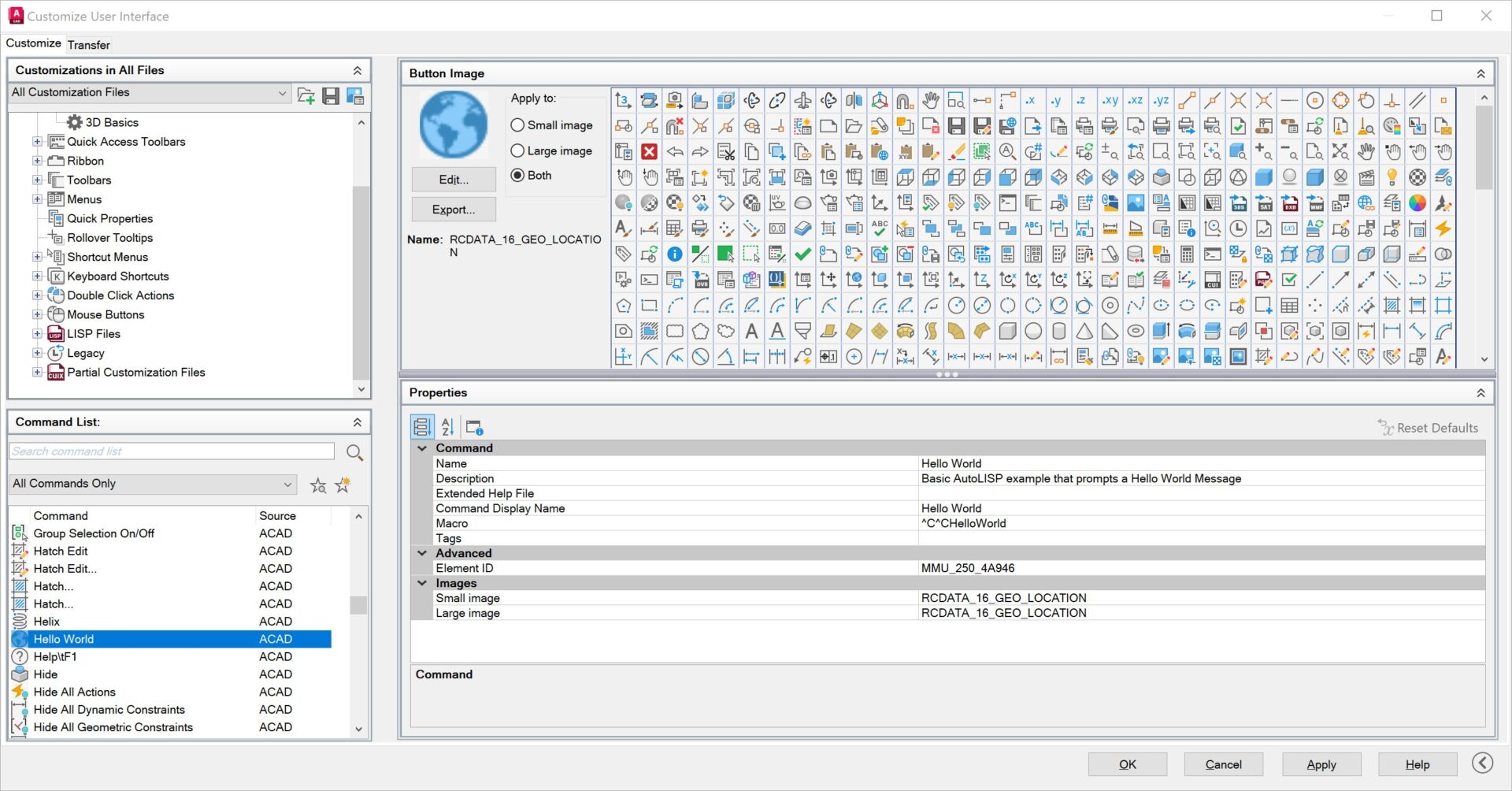
3. Add all the required information like the Name, Description, and Command Display Name.

4. Assign an icon of your preference or browse and upload a custom icon (Optional).

5. Under Macro, add ^C^CHelloWorld.

Screenshot of AutoCAD Command Parameters

If you are using some other custom program than the one we are using in this example, you should enter the command name for your lisp program. The command name can be identified by opening the lisp program and looking for the following syntax (defun c: HelloWorld )

6. Click Apply and OK

Now at this point, we have successfully created a new AutoCAD command that references our AutoLISP program. Next, we will look into how we can add this command to the ribbon.

Adding the Custom Command to the Ribbon

My previous blog post, A Guide to AutoCAD Ribbon Customization, covers in detail how to add the built-in commands to the ribbon. Please refer to it for more detailed instructions.

1. Launch the Customize User Interface (CUI) Editor.

2. In the left panel, expand the Ribbon Tab and expand the Panels Tab.

3. Add a new panel and a row. Give the panel a meaningful name, for example, “My Panel.”

4. Search for our HelloWorld command under the command list and simply drag and drop it to the Row under the new panel we just created.

5. Set the Button style to Large with Text (Horizontal) or your preferred view. Panel Preview window will update the preview on how it would look on the ribbon.

Screenshot of AutoCAD panel preview

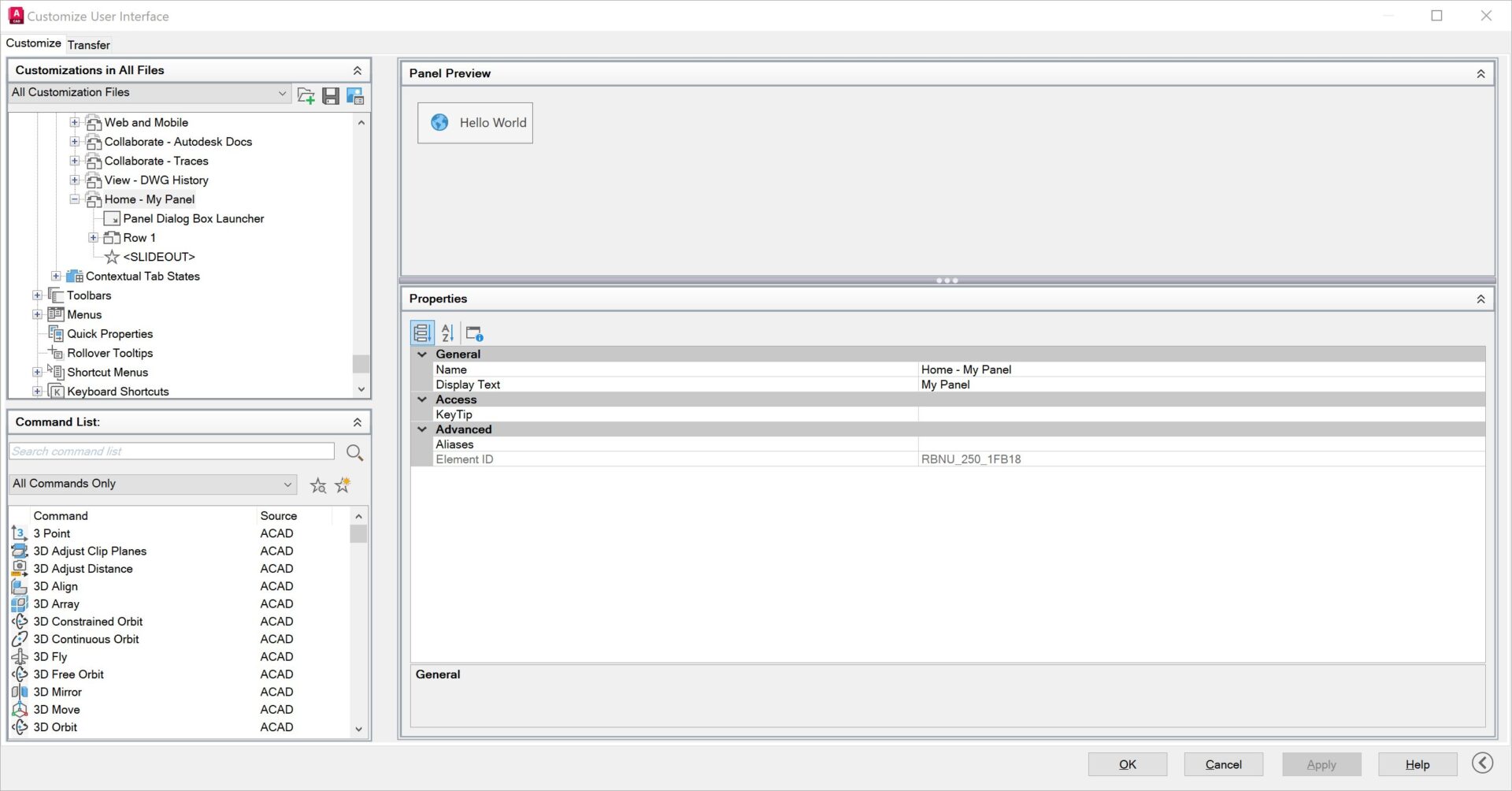
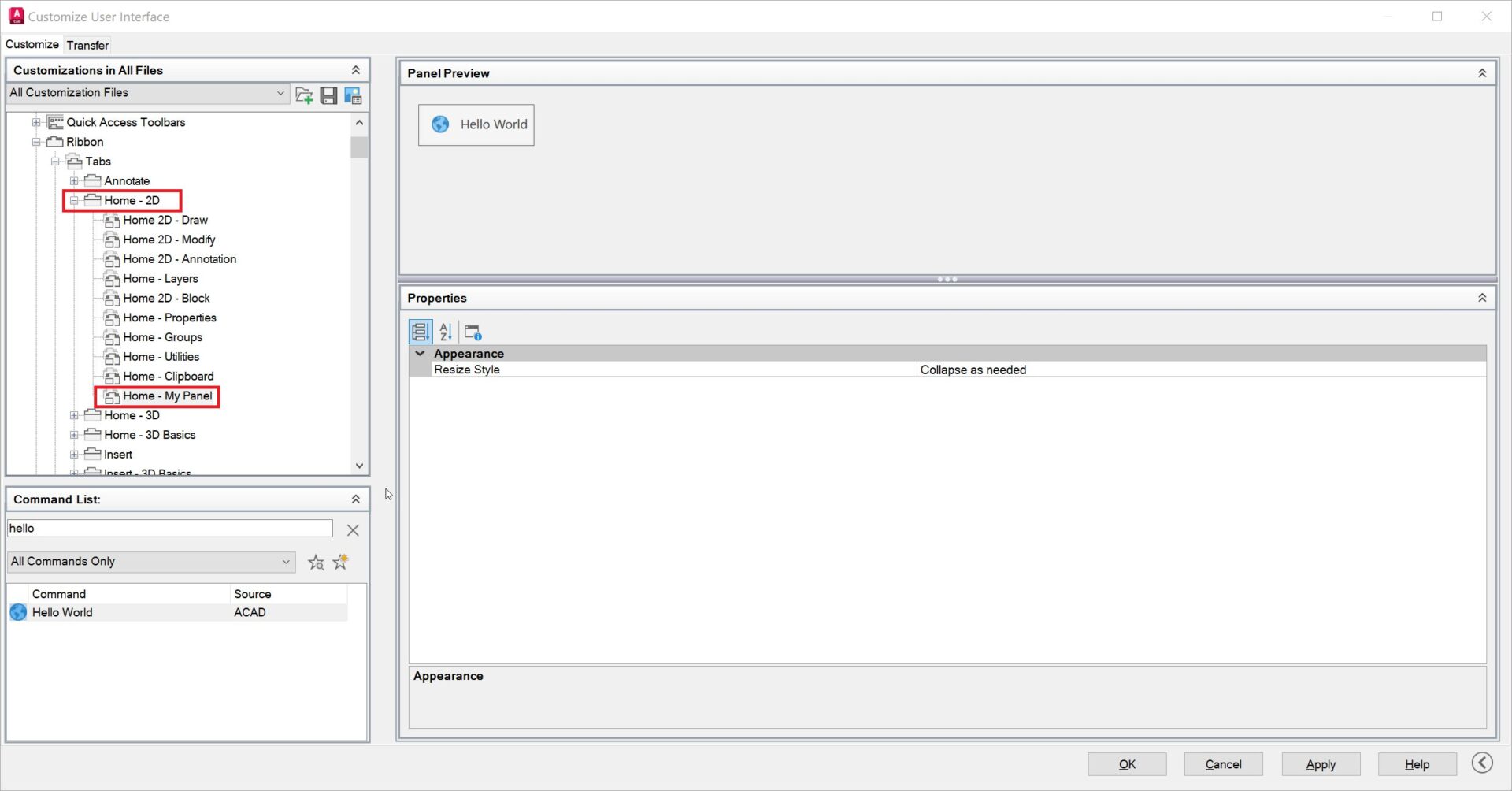
6. Drag and drop or copy the new panel “My Panel” to the bottom of the Home-2D Tab under Ribbon.

Screenshot of AutoCAD home tab CUI

7. Press Apply and OK. Just like that, the new command has been added to the ribbon and is ready to be used.

Screenshot of AutoCAD home tab preview

Keep Going

Integrating AutoLISP commands into AutoCAD’s ribbon not only enhances productivity, but also provides a customized and efficient user experience.

By leveraging the power of AutoLISP and the flexibility of the Customize User Interface (CUI) Editor, you can streamline your workflows and tailor AutoCAD to suit your unique needs. Remember to always verify the source of AutoLISP files to ensure security and avoid potential risks.

The Visual LISP, AutoLISP, and General Customization community forum is a great place to get help with AutoLISP programs from the experts in the Autodesk community. Happy coding and designing!