
AutoCAD 2027 delivers a connected, intelligent design experience that helps you move faster, collaborate with confidence, and focus on the work that matters most. This release helps you and your team maintain drawing standards, reduce time spent fixing geometry issues, and collaborate on shared DWG files without the conflicts of traditional file locking. With Autodesk AI-powered guidance, automated geometry cleanup, and cloud-connected workflows through Forma Data Management, AutoCAD 2027 helps you coordinate changes more easily and keep projects moving forward.
Whether you’re working solo or across distributed teams, AutoCAD 2027 is designed to help you create with greater clarity, speed, and control. If you’re eager to explore the latest AI-powered capabilities introduced in this release, open the Autodesk Access application to start your update now!
Work smarter with Autodesk AI
AutoCAD 2027 introduces a new level of AI-powered workflows that help reduce friction and surface the right guidance at the right time.
New Autodesk Assistant (tech preview)
Autodesk Assistant delivers intelligent, in-context guidance powered by Autodesk AI without disrupting your design flow, helping you and your team maintain consistency and quality with less manual effort. In AutoCAD 2027, you can use conversational prompts to validate drawings against your organization’s own CAD standards, by uploading a reference file and checking designs against it, helping to surface CAD standards issues earlier and making it easier to catch problems during the design process.
This experience is enabled by Autodesk Assistant beginning to leverage Model Context Protocol (MCP), which helps it better understand what you’re working on and what you’re trying to accomplish. This enables more situational, relevant responses directly inside AutoCAD. In this release, that capability is focused on alignment with CAD standards.
A truly collaborative design experience
As projects grow more complex and teams become more distributed, collaboration can’t be an afterthought. AutoCAD 2027 delivers new ways to work together securely and in parallel across desktop, web, and mobile.
Forma Data Management Essentials now included with a standalone subscription
With AutoCAD 2027, Forma Data Management Essentials is now included with standalone AutoCAD subscriptions, representing a significant added value for AutoCAD users. With this release, Forma is no longer a future vision: it’s now here, across the AutoCAD features you and your team use every day.
In AutoCAD, Forma Data Management Essentials enables essential collaboration in a shared project environment where teams can view and markup 2D and 3D models, track issues, apply folder-level permissions, and share files with controlled access and clear version visibility. This brings cloud-based DWG storage, version history, and access control directly into AutoCAD workflows that you’re already familiar with.
Whether you’re a drafter, designer, architect, engineer, or a CAD manager, it is well suited for small and mid-sized architecture and engineering firms, civil design practices, specialty consultants, and growing teams that need more structured collaboration and improved information exchange across projects.
Shared drawings managed in the cloud can now take advantage of advanced collaboration features like Checkout, multi-user markup, and Connected References, supporting parallel work while keeping your data easily accesible.
Introducing Checkout: Parallel work without the conflicts
Checkout finally introduces a new way for teams to collaboratively make controlled edits to the same DWG file at the same time when stored in Forma Data Management. Instead of locking entire drawings, contributors can check out only the geometry they need to modify, letting you make changes in an isolated editing environment and safely merge them back when you’re ready.
The result? No more unnecessary extra files just for editing, no accidental overwrites, and smoother collaboration especially on complex drawings with multiple contributors.
Connected References and Connected Support Files
Managing references and support files is easier and more reliable with deeper cloud connectivity in this release.
Connected References reserve Xref integrity for drawings stored in Forma Data Management. When referenced files are moved or renamed, AutoCAD detects the change and suggests automatic repairs directly from the Xref palette. With a single click, all your references can be restored.
Connected Support Files give CAD managers centralized control over cloud-managed support files, now enhanced to support tool palettes and CUI customizations for greater flexibility. With project-aware tool palettes and CUI, the right resources load automatically with each drawing, improving consistency and scalability across teams. In Forma Data Management, support files can be managed directly through the .autodesk.support folder within a project via a new “Manage Support Files” button that launches a configuration dialog.
Cleaner drawings, faster workflows
AutoCAD 2027 continues to focus on everyday productivity, helping you spend less time fixing issues and more time designing.
Automatically find and fix errors with Geometry Cleanup
Geometry Cleanup automatically identifies common geometry issues such as gaps, overshoots, undershoots, and misaligned angles, then suggests targeted fixes to resolve them. By streamlining error detection and correction, this tool reduces manual cleanup, improves drawing quality, and makes files more reliable for downstream workflows.
Performance and visualization improvements
Expanded support for the Graphics System Framework (GSF) improves performance and reliability across AutoCAD’s 3D workflows. With smoother navigation, broader 3D coverage, and support for Realistic visual styles, materials, and lighting, AutoCAD 2027 delivers more consistent and responsive 3D visualization.
Stronger workflows with AutoCAD on the web
AutoCAD on the web continues to evolve into a powerful extension of desktop workflows, especially for collaboration and coordination.
Issues, plotting, and sheet set improvements
- Forma Data Management Issues integration allows you to view, create, and resolve issues directly within drawings, keeping feedback visible and actionable.
- Plot improvements make it easier to save plots directly to the cloud, rename files, choose storage locations, preview PDFs, and confidently deliver final output.
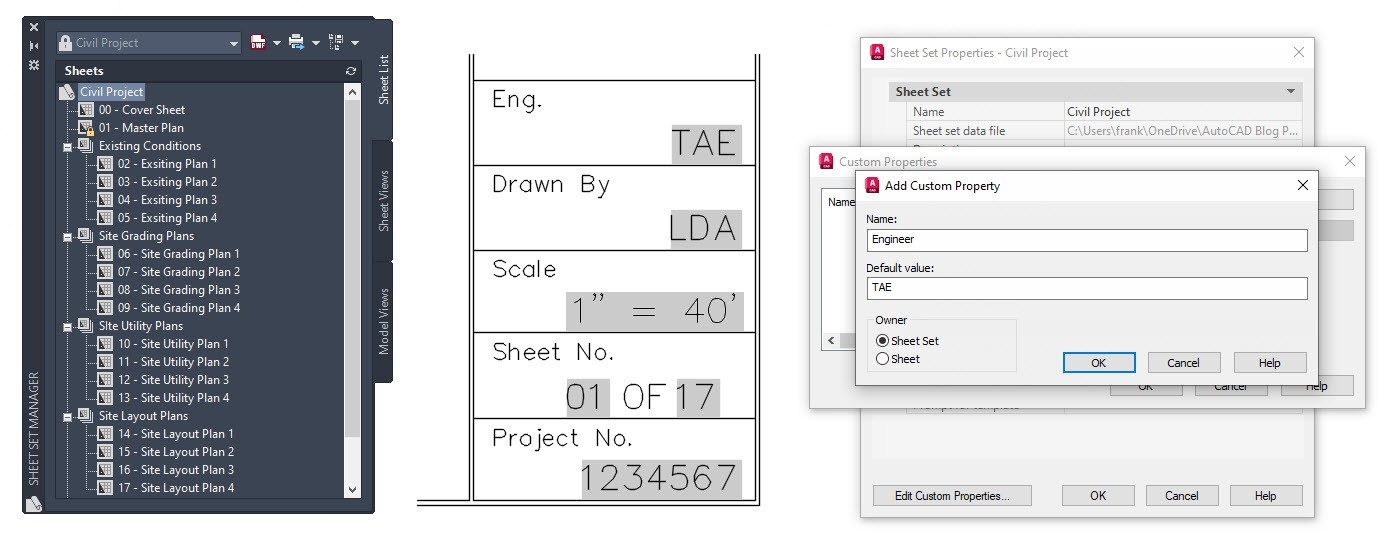
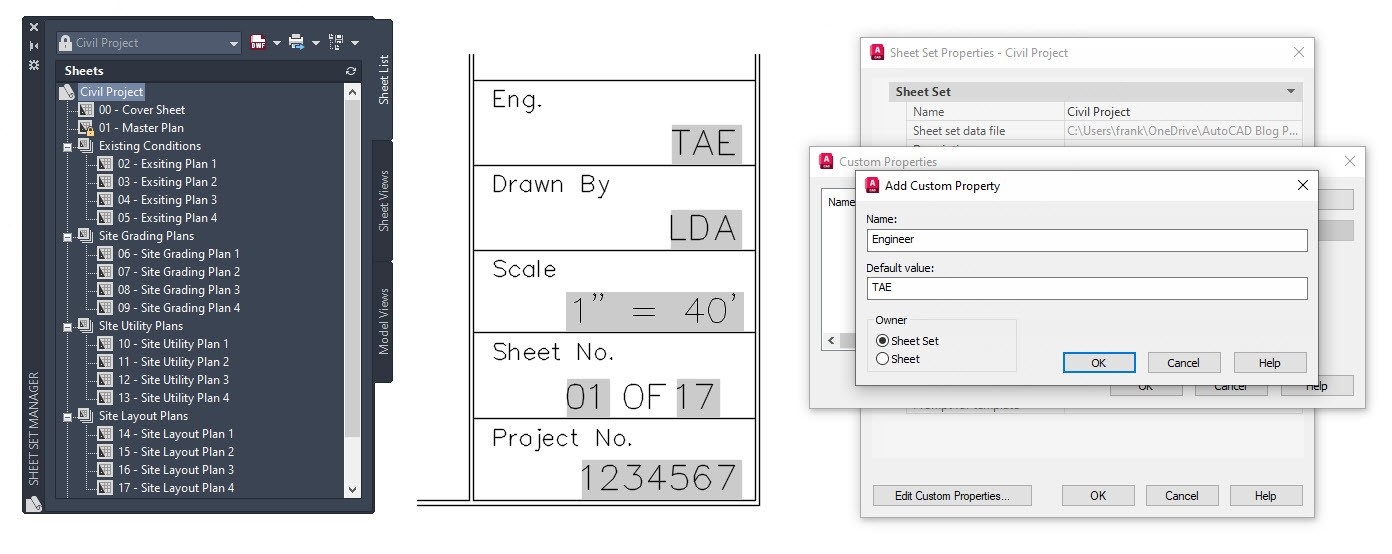
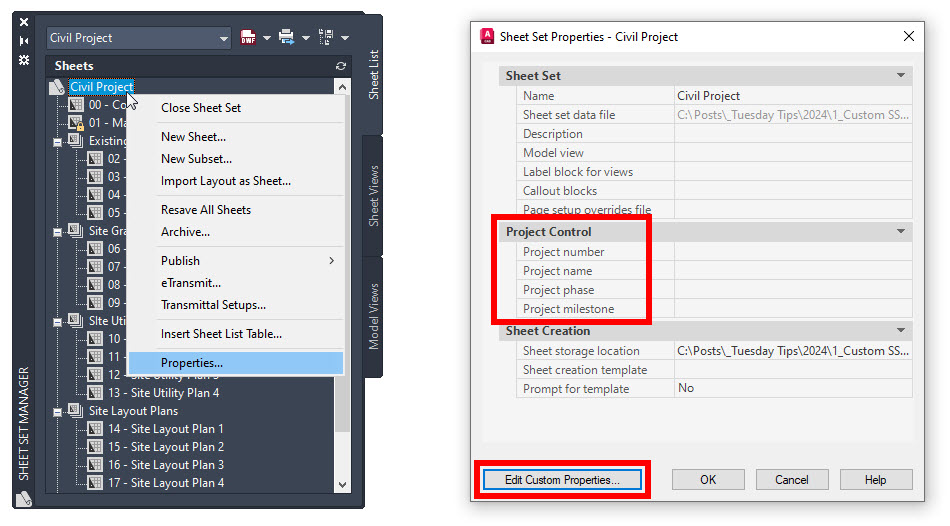
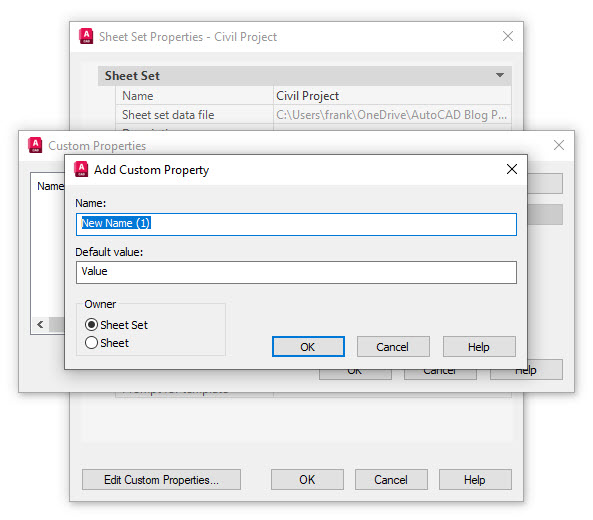
- Sheet Set Manager improvements fully adopt Connected Support Files, with enhanced templates, workflows, and reliability that make sheet management better suited for everyday production work.
Integration with Forma Board
Included as part of access to Forma, AutoCAD on the web now integrates with Forma Board, connecting detailed CAD drafting with collaborative early-design workflows. Teams can view and edit DWG files within a shared canvas, keeping documentation aligned with concept development and design storytelling from early planning through detailed design.
Start exploring AutoCAD 2027
AutoCAD 2027 is more than a feature update. It’s a step towards a more connected, intelligent, and collaborative design experience. From Autodesk AI-powered assistance and cleaner drawings to cloud-enabled collaboration across desktop, web, and mobile, this release is designed to help you work with confidence at every stage of your project.
Download a 15-day free trial of AutoCAD 2027 today and see how these new capabilities can help you focus on what matters most: creating better designs, faster.