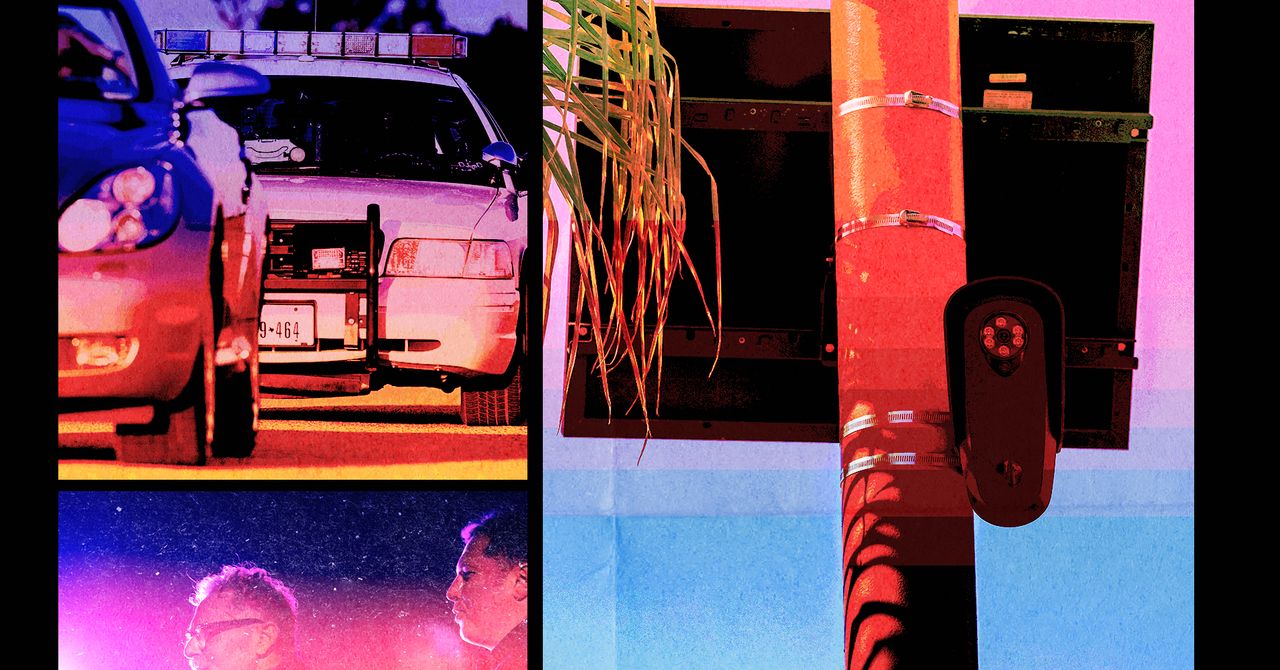
People are not happy about Flock Safety’s automated license plate readers and the cops that allegedly misuse them. If you’re one of those ALPR-haters, you can now take out your rage in the video game Grand Theft Auto V by installing Grand Theft Automated License Plate Reader, a mod built by artist Morry Kolman.
The mod installs 235 Flock cameras around the fictional Los Santos, a riff on the real-life city of Los Angeles. Players can smash and shoot down the cameras and get paid $600 for each one they destroy, which Kolman priced based on a teardown of a Flock Falcon Flex Camera by the Iowa-based civil liberties group Eyes Off of Cedar Rapids. The in-game cameras log every time a player destroys and drives by one, and players can render a photo album of their interactions.
In real life, vigilantes have allegedly wrecked Flock cameras in their communities using spray-paint, saws, bullets, and even flaming projectiles. An NPR analysis found that Flock cameras have been vandalized in at least 36 states.
“GTPLR is not an endorsement of the activities that it allows in the game in the same way that GTA is not an endorsement of the activities that are allowed in the game,” says Kolman, referring to the fact that GTA is largely about doing fictional crimes. “But I think there is a public appetite for some kind of cathartic release against these machines.”
In addition to being fun objects to destroy, the GTA cameras also operate as an extension of the police in-game. Passing by one of the 235 cameras while being chased by the cops prolongs the game’s cooldown period. Because of how dense the cameras are in some areas, it can make the game impossible to play.
There’s also a 5 percent chance that the cameras will trigger a random police response even if the player isn’t doing anything wrong, which Kolman says was inspired by news reports about innocent people being held at gunpoint because of ALPR errors.
“There are violent responses and really dangerous situations that are created by these cameras and their inaccuracies,” says Kolman.
Flock did not immediately respond to a request for comment for this story.
GTA V has been around for over a decade, and a rich modding community has built up around it (WIRED covered one back in 2015.) The long-awaited sequel, Grand Theft Auto VI, is slated to come out in November and will be set in a fictional version of Miami called Vice City.
Kolman doesn’t have specific plans to build a version of GTALPR for that, joking, “We’ll probably wait to see what the people of Vice City and their local government have already installed around their map.”
In real-life LA, the Los Angeles Police Department suspended its use of Flock cameras this summer following a recommendation from the LAPD’s inspector general. The tide is turning in other places too—governors in both Texas and Florida recently took steps to curtail the use of Flock cameras in their respective states, and across the US, there were 131 Flock contract terminations in August alone, according to the anti-surveillance advocacy group Secure Justice.
For all the fun that fake-smashing surveillance cameras can be, Kolman seriously hopes that players can feel the “insidiousness and inescapability of the surveillance” through GTALPR.
“I know that you could read a thousand articles about why surveillance is bad and why Flock is horrible,” says Kolman. “Or I could make you feel how pervasive these Flock cameras are by having you try to drive around the map of Los Santos.”