Create Unreal Engine modules faster


Unreal Engine modules help keep your code organized and modular. However, creating modules can be a tedious and error-prone process that involves manually editing configuration files and adding boilerplate code.

Visual Studio 2022 version 17.11 comes with a new dialog to help with this process. With the new Add Module dialog, you can quickly add new modules to your project without leaving Visual Studio or manually editing configurations.

How to use the Add Unreal Engine Module dialog

To use the Add Unreal Engine Module dialog, you need to have an Unreal Engine project open in Visual Studio. You can do this by opening the .sln file generated by the Unreal Editor from your project folder, or by opening the Unreal Engine project directly by opening the folder containing the *.uproject file through File->Open->Folder….

Ctrl+Shift+Alt+O to open a new folder

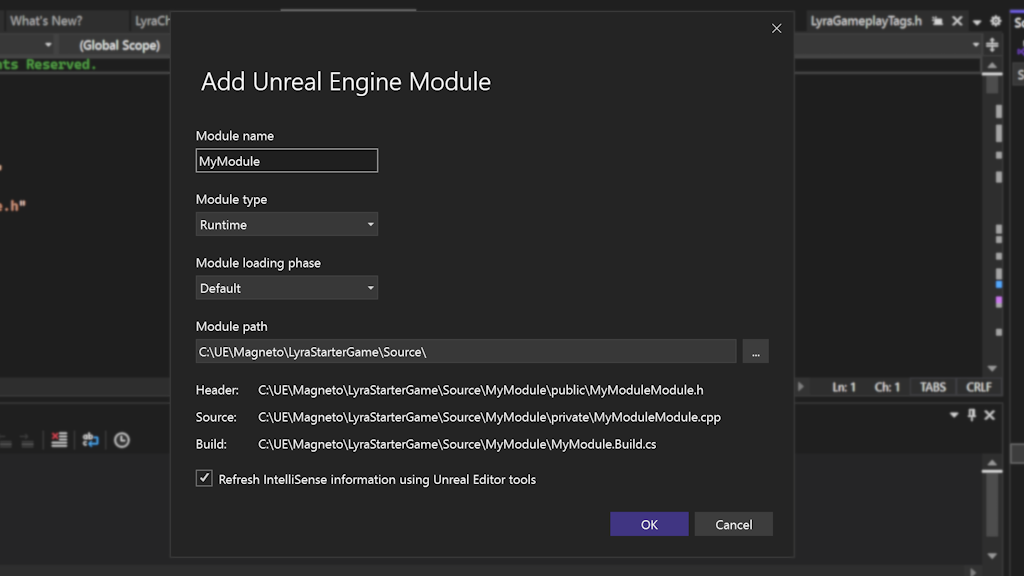
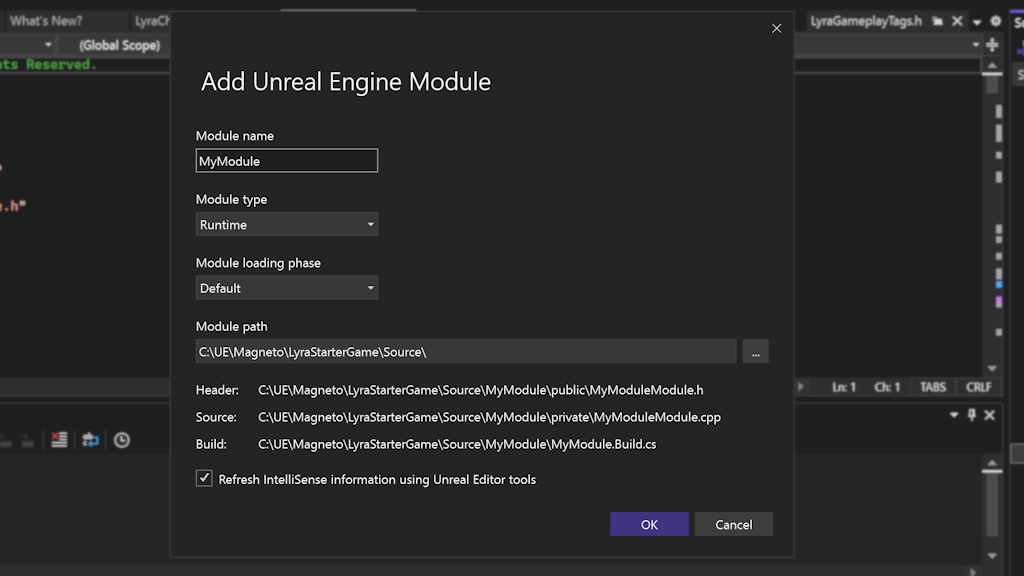
Once you have your project open, right click on the project in Solution Explorer and select Add > Unreal Engine Item. This will open the Add New Item dialog, where you can select Empty Unreal Engine Module to launch the Add Unreal Engine Module dialog. This dialog lets you specify the name, type, loading phase, and path of your new module.

Image showing the Add Unreal Engine Module

After you click OK, Visual Studio will create the module folder and files for you and update the project settings accordingly. Visual Studio also updates the *.uproject file, registering the module there and makes sure that the module builds. You can then start writing your module code right away or use the Add Unreal Engine Class dialog to add new classes to your module.

Why use Unreal Engine modules

Unreal Engine modules are a way of organizing your code into self-contained units that can be loaded and unloaded at runtime. Modules can contain C++ code, assets, shaders, blueprints, and other resources that are related to a specific functionality or feature.

Using modules has several benefits, such as:

  • Improving code readability and maintainability by separating concerns and reducing coupling.
  • Enhancing performance and memory usage by loading only the modules needed for a given context.
  • Enabling code reuse and sharing by creating libraries of common or generic modules that can be used across different projects or platforms.

Simplifying packaging and deployment by bundling modules together into plugins or DLCs.

To learn more about Unreal Engine modules, check out the official documentation.

Give us your feedback

We hope you enjoy using the new Add Module dialog and find it useful for your Unreal Engine development. We’d love to hear your feedback and suggestions on how we can improve this feature and make Visual Studio even better for you.

Thank you for your continuous support and feedback, which helps us make Visual Studio the best tool for your development needs.

Christian Character Traits A – Z


Last week I was thinking about all the Christian character traits there are that I, as a Christian, want to possess. I was thinking about how many I have and how many more I want to attain and just doing a self-inventory of the godliness in my life and how I can improve all the more and be my absolute best. Each and every day, striving my guts out to be more like our Father. 

Then, my sin nature started thinking, “Well, why do we want to be perfect anyway? I mean, when we die, we will go to Heaven and be instantly perfect, right? So, what’s the point of it anyway?”

While there are many points of it, like being a good witness to the world around us, to our families, to our children, and encouraging others in their walks in Christ also, there was one reason that really hit me hard that God brought to my mind very quickly. 

If we don’t continually strive to be like Jesus, we take God for granted!

Oh. Even SAYING that sentence crushes my spirit. Oh Lord, NO! No, I NEVER want to take advantage of you, your grace, your kindness. I always want to be well-pleasing in your sight, every moment of every day.

Working to become more godly is a result of having an immense love of the Father. The more you love Him, the more you want to please Him, the more you pour out your entire life, as a drink offering TO Him. I pray, like you, that I am worthy of this calling. That I make God happy, not just as an overall thing because of HIS grace which He lavishly pours out on us, but as a fruit of my love for Him each and every single day!

That’s my prayer today. Make me more like You, Lord. Lift me up, raise me up, raise my character, and grow me more into being more of who You can use! 

Check out the Christian character traits A-Z below. You’ll definitely want to bookmark this page and refer to it often! 💎

Christian Character Traits A – Z

There are a TON of character traits here. My best advice is to start with one or two at a time, otherwise you’ll get overwhelmed. Then, as you feel like you have a good handle on one, move to the next. Day after day, year after consistent year, you’ll see continued success and growth, but don’t forget to continue to work on ones you already have a handle on. Sometimes, they have a way of sneaking back up into our lives, so be sure to keep them in check. ❤️

Ready?!…

  • Accountable
  • Affection
  • Ambition
  • Attentive – to the needs of others
  • Authentic – with everyone
  • Balanced
  • Beautiful
  • Blameless
  • Bold
  • Brave
  • Calm
  • Capable – with God by our side
  • Careful
  • Caring
  • Charitable
  • Cleanliness
  • Clever
  • Comforting
  • Commendable
  • Commitment
  • Community-Oriented
  • Compassionate
  • Confident
  • Consistent
  • Content
  • Contributing
  • Courageous
  • Credible
  • Decisive
  • Dedicated
  • Dependable
  • Determined
  • Devotion
  • Dignified
  • Disciplined
  • Empathetic
  • Enduring
  • Enthusiastic
  • Ethical
  • Excellent
  • Fairness
  • Faithful
  • Focus
  • Forgiving
  • Free (freedom)
  • Friendly
  • Generous
  • Gentle
  • Giving
  • Godly
  • Goodness
  • Gracious
  • Gratitude
  • Growth
  • Happy
  • Hard Working
  • Harmonious
  • Holy
  • Honest
  • Honor
  • Hopeful
  • Humility
  • Individuality
  • Insightful
  • Inspiring
  • Integrity
  • Intelligent
  • Joyful
  • Just
  • Kindness
  • Knowledgable
  • Lawful
  • Leader
  • Lovely
  • Loving
  • Loyal
  • Maturity
  • Meek
  • Model – being a good witness to others, worthy of following
  • Motivated
  • Obedience
  • Openness
  • Optimism
  • Order
  • Original
  • Passionate
  • Patience
  • Peace
  • Persevering
  • Positivity
  • Powerful – prayers
  • Prayerful
  • Pure
  • Rejoicing
  • Respectful
  • Responsible
  • Righteous
  • Secure
  • Self-Controlled
  • Self-Motivated
  • Selfless
  • Sensitive – to the needs of others
  • Serving
  • Sharing
  • Sincere
  • Spiritual
  • Stable
  • Steadfast
  • Steward
  • Strength
  • Structure
  • Submissive
  • Successful
  • Supportive
  • Teachable
  • Team Oriented
  • Thankful
  • Thorough
  • Tolerant
  • Tranquil
  • Transparent
  • Trustworthy
  • Understanding
  • Unique
  • Upright
  • Welcoming
  • Wise
  • Worshipping

And ultimately desiring to be…

  • Perfect – as our Father is perfect

The UGREEN Uno 6-in-1 USB-C Hub is 20% off!


UGREEN Uno 6 in 1 USB C Hub

Our devices are getting thinner than ever, but having such slim and gorgeous designs comes with downsides. The main one is that even laptops are starting to lack ports, which many of us still consider essential. If you need some extra ports, looking into a good USB-C hub is the easiest solution. While there are many great ones, sometimes I am left scratching my head when I look at some of these prices. This is why I love the UGREEN Uno 6-in-1 USB-C Hub, which usually costs only $19.99, and today, it’s 20% off, bringing the cost down to just $15.99!

Buy the UGREEN Uno 6-in-1 USB-C Hub for just $16.99

This offer is available from Amazon, and it is labeled as a “limited time deal.” This means it shouldn’t be long before the product goes back to its original pricing.

We would recommend the UGREEN Uno 6-in-1 USB-C Hub at its full price. The 20% discount is really just a cherry on top. This port multiplier is an excellent accessory with pretty nice capabilities. For starters, the design is really cool, offering a variety of emoji status indicators and a minimalist overall look. As you can see, it’s pretty portable, as well. You’ll also get plenty of ports, including two USB-A ports, three USB-C ports, and a full-sized HDMI connection.

These are good-quality ports, too! The UGREEN Uno accessory comes packed with capabilities we wouldn’t imagine an accessory this affordable would have. For starters, it supports 100W power delivery through one of the USB-C ports to keep your laptop, tablet, or smartphone charged while connected. The other USB-C and USB-A ports meet USB 3.2 Gen2 standards, which means they support data transfers of up to 10Gbps. Additionally, the HDMI ports support 4K resolutions at 60Hz.

For what it’s worth, this is a record-low price for this product, and however small the discount is, I’d rather pay $15.99 than $19.99. Not to mention, this is a necessary accessory for many, so go sign up for this deal while it is available! You’ll especially need one if you are also taking advantage of today’s amazing Apple MacBook Air M2 deal.

Wordle today: Answer and hint #1129 for October 30


Use our general tips to polish your daily Wordle technique until it shines. If you get a little stuck from time to time our hint is here to help light the way, so a clue for the October 30 (1129) game ready and waiting if you need it. alongside today’s answer should all else fail.

I don’t know what it was about the combination of yellow and grey letters I saw in my first row, but it sparked something in my mind and I ended up uncovering today’s answer on the very next line. I think the only way I could’ve solved this one in a shorter amount of time would be if someone had given me the answer.

Today’s Wordle hint

(Image credit: Josh Wardle)

Wordle today: A hint for Wednesday, October 30

How AI Can Help You Pick Strategies and Audiences That Yield the Best Results


Epsilon is a global ad and marketing technology company at the center of Publicis Groupe that uses AI to help their clients take the “next best move” in brand-to-consumer relationships. Continue reading “How AI Can Help You Pick Strategies and Audiences That Yield the Best Results”

Luce is the official anime girl of The Vatican


The Vatican has found itself a new star — and no, it’s not the “gamer saint.” The Vatican announced the official mascot for Jubilee 2025 on Monday and it’s an anime character named Luce. While it’s been roughly a day since Luce was revealed, she’s already become unbelievably popular online — people are flocking to social media platforms like X to share memes and fanart of the little pilgrim.

Luce was designed by Simone Legno, the creator of the Tokidoki brand, for jubilee, a year-long religious period in the Catholic church that emphasizes the “forgiveness of sins.” Her basic chibi design almost looks like a Sanrio character and contains details like a yellow raincoat, mud on her boots from her journey, and a clam-shell design in her eyes that apparently represent the hope that’s born in the heart of every pilgrim. In Italian, her name means “light” and she was designed to reflect pop culture and appeal to the younger generation, the official jubilee website translated by Polygon said.

The kawaii character comes at a contentious time for the Catholic church. Ten years ago, the Vatican created a commission on clerical sexual abuse, and the group published its first report on Tuesday. Victims advocates criticized the commission’s findings for lacking independent verification and being “toothless,” according to a story from the New York Times. Many victims of clergy abuse were children, so introducing a mascot aimed at young people highlights the dissonance between the Vatican’s new mascot and the clergy’s failure to protect kids.

Despite other news, it seems like the Pope and other Vatican officials wanted to hop on the anime hype train — and it looks like it worked on some level. People online are sharing anime-inspired fanart of Luce and memes riffing off the fact that Catholics get an anime girl now. Some of the art depicts Luce in a more detailed style, but others make jokes about her hanging out with Jesus. Either way, there are loads of them, so scroll on to see them all.

The Vatican releasing an official anime character wasn’t on my 2024 bingo card, but it makes sense since the Vatican will be holding its 2025 expo in Osaka, Japan.

Visual Studio Code October 2024


Downloads: Windows: x64 Arm64 | Mac: Universal Intel silicon | Linux: deb rpm tarball Arm snap


Welcome to the October 2024 release of Visual Studio Code. There are many updates in this version that we hope you’ll like, some of the key highlights include:

If you’d like to read these release notes online, go to Updates on code.visualstudio.com.
Insiders: Want to try new features as soon as possible? You can download the nightly Insiders build and try the latest updates as soon as they are available.

GitHub Copilot

Copilot features might go through different early access stages, which are typically enabled and configured through settings.

  • Experimental – view the experimental features (@tag:experimental)

    This setting controls a new feature that is actively being developed and may be unstable. It is subject to change or removal.

  • Preview – view the preview features (@tag:preview)

    This setting controls a new feature that is still under refinement yet ready to use. Feedback is welcome.

Start a code editing session with Copilot Edits

Copilot Edits is currently in preview

Setting: github.copilot.chat.edits.enabled

With Copilot Edits, you can start an AI-powered code editing session where you can quickly iterate on code changes. Based on your prompts, Copilot Edits proposes code changes across multiple files in your workspace. These edits are applied directly in the editor, so you can quickly review them in-place, with the full context of the surrounding code.

Copilot Edits is great for iterating on large changes across multiple files. It brings the conversational flow of Copilot Chat and fast feedback from Inline Chat together in one experience. Have an ongoing, multi-turn chat conversation on the side, while benefiting from inline code suggestions.

Get started with Copilot Edits in just three steps:

  1. Start an edit session by selecting Open Copilot Edits from the Chat menu, or press ⇧⌘I (Windows Ctrl+Shift+I, Linux Ctrl+Shift+Alt+I).
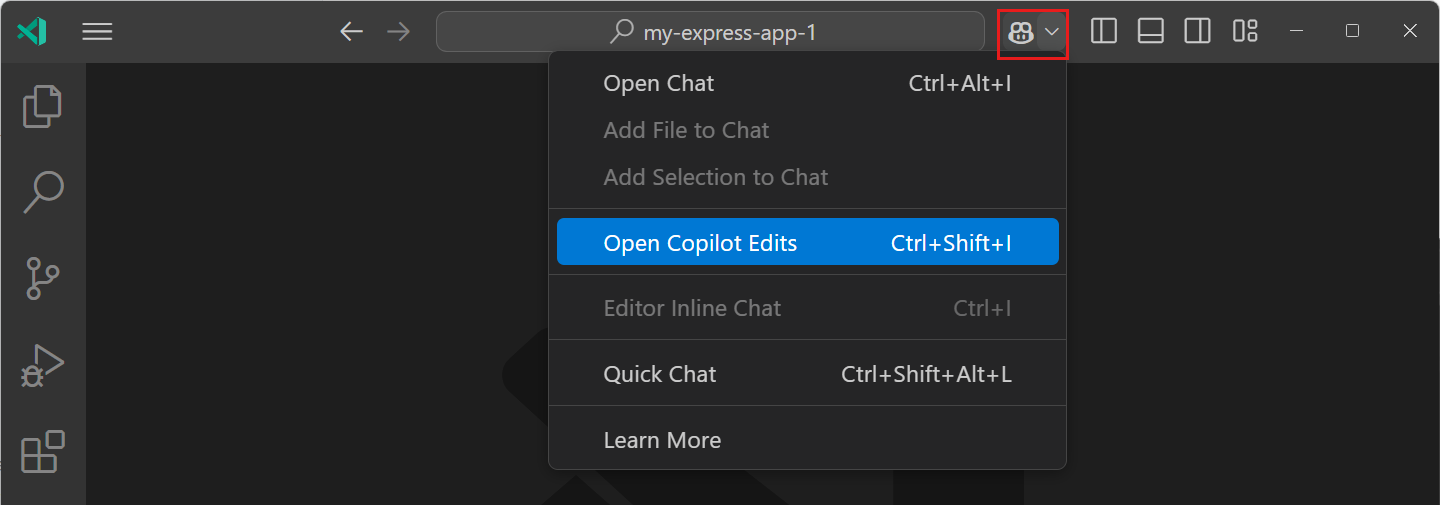
    Screenshot showing the Copilot menu in the Command Center, highlighting the Open Edit Session item

  2. Add relevant files to the working set to indicate to Copilot which files you want to work on.

  3. Enter a prompt to tell Copilot about the edit you want to make! For example, Add a simple navigation bar to all pages or Use vitest instead of jest.

Get more details about Copilot Edits in our documentation. Try it out now and provide your feedback through our issues!

Chat in the Secondary Side Bar

The new default location for the Chat view is the Secondary Side Bar. By using the Secondary Side Bar, you can have chat open at any time, while you still have other views available to you like the File Explorer or Source Control. This provides you with a more integrated AI experience in VS Code. You can quickly get to chat by using the ⌃⌘I (Windows, Linux Ctrl+Alt+I) keyboard shortcut.
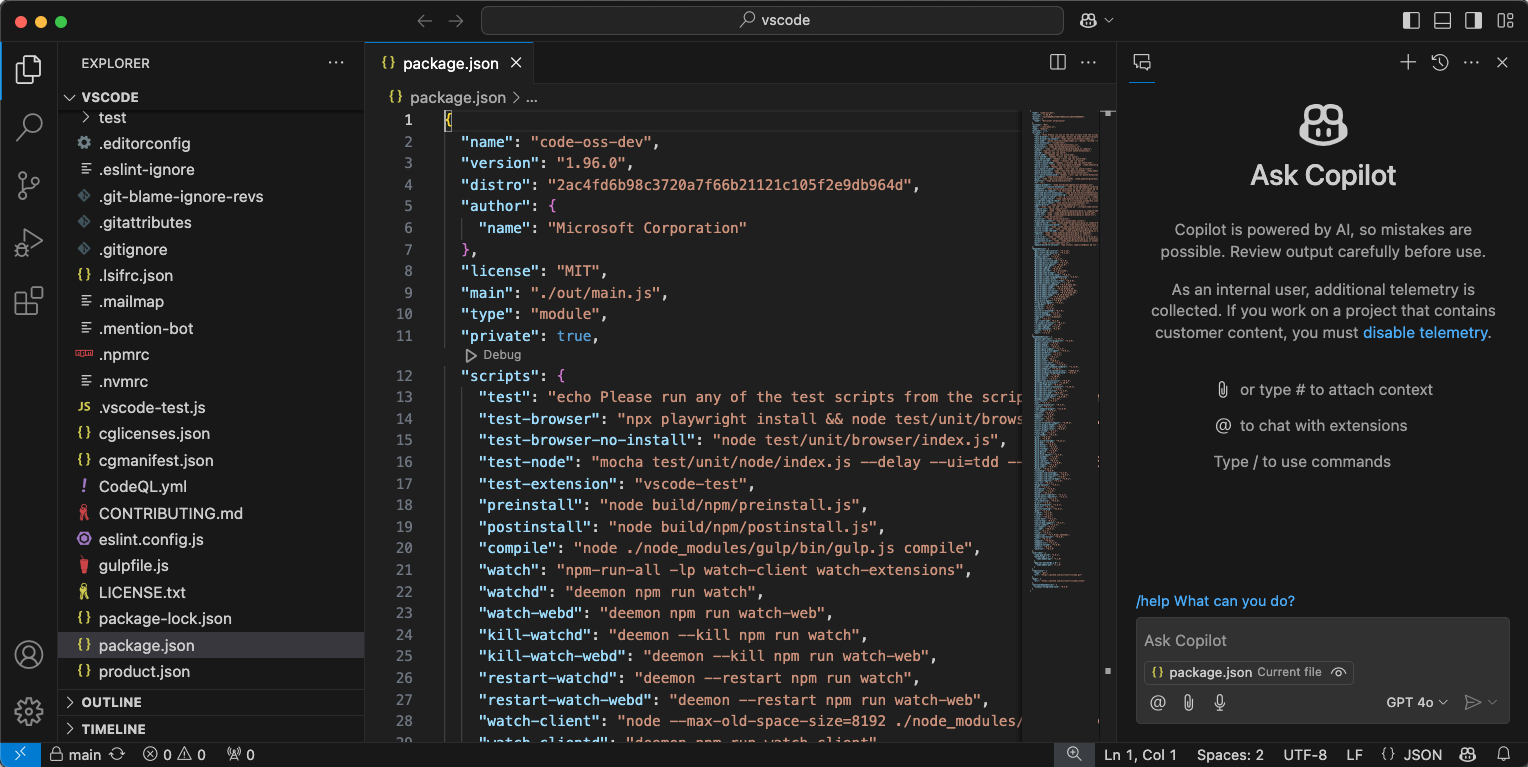
Chat view in its new location after having moved.

With the introduction of the new Chat menu next to the Command Center, bringing up the Secondary Side Bar with chat is just a click away:

The chat menu gives you access to the most common tasks for Copilot Chat. If you wish to hide this menu, a new setting chat.commandCenter.enabled is provided.
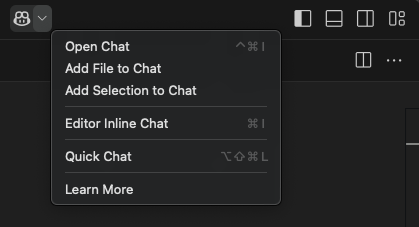
Chat menu in the Command Center.

Note: If you had previously installed GitHub Copilot, a view will show up at the location you had Chat before that enables you to restore the Chat view to the old location, if that works better for you.
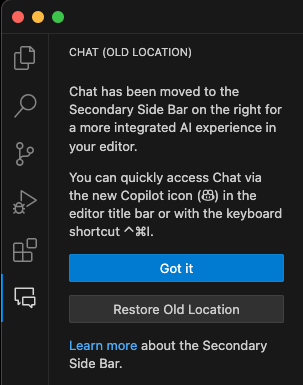
Chat view in its old location showing that Chat has moved to the Secondary Side Bar.

Copilot code reviews

Copilot code reviews are currently in preview

With GitHub Copilot code review in Visual Studio Code, you can now get fast, AI-powered feedback on your code as you write it, or request a review of all your changes before you push. GitHub Copilot code review in Visual Studio Code is currently in preview. Try it out and provide feedback through our issues.

There are two ways to use Copilot code review in VS Code:

  • Review selection: for a quick review pass, select code in the editor and either select Copilot > Review and Comment from the editor context menu, or use the GitHub Copilot: Review and Comment command from the Command Palette. (This feature is in preview.)

  • Review changes: for a deeper review of all uncommitted changes, select the Copilot Code Review button in the Source Control view, which you can also do in your pull request on GitHub.com. (Join the waitlist, open to all Copilot subscribers)
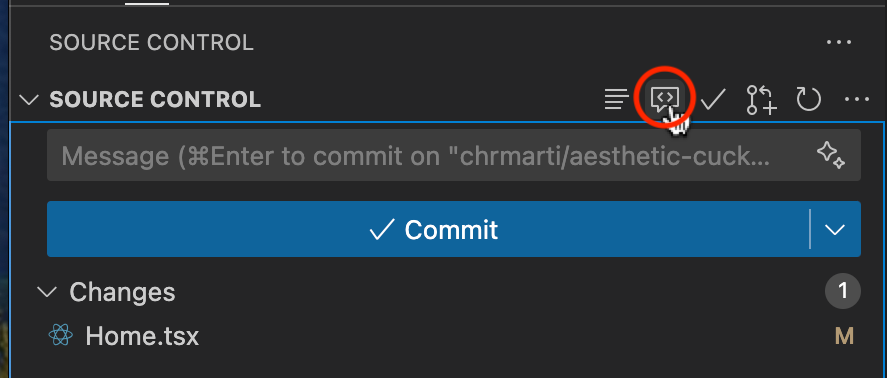
    Request review of uncommited changes

Copilot’s feedback shows up as comments in the editor, attached to lines of your code. Where possible, the comments include actionable code suggestions, which you can apply in one action.
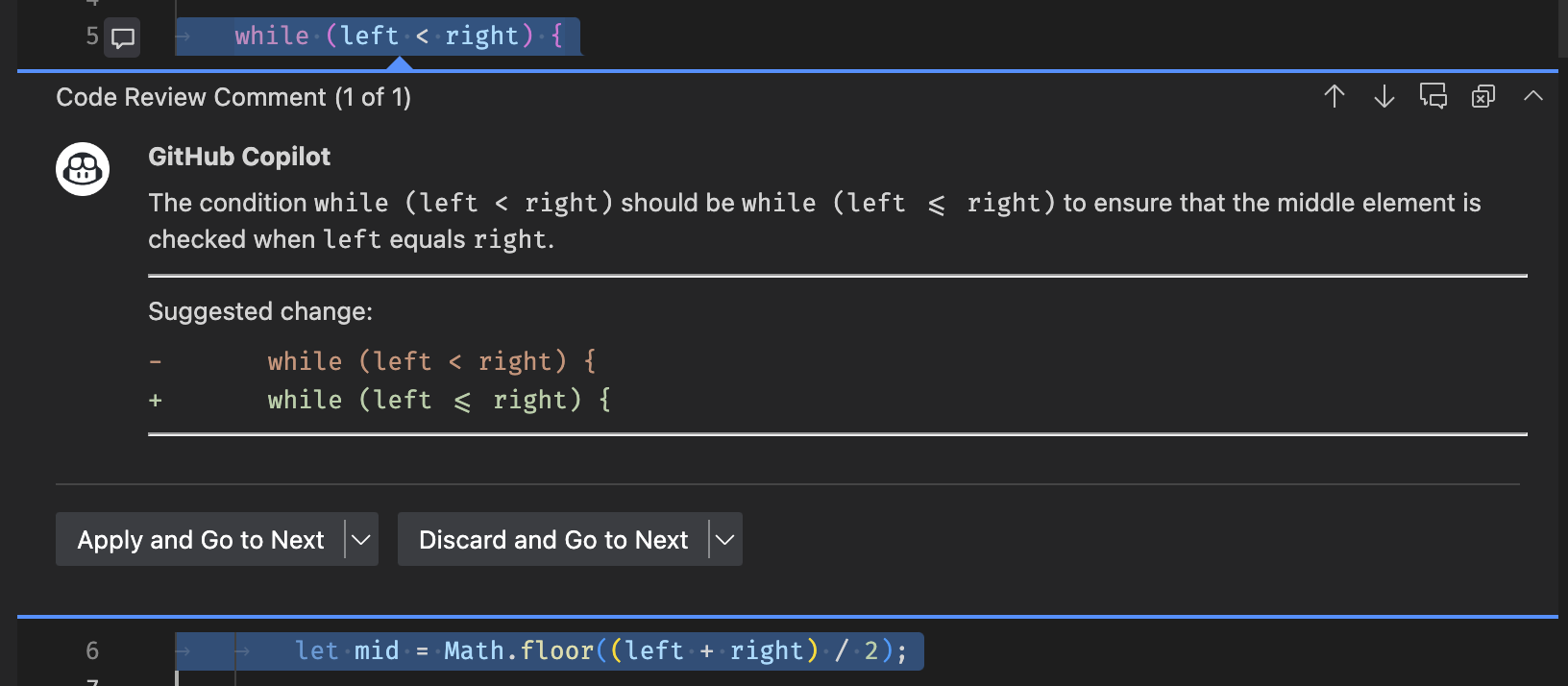
Screenshot showing a comment reviewing a code selection

To learn more about Copilot code review, head to the GitHub code review documentation.

Copilot’s quick review on code selection can provide feedback that match the specific practices of your team or project, provided you give the right context. When reviewing selections with custom review instructions, you can define those specific requirements via the github.copilot.chat.reviewSelection.instructions setting. Similar to code-generation and test-generation instructions, you can either define the instructions directly in the setting, or you can store them in a separate file and reference it in the setting.

The following code snippet shows an example of review instructions:

  "github.copilot.chat.reviewSelection.instructions": [
    {
      "text": "Logging should be done with the Log4j ."
    },
    {
      "text": "Always use the Polly library for fault-handling."
    },
    {
      "file": "code-style.md" // import instructions from file `code-style.md`
    }
  ],

An example of the contents of the code-style.md file:

Private fields should start with an underscore.

A file can only contain one class declaration.

Automatic chat participant detection

Setting: chat.experimental.detectParticipant.enabled

GitHub Copilot has several built-in chat participants, such as @workspace, and you may have installed other extensions that contribute chat participants too.

To make it easier to use chat participants with natural language, Copilot Chat will automatically route your question to a suitable participant or chat command, when possible.

If the automatically selected participant is not appropriate for your question, you can still select the rerun without link at the top of the chat response to resend your question to Copilot.

Screenshot of Chat view that shows how the '@workspace' participant is automatically detected.

This month, we also added an action to let you skip this detection behavior on a per-request basis. The default action when you enter a chat prompt is Send and dispatch, which includes participant detection. If you choose Send, the request is sent directly to Copilot Chat and it won’t be automatically dispatched to a chat participant.
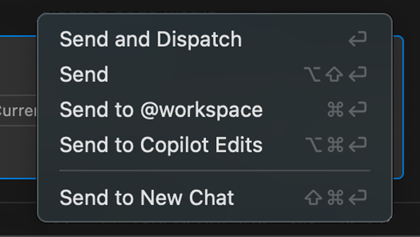
The list of available "send" commands in the chat view.

You can also disable automatic participant detection entirely with the chat.experimental.detectParticipant.enabled setting.

Control current editor context

Copilot Chat has always automatically included your current selection or the currently visible code as context with your chat request. Large Language Models (LLMs) are generally good at understanding whether a piece of context is relevant. But sometimes, when you ask a question that is not about your current editor, including this context might affect how the model interprets your question.

We now show a special attachment control in the chat input that gives a hint about the editor context and which enables you to toggle whether or not to include the editor context.
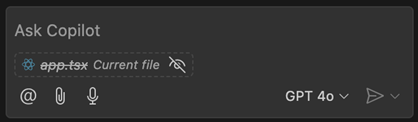
The current editor context control in the chat input, which shows that the context is not included.

There are no changes to the behavior of the editor context. When the active editor has a selection, then just the selection is included. Otherwise, just the code that is scrolled into view is included. You can still attach other files or the full file by using the paperclip button or by typing # in the chat prompt.

A common use case of Copilot Chat is asking questions about the code in your workspace, such as using /tests to generate new unit tests for the selected code or asking @workspace to find some specific class or function in your project. This milestone, we added enhanced links for any workspace symbols that Copilot mentions in chat responses. These symbol links can help you better understand Copilot responses and learn more about the symbols used in them.

Symbol links are rendered as little pills in the response, just like the file links we added last milestone. To start learn more about a symbol, just select the symbol link to jump to that symbol’s definition:

You can also hover over the symbol link to see which file the symbol is defined in:
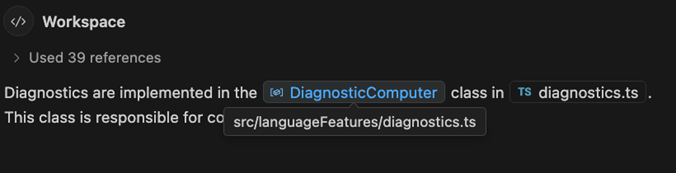
Hovering over a symbol link to see the file it's defined in.

To start exploring a symbol in more detail, just right-click on the symbol link to bring up a context menu with options, such as Go to Implementations and Go to References:
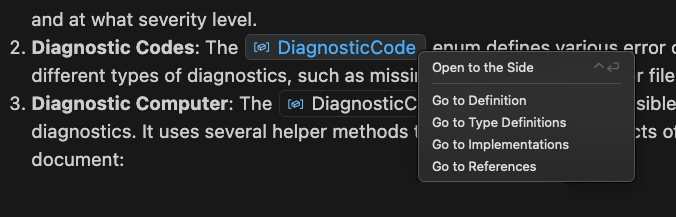
Using the context menu on a symbol link to learn more about a symbol.

Basic symbol links should work for any language that supports Go to Definition. More advanced IntelliSense options, such Go to Implementations, also require support for that language. Make sure to install language extensions to get the best symbol support for any programming languages used in Copilot responses.

Fix using Copilot action in the Problem hover

When you hover over a problem in the editor, it now includes an action to fix the problem using Copilot. This action is available for problems that have a fix available, and the fix is generated by Copilot.
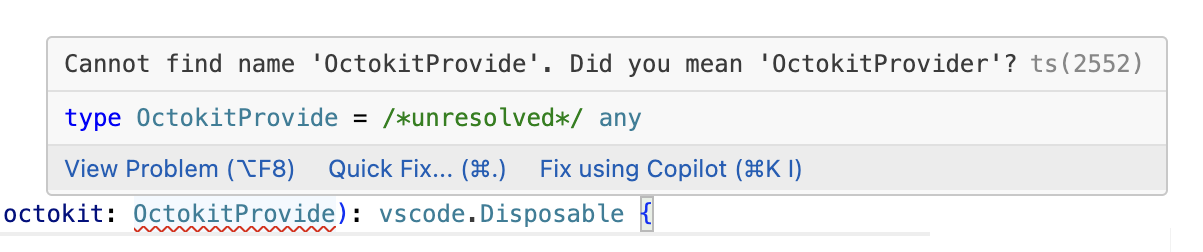
The Problem hover showing a Fix using Copilot action.

Workspace indexing

@workspace lets you ask questions about code in your current project. This is implemented using either GitHub’s code search or a smart local index that VS Code constructs. This milestone, we added a few more UI elements that let you understand how this workspace index is being used.

First up, the new GitHub Copilot: Build Local Workspace index command lets you explicitly start indexing the current workspace. This indexing is normally kicked off automatically the first time you ask a @workspace question. With the new command, you can instead start indexing at any time. The command also enables indexing of larger workspaces, currently up to 2000 files (not including ignored files, such as the node_modules or out directories).

While the index is being built, we now also show a progress item in the status bar:
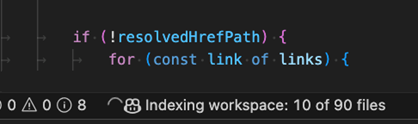
A status bar item showing the progress of indexing the current workspace.

Indexing workspaces with many hundreds of files can take a little time. If you try to ask an @workspace question while indexing is being constructed, instead of waiting, Copilot will try to respond quickly by using a simpler local index that can be built up more quickly. We now show a warning in the response when this happens:
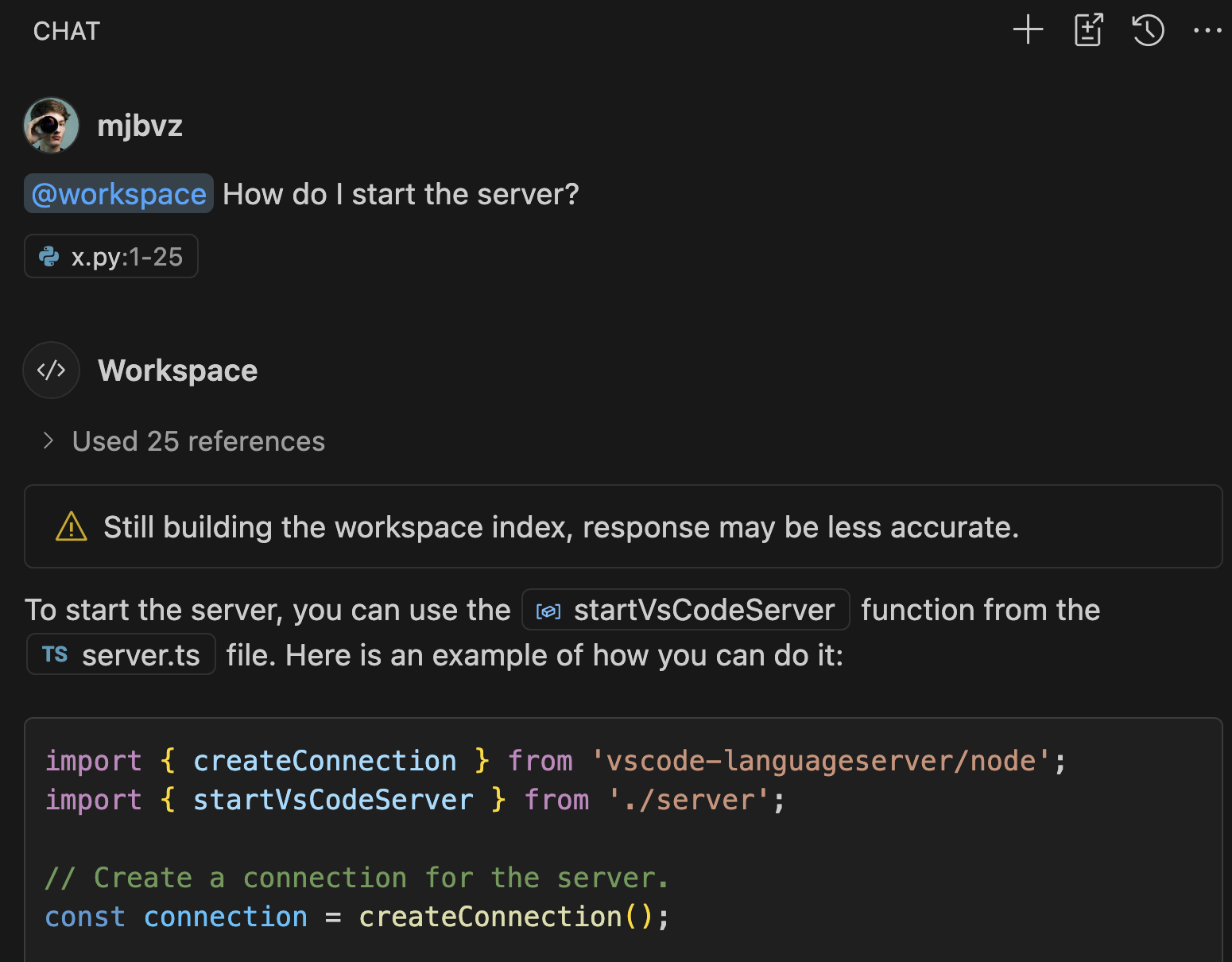
A warning showing on a response telling the user the Copilot index is being constructed.

Notice that Copilot was still able to answer the question in this case, even though it used the simpler local index instead of the more advanced one. That’s often the case, although more ambiguous or complex questions might only be answerable once the smarter index has been constructed. Also keep in mind that if your workspace is backed by a GitHub repository, we can instead use GitHub’s code search to answer questions. That means that code search is used instead of the simpler local index.

Chat follow-up improvements

Setting: github.copilot.chat.followUps

To make more room for chat conversations in the Chat view, we’ve made follow-up prompts more concise and, by default, they only appear on the first turn. Configure the github.copilot.chat.followUps setting to change when follow-up prompts appear:

  • firstOnly (default) – Follow-up prompts only appear on the first turn
  • always – Follow-up prompts always appear
  • never – Disable follow-up prompts

Sort by relevance in Semantic Search (Experimental)

Setting: github.copilot.chat.search.semanticTextResults

Last milestone, we introduced the ability to perform a semantic search using Copilot to get search results that are semantically relevant to your query. We have now improved the search results by sorting them by their relevance. Keyword matches from more relevant snippets are deemed more relevant overall.

Workbench

Multiple GitHub accounts

Graduating last month’s feature to the default behavior, it’s now possible to be logged in to multiple GitHub accounts in VS Code at the same time.
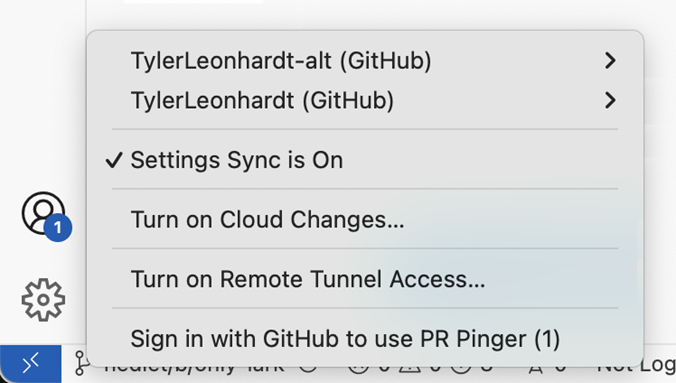
Multiple GitHub Accounts in the Account menu.

Here are a couple of scenarios in which you might need multiple accounts:

  • Use Account1 for Settings Sync and Account2 for the GitHub Pull Request extension
  • Use Account1 for the GitHub extension (to push) and Account2 for GitHub Copilot

To use this functionality, simply trigger a log in action (either with a built-in feature like Settings Sync or with an extension), and you’ll be given the option to log in to a different account. This feature also pairs nicely with the Account Preference Quick Pick, should you need to change the selected account at a later stage.

While most things should just continue to work with your existing extensions, some behaviors might not play perfectly nice with this multi-account world just yet. If you think there’s room for improvement, do open an issue on those extensions. With the help of the relatively new vscode.authentication.getAccounts('github') API, extensions have a lot of power to handle multiple accounts.

Add additional accounts when changing account preferences

Last month, we introduced the Account Preference Quick Pick, which is useful for changing the preferred account to use for an extension should you need to change that for any reason.

One of the pieces of feedback we received was around wanting an easy way to add an account that is not yet logged in. This milestone, we have introduced a new item in the Quick Pick that enables you to do just that. Use the Use a new account… item to start an authentication flow and set the account preference to that account in one go.
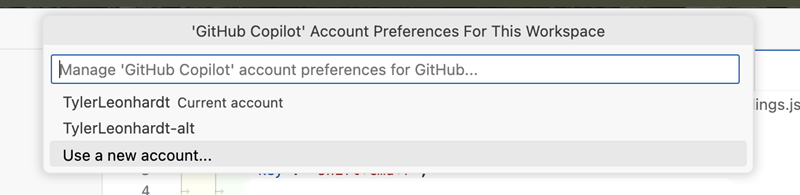
Use a new account option in the account preference Quick Pick.

Settings editor indicator for Experimental and Preview settings

Previously, it wasn’t always clear which settings were experimental or preview from looking at the Settings editor. To highlight experimental and upcoming features, the Settings editor now displays indicators next to experimental and preview settings. You can type @tag:experimental or @tag:preview in the Settings editor search box to filter to settings accordingly.

Extension authors can add “experimental” or “preview” tags to their settings to show the corresponding indicator in the Settings editor.

Theme: Light Pink (preview on vscode.dev)

More icons for profiles

In this milestone, we have added more icons for profiles. You can now choose from a wider range of icons to customize your profile.
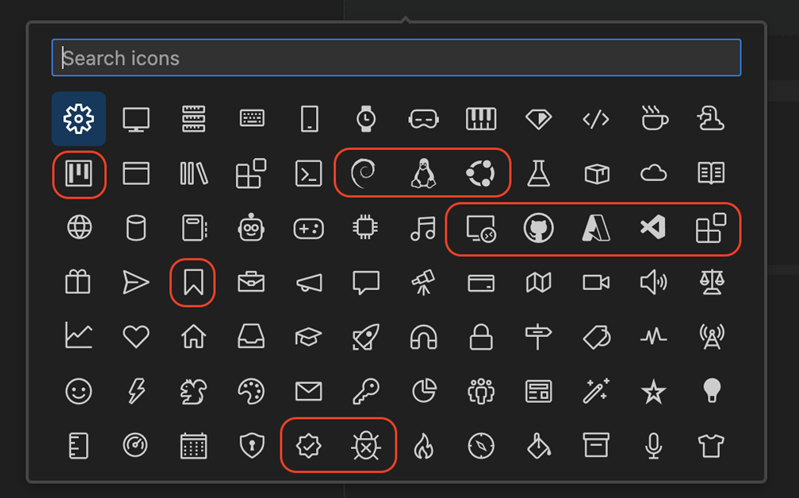
Image showing all available profile icons, highlighting the newly added icons.

View icons in Panel

In the workbench Panel area, views are typically displayed as labels in the title bar (for example, TERMINAL or OUTPUT). However, on smaller screens, these labels can exceed the available space, causing some views to overflow into a dropdown menu.

To address this, we’ve added a new setting: workbench.panel.showLabels. When disabled, views are displayed as icons instead of labels, conserving horizontal space and reducing overflow.

workbench.panel.showLabels: true

Panel area showing the labels for each panel.

workbench.panel.showLabels: false

Panel area showing an icon for each panel and no label.

Editor

Occurrences Highlight Delay

This milestone, we have introduced the setting editor.occurrencesHighlightDelay to give you control over the delay before occurrences are highlighted in the editor. Lowering this delay value can lead to an editor experience that feels more responsive when working with semantic highlighting.

VS Code for the Web

VS Code for the Web supports local file events

When using Chrome or Edge as of version 129, opening https://insiders.vscode.dev with a local folder now supports file events. If you make changes to files and folders of the opened workspace outside the browser, these changes are reflected immediately inside the browser.

This feature leverages the new FileSystemObserver interface that is proposed as new API for the web.

Contributions to extensions

Copilot extensions showcase

This milestone, the team worked on building several extensions that showcase Copilot extensibility in VS Code. These extensions demonstrate the following capabilities:

Try these extensions and see how you can extend Copilot in your own extensions.

GitHub Pull Requests

Version 0.100.0 of the GitHub Pull Requests extension adds Copilot integration:

  • Use the @githubpr chat participant in the Chat view to search for issues, summarize issues/prs, and suggest fixes for issues. @githubpr uses a number of Language Model tools to accomplish this.
  • There’s also a new Notifications view that shows GitHub notifications, with an action to prioritize them with Copilot.

To try everything out, you can set the following settings:

  • githubPullRequests.experimental.chat
  • githubPullRequests.experimental.notificationsView
Issue Search with Copilot

The new @githubpr Chat participant can search for issues on GitHub.
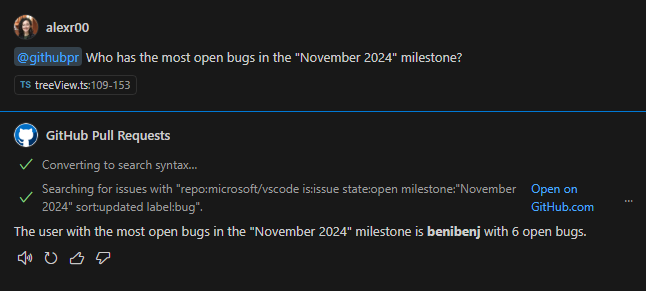
Copilot issue search for most open bugs.

When displaying issues, @githubpr shows a Markdown table and tries to pick the best columns to show, based on the search.
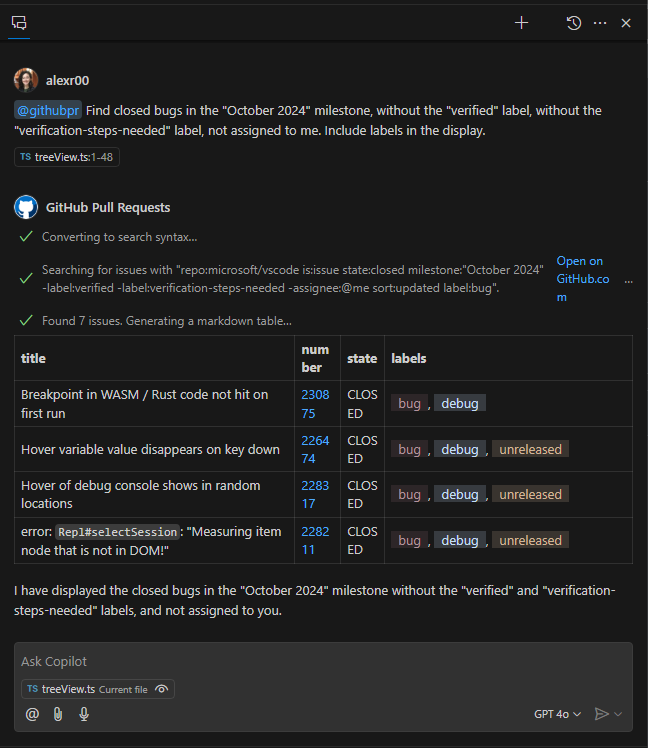
Copilot issue search for closed October issues.

Summarizing and Fixing with Copilot

Each issue listed in the Issues view now has a new action, Summarize With Copilot, that opens the Chat panel and summarizes the selected issue. We also added another action, Fix With Copilot, that summarizes the selected issue and uses the workspace context to suggest a fix for it.

Notification Prioritization with Copilot (Experimental)

This milestone, we added an experimental Notifications view that lists your unread notifications across repositories. By default, the notifications are sorted by most recently updated descending, but you can use the Sort by Priority using Copilot action from the view title’s ... menu to have Copilot prioritize the notifications. Selecting each notification triggers an action to summarize the notification using Copilot. The view also contains easily accessible actions to mark a notification as read, or to open the notification on GitHub.com.
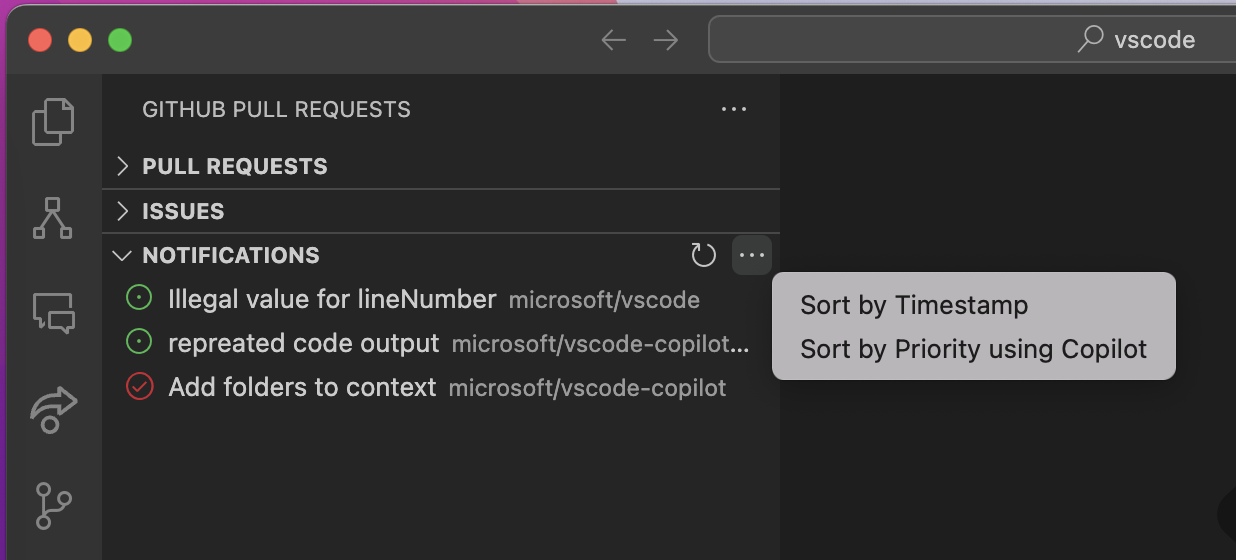
Notifications View

Web Search for Copilot

This extension showcases:

  • Chat Participant & Tool APIs
  • prompt-tsx
  • How to leverage the language models provided by GitHub Copilot

The source code is available on GitHub here.

Description

Get the most up-to-date and relevant information from the web right in Copilot.

This is powered by one of two different search engines, configured by websearch.preferredEngine:

As a user, you’ll need to acquire an API key from one of these services to use this extension. Upon first use, it asks you for that key and stores it using VS Code’s built-in secret storage, and can be managed via VS Code’s authentication stack as well just as you would for your GitHub account.

Chat participant

This extension contributes the @websearch chat participant, which is capable of handling questions that likely need live information from the internet.
You can invoke it manually using @websearch when did Workspace Trust ship in vscode?
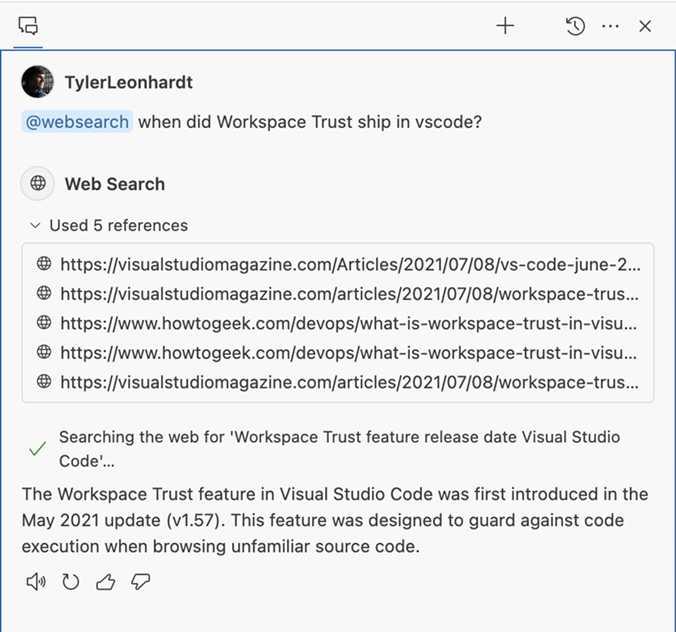
The question "when did Workspace Trust ship in vscode" and the answer showing the references and details.

Chat tool

This extension contributes the #websearch chat language model tool as well, which is similar to the participant but is useful for providing context from the web in other chat participants. For example:

  • @workspace /new #websearch create a new web app written in Python using the most popular framework
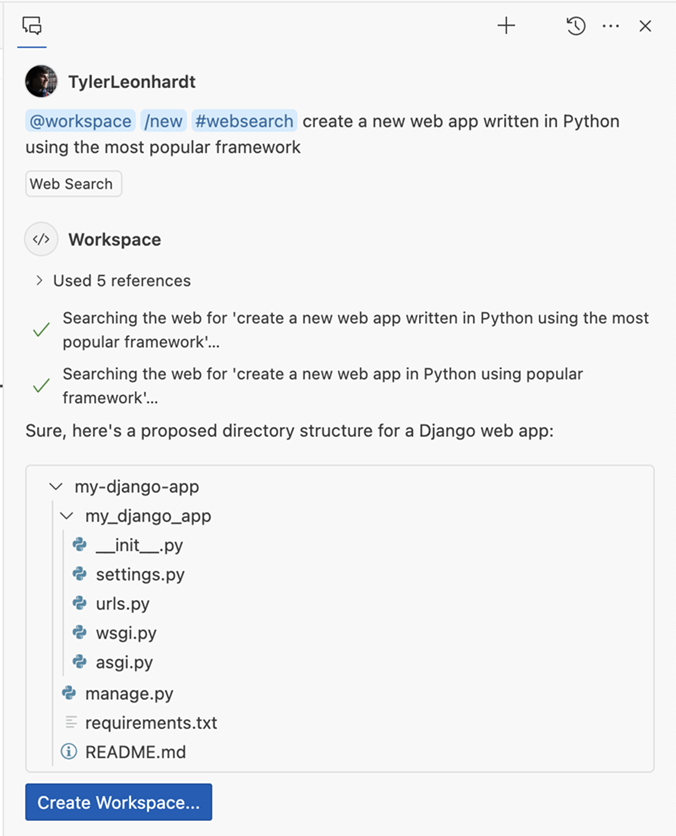
The question "create a new web app written in Python using the most popular framework" using the websearch variable with /new. The result is a project using Django.

Additionally, if you are working on your own Chat particpant or tool, you can consume this Chat tool via the vscode.lm.invokeTool API.

MermAId diagram generation with Copilot

The vscode-mermAId (vscode:extension/ms-vscode.copilot-mermaid-diagram) extension contributes a new chat participant to GitHub Copilot to build and modify visualizations for your code with Mermaid, a Markdown-inspired diagraming and charting tool.

Create and render diagrams

Create any type of Mermaid-supported diagrams through chat conversations and use the /iterate slash command to refine the diagram. Slash commands are available for specific diagrams to provide extra guidance to the model.

Links are added for certain diagram types, like flow, to point back to the references that were gathered to build the diagram.

Mermaid Visual Outline view

Open the Visual Outline view to dynamically generate diagrams from the active editor. You can break out into chat for finer control.

Chat tool

The extension contributes a tool to gather symbol information within files or the entire workspace and that can be consumed by other chat participants when this extension is installed.

Data Analysis for Copilot

The Data Analysis for Copilot extension empowers people in the data science field. From cleaning up a .csv file, to performing higher-level data analysis by leveraging different statistics measures, graphs, and predictive models, the @data chat participant helps make more advanced and informed decisions by offering tailored insights and interactivity for data tasks.

The extension contributes a tool where the LLM can ask to execute Python code by using Pyodide and get the result of the relevant Python code execution. It is also able to smartly retry for better or more appropriate execution results in case of errors. You can also export the code that is used to perform the analysis (or generate visualizations) into a Jupyter Notebook or a Python file.

You can download the extension from the marketplace and the source is available on GitHub here.

Data analysis and visualizations
  • Given a CSV file, enter a prompt such as Analyze the file #<file name> or write a more specific prompt (see below recording)
  • Provide follow-up prompts to request the generation of visualizations, such as charts, plots, and more
Exporting the code used to perform the data analysis
  • The Python code used to perform the analysis and generate visualizations can be viewed
  • The Code can be exported in a Jupyter notebook or a Python file
Editor and explorer integrations for CSV files
  • Right-click on a CSV file to analyze it
  • Open a CSV file and use the Copilot icon to analyze the file

VS Code Commander extension

The VS Code Commander extension (vscode:extension/ms-vscode.vscode-commander) acts as your personal assistant within VS Code. This powerful tool enables you to configure your VS Code environment by using conversational, free-form text. With the VS Code Commander, you can:

  • Discover and explore various settings and commands
  • Tailor your development environment to your needs

These actions can be performed through a simple and intuitive chat interface, making it easier than ever to manage your VS Code configuration.

Vision for Copilot Preview extension

The Vision for Copilot Preview extension (vscode:extension/ms-vscode.vscode-copilot-vision) enables you to attach images directly as contextual input, enriching conversations and enabling more dynamic, visually-supported responses. This extension will be eventually deprecated in favor of built-in image flow in Github Copilot Chat.

Vision in Chat

For now, you can experience the image attachment flow in the Chat view by using your own OpenAI, Azure OpenAI, Anthropic, or Gemini keys. Get started by easily attaching images from the clipboard or dragging them directly into the chat.

Screenshot of a chat exchange. A user asks for HTML and CSS for a landing page. The response provides a basic HTML structure with a header, navigation links (Home, About, Contact), and a link to an external CSS file.

Theme: Sapphire (preview on vscode.dev)

Vision with Quick Fixes

Additionally, you can generate or refine alt text for images in markdown, HTML, JSX, or TSX documents with the provided code actions, simplifying the process of incorporating descriptive text for better context and accessibility. Alt text quick fixes work for images in the workspace and image URLs.

An example markdown document displays a quick fix feature for generating alt text, resulting in the automatic insertion of an alt tag and a value. The user is then prompted with a different quick fix to refine the alt text using an input box. After the user enters and submits their refined description, the alt text is updated accordingly.

This extension uses the ChatReferenceBinaryData proposed API. Feel free to check out an example of how it’s used in the source code, available on GitHub here.

Python

Native REPL Variables view

The Native Python REPL now provides up-to-date variables for the built-in Variables view. This lets you dig into the state of the interpreter as you execute code from files or through the REPL input box.

Generate docstrings with Pylance

You can now more conveniently generate documentation for your Python code with Pylance‘s docstrings template generation feature! You can generate a docstring template for classes or methods by typing """ or ''', pressing Ctrl+Space, or selecting the lightbulb to invoke the Generate Docstring code action. The generated docstring includes fields for the function’s description, parameters, parameter types, return and return types.

This feature is currently behind an experimental setting, but we look forward to making it the default experience soon. You can try it out today by enabling the python.analysis.supportDocstringTemplate setting.

Fold all docstrings

Documentation strings are great for providing context and explanations for your code, but sometimes you might want to fold them to focus on the code itself. You can now more easily do so by folding docstrings with the new Pylance: Fold All Docstrings command, which can also be bound to a keybinding of your choice. To unfold them, use the Pylance: Unfold All Docstrings command.

Improved import suggestions

One of Pylance’s powerful features is its ability to provide auto-import suggestions. By default, Pylance offers the import suggestion from where the symbol is defined, but you might want it to import it from a file where the symbol is imported (i.e. aliased). With the new python.analysis.includeAliasesFromUserFiles setting, you can now control whether Pylance includes alias symbols from user files in its auto-import suggestions or in the add import Quick Fix.

Note that enabling this setting can negatively impact performance, especially in large codebases, as Pylance may need to index more symbols and monitor more files for changes, which can increase resource usage.

Experimental AI Code Action: Implement Abstract Classes

You can now get the best of both worlds with AI and static analysis with the new experimental Code Action to implement abstract classes! This feature requires both Pylance and the GitHub Copilot extensions. To try it out, you can select the Implement all inherited abstract classes with Copilot Code Action when defining a class that inherits from an abstract one.

You can disable this feature by setting "python.analysis.aiCodeActions": {"implementAbstractClasses": false} in your User settings.

Extension Authoring

Tools for language models

We have finalized our LanguageModelTool API! This API enables chat extensions to build more powerful experiences by connecting language models to external data sources, or take actions. The API comes with two major parts:

  1. The ability for extensions to register a tool. A tool is a piece of functionality that is meant to be used by language models. For example, reading the Git history of a file. When a tool is registered using the lm.registerTool method, it’s accessible to other extensions as well, in the lm.tools list. This will enable chat extensions to seamlessly integrate with other extensions via an ecosystem of shared tools.

  2. The mechanics for language models to support tools, such as extensions passing tools when making a request, language models requesting a tool invocation, and extensions communicating back the result of a tool invocation.

The use of language model tools is complex, and this API does not hide that complexity. If you want to register a tool or make use of tools in your chat participant, we recommend starting with the extension sample.

Chat participant detection

We have finalized our API for chat participant detection, which allows GitHub Copilot to automatically select your chat participant or participant command to handle a user’s question. Please check out our documentation for a detailed tutorial and recommendations.

VS Code Speech

The VS Code Speech extension is updated to the August version of the Azure Speech SDK and comes with newer models for speech-to-text recognition. You should see improved results with this update for the speech-to-text integrations in VS Code, such as Copilot Chat.

The expand/collapse state of a CommentThread can be changed using the new CommentThread.collapsibleState property, even once the thread has already been shown. Previously, this property would only be respected the first time the comment thread was shown.

Codicons in welcome views

Welcome views now support the ability to render codicons. You can do so using the usual $(icon-name) in your welcome view.
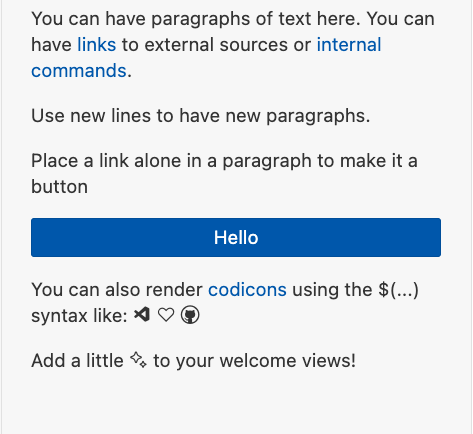
A sample welcome view showing the use of text, links, buttons, and codicons.

Chat participant access to model picker

You may have noticed the model picker in the Chat view, which lets you select the model that is used for a chat request.
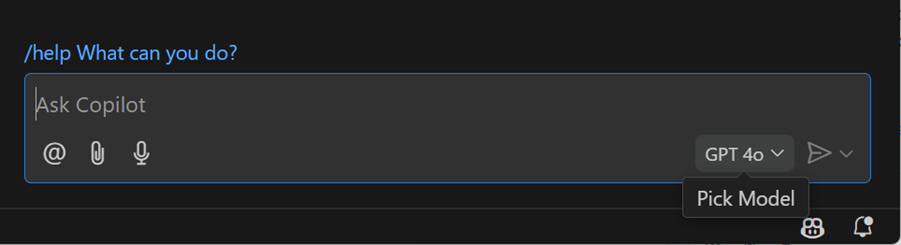
Copilot model picker control in the Chat view enables switching to another language model.

Your chat participant extension needs to adopt a new API in order to use this model picker. We just finalized a new model property on the ChatRequest object, which will be set to the LanguageModelChat instance for the model in the picker. You can use this instead of the lm.selectChatModels method. If your extension wants to use a particular model besides the selected one, you can still use lm.selectChatModels instead.

Preview Features

TypeScript 5.7

We’ve continued improving our support for the upcoming TypeScript 5.7 release. Check out the TypeScript 5.7 beta blog post and the TypeScript 5.7 plan for details.

To start using preview builds of TypeScript 5.7, install the TypeScript Nightly extension.

Update imports on paste for JavaScript and TypeScript

Tired of having to add imports after moving code between files? Try out our experimental support for updating imports on paste! When you copy and paste code between editors, VS Code automatically adds imports when the code is pasted:

Notice how it not only added imports, it even added a new export for a local variable that was used in the pasted code!

To try this out today, make sure you are using TypeScript 5.7+. Then enable javascript.experimental.updateImportsOnPaste/typescript.experimental.updateImportsOnPaste. Currently this is only supported when pasting between text editors in the same VS Code window.

Proposed APIs

Chat Reference Binary Data for image attachments

We now allow images (png, jpeg, bmp, gif, and tiff) to be pasted in chat if there is an extension that uses the ChatReferencebinaryData proposed API.

export class ChatReferenceBinaryData {
  /**
   * The MIME type of the binary data.
   */
  readonly mimeType: string;

  /**
   * Retrieves the binary data of the reference.
   * @returns A promise that resolves to the binary data as a Uint8Array.
   */
  data(): Thenable<Uint8Array>;

  /**
   * @param mimeType The MIME type of the binary data.
   * @param data The binary data of the reference.
   */
  constructor(mimeType: string, data: () => Thenable<Uint8Array>);
}

Extension authors can access this after creating a chat handler via request.references, which can be a URI when images are attached via drag and drop or from the quick pick, or will be ChatReferenceBinaryData for pasted images.

Engineering

Prompt building library for LLMs

This month, we open sourced our @vscode/prompt-tsx library, which we’ve developed and used in Copilot Chat over the past year for crafting language model prompts. The library enables developers to create their prompts using TSX/JSX syntax, similar to React, and includes a variety of tools to make the best use of prompts’ token budget.

AMD code removal and more ESM use in web

We removed the last traces of AMD (Asynchronous Module Definition) from our sources, mainly from the build scripts that we still kept for supporting AMD in case needed for a recovery release.

In addition, https://vscode.dev is now also running 100% with ESM (ECMAScript Modules) only.

Migration to ESLint 9

We’ve updated both the main VS Code repo and all of our extension samples to use ESLint 9. This included migrating all of our ESLint configuration to use modern flat configs.

Electron 32 update

In this milestone, we are promoting the Electron 32 update to users on our stable release. This update comes with Chromium 128.0.6613.186 and Node.js 20.18.0. We want to thank everyone who self-hosted on Insiders builds and provided early feedback.

Notable fixes

  • 177046 will crash after searching at extension panel

Thank you

Last but certainly not least, a big Thank You to the contributors of VS Code.

Issue tracking

Contributions to our issue tracking:

Pull requests

Contributions to vscode:

Contributions to vscode-docs:

Contributions to vscode-js-debug:

Contributions to vscode-languageserver-node:

Contributions to vscode-mypy:

Contributions to vscode-vsce:

Contributions to language-server-protocol:

Contributions to lsprotocol:

Contributions to tolerant-php-parser:
SpaceX Starship Booster Almost Aborted Historic Landing At Last Second


SpaceX recently reached an important milestone in the development of the Starship rocket. After the vehicle’s fifth launch, the Super Heavy first stage successfully returned to Earth in the loving embrace of the company’s mechazilla launch tower. It almost didn’t work, though. According to a few SpaceX engineers, the booster was a mere second away from aborting the landing.

This detail comes from an unusual source, even for a company whose CEO regularly posts announcements five levels deep in social media replies. Elon Musk recently streamed himself playing Diablo 4, which is not unusual. However, this time, he had three unnamed SpaceX engineers on the stream telling him about the recent Starship test. One of the engineers told Musk that “scary sh*t” happened during the test that almost ruined the landing.

The engineers explained that a misconfigured spin gas abort nearly caused the booster to veer away from the tower. “We were one second away from that tripping and telling the rocket to abort and try to crash into the ground next to the tower… like, erroneously tell a healthy rocket to not try that catch,” said the engineer.

If the abort had been triggered, the rocket would have maneuvered aggressively away from the tower. The vehicle’s aim would have been to crash land on the ground nearby, which could have limited damage to the launch infrastructure.

Musk, apparently unaware of the specifics of the Oct. 13 landing, replied simply, “wow” as his necromancer pulverized demons. Another engineer on the stream noted that the team at SpaceX almost delayed the launch because there was concern that the myriad “aborts and commit criteria” could cause the booster to fail even if all systems were working normally. The group also talked about the damage sustained by Super Heavy during the landing, including some failed spot welds that luckily did not compromise the structure.

The engineers also spoke on plans for the next Starship launch. Musk, continuing to play Diablo, listened as the SpaceX workers explained their goal to arrive at a “reasonable balance of speed and risk mitigation.” The team apparently has a plan to address the damaged welds, which will better secure a protective cover called the chine skin.

SpaceX has not confirmed a date for the sixth Starship test flight. The company hopes to conduct that test later this year. It’s uncertain if SpaceX will attempt to catch Super Heavy again, but it intends to try to recover the Starship upper stage for the first time.


Understanding Homeowner Liability in Worker Injury Cases


Home Business Magazine Online

The complexities of homeowner liability in cases of worker injury are multifaceted and often not fully understood. As a homeowner, the prospect of a worker being injured on your property may seem remote, but the legal and financial repercussions can be significant. It is essential to comprehend the scope of this liability, how it intertwines with worker’s compensation and homeowner’s insurance, and the potential risk mitigation strategies. Moreover, the exploration of real-life case studies not only sheds light on the practical implications but also underscores the necessity for proactive measures.

Defining Homeowner Liability

In the domain of personal injury law, homeowner responsibility refers to the legal obligation that homeowners bear when a worker gets injured on their property. This principle seeks to guarantee that the homeowner respects specific liability requirements, which fundamentally aim to create safer environments for workers.

A key aspect of homeowner duties includes, but is not limited to, maintaining safe conditions on the property. For example, homeowners should make sure that all work areas are free from hazards, that appropriate safety measures are implemented, and that workers are informed about potential risks. Ignorance or neglect of these duties could lead to severe consequences, both legally and financially.

Understanding the specifics of homeowner responsibility is essential in order to protect both homeowners and workers. It fosters a culture of accountability, ensuring that homeowners take proactive steps to prevent accidents. Conversely, it empowers workers with the knowledge and assurance that their safety is a legal requirement, not a mere courtesy. A thorough understanding of homeowner responsibility helps to create a safer and more accountable working environment for all parties involved.

The Legal Framework of Liability

As we turn our focus to the legal framework of liability in homeowner-worker injury cases, it is essential to realize the intricate interplay of laws and regulations that define this area. Our examination will first cover a thorough understanding of homeowner liability, setting the foundation for our discussion. We will then analyze the existing worker injury legislation, and explore real-life liability case examples to elucidate the complexities of this legal issue.

Understanding Homeowner Liability

A significant proportion of homeowners may not fully comprehend the extent of their legal liability when they hire workers for home maintenance, renovations, or repairs. Understanding this facet of homeowner liability requires an effective risk assessment and the implementation of precautionary measures to prevent worker injuries.

  1. Risk Assessment: Homeowners are expected to conduct a thorough risk evaluation of the work environment. This includes identifying potential hazards that may cause injury to the workers, such as unsafe structures or harmful materials.
  2. Precautionary Measures: Once potential hazards are identified, homeowners have to put in place preventive measures to mitigate these risks. This could involve providing safety gear, ensuring properly maintained equipment, or offering training on safety procedures.
  3. Legal Liability: A failure to adhere to these responsibilities may lead to homeowner’s accountability in the event of a worker’s injury. This can result in significant financial and legal repercussions.

Understanding homeowner liability is crucial to safeguarding both the homeowner and the worker. By conducting proper risk assessments and implementing preventive measures, homeowners can limit their liability exposure and guarantee a safe work environment for hired workers.

Worker Injury Legislation

Understanding homeowner responsibility establishes the groundwork for the subsequent consideration of the legal framework of liability, specifically worker injury legislation. This legislation primarily focuses on the legal responsibilities of homeowners to guarantee worker safety and reduce liability risks.

The legislation underlines homeowner duties to provide safe working conditions for workers. They may be held accountable for any injuries that occur due to negligence or failure to meet the prescribed safety standards. Whether the workers are hired directly or through a contractor, homeowners are required to make sure that proper safety measures are implemented and followed.

In terms of liability risks, homeowners may face significant legal repercussions if a worker is injured on their property. This could range from financial compensation to the injured party, to legal penalties for violation of worker safety laws. Understanding determining homeowner liability for worker injuries under premises liability can help homeowners mitigate these risks by ensuring they maintain a safe environment.

Liability Case Examples

Numerous real-world cases perfectly illustrate the complex legal framework of liability in worker injury incidents on homeowner properties. These cases provide a rich resource for case analysis and liability evaluation.

  1. In the landmark case of ‘Murphy v. Landry’, a homeowner was found not liable for a worker’s injury. The court concluded that the injured party was an independent contractor, hence the homeowner did not owe them a duty of care.
  2. In contrast, ‘Johnson v. Smith’, found the homeowner liable for the worker’s injuries. The homeowner had failed to warn the worker about a known hazard, thus breaching their duty of care.
  3. The ‘Brown v. Green’ case was a middle-ground scenario. The homeowner was found partially liable because they had some control over the worksite, but the worker also failed to exercise reasonable care.

These examples amplify the importance of understanding the nuances of homeowner liability in worker injury cases. Each case analysis reveals a different aspect of liability evaluation, emphasizing the need for homeowners to be aware of their responsibilities and potential liabilities. It’s important to mention that liability is not always straightforward and could be influenced by specific circumstances.

Potential Scenarios for Liability

How might a homeowner be held liable in the unfortunate event of a worker injury on their property? The answer hinges on two main factors: contractor negligence and homeowner responsibilities.

Consider a scenario where a contractor, tasked with roof repairs, slips and falls due to his own negligence. Despite this, the homeowner might still face legal consequences if they failed to make sure the contractor was licensed, insured, and adhered to safety measures. In this case, the homeowner’s lack of proper diligence could render them partially liable for the contractor’s injuries.

Another potential scenario could involve the homeowner’s failure to warn the contractor about known hazards, such as a weak staircase or dangerous electrical wiring. In such cases, the homeowner could be deemed negligent for not taking necessary precautions or providing adequate safety measures.

In both scenarios, the homeowner could be held accountable for the worker’s injury. Therefore, it is essential for homeowners to conduct thorough checks on contractors’ credentials, insist on the use of safety equipment and maintain their property to a safe standard. Failure to do so could have significant legal consequences.

Worker’s Compensation and Homeowner Liability

The intricacies of worker’s compensation laws often intersect with homeowner liability, creating a complex legal landscape. When a worker is injured on a homeowner’s property, it raises questions about the homeowner’s legal obligations and the worker’s rights to compensation.

  1. Worker’s Rights to Compensation: Workers have the right to be remunerated for injuries sustained while performing their duties. This can include medical expenses, lost income, and even disability benefits. However, the extent of these rights depends on the specific circumstances surrounding the injury, including whether or not the worker was an employee or an independent contractor.
  2. Homeowner’s Legal Responsibilities: Homeowners have legal duties to guarantee a safe working environment. If a homeowner fails to fulfill these obligations, they may be held accountable for a worker’s injuries. This could result in the homeowner having to cover the worker’s medical expenses, lost income, and other damages.
  3. Intersection of Worker’s Compensation and Homeowner Liability: The interplay between worker’s compensation and homeowner liability can be intricate. Depending on the circumstances, a homeowner may be held liable for a worker’s injuries even if the worker is eligible for worker’s compensation. This complexity underscores the importance of understanding your legal responsibilities as a homeowner.
People Sitting While Discussing
Image by Pexels

Impact of Homeowner’s Insurance

Often ignored, homeowner’s insurance can play a crucial role in cases of worker injury. The extent of this role is largely determined by the specifics of the insurance coverage and its legal implications. A homeowner’s insurance policy generally includes liability coverage, which is designed to protect homeowners from financial loss if someone gets injured on their property.

Insurance coverage can be a lifeline in worker injury cases, taking care of expenses that could potentially run into thousands of dollars. However, the ability of the insurance to cover these costs depends on the liability limits set in the homeowner’s policy. If the injury-related expenses exceed the liability limits, the homeowner might be personally responsible for the difference.

To avoid such financial burden, homeowners should consider their coverage options carefully. By identifying potential risks and adjusting liability limits accordingly, homeowners can guarantee adequate protection. Additionally, some insurance policies offer additional coverage options, such as medical payments coverage, which can further mitigate financial risk.

Mitigating Risks of Liability

Finding your way through the maze of homeowner liability can be challenging, yet it is vital in preventing potential financial disaster. Mitigating the risks of liability involves strategic planning and careful execution of risk management techniques.

  1. Risk Assessment: Understand the potential risks associated with having workers on your property. This includes identifying areas where injuries could occur, such as hazardous work environments or tasks that require specialized equipment.
  2. Prevention Strategies: Implementing prevention strategies is a key step in risk management. This could involve enhancing safety measures, providing adequate training to workers, and regularly maintaining equipment.
  3. Insurance Coverage: Make sure you have sufficient homeowner’s insurance coverage which includes liability for worker injuries. This serves as a safety net, providing financial protection against claims.

It’s important to understand that mitigating risks doesn’t eliminate them entirely. However, these strategies reduce the likelihood of an incident, hence, reducing your potential liability. Remember, it’s always better to be proactive rather than reactive when it comes to liability. Your home is a significant investment, and it’s worth taking the necessary steps to protect it.

Case Studies: Real-Life Liability Cases

While it is imperative to have preventive strategies in place, real-life cases often provide valuable insight into the complexities of homeowner liability in worker injury cases. Consider a case where a house cleaner slipped on a wet floor, resulting in severe injury. The homeowner was held liable, but liability limits came into play, capping the damages to be paid. This case accentuates the importance of understanding your homeowner’s insurance policy and its liability limits.

In another case, a gardener was injured by a faulty power tool. The homeowner, however, successfully used liability defenses. The court agreed that the homeowner was not responsible for the maintenance of the gardener’s tools, shifting the liability to the gardener’s employer.

These cases underscore the need for homeowners to be well-versed in their potential liability and the defenses available to them if a worker is injured on their property. They also highlight how liability limits can influence the financial consequences of these cases. Understanding the nuances of these real-life cases can guide homeowners in making informed decisions about hiring workers, managing risks, and handling potential legal implications.

Protecting Yourself From Liability

Exploring the perilous waters of homeowner liability can be a challenging task; however, there are proactive measures homeowners can take to shield themselves from potential legal entanglements. The key is to focus on risk management and liability prevention.

  1. Risk Management: Effective risk management begins with identifying potential hazards in your home that could cause harm to workers. This could include things like weak floorboards, loose electrical wiring, or slippery surfaces. Once identified, these hazards should be promptly addressed to lessen the risk of worker injury.
  2. Insurance Coverage: Having adequate insurance coverage is a non-negotiable aspect of liability prevention. Homeowners should make sure that their policy includes sufficient coverage for worker injuries. This serves as a financial safety net in the event of any unforeseen incidents.
  3. Worker Verification: Finally, homeowners should only hire verified workers who have their own insurance and are bonded. This reduces the chance of facing personal liability in case of an accident.

Frequently Asked Questions

What Are Some Examples of Injuries That Workers Could Sustain While Working at My Home?

Common injuries workers could sustain at your home include falls from heights, electrical shocks, cuts and lacerations, or even chemical burns. Adequate safety precautions greatly reduce the risk of such incidents.

How Can I Ensure a Contractor Has Adequate Insurance Before Starting a Project in My Home?

To verify that a contractor has adequate insurance, you should request proof of coverage and confirm the policy’s validity and extent. Ascertain it covers potential worker injuries to mitigate your homeowner liability risk. Be persuasive in demanding this evidence.

What Should I Do Immediately if a Worker Gets Injured on My Property?

In the event of a worker’s injury on your property, immediately seek medical help. Then, consult your insurance company and a legal expert to understand potential legal implications and insurance coverage aspects of the situation.

Can I Face Liability if the Injured Worker Is a Family Member or a Friend?

Yes, you can face legal implications if an injured worker is a family member or friend. The relationship dynamics do not exempt homeowners from liability for injuries that occur on their property.

What Are Some Preventative Measures I Can Take to Avoid Worker Injuries on My Property?

Implementing safety protocols and providing training programs can mitigate risks. Regular inspections, ensuring safe use of equipment, and maintaining a clean work area are additional preventative measures to minimize worker injuries on your property.

The post Understanding Homeowner Liability in Worker Injury Cases appeared first on Home Business Magazine.

Hollywood’s Olivia Wilde launches a VC firm


Actress Olivia Wilde, famous for her roles in “Tron: Legacy” and “Don’t Worry Darling,” quietly launched venture firm Proximity Ventures late last year, according to Bloomberg.

She launched the early- and growth-stage investment fund with Neil Sirni, formerly of Roc Nation’s venture division Arrive; Jason Mack, formerly of Mack Ventures; and Santi White, the musician also known as Santigold.

The firm plans to invest in companies that are in the consumer and enterprise sectors. The firm has already inked four investments, including Pendulum Therapeutics, a biotech company.

Proximity expects to hold a first close next month.

TechCrunch reached out to Proximity Ventures for comment and will update if we hear back.