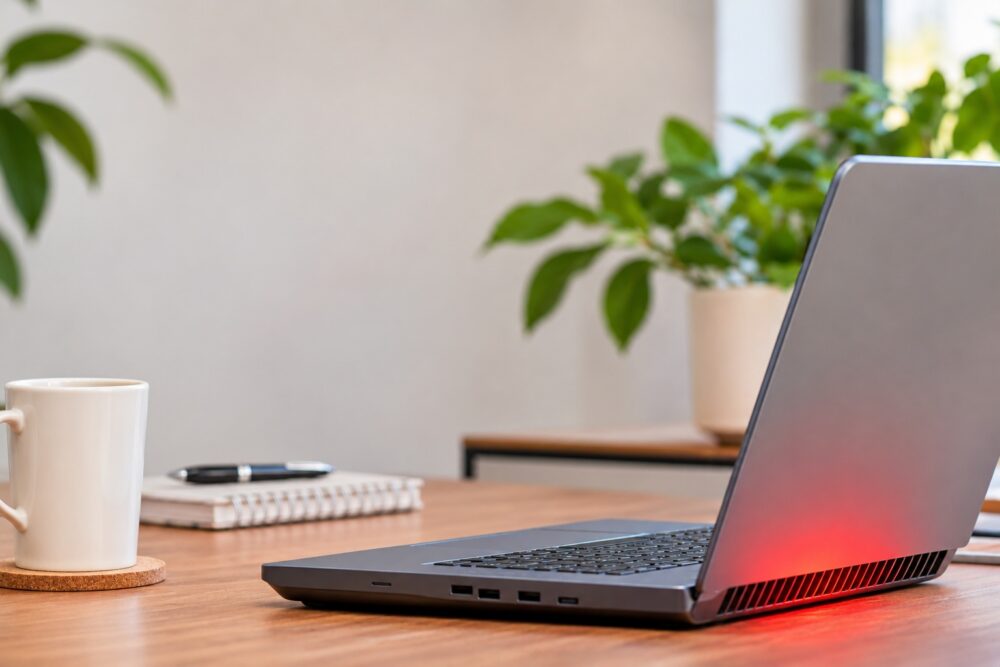
If your laptop keeps overheating, shut it down, unplug the charger, and let it cool on a hard, flat surface. Check for blocked vents, dust buildup, and programs using excessive processing power. If overheating continues, professional laptop repair in Frisco, TX, can help identify cooling system problems before they cause permanent hardware damage.
Laptop overheating is more than an inconvenience. Excessive heat can slow your computer, interrupt important work, and shorten the lifespan of internal components. Whether you’re working from home, attending online classes, or running a business in Frisco, an overheating laptop can quickly disrupt your day.
At PC Geeks, we understand how frustrating computer problems can be, especially when you depend on your laptop for everyday tasks. Our team helps Frisco-area customers troubleshoot computer issues, identify hardware problems, and find practical repair solutions. We believe in making technology easier to understand, providing straightforward guidance, and helping customers make informed decisions about their devices. Knowing the warning signs of overheating and taking action early can make a significant difference in protecting your computer.
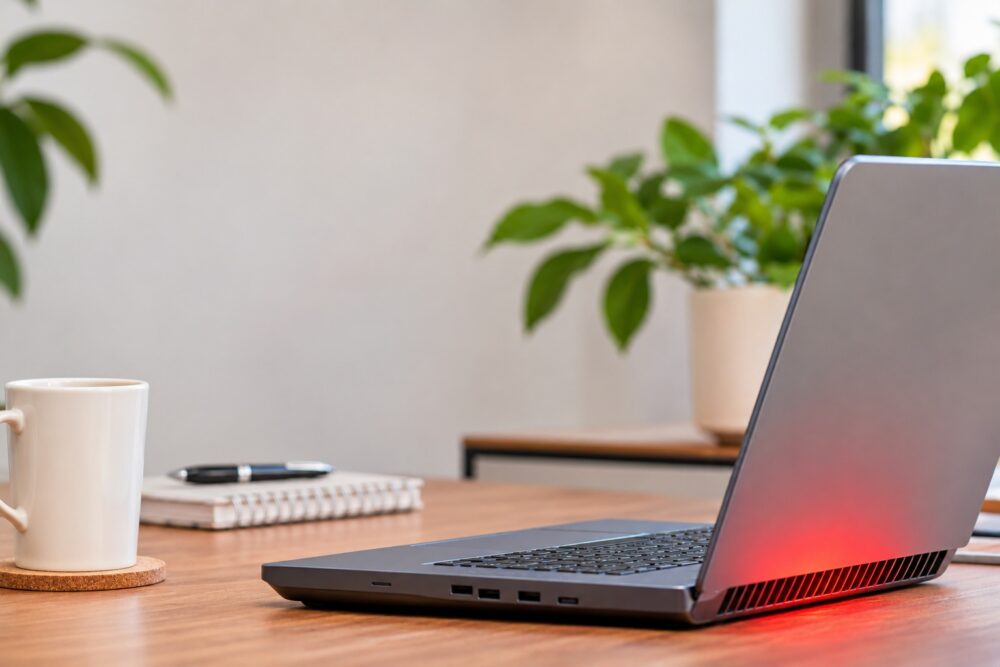
Laptop Overheating Warning Signs and How to Prevent Damage
Laptop overheating can develop gradually or appear suddenly during demanding tasks. Understanding the symptoms, common causes, and appropriate troubleshooting steps can help prevent minor cooling problems from becoming expensive repairs.
1. How Can You Tell If Your Laptop Is Overheating?
The most common signs of laptop overheating include loud fans, unusually hot surfaces, slow performance, and unexpected shutdowns. These symptoms often indicate that your laptop is struggling to regulate its internal temperature.
Watch for these warning signs:
- Constant fan noise: Your laptop’s cooling fan runs loudly, even when you’re performing simple tasks.
- Hot keyboard or bottom panel: The laptop feels unusually warm or uncomfortable to touch.
- Slow performance: Applications freeze, lag, or respond slowly as the processor reduces its speed to control heat.
- Unexpected shutdowns: Your laptop turns off or restarts without warning.
- Frequent crashes: Programs become unstable, particularly during demanding activities.
Modern processors often use thermal throttling, which automatically reduces performance when temperatures become too high. According to Intel’s guidance on processor thermal management, this behavior helps protect components from excessive heat.
However, repeated overheating should not be ignored. If your laptop regularly becomes hot enough to shut down, the cooling system may need attention.
2. Why Does My Laptop Keep Getting So Hot?
Laptop overheating usually happens when heat cannot escape efficiently or internal components generate more heat than the cooling system can manage.
Several common problems contribute to excessive laptop temperatures.
Dust and debris buildup
Over time, dust collects around cooling fans, vents, and internal components. This restricts airflow and makes it harder for your laptop to release heat.
Blocked ventilation
Using a laptop on a bed, blanket, couch, or other soft surface can block ventilation openings. Without proper airflow, heat becomes trapped inside the computer.
Too many demanding programs
Running multiple applications, video editing software, or games can increase processor and graphics activity, generating additional heat.
Cooling system problems
A malfunctioning fan, deteriorated thermal paste, or damaged cooling assembly can prevent heat from moving away from critical components.
Environmental temperatures
Frisco’s hot Texas summers can make laptop cooling more challenging, especially when devices are used in warm rooms, vehicles, or outdoor environments.
The National Weather Service identifies North Texas summers as consistently hot, making proper ventilation and temperature management particularly important for electronics used around the Dallas-Fort Worth area.
3. What Should You Do Immediately When Your Laptop Overheats?
If your laptop becomes excessively hot, stop using it and allow it to cool before attempting further troubleshooting. Continuing to operate an overheating device can increase the risk of hardware problems.
Follow these steps:
- Shut down your laptop. Save your work if possible, close your applications, and turn off the computer.
- Disconnect the charger. Unplug external power and unnecessary accessories while the laptop cools.
- Move it to a hard, flat surface. A desk or table allows air to circulate around ventilation openings.
- Check the vents. Look for visible dust or obstructions. Once the laptop is powered off and cool, gently clean accessible vents using manufacturer-approved methods.
- Check running programs. After the laptop has cooled, use Task Manager on Windows or Activity Monitor on macOS to identify applications consuming excessive resources.
- Install appropriate updates. Manufacturer-recommended firmware, operating system, and driver updates may resolve certain fan-control or performance issues.
Avoid placing your laptop in a refrigerator or freezer to cool it down. Sudden temperature changes can cause condensation, potentially damaging sensitive electronic components.
If you notice smoke, a burning smell, battery swelling, or unusual hissing sounds, stop using the laptop immediately. Do not charge or attempt to open a device with a suspected damaged battery.
4. Can Laptop Overheating Cause Permanent Damage?
Yes, persistent laptop overheating can contribute to permanent hardware damage, particularly when the cooling system is malfunctioning or protective temperature controls cannot adequately manage the problem.
Although modern laptops include safeguards that reduce performance or trigger shutdowns, these protections do not eliminate every risk associated with excessive heat.
Potential consequences include:
- Reduced component lifespan: Prolonged exposure to high temperatures can accelerate wear on electronic components.
- Battery deterioration: Excessive heat can contribute to faster battery aging and reduced battery performance.
- Performance problems: Repeated thermal throttling can make everyday computing noticeably slower.
- Unexpected interruptions: Heat-related shutdowns can interrupt work and cause unsaved information to be lost.
- Costly repairs: Unresolved cooling failures may eventually require replacement components.
Apple’s published operating-temperature guidance, for example, recommends using Mac laptops in ambient temperatures between 50°F and 95°F (10°C to 35°C). Other manufacturers provide their own operating limits.
For Frisco residents who frequently travel with laptops, leaving a computer inside a parked vehicle during summer can expose it to temperatures well beyond recommended operating conditions.
Keeping your device properly ventilated and addressing cooling problems early can help reduce these risks.
5. When Should You Get Professional Laptop Overheating Repair in Frisco?
Professional laptop repair is recommended when overheating continues despite basic troubleshooting, especially if the computer repeatedly shuts down, makes unusual fan noises, or becomes excessively hot during light use.
Some cooling problems require more than external cleaning or software adjustments.
A computer repair technician can evaluate:
- Internal cooling fans and airflow restrictions
- Dust accumulation inside the laptop
- Thermal paste and heat-transfer components
- Processor temperatures and system performance
- Battery condition and potential hardware failures
Professional diagnostics can help determine whether your laptop needs internal cleaning, a replacement fan, cooling system maintenance, or another repair.
For residents and small businesses throughout Frisco, including areas near Frisco Square, The Star, and surrounding neighborhoods, dependable computer performance is essential for staying productive.
At PC Geeks, our goal is to help customers understand their computer problems and explore practical solutions before small issues become major disruptions.
Frequently Asked Questions About Laptop Overheating
Is It Normal for a Laptop to Get Hot While Charging?
Yes, laptops can become warmer while charging, especially when running demanding applications. However, excessive heat, unexpected shutdowns, or surfaces that become uncomfortable to touch may indicate a battery, charging, or cooling problem.
Can a Cooling Pad Fix an Overheating Laptop?
A cooling pad may improve airflow and reduce temperatures in some laptops. However, it cannot repair a broken fan, clogged internal cooling system, or other hardware malfunction causing persistent overheating.
How Often Should You Clean Your Laptop’s Cooling Vents?
Inspect your laptop’s vents every few months and clean them when dust becomes visible. Devices used in dusty environments or around pets may require more frequent attention. Follow the manufacturer’s cleaning instructions.
Should I Replace My Laptop If It Keeps Overheating?
Not necessarily. Many overheating problems can be resolved through cleaning, fan replacement, or cooling system maintenance. A professional diagnosis can help determine whether repairing or replacing your laptop makes better financial sense.
Stop Laptop Overheating Before It Leads to Costly Repairs
An overheating laptop doesn’t always mean you need a new computer. In many cases, identifying the underlying problem early can help restore reliable performance and extend your device’s useful life.
If your laptop is running hot, slowing down, or shutting off unexpectedly, PC Geeks is here to help Frisco-area customers find the right solution.
Ready to get your laptop running cooler and more reliably? Contact PC Geeks today to discuss your laptop overheating concerns and explore your repair options.