How To Record Multiple Microphones on One Computer
If you have ever tried connecting a USB microphone to a computer (especially Windows) you will know the rabbit hole you can often find yourself descending into!
It seems the whole process is designed to thwart you at every turn.
Usually it ends up in war between the you, the program you are using and Windows itself with often no clear winner.
Now try to use two USB mics at the same time and there will be guaranteed tears before bedtime!
Well at least for me those days are over.
There is an online service called Riverside.fm which takes over the entire process and makes it idiot proof… well for this idiot anyway.
Check the video below for a demonstration on how it works and what you can do with it.
10 Free Video Editing Websites Every Creator Should Know (2026)
These days when you buy into a video editing program, more often than not it will come with a bunch of free assets which in the beginning seems awesome.
However it usually doesn’t take too many projects to realize that although a lot of it is good, a bunch of it is kinda naff!
There has always been a bunch of free websites offering images, b-roll footage and other assets but it seems to be the nature of those websites that they come and go on a regular basis.
Often they are just not built on a sustainable plan so the money runs out and they go to the internet graveyard.
So in light of that here’s a fresh list of websites you can use for all sorts of assets for your own projects and hopefully they will last out the year!
Over the past couple of years it has been quite interesting to see the rapid development of not only traditional PC/Mac video editing programs but also for mobile apps as well.
Although I don’t ever personally use mobile apps for any editing purposes due to using very large files, it is amazing what you can get done in some of these apps for more modest projects.
On top of that many of them are actually free and one that is quite handy is the YouTube app for both iPhone and Android systems.
Here’s a runthrough of working with this app from the guys at Primal Video.
Take Control of Your AI Model – PowerDirector
One of the problems with all the new A.I. models that have been introduced into many video editing programs is that they are not actually native to those programs.
They all have their own way of adding them but the bottom line is that the A.I. model itself stands separate to the software itself.
There is know way any video editing software company is going to have the resources or “in-house” knowledge to accomplish such a task!
So what you are really seeing is “access” to various A.I. models through your editor’s interface.
At the end of the day whatever you are entering in as a prompt is being exported to the relevant model with the results being pulled back in.
The good news is that because these video editing software companies are dealing in bulk access, you are benefitting in the form of pricing for the A.I. work being done.
However it is still important to understand exactly how it all works so that you can minimize your spend on these A.I. tasks.
Here’s a video from Maliek at PowerDirector University showing how to get the most out of A.I. credits when dealing with such a model.
Animate Videos Faster in Filmora 15
Full disclosure here, I am definitely not one for spending endless hours faffing around with keyframes to create cool motion graphics!
In reality, for the projects I work on it is not really an important factor and let’s face it, I just don’t have the patience!
Having said that I do carry out some work like that and I tend to fall back on to the easiest solution I can find!
Some of my clients get all excited about some of the stuff I do and of course being as vain as I am I graciously accept their approval!
Truth is, I use presets and I am not ashamed to admit it!
With the update to Filmora to version 15 a slightly hidden set of features and presets were added which I am already using for that exact purpose.
Check the video below for getting some great looking motion graphics the absolute lazy way!
Another tool that was recently extended in Filmora 15 was the Pen Tool.
At first glance this would simply seem to be basic drawing tool but that’s selling it a bit short.
What certainly started out as a basic drawing tool is now integrated into a number of other effects and presets, elevating it to a level almost as sophisticated as higher level editing solutions.
Here’s a full run through of what it can do.
Basic Training for Adobe Premiere Elements 2026, Part 7 of 8
So picking back up from where we left Steve last time, we move to episode 7 of 8 in his series on using Adobe Premiere Elements 2026.
At this point of the process we are at the stage where it’s time to start adding text and titles so that’s exactly what Steve covers!
7 Steps to Edit a Video in DaVinci Resolve (Start to Finish)
OK, first up let me be clear here.
This video from Casey Faris who deals almost exclusively with DaVinci Resolve is not really about DaVinci Resolve!
The editing sequence and steps presented here can be applied to almost any modern video editing software even though perhaps some of the tools being shown will look different in other apps.
The real importance are the steps themselves and the logical sequence behind them.
It is an 18 minute or so tutorial and comprehensively covers everything you need to know and do as well as showing why this order of business makes sense.
Make Your TEXT Follow a Path – DaVinci Resolve
This is just a quickie from Daniel Batal in DaVinci Resolve for this week but I think it serves two purposes.
First it shows how to create a text effect that follows a path you define which is kinda cool.
But secondly, it offers a tiny little dip into the dark and crazy world of the Fusion Page in Resolve without getting too technical!
Anyway, worth taking a look at for your own projects.
Discover more from The DIY Video Editor
Subscribe to get the latest posts sent to your email.
Learn how I export high-quality videos in Descript for YouTube using the exact settings I trust.
If you’ve ever finished editing a video in Descript and then hesitated at the export screen, wondering if you’re about to choose the wrong setting, you’re not alone.
Descript has redesigned its export process a few times over the years, and even small changes can create big confusion, especially if you care about video quality.
In this post, I’m walking you through exactly how I export high-quality video in Descript, step by step.
This is the same process I use when exporting videos for YouTube, podcasts, tutorials, and course content.
No guesswork.
No unnecessary settings.
Just a clean, reliable workflow that works.
VIDEO: How to Export Video in Descript (at High Quality)
Some product links in this post are affiliate links, and I will be compensated when you purchase by clicking our links. Read my disclosure policy here.
Why Exporting Your Video Matters
Before your video can live anywhere outside of Descript, it needs to be exported. Exporting is the process where Descript packages everything you’ve edited: video, audio, captions, visuals into one final video file.
Any time you want to:
Upload to YouTube
Upload to Spotify
Upload to a course platform
Or send the finished file somewhere else
You’ll need to export your project first.
Getting this right matters, especially if YouTube is part of your strategy. High-quality exports give your videos the best possible chance to look professional once they’re uploaded and processed.
Where to Find the Export Button in Descript
Once you’re done editing, look to the top-right corner of your Descript project. You’ll see the Export button there.
This is where everything starts. Any time you want to:
Upload a video to YouTube
Share content on Spotify
Deliver lessons to a course platform
Send a finished file to someone
You’ll need to export your project first.
Clicking Export opens the redesigned export screen, and this is where all the important decisions happen.
File Name and Export Destination
Naming Your Video File
At the top of the export screen, Descriptautomatically fills in the file name using your project or composition name. If you want to change it, do it here before exporting.
You can rename the file later, but it’s faster and cleaner to do it before the export starts.
I always recommend renaming your file before exporting. You can change it later, but it’s faster and cleaner to do it here. This file name is what you’ll see on your computer once the export is complete, so make it something you’ll recognize easily.
Choosing the Right Destination
Descriptused to allow sharing videos directly through the platform, generating a link someone could watch inside Descript. While that option is still useful for internal review, if you plan to upload your video anywhere, you’ll need to choose Local Download.
For high-quality exports, choose:
Destination: Local Download
Local Download simply means the video will be downloaded directly to your computer’s hard drive. It’s essentially Descript saying, “Here’s your finished video file.”
If you’re uploading to YouTube, Spotify, or a course platform, Local Download is the option you want.
This means the video will download directly to your computer as a finished file. From there, you can upload it anywhere you want.
Understanding Composition Settings
Current Composition
Most of the time, you’ll want Current Composition selected. This exports the exact video you’re currently working on.
Exporting Multiple Compositions
If your project contains multiple compositions, for example, several lessons inside one course project, Descript allows you to export multiple videos at once.
This is especially helpful for course creators because you don’t have to export each lesson individually. As long as they’re in the same project, Descript can handle them together.
That said, most of the time I leave this set to:
If you do have multiple compositions in the same project, you can export several videos at once instead of downloading them one by one.
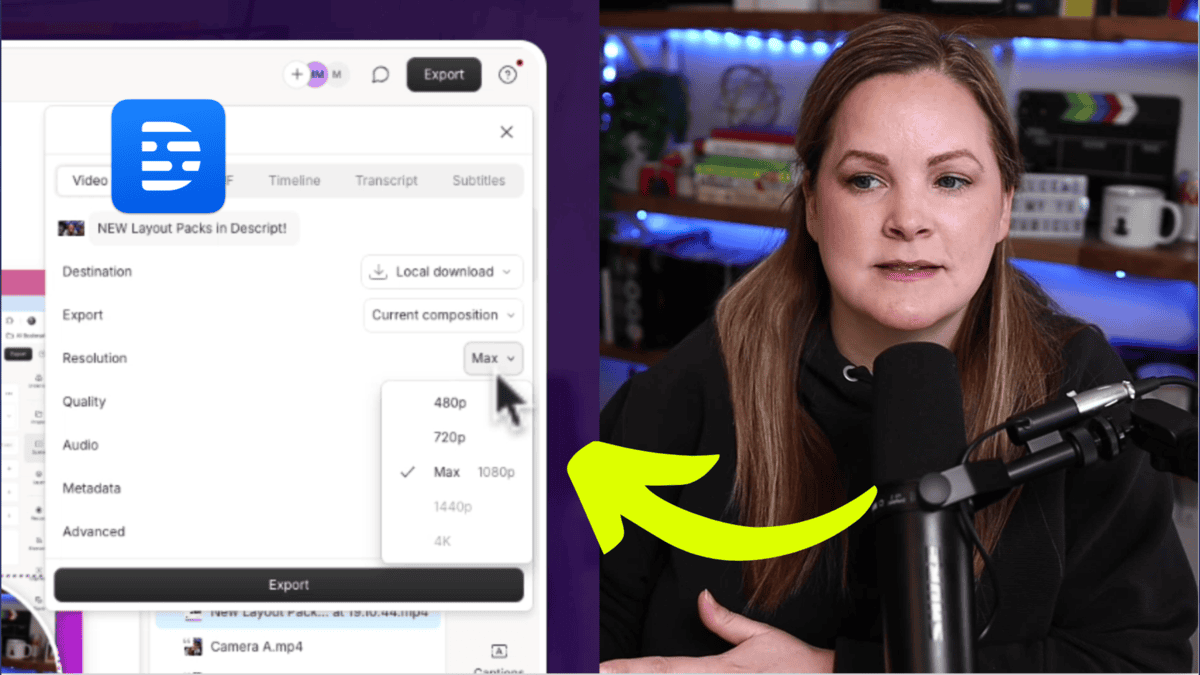
Choosing the Best Video Resolution
When exporting high-quality video in Descript, resolution matters.
I always recommend selecting Max resolution. Even if you think it’s set correctly, double-check it. There have been times when I opened the export screen and noticed it was set to 720p without me realizing it.
I personally record in 1080p and export in 1080p, so I make sure that’s selected every time. If you record in 4K, this is where you’ll want to confirm that 4K is selected.
Selecting the Highest Quality Export
Under the Quality setting, you’ll see different options that affect how crisp your final video looks.
For final videos going on YouTube or any public platform, I always choose High quality.
Just keep in mind:
Higher quality = larger file size
Larger file size = longer export time
But this is not the place to cut corners. Uploading a high-quality file gives YouTube the best source material to work with.
If you’re exporting a draft just to get feedback from someone, you can choose Low, but for final uploads, I always choose High.
Audio Settings That Work Well for YouTube
Audio matters just as much as video.
Under the audio settings, I stick with what works — and what Descript makes easy.
One setting I always use is -16 LUFS.
I’ll be honest: I don’t know all the technical details behind LUFS. What I do know is that -16 LUFS is recommended for YouTube, and it helps normalize your audio during export.
This is especially helpful if:
Your editing volume was low
Your computer volume was turned up high
You didn’t notice inconsistencies while editing
Descript handles the normalization for you, which makes this an easy win.
That means if your volume was a little too quiet (or too loud) while editing, Descript adjusts it automatically so your video plays at a consistent, listener-friendly level.
Descript allows you to add metadata to your video file, which is just additional information attached to the file.
Personally, I keep this simple. I usually include the episode title (which is also my video title) and leave everything else alone. Metadata is optional, and you don’t need to overthink it.
Advanced Settings and Hardware Acceleration
Inside the Advanced section, you’ll see an option to disable Hardware Acceleration.
Under Advanced, you’ll see an option for
I keep this unchecked.
If you ever experience:
Export glitches
Extremely slow exporting
Failed exports
Descript support may ask you to toggle this setting on or off. For my workflow, leaving it unchecked works just fine.
Saving and Exporting Your Video
Once all your settings are in place, click Export, and Descript will ask where you want to save your file.
Where to Save Your Video
If you don’t enjoy playing hide-and-seek with video files, I recommend saving your export to your desktop.
From there, you can:
Upload it to YouTube
Upload it to Spotify
Move it into Google Drive
Organize it into folders
Starting with your desktop keeps things simple.
Simple and stress-free.
How Long Exporting Takes
Export time depends on:
Video length
How complex the edit is
File quality settings
Your computer’s speed
Sometimes it takes a couple of minutes. Sometimes it takes longer. That’s normal. Let Descript do its thing.
What to Do After Exporting
Once your export finishes:
Locate the file where you saved it
Upload it to YouTube, Spotify, or your course platform
Celebrate being done with editing
At this point, your video is fully packaged and ready to go.
More Descript Tutorials and Resources
This tutorial is part of an extended series of Descript tutorials I’ve created to help you:
Edit faster
Export confidently
Learn the ins and outs of Descript
If you want more tips for being efficient with Descript, or there’s something specific you’re struggling with, leave a comment and let me know. I keep a running list of tutorial ideas based on what you ask for.
Exporting video in Descript doesn’t have to feel confusing, even with the redesigned export screen. Once you understand where everything lives from resolution and quality to audio and destination, exporting high-quality video becomes a quick, repeatable process.
Whether you’re uploading to YouTube, Spotify, or your course platform, these settings help ensure your video looks polished, sounds consistent, and represents your work well.
This Descript tutorial is just one part of a larger series of Descript tutorials I’m creating to help you look good, sound good, and feel good on camera. If there’s something specific you’re struggling with inside Descript, leave a comment and let me know; it might just become my next tutorial.
If you have an online business with a course, program, or any other kind of offer, and you’re not currently generating consistent sales on autopilot, I’d like to introduce you to the hands-off YouTube funnel that has made me over $20k on a $147 course! That way, you too can make consistent sales of your offer, with the beauty and simplicity of organic, evergreen traffic from YouTube! Start here with my free “AIT Method” training.
In this episode, I spill the beans on how I’m rolling out Video Editing Made Easy, and why owning your revenue beats crossing your fingers for ad revenue all day, every day.
I break down the exact steps I’m taking (inspired by James Wedmore’s Course Chronicles):
Why digital products beat ad and affiliate income when you want predictable cash flow…
How I juggle a membership and a brand-new course without losing my mind…
and the truth about those wild swings in YouTube ad and affiliate payouts (and how to smooth them out).
Thinking about launching your first course?
Or leveling up your video marketing game?
This is for YOU!
VIDEO: My Take on James Wedmore’s “Course Chronicles”
Some product links in this post are affiliate links, and I will be compensated when you purchase by clicking our links. Read my disclosure policy here.
Why I’m So Passionate About Owning Your Revenue Streams
One thing I’ve learned in my years of creating content and running an online business is this: the best revenue streams are the ones you control.
It sounds simple, but it took me a long time to truly understand it.
I’ve dealt with:
Sudden drops in YouTube AdSense because of a glitch
Affiliate programs are changing their rules overnight
Brand deals that felt less like content creation and more like running a full-blown advertising agency
Every one of these experiences reminded me that when you rely too heavily on platforms or programs you don’t control, you’re always one algorithm change or policy update away from a major setback.
Shifting my focus to my own offers, my courses, my programs, and my membership changed everything. Not only did it stabilize my income, but it also made running my business more enjoyable. There’s nothing quite like creating something yourself and watching it truly help people.
How James Wedmore’s Course Chronicles Inspired My Process
If you follow James Wedmore’s Mind Your Business podcast, you may have heard his mini-series called Course Chronicles. He breaks down everything from the decision to create a course, to validating your idea, to launching even before you create the course.
Even though I’m an affiliate for his Business by Design program, I’m also a long-time student. His framework works. It’s helped me build my business for eight years. But here’s the twist: I didn’t follow his process this time.
Instead, I used what already works for my audience and business.
Why I Decided to Create a New Course
At the start of this year, I wasn’t planning on creating another standalone course. My main priority was growing Video Brand Academy, and I had already grown it from 30 members to 100 in just one year. My focus was there, and honestly, it was working.
But something kept tugging at me:
My audience kept asking for help with video editing.
Every time I shared a Descript tutorial, it performed well. My analytics, comments section, and inbox all backed it up. People wanted a simple, accessible way to edit videos without spending hours learning complicated software.
And the more I thought about it, the more it made sense. A video editing course wouldn’t compete with my membership; it would complement it.
So even though creating a new course wasn’t in the original plan, it quickly became clear that it was the right next step.
Validating the Idea (Without Starting From Scratch)
One of the biggest advantages I had going into this project was data. I didn’t have to guess whether people wanted a course like this; the demand was already there.
I could see exactly which videos on my channel were getting traction and what viewers were searching for. Descript tutorials consistently performed well across the board
On top of that, I’d been getting direct messages and comments asking for a full editing course. Sometimes validation doesn’t need to be complicated; just listen to what your audience tells you they need.
This made me feel confident moving forward. I wasn’t launching something because it sounded fun. I was creating something that would truly help people.
Naming the Course and Setting a Launch Date
Naming a course always feels harder than it should. You want it to be clear, memorable, and aligned with what people are actually searching for.
After wrestling with a few ideas, I landed on Video Editing Made Easy because it said exactly what people wanted: a simpler way to edit. No confusion. No fluff. Just clarity.
Then I had a funny moment: I typed the domain name into my browser…
and realized I already owned it.
Maybe that was a sign. I knew this course was coming before I consciously admitted it.
Once the name was set, I made a decision I’d been avoiding:
I picked the launch date.
Monday, May 19th.
There’s something about putting a date on the calendar. It forces you to stop tinkering and start executing, gives you a deadline, and builds momentum. And honestly, it holds you accountable to your own vision.
My Pricing Strategy for the Launch
Pricing is always one of the trickiest parts of creating a course. You want to make it accessible, but you also want it to make sense within your business ecosystem.
After thinking it through, I decided to launch the course in a way that would serve my long-term goals:
It rewards new members with incredible value right away.
It gives me space to gather feedback and refine the course before a full public rollout.
It helps me test demand and positioning in a low-pressure way.
Later, once the course is fully polished and I’ve gathered the feedback I need, I’ll release it as a standalone offer with pricing that aligns with my overall YouTube funnel strategy.
For now, this approach feels simple, smart, and aligned with where my business is heading.
Creating the Content
The good news? Most of the course content is already done. I’ve built out the main modules, recorded the core lessons, and structured everything to help beginners get fast wins without feeling overwhelmed.
All that’s left are a few bonus lessons that I’ll record and edit before launch day.
Having the bulk of the content done early has been such a relief. It frees me up to focus on the marketing and launch strategy, something that often gets neglected when creators are still scrambling to finish recording.
When you’re not rushed, you get to be intentional. And intentionality always leads to a better experience for your audience.
What’s Next—and How You Can Be Part of This Journey
This launch is just the beginning. I’m already brainstorming updates, new modules, and expanded lessons based on what my audience needs most. But if you want to stay connected and get access during the launch period, here are the two best steps you can take:
1. Join the Rise of the Digital CEO Training
Every year, James releases his free Rise of the Digital CEO series, and it always gives me fresh insights, even though I’m already inside his programs.
If you’re thinking about launching a course, membership, or online business, this training is gold. It’s free, and if you ever join the Business by Design program through my link, you’ll also receive my complete YouTube funnel bonus bundle.
This free training from my mentor has been one of the most impactful resources in my entrepreneurial journey. Every time I attend, I walk away with new ideas and clarity. I’ll be participating again, and I’d love for you to join me.
2. Join Video Brand Academy
For a limited time, new members will get Video Editing Made Easy as a free bonus. If you’ve been thinking about joining, this is the perfect moment you receive the full new course and the entire Video Brand Academy experience.
Final Thoughts
Creating and launching Video Editing Made Easy has reminded me why I started this journey in the first place to teach, empower, and simplify the path for creators who want to show up confidently on video.
Whether you’re dreaming of launching your own course or you’re simply looking for a better way to edit your content, I’m grateful you’re here. This course has stretched me, inspired me, and reminded me that building something of value is always worth the effort.
Thank you for being part of this chapter, and I can’t wait to share what comes next.
If you have an online business with a course, program, or any other kind of offer, and you’re not currently generating consistent sales on autopilot, I’d like to introduce you to the hands off youtube funnel that has made me over $20k on a $147 course! That way, you too can make consistent sales of your offer, with the beauty and simplicity of organic, evergreen traffic from YouTube! Start here with my free “AIT Method” training.
In episode 56 of Video Brand Infusion, I sat down with Video Brand Academy member Alexandra Jeffert, who has grown her YouTube channel from zero to 1,100 subscribers in just one year…
Yep! One year.
Alex sat on the idea for 4-5 years.
Then finally posted her first video.
8 months later?
Viral video.
1,100+ subscribers.
A course, a membership…
and YouTube became her only traffic source, driving sales.
Alexandra started with a super simple gear, just her phone, and carved out a niche in the manifestation space, helping people manifest love.
We talked about the viral video that really took off for her, the SEO and thumbnail strategies that helped her ride that wave, and how YouTube has become the #1 driver of sales for her courses and membership.
We also got into the nitty-gritty of her recording setup, how she juggles creating content across multiple platforms (because yes, that can get overwhelming), and what she’s planning next for her channel and her business.
If you’ve ever thought “I’m too late to start” or “I don’t know if YouTube is worth it for my tiny audience,”
you’re going to LOVE this week’s episode.
VIDEO: Alex Built Grew Her Membership & YouTube Channel Using Simple Weekly Videos
Some product links in this post are affiliate links, and I will be compensated when you purchase by clicking our links. Read my disclosure policy here.
Alexandra started her YouTube journey without a clear plan just curiosity and a desire to explore a new niche. She didn’t set a hard goal to reach 1,000 subscribers; she simply started creating content and posting consistently.
She began with a challenge to post three times a week, but the views were modest at first, usually between 20–70 per video. After a summer break, she returned to posting, and one of her videos went viral, gaining thousands of views and quickly propelling her subscriber count from just 30–40 to 200 almost overnight.
The takeaway here is simple: You don’t need a perfect plan or a massive following to start. Consistency and experimentation matter more than initial perfection.
One of the biggest breakthroughs for me was realizing that my audience didn’t need me to reinvent the wheel, they just needed clarity.
In my case, that meant diving deeper into topics that weren’t random; they were the exact questions people kept asking me. And because these topics were so specific, YouTube understood exactly who to recommend my videos to.
That’s how you build a Spider Web Strategy (spider web of content), video after video on related topics that reinforce each other and pull your ideal audience directly into your world.
Finding a Niche Within a Niche
One of the biggest lessons from Alexandra’s journey is the importance of niching down. While the broader category she focused on was manifestation, she honed in on manifesting love, specifically manifesting a “specific person.” This unique angle helped her stand out in a crowded space.
She combined this with subconscious work and tapping (EFT – Emotional Freedom Technique), which allowed her to offer a perspective that hadn’t been widely explored online. Tapping involves using acupressure points to release limiting beliefs tied to emotional blocks, a powerful method to shift the mindset and attract the things you want.
Her first viral video, “How to Manifest Your Specific Person with Tapping,” resonated because it was new, specific, and actionable, demonstrating the value of finding a niche within a niche.
Leveraging Tools and Training for Growth
Alexandra didn’t navigate YouTube alone. She was a member of my Video Brand Academy, where she learned the fundamentals of creating content that attracts subscribers and drives business growth. Here are the key tools and strategies she implemented:
Titles and Thumbnails: She followed lessons from the Academy on crafting attention-grabbing titles and thumbnails. A friend who had experience in thumbnail design helped her create a repeatable template.
SEO Optimization: She carefully researched keywords and included them in her titles, descriptions, and thumbnails. This ensured her videos were searchable and discoverable, bringing in leads consistently.
Descript for Editing: Alexandra kept her editing simple using Descript, removing pauses and retakes. This allowed her to produce videos quickly without overcomplicating the process.
Phone & Camera Setup: She started on her phone, then upgraded to a Sony ZV1 camera for better framing and video quality. No fancy lighting or microphones were required — simplicity was key.
Her experience shows that you don’t need expensive equipment or complicated editing skills to get started. The key is consistency, simplicity, and learning the right strategies.
Turning YouTube Views Into a Thriving Business
YouTube quickly became Alexandra’s primary lead generation channel. People found her videos through search, signed up for her free resources, joined her membership, or purchased her course.
Her business model includes:
Membership: Monthly live tapping sessions on a specific theme, plus access to mini-tappings for common questions. Members can also engage directly without the high cost of one-on-one sessions.
Course: A structured blueprint for manifesting love and working with a “specific person,” based on her coaching experience.
YouTube Membership: A lighter version of her primary membership, offering a taste of her work and giving people an entry point to engage with her content.
Alexandra emphasized the importance of not giving everything away for free. You want your audience to see the value in your content while still having reasons to join your paid offerings.
If you’re just starting your YouTube journey, Alexandra’s experience offers some important lessons:
Don’t Wait: She sat on the idea of creating YouTube content for years due to fear and burnout. If you wait for the “perfect moment,” you may never start.
Find Your Niche: Posting random topics won’t help you build a loyal audience. Alexandra’s success came after she honed in on manifesting love within the broader manifestation niche.
Keep It Simple: Start with what you have: phone, simple editing, and minimal setup. Complications can be a barrier to consistency.
Consistency Works — Even When You Don’t Feel Ready
Alexandra’s journey proves that one simple video a week can change your business if you focus on a clear niche, leverage simple tools, and understand your audience. Here are the actionable steps you can take:
Start creating content consistently, even if it’s small or imperfect.
Find a niche within a niche to stand out in your field.
Use SEO and keyword research to make your videos discoverable.
Transform viewers into paying members with clear, structured offers.
YouTube is more than just a platform; it’s a powerful business-building tool. By focusing on consistency and a niche audience, you can see real growth in subscribers, engagement, and revenue.
Conclusion
Alexandra Jeffert’s story is proof that you don’t need to overcomplicate content creation to grow a successful business. By focusing on a specific niche, leveraging simple tools and training like Descript and Video Brand Academy, and posting consistently, she built a thriving membership and YouTube channel from scratch.
Whether you’re just starting or looking to grow your existing channel, the lessons here are clear: start small, find your niche, keep it simple, and focus on delivering value. YouTube isn’t just for entertainment. It can be your most powerful marketing tool when approached strategically.
If you’re ready to take action, start creating one video this week. Test, refine, and watch your audience and business grow!
If you have an online business with a course, program, or any other kind of offer, and you’re not currently generating consistent sales on autopilot, I’d like to introduce you to the hands-off YouTube funnel that has made me over $20k on a $147 course! That way, you too can make consistent sales of your offer, with the beauty and simplicity of organic, evergreen traffic from YouTube! Start here with my free “AIT Method” training.
AI business growth is changing everything for solo entrepreneurs like us!
In this video, I share exactly how I use AI and automation to save time, stay human, and build a thriving video brand.
I’ll walk you through GEO (generative engine optimization), custom GPTs, and the tools I use daily like MindPal and Buffer.
If you want to grow your business with AI without losing your personal touch, let’s dive in!
VIDEO: How I’m Growing my Business with AI Agents and GPTs | Ep. 61
Some product links in this post are affiliate links, and I will be compensated when you purchase by clicking our links. Read my disclosure policy here.
Why AI Matters for Solo Business Owners Right Now
I’m at the point where I use AI every single day, and honestly, all day because I’ve built systems and automations that work for me. But getting here didn’t happen overnight.
I’ve been fascinated with AI since ChatGPT first launched, but it took me months to truly understand what’s possible when you stop thinking inside the box and start looking outside of it. I genuinely believe that for many online businesses, embracing AI isn’t optional if you want longevity.
By offloading repetitive tasks, repurposing content efficiently, and automating internal workflows, I get more bandwidth to show up as myself, inside my community, on my content, and with the people I serve.
Here’s the reality: if other businesses in your space are embracing AI and you’re not, they’re going to become more efficient, more visible, and more scalable. That doesn’t mean they’re better; it just means they have more leverage. And as solo business owners, leverage is everything.
For me, AI isn’t about cutting corners. It’s about preserving a lean business model while expanding my reach, strengthening my authority, and staying deeply human in how I show up.
AI doesn’t replace human connection. It creates space for it.
The Five Ways I’m Using AI to Grow My Business
When I think about AI right now as it relates to business and marketing, everything falls into five core areas.
1. Discoverability, SEO, and the Shift to GEO
Discoverability is the first area where AI has completely changed how I think about growth. For years, I’ve relied heavily on SEO, especially on YouTube. That’s actually how I grew my channel in the first place: by applying traditional SEO principles to video content.
Now we’re seeing the rise of GEO — Generative Engine Optimization. Instead of people only searching on Google, they’re going straight to tools like ChatGPT to get answers. And yes, that’s caused real problems in the blogging world.
What’s fascinating is that my YouTube channel is benefiting from this shift. When I look at my analytics, Google is still my top external traffic source, but ChatGPT is now the second. That means AI isn’t just answering questions; it’s actively sending people into my ecosystem.
That tells me something important: AI tools are sending people to creators they recognize as experts.
Google has also been clear that it’s no longer just looking at on-page SEO. It’s evaluating your entire body of work across platforms using the same EEAT framework they’ve talked about for years: experience, expertise, authority, and trustworthiness.
That’s why I’ve never been more grateful to have a YouTube channel tied directly to my name and my core topics. Every long-form video contributes to a growing library of expertise connected to me. Every video adds to a growing library of proof that I know what I’m talking about — and AI tools are using that same signal when deciding what content to surface.
This isn’t just about YouTube growth it’s about ensuring your content shows up wherever people are searching for answers.
Repurposing Long-Form Content Without Creating AI Slop
One of the most powerful ways I use AI is to repurpose my long-form content across platforms.
I’ve always been a long-form content creator. Video podcasts are the foundation of my content strategy, and AI helps me extend the life of that work across other platforms.
After I publish a video podcast episode, I take the transcript and use AI to turn my thoughts into platform-specific content, especially for Threads and LinkedIn.
Here’s what that looks like in practice:
I take my video podcast transcripts and use AI to generate Threads content
I repurpose those same transcripts into LinkedIn posts
I review, edit, and queue everything inside Buffer
I use ChatGPT, Claude, and Gemini, sometimes all three because they each interpret prompts differently. I’ve built custom GPTs and projects specifically designed to write in my voice, using my thoughts.
The content doesn’t start with AI. It starts with me hitting record. AI simply helps me adapt those ideas for platforms I wouldn’t otherwise have the energy to show up on consistently.
This allows me to stay active on platforms I wouldn’t otherwise prioritize without forcing myself to create from scratch.
The content still comes from me. AI simply helps shape it so it fits the platform.
That’s the difference between helpful augmentation and content that feels lifeless.
Turning Every Video Into a Blog Post
Since day one, every video I’ve created has been turned into a blog post.
AI has made this process faster and easier over time, but it’s still human-led. A draft is created using AI, then refined by a real person so it’s readable, helpful, and aligned with my voice.
This strategy builds my body of work across platforms and strengthens discoverability both for traditional SEO and generative engines.
If you’re creating long-form video content and not turning it into blogs, you’re leaving a massive opportunity on the table.
2. Internal Automation That Protects My Time
AI isn’t just helping me market, it’s running large parts of my internal operations.
I use automations connecting tools like Kajabi andThriveCart so members are added to the right programs and receive the right emails automatically.
Inside Video Brand Academy, I’ve created multiple custom AI tools using MindPal. These tools help summarize calls, generate insights from my ideas, and support my team without extra manual work.
For example:
A tool that turns my “what’s working now” ideas into structured posts
AI workflows trained specifically on how I think and teach
These aren’t generic GPTs—they’re trained and structured intentionally so the output actually reflects how I think and teach.
Because these tools are programmed by me, the output stays aligned with my voice and values. This isn’t generic automation, it’s personalized infrastructure.
I’m also paying close attention to tools like Relay, which are pushing automation even further for small teams and solo business owners. This is where things get really exciting.
3. Integrating AI Into Digital Products and Memberships
One of the biggest opportunities I see right now is integrating AI directly into courses, programs, and memberships.
This is where things get really exciting.
InsideVideo Brand Academy, I’ve built AI-powered tools that help members get results faster without needing ten years of experience.
Achannel analyzer built with MindPal that reviews YouTube channels using screenshots
Instead of relying on third-party tools, members can use systems I’ve built specifically for their stage of business. These tools don’t replace learning; they accelerate it.
This is how I think about AI as a growth tool, not a gimmick, but a way to deepen transformation for the people I serve.
Real Example: The Thumbnail Masterclass
For my membership Video Brand Academy, I recorded a “Ultimate Thumbnail Masterclass,” which has everything I know about thumbnails. You could watch it and learn a lot, but you have to create thumbnails and do experiments to truly learn.
Or, I could create an AI tool where you input your title and topic, and it makes a thumbnail for you. I’ve seen AI-generated thumbnails that are pretty good. At the very least, we can use AI to sketch ideas for thumbnails for someone who doesn’t have ten years of experience making thumbnails.
How much more effective is that for my clients than watching a 90-minute training on how to make a thumbnail?
I’m teaching people how to write effective titles, but I created a tool where you tell me your topic, and it gives you 50 different title options. Yes, you should learn how to write an effective YouTube title, but you can also just use my tools inside Video Brand Academy.
Building a Dozen AI Tools
Once I realized how easy it was to use MindPalto create chatbots and workflows, I wanted to create more. I have like a dozen insideVideo Brand Academy. They’re in their own Kajabi product along with a community and the core content.
There’s a chatbot trained on everything inside Video Brand Academy, so you can post in the group looking for help or come to a meetup, or anytime you can open that chatbot, pick my brain, and see what the chatbot says.
4. Custom GPTs as Lead Magnets (But Doing It Right)
The Problem with How Most People Use Custom GPTs
If you think this sounds great, but you don’t want to use another tool, you could use custom GPTs. Lots of people are creating custom GPTs, and indeed, it’s a great tool, but if you have a program that has a start date and an end date, you’re just kind of giving those tools away.
I love the idea of using a custom GPT as a lead magnet, but I think people are doing it wrong. Most custom GPT lead magnets I’ve seen work like this: You put in your email address, and I give you a link to my custom GPT; it’s yours for life, take it and run. There’s nothing wrong with that, but what if you create a custom GPT that does something specific that your ideal customer would find extremely valuable, and they keep using it?
Create Ongoing Value, Not One-and-Done
What I see a lot of people doing is creating a custom GPT as a one-and-done deal. Create something that’s so useful they keep returning to it, and that prompts them to download a cheat sheet (my sample) or watch a free training.
I created a custom GPT called “YouTubify Your Business.” You can access it, and you don’t have to give me your email address. When you’re stumped on what to do on your channel next, you can go to my custom GPT. It’s not trained on everything inside Video Brand Academy, but I created it to be so useful that you want to keep using it.
5. The Future: No-Code Tools and AI Agents
The final area I’m watching closely is the rise of no-code tools. People are building entire businesses without writing a single line of code, and while I’m resisting the urge to build another app, I love the idea, but I have my app (the VBA App) already. The potential here is enormous.
AI agents, workflows, and embedded tools are redefining what’s possible for one-person businesses. With the right systems, we can help people achieve real transformation, without burning ourselves out.
As online business owners, we help people achieve transformations through information and tools like no-code apps, MindPal, custom GPTs, and internal automation. I’m amazed at what we can do with one person obsessed with AI.
AI doesn’t replace my creativity. It doesn’t replace my voice. And it definitely doesn’t replace community. Instead, it gives me margin, margin to show up live, to engage in conversations, and to build relationships that actually matter.
My rule is simple:
I create the core ideas
AI helps me extend and support them
Humans stay at the center of everything
Conclusion
The key to growing your business with AI isn’t about replacing yourself or creating content that sounds robotic. It’s about strategically using AI to give yourself the bandwidth to show up more consistently, connect more authentically, and serve your audience better.
AI isn’t here to make us obsolete; it’s here to help solo business owners like us compete with bigger companies, be present on more platforms, and create better tools for our clients without burning out or sacrificing the human connection that makes our businesses special.
If you’re a solo business owner wondering how to grow without losing yourself in the process, my encouragement is this: use AI to protect your energy, amplify your expertise, and create space for deeper human connection.
The future belongs to business owners who can stay authentic and human while leveraging AI to scale their impact. That’s exactly what I’m doing and how I’m growing my business, and I truly believe it’s how we’ll build sustainable, meaningful businesses in the years ahead, and I’m excited to see where this takes us all.
If you have an online business with a course, program, or any other kind of offer, and you’re not currently generating consistent sales on autopilot, I’d like to introduce you to the hands off youtube funnel that has made me over $20k on a $147 course! That way, you too can make consistent sales of your offer, with the beauty and simplicity of organic, evergreen traffic from YouTube! Start here with my free “AIT Method” training.
Or if I simply wanted to take a massive advantage of YouTube over the next year as a business owner, there are five proven strategies I would focus on immediately.
This is especially relevant if you’re a solo online business owner without a big team to help you build a massive content ecosystem.
YouTube remains the most powerful platform for growing your audience online.
Your content lives there long-term, it continues working for you long after you publish it, and it rewards clarity, consistency, and usefulness in a way no other platform does.
In this post, I want to walk you through exactly how I would use YouTube to grow a business in 2026, not just to get views, but to attract the right people, grow an email list, and build a sustainable growth loop that supports your offers.
Discover the strategies that work even if you don’t have a big team.
Let’s make your business binge-worthy!
VIDEO: 5 Proven Strategies to Grow Your Business on YouTube in 2026 | Ep. 76
Some product links in this post are affiliate links, and I will be compensated when you purchase by clicking our links. Read my disclosure policy here.
Why YouTube Is Still the Most Powerful Platform for Business Growth
For the time, energy, and effort it takes to show up online and create content, YouTube gives you the biggest return. It has more users than any other video platform, and your videos don’t disappear after 24 hours or get buried in a fast-moving feed.
YouTube allows you to create long-form, problem-solving content that can be discovered through YouTube search, Google search, and even AI tools. When done well, it positions you as the expert people turn to when they’re actively looking for solutions.
Here’s exactly how I would take advantage of YouTube moving into 2026.
Strategy #1: Solve Problems Your Ideal Clients Are Already Searching For
I’ve talked about this before, but I cannot stress this enough. Create content that solves the problems that your ideal paid clients and customers are already searching for. The problems that your ideal clients and customers are going to Google or Gemini, ChatGPT, or YouTube and actually typing in: “How do I [blank]?”
What are the problems that people are actively seeking to solve right now? Not what you think your ideal audience is searching for, and not what you know or what you think that people should be searching for.
Go Beyond Keyword Tools
I am not even necessarily talking about what the keyword research tools are telling you people are searching for. If you have an established business, and you have worked with clients, and you have a course or program, and you have had clients and students in there, you already know the problems that people are searching for solutions to.
Regardless of what the keyword research tools like VidIQ and TubeBuddy tell you, you know your client or customer more than those tools do – I guarantee it.
Get Specific With Your Topics
I’m not talking necessarily about big topics like “how to get started with yoga” or something like that. I’m talking about really specific topics like “what yoga poses are best for [blank]” or “does yoga work for [blank]?”
People want answers that are tailored to them. They want to solve these problems that they have for themselves. They’re searching for themselves. And it’s really easy to speak their language because all you have to do is look at the frequently asked questions that your clients, students, or prospective clients and students are asking you.
Those are the problems that all of the other prospective clients and students for you are going to and actually typing in somewhere to get the answers to.
Why This Matters for AI and Search Algorithms
Because of YouTube’s algorithms and because of even just Google’s algorithms and AI, when you create long-form content that actually offers up solutions that people are searching for in plain, everyday, easy-to-consume language, you are going to be ranked in the search algorithms and referenced in the AI algorithms.
You are going to be the leading expert that the AI tools are looking to for the information and content that people are searching for. So it’s not enough to simply create content that people in your niche are searching for. You have to think about what the problems people are searching to solve.
Because people who are searching for solving problems are searching for solutions. And if you have a course or a program, or if working with you in some way is a solution to the problem, you want to be the one who shows up as the thought leader, as the expert, as the person with the solutions.
Using AI Tools to Help
You can totally use ChatGPT or Gemini to help you kind of figure out what those problems are. But inside Video Brand Academy, I have a brainstorming breakthrough tool that does exactly that, but it’s trained by me. It’s trained by the curriculum within Video Brand Academy. It’s not ChatGPT just kind of making wildly confident yet wildly wrong guesses that ChatGPT tends to do sometimes.
You Already Know the Answers
If you’ve worked with clients, coached students, or run a program, you already know what people are struggling with. You’ve answered these questions in emails, DMs, live calls, and support tickets.
Those questions are not random. They’re the exact problems other people are searching for online.
Tools like VidIQ and TubeBuddy can be helpful, but they don’t know your audience the way you do. Your real-world experience will always beat keyword tools when it comes to relevance.
Specific Beats Broad Every Time
Instead of creating content around broad topics like “how to get started with yoga,” think in terms of very specific problems, like:
What yoga poses help with lower back pain?
Does yoga actually help with anxiety?
What yoga equipment do beginners really need?
People don’t search because they’re bored; they search because they want a solution. When your content speaks directly to their problem in clear, everyday language, it’s more likely to rank in search and be referenced by AI tools.
That’s how you become the expert those platforms trust.
Inside Video Brand Academy, I use a Brainstorm Breakthrough tool trained on my curriculum to help identify these problems, not generic AI guesses, but prompts rooted in real client experience.
Strategy #2: Become the Subject Matter Expert on One Product or Tool
This strategy is massively underutilized, and it’s one of the main reasons my channel grew early on.
When I started publishing consistently in 2015, I focused heavily on GoPro tutorials and editing videos. I wasn’t trying to cover everything. I simply became extremely helpful around one specific product that people were already searching for.
Why This Works (Even If You’re a Coach)
Coaches and course creators often hesitate here because they want their best teaching inside their paid programs. I get that.
But here’s the thing: being generous with your knowledge in public content builds trust faster than anything else. When you clearly understand the tools your audience uses every day, you position yourself as the go-to expert.
If you teach homeschooling, for example, become the expert on the curricula families are already researching. You don’t even have to recommend them, just explain how they work, what to watch out for, and how people actually use them in real life.
People are already researching these tools. When you show up with clarity and experience, you win.
Strategy #3: Pin Your Best Content to the Top of Your Channel
This is one of the simplest ways to use YouTube’s own features to your advantage.
Create a “Start Here” playlist and pin it to the very top of your channel.
What Goes in This Playlist
Your “Start Here” playlist should include videos that generate the strongest green flags, such as:
High retention or watch time
Strong engagement in the comments
High opt-in or conversion rates
This isn’t about showcasing your favorite videos. It’s about showcasing what works.
Fueling the Algorithm
It’s going to generate more goodwill in the algorithm, if you will. If you know that you are constantly kind of sending people to a video that has really good retention or really good engagement, those are already green flags for the algorithm. Pin that stuff to the top of your channel so that you can fuel those green flags even more.
And if you are growing your list with YouTube, which we’ll talk about in just a second, and you know there are certain videos that are driving more traffic to your lead magnets, your freebies, or even to something that you’re selling, pin that to the top of your channel.
Don’t Overthink This
The reason I say don’t overthink this is that your analytics will tell you what videos are getting the highest retention, the most engagement. And you should have a sense of: Are these attracting the exact ideal right type of person that I want to have on my channel? Are they my ideal customers?
Don’t just put what you think are your best videos at the top. It’s not there to show off the topics that you think people should watch or the things that you care about. Your analytics will tell you what’s performing best on your channel, and it doesn’t matter how many views these videos have, either.
What matters is on the backend: Are they generating more green flags, goodwill in the algorithm for you? Are they generating more leads for you? And are they attracting the ideal right client, customer, audience, viewer that you are trying to attract on your channel?
You put a lot of time and effort into the content you create, and this is a way that you can use one of YouTube’s own features to kind of game the system a little bit by putting your best-performing content right at the top of your channel.
Strategy #4: Turn Your Channel Into a Funnel
Your YouTube channel is already a funnel, whether you’ve intentionally built one or not.
The easiest way to turn it into a business asset is by consistently growing your email list.
Why Simple Lead Magnets Work Best
Cheat sheets and checklists work incredibly well on YouTube, especially when they support the tools or topics you teach.
If you’re a subject matter expert on a product or software, create a simple one-page resource that helps people use it better. That’s an easy yes for viewers.
Make sure your links are easy to find:
Put opt-ins in every video description
Use the top link in your channel’s About section strategically
Create Simple, Valuable Lead Magnets
Cheat sheets and checklists, if you follow what I said for number two, which is to become a subject matter expert on a product, like a physical product or a piece of software in your niche, make a cheat sheet or checklist for that.
Just a one-page thing. People opt in, and they download it. Now they’re on your list. It’s the easiest thing in the world for you to create, but it’s also just a no-brainer thing for people to opt into if they’re trying to learn a product or software. Why wouldn’t they download your cheat sheet or your checklist? It’s so easy.
Make Your Links Visible
You can put links in your descriptions. Links in YouTube descriptions are clickable. And you can put links to your cheat sheets, checklists, and opt-ins in every single one of your videos so that you don’t even have to think about it.
If you forget to mention it or if you mention it and then you forget to put a link in, just put it in all of your videos. Put your links to your stuff in all of your videos.
At the very top of your channel, you have a bio section or the about section. You can have multiple links in your bio, but the link at the top of your link list in your bio will be visible on the homepage of your channel. So make it a good one. Make it something that people want to opt in for.
That way, it’s easy for people to opt into your stuff, and it’s easy for you then to grow your list as you create more content and as the YouTube algorithm keeps bringing more people to your channel.
The easier you make it, the more your list grows passively as your content keeps getting discovered.
Strategy #5: Keep Your Email List Engaged With Your YouTube Content
Your email list is the bridge between YouTube and your paid programs.
For every YouTube video I publish, an email goes out to my list. That email can be reused later in evergreen sequences because most of my content stays relevant long-term.
This creates a powerful growth loop:
YouTube grows your list
Your list re-engages with your YouTube content
Your most engaged people hear about your offers
Inside Video Brand Academy, I also teach a mini course on email marketing specifically for YouTube creators to make this process simple and repeatable.
Bonus: Lean Into Your Humanness
Let me give you a quick recap on the five strategies to grow your business on YouTube in the next year:
Solve real problems people are searching for
Become the expert on one key tool or product
Pin your best content with a “Start Here” playlist
Always build your email list
Use your email list to support long-term growth
But here’s the reminder I want you to carry into 2026:
But here’s the reminder I want you to carry into 2026:
Lean into your humanness.
I love AI. I use AI. But it’s very easy to automate yourself out of connection. As platforms become more saturated with AI-generated content, being human becomes your competitive advantage.
People don’t just want information — they want connection. And that’s something no tool can replace.
InsideVideo Brand Academy, I also teach a mini course on email marketing specifically for YouTube creators to make this process simple and repeatable.
Conclusion
Growing your business on YouTube in 2026 isn’t about chasing trends or hacking the algorithm. It’s about being helpful, specific, consistent, and human.
When you treat YouTube as a long-term asset instead of a short-term content strategy, it becomes one of the most powerful growth tools in your business.
That’s one of the reasons why I have Video Brand Academy because that’s where I get to connect with other solo online business owners who are growing their channels and growing their businesses. We have live Q&A calls all the time, essentially, where we deep dive on your analytics. I can answer your questions, help you out. You can get real-time coaching from me.
And it’s the most supportive group of people on the internet. I am biased, but I love the people that we have inside of Video Brand Academy. And if you want help or just a little bit of support, a little bit of handholding as you’re growing your channel over the next year, and as you’re using YouTube to grow your business over the next year, I put a link down below to Video Brand Academy.
It’s the easiest thing in the world to join and get started with right away. So I hope to see you on the inside!
Here’s to making 2026 your strongest year on YouTube yet.
If you have an online business with a course, program, or any other kind of offer, and you’re not currently generating consistent sales on autopilot, I’d like to introduce you to the hands-off YouTube funnel that has made me over $20k on a $147 course! That way, you too can make consistent sales of your offer, with the beauty and simplicity of organic, evergreen traffic from YouTube! Start here with my free “AIT Method” training.
How to Design a Background That Actually Builds a Personal Brand
If you are going to be shooting the type of video that could be described as talking head video for things like tutorials then the technicalities are pretty easy to nail down.
A reasonable lighting setup, some form of decent audio recording system and an “OK” camera or smartphone and with a little tweaking you are probably good to go.
As I say, that’s the “technical” part of it and these days, pretty easy to get under control given that the subject being captured is in a relatively fixed postion.
The real problems start when it comes to what is called in the industry, “set design.”
What the viewer sees in the background has an enormous effect on how that viewer is going to perceive both the subject and the information they may be relating.
In this video from Video School they cover a few choices they made for their own set design with a good explanation as to why those choices were what they were.
Best AI Tools for YouTubers
OK, so the guys at Think Media are pretty prolific in the sheer amount of content they produce so I think their opinion on the current batch of useful A.I. tools is relevant to us all.
The current sate of A.I. tools for video is that there really is no current state other than a constant state of flux!
It is just evolving so fast with new applications of A.I. to video related problems coming and going almost on a daily basis.
So for what it’s worth and given that by next month it may all have been replaced, here’s their take on the current batch of tools that can actually make your video creation easier.
Utilizing the power of Media Libraries in PowerDirector
I have a friend who has been an editor for a very long time now but the difference between us is pretty vast!
I cut, dice and splice little YouTube videos whereas he works at the Hollywood blockbuster end of the scale.
Over the years he has shared a mountain of tips and tricks with me but starting out there was one that really stuck with me.
At the beginning of a new project he may spend up to a month full time organizing and naming all the assets available to him for that project.
A lot of that time may be spent with the director present and basically what they are doing is mapping out every step they will be engaging in before they start.
The point he was making to me was that no matter how complex or simple a project is, unless you have all your ducks in a row organizationally, you will sink faster than the Titanic in a sea of “where did I put that thing!”
Here are some more advanced organisational tips for use in PowerDirector.
How to Make a New Year Countdown with Timer Effects – PowerDirector
Obviously this tutorial was aimed at being used for a New Year Countdown but that’s selling it a little short I think.
There are numerous situations where you may need or want some kind of countdown effect so this how you can do it in PowerDirector.
Cheap Video Gear for Beginners
When I first started helping my wife shoot videos at home for her YouTube channel I had already been video editing for quite some time.
So for the editing I was fine but as far as shooting went, I had pretty much no idea what I was supposed to be doing!
We started off using a Samsung phone for video and were kind of lucky because that phone was pretty forgiving as far as quality went.
However it was obvious that the overall quality needed to be raised.
That was the beginning of a journey in search of the equipment we really needed to achieve the standard we felt acceptable.
These days we use a good Sony camera, a Hollyland Lark lavalier mic setup, some good quality lighting and a dedicated space to shoot in.
We didn’t get to this point in one go. It was a process of slowly upgrading and improving and one thing we did learn was that going for an expensive item more often than not, was just wasting money.
Here’s a great guide through the process from the guys at Movavi on getting only what you need at a budget price.
Filmora 15 AI Features Full Guide – Text to Video, AI Enhancer & VEO 3.1
Filmora, like just about every other consumer level video editing software at the moment, has certainly dived into the deep end of integrating the latest in A.I. features.
Personally I think some of these new features are pretty cool, some I think are pretty useless and some quite handy to have up your sleeve.
For me the bottom line of any feature in video editing software A.I. or not is whether I would actually use it.
The danger with A.I. video features is that they are often presented as “total” solutions to video creation.
What I mean by that is that the user is coaxed into believing that the A.I. is going to create your video or completely edit your video… none of which is true.
Any A.I. functionality has to be viewed as a tool rather than an end unto to itself although that’s kind of hard when you don’t really know what it can do!
In light of that here is a pretty complete run through of the current A.I. features in Filmora, what they can do and a few examples of how they can be used.
You’re Underusing the Edit Page in DaVinci Resolve (Here’s How to Fix That)
This is a particularly long livestream video from Daniel Batal for this week so be warned!
It goes for about one hour and forty-five minutes but the reality is that it is full of great information if you are using DaVinci Resolve as your primary editor.
The reason this one is so good in my opinion is that is solely concentrates on the Edit Page in Resolve and covers just about everything you can do in that Page.
The tendency with most Resolve users is to jump around the various pages to carry out actions that one would logically think belong in that Page.
That’s fine in itself but there has been a fundamental change in the way Resolve has been developed over the past year or so.
What has slowly been happening is that access to a number of settings and tools has been added to the Edit Page based on user data.
That data was showing what I just described with people jumping from the Edit Page to another, completing a task then returning to the Edit Page.
To improve workflow efficiency the folks at Resolve have been identifying tasks that could be made accessible on the Edit Page and making it so.
In light of that, this run through of the Edit Page from Daniel Batal is a great way to get a total grip on what you can do without having move around from Page to Page.
Export Transparent Video in DaVinci Resolve – Alpha Channel Explained
If you are working with DaVinci Resolve, pretty much the answer to most questions relating to being able to perform some action is, yes!
Of course that where the fun begins because with all of that awesome technical ability comes an interface that has to cover a million different things!
Sometimes even the simplest of action can be a bit of a task to unravel although once you work it out, it then makes perfect sense.
Here’s a tutorial from Jason Yadlovski covering one such seemingly simple actions, creating a transparent video with and alpha channel.
Discover more from The DIY Video Editor
Subscribe to get the latest posts sent to your email.
What I have discovered over the past few years of full time working with content creators is that there are certain things that need to be taken care of right from the beginning.
What I mean is that no matter how inconsequential something may appear to be, if it adds any friction to the process of creating video then it MUST be addressed on the spot.
Very often a creator will encounter an “inconvenience” along the path of creation and will tend to compensate for whatever that thing is in an effort to get the job done.
At the time it may seem like no big deal but from that point forward an inefficiency has been built in to the system.
Lather, rinse, repeat and before you know it, that whole content creation process has somehow become tedious or difficult whereas before it was fine!
Here’s a look at setting up a workstation for shooting and editing that helps you avoid building in “inconvenience.”
How to Make a YouTube Thumbnail in Canva (Easy AI Methods!)
A few of my regular content creator clients have begun using a particular feature in Canva for designing their YouTube and other social media thumbnails.
More importantly they have reported to me that they are getting some pretty decent results from using it.
By that I mean increased click rates which is exactly what you would want to be happening.
I was having a think about why that would be happening then I realised that the feature itself is A.I. driven.
So what is really happening is that the module is referring to a mountain of existing data as to what is or is not an effective thumbnail and using that to guide them through the process.
I think that’s pretty cool!
How to Record Video, Audio & Screen – PowerDirector Video Editing Basics
This is another in the very recent series of “back to basics” tutorials created by CyberLink to reflect changes made in the new user interface or for totally new features.
This one covers how to access and deploy the tools for recording video, audio or your computer screen from inside PowerDirector.
Most of these actions are in themselves pretty straightforward however it is important to be able to understand exactly how to set them up to maintain the highest possible quality.
How to Use Text-to-Speech for Voice-over in Videos – PowerDirector Video Editing Basics
This is the second “back to basics” tutorial from CyberLink for this week.
As I have mentioned before, CyberLink have been steadily updating all of their tutorial videos to reflect either changes to the new user interface or for features that previously did not exist.
This one cover the “Text-to-Speech” feature recently introduced.
How to Make a Year in Review Video in 5 Minutes
This is a pretty cool strategy for creating a “Year in Review” style video that tracks more like a highlights reel.
Admittedly it is a process that has been designed with the particular strengths of the Movavi Video Editor in mind but is equally applicable to any editing program.
Probably the key to projects like this is spending sufficient time in the planning and organisation steps so that you are fully familiar with your raw assets.
Filmora 15.1 Changes How You Edit – AI Mate, AI Video & Powerful New Tools
About two weeks ago Filmora released an upgrade taking the program to version 15 and of course there were lots of cools new bits and pieces.
However in the world of Filmora, two weeks is a very long time so we have now moved to version 15.1!
Most video editing software makers usually release a major update like Filmora did possibly once per year.
Just as usually they then release a fast minor update quite soon after when all the existing users have found the bugs they missed in the major release!
Not so with Filmora!
They generally follow up a major update with bug fix release BUT! They usually also add even more features that didn’t make it is time for the big release.
Here’s a look at the latest in Filmora 15.1
Basic Training for Adobe Premiere Elements 2026, Part 6 of 8
This is Part Six of the Eight Part series from Steve Grisetti covering all the basics of video editing using Adobe Premiere Elements 2026.
In this video Steve covers the basic principles of Keyframing in itself as well as demonstrating some usage scenarios inside Premiere Elements 2626.
Learn DaVinci Resolve Fusion…for real!
When it comes to the various pages inside DaVinci Resolve, most of them follow a pattern that is similar to other modules in other programs that do the same thing.
The Fairlight Page pretty much follows a similar pattern to many other digital audio workstations and the same goes for the Edit Page and even the Color Page.
However, when it comes to the Fusion Page all that familiarity goes out the window and you are just left sitting and staring at the interface and nothing is ringing any bells!
The main reason for that is that the Fusion Page is a purely professional, post production compositing module with no apologies for being complex!
It is complex by design because it is designed to carry out extremely complex actions at a Hollywood blockbuster level.
The good news is that it is “learnable!”
The video below is a live stream done by two of my “go to” Resolve guys, Daniel Batal and Casey Faris.
If you have ever wondered about that Fusion Page and maybe you wanted to dip your toes into it, then possibly this one is for you.
Enhancing AI VFX with DaVinci Resolve
OK so this is probably not a project or at least a level of complexity that most of us are going to be engaging in BUT!
I think it is a perfect example of making great use of A.I to create elements or effects, then taking that element into software like DaVinci Resolve and fine tuning it to be realistic.
Most of the best uses of any A.I models for video that I have seen so far have followed this basic principle.
Have the human take care of the creative stuff then use the A.I as a tool to get that vision into reality.
Discover more from The DIY Video Editor
Subscribe to get the latest posts sent to your email.
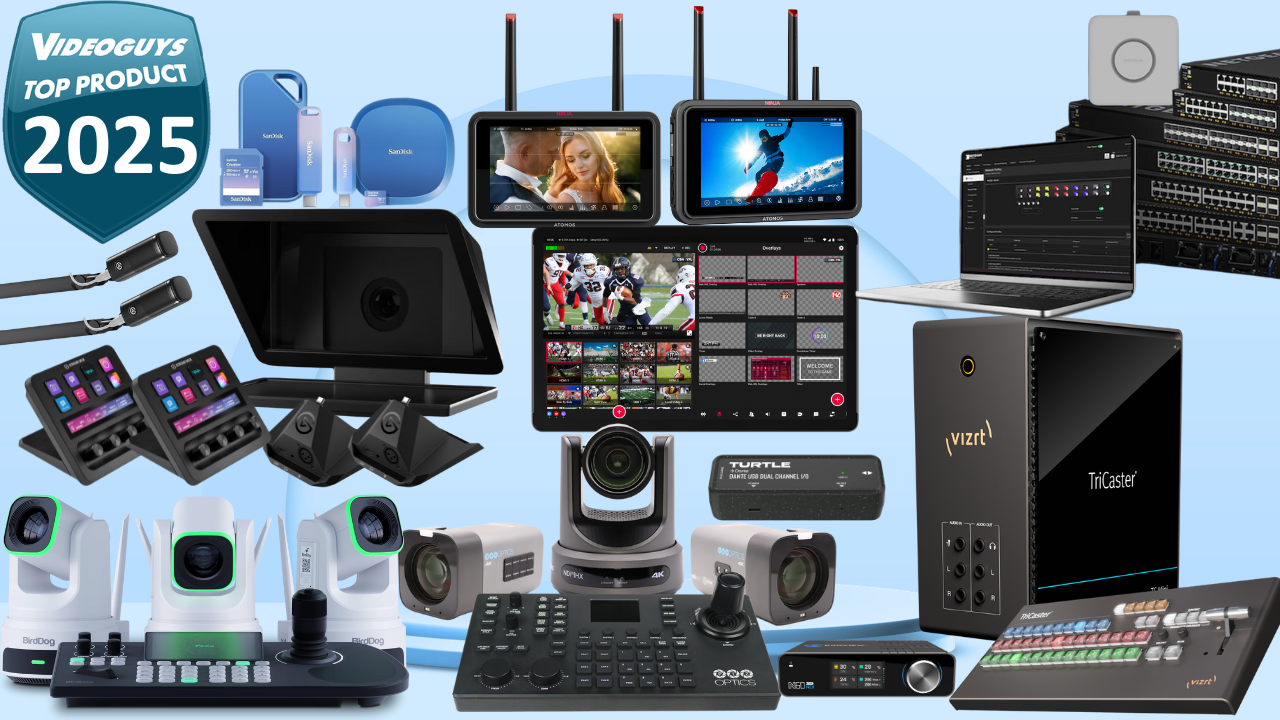
The Elgato Podcast Bundle combines the versatile Stream Deck + with the expansive Prompter XL for a complete on-camera solution tailored to podcasters and content creators. The Prompter XL’s large 15.6-inch Full HD display ensures easy reading of scripts or slides, while functioning as a secondary monitor for multitasking. The Stream Deck +’s customizable LCD keys, dials, and touch controls make it the perfect controller when you are host, producer and podcaster. The Wave DX Professional Microphones will sound great on any platform making this the perfect bundle to streamline audio and video switching to make professional-grade podcast and video production more accessible and intuitive than ever.
Designed for dynamic sports and event coverage, the PTZOptics Action Bundle delivers a powerful multi-camera setup with one Move 4K 12X PTZ camera for flexible tracking, two Studio 4K 12X fixed cameras for wide or locked shots, and a SuperJoy controller for precise operation. With auto-tracking, Hive Studio integration, and crystal-clear 4K resolution, this bundle captures every angle seamlessly, making it ideal for schools, arenas, and broadcasters seeking professional results without a large crew.
The YoloBox Extreme stands as a flagship all-in-one live production powerhouse, supporting up to 8 HDMI inputs, dual assignable HDMI outputs, 4K streaming and ISO recording, and advanced features like multicam replay and network bonding. Its bright 11.2-inch OLED touchscreen, Qualcomm Snapdragon processor, and long battery life enable solo operators or teams to handle complex productions with ease, from events to broadcasts, delivering unmatched portability and performance in live streaming.
Atomos expands its Ninja lineup with the Ninja TX and TX Go monitor-recorders, bringing ProRes RAW recording, camera control, and cloud connectivity to filmmakers. The TX Go offers HDMI-only versatility with up to 6Kp30 RAW, while the full TX adds SDI and higher resolutions. With brighter screens, professional monitoring tools, and seamless integration for cameras from Canon, Fujifilm, and more, these devices elevate on-set workflows with precise control and high-quality capture.
BirdDog’s new KBD controller paired with multicam bundles featuring X Series PTZ cameras revolutionizes NDI-based production. The ergonomic KBD includes a large display for multi-camera previews, integrated tally, and effortless settings sync. Bundles with models like X1 or X1 30X for HD workflows and X1 Ultra and above provide complete systems for UHD workflows, with AI tracking and precise control, perfect for live events, studios, and installations demanding reliable, intuitive operation.
Vizrt’s 2025 TriCaster bundles, including the TriCaster Mini X with Mini Control Surface and higher-end models with Flex Control Panels, offer professional live production in compact, powerful packages. These special promotions combine intuitive hardware controls with TriCaster’s renowned switching, graphics, and NDI capabilities, enabling creators to deliver broadcast-quality results from anywhere with enhanced tactile operation and streamlined workflows.
The SanDisk Creator Series introduces a vibrant lineup of storage solutions tailored for content creators, including high-speed SSDs, microSD cards, and USB drives with capacities up to multi-terabyte levels. Designed for demanding workflows like 4K/6K editing and mobile capture, these rugged, fast-transfer devices ensure reliable backups, offloads, and expansions, empowering creators to focus on their vision without storage limitations.
The Kiloview N60 bi-directional 4K converter gains full NDI 6 compatibility, enhancing ultra-low latency, HDR support, 10 Bit Color, and NDI Bridge for remote production capabilities. Supporting high-bandwidth NDI, NDI|HX, and protocols like SRT, this versatile device excels in encoding/decoding UHD video with professional color depth, making it a go-to for broadcast, live events, and IP-based workflows requiring seamless integration and superior performance.
The Turtle TAV-D2USB Dante Dual-Channel USB-C I/O Adapter bridges USB audio and Dante networks effortlessly, offering bi-directional conversion for professional AV setups. With high-resolution support, configurable delays, and PoE powering, this compact, eco-friendly device ensures jitter-free integration in installations like conferences, live sound, and broadcast, simplifying connectivity in Dante ecosystems.
NETGEAR Engage Controller provides robust central management for AV switches, Pro Routers, and WiFi 7 Access Points in AV-over-IP networks. With certified profiles for protocols like NDI, Dante, and Q-SYS, automated features, and a unified interface for configuration and monitoring, it simplifies complex deployments, ensuring reliable, efficient operation for integrators and professionals.
It seems generally to come as a surprise to most new video creators that hitting the wall as far as content creation goes is not something that occasionally occurs.
In fact it is about as inevitable as death and taxes!
There can be a whole slew of reasons why any creator runs out of creative juice and just can’t get that mojo back and there is no generic quick fix for it.
However there are steps you can take and strategies you can employ to break through and get going again.
Here’s a few from the guys at Movavi.
Google Veo AI Text to Video – PowerDirector
One of the actual uses for A.I. created video that I think is an intelligent way to go about it is for the creation of b-roll footage.
The idea of trying to get any A.I. model to create a start to finish video, to me, seems kinda dumb because at the end of the day it is so easy to spot as being A.I.
The very best A.I. I have seen has always been in the form of very short shots or sequences tailored specifically to a given task within an overall project.
Here’s a look at that kind of usage inside PowerDirector.
Tips on Using the Auto Editor in PowerDirector
So the deal is that the “Auto Editor” is a newish feature in CyberLink PowerDirector only available in the 365 subscription model.
Because this is basically an A.I. driven module the marketing blurb promises all sorts of things that sometimes it delivers and sometimes… not so much!
What it is attempting to do is analyze a bunch of footage, stills and possibly audio assets.
It is then trying to comprehend what each asset actually is as well as how each asset would relate to all the other assets.
Finally it then tries to bang it all together into a comprehensible edit of the whole shebang.
Let’s face it, the average human has trouble with that so I have reservations about A.I. being able to do it consistently as well!
Anyway, here’s a look at it in action.
Basic Training for Adobe Premiere Elements 2026, Part 5 of 8
This is video five in an eight part series from Steve Grisetti covering the basics of using Adobe Premiere Elements 2026 editing.
In this video, having populated the timeline, Steve moves into the area of adding special effects and filtra to the footage.
How to Edit YouTube Videos After Upload (Fix Mistakes & More)
One of the annoying features of YouTube that persists to this day is the fact that once you upload a video, it is pretty much set in stone.
You can’t upload a revised or corrected version of that video and retain the same URL.
Any later corrected ones will all have their own individual URLs which means that any promotion or linking done so far has been wasted.
So, when you upload, apart from being extra careful about it, it is a good idea to have a clear understanding of what you can fix using the YouTube editor!
Here’s a run through from Justin at Primal Video.
How to Wrap & Rotate Text Around Any Object with DaVinci Resolve
In this video from Daniel Batal he shows how to make text wrap and rotate realistically around objects in DaVinci Resolve using only the built‑in Fusion tools, planar tracking and simple 3D controls.
Given the complexity of what you are actually asking the software to do it is pretty amazing you can still get it done in the free version!
As with all of Daniel’s tutorials he walks through the process step by step, so even beginners can follow along and learn how to lock animated text to moving subjects, use masks to send parts of the text “behind” the object, and add lighting and motion blur for a polished look.
For the average person learning video editing, this is a practical way to upgrade titles and on‑screen graphics beyond basic overlays, making everyday projects look far more professional without buying extra plugins.
Full Color Page Tour for DaVinci Resolve Beginners
Realistically speaking I would estimate that 90% of the work I actually do in DaVinci Resolve these days on most projects is done using the Color Page.
Interestingly enough it used to be the place where I did the least amount of work especially when I first started dipping my toes into Resolve.
The reason for that was that I would just open that page and immediately be overwhelmed by all the buttons and knobs and dials and everything else going on in there!
These days it is a different story and if you are using Resolve for any part of your production process then learning the color page is an absolute must.
The amount of control I can now exercise over my footage is amazing and it really doesn’t take too long before the complicated starts to look pretty simple.
Discover more from The DIY Video Editor
Subscribe to get the latest posts sent to your email.