The Friday Roundup – Better Voice Overs and Green Screen Ideas


Woman shocked at how her own voice sounds on video.

How to Make Your Voice Sound Better in 2026

A while back now a company appeared called Riverside.fm and their main focus was as a platform for making podcasting far easier to deal with.

They were offering various tools and streaming possibilities but basically because I am not a podcasty type person I kinda lost track of them.

Well apparently despite my personal lack of interest, they have been kicking on in a very big way!

In the video below you can see just one of the many features they now offer, not just in the world of audio but for video as well.

So they also seem to have changed their name to just plain Riverside rather than Riverside.fm as it was before.

I have personally been using the Magic Audio tool to clean up voice overs and dialogue super fast and with very good results.


3 Simple Green Screen Tricks – PowerDirector

Most video editing software these days is usually equipped with some pretty decent green screen abilities so in that sense as a feature, it’s no big deal.

The real question is what you can do with that ability once you know how to do it.

In light of that here are three effects or tricks from PowerDirector University for working with green screen.

One thing to note about PowerDirector though, you can key out about three individual shades of green for your green screen work which makes it really versatile to use.


Split, Trim & Ripple Edit on the Timeline – PowerDirector Video Editing Basics

Probably one of the first heartbreaks just about anyone will have when they start editing their videos is when they delete something or add something on the timeline and everything else jumps dramatically out of place!

Suddenly all your titles are in the wrong place, the music has moved and nothing really makes sense.

That’s when you frantically start the old ctrl+z undo button to try to get back to where you were!

That happens to all of us because when you are working in most video editing software you have to be very specific about what you want to happen when you add something or delete something.

Here’s a closer look at the process in PowerDirector.


Make High-Converting Promo Videos

A very important point for any budding video creator to get over is the idea that they are somehow “above” selling.

That selling things is crass or lacking in creativity or some other similar consideration.

The truth is that we are all selling something to someone or even ourselves just about all day every day!

If you want people to watch your YouTube Channel, you have to sell it!

Remember, selling does not always involve someone paying money for something, it is simply something of value being exchanged for something of value.


Faster Workflow for Video Editors: Dual Timeline, Source Preview & Subprojects

This is another more in-depth look at some of the new features in the recently released Filmora 15.

Again, when you read terms like Dual Timeline, Compound Clips, Subprojects etc., they don’t really fill your mind with possibilities!

However if you have evolved to be creating projects that are just a little more complex than when you started you will notice that your editing will be slowing down.

This is a simply as a result of the added complexity and is perfectly fine.

However that is the time when you need to learn that there are ways to actually cut all that time back down again as long as you know what you are doing.

Here’s a look at those features and how they apply to this situation.


Create a Stunning GDP Bar Chart Race in Filmora 15 – Animated Charts

With the release of Filmora 15 there were a few new features added plus some upgraded existing features.

As is the case with the introduction of many new features, very often the name of that feature doesn’t really convey what it does exactly or where you would use it.

For me that was the case with the feature shown in the video below, Animated Charts.

I mean yes, I kinda get what that probably is but I am not immediately presented with a bunch of ideas for using it!

Anyway, check out the video and you will very soon get the picture.


Basic Training for Adobe Premiere Elements 2026, Part 4 of 8

This is Part Four of an eight part series by Steve Grisetti on using the new version of Adobe Premiere Elements 2026.

So far he has covered getting setup and in this video we move over to the timeline start getting something done!


Learn DaVinci Resolve (or Anything) Faster – Real Talk & Beginner Advice

This is an absolutely fabulous video from Casey Faris for this week which is a bit of a “step back” tutorial on learning to edit.

By “step back” I mean not focusing on the overall task of video editing but rather identifying small individual skills that comprise the overall.

He describes the way most people learn editing in a way that really makes sense to me be calling it “reactive learning.”

That means you start a project and as you need to do something you work out how to do it as a reaction to that need.

Although for most people this gets them over the initial hump they encountered, at the same time it fails to deliver a solid learning experience.

The result is the next time they encounter that same problem, they are stuck again.

In this video Casey breaks down the procedure he follows to be able to pick things up quickly and retain for later use!


EQ Crash Course in DaVinci Resolve 20+

When Black Magic decided to take DaVinci Resolve and develop it into a fully fledged editor and post production program, they handled the audio side of things by buying the Fairlight DAW. (Digital Audio Workstation)

With that program under their belts they then built it in to the Resolve interface and the job was done!

Fortunately as with most aspects of DaVinci Resolve the development and improvement has not stopped since then.

These days I pretty much do all of my audio work within the DaVinci environment or more specifically, within the Fairlight Page.

One of the key features to that page is the Graphic Equalizer but like just about all of the pro tools in Resolve… it is a pro tool!

So that means you have to learn how to use it to really get the benefits it can offer.

Here’s a run though of the EQ on the Fairlight Page.


Discover more from The DIY Video Editor

Subscribe to get the latest posts sent to your email.
NETGEAR NDI Network Setup Guide 2025


NETGEAR NDI Network Setup Guide 2025 | Pro AV Switches, Engage Controller & Live Demo

Join host Glen Seaman (Broadfield Distributing) and Laurent Masia (NETGEAR Senior AV Solutions Engineer) as they break down the best NETGEAR switches and software for professional NDI and AV-over-IP deployments in 2025.

Learn why NETGEAR’s Pro AV Switches are the gold standard for NDI:

  • Pre-configured AV profiles certified by NDI/Vizrt
  • Separate VLANs for NDI video, lighting (Art-Net), comms, and Wi-Fi
  • NETGEAR Engage controller – auto-discover, configure, and manage hundreds of ports in minutes
  • Live demo: Setting up a 200+ port network with proper QoS, IGMP, and DHCP reservations in under 10 minutes
  • Redundant power, PTP timing, and enterprise-grade reliability for 24/7 operation

Learn more about NETGEAR HERE

Learn more about NDI HERE

The Friday Roundup – Audio Design and Some Editing Tutorials


Emergency room nurse for bad audio.

9 Sound Design Secrets I Wish I Knew Sooner

One of the key concepts most people think of in the creation of video is what things are going to look like to the audience.

Given that it is video we are talking about, the emphasis tends to fall on what the viewer or at least what you think the viewer will be seeing as they watch your video.

The hidden factor in all of this is that one of the most important aspects that will determine how your audience will “see” your videos is actually hidden from view.

That aspect is of course, the audio.

Interestingly there have been studies done on the importance of visuals and audio for when it comes to audience engagement and reaction and those studies show something quite strange.

When the audience is presented with good audio and bad visuals, those audiences can identify that the visuals are the problem.

It could be poor quality footage, bad editing, whatever.

They can see and identify the problem yet at the same time if they are interested in the subject matter, they will persist in watching.

Conversely, if the audience is presented with a video that has great visual quality but poor audio something entirely different happens.

Very often that audience cannot quite put their finger on the problem even though they know something is “off.

And even more importantly, they will click away from that video regardless of how interested in the subject matter they are.

That’s why they say the most important part of video, is audio.

Here are some great tips for getting your audio on track.


A Beginner’s Step by Step Tutorial for PowerDirector Editor 2026

With the update of PowerDirector to the 2026 version CyberLink have been spending some time on re-recording a bunch of tutorial videos on how to use their software.

About a year ago they completely redesigned the user interface and since then have been creating a bunch of videos aimed at specific tasks in the software.

If you are thinking about using PowerDirector be warned that on their user forums and places like PowerDirector FaceBook pages you will see a lot of complaining!

Pretty much all of those complaints and whining come from existing longtime users bitching about that interface!

The reality is that it didn’t really matter what they did with the interface there would be tears before bedtime from those users because they were accustomed to the old interface.

Unfortunately the program has been actively developed for quite sometime now and simply tacking on new controls and features to that existing interface was way beyond unworkable.

Can’t please all the people all the time!

Anyway here’s an updated tutorial for beginners new to the program with a complete run through of how to use it.


Combine Transitions and Sound Effects in PowerDirector

Very often when you are trying to “sell” a transition more effectively you can add a coincidental sound effect to that action.

Newly in the latest version of PowerDirector 365 they have added about 12 transitions to the transition library that have a sound effect baked into that transition.

Of course using a transition with a baked in audio effect may be fine but more often than not you may want to add your own audio effects to your transition.

In fact in my case I prefer to design my own transitions and use my own sound effects with them if I am going to use one so that I have greater control over the end result.

Here’s a look at it all in PowerDirector.


How to Add Text to Video in Filmora 15 for Beginners

Although the title for this one uses the word “Beginners” I think it is worth your time to check out even if you don’t fall into that category.

The reason I say thing is because we are now working in Filmora 15 which is the most recent update to the program and a few things have changed.

More than that, there are quite a few more settings and controls at your disposal compared to earlier versions.


I Made a Full Video With AI (ChatGPT + Veo 3.1)

There has been and probably will be well into the future a lot of discussion as to where A.I. will really fit in to the overall subject of shooting and editing videos.

Many tools out there profess to be end-to-end solutions but in reality the results of those ones still look awfully like A.I and lack what can only be described as that human touch.

Personally I think trying to use A.I as a total solution is a mistake and is failing to understand what it really is.

To my mind A.I. is a tool and can be used as part of the overall process very effectively.

In the video below Artur covers a bunch of tasks that can be done using A.I. to expand your possibilities and create some great looking video.

You will notice for the most part he is creating sequences and footage with the A.I. as a tool but ultimately takes it all into a conventional editor to finish the job.


Basic Training for Adobe Premiere Elements 2026, Part 3 of 8

This is the third in the eight part tutorial series from Steve Grisetti on using Adobe Premiere Elements 2026.

In this video Steve covers everything you need to know about working in the timeline which in reality is where you would spend most of your editing time.


How to Edit Video in Canva (Updated Step-by-Step Beginner Guide)

A few years back now the idea of using an online service for editing videos was pretty much just that, an idea.

Most of the ones that were available were unreliable due to their dependance on the user having a fast and uninterrupted connection to the internet.

On top of that the actual tools they offered were somewhat less than basic.

It was quite common to do a bunch of work on a project only to find that the last ten things you did, didn’t actually get done!

These days things have improved a great deal and although I do not use the service myself, Canva is is offering a pretty sound solution.

Here’s a run through of how video editing works in Canva and what you can do with their service.


How to Make Your Edits More Cinematic in DaVinci Resolve 20 (6 Tips)

Jason Yadlovski is my usual “go to” guy for working in the Fairlight Page of DaVinci Resolve.

Audio is mostly his “thing” but in reality he is more than qualified to work with Resolve on all aspects of the editing process.

He put this video up a few weeks ago and I was waiting for a space in the roster to post it.

These are some really great tips that anyone can apply to lift their edits to the next level.

None of it is particularly technical but delves more into the idea of what you are trying to achieve when you are editing your footage.


Discover more from The DIY Video Editor

Subscribe to get the latest posts sent to your email.

The Friday Roundup – Production Processes and Some Editing Tips


Young influencer shocked she has to make regular videos.

What Actually Made Him a Better Creator

This is quite an extensive video by Gaku and although probably not for everyone, has some great information.

Very often when it comes to video tutorials on the subject of content creation and becoming successful on platforms like YouTube, the real grind involved is glossed over.

True lasting success relies heavily on the constant and regular creation of videos to feed that beast and this is where most people fall off the wagon.

One of the main reasons the creation of that content becomes so difficult to maintain is that the person has not developed or adopted a system for that process.

Trust me when I say this, if you do not develop a system for the entire activity from soup to nuts you will begin to fade very quickly and quitting will suddenly seem rather attractive!

Here’s his entire process from start to finish and the reasons why it is what it is.

You don’t necessarily have to follow his process to the letter but you do need that process.


Isobuster Updates to Version 5.7

Image of the Isobuster data recovery software logo on a grey background.Image of the Isobuster data recovery software logo on a grey background.

I received an email this week from Peter Hove who is the guy behind Isobuster informing me of a recent update.

This is a free update if you are already on a series 5 copy of the program.

For a complete list of what has been updated you can follow the below link to get all the info.

As usual there is a multitude of added features and improvements and whilst most of it is way too technical for my tiny pea brain one thing I did notice was the addition of previews for some data.


Learn Movavi Video Editor 2026 (Beginner Tutorial)

This is a pretty complete run through of the current iteration of the Movavi Video Editor 2026.

This new version changed a few things and added some features and is still one of the programs I recommend especially if you are going to be creating simple projects.

Don’t get me wrong regarding that last statement about “simple projects.”

Movavi is not underpowered in any way but obviously as a simple editor you can’t compare it to DaVinci Resolve!

Anyway, the video gives you a pretty good idea of what the program can do.


How to Get the Retro 80’s Look from Stranger Things with Color Grading – PowerDirector

OK so first up with just about all tutorials like the one below teaching a specific technique, it’s not just about that technique.

It doesn’t matter if you are wanting that Stranger Things look or not.

What’s important here are the tools and steps you need to take to get a particular look.

Once you master those tools then just about any look becomes possible because you know what to do instead of spending hours on YouTube trying to find that specific tutorial.


How to Change the Sample Media – PowerDirector

When PowerDirector first opens up it used to load a bunch of Sample Media into the visible folder in the Library.

Over time users started to complain about this because the majority rarely if ever actually used those sample files.

In order to appease the masses, CyberLink changed the behaviour of the program so that those first sample files did not load by default.

Sure enough some people started complaining about the lack of sample files being loaded so CyberLink added a button to the folder onscreen that allowed you to load those files with a single click.

Here’s a run through of that particular behavior in PowerDirector plus instructions for how to customize what media loads by default.


How to Use HSL Color Grading Tool in PowerDirector

Color correction and grading are two actions in any video editing software that can present themselves as a bit of a mystery.

Early on my first attempts at using the tools available were, and I am being as kind to myself as possible here, questionable.

I would spend hours in those modules taking some ordinary footage and turning it into something absolutely awful!

Color is one of those things where there are two overriding rules in play at all times.

Those rules are: Less is always more and and there is no just “lucking out” and getting it right in this department!

Here’s a good introduction to the HSL tools in PowerDirector showing what it all does and how you can use them.


Basic Training for Adobe Premiere Elements 2026, Part 2 of 8

As the title would suggest this is Part Two of an eight part series by Steve Grisetti on working with Adobe Premiere Elements 2026.

The 2026 version was a reasonably significant update to the program so inevitably things have been moved around a bit!

If you are new to Premiere Elements then these tutorials re a great place to start and if you have just upgraded to the 2026 version then these are for you too.


The Composite Mode Breakdown: How to Create Movie Magic in Resolve

In many of the mid-range video editors like Filmora or PowerDirector you can adjust the way two clips behave when overlayed on the timeline.

In those and most other editors at that level this is usually referred to as Blend Mode and controls how the top layered video behaves in relation to the one underneath.

The actual “pro” term for this is “Compositing” and in the video below Daniel runs through all of the settings you can use for this in DaVinci Resolve.

The good part about compositing in Resolve is that the feature is accessible on the Edit Page through the Inspector so you don’t have to futz about opening any special effects module to use it.


Editing Gaming Videos in DaVinci Resolve – The Ultimate Beginner’s Guide

This is (as usual) a pretty comprehensive video from Casey Faris demonstrating an end-to-end edit of some gaming footage.

I personally never go anywhere near projects that could be described as “gaming” in any way!

However what I find with good creators like Casey is that there is always something you can learn and apply to other styles of editing regardless of what the actual target subject is.


Discover more from The DIY Video Editor

Subscribe to get the latest posts sent to your email.



Save Big on Your Favorite Video Gear!


BirdDog Black Friday Specials run 11/15–12/31/25! Save $50 on the MAKI Live Camera, $100 on the MAKI Live 3x Camera Bundle, and $500 on the MAKI Ultra 12x and 20x white models. Shop Here

Score huge Atomos savings from 11/14–12/15/25! Buy a Ninja TX or TX GO and get a FREE Creator or Power Accessory Kit, save $500 on the SUMO 19SE, $300 on the Shogun Classic, $100 on the Shotgun Mic, and $120 on the TX-RX Bundle.

YoloLiv Black Friday Specials are here from 11/5–12/5/25! Save $100 on YoloBox Extreme, $200 on YoloBox Ultra plus get a free 256GB SanDisk SD card, and save $300 on Instream. Shop Here

Take advantage of PTZOptics’ Black Friday savings from 11/20–12/5/25! Save $50 on Studio SE/4K Box Cameras and Move SE PTZ Cameras, $100 on Move 4K and Link 4K PTZ models, and up to $200 on Producer Bundles and the SuperJoy controller.  Shop Here

Avid’s Holiday Special is on from 11/3–12/31/25! Save 33% on a 1-year Avid Media Composer Ultimate subscription—your chance to upgrade your editing toolkit for less. Shop Here

Elgato’s Black Friday Specials are here with two waves of incredible savings running 11/20–12/1 and 11/28–12/1. Enjoy major discounts across creator must-haves—from capture cards and cameras to lighting, audio, and Stream Decks. Shop Here

Roland’s holiday savings run 11/6/25–1/7/26, offering up to $600 off streaming mixers, up to $900 off video switchers, and $150 off instant replay with the P-20HD. Shop Here

SanDisk’s Special Promos run 11/20–12/1/25, with savings across their lineup of professional media storage —including discounts on CFexpress, CFast, SD and microSD cards, USB-C drives, phone drives, and portable SSDs. Shop Here

Western Digital’s Black Friday Special runs now through 12/31/25! Buy any G-RAID Shuttle 4 or 8 and get a FREE Pelican Case (a $299.99 value)—the perfect protection for your high-capacity storage. Shop Here

Teradek’s Black Friday Specials run 11/1–12/7/25! Save big across their wireless and streaming lineup, including $1,300 off Bolt 6 LT Sets, $500 off Bolt 6 Monitor Modules, $100 off Ace 750, and $1,150 off Serv 4K. Shop Here

SmallHD’s Black Friday Specials run 11/1–12/7/25 with major savings. Get $600 off Cine 7, $450 off Indie 7, $400 off Indie 5, huge discounts on Ultra 5 and Ultra 7 Bolt 6 kits, $3,000 off Quantum 32, and $500 off Vision 24. Shop Here

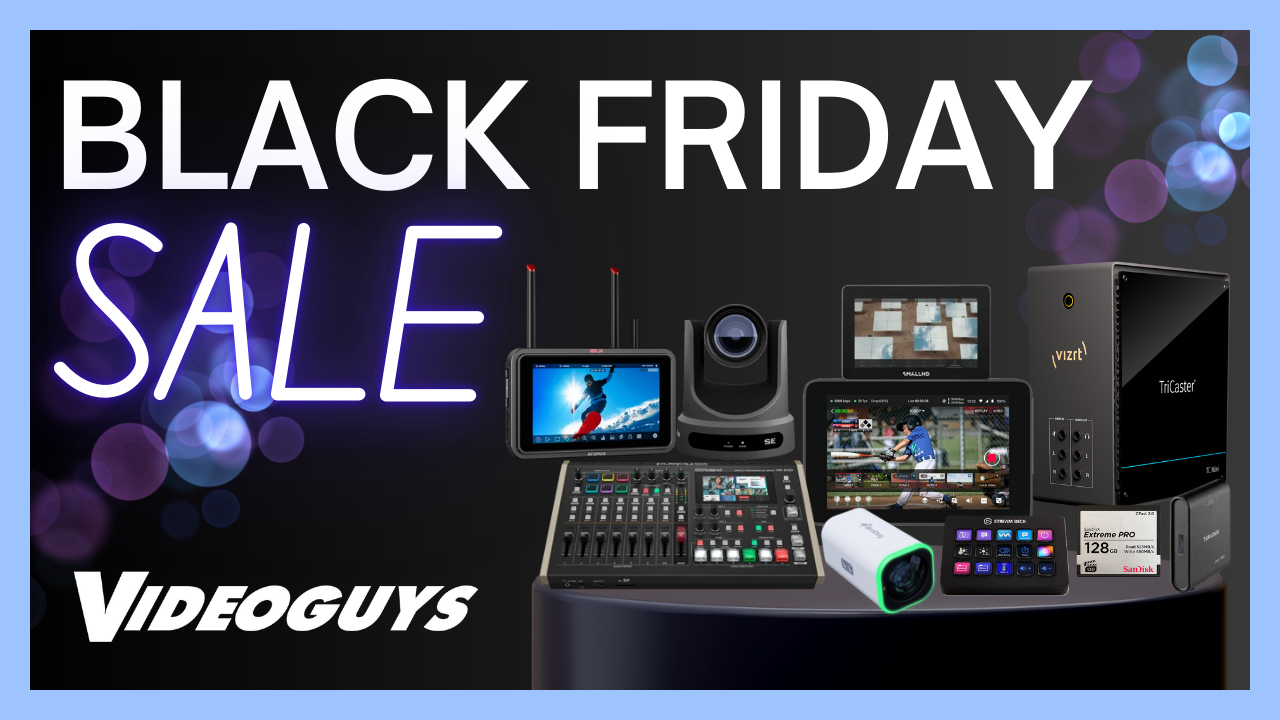
Black Friday has arrived at Videoguys with our biggest deals of the year! Explore limited-time savings across cameras, switchers, PTZ gear, streaming tools, storage, and more. The best pro video deals are all in one place—shop all Black Friday specials now!

Save Big on Streaming Gear, PTZ Cam


Get the best Videoguys Black Friday Deals 2025 on streaming gear, PTZ cameras, video switchers, capture cards, storage, and production tools! In this episode of Videoguys Live, we walk through all the top discounts from brands like Elgato, YoloLiv, PTZOptics, Atomos, BirdDog, Teradek, SmallHD, Avid, SanDisk, Western Digital, Roland, Vizrt, Panasonic, Canon, Kiloview, and more.

Whether you’re upgrading your live streaming setup, building a studio, or stocking up on media cards and storage—this is the best time of year to save.

🔥 Featured Black Friday Deals 2025
Elgato – Stream Decks, capture cards, prompters & mic arms
YoloLiv – YoloBox Extreme, Ultra & Instream savings + free SD card
PTZOptics – Deals on Move SE, Move 4K, Link 4K, producer bundles & controllers
Atomos – Ninja upgrades, Sumo 19SE, Shogun Classic, TX/RX kits & more
BirdDog – Maki Live, Maki Ultra (white models), camera bundles & custom combos
Teradek – Bolt 6 LT, Bolt Monitor, Serve 4K, A750
SmallHD – Huge savings on field monitors
Avid – Media Composer Ultimate 33% off
SanDisk – CFexpress, CFast, SD, microSD & SSD deals
Western Digital – Free Pelican case with G-RAID Shuttle
Roland – Savings on switchers, streaming mixers & instant replay
Vizrt TriCaster – Flex bundles + free Elgato Stream Deck
Panasonic – UE160 3-camera bundle with free RP150
Canon PTZ – CR-N100, CR-N300, CR-N500 3-camera bundles
Kiloview – RFO2 launch promo + P1/P2 trade-in discounts

📞 Need Help Finding the Right Gear?
Call 800-323-2325 or email sales@videoguys.com — our experts can help you pick the perfect gear and build custom bundles.

Shop Black Friday Specials HERE

NDI Workflows with Canons new CR-N400 & CR-N350 PTZs


NDI Workflows with Canons new CR-N400 & CR-N350 PTZs | Live Color Match Demo & LUT Import

Join host James and David Doko (Senior Technical Specialist at Canon) for this NDI November 2025 session unveiling Canon’s latest PTZ innovations designed for seamless AV-over-IP production.

Explore the new CR-N400 and CR-N350 PTZ cameras – bridging entry-level and flagship models with native NDI HX2 support:

  • 1/2.3″ sensor, 4K 60p output, 20x optical/40x HD zoom, hybrid auto-focus, and slow-motion pan/tilt (0.1°/s)
  • CR-N400: Dual SDI (12G + 3G), HDMI, XLR audio; CR-N350: 3G-SDI, HDMI, USB-C UVC for Zoom/Teams
  • Built-in NDI HX2, SRT, RTP/RTMP/RTSP streaming – all over single PoE++ cable for power, video, control, and tally
  • XC Protocol: Unified IP control for PTZ and cinema cameras (C400, C80, C50); free apps for color matching, LUT import, and remote cropping (including 9:16 vertical)

Learn more about Canon HERE

Learn more about NDI HERE

New Vizrt Connect Audio & NDI Ecosystem 2025


New Vizrt Connect Audio & NDI Ecosystem 2025 | Full Breakdown with Jeremy Morris from Vizrt

Join host Jim and Jeremy Morris (Senior Pre-Sales Consultant at Vizrt) for this in-depth NDI November 2025 session covering the complete Vizrt NDI ecosystem – straight from the creators of NDI.

Discover the latest Viz Connect family additions and how they supercharge IP-based production:

  • Connect Solo (formerly Sparks): Affordable HDMI/SDI ↔ NDI conversion with tally & API control
  • Connect Studio: Rackmount baseband I/O expansion for permanent installs
  • Connect Tetra: 4x 12G-SDI compact powerhouse for NDI processing, color correction, Zoom ISO, NDI Bridge (ground-to-cloud), and Dante audio
  • New Connect Audio: 1RU rack with 8 combo inputs (phantom power), 4 XLR outputs, front-panel controls, independent audio routing, and full NDI integration
  • TriCaster lineup (Mini, TC1, Vision) with native NDI scalability, Flex Control Panels, and end-of-year bundle promotions
  • Flowics HTML5 graphics for lower thirds, data-driven content, and social integration

Learn more about Vizrt HERE

Learn more about NDI HERE

How Panasonic Makes NDI Easy in 2025


How Panasonic Makes NDI Easy in 2025 | PTZ Cameras, Media Production Suite & AV over IP

Join host Jim and Mike Bergeron (Panasonic ProAV Product Manager) for this NDI November 2025 session exploring Panasonic’s complete NDI-enabled ecosystem for corporate AV, education, houses of worship, live events, and broadcast.

Discover why Panasonic PTZ cameras lead in AV-over-IP:

  • Native NDI built into the entire lineup (including URL100 outdoor models) – single Cat6 cable for PoE power, video, audio, control, and tally
  • Free Media Production Suite: Bulk camera management, advanced autotracking/autoframing, NDI 4×2 mixer plugin, green screen, and device orchestration
  • Seamless integration with Crestron, Panopto, Kaltura, and NDI networks

Learn more about Panasonic HERE

Learn more about NDI HERE

The Friday Roundup – Online Branding and Some Editing Hacks


Bridal influencer with branding problems.

Most Creators Ignore This With Their Brand

This is a slightly more advanced topic for those who are delving into the world of online video creation in any form

It is not “advanced” from a technical point of view but more from a developmental one.

Most creators start off focusing entirely on doing just that, creating.

That’s a good thing in the beginning because it sets them up with a solid base of existing content and establishes them in a sort “content creator” persona.

However regardless of what platform you are using the bottom line is that most people are not going to actually follow the content.

They are really going to follow the creator as a person, a brand or even a particular created persona.

In order to strengthen that aspect of the process it is important at some point to at least focus a little on that branding.

Here are some insights and tips for that.


3 Video Editing Hacks That’ll Save You Time – PowerDirector

OK, so when it comes to even the simplest of video editing software these days there is a lot going on!

Any software you use is going to be packed with features and capabilities that you are probably not aware of yes if you were, you would be using it daily!

So inlight of that here are three “hacks” like that in PowerDirector that can really cut down the time you spend editing.


Tips on Using Insert, Delete and Ripple Delete in PowerDirector

One of the biggest problems any video editing software interface designer has is trying to accomodate all possible actions and outcomes desired by the user.

They probably do this on the understanding the not everyone is going to be happy!

Anyway, one of those basic things is what the user wants to happen to assets already on a track or on the timeline when they add or remove something.

Should everything move, should nothing move, should only some things move…what?!

To deal with that there are options available but you REALLY have to know what they are!

Here’s some in PowerDirector.


Video Color Grading: Light & Color Adjustments – PowerDirector Basics

This is another in the “basics” series from CyberLink updating their tutorial base to math the latest version.

There are lots of tools available in PowerDirector when it comes to correcting and controlling color so this one is well worth watching.


DaVinci Look in Minutes – Easy Color Grading in Movavi 2026

As I also mentioned in last week’s Friday Roundup the Movavi Video Editor was updated to the 2026 version and with that upgrade they added a few tweaks to the color correction module of the program.

Now let’s be clear here as far as the title of their tutorial video goes!

It’s a bit clickbaity to suggest that in Movavi you are going to exactly replicate the level of detail and control that comes with DaVinci Resolve!

Personally I think that’s silly because if you really wanted to do that you would use Resolve BUT, you would also have to learn a LOT of stuff to get it done.

The real advantage to using software like Movavi is that the process is way simpler and newbie friendly and with a little practice you can get acceptably close.


A Few Filmora 15 Update Additions in Action.

As I mentioned in last week’s Friday Roundup, Filmora has recently updated to version 15 adding a number of new features.

You can check last week’s Roundup to see a couple of videos showing those features as an overview.

Since then there have been some #shorts created that show a few of them in action.

A.I. Extend

The New Pen Tool


How to Downgrade From Filmora 15 to Older Versions Easily

Sometimes it works out that when you have upgraded your video editing software to the latest version… things don’t quite go to plan!

There can be many reasons for this like the new version is buggy, there is a newly introduced compatibility problem in fact the list can go on and on.

So if you have upgraded to Filmora 15 and things are not too rosy the good news is this:

  1. Wondershare are very responsive to customer problems especially around upgrade time.
  2. They off a very easy way to roll back to an earlier version that was running stably on your machine.

Here’s how you do it!


Basic Training for Adobe Premiere Elements 2026, Part 1 of 8

Steve Grisetti is a YouTube creator that specializes in a few things, one of which is Adobe Premiere Elements.

Premiere Elements is actually the only Adobe product I recommend in any way because it stands clear of the dreaded Adobe subscription trap.

Steve’s tutorials are very well structured and easy to follow and if you are using Elements then he is your “go to” guy.


How Color Nodes Work in DaVinci Resolve – Beginners Guide

When I first started working with DaVinci Resolve for color correction and grading I found too often, because of my lack of experience, I would get to a point of making everything look really, really bad!

Of course that was because color correction is usually one of those “less is more” activities and newbies like me are prone to miss the subtleties!

The real problem with that was that there was no way for me to realistically “step backwards” through what I had done to work out where it all went wrong.

That’s when I discovered the joys of the Color Nodes on the Color Page which is something I use almost daily in my color work now.

At first they seem to present a complication to what should be a straightforward process but once you get used to them they are absolutely the only way I work these days.

Check out this video from Casey on working with Color Nodes in DaVinci Resolve.


Discover more from The DIY Video Editor

Subscribe to get the latest posts sent to your email.