
It is Friday afternoon. Customer orders are packed, invoices are sent, and the video you planned on Monday is still an unfinished project. There are several generated clips to choose from, but the captions, final edit, and upload still need attention. Weekly Video Production can be difficult to manage when you work alone and handle every stage of content creation.
For someone running a business alone, making time for video means budgeting the whole job. Planning, generating material, reviewing it, editing, and publishing all need space in the week. A folder full of clips does not clear a space in the content calendar.
Start by recording one ordinary week. Then use that record to choose a manageable output, prepare reusable material, and decide when a video is finished. The aim is a schedule that leaves room for the business the videos are supposed to support.
Separate Hands-On Work From Waiting
An afternoon spent making a video can contain several different kinds of time. Keep five categories in your log:
| Stage | What to record |
| Planning | Choosing the audience, message, script, and necessary shots |
| Generation setup and review | Preparing references, writing prompts, starting jobs, inspecting results, and requesting corrections |
| Generation waiting | Time between submitting a request and receiving its result |
| Editing | Selecting clips, recording narration, arranging the sequence, adding captions, and checking exports |
| Publishing | Writing the post, choosing a cover, uploading, checking links, and confirming the scheduled version |
Planning, setup, review, editing, and publishing consume active working time. Generation waiting affects when the next step can begin. Put those two measures in separate columns.
Suppose a clip takes 12 minutes to arrive, and you spend eight of those minutes writing captions. This hypothetical interval contains eight active minutes and 12 minutes of generation waiting. It does not occupy 20 minutes on the clock. If the remaining four minutes prevent you from continuing, mark them as blocked waiting. Weekly Video Production becomes easier to plan when you separate active work from waiting time.
Parallel generation jobs need similar care. Their individual durations may overlap. Record submission and completion times, but use the actual timeline to judge how much of your day they occupied.
Repeatedly checking progress also takes attention. Log those checks as active work rather than hiding them inside the waiting column.
Use a Week Of Logs To Find What Holds Up Publishing
Track the process you actually follow, including abandoned attempts. Start a new row when you change stages. A simple record can use these fields:
| Date and task | Stage | Active minutes | Waiting: start/end | Blocked minutes | Output or reason for rework |
| ______ | ______ | ______ | ______ | ______ | ______ |
At the end of the week, total active minutes by stage. Then check where work stopped moving. A short stage can still delay the whole project if it happens too late: leaving the caption check until Friday evening may prevent a finished edit from being scheduled.
Read the notes alongside the totals. Long setup sessions might reflect missing references. Repeated generations during Weekly Video Production might come from changing the visual direction after each result. A large editing total might include searching through poorly named downloads.
Choose one adjustment for the next week. If file selection takes too long, organize accepted clips before editing. If scripts keep changing, approve the message before making visuals. If waiting blocks the final edit, submit the necessary shots earlier.
Keep separate counts for generated attempts, accepted clips, finished videos, and scheduled posts. Two usable backgrounds are two assets. They become a completed video only after the message, sequence, sound, and delivery checks are finished.
Prepare a Small Set Of Reusable Background Clips
Before opening a generation tool, identify the visuals that several upcoming posts could share. A home-based stationery business, for example, might need calm backgrounds for a weekly planning tip, a notebook-care post, and a product announcement.
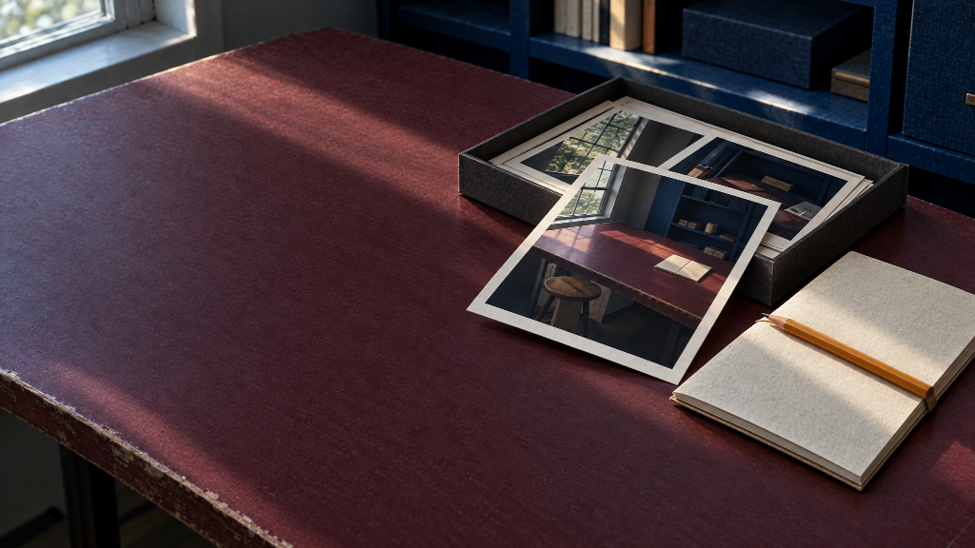
Prepare one visual brief: a burgundy work surface, dark blue shelving, pale paper, and directional window light. Give each background a different purpose. A high-angle desk view can support a text-led tip, while a wider studio view can establish the setting beneath narration.
For this preparation, Astorie lets you keep reference images, generation steps, and results together on a canvas. In the accompanying example for a fictional stationery business, a high-angle desk image provides the reference for a wider studio image. Each image then feeds its own video branch, using Seedance 2.5. The screenshot shows two video outputs alongside their source images.
The desk composition leaves open space on the left for a text-led post. The wider view includes the window, curtain, and shelving for an introduction or narration background. This example documents asset preparation; it does not establish a weekly production rate.

Batching here means preparing related assets in one planned session. You still need to start the relevant jobs and inspect their results. Grouping them does not remove review or guarantee that every output will be useful.
Define acceptance before generating. A background should leave room for text, keep important objects stable, and support the intended crop. Choose restrained motion that serves its role. A slight curtain movement may suit narration better than a camera move that reveals distracting new objects. Weekly Video Production.
Save accepted clips with useful names, such as desk-wide-text-left-v1. Add a note about the available text area and any motion limitation. Keep rejected versions outside the folder used for editing.
Use generated scenes as illustrations. When a video promises a particular product feature, service result, or customer experience, include accurate material that supports that promise.
Give The Week a Production Ceiling
Choose the hours you can protect after customer work and other commitments. Reserve time for editing and publishing before filling the remaining space with generation tasks.
The following is an illustrative six-hour budget, not a measured result or a promise that six hours will produce a particular number of videos. The blank column makes it usable for your own planning.
| Work block | Example active minutes | Your planned minutes | Your actual minutes |
| Choose topics and write scripts | 45 | ______ | ______ |
| Prepare references and generation requests | 45 | ______ | ______ |
| Review outputs and organize accepted clips | 45 | ______ | ______ |
| Edit, caption, and check exports | 120 | ______ | ______ |
| Prepare posts and confirm scheduling | 45 | ______ | ______ |
| Reserve for necessary corrections | 60 | ______ | ______ |
| Total | 360 | ______ | ______ |
Record generation waiting separately. Place it on the calendar where it affects a dependency, such as needing an accepted background before the editing session. Do not assume every waiting interval can accommodate another task.
Set an initial ceiling of two short videos only if that scope fits your available hours. It is a planning choice to test. If your log shows that one video consumes the editing allowance, lower the ceiling or simplify the format before adding another deadline.
A ceiling also limits unfinished work. Keep new ideas in a backlog while the current videos move through review and publishing.
Decide When To Stop Revising
Write a short definition of done before you review the first cut. The message must be understandable, claims accurate, captions readable, sound intelligible, and the next action clear. Relevant product details must remain recognizable throughout the shots used.
Separate a defect from a preference. An incorrect price, unreadable caption, or visibly changing product needs attention. A slightly different shadow may be acceptable if it does not affect the message or appearance at the intended viewing size.
Give each correction a purpose: “Keep the notebook edge rigid” is a usable instruction. “Make it better” leaves the review open indefinitely.
For the first week, try one targeted correction after the initial review. This is a proposed stopping rule, not a universal standard. If the result still fails, use an accepted alternative, simplify the shot, or remove it. Do not publish inaccurate material because the revision allowance has run out. Weekly Video Production
Once a video meets its checklist, export it. Put optional experiments into next week’s backlog. Changing the entire visual style at that point would create a new production task.
Put Production and Publication On The Same Calendar
Assign each work block a day and an exit condition. “Work on video” is difficult to finish. “Approve two scripts” tells you when to move on.
| Day | Main block | Required outcome |
| Monday | Choose topics and prepare scripts | Approved messages and an asset list |
| Tuesday | Prepare and generate background material | Requests submitted with clear uses |
| Wednesday | Review and make necessary corrections | Accepted clips organized for editing |
| Thursday | Edit and check delivery files | Finished exports within the weekly ceiling |
| Friday | Prepare posts and review the log | Confirmed schedules and next week’s adjustment |
Move the blocks to suit your business. A busy Friday may make Thursday a better publishing day. Keep a fallback slot if a required clip is delayed, and avoid scheduling the final review immediately before a post must go live.
Close the week with a brief record: active minutes by stage, blocked waiting, accepted assets, finished videos, and scheduled posts. Note anything that spilled into personal time.
For the next week, change the allowance where the log shows pressure. Keep unused backgrounds available without generating replacements simply to fill a session. When the planned hours end, carry unfinished optional work forward and protect the other commitments already on your calendar.
Find a Home-Based Business to Start-Up >>> Hundreds of Business Listings.