
How to Run 2D CAD Smoothly on a Laptop


Can 2D CAD software run on a laptop computer? Yes, it’s definitely possible to use installed CAD software on a laptop, but there are some potential pitfalls to watch out for. This article will help you ensure that it’s a smooth, productive experience.

Flexible work styles have become common in recent years. CAD software, once typically run on desktop computers in on-premises environments, can now be used on a variety of devices in almost any location. However, if you’re planning to install CAD software on a laptop, it’s crucial to check the system specifications in advance.

In addition, new types of web-based 2D CAD software that don’t require installation on a computer have also become available to support diverse working styles.

This article will explain the necessary specifications for running 2D CAD software on a laptop, and introduce browser-based 2D CAD tools that can run smoothly even on modest laptops.

2D CAD software demands considerable resources when loading files and drawing, so high-end laptop specs are recommended.

Key Hardware Components for 2D CAD:

  • GPU (Graphics Processing Unit, or Graphics Card): NVIDIA or AMD
    • NVIDIA is preferred for line drawing performance and OpenGL support.
  • CPU: Intel Core i7 or i9
  • Memory: 16 GB or more

Additional Requirements:

  • Storage: At least 256 GB SSD
  • Display Size: 14 inches or larger

While larger monitors are better for CAD usability, they also add weight, which may have a negative impact on portability. If mobility is a priority, consider using a small-screen laptop and connecting it to a large monitor when needed.

To achieve smoother and faster performance when running 2D CAD software on a laptop, several optimization techniques can make a significant difference. These tips help reduce lag, improve responsiveness, and ensure more efficient day-to-day drafting:

  • Keep graphics drivers up to date
  • Simplify models by removing unnecessary elements
  • Optimize file size to improve loading and saving times
  • Use shortcut keys to boost drawing speed
  • Ensure proper cooling for stable performance under heavy loads
  • Back up data and use version control to prevent data loss.

The strategies above will help you get better performance from CAD software on laptops. However, powerful laptops capable of running CAD well are usually priced at the upper end of the market. If your budget is limited, consider browser-based 2D CAD software instead.

What is Browser-Based 2D CAD?

Thanks to modern tech advancements, 2D CAD tools are now available not only for laptops but also for tablets and smartphones. Some don’t require installation, and can run directly in web browsers, offering a flexible, hardware-independent CAD experience.

One standout example is Graebert’s ARES Kudo, a full-featured cloud-based 2D CAD solution that allows you to view, create, and edit DWG files directly in your browser — Edge, Chrome, Safari, Firefox, and more.

With ARES Kudo, users benefit because:

  • There is no need for high-end hardware
  • No software installation and no updates are required
  • OS compatibility issues are eliminated.

Advantages of Cloud-Based CAD for Modern Workflows

ARES Kudo integrates with multiple cloud storage services, including OneDrive, Google Drive, Box, and AWS. For users without an existing cloud storage account, ARES Kudo Drive (for free) is also available, enabling seamless cloud CAD collaboration and online file management.

ARES Kudo also includes powerful collaboration features such as:

  • Version history
  • Drawing comparison
  • Highlighting user-specific changes
  • Feedback through text comments, voice memos, photographs, and stamps.

ARES Kudo offers superior functionality at an affordable price point — starting from just $215 per year. There’s even a free version with limited functionality, ideal for occasional users who just need to open and view DWG files, and collaborate via comments and markups.

Graebert, the company behind ARES, reinvests profits into innovation rather than shareholders, enabling them to offer powerful tools at reasonable prices.

To fully experience the ARES ecosystem, you can try ARES Kudo as part of the 30-day free trial of the ARES Trinity of CAD. In addition to Kudo, the trial also includes access to:

  • ARES Commander — the full-featured desktop CAD application for Windows, macOS, and Linux
  • ARES Touch — the optimized mobile CAD app for tablets and smartphones

Together, these three solutions provide a complete cross-platform CAD workflow that lets you work seamlessly across desktop, browser, and mobile devices.


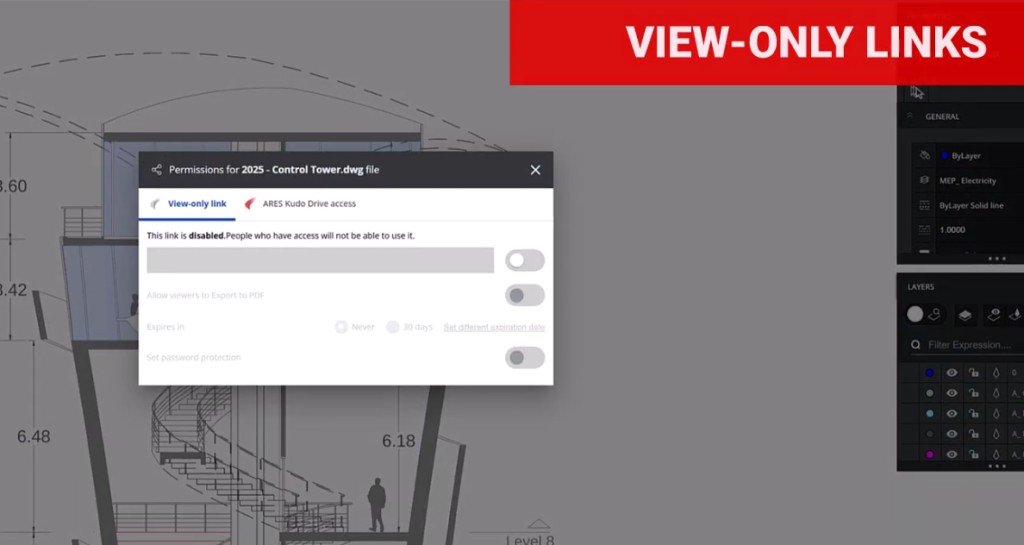
Share CAD Drawings Securely with View-Only Links


Learn how to share DWG-format CAD drawings easily and efficiently by using view-only links. Avoid the hassles of email attachments, prevent version confusion, and collaborate in real time.

Going into the new year, it’s time to take stock of what’s going well in your CAD workflows — and to discard outdated practices that are bogging you down. Making even a small upgrade in your daily routine can have a big impact.

Your file-sharing practices are a great place to start. Sharing information — both inside and outside your company — is fundamental to collaboration. But when it comes to efficiency and security, sharing methods are not all equal. If you’re still sending DWG files to collaborators via email, you’re wasting time, taking unnecessary security risks, and introducing confusion with multiple file versions. It’s time you learned about a better way to share: A URL that recipients can simply click on to view your file. 

A view-only link is a modern way of sharing CAD content, allowing recipients to always see the latest, live-updated version of the file. While there may be times when you need to convert your DWG drawings to PDF format for sharing, PDFs can only capture a snapshot of the drawing at one particular moment in time; they’re not automatically updated as the drawing evolves. With view-only links, in contrast, any changes made to the file are reflected immediately, making it unnecessary to resend files. 

In addition, with view-only links, you retain full control over the DWG file you’re sharing. You can protect it with a password, set an expiration date, and even revoke access to the file at any time. 

This article explains how CAD drawings can be shared via view-only links. Specifically, we’ll see how view-only links work in ARES, the world’s no. 1 alternative to AutoCAD. You can download a free trial version of the ARES Trinity of CAD software to explore view-only links, and the rich array of other features, for 30 days. 

Click to watch “Free Online DWG Viewing and Commenting with View-Only Links,” and see the process in action.

Sharing information via a link is significantly more convenient than doing so via traditional email attachments. This modern process offers the following advantages:

  • Quick and easy sharing. You can share specific files, or entire folders, just by generating and sending a link. You don’t have to worry about the size or format restrictions of email attachments, even for large files such as drawings. This ease of use also reduces the risk of human errors, such as accidental email transmission of the file.
  • Access to the latest version — always. Once a shared link is issued, the recipient can always access the latest information at the link destination, because any changes made to the file are reflected in real time. This greatly reduces the hassle of exchanging and managing multiple versions of the same file.
  • Real-time collaboration. With link sharing utilizing cloud services, multiple people can view the file simultaneously, even while it is being edited — creating an environment for real-time collaboration and information sharing within a team.
  • Security ensured by access rights. Since access rights can be finely tuned for each file, using settings that restrict who can view or edit it, users can share information while maintaining the desired level of security.
  • A simple way to collect feedback. Even the link users who only have viewing rights can add feedback and validate the file, by using the intuitive commenting and markup tools. Collaborators’ comments and markups display feedback in context, so it’s easier to understand, yet they don’t affect the drawing itself.

In the ARES Trinity of CAD software — which comprises ARES Commander, ARES Kudo, and ARES Touch — the view-only link feature enables users to safely and efficiently view and provide feedback on shared CAD drawings. By generating a unique link from the sharing options and sending this link to the person you want to share with, you make it possible for that person to view the drawing in a web browser.

View-only links can be created in ARES Commander (the desktop version of ARES), ARES Touch (the mobile version), and ARES Kudo (the cloud version). Drawings can be shared with anyone via the link; the recipient does not need to have an ARES software license.

View-only links have substantial benefits for those sharing and receiving CAD files. Here, we’ll look at just a few of the possible scenarios where this feature can make a big difference.

Use Case #1: Accessing drawings while working from home or on a business trip

The view-only link is convenient when you want to check drawings while away from the office. Since it can be accessed from a browser, the device you’re using is irrelevant — you don’t need the desktop computer or workstation you normally use at work. Also, unlike traditional sharing with file attachments, you can view the drawing with just a click; there’s no need to download any software, or open anything other than a browser.

Notably, you can share a drawing with people who may not be CAD users — such as clients or sales staff — simply and easily. The view-only link allows the link creator to assign viewing permissions only, without editing rights. The link can be configured with an expiration date and/or password, ensuring confidentiality.

Use Case #2: Collaborating in real time with multiple people

ARES is rich in collaboration features for projects. The software prevents conflicting changes by allowing only one person to edit at a time. A mechanism is included where editing rights automatically transfer to the next user if the current editor is inactive for 25 minutes, preventing problems if a user forgets to log out when finished.

In projects where drawings are frequently updated, sharing via file attachments often results in multiple versions and can cause confusion. In contrast, the view-only link always displays the latest version of the drawing, making version management easy.

Furthermore, feedback on drawings can be given through written comments, photos, voice recordings, or stamps, allowing for real-time exchange of opinions.

Use Case #3: Improving sharing security with fine-grained access management

The view-only links feature in ARES allows users to share drawings while maintaining security. Access rights can be flexibly set for each user, giving each individual the ability to edit the drawing or only to view it, for example. Access history is also recorded, so it is clear who accessed the file — and when — at a glance.

ARES can connect to major cloud storage services such as OneDrive, Box, and Google Drive. Saving files to cloud storage provides robust security.

In summary, view-only links are a modern way to share DWG drawings with collaborators, whether they’re CAD users or not. When compared with email attachments, view-only links provide substantial improvements in security and convenience — and they’re very easy to use, for creators and recipients alike. Start your free ARES trial today and discover a secure, modern way to share CAD drawings with view-only links.