iOS 18.2: Everything You Should Know About Image Playground


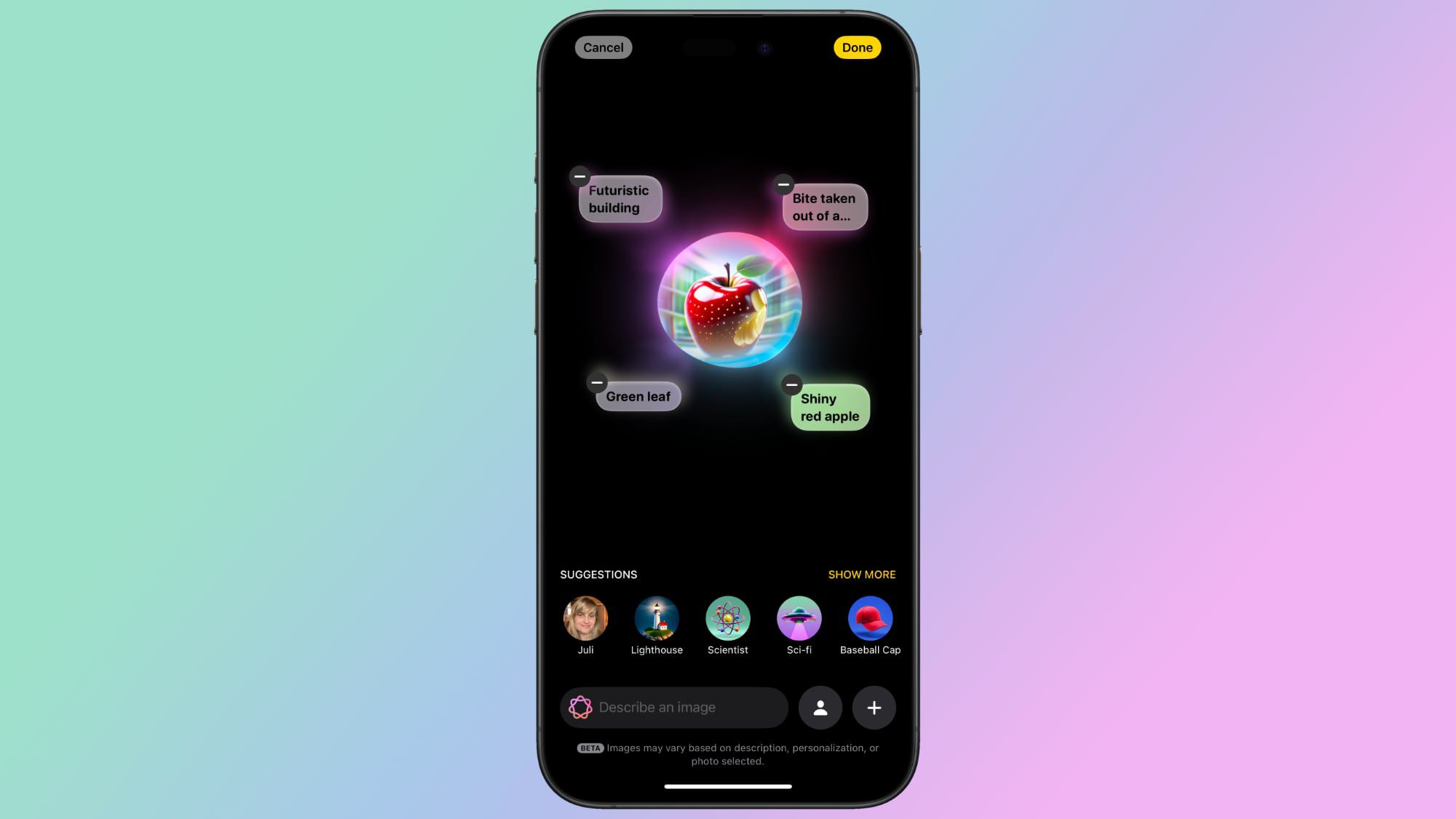
iOS 18.2 includes the first image generation technologies that are coming to Apple Intelligence, including Image Playground. Image Playground is Apple’s dedicated image creation app that can build cartoon-like pictures based on text descriptions.

image playground ios 18 2
This guide highlights everything that you need to know about Image Playground, from its limitations to where you can use it, and we’ll provide updates as Image Playground evolves.

The Image Playground App

Updating to iOS 18.2, iPadOS 18.2, or macOS Sequoia 15.2 adds a “Playground” app to the Home Screen or desktop, denoted by an icon featuring a white cat/dog/bear creature in a 3D style.

Tapping into the app brings up a splash screen with instructions on how to use Image Playground, but it’s straightforward. There’s a text bar at the bottom that instructs you to “Describe an image.”

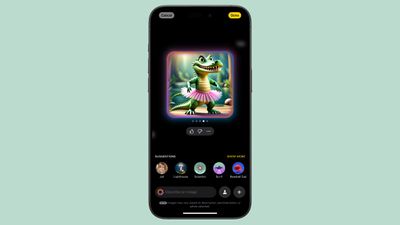
As soon as you type in a word or phrase, Image Playground starts working on generating an image for you. You can essentially type in anything, like “crocodile wearing a tutu” or “skunk hula hooping on top of an elephant.”

ios 18 2 image playground crocodileios 18 2 image playground crocodile
You can modify the result with additional word descriptions, or use one of Apple’s suggestions. You’ll get several possible images for each description, and you can swipe through them to choose what you want. You can add and remove words and phrases until you refine the generated image to exactly what you want.

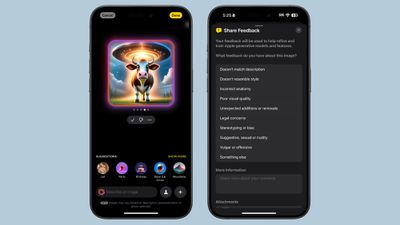
Image Playground is very much in beta right now, so Apple is soliciting feedback. There are thumbs up and thumbs down icons you can use to submit feedback. Thumbs up doesn’t require additional input, but thumbs down goes to an interface where you can select what’s wrong with an image and provide additional written details.

ios 18 2 image playground feedbackios 18 2 image playground feedback
After you’ve created your ideal image, you can tap on the Done button to save it to your Image Playground library. Items saved in the Image Playground library can be edited again later, deleted, or shared with the standard Share Sheet. There are also built-in tools for copying, sharing, or saving an image during the creation process.

Personalized Images Based on People

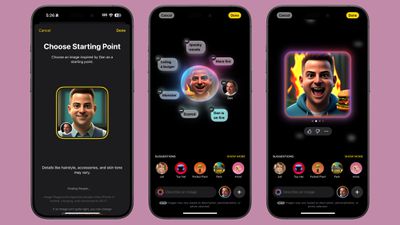
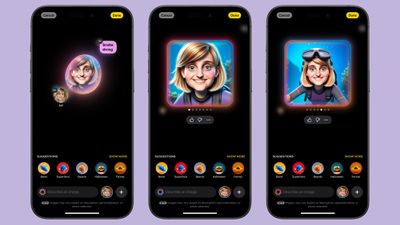
You can start an Image Playground creation with a person. People that are saved in your People album in the Photos app will show up as an option (yourself included), and you can select a specific photo of a person to use as the base for a new image.

ios 18 2 image playground personios 18 2 image playground person
Each photo of a person will look different because Image Playground is pulling in the specific angle, lighting, and look of a particular image rather than of an aggregate, so you can swipe through to see which image of a person looks the most like them when converted to an animated form.

You are limited to individuals that are saved to your People album, so AI isn’t going to understand if you ask for an image of Tim Cook or Taylor Swift, but for this use case, you can import a photo.

You can also create a generic look to use as a base using the built-in “Appearance” option in the Person interface. That setting lets you select a skin tone and feature set, which can be refined further with image descriptions.

Image Playground Suggestions

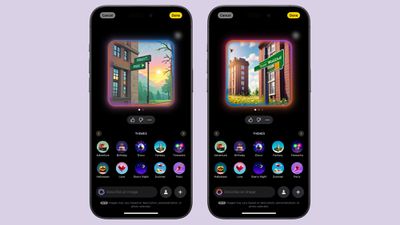
If you don’t know where to start with an image creation or you need inspiration for details, Apple has a range of suggestions that you can tap to add to your image.

Image Playground Preset Feature 1Image Playground Preset Feature 1
There are themes like adventure, disco, summer, party, sunset, and fantasy, along with places like city, space, desert, park, prairie, and forest. Apple suggests costumes that include artist, chef, hiker, mage, robot, and superhero, and there are accessories you can select from like sunglasses, beanie, top hat, party hat, and flower crown.

These are just a jumping off point, of course, and you can choose any location or setting and add any objects and accessories you want using text descriptions.

image playground catimage playground cat
Suggestions in the Image Playground app aren’t contextual, but when you use Image Playground in Messages, you might see suggestions based on what you’ve been talking about.

Animation Style

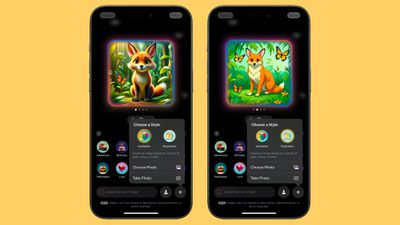
You can’t make photorealistic images with Image Playground, and that’s by design. Apple doesn’t want to generate images that can fool someone, so you’re limited to two styles: Animation and Illustration.

ios 18 2 image playground stylesios 18 2 image playground styles
Animation is a 3D-looking style that looks like something out of a Pixar movie, while Illustration is a flatter, 2D image that’s simpler.

When Image Playground was first announced in June 2024, Apple said there would be three styles, including Animation, Illustration, and Sketch. It’s not clear if sketch is still planned and will be coming at a later date.

Base an Image on a Photo

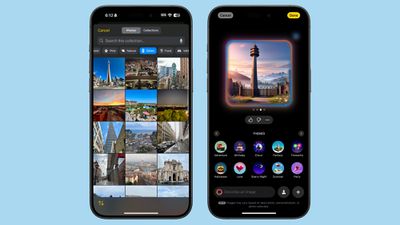
You can take a photo or import a photo from the ‌Photos‌ app to use as inspiration for an Image Playground creation. If you want an Image Playground image with ‌Tim Cook‌, using a photo is the way to go.

ios 18 2 image playground photoios 18 2 image playground photo
Any photo works to serve as inspiration for a creation, and you can use a photo for the main subject of an image or for the background.

Image Playground in Messages

You can create images in the Image Playground app and share them in Messages, but you can also do it directly from the Messages app. In a conversation, tap on the “+” button and then choose Image Playground from the list.

ios 18 image playgroundios 18 image playground
The Messages mini app works like the full app. Just type in a description of an image and use the same steps to get it to where you want it. When you’re finished, tap on Done, and it’ll show up in the send field of your conversation so you can text it to whoever you’re conversing with.

Sharing Image Playground Creations

To share an Image Playground image in a text message, you can use the built-in Image Playground mini app in Messages, which is the quickest route.

You can also go to the Image Playground library or create a new image in the app and then use the Share Sheet to AirDrop it, send it via Messages, email it, or save it to the ‌Photos‌ or Files app. Anything you’ve saved to ‌Photos‌ can be uploaded to a social media app.

The Share Sheet is like the Share Sheet anywhere else in iOS, so if you have an app like Instagram installed, there is a Share Sheet option to upload an Image Playground creation directly to Instagram. The same goes for other social networks that support the Share Sheet.

Image Playground Limitations

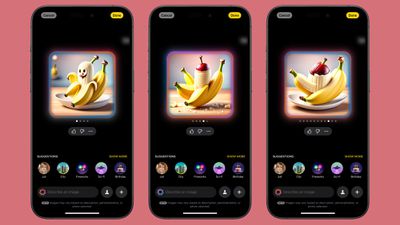
Image Playground is in beta right now, and Apple says that users can see unexpected results depending on the descriptors that are used. Sometimes words that seem like they should produce a simple result end up making something unexpectedly odd, such as the banana split images below.

ios 18 2 image playground banana splitios 18 2 image playground banana split
The AI has some limitations to be aware of, and there are also built-in guardrails that restrict the content that you can create.

Size and Scope

One noticeable limitation involves Image Playground creations that use photos of people. You can only get portrait-style photos that show the top half of a person, with no option for a full-body pose. So if you wanted to generate an image of your friend Eric roller skating, it’s hard to depict that activity accurately because Image Playground will only generate a chest-up image.

ios 18 2 playground people limitationios 18 2 playground people limitation
This limitation doesn’t apply when generating images of animals and creatures, but it’s an issue when you want to depict an activity that needs more than a head and shoulders.

This also impacts images that you might want to generate with a secondary object, like a cat or another person. Image Playground doesn’t always do a good job with multiple subjects in a photo at this time. The more descriptors you have, the more it struggles with this kind of thing.

Words

As with most image generating tools that are available, Image Playground struggles with text. Text tends to be non-sensical.

ios 18 2 image playground writingios 18 2 image playground writing

Restricted Phrases

Apple learned some lessons from other tech companies that have introduced image generation tools, and there are plenty of built-in restrictions. When Google debuted Pixel Studio in August, people were able to use it to generate images with drugs, alcohol, Nazis, and more, and Apple’s not allowing any of that.

When a word isn’t allowed, you’ll see the following message: “Unable to use that description” with an undo button you can use to remove it.

There are other phrases that Image Playground will kind of ignore. If you use “blood” or “bloody” for example, you’ll get a red-tinted background, but no actual blood. You can’t use words like murder or dead or their synonyms, and while gun and pistol are okay, AK-47, machine gun, and shotgun are not.

Concepts that could be used to generate a political image are likewise banned. You can’t add country-specific flags, or countries like United States, Mexico or Germany. Words related to drugs or drug paraphernalia don’t work, and there are a lot of descriptors that Image Playground will just disregard, even if you don’t get a message that it’s explicitly forbidden.

It’s clear that Apple put a lot of work into preventing Image Playground from generating inappropriate images, and the company has made it clear that improvements will be made and that there’s still a possibility of unexpected results during the beta.

People Requirement

When Apple Intelligence is having trouble applying a word, it often requires you to select a person to add to your image, even if you didn’t want to add a person. It can be frustrating, and you’ll need to add the person, change your phrasing, and remove the person to get to what you really meant.

Likewise, Apple doesn’t allow you to create images of copyrighted characters, so there won’t be any option to use Image Playground to create compromising photos of Bluey and Mickey Mouse.

Security

Image generation for Image Playground is done on-device, so nothing that you’re typing in is sent to a cloud server or shared, though it is worth noting that Apple is collecting feedback on it right now.

Availability

Image Playground is only available in the iOS 18.2 beta, and the beta is limited to developers at the current time. There is no word yet on when a public beta might be released.

Waitlist

You need to opt in to a second waitlist to get access to Image Playground and Genmoji in iOS 18.2, with Apple apparently limiting the number of people who can use the features. The wait is longer than the initial wait for opting in to Apple Intelligence, and it has taken 24+ hours in some cases.

Public Launch

If Apple follows launch timelines from prior years, we could see an iOS 18.2 release sometime in mid-December.

Top Stories: New iPad Mini, Upcoming Mac Updates, and More


The first of a number of imminent Apple product updates arrived this week with the seventh-generation iPad mini, but what else is still in store and when can we expect to see them?

top stories 19oct2024
On the software side, the public release of iOS 18.1 and related updates with the first Apple Intelligence features is drawing ever closer, and we can expect more of those features to arrive with iOS 18.2 before the end of the year, so read on below for all the details on these stories and more!

Apple Unveils New iPad Mini With A17 Pro Chip and Apple Intelligence

Surprise! While we were expecting an update for the iPad mini at some sort of Apple event toward the end of the month, Apple dropped the announcement via press release this week sooner than expected.

ipad mini 7 thumbipad mini 7 thumb
With the iPad mini having received a design overhaul in the last generation released in 2021, this year’s design remains the same, but there are number of internal upgrades led by an A17 Pro chip to add support for upcoming Apple Intelligence features.

The update also includes a number of smaller changes such as faster USB-C data speeds, so be sure to check out our full buyer’s guide comparison to see what’s changed between the sixth- and seventh-generation iPad mini models.

Is an Apple Event Still Likely This October Following This Week’s Surprise iPad Mini 7 Announcement?

The new iPad mini launching via press release this week is just one sign calling into question whether Apple is going to hold its rumored October product event at all.

October Event Canceled Thumb 1October Event Canceled Thumb 1
While we hadn’t heard many specific rumors, another product on the potential event docket had been an 11th-generation iPad, but with Apple cutting the price of the 10th-generation model in Europe and removing the power adapter from the box there this week, a near-term update for that product now appears unlikely.

Yet, we are expecting a host of M4-based Mac updates to arrive very shortly, including a major redesign for the Mac mini, so there still seems to be enough for Apple to show off in a short virtual event if it chooses to do so.

iOS 18.1 Includes Option to Set ‘Primary’ Email Address and Change iCloud Email

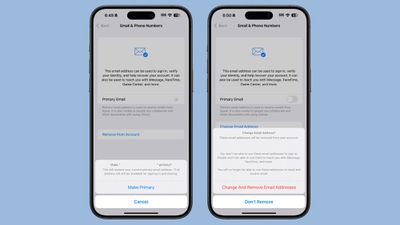
As we continue to inch toward a public release for iOS 18.1 and related updates, we’re still discovering new features and tweaks in the update. One of the latest is a new option to change the main email address associated with your Apple Account, which is particularly handy for those who do a lot of document collaboration and other tasks that make your Apple Account address visible to other people.

ios 18 1 make primaryios 18 1 make primary
Apple seeded the seventh iOS 18.1 beta this week as it reportedly aims for a public release on Monday, October 28.

iOS 18.2 Expected to Add These Additional Apple Intelligence Features

With the first round of Apple Intelligence features coming later this month in iOS 18.1, there’s plenty more yet to come in future updates.

Apple Intelligence General Feature 2Apple Intelligence General Feature 2
iOS 18.2 is up next, with a release expected sometime in December, and it should bring a number of new Apple Intelligence features including support for localized English in a several countries beyond the United States, image generation capabilities with Image Playground and Genmoji, Visual Intelligence for pulling up information on the world around you via the iPhone 16’s camera, and integration with ChatGPT.

iPhone 17 Pro Models Rumored to Introduce These 5 New Features

Yes, the iPhone 16 lineup has only been out for a month, but some users are wanting to hold off for another year and are looking ahead at what they might be able to expect with next year’s iPhone 17 lineup.

16 pro16 pro
So far there are at least five key changes rumored to be coming to the iPhone 17 and/or iPhone 17 Pro models, including upgraded front cameras, an improved Telephoto rear camera and increased RAM on one or both Pro models, and more.

We’re also expecting a slimmed-down “iPhone 17 Air” to replace the current Plus model in the lineup, and we’re continuing to hear rumors about what features that new model may include.

MacRumors Newsletter

Each week, we publish an email newsletter like this highlighting the top Apple stories, making it a great way to get a bite-sized recap of the week hitting all of the major topics we’ve covered and tying together related stories for a big-picture view.

So if you want to have top stories like the above recap delivered to your email inbox each week, subscribe to our newsletter!

iOS 18: Send Messages Without a Wi-Fi or Cellular Connection


In iOS 18, Apple further enhanced its satellite connectivity features for iPhone users with the introduction of Messages via satellite. Keep reading to learn how it works.

iOS 18 Messages via Satellite
Available to users in the United States using iPhone 14 models and newer, Messages via satellite enables users to exchange iMessages and SMS texts, including emoji and Tapbacks, through satellite connections when traditional networks are unavailable.

Apple is using the infrastructure that it set up for Emergency SOS via satellite for this feature, but you don’t need to be in an emergency situation to use it, and the service is currently offered at no additional charge.

When an iPhone detects it’s out of cellular or Wi-Fi range, it prompts users with an alert offering quick access to satellite-enabled services. These include Emergency SOS, Roadside Assistance, Find My, and Messages. Users can also access the feature directly from the Messages app when off the grid, with iOS providing on-screen guidance to help point the iPhone toward an available satellite.

iMessages sent via satellite are end-to-end encrypted. However, it’s worth noting that while iMessage functionality is fully supported, SMS capabilities are more limited to prevent abuse from automated systems. Emergency contacts and designated family members can initiate SMS contact at any time, but for other contacts, the iPhone user must send the first satellite SMS to enable responses.

To familiarize yourself with this potentially life-saving feature, Apple has included a demo mode in iOS 18. You can access this demonstration by following these steps:

  1. Open the Settings app on your iPhone.
  2. Scroll down and tap Apps, then tap Messages.
  3. Scroll down and tap Satellite Connection Demo.

ios 18 messages via satelliteios 18 messages via satellite

This demo guides you through the process of establishing a satellite connection and sending messages, providing valuable practice for real-world scenarios and emergencies where the feature might be crucial.

While the current version doesn’t support Rich Communication Services (RCS), Apple could well bridge the remaining gap between traditional and satellite-based communications by expanding the feature’s capabilities in a future iOS update.

Here’s What You Need for iPhone 16 Fast Charging via MagSafe or USB-C


Now that Apple doesn’t include power adapters with new iPhones, you have to supply your own, and it can be a little confusing figuring out what you need specifically to get the fastest charging speeds. Apple added another layer of complexity this year with upgraded MagSafe charging for the iPhone 16 models, a feature that also requires specific hardware.

iphone 16 pro colors 1

USB-C

All of the ‌iPhone 16‌ models can charge from 0 to 50 percent in approximately 30 minutes. You need Apple’s $19 20W adapter or better for fast charging, and if you already had an iPhone that could fast charge, you probably have the hardware you need.

iPhones charge fastest when the battery is low, and then charging slows down, so you’ll see the most rapid charging at lower battery levels.

There was speculation that the ‌iPhone 16‌ models support up to 45W charging, but testing from ChargerLAB has proven that to be inaccurate. Charging maxes out at 30W, which is similar to last year’s iPhone 15 Pro charging speeds.

Some people have seen sporadic higher maximum charge levels over 30W, but that seems to happen only when you’re playing a game or doing something else that drains battery quickly. The extra power boost seems to be aimed at making sure the ‌iPhone 16‌ is able to maintain its fast charging speed even when it’s using extra power. With prior ‌iPhone‌ models, charging would slow down if you were doing something that used up a lot of battery.

PhoneArena did a charging test and when playing a game, the ‌iPhone 16‌ was able to charge at up to 39W for a short period of time while it had under 50 percent battery. In other tests where the ‌iPhone‌ wasn’t in use, PhoneArena did not see charging speeds over 20W for the ‌iPhone 16‌ or 27W for the iPhone 16 Pro.

PhoneArena and ChargerLAB didn’t test charging speeds, so we did a quick test. An ‌iPhone 16 Pro‌ Max charged from 0 to 55 percent in 30 minutes with a 30W charger, and from 0 to 45 percent in 30 minutes with a 20W charger. A third test with a 140W charger saw the 16 Pro Max charge from 0 to 56 percent in 30 minutes. Tests all used the USB-C to USB-C cable that comes with the ‌iPhone‌ and Apple’s power adapters.

For the ‌iPhone 16 Pro‌ models, it looks like you can get slightly faster charging speeds with a 30W or better charger, even though Apple only recommends a 20W or better charger for fast charging. Going over 30W doesn’t seem to make much of a difference. The standard ‌iPhone 16‌ models seem to max out at around 20W, so they don’t need a 30W+ charger.

If you’ve already got a 20W charger and have an ‌iPhone 16 Pro‌ or Pro Max, there’s no real reason to upgrade. You’ll still hit close to 50 percent in 30 minutes with a 20W charger. If you’re often charging while also playing games, or want to optimize you might want to consider investing in a 30W+ charger for faster sustained charging speeds.

Note that you can also use higher-watt chargers — 20W is just the minimum for “fast” charging.

MagSafe

The ‌iPhone 16‌ models can charge at up to 25W over ‌MagSafe‌, up from 15W. 25W charging via ‌MagSafe‌ is also fast charging, so for the first time, the new iPhones can fast charge wirelessly.

new magsafe chargernew magsafe charger
To take advantage of the faster ‌MagSafe‌ charging, you need a 30W or higher power adapter, which Apple sells for $39. Of course, you can use a higher powered power source or a third-party power adapter as long as it delivers at least 30W.

You also need one of Apple’s new ‌MagSafe‌ chargers, which were released alongside the new ‌iPhone‌ models.

Older ‌MagSafe‌ Chargers from Apple will not charge your ‌iPhone 16‌ model at above 15W, nor will older third-party ‌MagSafe‌ chargers. If you have a ‌MagSafe‌ stand or multi-device charger from a company like Mophie or Belkin, it’s now outdated and can’t charge your new ‌iPhone‌ at its maximum wireless charging speed.

The new ‌MagSafe‌ Chargers from Apple will only charge the ‌iPhone 16‌ models at 25W, and while you can use them with your older iPhones, charging will be limited to 15W.

Qi2 chargers are equivalent to the prior 15W ‌MagSafe‌ Charger and can only charge ‌iPhone 16‌ models at 15W.

At a Glance

If you don’t want to read the accessory explanation, here’s what to buy for ‌iPhone 16‌ fast charging:

  • USB-C for iPhone 16: 20W or better power adapter paired with the charging cable the ‌iPhone‌ came with. 30W is better for the fastest speeds, especially if you charge while using your ‌iPhone‌.
  • USB-C for iPhone 16 Pro: A 30W or better power adapter will get you the best fast charging speed.
  • MagSafe: 30W or better power adapter paired with Apple’s new $39 MagSafe Charger.

Bonus: Faster Data Transfers

If you want to transfer files from your ‌iPhone 16 Pro‌ to another device quickly, you’re going to want to pick up a USB 3 cable for 10Gb/s transfer speeds.

The cable that comes with your ‌iPhone 16‌ is limited to USB 2 speeds of 480Mb/s.

iFixit Teardown Provides Look Inside iPhone 16 Pro and iPhone 16 Pro Max


Earlier this week, repair site iFixit took apart the iPhone 16 and iPhone 16 Plus to demonstrate the new battery removal process that uses electricity for adhesive removal, and today, iFixit is back with a teardown of the iPhone 16 Pro and ‌iPhone 16 Pro‌ Max.

Apple’s ‌iPhone 16 Pro‌ models do not have the same simplified battery removal process as the ‌iPhone 16‌, with Apple instead using traditional stretch release adhesive for its pricier iPhones. It’s still easier to get inside, though, because you can do so through the back of the iPhone rather than the display, which can be easily damaged.

Apple encased the ‌iPhone 16 Pro‌ battery in metal like the ‌iPhone 16‌ models, but the ‌iPhone 16 Pro‌ Max does not have the metal casing around its battery, and it’s not clear why. iFixit called the decision to use the metal-encased battery in just the 16 Pro and not the 16 Pro Max “perplexing.”

The LiDAR Scanner is more accessible, which makes it easier to access for repairs. In prior Pro ‌iPhone‌ models, it was under the main camera assembly. The camera modules are almost identical, but not quite interchangeable due to a different cable length and a screw positioned in two separate locations inside each model.

Apple moved the mmWave antenna to make room for the Camera Control button, and in the 16 Pro models, it’s in a hollowed out space near the top of the device. iFixit says that mmWave signal could still suffer due to the titanium frame of the ‌iPhone 16 Pro‌ models.

USB-C port removal is “massively” simplified, but iFixit points out that Apple does not sell replacement USB-C ports. The logic board can also be pulled out with only the removal of the upper speaker assembly, which is a major improvement to the design.

Notably, the teardown revealed that the ‌iPhone 16 Pro‌ models are using a Qualcomm SDX71M modem, which is a custom version of the SDX70M modem used in the iPhone 15 Pro models. Rumors had suggested the Pro models would include the Qualcomm X75 modem, which doesn’t appear to be the case.

iFixit gave the ‌iPhone 16 Pro‌ models a repairability score of 7 out of 10 due to the design changes and the availability of repair manuals.

iOS 18 Notes App: All the New Features


With iOS 18, the Notes app is set to gain several new features. There aren’t many updates to the overall design, but Notes has deeper integrations with other apps that add all kinds of new functionality. There are also a few nifty iPad-only Notes features that involve the Apple Pencil.

iOS 18 Notes Feature

Math Notes

Notes integrates with the Calculator app in ‌iOS 18‌ for a new feature called Math Notes. Math Notes is designed to let you solve equations, so you can do things like add up your monthly budget, calculate what people owe for a group trip, or split a restaurant bill.

ios 18 notes appios 18 notes app
Math Notes works directly in the Notes app or in the Math Notes section of the Calculator app. Any equation that you type in is automatically solved when you add an equals sign, and there is support for variables.

If you define several variables, you can then use those definitions in your calculations. If you write dinner = $42, movies = $24, and dessert = $18 in the Notes app, you can then type in dinner + movies + dessert and add an equals sign to get the total. Variables can be used in equations and graphs (with a relevant equation) and adjusted later to change the results.

ios 18 math notesios 18 math notes
You can even do unit conversions with Math Notes. Just type in what you want to convert, and you’ll get the result. If you type in 10 euros to pounds in a note and then add an equals sign, the Notes app will give you the answer.

Apple says that Math Notes is able to solve all of the same functions as a scientific calculator.

Math Notes is available for math written using Western Arabic numerals and common mathematical symbols, or typed using Arabic (Eastern & Western) and Devanagari numerals and common mathematical symbols.

Math Notes in iPadOS 18

On the iPad, you can use Math Notes with the ‌Apple Pencil‌. Just write out equations by hand and add an equals sign to have the Notes app solve them.

ipados 18 math notesipados 18 math notes
All of the Math Notes features work with handwriting, including unit conversions.

Audio Recording and Transcription

The Notes app can be used to record any audio, taking advantage of the microphones in the iPhone. To record audio, tap on the paperclip icon in the toolbar and then tap on the “Record Audio” button.

ios 18 notes app voice recordingios 18 notes app voice recording
From there, tap on the red record button to start a recording, and the stop button to end it. The option to record audio right in the Notes app is useful for lectures, meetings, and more.

All recordings that you capture with the Notes app are automatically transcribed in real-time so you can read through what was recorded and even search for key phrases.

Audio recording and transcribing is available on the ‌iPhone‌ 12 and later, but the feature only works in English.

Phone App Recording

‌iOS 18‌ supports recording phone calls, and when you initiate a recording of a phone call, that recording is stored in the Notes app. Phone app recordings have all of the same functionality as audio recordings made in the Notes app, with transcriptions provided.

ios 18 1 call recording 2ios 18 1 call recording 2

Transcription Summaries (Apple Intelligence)

Apple Intelligence can be used to summarize a transcript of an audio recording or a recorded phone call in the Notes app.

ios 18 notes transcript summaryios 18 notes transcript summary
A device that supports Apple Intelligence is required for this feature, and that includes the iPhone 15 Pro/Pro Max and later as well as Macs and iPads with an M-series chip.

Collapsible Sections

If you have long notes with multiple headings, you can now collapse those headings down to create a more compact note.

ios 18 notes collapsible headingsios 18 notes collapsible headings
Any section header can be collapsed, including headings, subheadings, and titles. Just tap on a heading and then tap on the down arrow to collapse it. Tap the arrow again to open it up.

Highlight Colors

The Notes app supports colors for typed text for the first time, allowing for highlighting. Apple added five colors, including pink, purple, orange, mint, and blue, with the colors able to be added through the formatting interface. Just tap on the Aa button to get to the color options when a word or phrase is selected.

iOS 18 Notes Highlight FeatureiOS 18 Notes Highlight Feature
Multiple colors can be used for the same sentence, and the colors can be used for titles and headings, as well as combined with text formatting like bold and italics.

Attach Files

The toolbar icon that lets you add images or scanned documents to a note has been updated to do more in ‌iOS 18‌. Tapping on it allows you to attach a file from the Files app, which makes it much easier to add documents to a note. You can also use it to record audio, which is another new feature.

ios 18 attach fileios 18 attach file
Before now, you had to copy and paste a file into notes to add it, a process that required several steps.

The prior Choose Photo or Video, Scan Documents, Take Photo or Video, and Scan Text options remain. To denote the new functionality, the icon for the tool is now a paperclip instead of a camera.

As an alternative to using the toolbar, you can long press on a note to attach a file, an option that wasn’t previously available.

Notes Settings

If you tap on the icon that has three dots at the top right of a note, you can get to the Notes settings, where there are a number of new options.

ios 18 notes settingsios 18 notes settings
You can see Recent Notes from this interface, with the Notes app displaying several of your prior notes for quick access. There’s also a toggle for Math Notes for choosing between suggested results and results that are automatically inserted when an equals sign is typed, or turning the feature off.

Prior features for searching through the note, moving the note, adding lines and grids, and changing the attachment view are all still available.

Lock Screen Notes

In ‌iOS 18‌, you can add Control Center controls to the Lock Screen. With this feature, you can add the option to open the Notes app into one of the slots that was previously taken up by the Flashlight and Camera, giving you an option for quickly jotting down your thoughts.

ios 18 notes lock screenios 18 notes lock screen
You could get to the Notes app from the Lock Screen previously, but it required going through Control Center.

Smart Script (iPadOS 18)

On the ‌iPad‌, there’s a new feature called Smart Script that’s designed to improve your handwriting with the ‌Apple Pencil‌. The feature uses machine learning to recreate your own handwriting style to refine what you’ve written, making messy writing look neater.

ipados 18 smart scriptipados 18 smart script
Smart Script doesn’t change your handwriting, but it makes it smoother, straighter, and easier to read.

With Smart Script, you can also paste typed text into your own handwriting, correct handwritten spelling, touch and drag words to move them or change the spacing, and scribble out what you’ve written to erase it.

Writing Tools is an Apple Intelligence feature that can improve your writing. It won’t generate text from scratch for you, but it can proofread, help you rewrite to match a specific tone, and create summaries.

ios 18 1 writing toolsios 18 1 writing tools

  • Proofread text for spelling and grammar errors, including word choice and sentence structure. You can accept all suggestions with a tap or go through them one by one with explanations.
  • Rewrite for cleaning up what you’ve written and shifting the tone without impacting your content. Options include Friendly, Professional, and Concise.
  • Options for selecting text and summarizing it. You can choose to create a paragraph, pull out key points, make a list, or create a table. Summaries are available in Mail, Messages, and more.

To use Writing Tools in the Notes app, all you need to do is write something, select your text, and then tap on the quick access Writing Tools options at the top of the keyboard or select Writing Tools by tapping on your selected text.

Writing Tools won’t be available when ‌iOS 18‌ and iPadOS 18 launch, but the feature will be coming in iOS 18.1 and iPadOS 18.1 updates that we expect to see in October.

Image Wand (Apple Intelligence)

The Notes app is designed to integrate with Image Playground, Apple’s upcoming AI-powered image generation app. You will be able to have the Notes app create an image that goes along with what you’ve typed up, and on the ‌iPad‌, you can make a rough sketch of what you want to include and then have Apple Intelligence generate a more polished version.

apple intelligence image wandapple intelligence image wand
The feature that adds images into the Notes app is called Image Wand, and it’s not yet clear when it will be implemented.

Read More

Additional information on new features that Apple has added in ‌iOS 18‌ can be found in our iOS 18 roundup.

iOS 18: What’s New With the Maps App


Almost all of Apple’s built-in apps are getting new features in iOS 18, and that includes the Maps app. The Maps app isn’t getting any fun new AI additions, but Apple does have some useful changes in store.

Generic iOS 18 Maps Feature

Hiking Trails

Apple added topographic maps to the Apple Watch last year, and now detailed topographic maps are also coming to the iPhone. The Maps app features detailed trail networks and hikes, including all 63 U.S. national parks.

ios 18 maps hikesios 18 maps hikes
You can do a search for “hikes” or “hiking routes” in the Maps app to see nearby trail options, with Apple including hike length, elevation, ratings, and other details.

Hikes can be filtered by length, route type (loop, point to point, or out and back), and elevation, and can be saved for offline access.

ios 18 maps hike filtersios 18 maps hike filters
You can zoom into hiking areas to see specific trails, or search for trails. If you tap on a trail, Apple has information that includes length, highest point, lowest point, and distance. You can also see a full overview of the trail’s path and get lengths for each section.

ios 18 maps find trailsios 18 maps find trails
Trails and hikes are separate entities in the Maps app. A search for hikes essentially brings you to the general area where specific trails are located, and you can zoom in with the Maps app to find the trail you want to take.

Custom Routes

Apple Maps supports custom routes in ‌iOS 18‌, so you can plan out a specific hiking route that you want to take. At a trailhead, you can tap on the “Create a Custom Route” option to initiate the custom routing experience.

ios 18 maps custom routeios 18 maps custom route
From there, you tap on the map to begin setting points for your route, and the Maps app will provide length and elevation details. You can also have the Maps app finish a route automatically by tapping on the Reverse, Out and Back, or Close Loop options.

ios 18 maps custom route 2ios 18 maps custom route 2
For hikes and trails, the Maps app will not let you create an unsafe route that does not stick to existing trails, so it’s difficult to make a dangerous map out into the middle of nowhere.

Route creation is not limited to hikes and trails. You can add a pinned spot to a map, tap on the “More” option and choose Create Custom Route.

Search Here

Apple made it easier to search in locations you might be thinking of visiting or those you want to explore by adding a “Search here” button. If you look up a place, such as San Diego, and then tap on search, it’ll search in the area that’s on your screen rather at your physical location.

If you search for something and then pan around the map, the search will update reliably in the new location. When you zoom in, you’ll see a dedicated “Search here” button that gives you more control over where you want to search.

Saving Favorites

If you find a favorite hike, trail, or custom route, you can save it to your Library to save it for later. To do so, find the relevant hike and then tap on the “Add to Library” button.

ios 18 maps trail save libraryios 18 maps trail save library
You can rename hikes and add specific information that you might want to revisit later, as well as download the route for offline usage.

Tapping on the “+” button when viewing any location on the map, including a hike, will also add that location to the library.

Favorites are stored in the Maps app and can be accessed by tapping on your profile picture and choosing the Library section.

Library

All saved content from the Maps app including locations, routes, guides, and pins are stored in the new Library section of the Maps app rather than in separate sections as in iOS 17.

ios 18 maps libraryios 18 maps library
The Library also shows all of your Recently Added content.

Notes

You can tap on any place in the Maps app and select the Add a Note option from the menu. From there, you can make a note about what you want to remember about a location.

ios 18 maps add a noteios 18 maps add a note
Notes are private and are kept on-device. They are only visible to the note creator.

Read More

Additional information on new features that Apple has added in ‌iOS 18‌ can be found in our iOS 18 roundup.

Apple’s M3 MacBook Pro Gets Up to $1,000 Off In Major New Sales, Starting at $1,299


Apple’s M3 MacBook Pro is seeing multiple high value discounts on Best Buy and Amazon today, with up to $1,000 off select models. This includes a new all-time low price on the entry-level M3 512GB 14-inch MacBook Pro at $1,299.00, down from $1,599.00, and a massive $1,000 discount on the high-end 16-inch model exclusively for Best Buy members.

macbook pro bb cyberNote: MacRumors is an affiliate partner with Best Buy and Amazon. When you click a link and make a purchase, we may receive a small payment, which helps us keep the site running.

Across the 14-inch M3 MacBook Pro lineup you’ll find $300-$400 off every model on both Best Buy and Amazon. In regards to the Best Buy discounts, most these do not require a My Best Buy Plus or Total membership and are available to all customers. The only exception is the M3 Pro 512GB model, which has an extra $100 discount exclusively for Best Buy members.

If you’re shopping for the 16-inch M3 MacBook Pro, we’re also tracking steep discounts on every model at both retailers. The biggest savings will be found on the M3 Max, 48GB RAM, 1TB SSD model at Best Buy, which is being discounted by $500 for all shoppers, and an extra $500 exclusively for My Best Buy members. This adds up to a massive $1,000 discount on the high-end 16-inch MacBook Pro, at the new record low price of $2,999.00.

14-inch MacBook Pro

16-inch MacBook Pro

Be sure to visit our full Deals Roundup to shop for even more Apple-related products and accessories.

Popular Stories

10 Reasons to Wait for Next Year’s iPhone 17

Apple’s iPhone development roadmap runs several years into the future and the company is continually working with suppliers on several successive iPhone models simultaneously, which is why we sometimes get rumored feature leaks so far ahead of launch. The iPhone 17 series is no different – already we have some idea of what to expect from Apple’s 2025 smartphone lineup. If you plan to skip…

M4 Mac Mini to Become Apple’s Smallest Ever Computer With Complete Redesign

Apple is planning to debut completely redesigned Mac mini models with the M4 and M4 Pro chips later this year, Bloomberg’s Mark Gurman reports. The new Mac mini will be the first major design change to the machine since 2010, making it Apple’s smallest ever desktop computer. The new Mac mini will apparently approach the size of an Apple TV, but it may be slightly taller than the current…

iPhone 16 Launch Is Just One Month Out – Here’s Everything We Know

Apple typically releases its new iPhone series in the fall, and a possible September 10 announcement date has been floated this year, which means we are just one month away from the launch of the iPhone 16. Like the iPhone 15 series, this year’s lineup is expected to stick with four models – iPhone 16, iPhone 16 Plus, iPhone 16 Pro, and iPhone 16 Pro Max – although there are plenty of design…

iOS 18 vs. iOS 18.1: New Features, Release Timing, and More

As a result of the first Apple Intelligence features being delayed, iOS 18 and iOS 18.1 are currently in beta testing simultaneously. Below, we explain the differences between the two upcoming software updates, including new features and estimated release timing. New Features iOS 18.0 iOS 18 introduces new customization options for the Home Screen and Control Center, a redesigned Photos …

When to Expect New M4 MacBook Air, Mac Studio, and Mac Pro Models

Apple intends to update its entire Mac lineup to the M4 processor over the next 12 months, which will make it the first time that Apple has used the same chip generation across all of its Macs. Apple will update its MacBook Pro, Mac mini, and iMac lines with its latest M4 chip as early as this year, according to Bloomberg reporter Mark Gurman, with the Mac mini also set to feature its first…

iPhone Mirroring in macOS Sequoia and iOS 18: Everything You Need to Know


Apple is expanding how its cross-platform Continuity features work in 2024, introducing an iPhone Mirroring option in macOS Sequoia and iOS 18. As the name suggests, ‌iPhone‌ Mirroring lets you control your ‌iPhone‌ with your Mac.

This guide walks through all of the ‌iPhone‌ Mirroring features and explains how it works.

iPhone Mirroring Basics

After upgrading to ‌iOS 18‌ and ‌macOS Sequoia‌, there’s a new ‌iPhone‌ Mirroring app in the Dock, and that’s how you start an ‌iPhone‌ Mirroring session.

iphone mirroring interface

  1. From your Mac’s Dock, click on the ‌iPhone‌ Mirroring app.
  2. Click on Continue at the pop-up informational screen.
  3. Select the ‌iPhone‌ that you want to use if you have more than one ‌iPhone‌.
  4. Unlock your ‌iPhone‌ with a passcode to allow the connection.
  5. Click on Get Started.
  6. Use Touch ID on the Mac to authenticate (alternatively, enter your password).

When you start up ‌iPhone‌ Mirroring for the first time, you can opt to have it require authentication with every connection or to allow a connection automatically. If you choose automatic authentication, you will not need to authenticate with ‌Touch ID‌ or a password to use ‌iPhone‌ Mirroring when your Mac is unlocked.

iphone mirroring settingsiphone mirroring settings
Otherwise, you will need to authenticate on your Mac each time you want to use ‌iPhone‌ Mirroring. Note that an ‌iPhone‌ needs to be locked while an ‌iPhone‌ Mirroring session is in progress, so you can’t use your ‌iPhone‌ while it’s being mirrored to your Mac.

If your ‌iPhone‌ is not locked and you attempt to initiate ‌iPhone‌ Mirroring from your Mac, you will get a warning that the ‌iPhone‌ is in use.

There is no option for launching an ‌iPhone‌ Mirroring session from an ‌iPhone‌ — it needs to be done from a Mac. While the ‌iPhone‌ Mirroring app icon should be in the Dock, if it’s not there, you can get to it from the Launchpad or the Applications folder, because it is treated as a standard app.

iPhone Mirroring Interface

Your full ‌iPhone‌ interface is shown as a dedicated app on the Mac, with your wallpaper and app icons all visible and accessible. You can click in to any of your apps and use it on the Mac just like you would on the ‌iPhone‌.

iphone mirroring mac 2iphone mirroring mac 2
You can get to your Home Screen by clicking on the bottom bar, and swap between pages with the trackpad or with a click and drag gesture using a mouse. There are menu options for getting to the ‌Home Screen‌ and for bringing up the app switching interface, but most control is done within the ‌iPhone‌ Mirroring window.

iphone mirroring menu optionsiphone mirroring menu options

iPhone Mirroring Requirements

To use ‌iPhone‌ Mirroring, you need a Mac that runs ‌macOS Sequoia‌ and that has an Apple silicon chip (M1 or later) or a T2 security chip. Macs with T2 security chips are Intel-based and include the following machines:

These Macs have Apple silicon chips:

  • 2020 and later ‌Mac mini‌
  • 2020 and later ‌MacBook Air‌
  • 2021 and later ‌iMac‌
  • 2021 and later MacBook Pro (14 and 16 inch)
  • 2020 13-inch MacBook Pro
  • 2022 and later Mac Studio
  • 2023 ‌Mac Pro‌

Any ‌iPhone‌ that runs ‌iOS 18‌ works with ‌iPhone‌ Mirroring.

  • All iPhone 15 models
  • All iPhone 14 models
  • All iPhone 13 models
  • All ‌iPhone‌ 12 models
  • All ‌iPhone‌ 11 models
  • ‌iPhone‌ XS and XS Max
  • ‌iPhone‌ XR
  • iPhone SE (2nd and 3rd gen)

Your ‌iPhone‌ and Mac need to be signed into the same Apple ID, and two-factor authentication must be enabled for the ‌iPhone‌ Mirroring feature to work. You will also need to turn on Bluetooth and Wi-Fi, and the two devices will need to be near each other.

iphone mirroring app switcheriphone mirroring app switcher
During an ‌iPhone‌ Mirroring session, your Mac and your ‌iPhone‌ need to be close to one another, essentially in the same room.

Privacy and Security

You need to be signed into the same ‌Apple ID‌ on your ‌iPhone‌ and your Mac for ‌iPhone‌ Mirroring to work. While ‌iPhone‌ Mirroring is active, you do not need to have your ‌iPhone‌ with you, and it does not need to be unlocked.

iphone in use notificationiphone in use notification
Your ‌iPhone‌ can remain tucked away in a pocket or a bag while you control it from your Mac, so no one can access it or see what you’re doing with it.

Using a Mouse and Keyboard with iPhone

Your Mac’s keyboard, trackpad, and mouse can be used with your ‌iPhone‌, which is useful if you need to type something lengthy in an ‌iPhone‌ app.

iphone mirroring ring appiphone mirroring ring app

Audio, Camera, and Microphone

If you play a video on your ‌iPhone‌ while ‌iPhone‌ Mirroring is enabled, the audio comes through your Mac. You can’t turn on the Camera app or use the microphone, though.

iPhone Notifications on Mac

With ‌iPhone‌ Mirroring turned on, incoming ‌iPhone‌ notifications show up right alongside your Mac notifications in the Notification Center at the upper right hand corner of the Mac’s display.

iphone mirroring notificationsiphone mirroring notifications
‌iPhone‌ notifications are denoted with a small ‌iPhone‌ icon, but they otherwise look like native Mac notifications.

You can click on a notification and open up the app on your ‌iPhone‌, interacting with it directly from the Mac.

StandBy

While your ‌iPhone‌ is being mirrored to your Mac, it can be on a charger and in StandBy mode, displaying the time and other information.

Drag and Drop

Later this year, Apple plans to add ‌iPhone‌ Mirroring’s best feature, file transfers. You will be able to transfer files, photos, and videos from your Mac to your ‌iPhone‌ and vice versa using drag and drop gestures.

Apple says that it will work just like dragging files from one Mac app to another.

While drag and drop has yet to be implemented, you can sort of work around this by using AirDrop to move photos and files from your ‌iPhone‌ to your Mac, initiating AirDrop from the ‌iPhone‌ without having to unlock it.

iPhone Mirroring Limitations

‌iPhone‌ Mirroring will not work if the Mac is using AirPlay to stream music or video content to another device, or if Sidecar is enabled with an iPad. Continuity Camera cannot be enabled either, so if you’re using your ‌iPhone‌ as a webcam for your Mac, you can’t use ‌iPhone‌ Mirroring at the same time.

Attempting to watch movies and TV shows from some apps like Hulu and Netflix does not work, with the ‌iPhone‌ Mirroring app showing just a blank black screen, likely due to DRM restrictions.

There is no option to resize the ‌iPhone‌ Mirroring window, and you can’t manually move it into landscape orientation. If an app or a game is displayed in landscape orientation, the window will shift into landscape.

iphone mirroring landscape modeiphone mirroring landscape mode
You can delete apps when using ‌iPhone‌ Mirroring by going to the Settings app, but apps cannot be deleted from the ‌Home Screen‌. You also can’t rearrange apps because there’s no option to get into the ‌Home Screen‌ (or Lock Screen) editing interface.

iphone mirroring safariiphone mirroring safari
Control Center and Notification Center are also inaccessible.

Read More

For more on the new features that Apple is adding in ‌iOS 18‌, we have a dedicated iOS 18 roundup.

Apple Releases New AirPods Pro 2 Beta Firmware With Support for iOS 18 Features


Apple today released a second beta firmware for the AirPods Pro 2, including both the Lightning and USB-C versions. The updated firmware has a build number 7A5244b and it is available to developers at the current time. This is the second firmware update that Apple has released since announcing new ‌AirPods Pro‌ 2 features in June.

AirPods Pro Beta Firmware
There are several new features that are coming to the ‌AirPods Pro‌ 2 as part of iOS 18, and these features are included in the firmware update.

With head gestures, users can control Siri on the ‌AirPods Pro‌ with a shake or a nod of the head. If you get a phone call, for example, you can shake your head no if you don’t want to answer it, or nod to accept the call. ‌Siri‌ interactions can be used for responding to incoming messages, calls, and notifications.

Apple is adding Voice Isolation to the ‌AirPods Pro‌ to cut down on loud background sounds to make you easier to hear, and there is a new Personalized Spatial Audio feature specific to gaming. Game developers will be able to incorporate spatial audio into their games for a more immersive audio experience.

The new firmware requires a device running ‌iOS 18‌ to install, and it won’t be available to the public until this fall.

Popular Stories

iPhone 17 ‘Slim’: Everything We Know So Far

In 2025, Apple is expected to discontinue the iPhone “Plus” device in its iPhone 17 lineup to make way for an iPhone “Slim” – although it may not actually be called this when it debuts in the fall of next year. Even though the iPhone 16 series launch is still over two months away, when you consider that we learned about larger displays on the iPhone 16 Pro models way back in May 2023, rumors…

Apple Leak Confirms Four iPhone 16 Models With Same A18 Chip

Code discovered in Apple’s backend by Nicolás Alvarez and shared with MacRumors confirms Apple’s plans to release four iPhone 16 models this year, and it indicates that the devices will all have the same A-series chip. There are mentions of new model numbers that are not associated with existing iPhones, and that have the numbering scheme Apple uses for its flagship devices. The code…

Best Buy Takes Up to $500 Off M3 MacBook Pro in New Sale

Best Buy this weekend is offering a big selection of discounts on Apple’s late 2023 14-inch and 16-inch MacBook Pro, with up to $500 off select models. These deals are available to all shoppers and do not require a My Best Buy Plus or Total membership. Note: MacRumors is an affiliate partner with Best Buy. When you click a link and make a purchase, we may receive a small payment, which helps…

Leak Confirms Apple’s Work On ‘Home Accessory’

Code discovered on Apple’s backend by MacRumors confirms Apple is indeed working on a long-rumored home accessory in addition to the HomePod and Apple TV. The code references a device with the identifier “HomeAccessory17,1,” which is a new identifier category. The name is similar to the HomePod’s “AudioAccessory” identifier. Interestingly, the 17,1 in the identifier name suggests that…