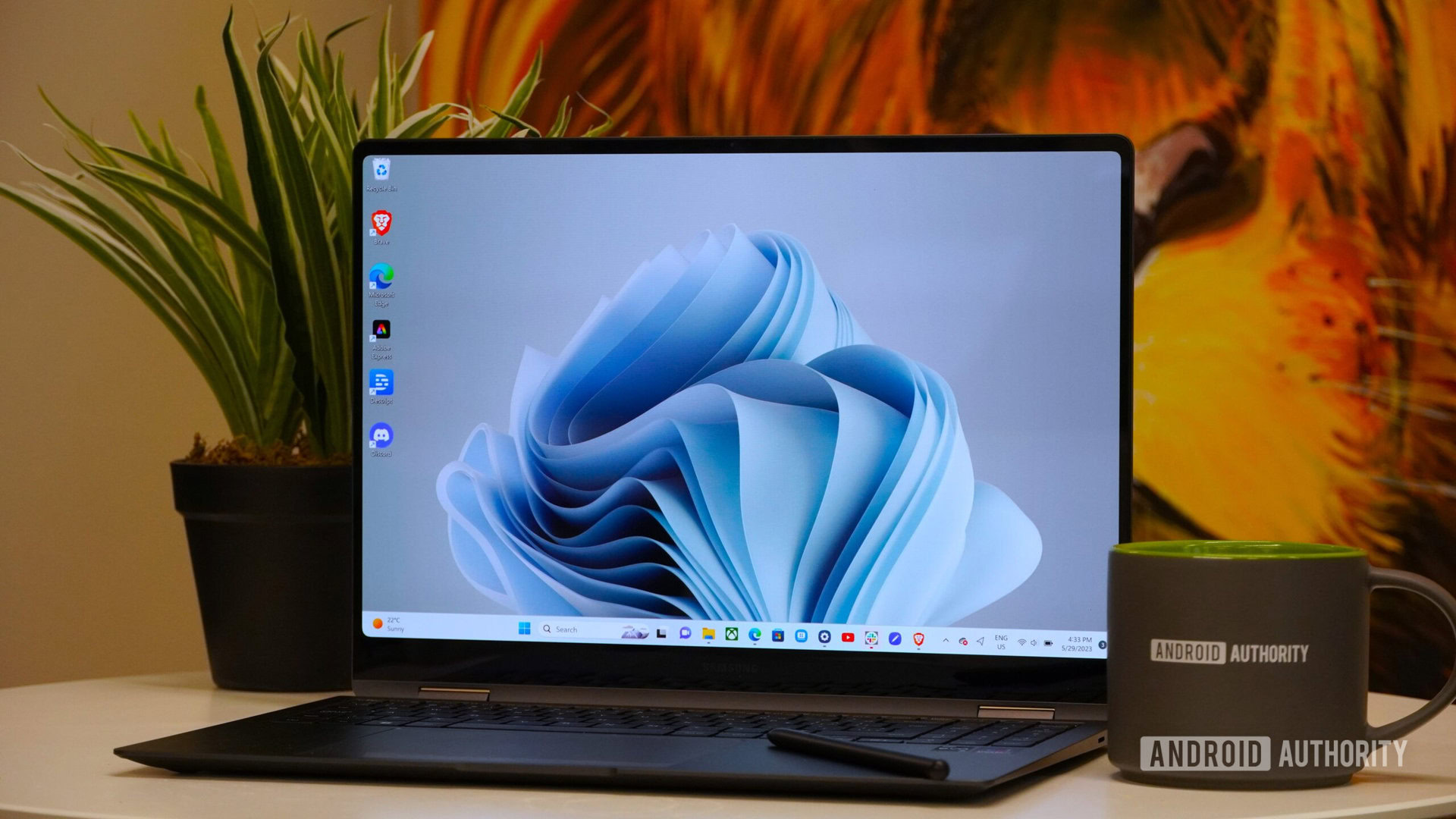
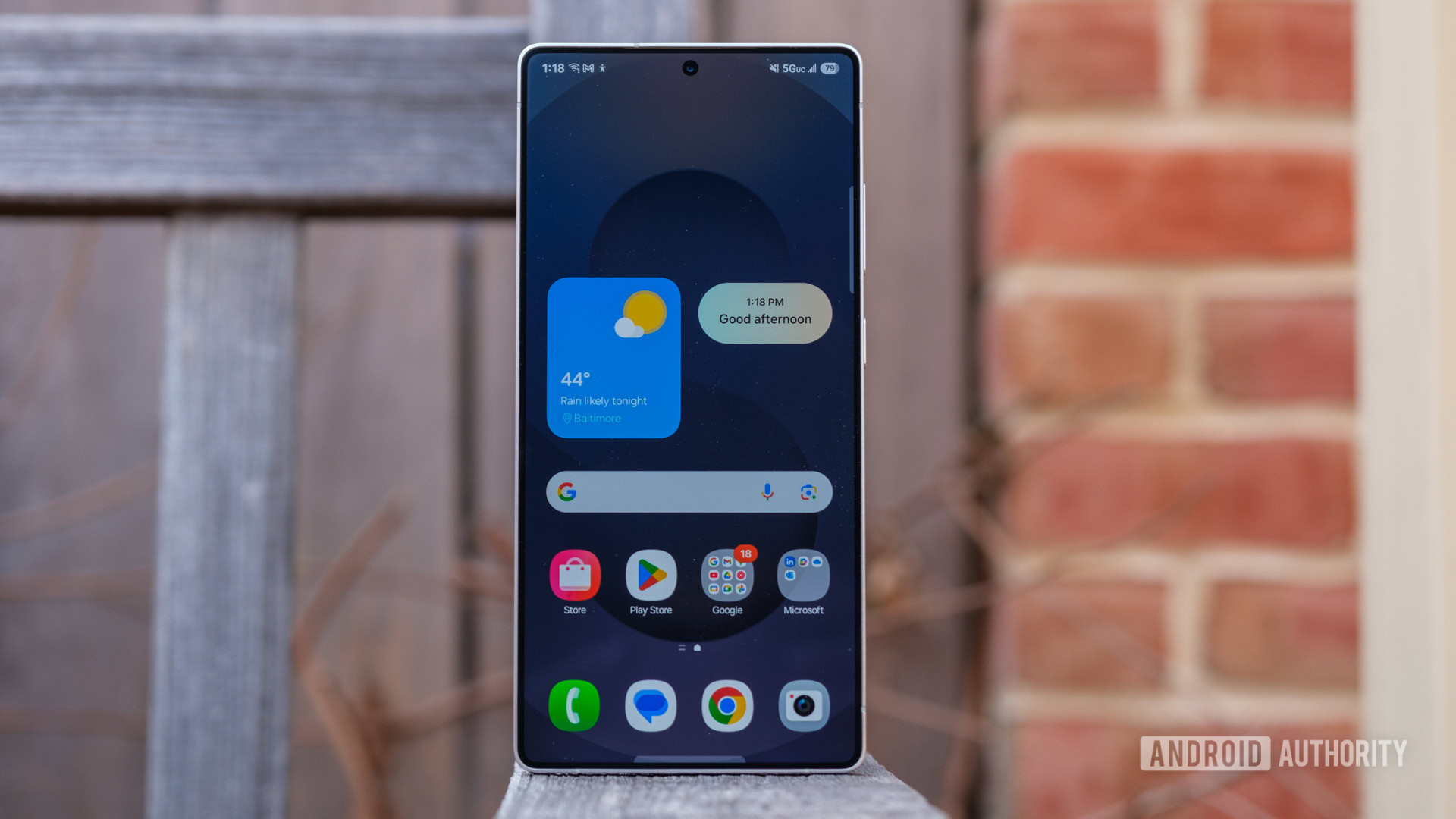
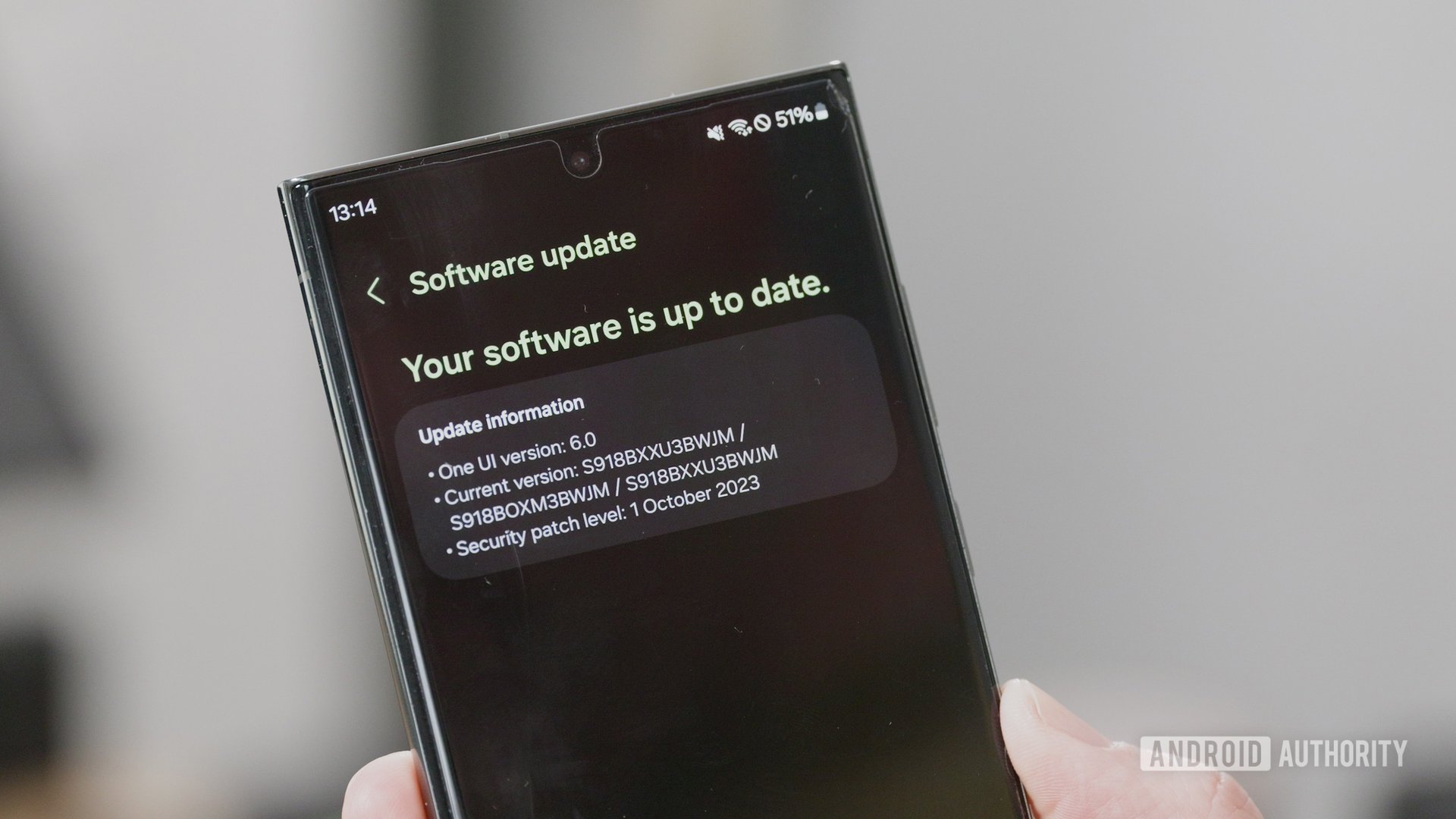
Earlier this year, I completed my Samsung ecosystem with a Galaxy Book 4 Edge — and one of the things I loved most about the experience was the features Samsung had added on top of Windows 11. Specifically, all of the deep integrations it offered with my Samsung phone.
Having tested this new version of Galaxy Connect myself, I couldn’t be happier with it.
Are you going to download Galaxy Connect?
2 votes
Galaxy Connect’s two best features
Zac Kew-Denniss / Android Authority
Once you’ve downloaded Galaxy Connect onto your PC, you’ll see four features contained within: Continue on other devices, Storage Share, Multi Control, and Second Screen. The first two are included with the initial Galaxy Connect download, whereas Multi Control and Second Screen require additional downloads to use.
Of the features Galaxy Connect brings to Windows, Multi Control and Second Screen are by far my favorites. Multi Control is similar to Apple’s Universal Control. You can connect to your Samsung phone or tablet and position it as you would a secondary monitor. The difference is that instead of mirroring Windows to the device, your phone will continue to show Android. When you move your mouse from your main display, it will appear on the phone’s screen and let you control it with your mouse and keyboard as if they were connected directly to the phone.
There are a ton of things you could use this for, but I’ve narrowed it down to two things I do every day. I always listen to music while working, and instead of faffing around with pairing my earbuds to my PC, I keep them connected to my Fold 7. I have YouTube Music and Telegram in split-screen so I can control my music and message my wife without either app taking up space on my monitors. It’s also a convenient way to use apps that are better on mobile. I prefer the Android version of Google Keep versus the website, and now I can use my mouse and keyboard to quickly make notes while still using the mobile app.
Zac Kew-Denniss / Android Authority
Second Screen lets you use a Galaxy tablet as a wireless display for your Windows computer. This isn’t technically new (you’ve been able to do this via the Windows+K menu for years now), but the Second Screen app fixes one of the biggest annoyances with it: lag. When you connect to your tablet via this app, you’ll get a prompt on the computer that says, “Disconnect tablet Wi-Fi to reduce latency.” Clicking this disconnects the tablet from your Wi-Fi and connects it directly to your PC, eliminating the lag issues that prevented me from using it in the past. Now I can use my Galaxy Tab S10 Plus as a secondary monitor and use the S Pen with my PC without infuriating latency.
Share files and sync your clipboard
Zac Kew-Denniss / Android Authority
The other two features are undoubtedly useful, but I don’t use them as often.
Storage Share, as the name suggests, lets you access all the files on your Samsung phone or tablet from File Explorer on your PC. If you want to access your photos or anything else stored on your device and can’t be bothered to mess around with cables, this is a great solution. You can drag and drop files into a folder on your PC, or drag them directly into the app you need. The screenshots from my Fold 7 that were used earlier in this post were dragged from the phone’s storage right into our site’s media library.
Continue on other devices syncs your clipboard. One area where this has been handy is using two-factor authentication. I use the Google Authenticator app, which isn’t available on Windows. Usually, I have to manually enter my 2FA code after reading it from my phone screen. Now I can just tap the code to copy it to my phone’s clipboard, then paste it into the relevant field on my PC without waiting. It’s a small thing, but it can save a lot of time. If you use Samsung Internet, you can sync tabs across your devices as well, but I prefer Chrome, so I haven’t tried it myself.
Zac Kew-Denniss / Android Authority
Things aren’t perfect. ARM-based PCs are left out, which is weird given that my Galaxy Book 4 Edge is ARM-based and has all these features built in. Likewise, some users whose computers don’t have Intel network adapters report that Galaxy Connect doesn’t work at all.
Aside from those strange limitations, this is one of my favorite things Samsung has done in a long time. Multi Control and Second Screen have made working from my desktop better than ever, especially now that I can use the same workflows as I have on my Galaxy Book.
Don’t want to miss the best from Android Authority?
Thank you for being part of our community. Read our Comment Policy before posting.
When Samsung releases new versions of One UI, it usually breaks some of the Good Lock modules I use every day. The One UI 8.5 beta is no exception — several Good Lock modules have been incompatible since the beta started, including Home Up. Home Up is a module that lets you tweak everything from your home screen icons to the overview menu. Samsung recently updated Home Up, and it does more than make it compatible with the latest version of One UI — it adds new features that have made my favorite Good Lock module better than ever.
Do you use Home Up?
5 votes
Widget resize
Home Up has been able to resize app icons for a long time now, and this update extends the same functionality to widgets. On all of my Samsung devices, I set the screen zoom to the smallest size because I find a lot of the UI elements in One UI to be too big. An unfortunate side-effect of this is that a lot of widgets, Google’s search bar included, don’t scale correctly and look tiny, as you can see in the second image above.
The new version of Home Up has a “Widget setting” menu that lets you increase the scaling of widgets in the home screen, which has resolved the issue I have with the search bar, as seen in the third photo. You can also remove the blur effect from Samsung’s first-party widgets from this menu, which is a nice touch if you don’t like how that looks.
Direct Share exclusions
Direct Share is a part of the share menu in One UI. It suggests contacts from across your apps that you frequently share things with, and it intelligently remembers what types of files are often shared with which contact. That’s the idea, anyway. In practice, I find that it seldom suggests the right person, and I totally ignore it. For a long time, Home Up has let you pick favorite Direct Share targets, letting you pin the chats you use most for quick access. The Home Up update takes this further by adding an exclusion list. As the name suggests, this means you can block individual chats and share targets from ever appearing.
Edge Panel tweaks
I love the Edge Panel. It’s been my multitasking secret weapon for years now, and Home Up has offered some neat options for Edge Panel ever since One UI 7. The latest update adds some quality-of-life options that rectify some of the annoyances I’ve always had with the feature. Apps, shortcuts, and contacts have always been separate panels, making it a bit of a faff to set up and navigate. In fact, I’ve always left the shortcuts and contacts panels switched off because of the extra effort involved. Home Up has added an “Integrated Panel” toggle, which combines the three categories into one Edge Panel. When you turn it on, it’ll start as a blank slate, but there’s a button that syncs over your existing apps panel. I’m already finding this useful, adding direct shortcuts to add a new task in Tick Tick and the Telegram chat I have with my wife.
Zac Kew-Denniss / Android Authority
Edge Panel touch width
Finally, there’s a new option to adjust the width of the touch area for the Edge Panel. You’ve always been able to do this in the Edge Panel settings, but changing the width would make the handle itself wider, which would often cover content on the screen. This option in Home Up alters how big the touch area is without changing the handle you see. This way, you can have the handle on the smallest setting to make reading content on screen easier, while having the touch area big enough that it’s easier to reach. This is especially useful if you’re using a case that adds a lip around the screen. Bezels are so small these days that cases like that can make swiping from the very edge of the display.
Don’t want to miss the best from Android Authority?
One UI 8.5 is already one of my favorite versions of Samsung’s Android skin, and the updated Good Lock modules are only making me love it even more. What about you? Are you looking forward to trying out the new features from One UI 8.5 and Good Lock? Let us know in the comments.
Thank you for being part of our community. Read our Comment Policy before posting.
Code within leaked One UI 8.5 build suggests Samsung is developing a new “Private Display” or “Privacy Display” feature.
This feature will limit screen visibility from side angles, protecting privacy in crowded public places.
It’s likely to debut on the Galaxy S26 Ultra, which is rumored to have the necessary screen hardware.
Per previous leaks, the Galaxy S26 Ultra is rumored to sport “Flex Magic Pixel” technology on its screen. Samsung Display had previously announced this tech, which uses AI to “adjust” a screen’s pixels to control viewing angles so that the screen is not easily visible to the person next to you.
We’ve now spotted code within the alleged One UI 8.5 builds that sheds some more light on this feature. It could be branded as “Private Display” or “Privacy Display,” as both terms have been used interchangeably.
Code
<string name="sec_privacy_display_title">Privacy display</string>
<string name="sec_privacy_display_summary">Limits screen visibility from side angles to protect your privacy in public.</string>
As the feature description notes, the Privacy Display/Private Display feature will limit screen visiblity from side angles to protect user privacy in public.
Code
<string name="sec_privacy_display_auto_privacy_summary">Automatically use Private display when you use sensitive apps and when you’re in crowed places.</string>
Ignoring the spelling errors in the various strings, we learn from the strings that when the setting is enabled, the Private Display feature will automatically kick in when users use sensitive apps in crowded places.
Code
<string name="sec_privacy_display_manual_settings">Manual settings</string>
<string name="sec_privacy_display_maximum_privacy">Maximum privacy</string>
<string name="sec_privacy_display_maximum_privacy_summary">For even stronger privacy protection, make the screen dimmer than usual while Private dislay is on.</string>
Code also suggests that there could be two types of privacy levels that users can choose from:
Maximum Privacy: For even stronger privacy protection, make the screen dimmer than usual while Private display is on
Manual Settings
It’s not immediately clear what settings will come under manual settings.
Don’t want to miss the best from Android Authority?
We’ve spotted code for custom conditions, too, and these may be included in manual settings to give users more control over when the feature works.
Code
<string name="sec_privacy_display_custom_conditions">Custom conditions</string>
<string name="sec_privacy_display_custom_conditions_apps_summary">Choose specific apps where you want to use Private display.</string>
<string name="sec_privacy_display_custom_conditions_apps_title">Apps</string>
<string name="sec_privacy_display_custom_conditions_schedule_summary">Set a schedule when you want to use Private display.</string>
<string name="sec_privacy_display_custom_conditions_schedule_add_button">Add schedule</string>
These strings suggest that users can set up custom conditions for the Private Display feature. They will be able to choose specific apps that the feature would activate on (like your specific banking or messaging apps), and even set a schedule for it.
Samsung has not yet announced the Private Display feature, nor has it mentioned or given any details about the next One UI 8.5 release. Given that the Private Display feature does have some hardware requirements, namely Samsung Display’s Flex Magic Pixel technology, it may remain limited to newer devices, like the Galaxy S26 Ultra, as per leaks.
Leaks also suggest that One UI x.5 updates will debut with Galaxy S-series flagships, where they will likely debut new UI/UX, AI features, and software enhancements, so it’s fair to presume that we will get One UI 8.5 with the Galaxy S26 series in early 2026. We’ll keep you updated when we learn more.
⚠️ An APK teardown helps predict features that may arrive on a service in the future based on work-in-progress code. However, it is possible that such predicted features may not make it to a public release.
Thank you for being part of our community. Read our Comment Policy before posting.
When Samsung started overhauling Good Lock for One UI 7, Home Up was one of the modules that saw the biggest changes. Most of those changes were good, letting you modify edge panels, the taskbar (on Folds and tablets), the overview screen, and the home screen itself. As welcome as those features are, I found one of the additions harder to appreciate. DIY Home has a lot of potential, but despite the wonderfully awful home screens you can create with it, the implementation is flawed and reminds me of the worst days of Microsoft’s Windows experiments.
Have you tried to customize your phone with Samsung’s DIY Home?
653 votes
DIY Home: What is it and why do I hate it?
DIY Home removes all of the guardrails usually placed on home screen customisation. Grid, icon, and widget sizes are unrestricted, and you can put everything, everywhere, all at once. On the surface, that sounds pretty cool. Moving every element to exactly where you want it without any restrictions could lead to some cool setups and maybe a renaissance of the old custom launcher days. I initially hoped for that, but it hasn’t worked out. The way DIY Home has been implemented is almost unusable, and I can’t bring myself to use it for any longer than is needed.
Long-press on an empty space on your home screen or pinch out, and a new DIY Home button appears in the top right of the screen. Once you’re in the DIY editor, you can move icons and widgets freely without any limitation, resize and rotate them, and add stickers, emojis, and text.
Using DIY Home is like trying to play chess against an opponent who cheats, changes the rules, and flips the board if you start winning.
The controls are, in a way, too simple. Even on my S24 Ultra, which is realistically the biggest screen most people will try this with, there isn’t enough room to move things precisely with your finger. It needs a movement slider or arrow keys, like the widget creator in KWGT.
Another issue is the alignment presets, which are all unlabelled, so you have to press them to figure out what they do. By then, all of the icons you’ve selected are on top of one another in some incoherent mess that looks like it belongs in John Carpenter’s The Thing. Icon manipulation is also inconsistent. Sometimes tapping on a new icon and dragging it while a different one is already selected will clear that selection and only move the new one, while other times it’ll move both or neither.
Using DIY Home is like trying to play chess against an opponent who cheats, changes the rules, and flips the board if you start winning. It’s frustrating and confusing, and it nearly drove me to throw my phone at a wall.
Can you make DIY home screens look good on One UI?
Zac Kew-Denniss / Android Authority
The answer to that one is maybe. I definitely can’t; the screenshot above is the best I could do after nearly an hour of messing with it. Perhaps if you’re more patient or creative, you can squeeze a nice home screen out of DIY Home, but I think that effort would be better spent on Nova Launcher or KWGT. My colleague Ryan Haines agrees, too, saying he wishes he hadn’t even tried DIY Home.
I think Samsung’s efforts would be better spent elsewhere, too. One UI 7 introduced the vertical app drawer many of us wanted, but many users, including my wife, preferred the paginated horizontal layout. The option to revert to that, along with more blur and background color options, would be more useful than this.
In 1995, Microsoft released Microsoft BOB, which was meant to make navigating Windows more intuitive. It didn’t. Instead, it was an incomprehensible mess, just as most DIY Home creations are, and unless Samsung can overhaul it into something more usable, it’s best forgotten.
Do you like DIY Home, or do you think other features would be a better use of Samsung’s (and our) time? Let us know in the comments.
Samsung has added the option to disable the Galaxy’s auto-dim feature.
Disabling prevents the device from automatically dimming the screen once the battery percentage reaches 5%.
The toggle is present in the latest version of One UI 7.
When you’re phone’s battery is running low, turning down the brightness of the screen can help the battery last a little longer. Although lowering the brightness should be your choice, Galaxy phones take that choice away by automatically dimming the screen once the battery hits 5%. Of course, you can raise the brightness back to where it was, but it can be a little annoying having to undo something your phone did without your consent. But it looks like Samsung is changing this in the latest update to One UI 7.
In the latest version of One UI 7, Samsung is allowing you to remove this annoying behavior with the addition of a new setting option. When you go into the Battery setting, you’ll find a new toggle labeled “Auto dim screen.” Disabling the feature will prevent your Galaxy device from automatically dimming once it crosses that 5% threshold.
This new setting option can be found by going into Settings and scrolling down to Battery, as you can see in the images above provided by SamMobile. Once you tap on Battery, you’ll find the option sitting below Wireless power sharing.
As this is a One UI 7 feature, you’ll only have this option available to you if you have a Galaxy S25 series or Galaxy S24 series. However, Samsung’s latest Android skin should be coming to other Galaxy models later this month.
Got a tip? Talk to us! Email our staff at news@androidauthority.com. You can stay anonymous or get credit for the info, it’s your choice.
Update: October 7, 2024 (1:25 AM ET): We’ve updated the Samsung One UI 7 hub with a look at the redesigned camera app, seen on a device running One UI 7 at Samsung’s developer conference.
Samsung’s software experience has undergone a remarkable transformation since the arrival of One UI. Once considered a bloated and sluggish overlay, it has evolved into one of the most polished and intuitive Android experiences on the market. The latest iteration, One UI 6.1, introduced a range of exciting AI-powered enhancements.
Now, anticipation builds as the next major One UI upgrade looms alongside the arrival of Android 15. While concrete details on the next version of One UI remain elusive as of March 2024, we can make some informed predictions about what this major update might bring.
One UI 7: Expected release date and name
One UI 4.0 (Android 12): November 2021
One UI 5.0 (Android 13): October 2022
One UI 6.0 (Android 14): October 2023
During the Samsung Developer Conference 2024 (SDC 2024), the company revealed that One UI 7 isn’t as close to releasing as we initially thought. The tech giant plans to launch the stable update along with the Galaxy S25 next year. This is contrary to previous years where the stable version would roll out shortly after the official launch of the new Android update.
Meanwhile, Samsung confirmed the beta will arrive sometime before the end of the year. It’s difficult to say when the beta will launch between now and December, but we anticipate the beta will still likely debut sometime shortly after the official release of Android 15. We’re expecting Android 15 to release on October 15, 2024.
Will there be a One UI 7 beta?
Robert Triggs / Android Authority
Samsung has a solid history of offering beta programs for its One UI updates, and we expect One UI 7 to be no different. This allows enthusiastic users to preview new features and provide valuable feedback before the final One UI 7 stable release hits devices. During SDC 2024, Samsung did confirm that a beta is on the way.
It’s important to remember that beta software is inherently less stable than official releases. You might encounter bugs, glitches, and unexpected performance issues. For this reason, we never recommend installing a beta on your primary phone.
One UI 7 rumored and confirmed features
Although it revealed very little information, Samsung teased at SDC 2024 that One UI 7 will be a major shift to its interface. The company says that it is embracing “purposeful simplicity” and is trying out a new look for the home screen app grid. The three key points Samsung brought up in its presentation are simplicity, impactfulness, and emotional attachment.
One UI 7 leaks have been thin, but we have a rough changelog to help give a picture of what to expect from One UI 7. Leaker Ice Universe posted the changelog on Weibo but deleted the post shortly thereafter.
Several notable visual changes are worth highlighting from this leaked changelog summary, such as new system app icons, a new battery icon and charging animation, a new camera app UI, and new animations.
Ice Universe also asserts that you can choose between separate or unified dropdown menus for notifications and quick settings. Other notable One UI 7 tweaks mentioned by the leaker include more desktop widgets, more lockscreen widgets, and large folder support.
New UI elements
A rumor from tipster Chunvn8888 claims that the next iteration of One UI will be heavily inspired by iOS 18. One of the ways it will mimic Apple’s OS is by giving its icons a more roundish, 3D-like design. Lock screen widgets could also get the rounded treatment. The tipster provided a few screenshots of what the redesign could look like.
The tipster also shared an image where the user can choose the icon and widget style, which he compares to iOS 18. Interestingly, it looks like Samsung may have also changed the look of the battery icon to be pill-shaped.
Continuing to drip feed One UI 7 leaks, the tipstershared a couple of screenshots showing off a color palette theme. They also shared a look at the new lock screen UI.
SammyGuru spotted One UI 7 on some devices at Samsung’s developer conference in October, taking a photo of the new icons (seen below). We were also at the conference and can confirm that we saw these changes, including a tweaked battery icon.
Quick action
Apple’s iPhone has a feature called quick action, which brings up a menu of actions you can do with an app. It’s believed that Samsung will add a similar feature to its lock screen.
Notification panel pages
One oft-repeated claim is that Samsung’s notification panel will get separate dropdowns for notifications and quick settings. This change could feature notifications on the left and quick settings on the right. It’s said to work similarly to Xiaomi’s MIUI/HyperOS skins that you to swipe laterally to switch between the two pages.
These separate dropdown pages were confirmed via devices running One UI 7 at Samsung’s developer conference in October. SammyGuru first spotted these changes and took the photos seen above, but we were able to spot them too.
New camera UI
The rumor from Chunvn8888 also claims that the camera app UI will be changed. The quick camera settings at the top of the screen may be relocated to the bottom, along with the camera modes. Additionally, it’s said that a shortcut will be added that expands multiple quick camera settings. The tipster adds that the UI has been tweaked for a more one-hand-friendly experience.
SamMobile confirmed most of these camera changes on a device running One UI 7 at Samsung’s developer conference. The settings menu in the viewfinder has indeed been shifted to the bottom of the screen, and it’s also been turned into a carousel.
Either way, these changes should make life easier if you’re shooting one-handed, particularly in portrait orientation.
Dynamic Island and Live Activities clones
Another rumor that comes from Chunvn8888 suggests that Samsung has made its own version of Apple’s Dynamic Island that will come in One UI 7. The tipster also claims that Samsung has copied Apple’s Live Activities feature.
AI features
According to Ice Universe, One UI 7 will add a very useful AI search feature to Samsung’s stock Gallery app. Similar to Ask Photos in Google Photos, the new Gallery app feature could allow Samsung users to search for specific images in a natural, descriptive way.
Android 15 features that could come to One UI 7
There’s a strong chance that many of the exciting new features debuting in Android 15 will make their way to Samsung devices as well. Let’s take a closer look at a few of these potential additions.
Partial screen sharing
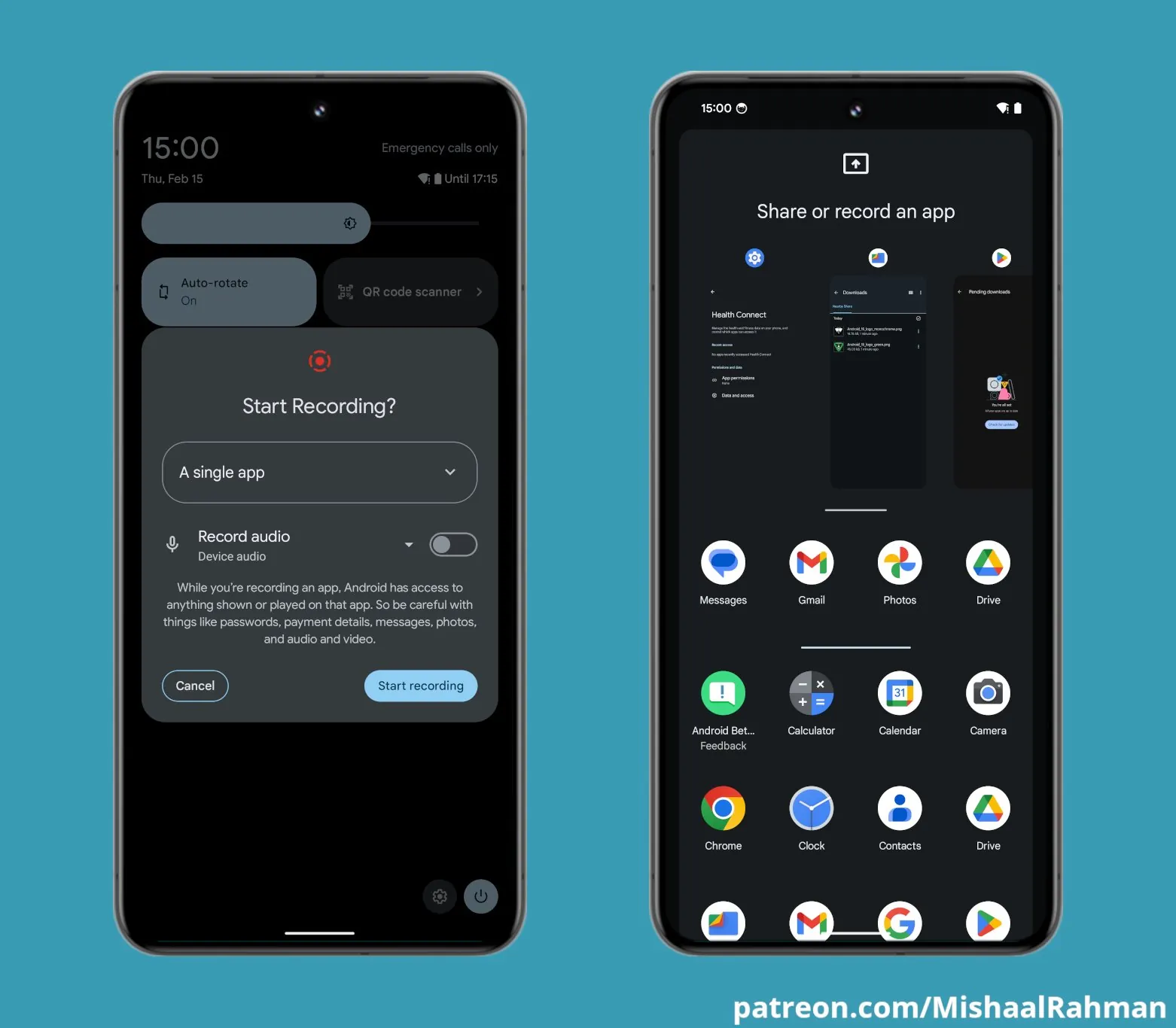
This feature, initially introduced in Android 14 QPR2 for Pixel devices, is making its way to the wider Android ecosystem with Android 15. It allows you to share or record a specific app window instead of your entire screen, boosting privacy and streamlining multitasking. While Samsung may implement this feature in its own way, we anticipate a similar function arriving in One UI 7.
Notification taming
Android 15 is also set to introduce a thoughtful “Notification Cooldown” feature. It automatically lowers the volume of repeated notifications from the same app, keeping your sanity in check. This could be a welcome addition to One UI 7’s notification management tools.
Sticky keys and Bounce keys
Google is already offering these features with Android 14 QPR3 Beta 2, but they will most likely be added to Android 15. Sticky Keys make it easier for users to execute keyboard shortcuts by keeping modifier keys (like Alt, Ctrl, and Shift) active even after they are released. Bounce keys prevent accidental repeated key presses, ideal for users with varying levels of motor control. We expect these helpful features to land on Samsung phones and tablets with the One UI 7.0 update.
Are you happy with these Samsung One UI 7 changes and additions?
1314 votes
One UI 7 compatibility
Ryan Haines / Android Authority
Samsung boasts one of the most generous software support policies in the Android world, so it comes as no surprise that the list of devices expected to receive the One UI 7 update is reassuringly long. Virtually all Galaxy devices launched with Android 13 or newer out of the box qualify. Additionally, flagship and select mid-range devices released in or after 2021, which fall under Samsung’s four-generation update promise, should be included as well.
If your device shipped with Android 13, it’s almost certainly getting One UI 7.
While Samsung will release an official list of supported devices once the cat is out of the bag, we can extrapolate from historical patterns to say that these devices have a high probability of receiving One UI 7:
All Galaxy S phones from the S21 series right up to the S24 series (including the FE editions)
All Galaxy Z foldable devices including the Fold 3, Flip 3, and all newer models
Recent Galaxy tablets, including all models under the Tab S8 and S9 lineups
The latest Galaxy A series phones (think A15, A25, A35, and A55) alongside their recent predecessors (A54, A34, A53, and A33)
International models from the Galaxy F and M series
While we wait for the official word from Samsung, anticipation builds for One UI 7. Potential AI upgrades and the integration of new Android 15 goodies make this an exciting update. Couple that with Samsung’s class-leading support policy, and One UI 7 looks like a great reason to hang onto your Galaxy device or jump on the Samsung bandwagon.
One UI 7: Features we want to see
We’re dreaming big for One UI 7 features. Considering the increasing use of AI across the board, and especially in One UI 6.1, it’s a safe bet that One UI 7 will continue to explore the potential of generative artificial intelligence and machine learning.
On-device AI
Ryan Whitwam / Android Authority
Samsung Composer
Topping our wishlist is the ability to run an AI model like Google Gemini or ChatGPT directly on your Samsung device. While this might be limited to flagship phones and foldables due to processing demands, it could revolutionize several aspects of the Samsung flagship experience.
On-device AI could dramatically speed up Galaxy AI experiences like generative image editing, real-time translations, and smart typing suggestions. Plus, it brings the bonus of offline access to these features and the enhanced privacy of keeping your data local.
Battery health monitoring
Next, we’re echoing the rumors about battery health monitoring. If Android 15 introduces this feature, Samsung absolutely needs to incorporate it. With Samsung’s commitment to longer software support cycles, understanding battery health becomes crucial for ensuring your device remains healthy and usable over the long term.
Ideally, this feature would offer insights into the number of charging cycles your phone has completed. Alternatively, even displaying the battery health as a percentage of its original capacity (like iPhones do) would be immensely helpful.
More customize-a-fun
Lastly, let’s talk customization. One UI already offers a plethora of options, but there’s always room for more. How about the ability to resize or reformat home screen folders or change the default icon shapes for a different aesthetic? While we’re dreaming, let’s throw in some dynamic, interactive widgets to liven things up.