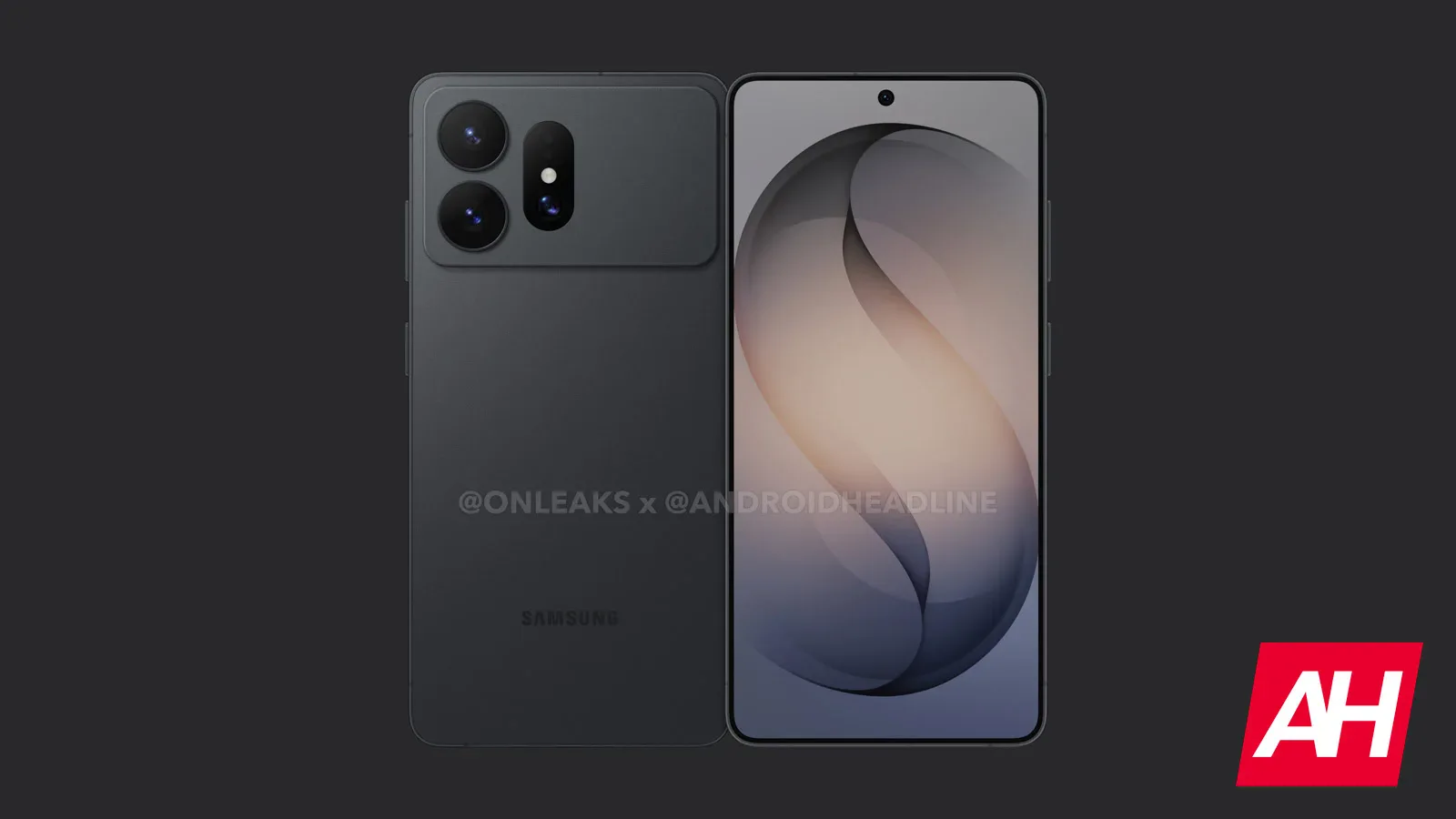
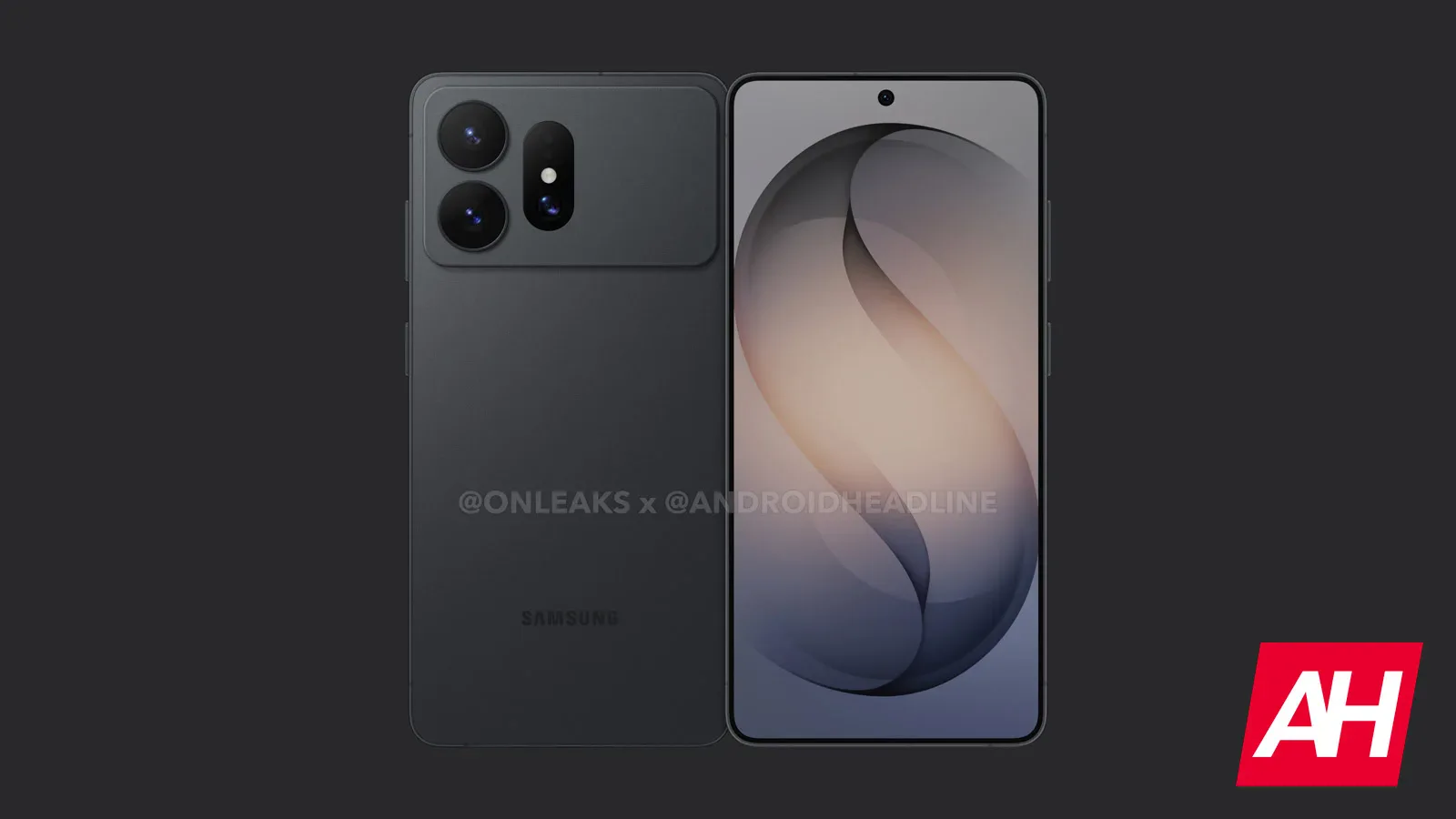
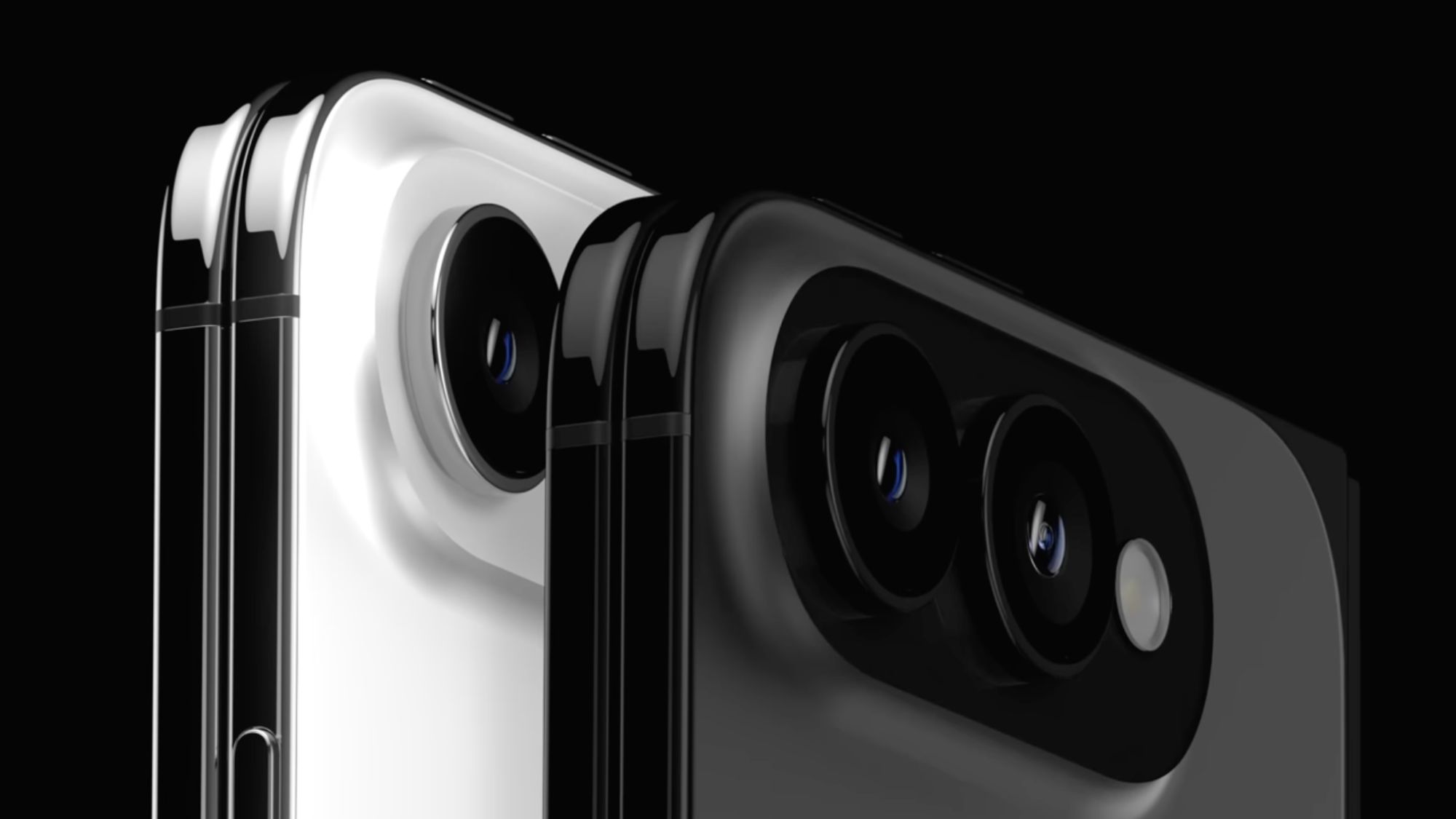
Latest Galaxy S27 Ultra leak reveals the possible colors available for the upcoming flagship.
Leaker Ice Universe mentions the phone would come in black, blue, light pink, and white.
There’s little clarity on the exact finishes of these “base colors.”
Update: October 5, 2026 (08:50 AM ET): After sharing the initial set of colors, Ice Universe has added that there would also be another “special” color: Violet.
Original article: October 5, 2026 (07:53 AM ET): There’s no dearth of Galaxy S27 leaks, especially ones talking about the upcoming changes to the design of the Pro and the Ultra models. A more recent leak now adds a missing piece to the puzzle, listing official colors for the Galaxy S27 Ultra.
Leaker Ice Universe has just shared what they believe to be the official colors of the Galaxy S27 Ultra. According to the leaker, the upcoming Samsung flagship will come in four colors: Black, Blue, Light Pink, and White. The Light Pink here is a new addition and could possibly replace the Deep Purple we saw with the Galaxy S26 Ultra. Pink isn’t entirely new to the Ultra, too, since the S26 Ultra gets a Pink Gold colorway.
The leak is heavy on brevity and does not divulge details about the exact shades, especially whether this blue will differ from the S26 Ultra’s Sky Blue. Given the iPhone 18 Pro also gets a light blue, we could expect Samsung to pick another palette. Similarly, it’s low on detail when it comes to the other colors. The leaker also doesn’t talk much about the finishes for these colors. However, they use the word “base” here to describe the colors, suggesting there might be some variations or specifications we hear about later.
Since the smaller Galaxy S27 Pro is expected to mirror the Ultra in terms of the design — and most of its specifications, there’s a good chance both devices also get the same color selection. Along with these, we can also expect some colors exclusive to Samsung’s online store that probably won’t be available through other sources.
Thank you for being part of our community. Read our Comment Policy before posting.
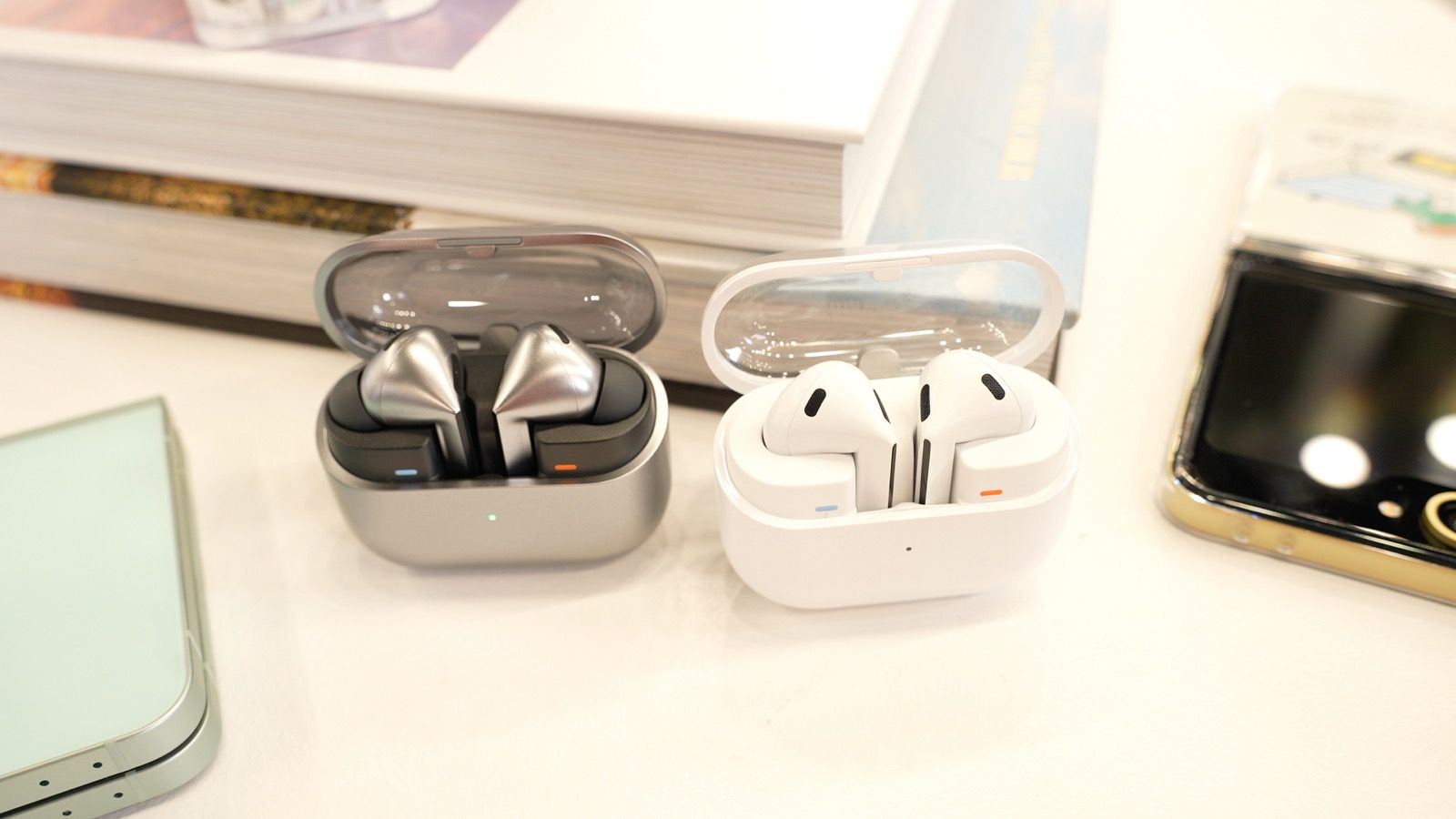
Samsung today said its Galaxy Buds Hearing Aid feature has been cleared by the U.S. FDA, which means hearing aid capabilities will be coming to the Galaxy Buds in the fourth quarter of 2026.
Samsung will join Apple in offering over-the-counter hearing aid functionality. Apple added an FDA-cleared hearing health feature to the AirPods back in 2024, allowing them to be used as a clinical-grade hearing aid.
Like the AirPods, the Galaxy Buds can replace a hearing aid for mild to moderate hearing loss, and Samsung is introducing a Hearing Test option like Apple did. Galaxy Buds users can do a self-administered hearing test in five minutes and the resulting clinical-grade audiogram can be used to adjust the built-in Hearing Aid feature.
The Galaxy Buds will amplify the sounds users have difficulty hearing, like high frequencies or whispers, which is also how the AirPods work. Noise elimination and beamforming also help Galaxy Buds users by focusing on the sounds in front of the user and suppressing background noise.
Samsung says it worked with the National Acoustic Laboratories and Samsung Medical Center to develop the hearing aid feature set. Hearing Aid features will be available on the Galaxy Buds3 Pro and the Galaxy Buds4 Pro. A newer Samsung Galaxy smartphone that supports One UI 8 or later is required.
After introducing hearing aid features in the U.S. in iOS 18.1, Apple has expanded availability to over 150 countries and regions. Apple had a two-year head start, but Samsung is now starting to catch up with a Galaxy Buds hearing health option that matches most of what the AirPods can do.
Samsung today announced the launch of its first credit card in the United States, debuting the Samsung Galaxy Card in partnership with Barclays.
The Samsung Galaxy Card works as a standard Visa card and offers special financing options for Samsung Galaxy devices purchased through Samsung. Apple Card has a similar financing option for Apple devices.
There is no annual fee for the Samsung…
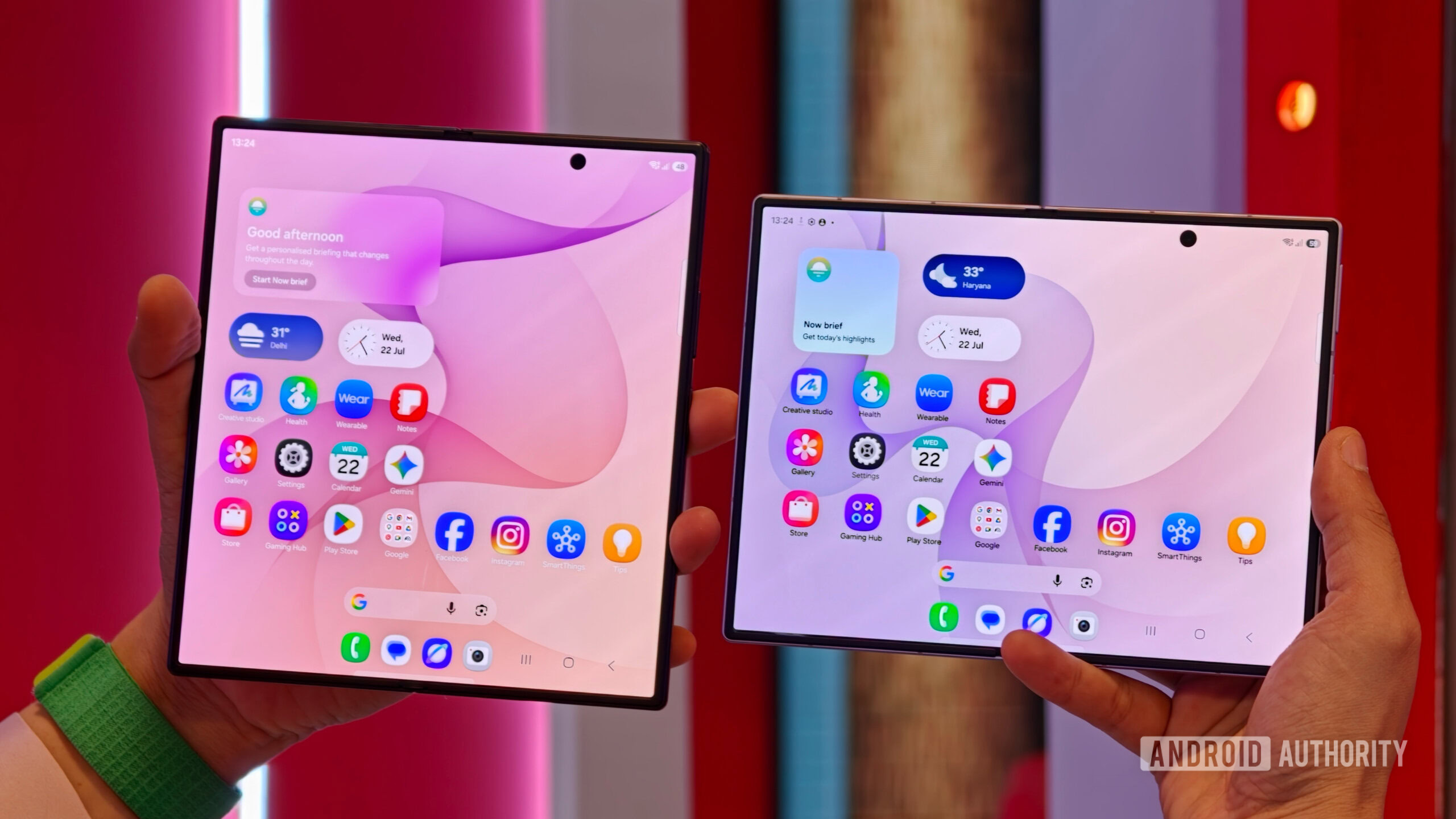
Samsung today debuted its latest foldable devices, including the Galaxy Z Flip8, the Galaxy Z Fold8 Ultra, and the new Galaxy Z Fold8, which has a design similar to what we’re expecting from the foldable iPhone coming this September. We were able to take a look at the new Samsung foldables ahead of launch.
Subscribe to the MacRumors YouTube channel for more videos.
The Galaxy ZFold 8 Ultra…
Apple will exclusively rely on Samsung Display for the production of OLED touch panels for its redesigned upcoming MacBook Pro models, according to a new report from Korea-based The Elec.
Citing industry sources, the publication says that the 14-inch and 16-inch panels will be produced at Samsung’s 8.6-generation OLED line at Asan, in Korea’s South Chungcheong Province. The estimated initial …
Samsung has pulled back the curtain on its new foldable phones, and there’s plenty to be excited about. The new Z Flip 8, Fold 8, and Fold 8 Ultra bring powerful silicon, slick software, and a few new camera tricks.
One of my favorite upgrades is the fact that all three devices are equipped with silicon-carbon batteries. This is the first time that Samsung is using this tech in its phones, coming a while after most rivals adopted it. While I’m happy to see silicon-carbon batteries in these new devices, I’m more excited about what this means for the Galaxy S27 series.
What do you want to see most from the Galaxy S27 phones?
63 votes
How is Samsung using silicon-carbon batteries?
Hadlee Simons / Android Authority
Silicon-carbon batteries offer higher energy density than conventional batteries. That means increased battery capacity without a physically bigger battery, or a physically smaller battery while maintaining the same capacity. Samsung seems to be taking both approaches on its new devices.
The Galaxy Z Fold 8 Ultra has a 5,000mAh battery in what is fundamentally the same chassis as the 4,400mAh Galaxy Z Fold 7. Meanwhile, the Galaxy Z Fold 8 features a short, wide form factor and an extremely thin design. Even so, it still ships with a respectable 4,800mAh battery. Finally, the Galaxy Z Flip 8 has the same 4,300mAh battery capacity as its predecessor, but in a thinner design.
The Galaxy foldables are the first Samsung phones to use silicon-carbon batteries, and this bodes well for the Galaxy S27 range.
Samsung hasn’t confirmed whether it’ll bring silicon-carbon batteries to the Galaxy S27 series. Nevertheless, it seems like a foregone conclusion that — unless we have another Galaxy Note 7 saga — the company’s next-generation flagships will have this new battery tech.
One downside to silicon-carbon tech is that it’s more prone to expansion than conventional batteries. Manufacturers address this issue by using only a small amount of silicon content, along with reinforced structures and other technologies. Needless to say, this is a complex endeavor. So if Samsung can safely integrate this new battery tech into its technologically advanced, ultra-thin foldables, then it shouldn’t be a problem for the Galaxy S27 series.
What does this mean for Galaxy S27 phones?
Joe Maring / Android Authority
I’m very intrigued to see which route Samsung takes with the Galaxy S27 range, especially with the base model. The vanilla Galaxy S26 brought a 4,300mAh battery, but this slightly larger capacity was accompanied by a small jump from a 6.1-inch display to a 6.3-inch panel. So it stands to reason that the base S27 could maintain this capacity while switching to a smaller screen and/or thinner design. Alternatively, the company could maintain the Galaxy S26’s design while increasing the battery size.
Silicon-carbon battery technology also bodes well for the rumored Galaxy S27 Pro. This phone is tipped to arrive with a 6.47-inch display, likely putting it between the S26 and S26 Plus. One questionable leak points to a 5,000mAh battery, matching the S26 Ultra. The claim doesn’t sound so unlikely now that Samsung has embraced this new tech.
Silicon-carbon batteries could theoretically enable a Galaxy S27 or S27 Edge without major endurance compromises.
As for the Galaxy S27 Ultra? I’m not expecting a 6,000mAh or 7,000mAh battery on par with rival brands, but a ~5,300mAh to ~5,500mAh cell doesn’t seem so far-fetched after the Z Fold 8 Ultra’s arrival. This would mark the first battery capacity upgrade for the Ultra series since 2021’s Galaxy S21 Ultra. Samsung could even offer a more modest upgrade to reduce the phone’s weight, thickness, or overall size. A ~5,400mAh battery would also be reaching the limit for single-cell batteries in markets like the EU, which enforce strict regulations on larger batteries. Any bigger, and Samsung would have to splash out on a dual-cell battery design in the unlikely event that it wants to compete with the likes of OnePlus, Xiaomi, and HONOR.
Silicon-carbon batteries would also be essential if Samsung decides to launch a Galaxy S27 Edge. Last year’s Galaxy S25 Edge brought an impressively thin and light design, but it was largely undone by the 3,900mAh battery. It’s no wonder that colleague Ryan Haines reported that the phone’s battery life “dropped like a stone.”
Even if the Galaxy S27 series only brings modest capacity upgrades, we could still see fantastic battery life thanks to Samsung’s battery optimization smarts. The company has long had a reputation in the Android space for wringing every drop of juice out of its phones. Colleague Zac Kew-Denniss also praised the S26 Ultra’s endurance despite the 5,000mAh battery. So imagine what the company could do with even larger batteries.
The hard part might be done for Samsung
Paul Jones / Android Authority
I’ve waited almost two years for Samsung to adopt silicon-carbon batteries. Instead, the company was content to stick with the same capacity, or offer a tiny increase at best. I’m sure that safety and reliability (and presumably costs) were at the heart of Samsung’s decision to wait, but now that the first Galaxy phones have this tech, the floodgates are open.
It seems like a no-brainer that the Galaxy S27 phones will adopt this new battery solution, given the complexities of integrating silicon-carbon batteries into foldables in the first place. But even if the S27 series doesn’t see much larger batteries, this paves the way for design improvements and smaller devices while freeing up space for other features.
Either way, Samsung now has the tools to fit bigger batteries into its phones. Now, we just need to see more of it.
Thank you for being part of our community. Read our Comment Policy before posting.
Samsung’s Galaxy Tab S12 and S26 FE just showed up referencened in the Google app.
Google compiles a list of future devices set to arrive with a free premium Google AI trial for new owners.
The new models may launch sometime this September — if not sooner.
We are just days — hours, even — away from Samsung’s next Galaxy Unpacked event, when, this Wednesday, we expect to see it introduce the latest Galaxy Fold, Galaxy Flip, and Galaxy Watch models. But for as excited as we are about those launches, they aren’t the only new Samsung products currently on our radar. Looking a little further out, we’re also anticipating some new tablets with the Galaxy Tab S12 series, as well as the next addition to the Galaxy S26 family with the launch of the Galaxy S26 FE. While those will likely have to wait for another Samsung event, we’ve already got some early evidence showing that prep work for their arrival is well underway.
You’re reading an Authority Insights story. Authority Insights brings you all the latest exclusive reports, app teardowns, leaks, and in-depth tech coverage from the Android Authority team that you won’t find anywhere else.
There are lots of places we can expect a new device to pop up and make its presence felt ahead of a formal launch. FCC certification paperwork is a prime example there, or maybe any of the various agencies that certify batteries. But there’s another where we see a certain class of new hardware show up over and over again: an internal list in the Google app of devices set to offer their owners a free trial of a paid Google AI account.
As you’d only expect, the Flip 8 and Fold 8 models are already in there. But we’ve also just spotted a couple new additions:
AssembleDebug / Android Authority
Sure enough, the Tab S12 and S26 FE (both appearing sans Galaxy) now make an appearance. While this doesn’t give us anything approaching a firm ETA for either, it sure supports the idea that we’re very quickly starting to close in on both of them going official.
That said, we can make a few guesses, and if Samsung sticks with anything resembling its past schedule, we’re probably looking at an introduction sometime this September, following last year’s September launches for both the Galaxy S25 FE and Galaxy Tab S11 series.
At least, that feels like the most likely outcome here, but it’s entirely possible we could see them land even earlier — the Fold 8 and Flip 8 only showed up in this list about a week ago, which could conceivably hint at Samsung planning to slide things up to sometime in August. Right now, though, that’s largely just speculation, and we’re probably going to want to wait for something a little more concrete before we start getting ready to place our pre-orders.
⚠️ An APK teardown helps predict features that may arrive on a service in the future based on work-in-progress code. However, it is possible that such predicted features may not make it to a public release.
Thank you for being part of our community. Read our Comment Policy before posting.
The past few weeks have been nonstop leak after leak for Samsung’s next foldables. We’re expecting there to be three new models. The main upgrade across the foldables should be Samsung’s Flex Titanium technology, which both strengthens the durability of the screens and reduces the visibility of the crease on the inner screen.
The new Galaxy Z Flip 8 should be the successor to last year’s Z Flip 7. WinFuture has shared product images and what it claims are full details for the new flip-style foldable. While I was hoping for a thinner device, it looks like the Z Flip 8 will be marginally thicker, though it should be lighter at 180g versus the Z Flip 7’s 188g. Otherwise, we’re looking at more or less the same features, but with a newer Exynos 2600 chip. According to WinFuture, the Z Flip 8 will have a 6.9-inch Dynamic AMOLED 2X inner screen with 120Hz refresh rate, a 4.1-inch Super AMOLED cover screen, three cameras (a 50-megapixel main and a 12-megapixel ultrawide on the outside and a 10-megapixel selfie lens on the inside), the same 4,300mAh battery as before but now with faster 45W charging, and storage options of 256GB or 512GB paired with 12GB of RAM.
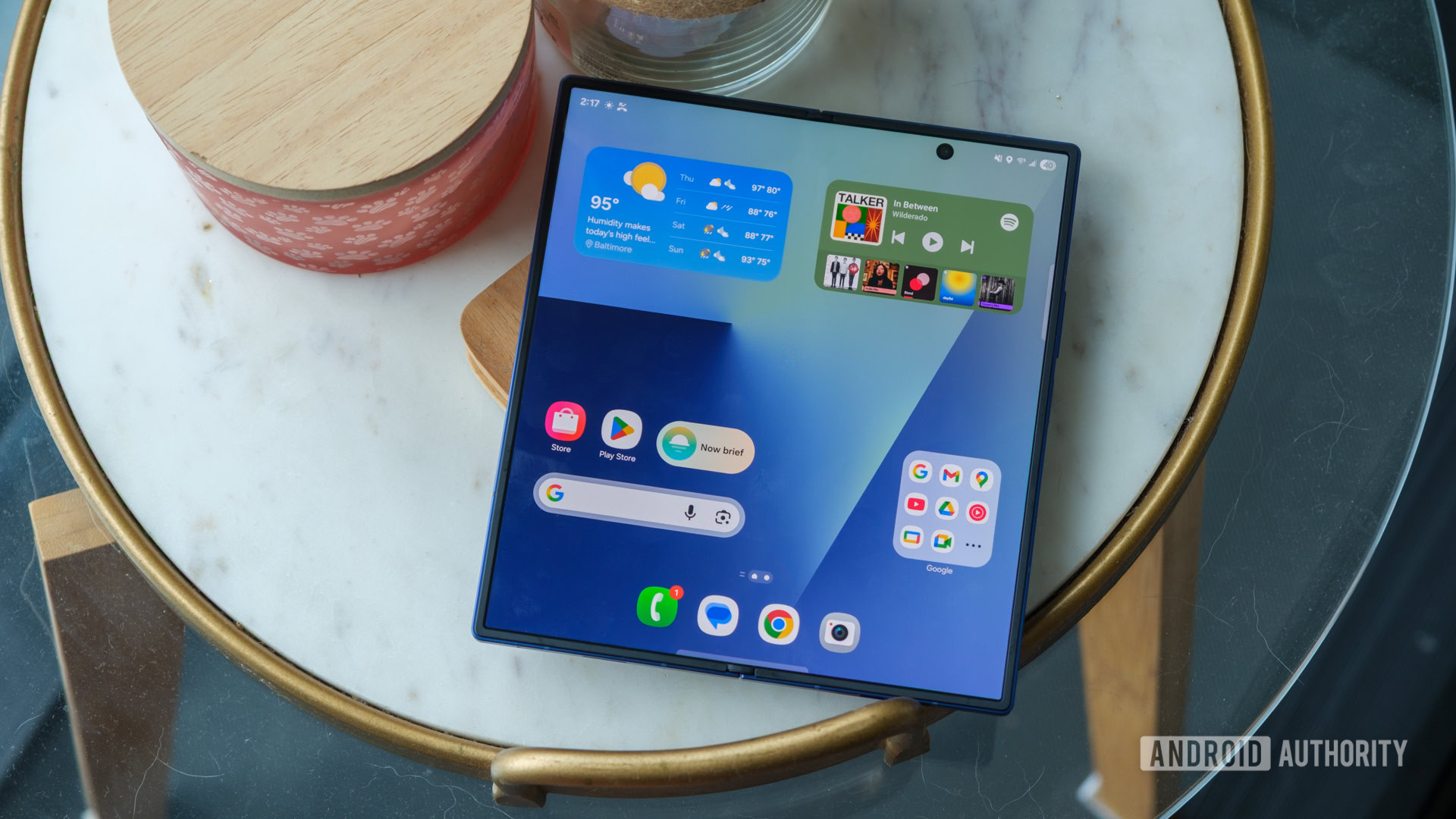
The middle foldable is expected to be the new shorter and wider Galaxy Z Fold 8. This is supposed to be Samsung’s answer to Apple’s upcoming foldable iPhone. We’ve been staring at leaked images of the Z Fold 8 for weeks, but now we have full specs, also hailing from WinFuture. When unfolded, the Z Fold 8 is said to measure 4.5mm thick, and the whole thing weighs 201g. The report says the Z Fold 8 has a 7.6-inch inner Dynamic AMOLED 2X screen with 120Hz, a 5.5-inch cover screen, dual rear cameras (both 50 megapixels), and two 10-megapixel hole-punch cameras (one on the cover display and one on the inner screen). It should be powered by a Qualcomm Snapdragon 8 Elite Gen 5 for Galaxy and have options for 256GB of storage (with 12GB of RAM) or 512GB and 1TB (with 16GB of RAM). Battery capacity is said to clock in at 4,800mAh, which would be pretty respectable.
On the high-end, we’re expecting to see the Galaxy Z Fold 8 Ultra. As its name suggests, it’s projected to have the better cameras (200-megapixel main camera, 50-megapixel ultrawide, and 10-megapixel 3x telephoto) and longer battery life (5,000mAh). WinFuture’s leak claims the foldable will slim down by 1mm (from 4.2mm to 4.1mm), but gain 3g (from 215g to 218g). The screen aspect ratios will match the Z Fold 7’s closely, with an 8-inch inner screen and 6.5-inch cover screen, both with 120Hz refresh rates. Chipset, storage, and RAM configurations appear to be the same as the Z Fold 8.
On the Samsung smartwatches front, we should be looking at two new models: the Galaxy Watch Ultra 2 and the Galaxy Watch 9. They’re both said to be thinner and lighter than before and use Qualcomm’s latest Snapdragon Wear Elite chip with 2GB of RAM, according to WinFuture.
The Galaxy Watch Ultra 2 will reportedly have an 800mAh battery, which would be a significant jump up from the 590mAh one in the first-gen Watch Ultra. Leaked specs include a titanium case with 10ATM water resistance, a 1.5-inch screen, Bluetooth 6.0, NFC, and LTE.
The Galaxy Watch 9 is expected to come in two sizes again: 40mm with a 1.3-inch screen and 44mm with a 1.5-inch display. Compared to the Galaxy Watch Ultra 2, the water resistance for the Galaxy Watch 9 could be lower at 5ATM. Battery life improvements could be more minimal year-over-year, too: the same 325mAh on the smaller model and a 445mAh for the larger version (a 100mAh bump up from the Galaxy Watch 8’s 435mAh).
It appears Samsung won’t have a new version of the Galaxy Watch 8 Classic, which returned last year with a physical rotating bezel. Maybe the bulkier smartwatch wasn’t popular at all.
More Galaxy AI
One thing that I am certain that Samsung will announce more of is additions to Galaxy AI, its own suite of artificial intelligence features. Whether it’s features from the Galaxy S26 Ultra being brought to the new foldable phones or smartwatches, Samsung has used every Unpacked in recent years to squeeze AI into its apps. It wouldn’t surprise me to see more predictive AI, automations using agentic AI, and generative AI for photo editing. Whether you’ll find them useful is a different question.
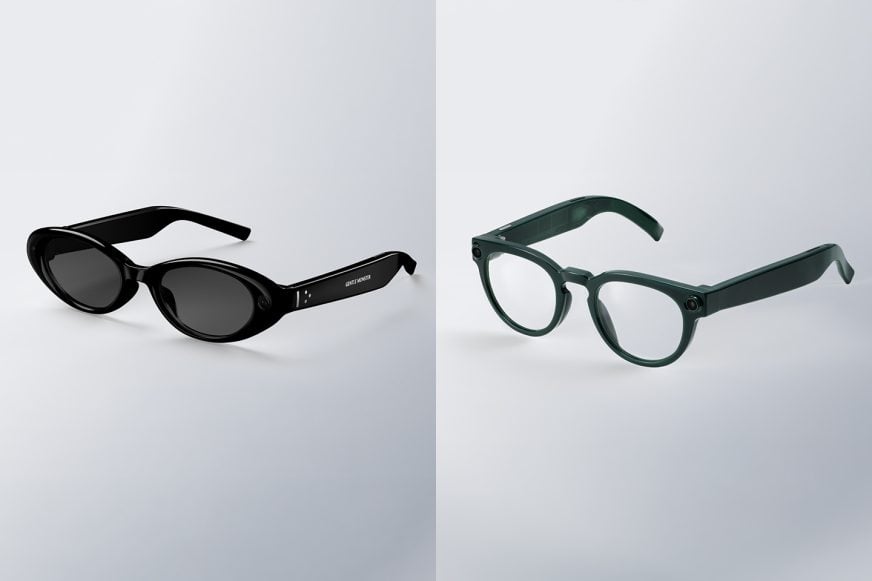
It’s a big year for smart glasses, and Samsung has been very tight-lipped about its plans. Other than a partnership with Google that announced “intelligent eyewear” created with Gentle Monster and Warby Parker at Google I/O this past May, there’s been little additional info. We know that both models have built-in cameras for photos and videos and speakers for music, calls, and audio notifications, which sounds exactly like Meta’s AI glasses. But how much will they cost and what kind of privacy policies will be in place? We have no clue. The latter is especially important considering how Meta keeps making it feel gross to wear any of its smart glasses.
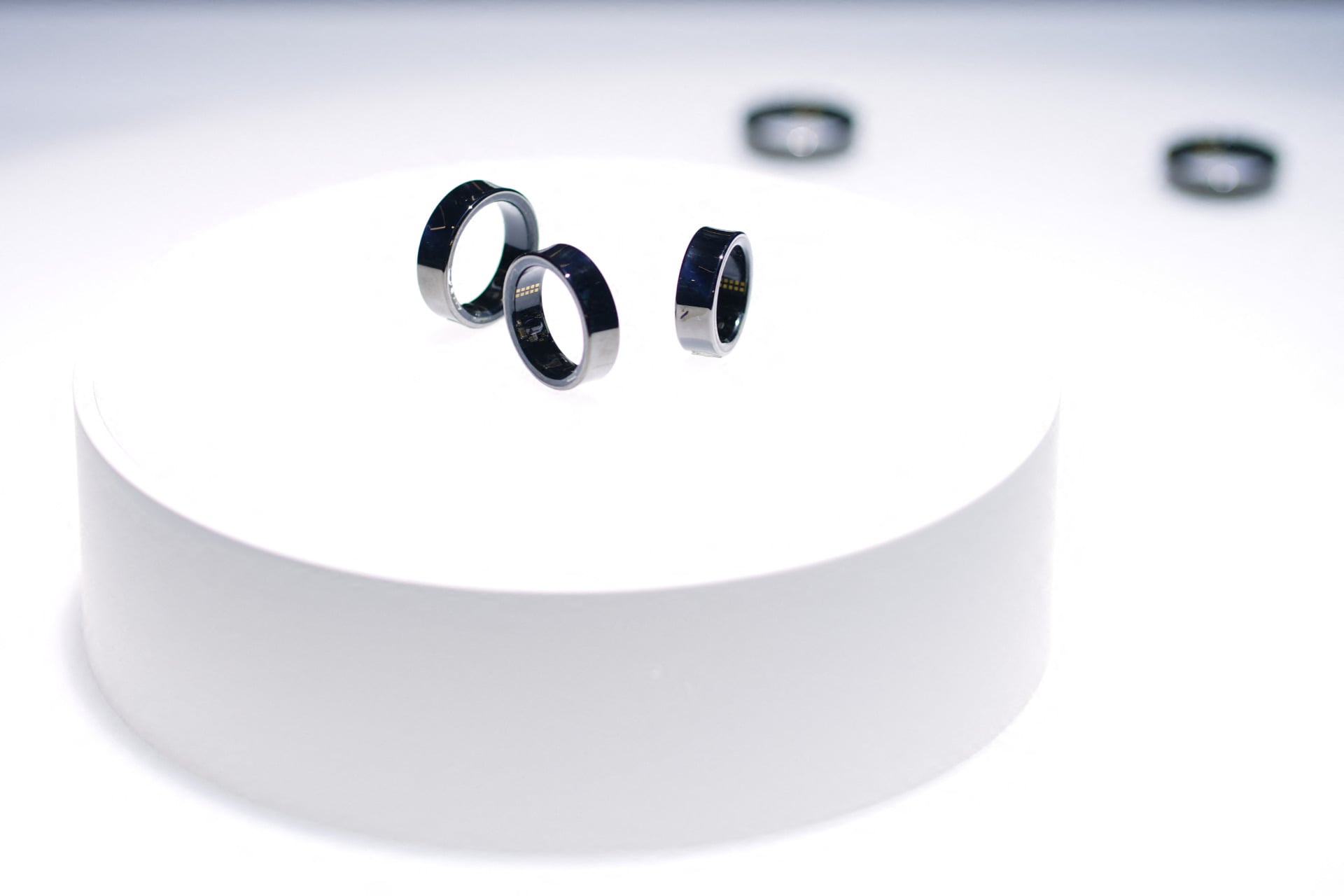
Then, there’s the smart ring. Might we get a tease for a Galaxy Ring 2? It’s been two years since the Galaxy Ring came out. Oura now has a slimmer and longer-lasting Oura Ring 5 and Vital Signals’ Signal Ring could be a game-changer, replacing traditional blood pressure cuffs. What’s next for Samsung’s smart ring?
A Korean news outlet has revealed apparent US pricing for the Samsung Galaxy Z Fold 8 and Z Fold 8 Ultra.
The Galaxy Z Fold 8 Ultra is expected to start at over $2,000, with a $2,099 price tag being deemed likely.
On the other hand, the Galaxy Z Fold 8 is tipped to start at $1,899.
Samsung will launch its new foldable phones on July 22, and the company is tipped to offer the Galaxy Z Flip 8, Galaxy Z Fold 8, and Galaxy Z Fold 8 Ultra. We’ve already heard murmurings about European prices, but we might just have US pricing for the Fold models.
Korea’s SE Daily outlet reports that the Galaxy Z Fold 8 Ultra’s US price will exceed $2,000, citing industry sources. More specifically, the outlet says a $2,099 price tag is considered “likely.” By contrast, the Galaxy Z Fold 7 launched at $1,999.99. So the Z Fold 8 Ultra would likely be $100 more expensive than its predecessor.
What do you think of the leaked Galaxy Z Fold 8 Ultra price?
26 votes
This figure isn’t set in stone yet, as Samsung is reportedly conducting a final review of this price and its overall pricing strategy ahead of the July 22 launch. Either way, a price hike wouldn’t be unexpected given the RAM crisis and the Galaxy S26 family’s price increases earlier this year. This isn’t a huge increase, but the Galaxy Z Fold series wasn’t exactly cheap to begin with.
The outlet also reports that the Galaxy Z Fold 8 or Wide Fold will start at $1,899 for the 256GB model. The new foldable is expected to offer a 4:3 internal screen, making it more ideal for video playback than previous Galaxy Fold models. Samsung also effectively confirmed that it would be powered by the Snapdragon 8 Elite Gen 5 for Galaxy chip, while previous leaks point to a 4,800mAh battery and a dual 50MP rear camera setup.
Meanwhile, the Galaxy Z Fold 8 Ultra is expected to have a Snapdragon 8 Elite Gen 5 chip and a 5,000mAh battery. The phone is also rumored to pack a 200MP main camera, a 50MP ultrawide shooter, and a 10MP 3x camera.
Thank you for being part of our community. Read our Comment Policy before posting.
Apple’s rumored iPhone Ultra could debut in September with a wider foldable design that aims to feel like an iPhone when closed and an iPad when opened.
The foldable is tipped to feature a nearly crease-free display, an advanced hinge, and a 4.5mm unfolded profile — just 0.3mm thicker than Samsung’s Galaxy Z Fold 7.
With a rumored price above $2,000, the iPhone Ultra would enter a foldable market already dominated by Samsung’s Galaxy Z Fold 7 and upcoming Fold 8 series.
Fresh off WWDC 2026 and Apple’s cozy relationship with Gemini-powered Siri features, the rumor mill has already moved on to Apple’s next big swing: its first foldable iPhone. According to a new video and renders shared by Jon Prosser, the so-called iPhone Ultra could finally make its debut alongside the iPhone 18 Pro lineup this September.
If the renders are anywhere close to reality, Apple doesn’t appear interested in copying the narrow foldables of the past. Instead, the iPhone Ultra is said to embrace a much wider design philosophy. The idea is that when folded shut, it should feel like a regular iPhone in your pocket. Open it up, and it transforms into something much closer to a compact iPad.
The design philosophy also feels strikingly familiar. After years of criticism over the narrow cover screens on earlier Fold models, Samsung finally embraced a wider, more phone-like display with the Galaxy Z Fold 7. That change made the Fold feel much more like a regular smartphone when closed. Based on these latest renders, Apple appears to be borrowing that exact roadmap.
Prosser also claims Apple is preparing a remarkably thin foldable with a nearly invisible crease and a hinge mechanism reportedly imbued with Apple’s trademark obsession with over-engineering. Whether that translates into a meaningful real-world advantage remains to be seen, but Apple has rarely entered a new hardware category without first addressing the industry’s most obvious complaints.
The rumored dimensions are particularly ambitious. When unfolded, the iPhone Ultra could reportedly measure just 4.5mm thick, making it thinner than even Apple’s ultra-slim iPhone Air. That’s undeniably impressive, though it would still be around 0.3mm thicker than Samsung’s Galaxy Z Fold 7, which currently sits at an astonishing 4.2mm when unfolded. Even so, for Apple’s first foldable attempt, matching Samsung this closely on thickness would be a notable achievement.
Of course, that kind of engineering won’t come cheap. Early whispers point to a price tag north of $2,000, putting it firmly in luxury-device territory. Then again, premium pricing has never stopped Apple fans before.
What’s particularly interesting is the timing; Samsung isn’t standing still. By the time Apple enters the foldable race, Samsung will have the Galaxy Z Fold 7 firmly established and will launch the next chapter with the Galaxy Z Fold 8 and the rumored Fold 8 Wide. If those devices continue Samsung’s push toward wider displays and thinner bodies, Apple won’t be entering an empty field — it’ll be stepping into a category that’s already rapidly maturing.
For years, foldables have largely been Samsung’s playground. The iPhone Ultra could change that overnight. Whether Apple ends up leading the category or simply joining it fashionably late is the question we’ll be asking for the rest of 2026.
Thank you for being part of our community. Read our Comment Policy before posting.
The Galaxy S26 FE has been spotted in a Wireless Power Consortium listing.
The listing reveals that the model number is SM-S741.
It appears the FE phone will adopt the Galaxy S26’s raised camera bump.
With the Galaxy S26 FE still a decent ways away, there’s not a whole lot we know about the device yet. A recent leak suggests that it will be running on an Exynos chip, likely the Exynos 2500. Shedding some more light on the unannounced “Fan Edition” phone, a new listing has popped up.
Don’t want to miss the best from Android Authority?
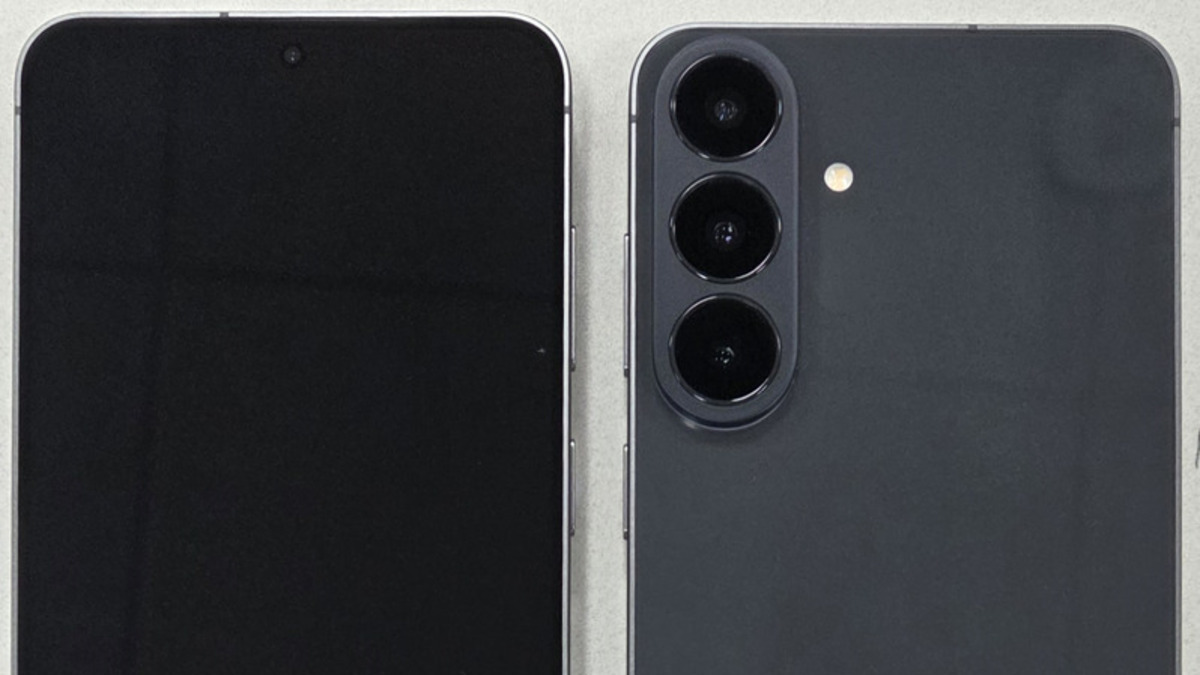
The Galaxy S26 FE has shown up on the Wireless Power Consortium’s (WPC) database, spotted by 9to5Google. There’s not a ton of information on this page, but it does reveal that the handset carries the model number SM-S741. It also offers the real-world image you see below this paragraph.
Based on this image, the Galaxy S26 FE will look very similar to its predecessor with one notable difference — the rear camera bump. It appears the FE will adopt the raised camera bump Samsung added to the Galaxy S26 series. Strangely, this camera sits far closer to the top and side than we’ve seen on either the Galaxy S26 or Galaxy Z Fold 7.
As there’s still a lot of missing information about this smartphone, it’s unknown when the Galaxy S26 FE will launch. We’re likely still several months out from its release, so don’t expect it any time soon. But that leaves plenty of time to learn more about it before it comes out.
Thank you for being part of our community. Read our Comment Policy before posting.
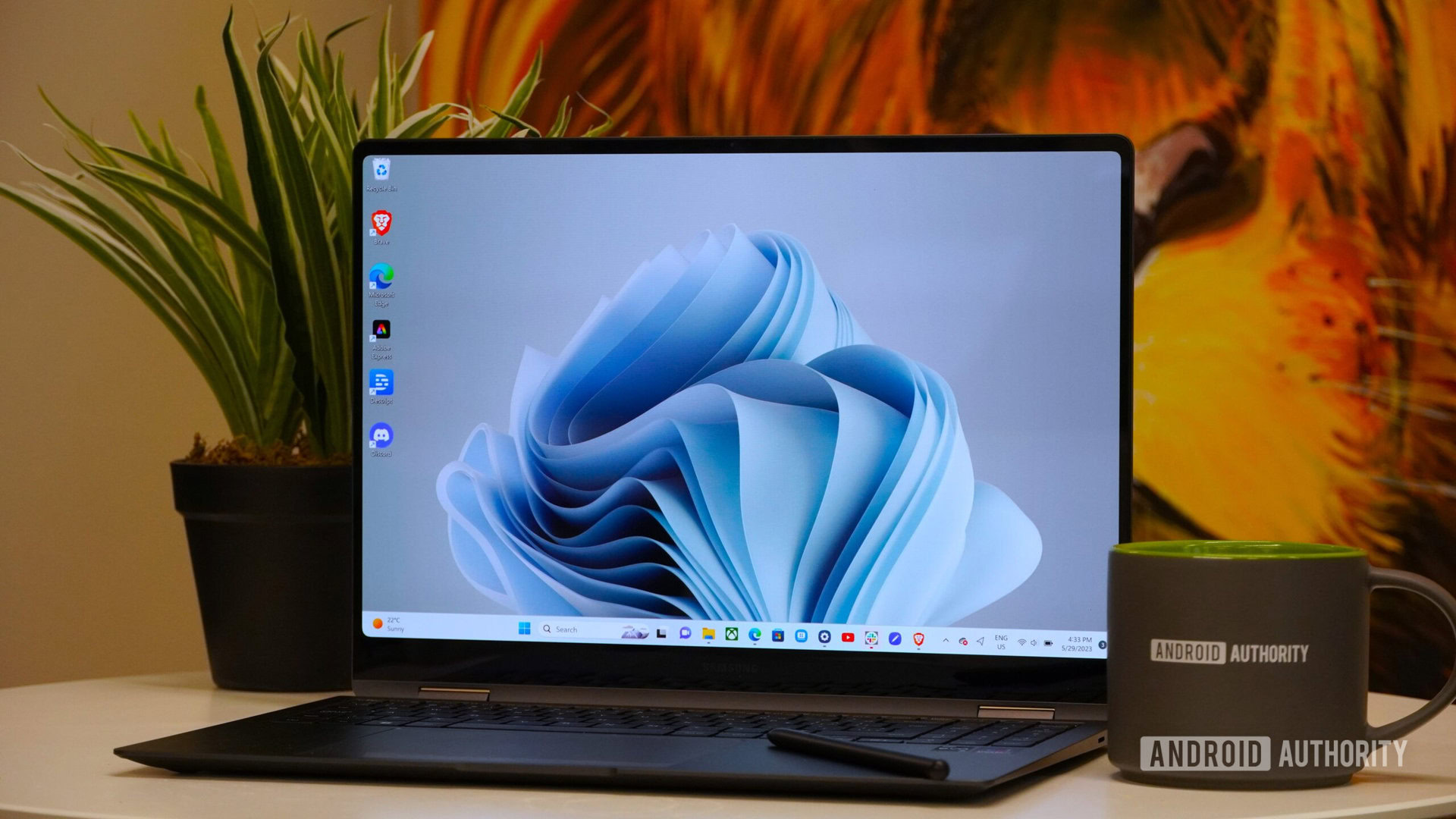
Earlier this year, I completed my Samsung ecosystem with a Galaxy Book 4 Edge — and one of the things I loved most about the experience was the features Samsung had added on top of Windows 11. Specifically, all of the deep integrations it offered with my Samsung phone.
Having tested this new version of Galaxy Connect myself, I couldn’t be happier with it.
Are you going to download Galaxy Connect?
2 votes
Galaxy Connect’s two best features
Zac Kew-Denniss / Android Authority
Once you’ve downloaded Galaxy Connect onto your PC, you’ll see four features contained within: Continue on other devices, Storage Share, Multi Control, and Second Screen. The first two are included with the initial Galaxy Connect download, whereas Multi Control and Second Screen require additional downloads to use.
Of the features Galaxy Connect brings to Windows, Multi Control and Second Screen are by far my favorites. Multi Control is similar to Apple’s Universal Control. You can connect to your Samsung phone or tablet and position it as you would a secondary monitor. The difference is that instead of mirroring Windows to the device, your phone will continue to show Android. When you move your mouse from your main display, it will appear on the phone’s screen and let you control it with your mouse and keyboard as if they were connected directly to the phone.
There are a ton of things you could use this for, but I’ve narrowed it down to two things I do every day. I always listen to music while working, and instead of faffing around with pairing my earbuds to my PC, I keep them connected to my Fold 7. I have YouTube Music and Telegram in split-screen so I can control my music and message my wife without either app taking up space on my monitors. It’s also a convenient way to use apps that are better on mobile. I prefer the Android version of Google Keep versus the website, and now I can use my mouse and keyboard to quickly make notes while still using the mobile app.
Zac Kew-Denniss / Android Authority
Second Screen lets you use a Galaxy tablet as a wireless display for your Windows computer. This isn’t technically new (you’ve been able to do this via the Windows+K menu for years now), but the Second Screen app fixes one of the biggest annoyances with it: lag. When you connect to your tablet via this app, you’ll get a prompt on the computer that says, “Disconnect tablet Wi-Fi to reduce latency.” Clicking this disconnects the tablet from your Wi-Fi and connects it directly to your PC, eliminating the lag issues that prevented me from using it in the past. Now I can use my Galaxy Tab S10 Plus as a secondary monitor and use the S Pen with my PC without infuriating latency.
Share files and sync your clipboard
Zac Kew-Denniss / Android Authority
The other two features are undoubtedly useful, but I don’t use them as often.
Storage Share, as the name suggests, lets you access all the files on your Samsung phone or tablet from File Explorer on your PC. If you want to access your photos or anything else stored on your device and can’t be bothered to mess around with cables, this is a great solution. You can drag and drop files into a folder on your PC, or drag them directly into the app you need. The screenshots from my Fold 7 that were used earlier in this post were dragged from the phone’s storage right into our site’s media library.
Continue on other devices syncs your clipboard. One area where this has been handy is using two-factor authentication. I use the Google Authenticator app, which isn’t available on Windows. Usually, I have to manually enter my 2FA code after reading it from my phone screen. Now I can just tap the code to copy it to my phone’s clipboard, then paste it into the relevant field on my PC without waiting. It’s a small thing, but it can save a lot of time. If you use Samsung Internet, you can sync tabs across your devices as well, but I prefer Chrome, so I haven’t tried it myself.
Zac Kew-Denniss / Android Authority
Things aren’t perfect. ARM-based PCs are left out, which is weird given that my Galaxy Book 4 Edge is ARM-based and has all these features built in. Likewise, some users whose computers don’t have Intel network adapters report that Galaxy Connect doesn’t work at all.
Aside from those strange limitations, this is one of my favorite things Samsung has done in a long time. Multi Control and Second Screen have made working from my desktop better than ever, especially now that I can use the same workflows as I have on my Galaxy Book.
Don’t want to miss the best from Android Authority?
Thank you for being part of our community. Read our Comment Policy before posting.
Samsung was one of the first manufacturers to offer a 200MP camera when it launched the Galaxy S23 Ultra back in 2023. We’ve since seen many other brands adopt this tech for use on both primary and telephoto cameras.
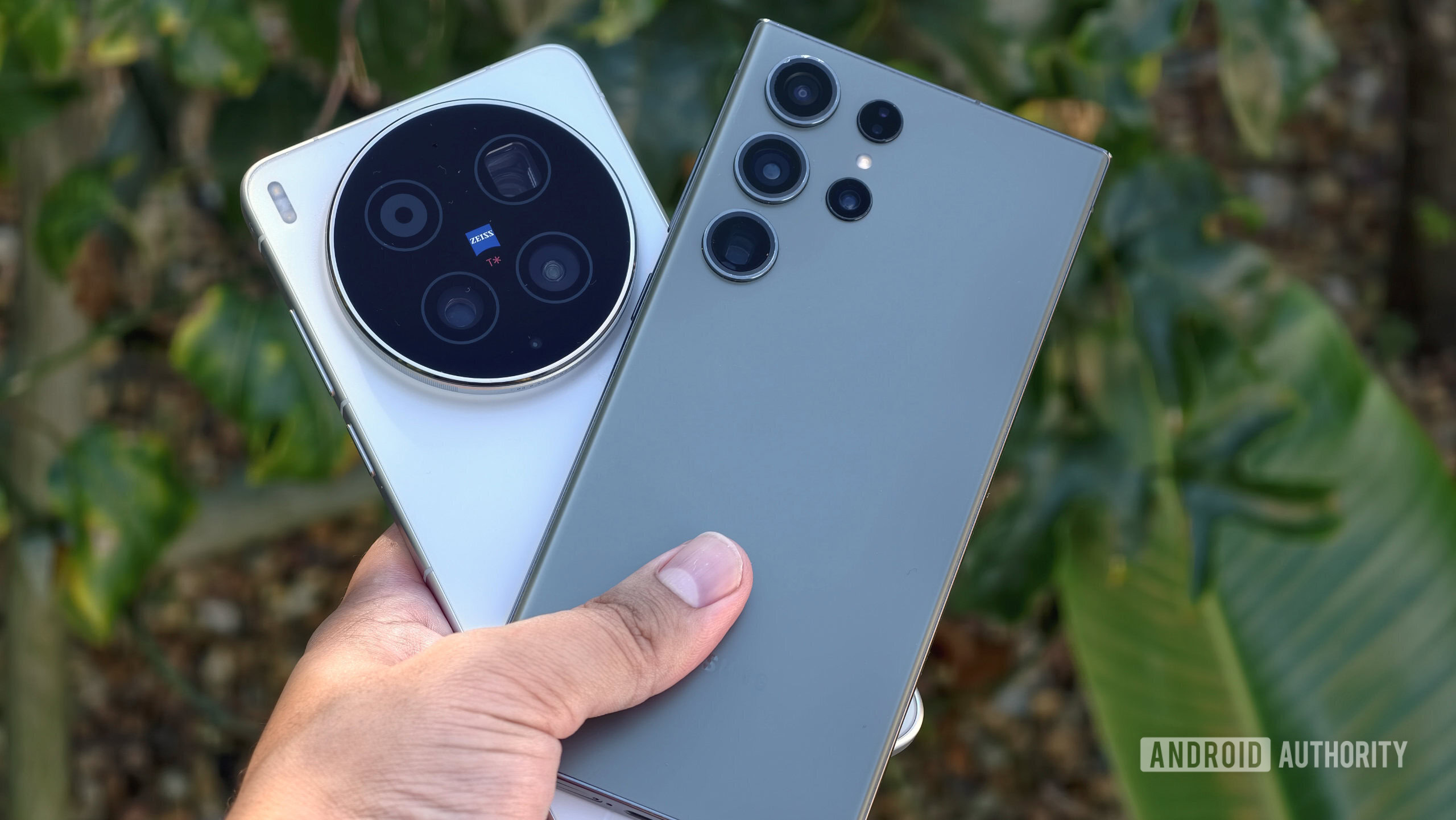
We haven’t seen a major change in the sensor size of 200MP cameras, though. Until now, that is. The vivo X300 Ultra has just been released, and it offers a significantly larger 200MP main camera. But how does this fare in practice compared to the first-generation 200MP main camera on the Galaxy S23 Ultra? I put these two phones to the test in a 200MP camera shootout.
Have 200MP main cameras lived up to the hype?
102 votes
What to know about Samsung and vivo’s 200MP main cameras
Hadlee Simons / Android Authority
The Galaxy S23 Ultra’s main camera features a 200MP Samsung ISOCELL HP2 sensor, which was cutting-edge at the time. This is a large, 1/1.3-inch sensor with tiny 0.6-micron pixels. But it also featured tricks like 16-in-one pixel binning (equivalent to a 12.5MP, 2.4-micron pixel camera) or conventional four-in-one binning (equivalent to a 50MP, 1.2-micron pixel camera). Other notable tricks include Super Quad Phase Detection autofocus, as well as dual-slope gain and Smart ISO Pro for improved dynamic range.
Don’t want to miss the best from Android Authority?
Meanwhile, the vivo X300 Ultra’s main camera uses the Sony LYT-901 camera sensor. This is Sony’s first 200MP camera sensor, and the 1/1.12-inch sensor size makes it notably larger than Samsung’s 200MP cameras. The Sony sensor also offers 0.7-micron pixels, which are still small by the standards of other camera sensors, but larger than those in previous 200MP sensors. Bigger pixels mean greater light capture, which should lead to brighter, cleaner photos with less blur. Sony adds that the sensor offers all-pixel autofocus, DCG-HDR tech for improved single-frame HDR, and Hybrid-Frame HDR.
I approached this shootout by sticking with the Galaxy S23 Ultra’s regular camera settings, save for enabling the Quick Tap Shutter option. I also mostly used the X300 Ultra’s default settings, though I switched from the default Vivid color profile to the Authentic option for more realistic colors.
Galaxy S23 Ultra vs vivo X300 Ultra: Pixel-binned shots
Early 200MP cameras often took full-resolution photos with minimal processing compared to the pixel-binned snap. This meant that there was often a stark difference between the 200MP and 12.5MP photos. Nevertheless, the latest sensors offer more advanced HDR tricks, while today’s flagship processors offer multi-frame processing at 200MP. So how do the two phones and their camera sensors fare in a demanding, backlit scenario?
The difference between full-resolution and pixel-binned shots seems to be narrowing in 2026. vivo’s 200MP and 12.5MP images look very similar, featuring a washed-out appearance that’s ostensibly due to the more realistic color profile. However, the lower-resolution shot offers slightly lifted shadows and a brighter face, likely due to better HDR capabilities at 12.5MP.
There’s a massive difference between Samsung’s 12.5MP and 200MP photos, though. The pixel-binned snap offers an aggressive HDR treatment with very saturated colors, while the full-resolution shot features plenty of blown-out highlights (particularly in the background and around the subject’s head). What’s more concerning is that the Samsung phone’s 200MP photo has grid artifacts when zooming in. Take a closer look at the image below.
Hadlee Simons / Android Authority
It’s clear that vivo’s 200MP shot is the better full-resolution snap, owing to tamed highlights and a lack of grid artifacts. Neither 12.5MP shot was perfect, though, as I felt the ideal picture was somewhere in the middle. Nevertheless, both phones did a solid job of exposing the subject’s face.
I then switched to the standard 12.5MP mode and a more conventional scenario to see how the phone’s pixel-binning capabilities compare. It’s worth noting that the X300 Ultra’s main camera has a 35mm focal length, which is effectively equivalent to 1.5x of the Galaxy S23 Ultra’s 24mm focal length, as seen on the vast majority of smartphone cameras. Colleague Rob Triggs previously noted that he preferred a 35mm camera as he felt the 24mm perspective was too wide, especially when he already has an ultrawide camera on tap for wide shots. So this perspective comes down to your own preference. Check out the gallery below.
The Samsung phone opts for a more saturated shot, while vivo’s authentic color profile understandably delivers a colder, more washed-out look. However, a closer peek also reveals that the vivo handset offers far more detail and less smearing than the S23 Ultra. The 35mm focal length ostensibly works to vivo’s advantage here, but that doesn’t fully explain the gulf in detail.
What about low-light photography, though? Shooting a moving subject after dark is a tough challenge, so how did the two phones handle my cat in the dimly lit backyard? Check out the pixel-binned samples below.
I kept automatic night mode processing enabled on both phones. Needless to say, this scene required a few snaps on both devices, as my cat kept moving her head. Nevertheless, the Samsung phone clearly struggled compared to the vivo handset. Note how the fur in the Samsung photo is basically a noisy smear. The X300 Ultra’s main camera also delivered good subject separation, presumably due to the focal length and larger sensor.
I disabled the automatic low-light processing on both phones for this early morning scene of some flowers. This should give us a rough idea of how well each phone’s camera performs in terms of autofocus, light capture, and more. Unfortunately, neither phone captured truly sharp flowers. However, the Samsung photo has significant splotchiness upon closer inspection compared to the vivo’s cleaner, slightly brighter presentation. The X300 Ultra also delivers a shallower depth of field, helping the flowers stand out from the background.
What about 200MP photos?
I also took plenty of full-resolution 200MP photos during the shootout. The gallery above shows the Camps Bay beachfront in Cape Town, and both phones understandably offer plenty of detail at this resolution. There’s enough headroom here to crop in on either snap. But look closer, and you’ll see that the vivo handset does a much better job of capturing fine detail, which is especially important when it comes to people. By contrast, the people in Samsung’s shot look splotchy and feature color banding.
The vivo device also offers greater definition and detail for the scenery and buildings. Go back to the full scene and take a look at the white houses at the foot of the mountain, as well as the small building on the beach. There’s still some minor fringing in this scene, such as white buildings, as you might expect in the late afternoon. I’m also not a fan of the excess sharpening in some parts of the scene, such as the roofs of some buildings.
Moving on to the next comparison, conventional wisdom says you should stick with the pixel-binned 12.5MP mode when shooting in low-light scenarios. But I decided to shoot a few full-resolution photos at night to see how the first-generation and new-generation sensors perform. Check out the gallery below, showing my gaming shelf in a dimly lit room.
A close look at these 200MP crops reveals that the vivo handset delivers a cleaner, less washed-out rendition of the scene. The X300 Ultra image also offers sharper text, although I think the AI-assisted processing makes some characters look overly sharp and janky.
A trip to the local indoor market after dark also gives us a good full-resolution workout. The Samsung phone’s wider perspective and vivo’s more realistic color profile presumably account for the differences in exposure and white balance. More specifically, the Galaxy S23 Ultra lifted the shadows compared to the vivo shot while offering a warmer scene. Neither phone accurately captures the “Mojo Bar” lighting, though. The vivo rendition is just too dull while the Samsung snap has notable fringing.
Take a closer look at this scene, and it’s clear that the X300 Ultra delivers more resolvable detail. Text is significantly more legible on the bottles and beer taps compared to the Galaxy S23 Ultra shot. The light sources are also kept in check by the vivo handset’s ZEISS lens coatings. You can view the image comparison below for a closer look.
Want to pixel-peep our full-resolution photos? You can view and download all these snaps via our Google Drive folder.
How far have 200MP cameras progressed?
C. Scott Brown / Android Authority
I’m a big proponent of 200MP cameras for zoom, but I’ve otherwise been a 200MP skeptic for a few years now. The first 200MP cameras were capable of capturing decent detail at full resolution, but this was often undone by slow processing times, tiny pixels, and rudimentary processing. While these sensors could capture great pixel-binned snaps in most conditions, so could lower-resolution 50MP cameras with large sensors.
However, our comparison between the first 200MP cameras and the latest hardware suggests that these sensors are finally living up to the hype. Detail is far better, as is HDR and low-light performance, which really make high-resolution photography much more viable. I’m keen to see more phones with cutting-edge 200MP sensors like the Sony LYT-901. In fact, I’d love to see Samsung adopt a similarly large 200MP camera next year.
200MP photography is much more versatile on recent phones.
It’s also worth noting that other factors, such as chipsets and brand-specific camera tuning, can make a big difference. In fact, phones like the vivo X300 series and OPPO Find X9 series support multi-frame image processing at 200MP. This allows for full-resolution photos with improved noise and blur reduction, as well as 200MP portraits and night mode snaps. This was unthinkable just a couple of years ago. I’m therefore interested to see what else phone makers can do with these cameras in the future, thanks to these newfound processing capabilities.
Thank you for being part of our community. Read our Comment Policy before posting.