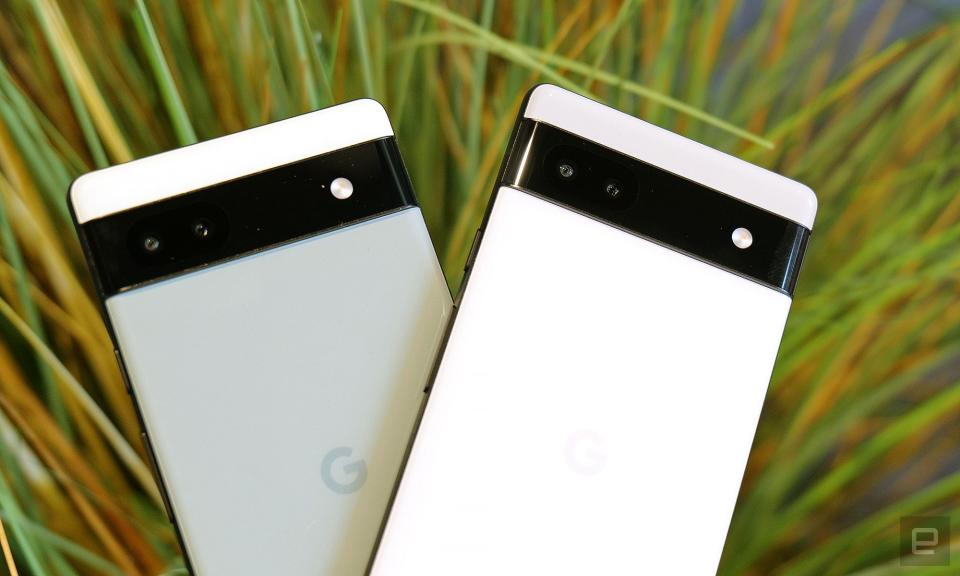
Google’s Pixel 6a has been a winner in many respects, but a new issue with the smartphone’s battery may pose a safety concern. After Android Authority reported on a pair of instances where a Pixel 6a battery overheated to the point where the device caught fire, the publication spotted some details in the latest Android 16 beta indicating that as a precaution, the Pixel 6a battery capacity and charging speed will be reduced. In addition, Android Authority received this statement from Google:
A subset of Pixel 6a phones will require a mandatory software update to reduce the risk of potential battery overheating. The update will enable battery management features that will reduce capacity and charging performance after the battery reaches 400 charge cycles. We’ll contact impacted customers next month, with all the information they need to address the issue.
The Pixel 6a is due to receive software support until July 2027, but it’s just the latest entry in this device line to have battery problems this year. In January, Google rolled out an update that reduced battery life of the Pixel 4a to increase stability for the 2020 phone model. Then in April, the company launched a program of repairs and payments after some instances of batteries “swelling” in the Pixel 7a.
Every time I set up a new Pixel phone, there is a list of apps that I immediately install. Spotify, 1Password, Slack, Todoist, DuckDuckGo, JotterPad, Backdrops, Plex, Wanderlog, and many more are at the top of my list, but so are a few apps developed by the company that made my phone — Google.
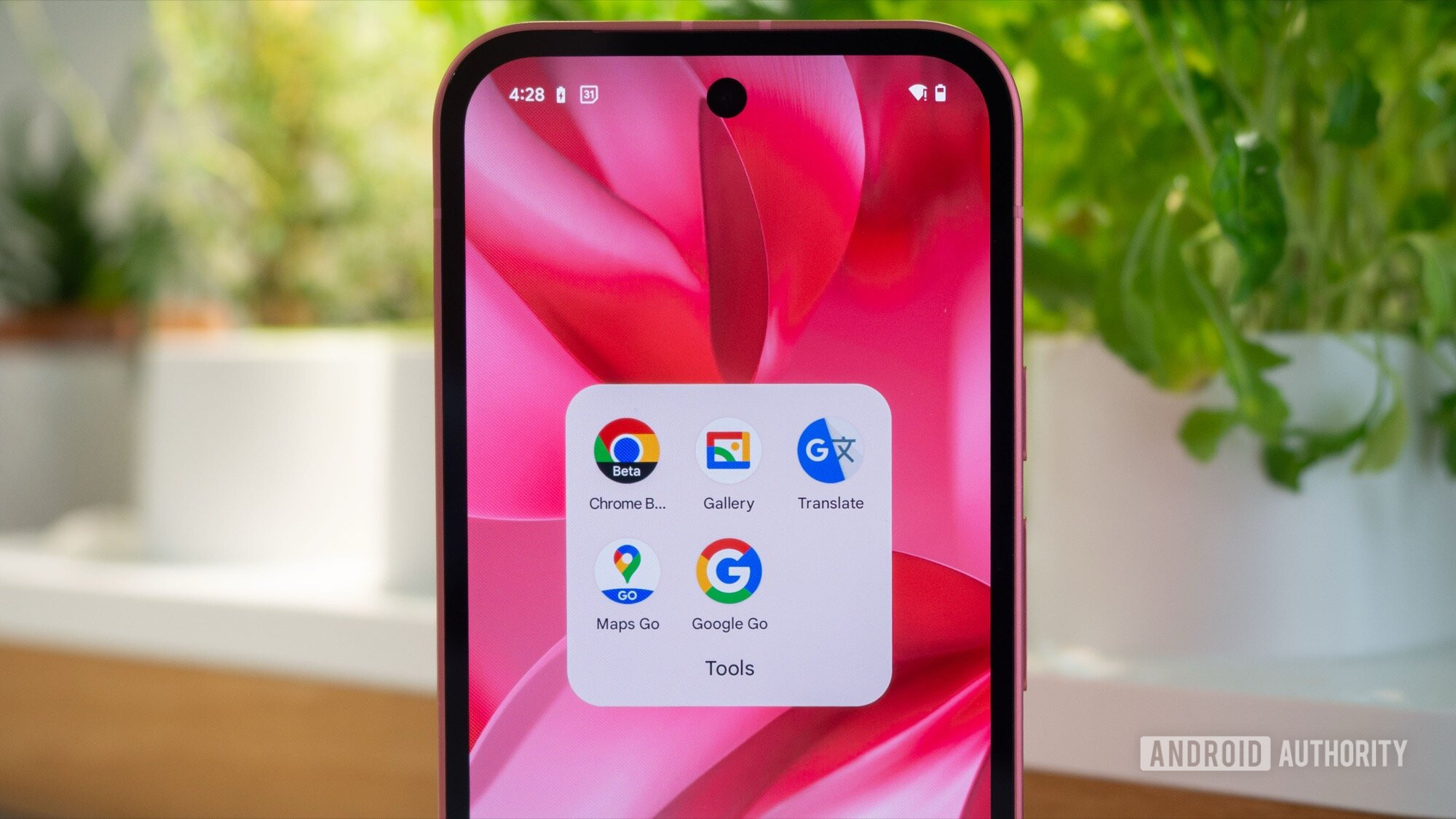
Despite these being Google apps, they don’t ship by default on Pixels and must be manually added to the phones. Some of them are known; others are more obscure. But there’s a particular reason to use each and every one of them, so without further ado, here are the five Google apps I add to my Pixel and that I think you should consider as well.
Chrome Beta
Rita El Khoury / Android Authority
Why install a beta version of Chrome when the official Chrome is already pre-loaded? Well, the reason is multiple account support. See, unlike almost all other Google apps, Chrome doesn’t let me switch accounts very easily with a swipe across my profile picture. No, I have to log out and then log in with the new account each time, essentially resetting the app every time I do this.
To counter it, I use Chrome and Chrome Beta (and Chrome Dev), and sign into a different Gmail account in each app. My personal account lives in Chrome, my joint account with my husband goes in Beta, and my Workspace account is in Dev. That way, I can access all my distinct bookmarks, browsing histories, logins, and autofill details in each one, without mixing business and pleasure.
It’s a bit of a cumbersome solution when I click on a link and see it open in my personal Chrome (which is set as default browser) when I know it should’ve gone in my family Chrome Beta, but I’ve learned to live with this limitation. I copy/paste the URL to manually open it in the appropriate browser. Besides that, this works beautifully and allows me to separate church and state with my browsing habits and data.
Google Maps Go
Rita El Khoury / Android Authority
Google Maps is one of the most-used apps on my phone, but it has one glaring flaw: It becomes useless the moment I start navigation. I can’t do a proper search, nor can I look up the details of a place I’m walking by. I have to completely stop navigation to do that, then search for my destination again and start nav a second time.
Google Maps Go solves this by providing a second, lighter, smaller, less resource-intensive instance of Maps on my phone. So when I’m already following step-by-step directions to walk, drive, or take transit somewhere, I can just launch Maps Go to do anything else I might need Maps for. Passing by a cool-looking restaurant? I look it up and see if it has a good rating and bookmark it. Need to find specific details about some places while I’m on the subway? I can do my research without messing up my train times and journey.
When I wrote about this benefit of Google Maps Go, a few users suggested I use Waze for navigation and keep Google Maps free. This is another workaround, but it only applies if you drive a lot. Most of my transport happens on foot or by transit, so I can’t use Waze for that.
Gallery
Joe Maring / Android Authority
Every time we mention this app on Android Authority, we get many comments from people who didn’t know Google Gallery existed. So here I go again. Gallery is Google’s fast, light, on-device alternative to Photos. It scans all of the photos and videos on your phone, organizes them, does some light facial recognition, and stays offline the whole time.
The first scan takes time, but after that, Gallery is fast and efficient. And most of all, it’s private. It works pretty well as a local gallery app, and I use it a lot to access my screenshots, WhatsApp folders, and all the other media files on my phone.
Google Translate
Rita El Khoury / Android Authority
Do I even need to introduce Translate to you? I don’t know why Google has left out this essential app from its preloaded Pixel apps, forcing us to install it on every device manually, but here we are.
Google Translate does what the name says: It translates things — text, audio, photos, full conversations — from one language to another. It can easily auto-detect the input language and supports offline translations for dozens and dozens of languages.
I speak three languages nearly natively, and I can figure my way around two other languages, but that’s not enough for a frequent traveler or culture addict like me. So when I’m in a country where I don’t speak the language, like Hungary, Albania, the Czech Republic, Turkey, or Nepal, I resort to Google Translate to communicate with people who aren’t very confident using English. As a matter of fact, my taxi driver in Turkey pulled out his phone and launched Google Translate by himself to organize my pick-up and drop-off — a proper border-crossing solution.
Google Go
Rita El Khoury / Android Authority
There might be a pattern here; Google Go is the third light version of a default Google app that I use, and once again, there’s a good reason for that.
Google Go was built for less powerful phones and more limited internet connections, and that’s part of its appeal. It’s faster and lighter than Google’s main app, but it still does the job. What I love about it, though, and the reason why it’s earned a spot on my Pixel is that it supports two features that aren’t available in the regular Google app.
One of them is incognito searching. It’s a tap away and allows me to do a quick search without it showing up in my Google history and without launching Chrome and rejecting Google’s cookie pop-up each time.
The other is the built-in reader mode, which is also available in Chrome but requires a few tweaks with flags to enable (and even then isn’t as straightforward). In Google Go, any article page immediately shows a bottom bar with a play button in the middle. It starts reading the article for me so I can go about my day, make coffee or prepare lunch, start a new laundry cycle or brush my teeth, all while listening to the article. There are speed controls, 10-second skip and rewind buttons, too, plus an easy translation menu. It’s sad that all these nifty additions aren’t available in the main Google app because I’m sure a lot of people would love them and use them as much as I do.
Honorable mentions
Before ending this article, I wanted to mention some other Google-made apps that are not pre-installed on Pixel phones (or rarely are) and are still worth testing and adding to your phone.
Google News is the most obvious one, if you like to stay on top of what’s happening in the world of politics, tech, or any other topic you’re interested in.
Google Tasks is a basic but efficient task manager. It combines very well with Assistant voice commands when you set up reminders.
Google Fit has lost a lot of its shine since Google bought Fitbit, but it remains an excellent way to aggregate data from various health apps. I also used it when I was tracking my blood pressure after a brief scare earlier this year.
Find Hub (previously Find My Device) is essential if you own other Pixel or Android gear; it allows me to locate my Buds Pro 2, Watch 3, and other Android phones, as well as my Google-compatible Bluetooth trackers like the Chipolo POP or moto tag.
Photoscan is a secondary Google Photos tool that lets me scan physical photos to add them to my library. It automatically crops and rotates the image and removes all glare, saving me from manually doing this tedious work. I have yet to digitize my old photos, but for the rare time when I get handed a physical photo as memorabilia from a place or adventure, it’s my go-to solution.
And there you have it; all the great Google apps that you should consider adding to your Pixel, even if they didn’t come preloaded on it. Have any other favorites? Let me know in the comments!
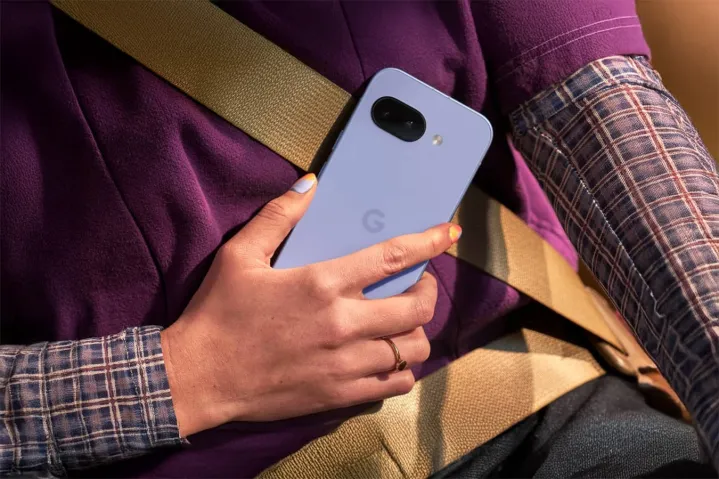
The Google Pixel 9a is a mid-range device with few compromises, and it promises to offer one of the best values of any phone. The handset has a lot of changes: Google ditched the camera bump, installed a new processor, and increased the screen size, all without increasing the price.
With Apple’s “midrange” device releasing not long ago in the form of the Apple iPhone 16e, it’s easy to draw comparisons between the two. The Google Pixel 9a is a more affordable device, and it beats the iPhone 16e in multiple ways.
Does the Google Pixel 9a have a 120Hz screen?
Yes, the Pixel 9a supports refresh rates between 60 and 120Hz. Its screen has a resolution of 1080 x 2424 with just over 422 pixels per inch (PPI) and a 20:9 aspect ratio. The display reaches a peak brightness of 2,700 nits — more than enough to comfortably use even in direct sunlight — and up to 1,800 nits with HDR enabled.
Google
So what does this mean for you? The variable refresh rate means the Pixel 9a can adjust on the fly, preserving power and prolonging battery life without sacrificing smoother animations and transitions. Compared to the iPhone 16e which does not have a 120Hz refresh rate, the Pixel 9a has a clear advantage.
Why does a 120Hz display matter?
For many users, an increased refresh rate is a luxury rather than a necessity. That said, it offers a lot of benefits over a lower refresh rate display. Faster refresh rates help to reduce motion blur during fast-moving videos and games, and it also helps minimize eye strain.
And it gets even better for photographers. The Pixel 9a has one of the best camera setups you can get for a phone in this price range. The refresh rate will also help when editing videos taken on the phone, zooming in during photo editing, and much more.
If you like mobile gaming, a higher refresh rate can give you an advantage. This holds especially true in competitive games where precision and response time is important. The display might not be the deciding factor for many buyers, but it’s a nice perk for anyone already looking to get their hands on a Pixel 9a.
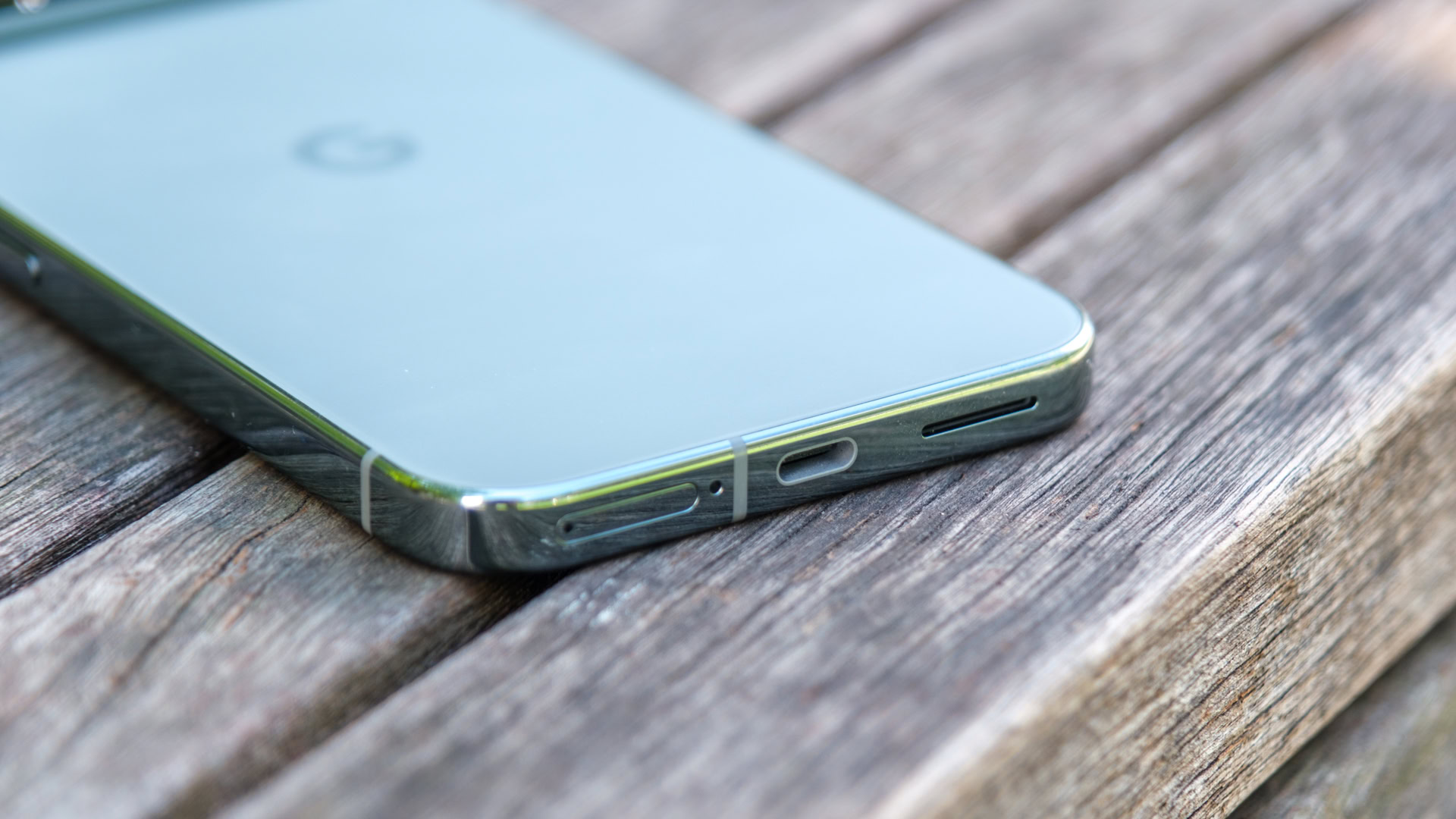
You can simultaneously use Wi-Fi and a cable to speed up data transfers from your old phone to the Pixel 9 range.
The option also comes after we first discovered evidence for it back in May.
This feature joins the new ability to restore data from an old phone at any time.
One of the most annoying things about getting a new Android phone has traditionally been transferring data from an old device. This can take a long time, but it turns out the Pixel 9 phones speed things up with a nifty approach.
Analyst Max Weinbach noted on X that you can simultaneously use Wi-Fi and a cable when transferring data from an old phone to the Pixel 9 series. He also observed that you can plug in the cable “at any point” and the phones will take advantage of the wired connection.
This is good news as it should deliver a significant speed boost on paper for data migration. This is also an improvement over the previous method of using a wired connection, which required you to first tap the image on the “copy apps and data” screen five times.
It’s not the first time we’ve heard Google was working on simultaneous wired/wireless data migration, either. We first discovered evidence of this feature via an APK teardown in May, so this has clearly been in the works for a while.
This isn’t the only data migration improvement available on the Pixel 9 series. You can now choose to restore data from your old phone to the Pixel 9 series at any time. By contrast, previous Pixels only let you restore data during the initial setup process.
Got a tip? Talk to us! Email our staff at news@androidauthority.com. You can stay anonymous or get credit for the info, it’s your choice.