While the latest wireless earbuds from Apple, Sony, Bose and other big-name brands may dominate the headlines, you absolutely do not need to spend triple digits to get something good. These days it’s more than possible to find a clean-sounding, richly-featured pair for well under $100, but navigating the bargain bin still brings its share of challenges.
If you want to upgrade without breaking the bank, allow us to help. Whether you’re looking for active noise cancellation, great sound, a gym-friendly design or just something dirt cheap, here are the best budget wireless earbuds we’ve tested. This is a busy market with new models arriving all the time, but we’ll keep this guide as up-to-date as possible as we test out recent releases.
The Anker Soundcore Space A40 is often available for $60 but offers the kind of performance and features you’d see from a pair of earbuds that costs twice as much. Its little round earpieces are light and evenly balanced, so they shouldn’t be a pain for most to wear for hours at a time. The default sound profile is good enough: It’s warm, with a bump in the upper-bass and a dip in the treble that can dull some finer details, but pleasant on the whole. Unlike many cheaper headphones, it doesn’t completely blow out the low-end. As with many modern pairs, you can tweak the sound with custom EQ tools in the Soundcore app. Using these won’t make the Space A40 sound as nice as the best wireless earbuds on the market, but it can give them a touch more deep bass or high-frequency emphasis. The app in general is easy to use, and it saves any changes you make directly to the earphones.
The Space A40’s best feature is its active noise cancellation (ANC), which is outstanding for the money. It won’t totally block out higher-pitched sounds, but it’s plenty effective at muting the rumbles of a train or jet engine. By default, Anker uses an adaptive ANC system that automatically tweaks the intensity based on your surroundings, though you can manually set it to strong, moderate or weak levels, too. That’s great for those with sensitive ears. There’s also a transparency mode, which isn’t nearly as good as what you’d find on a high-end pair like the AirPods Pro but works in a pinch.
Most of the little touches you’d want from a modern set of headphones are here as well. The Space A40 can connect to two devices simultaneously, and you can use one earbud on its own. Battery life is solid at eight-ish hours, while the included charging case can supply another 40 or so hours and supports wireless charging. The IPX4 water resistance rating isn’t anything special but still means the earphones can survive light rain and everyday sweat. The touch control scheme can feel somewhat busy, as it lets you assign up to six different shortcuts to different taps and long presses and effectively forces you to omit a function or two, but it works reliably. We’ve had no real connection issues, either.
The only major shortcomings are the mic quality and the lack of auto-pausing when you remove an earbud. The former doesn’t handle sibilant sounds very well and can lose your voice in particularly noisy areas, so this isn’t the best option for phone calls, but it’s usable.
Pros
Excellent ANC for the money
Pleasant, warm sound
Multi-device connectivity and wireless charging support
Comfortable
Good battery life
Cons
No automatic wear detection
Call quality is mediocre
Audio performance isn’t as detailed as higher-end options (as expected)
The Anker Soundcore Liberty 4 NC is a commendable option if you prefer a larger “stem” design akin to Apple’s AirPods. In many ways, these earphones are just the Space A40 in a different shape. Like our top pick, they deliver an impressive adaptive ANC system, a relatively stable fit, wireless charging, an intuitive app, IPX4-rated water resistance and the ability to connect with two devices at once. Battery life is about the same as well, but we were usually able to get a half-hour or so more out of the Liberty 4 NC.
By default, this pair has an exciting sound with big, thumpy bass and a noticeable spike in the treble. It’s a good example of the “fun” EQ curve we often see from mainstream headphones these days, one that lends a nice sense of clarity to vocals and higher-range instrumentation. It fits especially well with EDM and pop music. That said, it’s intense, so some might find it fatiguing. The Space A40 doesn’t exactly sound neutral, but it comes off as easygoing by comparison, so it should be more agreeable for most. You can still personalize the Liberty 4 NC’s sound profile through a variety of EQ settings in the Soundcore app, but it’s hard to fully rein in the bass even with those.
Beyond that, you can manually adjust the strength of this pair’s ANC on a five-step scale, which is a little more granular than the Space A40’s three-step option. The touch controls are slightly more extensive, as you can triple-tap each earbud to change volume or access other commands. It also supports wear detection, plus its integrated mics are a bit better at resisting wind noise. However, it’s sluggish to auto-pause whenever you remove an earbud, and call quality is still mediocre in general. The included transparency mode is still merely serviceable too. And at $100, it’s right on the edge of our “budget” limit.
Pros
Strong ANC for the money
Multi-device connectivity and wireless charging support
Bluetooth: v5.2 | ANC: No | Transparency mode: No | Custom EQ: Yes | Charging port: USB-C | Wireless charging: Yes | Water resistance: IPX7 | Multipoint connectivity: No | Wear detection: No | Battery life (rated): 7 hrs, 30 hrs w/ case | Fast charging (rated): 10 mins = 2 hrs | Codecs: SBC, AAC, aptX | Warranty: 18 months
If you don’t want to spend more than $50 on a set of true wireless earbuds, consider the Earfun Free 2S. Similar to the Liberty 4 NC, this pair has a big bass response and a smaller bump in the treble. It misses details in the mids and can feel exhausting to listen to over extended periods, but it’s a richer take on this kind of sound signature than most pairs in the price range. You can adjust the sound through EarFun’s app as well, though there’s fewer EQ presets to choose from than with the Space A40.
The earpieces themselves are well-shaped and not oversized; combined with their soft silicone ear tips, they should be comfortable for most to wear over long periods of time. An IPX7 rating means they’re fully waterproof, too. There’s a suite of reliable touch controls and battery life sits at around seven hours. The included case adds another 30 or so hours and supports wireless charging, too. It’s not the smallest case we’ve used, but it’s not so large that it can’t fit in a pocket, either.
That said, you start to run into more “you get what you pay for” situations once you drop into this price range. In addition to not sounding quite as sharp as our pricier picks, the Free 2S lacks active noise cancellation, multi-device connectivity, auto-pausing and a transparency mode. And though their mic quality is decent in most cases, it’s pretty susceptible to wind noise.
Pros
Very affordable
Comfortable and compact fit
IPX7 waterproof rating
Lively, customizable sound
Cons
No ANC or ambient sound modes
No wireless charging, wear detection or multi-device connectivity, either
Sound quality is still less balanced than our top picks
Bluetooth: v5.1 | ANC: No | Transparency mode: No | Custom EQ: Yes (presets only) | Charging port: USB-A (integrated) | Wireless charging: No | Water resistance: IP55 | Multipoint connectivity: No | Wear detection: No | Battery life (rated): 8 hrs, 32+ hrs w/ case | Fast charging (rated): 10 mins = 1 hr | Codecs: SBC | Warranty: 2 years
Any of our picks above will be perfectly fine for working out. But if you want a set of cheap earphones specifically for the gym, the JLab Go Air Sport are worth considering. Engadget’s Valentina Palladino recommends this pair in our guide to the best running headphones and, at $30, it is indeed a strong value. It uses an around-the-ear hook design that keeps everything secure while you’re on the move, and the hooks themselves are soft and flexible, so they shouldn’t be a pain to wear regardless of your ear size. The design is IP55 water-resistant, which isn’t the absolute best but is enough to survive sweaty, non-swimming workouts. (Just note that the rating doesn’t apply to the charging case.) Battery life is solid at roughly eight hours, and the touch controls generally work well.
The Go Air Sport doesn’t have a dedicated app but comes with three EQ modes built in. Unfortunately, all of them are somewhat boomy. A bass-heavy sound isn’t the worst thing for pumping yourself up at the gym, but the Space A40 should be better for enjoying music everywhere else. This pair is also light on features: no ANC, transparency mode, wireless charging, auto-pausing or multi-device connectivity. The case has a short USB-A cable hardwired in, which is sort of convenient but demands extra care — if that cord breaks, you’ll need a whole new case. The case could stand to be a bit smaller as well. But for $30, there’s plenty to like about the Go Air Sport as a cheap beater set used strictly for workouts.
Bluetooth: v5.2 | ANC: No | Transparency mode: No | Custom EQ: Yes | Charging port: USB-C | Wireless charging: No | Water resistance: IPX2 | Multipoint connectivity: Yes (2 devices) | Wear detection: Yes | Battery life (rated): 5 hrs, 6 hrs w/ wake word off, 20 hrs w/ case | Fast charging: 15 mins = 2 hrs | Codecs: SBC, AAC, aptX | Warranty: 1 year
All of our picks so far are technically earphones, meaning they extend into your ear canal. For some people, that is inherently uncomfortable. Unfortunately, the market for decent yet affordable “earbuds,” which rest on the concha instead of going all the way in your ear, is spotty. If you can’t bring yourself to pay for a pair of AirPods, though, the Amazon Echo Buds are a worthy compromise at $50.
The plastic earpieces here aren’t exactly premium, but they rest lightly in the ear and feel sturdily put together. They let in and leak noise more easily than in-ear headphones, but if you prefer open earbuds, that’s more of a feature than a bug. If the fit doesn’t feel right, you can shed a little bulk by removing the pre-installed silicone covers. (Like most open earbuds, though, comfort here is dependent on your ear shape.) Mic quality is more than adequate, and the circular touch panels give ample room for using the controls, which are customizable and consistently responsive. Battery life sits aroundfive hours, which is middling but not out of character for budget earbuds.The pocket-friendly case adds about three full charges, but it’s worth noting that Amazon doesn’t include a USB-C charging cable. A poor IPX2 water resistance rating means you should avoid the gym with these, too.
While the Echo Buds sound fine out of the box, I’d use the EQ sliders in the Alexa app to bring down the treble a click or two. By default, the highs are a bit too edgy. That said, this emphasis lends a nice crispness to things like vocals, cymbals and strings, and there’s enough separation to keep complex tracks from sounding totally muddled. The profile here isn’t as full-bodied as the latest AirPods, and no open earbuds deliver true sub-bass, but there’s at least some rumble for hip-hop and EDM.
Unlike many cheap earbuds, the Echo Buds support auto-pausing and multi-device pairing. I often had to manually pause playback on one device before I could switch to the other, but having the feature at all at this price is great. Unsurprisingly, they also come with Alexa baked in, which you can access hands-free. You manage the Echo Buds through the Alexa app, which is much more cluttered than a dedicated audio app but includes extras like a lost device tracker and sidetone control for phone calls. And if you want nothing to do with Alexa, it also lets you turn off the mics and wake-word support.
Pros
Actually decent unsealed earbuds that cost less than $50
Lightweight
Pocket-friendly case
Automatic wear detection
Multi-device connectivity
Hands-free (and optional) Alexa
Cons
Open design means you’ll hear external noise all the time
Our former runner-up pick, the EarFun Air Pro 3 offers a similar shape, feature set and bass-heavy sound profile as the Soundcore Liberty 4 NC. Its call quality and IPX5-rated water resistance are a touch superior as well. But its battery life is shorter at six to seven hours per charge, and its ANC, while serviceable, is neither as comprehensive nor customizable. Anker’s pair also sounds better, with richer bass and greater clarity in the treble range. The main reason to consider the Air Pro 3 is because it often goes on sale for much less than the Liberty 4 NC, so if you prefer a stem-style design and really need to save cash, it’s worth a look. Be aware that EarFun recently released an updated model called the Air Pro 4, though we haven’t been able to test that $80 pair just yet.
If you just want a competent pair of wireless earbuds for as little money as possible, take a look at the JLab Go Air Pop. For $25, it has a light design with decent isolation, plus eight to nine hours of battery life, IPX4 water resistance and a full set of touch controls that actually work. As with the Go Air Sport, there’s no companion app but JLab lets you swap between three built-in EQ presets from the buds themselves. It’s still worth upgrading to the EarFun Free 2S if you can afford it, as the Go Air Pop sounds boomier by comparison and isn’t as clear in the treble and upper-mids. But at this price, those shouldn’t be dealbreaking trade-offs.
The Beats Solo Buds. (Photo by Billy Steele / Engadget)
Note: This is a selection of noteworthy earbuds we’ve put through their paces, not a comprehensive list of everything we’ve ever tried.
Beats Solo Buds
The $80 Beats Solo Buds are comfortable and long-lasting, with an impressive 18 hours of battery life. But they sound a bit flat, and they’re severely lacking in features. There’s no ANC, wear detection or official water-resistance rating, and the included case can’t wirelessly charge the earbuds on its own. You can read our full Beats Solo Buds review for more details.
EarFun Free Pro 3
The EarFun Free Pro 3 are totally solid, but the Space A40 gets you superior ANC, longer battery life and a more comfortable design for a lower price these days.
EarFun Air 2
Along those lines, the EarFun Air 2 are a good alternative to EarFun’s Free 2S if you’re partial an AirPods-style stem design, but they cost $10 more and aren’t significantly better.
Baseus Bowie MA10
The Baseus Bowie MA10 are saddled with a ginormous charging case, a sloppy app and bulky earpieces that we found uncomfortable to wear over time.
Baseus Eli Sport 1
The Baseus Eli Sport 1 have a fully open design that wraps around the ear and rests outside of your ear canal entirely. That’s nice for staying alert to the outside world, but it’s less so for getting the most detail out of your music. This is another pair with an oversized case, too.
OnePlus Buds 3
The OnePlus Buds 3 have an excited sound and a stylish design in the same vein as the Soundcore Liberty 4 NC, and their mic is a bit clearer for phone calls. They fall short of Anker’s pair when it comes to noise cancellation and battery life, however.
Skullcandy Dime 3
The Skullcandy Dime 3 deliver a surprisingly neutral sound profile for their dirt-cheap price, so they’re worth considering over the JLab Go Air Pop if you see them in the $25 range. Unlike that pair, they can also connect to two devices simultaneously. But their overall battery life is shorter, their call quality is poor and their physical controls are both unintuitive and uncomfortable, since they lead you to push the buds deeper into your ear canals.
Skullcandy Smokin’ Buds
The Skullcandy Smokin’ Buds are another ultra-budget option with a sick name, brah, but they sound harsher in the treble than the JLab Go Air Pop and offer worse battery life through their charging case. This pair does use tap-based controls, but they can be finicky, and they still aren’t the most straightforward things to operate.
Recent updates
September 2024: We’ve added notes on a handful of other budget wireless earbuds that we’ve tested but fall short of our top picks, which remain unchanged. We’re still evaluating a few other models from the likes of Samsung, JBL, EarFun and Tribit for our next update.
June 2024: We’ve checked this guide to ensure that all of our picks are still in stock. Accordingly, we’ve removed the Nothing Ear Stick as an honorable mention, as it no longer appears to be available — though it remains a decent option if you do see it and want an unsealed alternative to the Amazon Echo Buds. We’re also still in the process of testing several other sub-$100 wireless earbuds for an update that we hope to complete in the coming weeks.
There’s never been a better time to get a smart speaker, especially if you’re a music fan. When voice assistants first started infiltrating these devices, hands-free controls were really the star of the show. Even now, one of the most common ways that people interact with Siri, Alexa and Google Assistant is through a smart home speaker. But now you have dozens of options to choose from, and most of them sound much better than the first smart home products did. Sonos recently entered the game with its own voice assistant on its stellar-sounding speakers, and even lower-end models like the Echo Dot and Nest Mini have better audio quality than their first iterations did. If you’re struggling to pick the best smart speaker for your needs, we at Engadget can help. We’ve outlined our top picks below, plus all of the things you should consider before buying a smart speaker today.
Picking an assistant: Google vs. Alexa
The first thing most people should do is decide what voice assistant they want to use. Google Assistant and Amazon’s Alexa are both well-supported options that are continually evolving, with new features added at a steady clip. A few years ago, Alexa worked with more smart home products, but at this point, basically any smart device worth buying works with both.
It’s mostly a matter of personal preference. If you’re already entrenched in the Google ecosystem and own an Android phone, it makes sense to stick with that. And if you have multiple Google-based smart devices in your home, you can use Google Home to easily control and navigate your devices. But while Alexa isn’t quite as good at answering general knowledge questions, it syncs just fine with things like calendars from your Google account. And it works with perhaps the widest variety of smart home products as well. If you’ve never used Alexa or Google Assistant, you can download their apps on your iOS or Android phone and spend some time testing them out before buying a speaker.
There are downsides to having a smart home device that’s always listening for a wake word, as giving more personal information to Amazon, Apple and Google can be a questionable decision. That said, all these companies have made it easier to manage how your data is used — you can opt out of humans reviewing some of your voice queries, and it’s also less complicated to manage and erase your history with various digital assistants, too.
Sonos vs. Apple
If you buy a Sonos device with a microphone, you can also use the company’s own voice assistant, voiced by Giancarlo Esposito. It’s focused purely on music control, so you won’t use it to do things like send messages or ask the weather forecast. But as a music assistant, Sonos Voice Control is generally quite fast and reliable.
As for Apple, you won’t be surprised to learn the HomePod and HomePod mini are the only Siri-compatible speakers on the market. It’s rumored that Apple will potentially release a new range of smart displays, like its HomePod with a touchscreen, sometime soon. Apple’s Siri has a reputation for not being as smart as Alexa or Google Assistant, but it’s totally capable of handling common voice queries like answering questions, controlling smart home products, sending messages, making calls and streaming music via AirPlay. Technically, Siri and Apple’s HomeKit technology doesn’t work with as many smart home devices as the competition, but it’s not hard to find compatible gear. And Apple has most definitely improved Siri’s functionality over the last couple years, with handy features like and Intercom tool and routines that take advantage of the built-in temperature sensor in the HomePod and HomePod Mini.
Most people’s entry point into the smart speaker world will not be an expensive device. Amazon’s fourth-generation Echo Dot and Google’s Home speaker, the Nest Mini, are the most obvious places to start for two important reasons. One, they’re cheap: Both the Nest Mini and Echo Dost cost $50. Two, they’re capable. Despite the low price, these speakers can do virtually the same things as larger and more expensive devices, offering essential functionality
The Google Nest Mini was released in late 2019, but Amazon just refreshed the Echo Dot recently. The Echo Dot is the best small speaker with a smart assistant for most people and one of the most compact Alexa-enabled wireless speakers, period. Amazon keeps improving the audio performance across its Echo device line, and the Echo Dot is no exception. It produces much louder and clearer audio than I’d expect from a $50 speaker. The Nest Mini doesn’t sound bad, and it’s perfectly fine for listening in the bedroom while getting ready for the day, but the Echo Dot is a better all-purpose music listening device.
From a design perspective, Amazon broke the mold with the latest Echo Dot. Instead of a small puck like the Nest Mini, the new Dot is shaped like a little globe. It’s much bigger than the Nest Mini, but that size gives it room for higher-end audio components. Although mostly hands free, relying on Alexa to answer questions, set timers, work as an alarm clock and more, the Dot keeps the physical volume buttons and mute switch on top, along with a button to activate Alexa’s voice control. While the Dot doesn’t look as sleek as the Nest Mini, having physical buttons makes it easier to adjust volume and mute the mic. I do wish the Dot had a way to physically pause music; on the Nest Mini, if you tap the middle of the device, the music stops.
Overall, the Dot is the best budget choice for most people, but I wouldn’t hesitate to recommend the Nest Mini as another affordable smart speaker option. I generally prefer using Google Assistant over Alexa, and anyone who feels the same should go ahead and get the Nest Mini. The Dot does sound notably better, so if you plan to listen to audio on a regular basis, that’s probably the way to go. But if you only plan to use it for a quick song or podcast when you’re getting ready in the morning, just pick your favorite assistant and go from there.
Amazon, Apple and Google all have $100 smart speakers: the fourth-generation Echo, the HomePod mini and the Nest Audio, respectively. All three companies claim superior audio quality, so for lots of people these speakers will be the sweet spot between small speakers like the Echo Dot and Nest Mini and bigger, more expensive models like the Sonos Era 100.
Once again, Amazon punches above its weight. Like the Dot, the latest Echo is totally redesigned and the new internals were made with music in mind. It combines a three-inch woofer with two 0.8-inch tweeters — a more advanced setup than either the Nest Audio or HomePod mini. (The Google Nest Audio uses a three-inch woofer but only a single 0.75-inch tweeter, while the Apple HomePod mini makes do with a single “full range” driver and two passive radiators.)
In practice, this means the Echo is noticeably louder than either the Nest Audio or HomePod mini and much better suited to play room-filling sound than the competition. It also delivers an impressive bass thump and powerful mid-range frequencies. In fact, my main complaint with the speaker is that highs aren’t quite crisp enough. Compare the Echo to an Era 100 and the 100 sounds much more lively, while the Echo comes off a bit muddy. Then again, the 100 costs more than twice as much as the Echo.
While the Echo speaker may beat the Nest Audio and HomePod mini on volume and bass, Google and Apple’s speakers are not bad options. The HomePod mini is the quietest of the three speakers, but it still sounds balanced across the entire audio spectrum. The bass isn’t too assertive, but there’s more presence than I would have expected given its tiny size (it’s by far the smallest of these three speakers).
And it has a few nice perks if you’re using an iPhone 11 or newer. Thanks to the U1 “ultra-wideband” chip in recent iPhones, the HomePod mini can tell when there’s a phone near it, which makes handing off music from your phone to the speaker (or vice versa) quite simple. Playback controls for the HomePod mini will automatically pop up as well, and your phone’s lock screen will display music suggestions if the speaker isn’t currently playing. Setup is also dead-simple — just bring an iPhone or iPad near the speaker and it’ll automatically start the process.
Google’s Nest Audio is also quite pleasant to listen to. It’s a little louder than the HomePod mini, and has stronger bass, to boot. It doesn’t have the same overall power and presence that the Echo does, but for $100 it’s a well-balanced speaker that should serve most people’s needs.
All three of these speakers support stereo pairing as well, if you want more volume or crave a more immersive experience. For $200, two Echoes will fill a large room with high-quality sound and enough bass to power a party. A pair of HomePod mini or Nest Audio speakers aren’t quite as powerful, but it makes for a great upgrade if you’re a more avid listener. A pair of Nest Audio or HomePod mini speakers sounded great on my desk during the workday. I don’t need overwhelming volume but can appreciate the stereo separation. And two of those speakers together can easily power a larger living space, although the Echo is the better choice if volume is a priority.
Here too, I think that picking the smart assistant that works best in your house and with your other gadgets is probably the most important factor — but given Alexa’s ubiquity and the new Echo’s superior sound quality, it’s the best smart speaker at this price point.
Connectivity: Bluetooth, Wi-Fi | Assistant support: Amazon Alexa, Sonos Voice Control | Max wattage: 10W | Battery life: N/A
If you have more than a passing interest in music, the Echo Dot and Nest Mini aren’t really going to cut it. Spending more money to upgrade to a speaker designed with audio quality in mind is one of the best decisions I’ve made. For years, I didn’t have a proper home music solution, but in the end the modest investment has made my life much more pleasant.
For years, the Sonos One has been a favorite of mine, combining a reasonable price with good sound quality and a plethora of useful features like easy multi-room audio, stereo pairing and compatibility with tons of services. This year, Sonos replaced the One with the Era 100, a $250 speaker that is an improvement in almost every way you can think of. Most importantly, it uses a new speaker array that includes two tweeters instead of just one as well as a woofer that’s 25 percent bigger. The end result is that the Era 100 handily bests the One in sound quality, with impressive bass, surprisingly huge volume and increased high-end clarity thanks to the additional tweeter.
There are a lot of other improvements beyond just sound quality. The Era 100 uses its built-in microphones for much easier Trueplay tuning, which optimizes the speaker’s output based on where you place it. Previously, you had to use an iPhone and walk around the room waving the phone to optimize your Sonos speaker, but now the process is much simpler. The Era 100 also includes line-in via a USB-C port and also has Bluetooth for when you just want to quickly connect a device to the speaker. It’s a bummer that you need to buy an adapter to hook up a turntable or other audio equipment to the Era 100, but since the One didn’t support line-in at all, I’m still glad it’s an option. You can also pair two Era 100s with a Sonos soundbar to get a solid home theater setup with surround sound.
There are a handful of other small but solid improvements, like redesigned controls on the top that make it easier to skip tracks and a mic mute switch that cuts the power to the mic for extra security. Like the One, it’s easy to set up Alexa or the Sonos voice assistant here, but the Era 100 doesn’t support the Google Assistant – so if you were previously using a Sonos speaker and relied on Google, you’re unfortunately out of luck here. Other than that one change, though, the Era 100 is an excellent all-around performer. It’s a great speaker on its own and is also a great starting point if you want to build a multi-room audio setup.
The Amazon Echo Studio remains an excellent-sounding speaker as well, and at $199 it’s a good bit cheaper than the Era 100 as well. If you want to save some cash or already have a bunch of other Echo devices in your smart home ecosystem, it makes sense as a speaker for higher-quality music playback. But given that it’ll be four years old this fall, I think it makes sense to opt for a newer device that’ll get longer support and updates.
Pros
Excellent sound quality
Gets loud
Built-in mics for Trueplay tuning and voice control
Connectivity: Bluetooth, Wi-Fi | Assistant support: Amazon Alexa, Sonos Voice Control | Max wattage: Not specified | Battery life: N/A
As nice as the Era 100 and Echo Studio are, there’s only so much you can get out of them. If you crave more bass, clarity and stereo separation, the $550 Sonos Five is the best sounding smart speaker on this list. It has many of the conveniences in the Era 100 and sounds significantly better than any other Sonos speaker. It also sounds much better than the Echo Studio and anything Google is currently selling.
That said, the Five stretches our definition of a smart speaker here because it doesn’t have a built-in voice assistant. But it’s so good at music playback that it’s worth recommending you pick one up along with an Echo Dot or Nest Mini. Both of those speakers work with Sonos, so you can use voice commands to control the Five just as you would a dedicated Alexa or Google Assistant device. Sonos also refreshed the speaker two years ago with a new wireless radio as well as more memory and a faster processor. This means it should stay current and work with future Sonos software updates for years to come.
Since we’re talking “best” here, I’m going to go ahead and recommend that true music junkies splash out on two Five speakers and pair them in stereo. Put simply, it’s the most enjoyable experience I’ve had listening to music in years; I found myself picking up new details while listening to albums I’ve heard over and over again. It’s a wonderful experience and worth saving for if you’re a music lover. I didn’t know what I was missing until I tried the Five.
The Sonos Era 300, also recently released, is a $450 speaker that supports Dolby Atmos spatial audio from Apple Music and Amazon Music Unlimited. I’ve found that the quality of spatial audio mixes can be very hit or miss, but the good news is that the Era 300 sounds outstanding whether it’s playing back Atmos content or just standard tracks. It’s not quite as good as the Sonos Five, but it does have built-in microphones for voice assistants and easy Trueplay tuning as well as Bluetooth and the redesigned controls on the Era 100. Again, the main downside is that Google Assistant isn’t supported here.
Finally, if you’re an Apple Music user or have a lot of Apple hardware in your home, the second-generation HomePod is definitely worth considering. At $300, it’s a lot cheaper than these Sonos speakers but supports spatial audio like the Era 300. The Era 300 and Sonos Five are better speakers overall (and certainly much louder), but there’s a lot to like about the HomePod’s audio quality at its price point. It’s a clear, crisp vocal-forward speaker, and its design and software processing does a great job of making music sound like it’s all around you, even if you’re not playing back Dolby Atmos tracks.
Connectivity: Bluetooth, Wi-Fi | Assistant support: Amazon Alexa, Sonos Voice Control | Max wattage: 10W | Battery life: 10 hours
While many people will be happy with a few speakers strategically placed throughout their home, you might want something that works outside as well as inside. Fortunately, you can find speakers that pair voice controls and strong music playback performance with portable, weatherproof form factors. For my money, it’s hard to beat the Sonos Roam for sheer versatility, not to mention audio quality.
When used inside the home, the Roam works like any other Sonos speaker. It fits in with an existing multi-room Sonos setup, or you can get a pair for stereo playback. Like most other Sonos speakers, it works with the Sonos Voice Assistant or Amazon Alexa, and it supports essentially every major music service available. It sounds very good given its tiny size; it’s quieter and not quite as clear as the Sonos One or the Era 100, but it still packs a surprising bass thump and distinct highs.
Since it was designed with on-the-go usage in mind, the Roam has a battery and Bluetooth so you can take it anywhere and use it far away from your Wi-Fi network. And its diminutive size makes it easy to take it everywhere, both around the house and out and about. It’s also the first Sonos speaker that is fully waterproof, as well as dust- and drop-resistant, so you shouldn’t worry about taking it to the pool or beach.
The Roam gets about 10 hours of battery life, whether you’re on Wi-FI or Bluetooth. There are other portable speakers that last longer, so if you’re really going to push the battery you might be better served by another option.
Another wireless portable speaker option is the $449 Sonos Move 2. It’s much larger and louder than the Roam, which is unsurprising given how much more expensive it is. It’s a nice upgrade over the previous Move, with two tweeters for more detailed sound, a battery that lasts more than a day and redesigned touch controls up top. It also has a line-in jack via USB-C, so you can hook up a turntable when you’re using it inside. If you’re willing to sacrifice portability for power and better sound quality (and can afford it), the Move 2 will be more satisfying than the Roam.
A better choice than the Move, unless you already have other Sonos products, is the $399 Bose Portable Smart speaker. It supports Alexa and Google Assistant commands, and since it can connect to WiFi, you can ask your preferred assistant to play music from Spotify, Amazon Music and other services. On top of that, it produces well-rounded sound, sports an IPX4 design with a convenient carry handle and will last up to 12 hours on a single charge.
Bose also has a good alternative to the Roam. The $149 SoundLink Flex supports Siri and Google Assistant commands, plus it has an IP67 design that’s roughly the size of a small clutch bag. It pumps out bright, dynamic sound and can pair with other speakers for stereo sound, too – it’s excellent and slightly cheaper than the Roam.
While this guide is all about smart speakers, we’d be remiss if we didn’t mention all of the solid portable speakers out there that either have limited smart features or none at all. We have an entire guide to the best portable Bluetooth speakers, so if you’re purely concerned with portability and less about having an ecosystem of connected speakers, there are lots of options worth investigating.
While no gaming mouse will magically stop you from getting wrecked in Counter-Strike or Call of Duty, the right model can give you a greater feeling of control and make your downtime altogether more comfortable. Which one is “best” for you ultimately comes down to preference: Shape is king, as they say, and everyone’s hands are different. Nevertheless, we’ve tested dozens of well-regarded gaming mice over the past several months and picked out a few options that glided above the rest. After countless hours in CS2, Overwatch 2, Halo Infinite, Final Fantasy XIV and more PC games, these are our picks for the best gaming mice you can buy, plus some general tips to keep in mind during your search.
Best gaming mouse
Photo by Jeff Dunn / Engadget
If money is no object, the best gaming mouse with a symmetrical design that we’ve tested is the Razer Viper V3 Pro. It costs a hefty $160, but it’ll give you little to complain about if you play a ton of competitive PC games and can stomach the price.
With its lightly grooved sides, noticeable but not aggressive hump and gentle flare-outs toward the back, the Viper V3 Pro’s shape should be comfortable for a wide range of hand sizes and grip types. It’s a bit on the wider side, and it probably works best with a claw or fingertip grip, but it’s not so short or flat that it can’t accommodate palm grippers. The main mouse buttons are contoured in a way that gives your fingers a natural resting place, and there are little ledges on either side to subtly nudge them to the right spot when you’re scrambling in-game. Put another way, this is one of the safer shapes we’ve tested.
The Viper’s build quality is excellent. It’s impressively light at 54 grams, which makes it a breeze to flick around in fast-paced games, yet its matte plastic frame isn’t covered in dust-inviting holes like many other options around the same weight. We’ve seen zero hints of creaking, flexing or rattling after months of testing. The finish picks up some finger smudges but is grippy and delightfully soft to the touch. The main click buttons use durable optical switches but aren’t especially loud. Though they aren’t quite as full or crisp as the absolute best mechanical switches, they’re still snappy to press, neither too firm nor too light. The two programmable side buttons are well-sized and easy to reach. The scroll wheel, meanwhile, is tight and quiet, with clearly defined steps and a textured finish.
Performance, as is the case with many high-end gaming mice these days, is effectively flawless. Razer’s Focus Pro 35K Optical Sensor Gen-2 — say that five times fast — is basically overkill from a technological perspective but makes the mouse exceptionally accurate and consistent all the same. It’s aided by amply-sized, smooth-gliding PTFE feet and a rock-solid connection to an included “HyperPolling” dongle. The latter lets the mouse reach a maximum polling rate of 8,000Hz, but as noted below, few people will actually noticed any benefit from jumping that high. Mostly, it’ll just zap battery life: Razer says the Viper V3 Pro can get up to 95 hours at 1,000Hz, which is fine for this market and roughly consistent with our experience, but that drops to just 17 hours at 8,000Hz.
If the price didn’t make it obvious, the Viper V3 Pro is for gaming enthusiasts. As such, it gives up some of the perks you’d find on more mainstream mice: There’s no RGB lighting or Bluetooth, while the power button/DPI switcher is located on the bottom of the device to make it harder to hit by accident. Since the device uses a special dongle instead of a traditional receiver, it still requires you run a separate USB-C cable from your PC. You can connect over that cable when the battery is low, thankfully, but it’s relatively thick. And while Razer’s Synapse software makes it simple enough to adjust settings, it’s something of a resource hog. It’s also Windows-only. These are all nitpicks, though. The Viper V3 Pro is outstanding, and it should feel right at home in the hands of committed FPS players.
If you want a premium gaming mouse with a more ergonomic shape, get the Razer DeathAdder V3 Pro. It packs most of the same strengths as the Viper V3 Pro but has a taller, slightly wider and more dramatically flared design that’s tailored to right-handed users. Most people with medium to large hands should find it to be a natural fit with a palm or claw grip, though it’ll probably be a touch too fat for smaller-handed folks and fingertip grippers. This kind of shape isn’t as easy to whip around as the Viper, but its high, sideways-sloping hump should provide a more relaxing place to rest your hand over the course of the day.
Razer sells two variants of the DeathAdder V3 Pro: one with a similar soft-touch finish as the Viper V3 Pro, and one with a more textured matte plastic coating. We tested the latter; it’s not as grippy or smooth to the touch, but it’s still good, and it’s much less of a fingerprint magnet.Also, the side buttons are bigger, closer together and a smidge less tight, but they’re still difficult to hit by accident. The design is heavier at 63 grams, too, but still seriously lightweight. The PTFE feet are smaller but still glide reliably. And while the sensor is technically a generation older, performance is effectively flawless.
Otherwise, you’re looking at a similar feature set. The optical main buttons are satisfying and consistent but not overly sensitive. The lightly notched scroll wheel is soft, quiet and resistant enough, if not firm. Battery life is rated at a decent 90 hours, and you can connect a lighter and more flexible USB-C cable in a pinch. Both versions of the mouse also support polling rates up to 8,000Hz, though only the SKU with the “smooth-touch” texture comes with a dongle that enables those higher rates in the box. The textured “classic base” model comes with a smaller USB receiver that “only” goes up to 1,000Hz, but since it’s often available for less at third-party retailers, it’s probably a better value. In general, the biggest knock against the DeathAdder V3 Pro is that it’s expensive, with the 8,000Hz model priced at $160.
The newer DeathAdder V3 HyperSpeed, which costs $99, is a “1B” pick here. Although it’s positioned below the Pro in Razer’s lineup, it’s more of a “DeathAdder V3 Pro Mini” than a clear downgrade. It doesn’t give up the rechargeable battery, cutout-free shell, optical switches and soft (if smudge-heavy) coating of its bigger sibling, and while its sensor is technically worse, it still performs wonderfully. Its battery life rating is actually 10 hours higher at 1,000Hz, plus it has a built-in storage compartment for its USB receiver. The major difference is that it’s lighter (55g) and more compact, with a lower-profile scroll wheel and a marginally shorter hump. If your hands are on the smaller side, it’s worth grabbing instead.
If you don’t mind connecting over a cable, our favorite wired gaming mouse with a symmetrical design is the Endgame Gear OP1 8K. It weighs just 50 grams and has a simple design with flat sides and a reasonably-sized hump sloping down the back. It’s a bit smaller and more narrow than most mice we’ve tested, so it’ll be comfiest with a claw or fingertip grip, though a palm grip can also work in smaller hands. The whole thing is incredibly sturdy, with no flex or rattle, while the smooth matte plastic coating gives a fair bit of grip. The built-in cable is light, flexible and cleverly titled upwards at the base of the mouse, all of which helps reduce any dragging sensation as you throw your hand around.
The OP1 8K uses mechanical switches, but the mouse is designed in a way that makes them (relatively) easy to swap out in a worst-case scenario. In general, the device’s openness to customization is commendable — there are readily exposed screws on the bottom and a screwdriver, optional side grips and larger PTFE feet in the box.
By default, the main clicks are on the stiffer side but fast to actuate and noticeably crisp. You can actually set these switches to use a “speed mode” that reduces click latency even further, but either way the buttons are easy to spam. The right mouse button on our unit does sound a little sharper than the left, but the difference isn’t severe and you can pop in quieter switches on the cheap if you want a different noise profile. The notched scroll wheel and two side buttons are well-tensioned, too. The latter feel somewhat hollow, but they’re hard to hit by accident.
Sensor performance is predictably excellent; we saw no accuracy or motion delay issues across a range of games. With its light weight, fast clicks and smooth stock skates, everything about it feels tailor-made for snapping around in esports-style games like Counter-Strike 2 that prioritize quick reactions. The mouse also supports polling rates up to 8,000Hz — that’s still far from essential, but it’s at least easier to turn on when there’s no battery drain to worry about. We also like Endgame Gear’s configuration software, which looks like something out of the Windows 95 era but is simple to grok and takes up next to no resources.
At $75, the OP1 8K certainly isn’t the cheapest wired mouse, but it’s still a good way less than wireless high-performance models. The most pressing issue may be that it can fall out of stock from time to time, as Endgame Gear is a relatively small company out of Germany.
It’s a few years old, but the Razer Basilisk V3 remains our favorite wired gaming mouse with an ergonomic design. This one is more aggressively contoured than “ergo” mice like the DeathAdder V3 Pro, with a large rubberized thumb rest, long main buttons and a rounded, moderately-sized hump running down its middle. It’s fantastically comfy for palm grippers with medium- to large-sized hands, but it’ll also play well with claw grips. Those who prefer a fingertip grip or just have smaller hands will likely find it too chunky, however.
The design as a whole feels robust; there’s some minor flexing on the bottom-right side when you press down hard, but you’d have to go out of your way to notice it. The matte plastic finish is pleasingly textured and sufficiently grippy. The cable is plenty flexible, while the PTFE feet glide smoothly. We also dig the fun-but-not-garish RGB lighting around the mouse’s underside and scroll wheel. There are 11 customizable buttons in total, including two easy-to-reach side buttons and a dedicated “sensitivity clutch” that lets you momentarily drop to a lower DPI for moments where you may need to aim more precisely. The latter will be particularly tough for the smaller-handed to reach comfortably, though.
The Basilisk V3 uses older optical switches than our other Razer top picks, but we haven’t had any double-clicking issues after well over a year of testing. While main clicks aren’t nearly as fast as those on the Endgame Gear OP1 8K, they strike an agreeable balance between firmness and speed. They aren’t all that loud, either. Similar to the Viper V3 Pro, the buttons are grooved in a way that naturally invites your index and middle fingers.
The scroll wheel might be the weakest element: It has clearly defined steps and an easily identifiable texture, but it’s fairly loud and a bit wobbly. That said, it can tilt side-to-side — which helps explain the wobbliness — and there’s a built-in toggle that lets you swap between a normal ratcheted scroll and a free-spin mode. That can be handy outside of games — say, when you need to scroll through a giant document or Excel sheet.
Razer’s Synapse software is still naggy with updates and Windows-only, but it makes customizing DPI levels, macros and RGB effects simple enough. You can save up to five different profiles to the mouse itself, though your lighting customizations won’t carry over.
We haven’t had any major issues with sensor accuracy, either, but at roughly 100 grams, the Basilisk V3 is obviously heftier than the ultralight mice we highlight above. While you absolutely can go off in Counter-Strike or Valorant with it, the mouse’s weight and wide frame mean it’s not expressly designed for games like those. It also can’t go above a 1,000Hz polling rate. In many ways, this is the exact opposite of the OP1 8K, a device that feels designed from the ground up for competitive fare. Instead, the Basilisk V3 makes sense for righties who want a comfy and reliable mouse they can turn to for more casual gaming across genres. Razer sells it for $70, but since it’s usually available for less than $50 at third-party retailers these days, you can consider it our favorite “value” model as well.
If you want a mouse specifically designed for MMO and MOBA games, get the Corsair Scimitar RGB Elite. It does the most important thing any MMO mouse can do, which is let you access several in-game actions with minimal effort. That’s thanks to its 12 programmable side buttons, all of which deliver a comfortable, firm-but-not-stiff sensation when pressed. Two of the panel’s four button rows are textured, which makes them easier to distinguish without having to look down. Uniquely, you can physically reposition this side panel with an Allen key included in the box, so if you find the buttons difficult to reach by default, you can address that. Either way, having a host of buttons right under your thumb makes it much easier to play MMOs like Final Fantasy XIV or even single-player RPGs like Baldur’s Gate 3, which ask you to navigate multiple “hotbars” of commands at any given time.
Like most MMO mice, the Scimitar RGB Elite is on the larger and heavier (108g) side, but it’s not the bulkiest model we’ve seen. Its shape should be accommodating to palm and claw grips, and most hand sizes. The middle has a rounded, not-overly-aggressive hump, while the bottom is more gently sloped than rivals like Razer’s Naga lineup. The overall construction feels well-built, with a smooth matte finish, a grippy pinky rest and decent PTFE feet. Internally, its optical sensor (the Pixart PMW 3391) isn’t exactly advanced these days, but it’s more than consistent enough for MMOs and MOBAs, which don’t rely on precise, quick-twitch movements. It has no significant issues with latency, either.
However, there are a few downsides. The braided cable feels durable but somewhat stiff. The scroll wheel is grippy and accurate enough, but it’s a touch too recessed between the main buttons, and it could be firmer. Those main buttons never feel mushy, but they use mechanical switches, so they carry more of a long-term durability risk than optical alternatives. (Corsair rates them at 50 million clicks.) And Corsair’s iCue software is, frankly, the worst: You can use it to customize key bindings, assign macros, adjust the (mild) RGB lighting and save profiles to the mouse, but figuring out how is wildly unintuitive.
Nevertheless, the MMO gaming mouse market doesn’t really have one killer option these days. At a price that usually hovers in the $60 to $75 range, the Scimitar RGB Elite offers better value than most. If you hate cables, Corsair sells a wireless version of the device too.
Pros
Cleverly textured side buttons make MMOs easier to navigate
While our top wireless picks are great, we realize that they aren’t cheap. If you want a performance-focused model with a symmetrical shape that isn’t as pricey, consider the Lamzu Atlantis OG V2 4K. Clunky name aside, it tracks accurately and feels well-built. Its mechanical clicks are crisp and full, while its scroll wheel is quiet and sufficiently tight. The design is lightweight (57g) and soft in the hand, though it’s another one that can pick up smudges fairly easily. It has a wider and lower-profile shape than the Viper V3 Pro, particularly toward the front, with a centered hump that isn’t quite as aggressive. It’ll feel at home with a claw grip for any hand size, but fingertip grippers should find it comfortable too. (Just stick with the Viper if you use a palm grip.) Beyond that, Lamzu’s companion software is ugly but functional, and the included charging cable is suitably flexible.
The main knock against the Atlantis is the set of cutouts strewn about its baseplate, which reduce the weight but leave the mouse’s interior open to dust and debris. It’s better to have these holes on the bottom than the top if they must be there, but the Viper avoids this risk entirely. That said, the Atlantis costs $60 less, so it’s a decent value for a premium mouse.
Pros
Satisfying clicks and quiet scroll wheel
Comfy for claw or fingertip grips
Decent value
Cons
Holes in baseplate leave interior open to dust and debris
The Pulsar Xlite V3, meanwhile, is an excellent alternative to the DeathAdder V3 Pro if you want a right-handed design. It has a similar contoured shape, so it’s great for palm and claw grips, but it’s a pinch lighter. Notably, Pulsar sells mini, medium and large variants, so you can choose a size that fits your hands best. Each have rigid outer shells and snappy optical buttons, though the smooth plastic coating isn’t as grippy as either of the DeathAdder’s finishes and the side buttons aren’t as crisp.
Like the Atlantis, the Xlite V3 also has cutouts across the bottom, making it more susceptible to gunk. Still, this is a light, comfortable and highly responsive ergo mouse. For a typical street price of $70, it’s a strong buy.
Pros
Solid value
Well-suited for palm and claw grips
Available in different sizes
Cons
Holes in baseplate leave interior open to dust and debris
The Logitech G Pro X Superlight 2. (Photo by Jeff Dunn / Engadget)
Note: The following is a selection of especially noteworthy mice we’ve tested, not a comprehensive list of every single model we’ve put through its paces.
Logitech G Pro X Superlight 2
The Logitech G Pro X Superlight 2 is a close rival to the Razer Viper V3 Pro for those who want a no-frills, high-end wireless gaming mouse. It has a similar “potato”-style shape, its tracking is similarly tremendous and its optical-mechanical switches have a distinct feel. Unlike the first Superlight, it also charges over USB-C. But the Viper’s main clicks are crisper and more pleasant-sounding, its side buttons aren’t as mushy and its scroll wheel is both firmer and grippier. It’s also slightly lighter.
Razer ViperV3 HyperSpeed
Much like the DeathAdder V3 HyperSpeed, Razer’s ViperV3 HyperSpeed is a lower-cost variant of the top-end Viper V3 Pro. (Confusing, we know.) At $70, it’s a solid value. Its symmetrical shape and soft-touch finish are virtually identical to the more premium model, and though it technically has a worse sensor, the drop-off is hardly noticeable. The main trade-off is that it’s heavier (about 82g), as it requires a AA battery for power. That doesn’t make it outright hefty, but you can feel the difference in twitchier games. It uses older mechanical switches and smaller PTFE feet, too, plus it lacks a port for connecting a cable. So it’s not as close to its big sibling as the mid-tier DeathAdder. Some may prefer that its DPI button is located on the top of the mouse, though, and its simpler on-off switch is nice.
Razer Basilisk V3 X HyperSpeed
The Razer Basilisk V3 X HyperSpeed is a more affordable wireless version of the Basilisk V3 with the same comfortable shape and layout, plus a quieter scroll wheel. Because it requires a AA battery for power, though, it weighs around 115g. That’s not great for fast-paced games. The scroll wheel can’t tilt left or right, either, nor can it switch between a ratcheted and free-spin mode. It also uses less durable mechanical switches and only supports one onboard profile. All that said, it’s a decent value at $70.
Left to right: the Logitech G309 Lightspeed, the Razer Viper V3 HyperSpeed and the Pulsar X2 V2. (Photo by Jeff Dunn / Engadget)
Pulsar X2 V2
The Pulsar X2 V2 is a good alternative to the Lamzu Atlantis OG V2 4K if you want a high-performing symmetrical mouse for less than the Viper V3 Pro. It has a broadly similar shape as Lazmu’s mouse but is marginally lighter. Its plastic shell is nice and sturdy, but we find its flatter sides and hump make it a little less inviting to palm and claw grips. It does use optical switches, but its main clicks aren’t as quiet or full-feeling as those of the Atlantis. It, too, has cutouts across the bottom shell. We’ve seen the X2 V2 go for $70 on Amazon in recent months — at that price, it’s still better for FPS players than the Viper V3 HyperSpeed, but we prefer the Atlantis when both are at their normal MSRP of $100.
Pwnage Stormbreaker
The Pwnage Stormbreaker is a superlight (51g), exceptionally sturdy and premium-feeling wireless mouse that’s largely made from magnesium alloy instead of plastic. It performs about on par with our top picks, which is excellent, while its right-handed, medium-sized shape should suit palm and claw grippers well. (If you know BenQ’s Zowie EC line, the shape is basically that.) However, the extensive cutouts all over the sides and top shell are noticeable in the hand and make the device more susceptible to debris buildup than the DeathAdder V3 Pro. While the buttons and scroll wheel are impressively tight, the main clicks are a bit too stiff and high-pitched for our liking. We also noticed more connection stutters than usual on our test PC, and it’s expensive at $169.
Zowie U2
Speaking of BenQ, its Zowie U2 is a perfectly decent alternative to the Viper V3 Pro that costs about $30 less. It tracks great, it’s lightweight (60g) and its mechanical clicks feel fine. It also comes with two receivers, one of which doubles as a handy charging dock. It has a symmetrical shape with sides that curve inwards and a decently-sized hump at the back; BenQ says it’s designed for claw grips, and it is indeed good for that, but it should also work for fingertip grippers with larger hands or palm grippers with smaller ones. Alas, the scroll wheel is gratingly loud and the plastic coating picks up smudges and hand oils like it’s its job. There’s also no configuration software, which can make adjusting settings a little cumbersome, though some may prefer not having to install any extra bloat on their PC. This mouse also maxes out at a fairly basic 1,000Hz polling rate — that’s not a huge deal in practice, but it is technically behind many other mice in this price range.
The Pwnage Stormbreaker (left) and BenQ Zowie U2 (right). (Photo by Jeff Dunn / Engadget)
Logitech G309 Lightspeed
There isn’t much wrong with the Logitech G309 Lightspeed in a vacuum. It’s built like a tank, its sensor is accurate and its egg-like shape should feel OK, if not superlative, in most hand sizes and grip types. It uses the same hybrid switches as the G Pro X Superlight 2, so the clicks don’t sound great but are fast. It also has a supercapacitor inside, which gives it effectively infinite battery life if you own Logitech’s (costly) PowerPlay charging mat. That’s neat! Most people, though, will need to pop in a AA battery, which pushes the weight up around 85 grams. As most of that weight is felt toward the back, the mouse can feel relatively clunky to fling around in FPS games. We’re not fans of the ugly recess across the middle of the device, either, as it creates a space for dust to collect. At $80, the G309 is still fine for more casual types who’ll only buy from a name brand. But unless you use PowerPlay, it doesn’t do much to stand out from other options around the same price.
HyperX Pulsefire Haste 2
The HyperX Pulsefire Haste 2 is a decent wired model for those who want a flatter ambidextrous shape. It performs well for competitive play, and it’s plenty light (53g) thanks to a clever design with cutouts on the bottom that are covered by the mouse’s label. But the Endgame Gear OP1 8K is better-built and more comfortable, so we think it’s worth the extra cash. The Razer Viper 8KHz was another solid, albeit heavier, option with a similar shape, but it’s no longer available for purchase.
A few more gaming mice we’ve tested. Left to right: the Glorious Model I 2 Wireless, the Razer Cobra Pro, the Razer Basilisk V3 X HyperSpeed and the HyperX Pulsefire Haste 2. (Photo by Jeff Dunn / Engadget)
HyperX Pulsefire Haste 2 Core Wireless
The HyperX Pulsefire Haste 2 Core Wireless is a budget-friendly wireless variant of the Haste 2. It may be OK if you must go wireless and only have $50 to spend, as its shell feels sturdy and its low-profile shape is well-suited to claw or fingertip grips. It’s a bit weightier than the wired Haste 2 (about 70g) since it runs on a AAA battery, but that’s nowhere near heavy. That said, its main buttons feel somewhat mushy, and we observed a few sensor hiccups and inconsistencies, particularly when we had HyperX’s Ngenuity software open.
Logitech G502 X
The Logitech G502 X has a generally similar shape as the Razer Basilisk V3, with a lower weight (84g) and more side buttons. However, its main buttons are noisier, it’s a slightly more awkward fit for most hands, its rubber cable isn’t as flexible and it lacks RGB.
Logitech G203 Lightsync
The Logitech G203 Lightsync is our former budget pick. It’s often available in the $30 range these days, and at that price it’s still fine if you want a competent gaming mouse for as little money as possible. You can feel the cost cutting in its rubbery cable and mushy scroll wheel, however, and its shape is a bit too small and flat for larger hands. The Logitech G305 Lightspeed is a wireless model with more or less the same shape, but it requires a AA battery to work and thus weighs just over 100g. It, too, feels somewhat outdated in 2024.
Razer Cobra
The Razer Cobra is another value-oriented wired option with a compact shape. It’s much lighter (58g) than the Logitech G203, with a more flexible cable and optical switches instead of mechanical ones. It’s priced at $40, though, putting it in something of a no man’s land between the G203’s and Basilisk V3’s usual going rates. The Endgame Gear OP1 8K still feels higher-quality across the board, but if you have smaller hands, use a fingertip grip and want a symmetrical mouse on the cheap, go for it.
The Logitech G203 Lightsync (Jeff Dunn / Engadget)
Glorious Model I 2 Wireless
There’s plenty to like about the Glorious Model I 2 Wireless: an ergonomic shape that’s reminiscent of the Basilisk V3/Logitech G502 X but lighter at 75g, four customizable side buttons, the ability to connect over a USB receiver or Bluetooth, a smooth scroll wheel and tasteful RGB lighting, all for $100. However, its honeycomb-style design and mechanical switches both raise concerns about its long-term durability.
Glorious Model D 2 Wireless
The Glorious Model D 2 Wireless also has holes all over its shell yet doesn’t perform or feel significantly better than other mice around the $100 mark. Reviews from other sites say it has latency issues, too. The ergonomic Model D 2 Pro and symmetrical Model O 2 Pro aren’t loaded with cutouts, but their main buttons are relatively loud and sticky-feeling.
Razer Naga Left-Handed Edition
The Razer Naga Left-Handed Edition isn’t nearly as good of a value as the Scimitar RGB Elite, but it’s one of the few MMO mice that’s actually built for lefties.
Logitech G600
We would continue to recommend our former MMO pick, the old but wonderfully versatile Logitech G600, but sadly it’s been discontinued.
What to look for in a gaming mouse
Wired vs. wireless
Buying a wireless gaming mouse used to mean sacrificing a certain level of responsiveness, but thankfully, that’s no longer the case. Over the last few years, wireless connectivity has improved to the point where the difference in latency between a good wireless model and a tried-and-true wired gaming mouse is barely perceptible.
Note, however, that we’re strictly talking about mice that use a 2.4GHz connection (over a USB dongle), not Bluetooth. Many of the best wireless gaming mouse models support both connection options, which is great for travel, but Bluetooth’s latency is generally too high to be reliable for gaming.
Going wireless still has other trade-offs, too. Battery life is improving all the time, but with their higher performance demands and RGB lighting, most wireless gaming mice usually don’t last as long as “normal” wireless models. You shouldn’t expect more than a few days of power from a rechargeable gaming mouse you use regularly. Some gaming mice offer wireless charging too, which makes things a bit easier. Good wireless gaming mice usually come at a much higher cost than their wired counterparts as well.
That’s not to say the premium is never worth it: Who wants yet another cable on their desk? You may need a wireless model if you hate the feel of “cable drag” or if your gaming PC is located in an awkward spot. Many wireless gaming mice come with a cable you can hook up in a pinch as well. But if price is your primary concern, a good wired mouse is usually a better value.
Comfort and grip types
Everyone’s hands are different, so at the end of the day, calling one mouse “more comfortable” than another is mostly subjective. Ensuring your comfort is the most essential step when buying any mouse, though, so we’ve done our best to consider how each device we tested works with smaller, average-sized and larger hands alike.
We also considered how each device accommodates the three grip styles most people use while holding a mouse: palm, fingertip and claw. As a refresher, a palm grip is when your whole hand rests on the mouse, with your fingers resting flat on the main buttons. A fingertip grip is when you steer the mouse solely with the tips of your fingers, with your palm not in contact with the device at all. A claw grip is when your palm only touches the back edge of the mouse, with your fingers arched in a claw-like shape toward the buttons.
In general, most people use a palm grip, which tends to offer the greatest sense of control — though, depending on the size of your hand, you may need your mouse to be a specific length to use it comfortably. A fingertip grip can allow for more rapid movements, while a claw grip is something of a balance between the two. Switch and Click has a good breakdown if you’d like a bit more detail, but we’ve noted above if a mouse isn’t well-suited for a particular grip style. For what it’s worth, yours truly is a claw gripper most of the time.
Build quality and design
A good gaming mouse feels sturdy and won’t flex or creak when used strenuously. We valued mice without any overly sharp angles or grooves that could be awkward for most people to hold. And while most gaming mice have plastic exteriors, not all plastic is created equal, so we looked for finishes that were smooth, not too slick and capable of withstanding the sweaty palms that often come with competitive gaming sessions.
The gaming mouse market is mostly split between two design styles: ergonomic and ambidextrous. Ergonomic mice are almost always made with right-handed users in mind and often feature dedicated thumb rests. Ambidextrous mice are more symmetrical and designed to be used with either hand (though they may not have extra buttons on both sides). Whether an ergonomic or ambidextrous gaming mouse works best for you is largely a matter of personal preference.
A gaming mouse’s feet, meanwhile, should provide a consistent glide and reduce the friction between your mouse and mouse pad beneath it as much as possible. For the best performance, look for feet made from PTFE (aka Teflon). All feet will eventually wear down, but many mice come with spares, and most manufacturers sell replacements if needed.
As for flashy RGB lighting, it’s a nice bonus, but little more than that. Still, if you’ve already kitted out your setup with RGB, having a mouse with adjustable lighting effects can add to the gaming experience (and more consumer tech could stand to do things for pleasure’s sake). More practically, some mice let you assign custom lighting settings to separate profiles, which can make it easier to see which one you’re currently using.
Weight
Gaming mice have gotten lighter and lighter over the years, with some recent releases weighing less than 40 grams. Your mouse doesn’t need to be that feathery — anything under 80g is still reasonably light, and it’s not like a 100g mouse feels like a total anchor. Regardless, a lightweight mouse makes it easier to pull off fast movements repeatedly, with less inertia. That said, some players still enjoy a little bit of bulk in their gaming mouse (relatively speaking), especially with games that aren’t as reliant on twitchy reactions.
To reach those lightest weights, some manufacturers have released gaming mice with “honeycomb”-style designs, which feature an array of cutouts in the outer shell. These mice can still perform great, but having a bunch of holes that expose the internal circuit board to possible sweat, dust and detritus isn’t the best for long-term durability.
Switches, buttons and scroll wheel
A growing number of gaming mice use optical switches instead of mechanical ones. Since these involve fewer bits making physical contact, they should generally be more durable and less prone to unwanted “double-clicks” over time. Many gamers still find good mechanical switches more satisfying to press, so it’s not like you should avoid mechanical mice altogether. They just carry a little more long-term risk in a vacuum.
Since most people will use their gaming mouse as their mouse-mouse, you may want main buttons that have a softer feel when pressed, with enough travel to make inadvertent actuations less frequent. But even that is a matter of preference: You may want lighter buttons if you play games that call for constant clicking. We also looked to testing from sites like Rtings to ensure each mouse we recommend has a sufficiently low click latency, meaning your clicks will register with minimal lag.
Beyond the standard click panels, a good gaming mouse should also have programmable buttons for quick macros or shortcuts. For most games, shoot for at least two extra buttons on the thumb-side panel that are easy to reach and difficult to press by accident. Many mice have more buttons, which can be a plus, but not if they force you to contort your fingers to avoid hitting them. For MMO mice, having at least 12 side buttons is preferable in order to access as many hotbar commands as possible.
As for the scroll wheel, it should have distinct, ratcheted “steps” that aren’t too resistant but make it clear when you’ve actually scrolled. Its texture should be grippy, and it shouldn’t make a distracting amount of noise when used. The wheel should also be clickable, giving you another input to customize for certain games (e.g., to control the zoom on a sniper rifle).
Sensors and performance
Some are more proficient than others, but generally speaking, the optical sensors built into most modern gaming mice are more than fast and accurate enough for most people’s needs.
While shopping for gaming mice, you’ll see a number of terms related to sensor performance. To be clear, a gaming mouse’s responsiveness doesn’t come down to just one spec. But for clarity’s sake, here’s a rundown of the more noteworthy jargon:
DPI, or dots per inch, is a measure of a mouse’s sensitivity. The higher the DPI setting, the more your cursor will move with every inch you move the mouse itself. Many of the best gaming mice advertise extremely high DPIs that top out above 30,000, but that’s largely marketing fluff: Few people play above 3,000, with 800 a common sweet spot. This concept is also referred to as CPI (counts per inch), which is probably the more accurate term, though DPI is used more often.
IPS, or inches per second, refers to the maximum velocity a mouse sensor supports. The higher the IPS, the faster you can move the mouse before it becomes incapable of tracking motions correctly.
Acceleration goes with IPS. In this context, it refers to how many Gs a mouse can withstand before it starts to track inaccurately.
Polling rate is a measure of how often a mouse tells a computer where it is. In general, the more frequently your mouse reports information to your PC, the more predictable its response time should be. Anything at 500Hz or above is fine for gaming. The sweet spot for most is 1,000Hz. Many newer mice can go all the way up to 8,000Hz, but you start to see diminishing returns the higher you go unless own a powerful PC and play on a gaming monitor with a particularly high refresh rate.
Lift-off distance is the height at which a mouse’s sensor stops tracking the surface below it. Many competitive players like this to be as low as possible in order to avoid unintended cursor movements while repositioning their mouse.
Software and onboard memory
It doesn’t take long to find horror stories about bugs and other niggling issues caused by gaming mouse software, so the ideal app is one that doesn’t force you to use it all the time. It should let you adjust as many of the aspects above as possible, ideally to several distinct profiles. Preferably, you can save your settings directly to the mouse itself, letting you pick your customizations back up on another device without having to redownload any software. All this is most important on Windows, but Mac compatibility is always good to have.
Warranty and customer support
Most major gaming mice brands offer warranties between one and three years. The longer and more extensive a manufacturer’s program is, the better. This is the case with most consumer tech, but we note it here because the gaming mouse market is particularly flush with products from less-than-household names, many of which you may see hyped up on YouTube, Reddit or elsewhere around the web. A bunch of these more obscure mice are genuinely great, but if you ever buy from a more niche brand, it’s worth checking that some level of customer support is in place. We’ve made sure our picks for the best gaming mice aren’t riddled with an abnormal amount of poor user reviews.
Recent updates
September 2024: We’ve completely refreshed this guide for late 2024, adding new main picks based on shape alongside notes on several other gaming mice we’ve tested in recent months. We’re now in the process of testing Logitech’s new G Pro X Superlight 2 DEX, a flagship ergonomic mouse that the company announced right as we were putting the finishing touches on this update.
Since 2022, Amazon has held a second Prime Day of sorts in October and that sale event is coming back this year, too. Prime Big Deal Days returns on October 8 and 9, but we’re already starting to see some decent deals pop up across Amazon’s site. As per usual, most of the deals we expected to see on October Prime Day will be exclusively for Prime members — and some of the early Prime Day deals we’re seeing now have followed suit.
If you don’t have a Prime membership, don’t fret too much — there are always a few discounts available for all shoppers. However, if you pay the $139 annual fee for Prime, now’s the time to put it to even better use. These are the best October Prime day tech deals we’ve found ahead of Prime Big Deal Days. We’ll be updating this post regularly in the lead-up to October Prime Day, so check back for the latest deals.
Prime Day deals on Apple gear
Photo by Nathan Ingraham / Engadget
While it’d be wishful thinking to see discounts on the new AirPods or Apple Watch Series 10, there are still some decent Apple deals you can snag right now on iPads and accessories, plus some Beats gear.
Apple Magic Mouse (black) for $85 ($15 off): The white version of Apple’s popular accessory is still cheaper at $68, but the black colorway rarely goes on sale. Both mice pair quickly and are relatively light with responsive touch gestures.
Apple iPad (10th gen) for $299 ($50 off): The base iPad didn’t receive a refresh this year (yet), but Apple did cut the price to $349. It’s still selling for cheaper right now, down to $299, which is a record low.
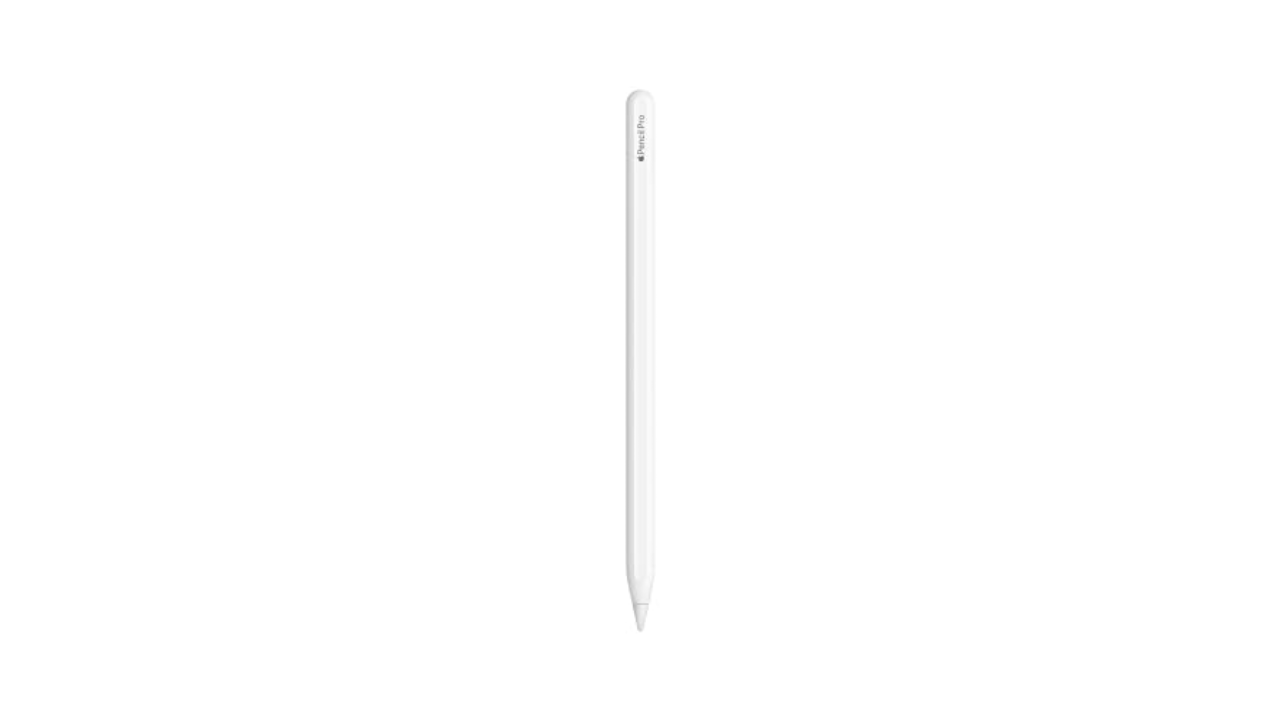
Apple Pencil (1st gen) for $69 ($30 off): If you have a 10th-gen iPad or older, this is the stylus to get. We’ve seen this discount for a couple of weeks now, but it’s still $10 below the average sale price. It’s also discounted at Walmart.
Beats Fit Pro Earbuds for $159 ($41 off): Our overall favorite pair of earbuds for running are on sale for $41 off. They’ve hit this price point often over the past few months, but it’s a decent discount on buds we found to be comfortable with a secure fit and great audio quality.
We expect to see more Amazon gear go on sale as we get closer to October Prime Day, but for now, these discounts present a good opportunity to save on a few of our favorites.
Prime Day deals on Anker gear
Photo by Amy Skorheim / Engadget
It’s always a good idea to wait until shopping events like October Prime Day to stock up on charging gear from Anker, or any other company. It’s a safe bet that many more Anker devices will go on sale during the days of fall Prime Day, but those in need of an extra power bank or charger immediately can snag a few for less right now.
Prime Day deals on tech
Will Lipman Photography for Engadget
Early Prime Day deals on tech include discounts on robot vacuums, webcams, smart plugs and more. There are also gaming accessories that you can grab for cheap, along with storage gear in all shapes and sizes.
iRobot Roomba Vac robot vacuum for $170 ($80 off): This affordable robo-vac is only $10 more than it was during July Prime Day right now, making it an even better option if you want a robot vacuum without spending a ton.
Logitech Brio 500 Full HD Webcam for $93 ($37 off): Our top pick for the best webcam you can buy right now is $37 off, a decent discount even if it’s not a record-low sale. If you spend a lot of your day on video calls, this will be a solid upgrade to your computer’s built-in cam. It has a wide field of view, auto-light correction and shoots 1080p video.
Samsung T7 Shield (4TB) for $282 ($218 off): If you’re looking for a high-capacity portable SSD that can take a beating, this deal is the best price we’ve seen on the 4TB T7 Shield since June.
Kasa Smart Plug EP25 (4-pack) for $34 ($16 off): These are our top pick in our guide to the best smart plugs available right now thanks to their compatibility across all four of the main smart home ecosystems, their easy setup process and reliable connection.
8BitDo Ultimate C wired gaming controller for $15 ($5 off): Now at $1 cheaper than it was during Prime Day in July, this 8BitDo accessory is an even better option for PC gamers or folks looking for a more comfortable Steam Deck controller.
While these discounts aren’t technically October Prime day tech deals, we’d be remiss not to mention them. While sales on streaming services are becoming more common, there isn’t as much rhyme or reason to them as there is to, say, Amazon’s Prime Day sale cycle. That said, if you see a discount on a service you’ve been meaning to try, it’s worthwhile to jump on it.
Everything you need to know about October Prime Day 2024
When is October Prime Day 2024?
October Prime Day will be held on October 8 and 9 this year.
What is October Prime Day?
October Prime Day is a members-only sale event run by Amazon in which the online retailer has thousands of sales on its site that are exclusively available to those with an active Prime members.
How long is October Prime Day?
October Prime Day will last two full days.
What is on sale for Amazon Prime Big Deal Days?
Most October Prime Day deals will not be revealed until the days of the event. However, in years past, we’ve seen everything from clothing to household essentials to outdoor gear go on sale during this event. Engadget cares most about tech deals, and in past fall Prime Days, we’ve seen things like phones, tablets, headphones, earbuds, robot vacuums, smart home gear and more receive deep discounts.
Do I need an Amazon Prime membership to shop Prime Day deals?
Yes, because most deals will be Prime exclusives. However, there are always a few decent deals available to all Amazon shoppers, so it’s worth checking out Amazon’s site during October Prime Day to see where you can save even if you don’t pay for Prime.
Follow @EngadgetDeals on Twitter and subscribe to the Engadget Deals newsletter for the latest tech deals and buying advice.
Once you’ve decided which Apple iPad you want, the next step is finding the right accessories. For getting work done, you’ll likely want a mouse and keyboard. For drawing and note-taking, a stylus is the obvious choice, but we also recommend a paper-like screen protector for added texture. Power banks let you recharge your slate whenever you need to and a hub helps you get the most out of your iPad’s processing power with connections for wired peripherals. After testing (and owning) iPads over the years, we’ve singled out a dozen-plus accessories that help expand what Apple’s tablets can do.
Which iPad generation do you own?
Before you splurge on a bunch of accessories, you should double check which iPad generation you own. There are a couple of ways to do this: first, you can check the back of your tablet for its model number, which will start with an “A” and end with a series of numbers. You can also go into Settings on your iPad, then General and look up the model number in the top section. If you see a series of letters and numbers with a slash (“/“) in it, just tap that to reveal the iPad’s true model number.
The most important iPad details to consider before buying accessories are the charging port, screen size and Apple Pencil compatibility. Most iPads now have USB-C charging, save for the 9th-gen iPad that still uses a Lightning connector (and is on the way out anyway). Make sure to double check your iPad’s screen size before buying a case or a screen protector. As for the Apple Pencil, check out this guide to how to choose the right Apple Pencil to make sure you’re getting the right one for the tablet you have.
Best iPad accessories for 2024
OtterBox
Otterbox is an expert when it comes to protection, as seen with their phone cases, but its Symmetry Series 360 series shows that it has design chops, too. Symmetry cases look similar to the Apple’s Smart Cover, but the clear, scratch-resistant back is sturdy without adding a lot of weight to the iPad. Plus, the edge protection is substantial, so you won’t have to worry about damage from the inevitable, accidental bumps your tablet takes. I also like the extra flap Otterbox added that keeps the iPad screen cover closed and holds the second-generation Apple Pencil to the side of the iPad Pros. Symmetry Series 360 cases are available for most iPad models, and while they’re more expensive than some no-name iPad case you might find on Amazon, they’re worth it if you want a great balance of protection and style.
Speaking of cheaper iPad cases that fill up Amazon’s search result pages, some that are actually worthwhile are from Moko and ProCase. If you like the look and feel of Apple’s Smart Cover, but don’t want to drop $50-plus on one, both of these brands have dupes that give you that style at a fraction of the cost of the first-party option. — Valentina Palladino, Deputy Editor
Of the plethora of iPad stands I’ve used, Twelve South’s HoverBar Duo is the one that has come closest to perfect. The “duo” in the name refers to the fact that the gadget can either prop your iPad up using an arm attached to a weighted base, or the same arm just attached to a desk or table using its included clamp. The stand comes fully assembled on the weighted base, but it’s pretty easy to switch to the clamp thanks to the included instructions and basic tools in the box. If you spring for the latest model, it’ll be even easier thanks to a new quick-switch tab that lets you swap between the weighted base and the clamp attachment with any extra tools.
It wasn’t hard to secure my 11-inch iPad Pro in the vice-grip that is the HoverBar Duo’s tablet clip, although it did take some force to move the arm into the right position. That’s probably for the best because it showed how strong the arm is; it stayed in place without buckling, sliding down or otherwise breaking a sweat. I mostly used the HoverBar Duo with the clamp attachment, which allowed me to use my iPad Pro as a secondary screen while working. The included clamp should fit most desks and tables too, as it can accommodate surface thickness from 0.4 inch to 1.4 inches.
If you’re willing to sacrifice flexibility for something more elegant, Elago’s P2 stand for iPad may be a good fit. It’s made of a single piece of aluminum with a ledge for your iPad and a few well-placed cutouts that you can snake a charging cable through. The ledge is also wide enough to accommodate most iPad cases. It may not be foldable or adjustable, but its minimalist design will make it an attractive addition to your desk. — V.P.
One of the best Bluetooth keyboards I’ve used recently is the Logitech MX Keys Mini. It’s not designed specifically for the iPad, but it works quite well with it. It combines a lot of the ergonomics and the general look and feel of the MX lineup into a compact and portable keyboard. The Keys Mini has a slim profile that’s slightly raised due to its top bar, plus comfortable backlit keys that are a dream to type on. The backlight is one of my favorite features because it automatically comes on when it senses your hands getting close to the keyboard. That way it only stays illuminated when you’re typing, conserving battery life in the long run. Logitech estimates the Keys Mini will last up to 10 days, depending on backlight use, or up to five months without any backlight use.
Logitech’s $100 MX Keys Mini may be on the expensive side, but it’s one that could be both your iPad keyboard and your main desk typing device. It can connect to up to three devices at the same time, allowing you to swap between them quickly with just a press of a key, and it has a few other handy keys too like one that brings up the emoji picker and another that mutes your microphone (quite useful on Zoom calls). But if you want an iPad keyboard that’s even more affordable, or even thinner, we still like the Logitech Keys to Go, which we’ve recommended in the past and you can usually find for between $50 and $70. — V.P.
If you really want to indulge, Apple’s own Magic Keyboard is the way to go. This expensive keyboard case magnetically attaches to the latest iPad Pros and keeps them “floating” above the keyboard and trackpad. We praised the Magic Keyboard for its typing comfort and precise trackpad, but dinged it for its limited range of motion. It’s easily the fanciest keyboard case available for the iPad and it’s one to consider if money is no object — or if you want the most stylish iPad keyboard money can buy. — V.P.
This likely won’t come as a surprise, but the Apple Pencil Pro is the best stylus you can get for the iPad. All models of the Apple Pencil are designed to work specifically with iPads and it shows in their smooth writing performance. The latest stylus has a double-tap feature that you can customize to a certain degree, and pressure-sensitivity allows you to add as much or as little detail as you want to digital artwork. Plus, it still supports wireless charging when you snap it magnetically to the side of your tablet. I highly recommend shelling out the extra money for an Apple Pencil if you’re an artist — you won’t be disappointed. — V.P.
There are other options that are more affordable than the Apple Pencil, though, like Logitech’s Crayon. It’s just as good in terms of latency and accuracy — drawing in Procreate was a lag-free experience and my strokes always ended up exactly where I wanted them to be – and it’s even more grippy by default thanks to its oval-shaped design. But as someone who primarily uses an Apple Pencil for digital art, I missed pressure sensitivity when using the Crayon.
Aside from that, the other biggest annoyance is that you have to use a Lightning or USB-C cable to charge it. (Even the newest model for the iPad Pros doesn’t magnetically attach to the tablet for charging.) While I wouldn’t suggest the Crayon for serious artists, I would recommend it for anyone who’s on a strict budget, especially digital journal-keepers, committed note-takers and the like. — V.P.
We called Logitech’s MX Anywhere 3S a “nearly ideal travel mouse.” It’s light at just 95 grams and the buttons are nearly silent so you won’t bug anyone in the room with your furious clicking. The improved 8K DPI optical sensor works on just about any surface — including, for example, the upholstered arm of your couch. Depending on the color you pick, the MX Anywhere 3S is made from between 61 and 78 percent post-consumer recycled plastic. And the rechargeable battery lasts around 70 days on a charge. This generation doesn’t include a USB dongle (which wouldn’t work with your iPad anyway) but we never noticed any lag in Bluetooth performance in our tests anyway. — Amy Skorheim, Reporter
Working at a computer can be a pain in the neck (literally), so I wanted a way to play with my iPad after work without having to lift my head off the couch. Sure, I could use my arms, but that gets tiring. This Tablift iPad holder looks a little funny, like some mech-spider attacking your chest, but it works exactly as I’d hoped. The adjustable legs are repositionable but quite sturdy once they’re in place, and three slots hold your tablet at different angles, including a forward-leaning one that’s particularly nice for lying down. It’s a little bulky, so I curl up the legs and store it under my couch. The slots and securing clip perform best if your device is naked, though I’ve been able to use it with a Smart Folio attached with little issue. — A.S.
If you plan on pushing your iPad Pro to its limits as a daily driver, you’ll probably need more than the tablet’s single USB-C port. Apple has provided little guidance to which USB-C hubs and adapters work best with the iPad Pros — there’s no MFi certification for accessories like this yet. Some hubs specifically advertise that they work with the newest iPad Pros, and if you want to be extra safe, I recommend buying one of those that comes from a reputable brand.
Satechi’s $100 Aluminum Stand and Hub is a favorite for its foldable design and how it packs ports and charging capabilities into a compact iPad accessory. The holder itself rotates outward, revealing a hidden, attached USB-C cable and a rubber bumper that keeps the stand in place in your desk. On the back edge are a 4K HDMI socket, one USB-A port, a headphone jack, both SD and microSD card slots and a 60W USB-C connection for charging.
I liked the versatility of Satechi’s hub. I could easily use it when I needed to prop my iPad up to watch a YouTube video, and by just plugging in the attached cable, I could switch to using my iPad as more of a work device with all of the necessary connectors in place. It’s also surprisingly light at 10 ounces. Combine that with its foldable design and you have a full-featured hub that can easily be stuffed in a bag. — V.P.
Not everyone needs, or wants, to spend $100 on a dock for their iPad. (If you’re using it as a laptop replacement, it’s worth the investment.) If you’d rather spend less, or just want something a bit more lightweight, Anker’s 7-in-1 USB-C hub is a good choice. It has most ports that you could ever want, with the only exception being an Ethernet jack. The slim dongle houses two USB-A ports, two USB-C connections, SD and microSD card slots and a 4K/30Hz HDMI port. We also like that it provides up to 85W of pass-through charging, which means you can power up your iPad while using Anker’s hub as the main connector between the tablet and its charging cable. Anker makes a couple of versions of this hub, including one that does have that coveted Ethernet port, but it’s hard to beat $35 for the standard 7-in-1 model. — V.P.
Apple and other tech companies are increasingly leaving wall adapters out of their devices’ boxes, so it’s worth picking up a couple that can handle charging a couple of pieces of tech as quickly as possible. Anker’s 45W Nano II GaN adapter is a good one because it can fast-charge iPhones and iPads, plus the gallium nitride technology built into it helps prevent overheating. In just a half hour of charging, I got about a 33 percent boost in battery life on my 11-inch iPad Pro when using this accessory. Gallium nitride is also a big reason why the 45W adapter is smaller than a lot of competing adapters available now, including Apple’s. We also like its foldable design, which will allow it to fit better in cramped spaces and in travel bags. — V.P.
Of all the power banks we tested, the Nimble Champ Pro was the second fastest to refill an iPad. The fastest overall was Mophie’s massive Powerstation Pro, but that one is really overkill if you’re just using it for a tablet. The Champ Pro, on the other hand, has a slim profile, a handy carrying strap and two USB-C ports. On a fifth-generation iPad Air, it moved the battery gauge from five percent to full in under two hours — and it still had enough juice leftover to give it another 75 percent bump. This is the pack I grab when I’m enjoying my iPad on the couch and don’t want to get up to revive its dying battery. — A.S.
If you’re a heavy user of the Apple Pencil or some other stylus, you should consider getting a screen protector for your new iPad. They pull double-duty: Not only do they act as a first line of defense if your iPad goes careening onto concrete, but they can also enhance the digital drawing and writing experience. Using a stylus on an iPad is strange at first because gliding the stylus nib over a glass surface feels nothing like “normal” writing. Matte screen protectors can get closer to replicating the pen-on-paper experience, and they also prevent the stylus nib from wearing down as quickly.
Paperlike
Paperlike is the most popular brand in this space, with matte screen protectors for every model of iPad. A set comes with two sheets and includes guide stickers to help you get the protector positioned properly. The two-pack typically sells for $40 ro $45, depending on the size of your iPad. For something a little cheaper, Bersem’s screen protectors are a great value at $11 for a pack of two. Not only does the matte finish help when you’re drawing or taking digital notes, but it also reduces screen glare and doesn’t interfere with FaceID on the newest iPads. — A.S.
Bellemond’s “Kent Paper” overlay has the most satisfying texture of the paper-feel screen protectors I’ve tried. The blur is minimal and the friction between the stylus and the screen is just right for drawing. I miraculously managed to get the Bellemond affixed with minimal bubbles after watching the video linked with the QR code on the box. Two sheets come in a pack, so you can revert to a naked screen for a while then go back to the paper-feel down the road. If you’d like a little more help with proper placement of your screen protector, you might appreciate Zagg’s GlassFusion+ Canvas which comes with a mounting tray for application. It’s also made from a polymer designed to absorb and protect your screen from impact. — A.S.
All paper-feel protectors impart a slight blur, which is why magnetic covers that you can reposition make solid alternatives. They offer texture when you’re drawing or writing, but you can remove them easily when you want to watch Star Trek with full clarity. The PenMat from PenTips uses thin magnets along the edges to affix the film to your screen and comes with a plastic sleeve to store the cover when you’re not using it. Application and removal is dead simple, and also, there are no bubbles! The hold is surprisingly secure and the mat has a pleasing, velvety texture. I did notice a few faint squeaks when drawing with the Pencil, which didn’t bother me but might bug those who are sensitive to sounds. — A.S.
There’s still time to immerse yourself into the wild and whimsical world of Sega’s Yakuza at a steep discount. GOG is offering a on PC, where you can pick up a seven-game collection that includes the best versions of Yakuza 0 through Yakuza 6: The Song Life for less than $34, saving 70% off the total price. This bundle includes the “Kiwami” remakes of the first two Yakuza games as well as the remastered editions of Yakuza 3, 4, and 5. But time is of the essence, as the sale expires Sept. 10 at 3 a.m. EDT/12 a.m. PDT.
Each game featured in this collection can be purchased individually and are also on sale between 45% and 70% off their standard $19.99 price:
Note that this bundle focuses on the mainline, Kiryu-centric Yakuza games. That means neither turn-based game from the more recent Ichiban Kasuga era is included (e.g. no Like a Dragon or Infinite Wealth). The collection also doesn’t include any Yakuza spinoffs such as Like a Dragon: Ishin!, The Man Who Erased His Name, or the delightfully bizarre Yakuza: Dead Souls. That said, Ichiban Kasuga’s debut game, 2020’s excellent Yakuza: Like a Dragon, is from GOG for $11.99 (was $19.99).
There is no franchise quite like Yakuza. It’s an epic story about the criminal underworld centered around the stoic and virtuous Kazuma Kiryu, a.k.a. the Dragon of Dojima, that has a strong dash of surreal and comical substories. If you need any more convincing as to why Yakuza is one of the best — and certainly one of the strangest — franchises this side of Kamurocho, check out this great essay from Super Eyepatch Wolf (caution: some series spoilers):
… And also this image that I randomly found in the Polygon image database. No, I will not be explaining — you’ll just have to play the games and find out for yourself.
Folding smartphones have come a long way since the original Samsung Galaxy Fold came out in 2019. They’re smaller, more durable and, even if they aren’t exactly the most budget-friendly phones, they’re more affordable now, too. Whereas you may not have considered a foldable phone as your daily driver five years ago, they’re much more viable options today — and you have many more to choose from. If you’ve been toying with the idea of switching to a folding phone, or you’re ready to upgrade the foldable you already have, we at Engadget can help with your decision-making process. We’ve spent hundreds of hours and many days testing and reviewing the best foldable phones on the market right now — here’s everything you need to know before picking one up.
Note: For this guide, we’re focusing on devices that are widely available in North America and Europe. That’s because while there are even more options for people who live in Asia (especially China), they are often difficult to buy from abroad and may not support your local carriers.
How we test foldable smartphones
When evaluating foldables, we consider the same general criteria as we do when we’re judging the best smartphones. Devices need to have good battery life (at least a full day’s use), bright displays (peaks of at least 1,000 nits), sharp cameras and responsive performance. That said, foldable phones come in different shapes (and sizes); there are varying designs that may appeal to different types of people.
For those who prefer more compact and stylish devices, flip-style foldables resemble old-school namesakes but with flexible interior displays (typically six to seven inches diagonally) and smaller exterior screens. Alternatively, for power users and people who want to maximize mobile productivity, there are larger book-style foldables (with seven to eight-inch main displays) that can transform from a candy bar-style phone to essentially a small tablet when opened.
Are foldable phones worth it? A note on durability
Aside from their displays, the biggest difference between foldable phones and more traditional handsets is durability. That’s because while some models like the Pixel 9 Pro Fold and Samsung’s Galaxy Z line offer IPX8 water resistance (which is good for submersions of up to five feet for 30 minutes), their flexible screens – which are largely made from plastic – present some unique challenges.
Most foldables come with factory-installed screen protectors. However, unlike regular phones, users are instructed not to remove them without assistance from approved service centers. Thankfully, Samsung does offer one free screen protector replacement for its foldables, while Google charges between $29 and $129 depending on the warranty status of your device. That said, while we can’t do long-term testing for every foldable phone on the market, after personally using the Galaxy Z Fold 3 and Galaxy Z Fold 4 each for a year, I’ve found that Samsung’s pre-installed screen protector tends to start bubbling nine to 12 months after purchase. So you’ll probably want to factor in that your foldable may need some sort of servicing after about a year unless you plan on removing the screen protector entirely (which is possible, but goes against most manufacturers’ instructions).
Furthermore, foldable phone owners need to be mindful about keeping sharp objects away from their flexible displays, as rocks, keys or even pressing down very hard with a fingernail can leave permanent marks. In the event that you need to get a flexible screen serviced, you’re potentially facing a much higher repair bill when compared to a typical phone (up to $500 or more depending on the model and the severity of the damage). In short, while the ruggedness of foldable phones has improved a lot, they’re still more delicate than traditional handsets, which is something you need to account for.
Full screen size: 8 inches | Folded screen size: 6.3 inches | Storage capacity: Up to 512GB | Weight: 9.1 oz | Max battery life: Up to 27 hours
The small but mighty improvements Google brought to its second-gen foldable have pushed it to the front of the pack. The Pixel 9 Pro Fold turns the somewhat unfinished original Pixel Fold into a solid handset ready for prime time. Google refined its design to have an aspect ratio that mimics the standard Pixel 9 smartphones, with a familiar 6.3-inch, 20:9 external display, that’s both easier to use and hold. The internal display has a more square aspect ratio as well with a bit more screen real estate than before. The handset overall has a more premium feel and certainly a more polished look thanks to its matte back and satin metal frame.
Along with solid performance (and battery life) and an upgraded design to match, the Pixel 9 Pro Fold still has the best cameras out of any foldable handset we’ve tried, despite not having any hardware upgrades from the original version. Plus, Google’s AI image editing tools like Magic Editor give you more control over your photos, and Pixel-only software like Made You Look make Google’s handset a more compelling foldable. — Valentina Palladino, Deputy Editor
Full screen size: 7.6 inches | Folded screen size: 6.3 inches | Storage capacity: Up to 1TB | Weight: 239g | Max battery life: Up to 23 hours
While we would have liked to see some more drastic design changes, Samsung’s Galaxy Z Fold 6 remains one of the most versatile and well-rounded examples of a big, premium foldable phone. Its new Snapdragon 8 Gen 3 chip delivers strong performance and improved energy efficiency while its Enhanced Armor Aluminum chassis is noticeably lighter than before (and a bit more durable too). There’s also a new ultra-wide angle camera sensor and a boatload of AI-powered features scattered throughout the phone. Plus, the Z Fold 6 remains one of the few foldables with native stylus support, though you’ll need to pay extra for one of Samsung’s S Pens. Perhaps the biggest downside is that Samsung’s latest flagship now costs $100 more than its predecessor. — Sam Rutherford, Senior Reporter
Full screen size: 7.8 inches | Folded screen size: 6.3 inches | Storage capacity: Up to 512GB | Weight: 239g | Max battery life: Up to 25.5 hours
For those who want a big foldable that isn’t quite as expensive, the OnePlus Open is a very interesting option. Starting at $1,700, its Snapdragon 8 Gen 2 chip offers similar performance to the Z Fold 5, but the Open features displays that are slightly larger and brighter. It’s also thinner and lighter while packing a larger battery and its Open Canvas software delivers an innovative tile-based UI for multitasking. Sure, its triple rear camera module is bulky, but image quality is as good if not slightly better than the Z Fold 5 (though, still short of the Pixel Fold). But the best part is that, thanks to OnePlus’ trade-in deal, you can exchange any old phone you have lying around for $200 off, which brings the Open’s final price down to $1,500. That still isn’t cheap, but it pushes the Open closer to being somewhat affordable. — S.R.
Full screen size: 6.7 inches | Folded screen size: 3.4 inches | Storage capacity: Up to 1TB | Weight: 187g | Max battery life: Up to 23 hours
Samsung’s Galaxy Z Flip 6 has an upgraded camera and a larger battery than its predecessor. Those two specs alone make the latest Galaxy flip-phone a more tempting option, in the face of rival flagship phones. The leap from a 12-megapixel to 50MP camera means you can choose to capture more detail, or crop in for, effectively, a digital zoom. The front screen has plenty of space for framing your selfie shots, and a new Auto-Zoom feature means it can even frame unsupervised group shots for you. Photography is augmented by Samsung’s improved AI photo editing tools, which is much easier to use.
The Z Flip 6 now has a powerful Snapdragon 8 Gen 3, so it’s just as powerful as the S24 Ultra and Z Fold 6. Unfold the main screen and you’ll find one that’s brighter than ever (up to 2,600 nits). Samsung says this is its brightest foldable display yet, making it easier to use and read outdoors.
The design hasn’t changed much and a focus on new AI software and tricks comes at the cost of limited cover screen utility, but it’s still as pocketable as ever and is still the most mainstream foldable yet. — Mat Smith, Editor, UK Bureau Chief, Newsletter
Full screen size: 6.9 inches | Folded screen size: 3.6 inches | Storage capacity: Up to 256GB | Weight: 189g | Max battery life: Up to 23 hours
While the Razr+ (or the Razr 40 Ultra for those outside North America) may not be quite as sophisticated as the Galaxy Z Flip 5, what it lacks in tech it makes up for with its personality. It’s available in three colors, with the magenta model featuring a soft vegan leather back. In addition, its exterior display features a neat cutout that wraps around its cameras and compared to Samsung’s flip-style foldable, it’s actually a touch easier to use. There’s no need to fool around with extra settings just to view all your favorite Android apps. And for those who are nostalgic for the original Razr from the early 2000s, Moto even included an easter egg that features a retro UI. Unfortunately, its water resistance is much less substantial, as it’s only rated to withstand spills or small splashes. — S.R.
Pros
Useful and roomy external display
Folds in half to become very compact
Can be own tripod for photos or videos
Cons
Cameras cannot compare to flagships
Long-term durability and security remains a concern
Full screen size: 6.9 inches | Folded screen size: 1.5 inches | Storage capacity: Up to 256GB | Weight: 189g | Max battery life: Up to 23 hours
The non-plus Moto Razr (aka the Razr 40 internationally) is the company’s first attempt to make a more affordable flip-style foldable. Starting at £800 (U.S. pricing still TBA), it’s one of the least expensive options on sale today. However, it features a much smaller 1.5-inch exterior display along with a slower Snapdragon 7 Gen 1 chipset and somewhat underwhelming cameras. On the bright side, it features the same display you get on its more expensive sibling. The one difference is that it’s limited to 144Hz instead of 165Hz due to its less powerful processor. And, similar to the magenta Razr+, all the colors of the basic Razr (Sage Green, Vanilla Cream, Summer Lilac) come with a soft vegan leather back. — S.R.
One of my greatest disappointments of adulthood is learning just how much hassle is attached to recreation. Everyone loves lounging on the deck of their buddy’s boat on a sunny summer day, but the poor schmuck who owns that boat is currently lubricating his battery terminals and waxing the gel coat. Everybody loves the family cabin until the gutters need to be cleaned. And everyone loves relaxing in an inflatable backyard hot tub until the power bill arrives or a wind storm knocks a big branch off the tree above it.
I’ve enjoyed some wonderful hours in the bubbles of Intex’s PureSpa inflatable hot tub during my testing period, which started last December and ran five months until Missouri’s summer heat arrived. If you’re someone who’s considering a backyard inflatable hot tub, I can promise some great hours looking up at the night sky as the steam lifts your spirits on a chilly Tuesday night. But I also need to warn you that it’s a commitment—hot tubs, even inflatable ones, require some care and feeding—and that you’re going to pay for the privilege on your power bills and some occasional scrubbing.
Slow Burn
The PureSpa is made by Intex, which is best known for its blow-up pool floats and camping mattresses, as well as aboveground pools, inflatable kayaks, and a host of similar products.
An inflatable hot tub is what it sounds like: It’s a tub that blows up using an air pump that’s part of the same unit that heats and filters. The shell of the tub is a three-ply laminated material that’s reassuringly sturdy—you won’t fret collapse while sitting on the edge. Roll out the bubble-wrap ground cover, put the tub on top, and inflate it—I have an automatic air pump that did the job in about 20 minutes. You then (carefully!) thread the inflow and outflow tubes from the heating unit to their counterparts on the tub. From there it took another 20 minutes to fill the tub with a garden hose. (Note that Intex recommends plugging the hot tub directly into an outlet and does not recommend use of an extension cord; something to consider when deciding on placement.)
Photograph: Martin Cizmar
The maker says that to reach the max temperature of 104 degrees Fahrenheit, the ambient outdoor temperature must be a minimum of 50 degrees. I didn’t find that to be true—I was able to get the water in the tub up to the max even when it was in the upper 20s. However, the water temp dropped once the insulated cover was off, and my power bill did reflect the challenge.
If you’re using hose water, expect to fill the tub and turn on the heat at least a day before you see yourself relaxing in it. Even when it was in the 60s outdoors I saw the temps rise by only a degree or two per hour. When I refilled in colder weather (colder than the temperature at which the company advertises it should be operated), it took two full days to break 100 degrees. The tub holds 200-plus gallons of water, which weighs 1,668 pounds on its own before adding people, so make sure the hot tub is placed on a surface that can support that weight.
That was before the insulated cover broke, though. This was not the result of any defect in manufacturing. Rather, it was my bad decision to leave the tub set up but not turned on during an especially cold stretch in the winter. A storm blew through and knocked a sharp branch off the tree above my deck, which punctured the insulated cover that had grown brittle from the cold. Water leaked through the hole and was sopped up by the insulation, becoming a soggy, heavy lump that I struggled to pull on and off. As I said, a hot tub is a commitment—if you’re going to use the Intex in winter be prepared to either take it apart or leave the heater running continuously so the cover doesn’t get brittle in the cold. (A replacement insulated cover can now be had for $80, but I instead bought a cheap, off-brand replacement and paid the difference to the power company over several months.)
Video: Martin Cizmar
The other big issue I dealt with was a slow, steady leak from the seals on the heat pump. This started before I pushed the tub into freezing temperatures and continues to this day. A small drip of water every second adds up over the course of several days, so I found myself having to top off the tub with colder hose water, which meant waiting hours for it to heat up again. I worry I may have been too hasty in threading the tubes from the heater to the tub when I first got the tub—take your time and attach them as carefully as you can.
I didn’t have any difficulty with chemicals, because I used a single 1-inch chlorine tablet every week—the hot tub comes with a ball-shaped dispenser—and emptied the tub to clean using dish soap and a sponge at most monthly. (That’s another little chore, of course.) Refilling the tub only costs a couple of bucks where I live, but if you live somewhere where water is precious and expensive, you may want to spend time learning more about treatment regimens.
Tub Time
Once you do settle into the PureSpa, though, you will be delighted. With the cover off for soaking, it will slowly cool but always stayed above 95 degrees for the duration of my 30-minute bubble timer. The bubbles come from 120 little holes running in a circle around the bottom of the tub. They’re far less powerful than Jacuzzi jets but do feel good against aching muscles, and they provide a nice ambiance.
There is plenty of room for four people, and two people can spread out across the tub and stretch their legs and arms. You won’t fret the tub collapsing if you lean over the edge to grab a drink or switch the music. After a couple of months, it became a reliable way to relax on a chilly evening. And once summer heat started, it was easy enough to deflate, clean, and stow away in the garage for the summer. (I was able to get the pool body down to about the size of a very large duffle bag.)
It won’t take many crisp nights before I’m dragging the Intex tub back out. Then, a few days later I’ll be spying on the water level and topping it off. A few weeks after that, I’ll be draining, scrubbing, and refilling. On and on, little chores rising up from the tub like so many bubbles.
Finding the best pillow for your needs can be an agonizing ordeal. Get something that’s too firm, too soft, or just not quite right for your head and you can wake up with a lot of pain the next day. Never fear, WIRED is here. We’ve tested all these recommended pillows and several more, using each one for a minimum of several weeks to get a sense of how comfortable they are, how well they hold up to repeated use, and what sleeping style they’re best suited for. These are our top picks, but there are an innumerable number of pillows out there. We’ll update this guide as we test more. All of the prices below are for the queen-size version unless otherwise specified.
Update August 2024: We’ve added the Saatva Down Alternative Pillow, Saatva Graphite Memory Foam Pillow, and Eli & Elm Side Sleeper Pillow.
Power up with unlimited access to WIRED.Get best-in-class reporting that’s too important to ignore for just $2.50 $1 per month for 1 year. Includes unlimited digital access and exclusive subscriber-only content. Subscribe Today.
What Kind of Pillow Do You Need?
You might think a pillow is a pillow. It just has to be soft and fit under your head, right? Your head, neck, and back disagree. Getting a good night’s sleep can depend heavily on your pillow, so when choosing one, here are a few key questions to ask.
What kind of sleeper are you? Do you sleep on your back, side, or stomach? Do you stay relatively still, or do you toss and turn a lot? Do you usually have one pillow under your head, or do you cocoon yourself into a pillow chrysalis? This is probably the most important thing to keep in mind when deciding what type of pillow works best for you and we’ve noted our picks below based on sleeping style.
What is the pillow made of? Pillows can be filled with all types of materials, from feathers to foam. Down and synthetic down are fluffy clusters of fiber that can feel soft and comfortable, whereas memory foam is designed to compress with the weight of your head but still return to its previous shape. Organic latex pillows can be heavy and spongey, holding a side-sleeper’s head in place. There are also hybrid pillows that use multiple layers of different materials for a more structured feel.
How are the materials sourced? Since some materials like down feathers come from animals, you might want to be aware of how manufacturers get their fill (literally). Down filling typically comes from the belly feathers of either ducks or geese. In order to ensure that down feathers are ethically sourced—such as by avoiding cruel practices like live plucking—programs like the Responsible Down Standard set criteria that manufacturers must adhere to. Another option is to look for synthetic down alternatives, which use cotton, rayon, or polyester as a synthetic replacement. The broader Material Matters Standard is a recently-overhauled system for examining the environmental impact and sustainability of bedding manufactuerers.
Buying a new planner gives me an endorphin rush like no other, whether it’s for a new school semester, work year, or a much-needed fresh start. A good one should help you stay on track without overwhelming you. Some folks on WIRED’s Gear team prefer paper planners over digital tools. Plus, writing things down has the added benefit of improving retention.
There’s no such thing as the best paper planner, but the WIRED staff has tried and tested all kinds of paper planners to bring you the best recommendations for your planner needs. Once you find something that works for you, read our guides on work-from-home gear, the best digital notebooks, and the best laptop backpacks for more.
Updated August 2024: We’ve added Plum Planner as our new pick for parents, added a few more planners to Honorable Mentions, and updated links and details to reflect planners for the new 2024–2025 school year.
Table of Contents
Power up with unlimited access to WIRED.Get best-in-class reporting that’s too important to ignore for just $2.50 $1 per month for 1 year. Includes unlimited digital access and exclusive subscriber-only content. Subscribe Today.
If you buy something using links in our stories, we may earn a commission. This helps support our journalism. Learn more.
Weekly Planners
Weekly planners are some of the most popular types of paper planners. They’re great for students, professionals, and parents who need to plan each day but also see the entire week.
No matter how many perfectly adorable planners I try and love, I’ve been repurchasing Happy Planners since 2017—though I’ve switched from a vertical layout to a large dashboard (there is also a horizontal style). These planners have room for organizing work and to-do lists with enough extras for other planning and notes without feeling overwhelmed. The divider pages are cute and sometimes include phrases and quotes, but they aren’t unbearably corny (usually).
The Happy Planner is almost infinitely customizable. Stock and themes fluctuate throughout the year, but in addition to the layouts already mentioned, you can choose between Classic, Skinny Classic, Mini, or Big sizes, and dated or undated pages. There are daily planners, ones tailored to teachers and students, among many others. You can get extension packs to add a few more months or to keep track of things like your budget and fitness goals. If you need it, the Happy Planner probably has it.
If the Happy Planner isn’t for you, you might lean more toward the Erin Condren LifePlanner (ECLP for short). WIRED reviewer Louryn Strampe says it’s the Rolex of paper planners. It’s one of the most popular for weekly-spread enthusiasts, with gorgeous layouts and room for notes or doodles. It’s customizable and there are extra touches, like a storage pocket and snap-in ruler. Together, these features aren’t cheap (or lightweight), but Strampe has used an ECLP for the past three years, and it’s her favorite system of them all (and makes a great gift).
Once you find the size and cover you like, finish designing it with your desired layout—hourly, horizontal, or our favorite, vertical—choose a coil color and internal color scheme, and add your name or quote to the cover. The minimal Focused Planner can’t be personalized as much, but you can add a monogram and choose the coil. A cheaper version is available from Target, but you lose the customization options.
I still have nightmares of being in school and having no idea what or when my next class is. If that’s you, Class Tracker’s first three pages are designated for outlining your semester schedule from Monday to Sunday, 6 am to midnight.
Like most planners, there are monthly calendars, but the weekly pages shine. Each day gets a section for things to remember, tests, papers, or projects due that day, and larger spots for assignments and a daily plan. There’s a Self-Care Corner for non-school things you should focus on and a countdown box for something you’re looking forward to. The only thing I want is tabs to easily sift through months. The planner pictured here is the college version, but there are middle school and high school options.
Great for Business Owners
This planner is hefty, but it’s full of pages for business owners to organize their thoughts and plans along with their weekly tasks (the PA stands for personal assistant). The first section is for filling out your mission and goals, marketing plans, and finances. Each month, you get spaces for goals, projects, and a social media content planner for the next 30 or so days. Then there are weekly overviews like the other planners here, broken down by hours with spots for that day’s goals, and weekly notes and expenses.
There are also little illustrations for tracking water intake and minutes of meditation and exercise. At the end of each week, a weekly review section gives you space for achievements or misses, sales, and subscribers, plus a brainstorming space for the following week.
There are a lot of quirky planners, but Ban.do might be my favorite. It’s the cool aunt of the planner world. The art and included stickers are incredible—cowboy boots and opossums? Yes, please. Plus the calendars list important dates like Dolly Parton’s birthday (January 19). The weekly layout has enough room for daily planning, and you’ll get fun extras like note pages and a paper fortune teller template. Ban.do recently dropped updated 17-month academic planners starting in August 2024 through all of 2025, and new 12-month planners ($28) are available for 2025. In both versions you’ll find meal planner and notes pages for each month, and a fun overview section for the year at the front of the planner. There are also undated ($25) versions if you want full date flexibility.
Former WIRED senior writer Maryn McKenna prefers the Moleskine Pro Weekly Vertical, which is a notebook planner hybrid. The left page has blank lines, and the right is divided into sections for projects, status, and a classic to-do list. Weekly pages break down days by the hour, and blank check box pages let you plan elaborate arrangements of daily and category to-dos. McKenna says she feels like she has accomplished something before she even starts ticking off tasks.
Several members of our team like Blue Sky. Its affordable planners give you space to jot down tasks without cluttering up the page. They’re also a good size—much easier to tote around than some on this list. As with the Happy Planner, you can find different layouts, sizes, and formats to suit you, and there’s a collaboration with Day Designer, another favorite of ours. One thing I like about this collab with One Tree Planted is that the planner is sustainably made and recyclable. The cover is durable and has a nice texture to it, plus there’s no plastic coating (not even on the month tabs!).
Brass Monkey makes fun tchotchkes like games and office goods, and its planners are as snarky as the rest of its lineup. Each week includes dates, so you have to fill in the year and check off which day of the week it is. I like that better than having to fill out everything myself. It offers fun facts like two pop culture birthdays and an “on this day” note, and it keeps you on top of what national day you should be celebrating—like how October 8 is National Pierogi Day. You’ll either like or dislike how compact the pages are, and while the text and lines could stand to be darker, the fun and quirky extras make up for it.
Daily Planners
If your schedule is particularly busy and you need to plan each day rather than weeks as a whole, daily planners might be a better fit. They often give each day its own page, organized by hours.
If you need a detailed checklist for each day, get the Day Designer. Each page is divided into a schedule from 5 am to 9 pm to outline meetings or appointments and a to-do list, making it easier to keep track of assignments and other tasks. The top of each day page has a box for planning dinner and keeping track of bills due that day, plus your top three tasks of the day. There’s a notes area at the bottom too.
It’s big—something I prefer in a planner so I never have to cram stuff in the corners—so you might not want to lug it around, but if you can keep it at your desk, you’ll benefit from its organization. Also, it arrives in a nice box, making the entire thing feel like a fancy little ritual.
I tried to switch to daily checklists to keep myself more organized. Ultimately, my brain needed a weekly overview. If I wanted to plan each day though, I’d use the undated Hot Minute Planner. It’s pink and cheeky, with hearts instead of dots for the to-do list, which makes me feel like Cher Horowitz from Clueless. There are spots for your skin-care routine, intentions, workouts, books, music, and weekly goals. Its cover also just speaks to me. Sometimes you just need a minute. Like the Brass Monkey planner, the pink could be a little darker. If the room isn’t bright, you have to squint. It’s currently sold out, but you can sign up to get an email when it’s back in stock.
Even second-graders need (or want) to remember things! WIRED reviewer Adrienne So wanted something cheap for her kids and didn’t just want a notebook they’d fill with drawings. This Daily Checklist fits the bill. There are included to-dos like brushing teeth and making the bed, with extra lines for items to be written in. There are a few other prompts for them too. It’s sturdy and has held up under aggressively rough treatment in her kids’ backpacks.
As a parent, there are a lot of schedules and people you’re trying to keep track of. Plum Paper’s Customizable Planners have a few different layouts to choose from, but the Vertical Priorities layout is particularly great for parents. Vertical Priorities lets you customize two priority sections at the top of each day of the week, so WIRED reviewer Nena Farrell made one of her sections for her son to track things like his appointments, play dates, and which days she was on daycare drop-off. You could have one section labeled for all your kids, or one section for each kid if you have two. Plum Paper also has a few parenting-themed add-ons, like baby tracking pages for $6 to track different milestones and memories, though they’re designed for that first year rather than for toddlers and older kids. There are sticker sets ($5) you can add on too, and I liked making custom stickers that said things like “Play Date” and “Appointment.” Plus, you’re able to start the planner at whatever month you want—perfect for scatterbrained parents who might not remember to order one in time for the new year.
Several WIRED staffers recommend the Hobonichi Techo (Japanese for “planner”). WIRED reviewer Adrienne So says it’s the perfect size—small enough to fit in a bag and hold information but also able to lie flat on a desk. There is a monthly overview and then a page for each day, along with a quote that manages to be thought-provoking without being too trite. The cover is a distinctive black, stamped with gold foil and it comes with a wide variety of cute accessories.
Papier has incredible cover design options to match nearly any style or mood. For layouts, I like the undated Daily Productivity planner best. Each week has a box per day, lines for notes, areas for three priorities, a long to-do list, and a habit tracker. Plus, there’s a meal planner and shopping list for every week. There are also a few pages dedicated to outlining each day’s schedule. I didn’t need these pages as much during my usual week, but people with rotating weekly schedules might appreciate it.
I don’t like the layout of Papier’s yearly planners which feature all the month calendars first, then an overview for each month with goals and to-do lists, and then the weeks. This kind of scramble doesn’t work for my brain. But Papier is the only brand I found that lets you scroll through every single page before you buy. I’m so specific about what I like and need, this should be standard.
Notebooks
Not everyone needs or wants a rigid planner. If you just need daily to-do lists or are a fan of bullet journals, consider getting a great notebook instead.
“Planners should transform according to the shape of your life,” former WIRED reviewer Pia Ceres says. For her, that means using a dotted notebook. This single notebook can be used for class schedules, daily planners, to-do lists, and angsty diaries. She says dots are the perfect medium between the limitations of lines and the void of blank paper. It’s just structured enough to let you draw the calendars and lists you need—then remake them when life inevitably upends itself again. Muji’s notebook has a durable cover to withstand book bags and coffee spills. If you have a Muji store near you, you may be able to find one for cheaper.
Former WIRED reviewer Jaina Grey opts for a plain lined notebook. After trying dozens, her favorite is the Midori MD Notebook with paper made from cotton pulp (just like money!). Grey says there’s just something meditative about turning over a blank page at the beginning of each week and carefully jotting down her schedule, plans, and workload. No missed days to make you feel guilty. Midori’s notebooks are designed to fit inside notebook or journal covers (which you can find all over Etsy). The pages are a subtle off-white and have a weight and texture that draws you in. The soft cotton paper makes drawing, sketching, and plain old writing an absolute joy.
Miquelrius notebooks are my all-time favorite. The paper feels like velvet. I want to make bedsheets out of it and sleep between them all day. Writing on it is smooth and satisfying. These notebooks are also divided using different color strips down the edge if you want to break up each color by use (be it classes, projects, or kid schedules). They used to be available in stores like Target in tons of different sizes, but they’ve become harder to find. However, Miquelriusshop.com is usually reliable (Miquelrius.com, on the other hand, doesn’t have anything for sale). Amazon typically has a few options too, though sometimes only available through third-party sellers at a higher price. If you can find them, they’re the best I’ve ever used.
Photograph: Nena Farrell
Laurel Denise Horizontal Weekly Edition for $59: I’ve never seen a planner designed like this. It’s wider than a traditional planner, and the left side is for laying out the month—it’s undated—while the right has a spot for the month’s to-dos and a dotted area for whatever else. In the middle are five half-pages for organizing each specific week. You turn the week page and still get to see everything else you already wrote for the month.
Levenger Circa smartPlanner Weekly Agenda for $59: This is another solid weekly planner with little frills. If you just need lines and days, this is your match. The brand also sells a leather folio for the planner, which looks very professional but is pricey.
Artful Agenda for $40 (per year): If you wish you could add stickers to your Google Calendar, this is the tool for you. This isn’t a paper planner, but it turns your digital calendars into the paper planner experience. There are both monthly and weekly views, plus an area for lists, and tons of stickers you can add. Some stickers you need to buy on top of the annual membership, but lots are included, and the included stickers have a ton of variety.
Happy Planner Undated Wedding Planner for $35: This undated 12-month planner reminds me of other wedding planners I’ve tried, but the Happy Planner style rings make it a little more compact than the classic binder. It also has a nice combination of writing and planning space, along with various guidance, checklists, and organized tabs.
Blue Sky Monthly Planner for $13: This is the only monthly planner we tried, though many of our favorite brands have monthly versions. They work for folks who want a broad overview of tracking tasks or appointments. Blue Sky’s planners are affordable and unburdened by extra junk—we recommend a weekly version above. Each day of the month has a few lines for jotting down multiple bullet points, and there’s a notes section for anything that would require more writing room. The yearly overview lets you track from an eagle-eyed perspective.
WIRED reviewer Scott Gilbertson says he doesn’t use a planner, but each day he writes down the handful of things he’s going to do on a single 3-by-5 index card. The index card with this to-do list lives in his pocket, along with a small notebook in which he jots down notes throughout the day—often the source of the following day’s to-do list. The notebook and index cards fit inside this very cool waxed canvas notebook cover. Gilbertson says he copied this system from one of the most successful people he has known, and after nearly 20 years, it’s still better for him than any other system he’s tried. It’s cheap, lightweight, and easy to manage.
If You Can’t Give Up Digital
If you’re reading this guide, you probably are a pen-and-paper person, but sometimes going digital is more convenient. A good digital planner can complement your analog one instead of replacing it. Notion is a multipurpose productivity tool with tons of powerful and customizable features. WIRED reviewer Louryn Strampe uses it as an endless to-do list, with tasks separated into categories like Work and Long-Term Goals, but it can be used as a team database, a budget spreadsheet, a habit tracker, and more. There are tons of templates to choose from, including planners that range from monthly at-a-glance views to granular hour-by-hour days. It even syncs across devices. The best part? It’s free.
Photograph: Getty Images
Maybe all you need is paper and a good pen and you’re good to go. But we like to get creative. Stickers are a popular accessory, and they’re a delightful slippery slope. Once you make your first “spread” (a collection of themed stickers on a planner page, similar to a scrapbook), you will never go back. Etsy is the central hub of planner stickers. You can order printed stickers or buy digital files and print and cut them yourself. You can also opt for a full kit (an entire spread’s worth of stickers) or just the individual components you like the most.