Civil War’s Jesse Plemons scene is the movie’s best and truest moment


Jesse Plemons is a brilliant actor. He’s also one of our most memeable stars. It’s not that he’s super expressive — quite the opposite, in fact. He’s usually quite placid, and almost hesitant in his line deliveries. He takes his time. But, whether he’s playing a timid everyman in The Power of the Dog or season 2 of Fargo or a stout lawman in Judas and the Black Messiah or Game Night, there’s always something going on behind his narrowed, watchful eyes. His stillness, his pauses, and his plain, unvarnished way of speaking act as a gravitational force, drawing the camera and other actors into his orbit. He’s also, in a low-key way, extremely funny.

A still image of Plemons in his ten-gallon Stetson in Killers of the Flower Moon, standing immovably in the doorway of Leonardo DiCaprio’s character’s house, has become internet shorthand for calmly and righteously calling bullshit. “I’ve been sent down from Washington D.C. to see about these murders.” “See what about ’em?” (A tiny pause, just long enough to be noticeable.) “See who’s doing it.”

That scene was used in the movie’s trailer, and Plemons’ masterful deadpan jolted it to life. Less than a year later, he was at it again in the first trailer for Alex Garland’s Civil War, with another pause, and another matter-of-fact line delivery, that lingered in the mind even longer than Garland’s stark, button-pushing imagery of America torn apart by war. Wearing military fatigues and a pair of bright red sunglasses with red lenses, and holding a rifle, Plemons is shown interrogating the film’s journalist heroes. “There’s some kind of misunderstanding here,” says Wagner Moura’s character, Joel. “We’re American, OK?”

“OK,” says Plemons, taking a second to scratch his stubbly cheek. “What kind of American are you?”

The full scene has much the same impact on the final movie, and the question posed by Plemons’ nameless character looms large over the whole enterprise long after the credits have rolled. For me, this was the moment Garland’s expertly made, thrilling, but somewhat withholding movie finally bared its teeth.

Civil War has come in for some criticism for not clearly articulating the root causes of the conflict it portrays, or for having its cake and eating it by marrying a fence-sitting political stance with deliberately provocative imagery. I’m not going to litigate the case for or against it here — Garland has laid out his reasoning for approaching the story this way very clearly in interviews, and the polarized reactions to the movie tend to say more about the viewers than the film.

Civil War is essentially a road movie that follows a team of journalists on a dangerous odyssey to meet America’s fascist president before he’s overthrown by an alliance of independent-minded states. As the ravaged landscape scrolls by, Garland stages a series of Apocalypse Now-style vignettes that underline the surreal horrors of war, and provoke questions about the role reporting plays in society: torture at a gas station, summary executions after an intense gun battle, a weirdly peaceful town ruled by a watchful militia. At every stage, he’s careful to avoid naming sides, or bringing any kind of political ideas into the mix.

That’s true for the Plemons scene too — up to a point. The scene occurs a little past the halfway mark; cub photojournalist Jessie (Cailee Spaeny) and Bohai, another reporter, have been separated from their friends and get captured by Plemons’ small militia team. The soldiers — it’s not clear which faction they belong to, if any — are dumping a truckful of bodies into a mass grave. Joel, Lee (Kirsten Dunst), and Tony (Nelson Lee) approach to try to negotiate their friends’ release. As an opener, Plemons’ character shoots Bohai dead. Then he poses his question.

Jesse Plemons, wearing military fatigues and red sunglasses and carrying a rifle, in Civil War

Image: A24

On a simple level, the scene works so well because it gives us a clear bad guy — perhaps the only one in the movie — played by a great, charismatic actor. That’s always been one of cinema’s purest pleasures. Plemons, who was cast only a week before filming after a different actor dropped out, is extremely menacing without breaking the movie’s muted, realist tone. His red sunglasses — a true stroke of genius from the costume department — give him an iconic pop on the screen. The scene is shocking and suspenseful, and it moves an already gripping film up a gear. It’s also a dramatic fulcrum for most of the film’s characters, none of whom is quite the same afterward.

But this is also the first and perhaps only moment in Civil War when its troubling subtext about our current time comes searingly to the surface. “What kind of American are you?” Is Plemons asking which side of the conflict the reporters belong to, or something else? Sensing the danger in the question, Joel replies that he’s from Florida. “Hmm, a central American,” Plemons replies, dubiously. Lee and Jessie are from Midwestern states, so they get a pass. Not coincidentally, they’re also white. “Now, that’s American.” Tony, crying with fear, admits he’s from Hong Kong, and is immediately shot in the head.

It’s racism; it always comes back to racism. With the truck and ditch full of noticeably nonwhite bodies in the background, Garland is pointing out that the evil of ethnic cleansing almost always follows on the heels of war. But the implications of Plemons’ interrogation are even broader and more frightening than that. While accepting Lee and Jessie’s heritage, he also mocks them for their rootless detachment from it. When a terrified Jessie admits she doesn’t know why they call her home state of Missouri the “Show-Me State,” Plemons responds with a chilling bark of derisive laughter. (The question was improvised; Spaeny really is from Missouri, and really doesn’t know why people call it that.)

When he asks “what kind of American,” Plemons’ character isn’t just insinuating about race. He’s posing a fundamental question of identity: How do you perceive your Americanness, and how deeply are you rooted in it? A reply that has any less than total conviction won’t pass muster. In this scene and this scene only, Garland gets to the heart of the matter — the scary, polarized essentialism that can push a country to tear itself apart, and that is all too easy to recognize in the current moment. All its threat and horror are contained in one of Jesse Plemons’ little pauses.

Visual Studio Code May 2023


Update 1.79.1: The update addresses this security issue.

Update 1.79.2: The update addresses these issues.

Downloads: Windows: x64 Arm64 | Mac: Universal Intel silicon | Linux: deb rpm tarball Arm snap


Welcome to the May 2023 release of Visual Studio Code. There are many updates in this version that we hope you’ll like, some of the key highlights include:

If you’d like to read these release notes online, go to Updates on code.visualstudio.com.

Insiders: Want to try new features as soon as possible? You can download the nightly Insiders build and try the latest updates as soon as they are available.

Accessibility

Verbosity settings

Additional accessibility.verbosity settings have been added to inform screen reader users how to interact with features when they are focused.

For GitHub Copilot, there are hints describing how to access the accessible help menus for the Copilot chat view and in editor code chat via:

  • accessibility.verbosity.panelChat
  • accessibility.verbosity.inlineChat

These help menus provide information about what to expect, how to navigate from the input box to other elements, and more.

Other new verbosity settings provide information for specific VS Code UI:

  • accessibility.verbosity.keybindingsEditor – when in the Keyboard Shortcuts editor.
  • accessibility.verbosity.notebook – when in a notebook.

The accessibility.verbosity settings are enabled by default (set to ‘true’) but you can silence them individually.

Settings editor

VoiceOver on macOS now reads the descriptions of enum setting options in the Settings editor. Try it out with enum settings such as files.autoSave and editor.accessibilitySupport.
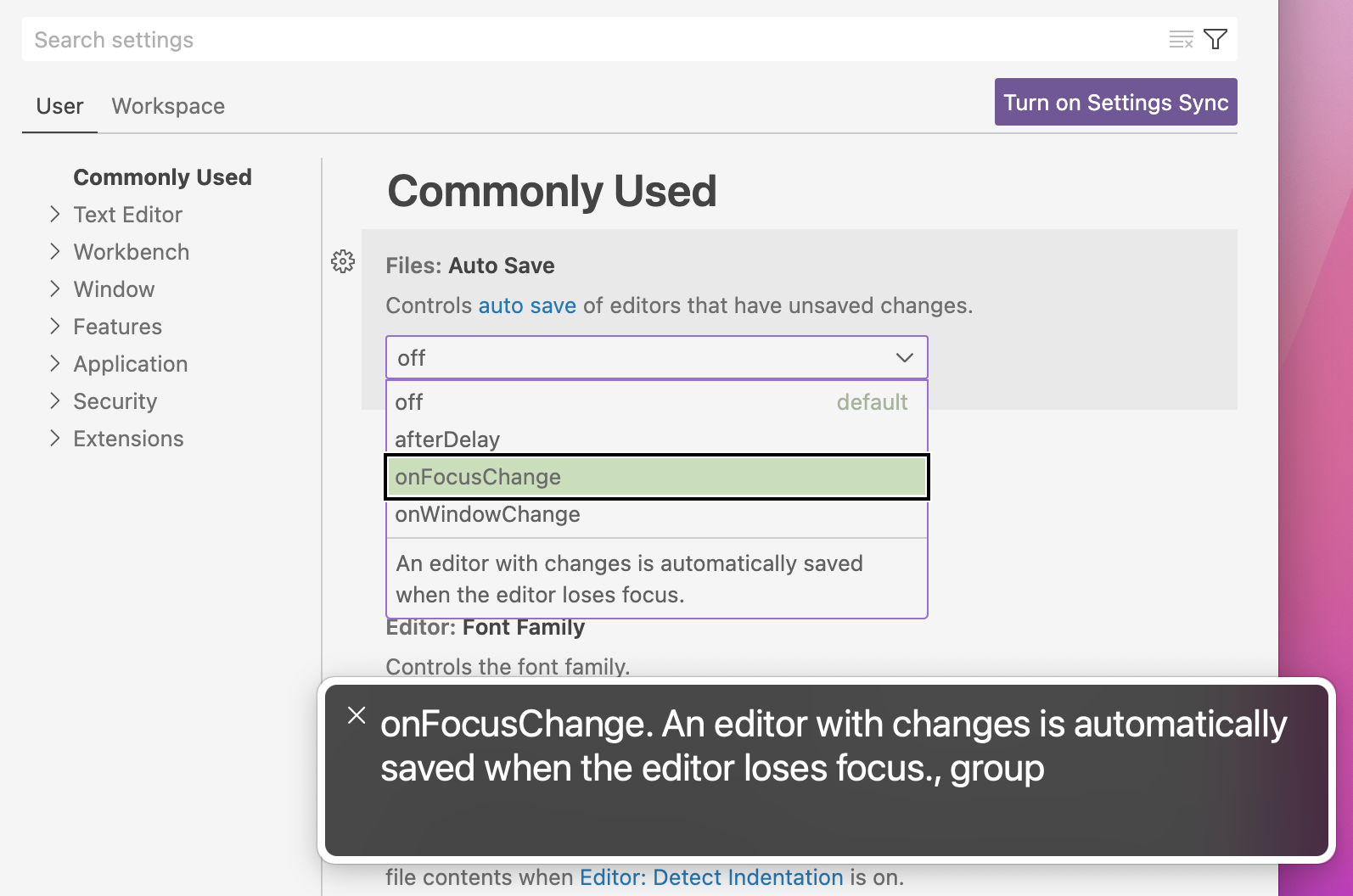
onFocusChange option description of files.autoSave setting being displayed by VoiceOver's high-contrast textbox on macOS

Workbench

Readonly mode

In some development scenarios, it can be helpful to explicitly mark some of a workspace’s folders or files as read-only. For example, if the folder or file contents is being managed by a different process (such as the node_modules folder that is managed by Node.js package manager), marking them are read-only can avoid inadvertent changes.

For this use case, there are new settings to mark file paths as read-only in the Explorer and in text and notebook editors:

  • files.readonlyInclude – Paths or glob patterns to make a file read-only if matching.
  • files.readonlyExclude– Paths or glob patterns to skip files from being read-only when they match files.readonlyInclude.
  • files.readonlyFromPermissions – Whether a file that has no write-permissions on disk should be read-only.

According to the rules of the settings, if a path is considered to be read-only, you cannot modify it from the Explorer (for example, delete it) and the text or notebook editor is read-only.

For more ad-hoc toggling of the read-only mode, there are new commands to change the mode for the current session only, overruling your setting configurations:

  • Set Active Editor Readonly in Session – Mark active editor read-only.
  • Set Active Editor Writeable in Session – Mark active editor writeable.
  • Toggle Active Editor Readonly in Session – Toggle between read-only and writeable.
  • Reset Active Editor Readonly in Session – Reset the session state.

Windows UNC host allowlist improvements

As part of an important security fix, VS Code introduced an allowlist for UNC hosts. This milestone we addressed many of the usability problems reported by Windows users when they have UNC paths in their day to day work with VS Code.

Dialog improvements

The confirmation dialog to allow a UNC host on startup now updates the security.allowedUNCHosts setting and adds the host when you select the checkbox.
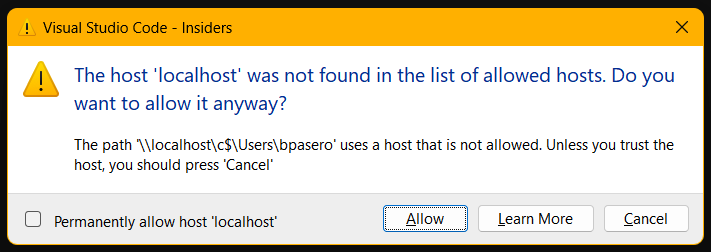
Windows UNC allow dialog

In addition, clicking the Learn More button no longer closes the dialog.

New security.restrictUNCAccess setting

A new setting security.restrictUNCAccess lets you disable the UNC allowlist for hosts and restore the behavior to how it was before this security fix. We strongly advise against changing this setting, as it makes your system vulnerable again to the Information Disclosure Vulnerability.

New tab sizing option fixed

The workbench.editor.tabSizing setting has a new option fixed that makes each tab equal width. When space becomes limited, tabs will shrink equally up to a minimum. The new setting workbench.editor.tabSizingFixedMaxWidth sets the initial size of the tab.

In this mode, when you rapidly close tabs using the mouse, the widths of tabs remain stable to allow for closing each tab by clicking onto the same point. The width is then adjusted when you leave the mouse from the editor tab area.

Network quality indication

When you are connected to a remote machine, the best experience for VS Code remote editing capabilities requires a good network connection with low latency. In this milestone, we updated the remote indicator in the Status bar to give you some feedback when either latency is very high or the network connection appears to be offline.

High latency (web, desktop)

We periodically measure the latency to the remote you are connected to. When a certain threshold is hit, the remote indicator updates to reflect that.
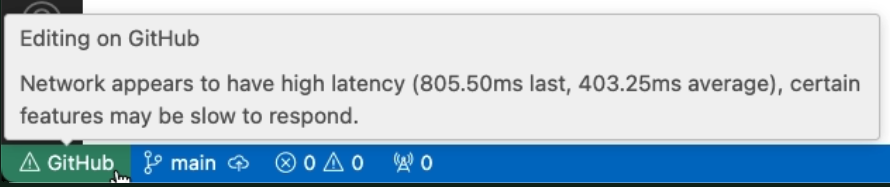
Slow network detection shown in the right of the Status bar

Offline detection (web only)

If you are using a web browser to connect to a remote and you suddenly lose internet connection, the remote indicator updates to reflect that.
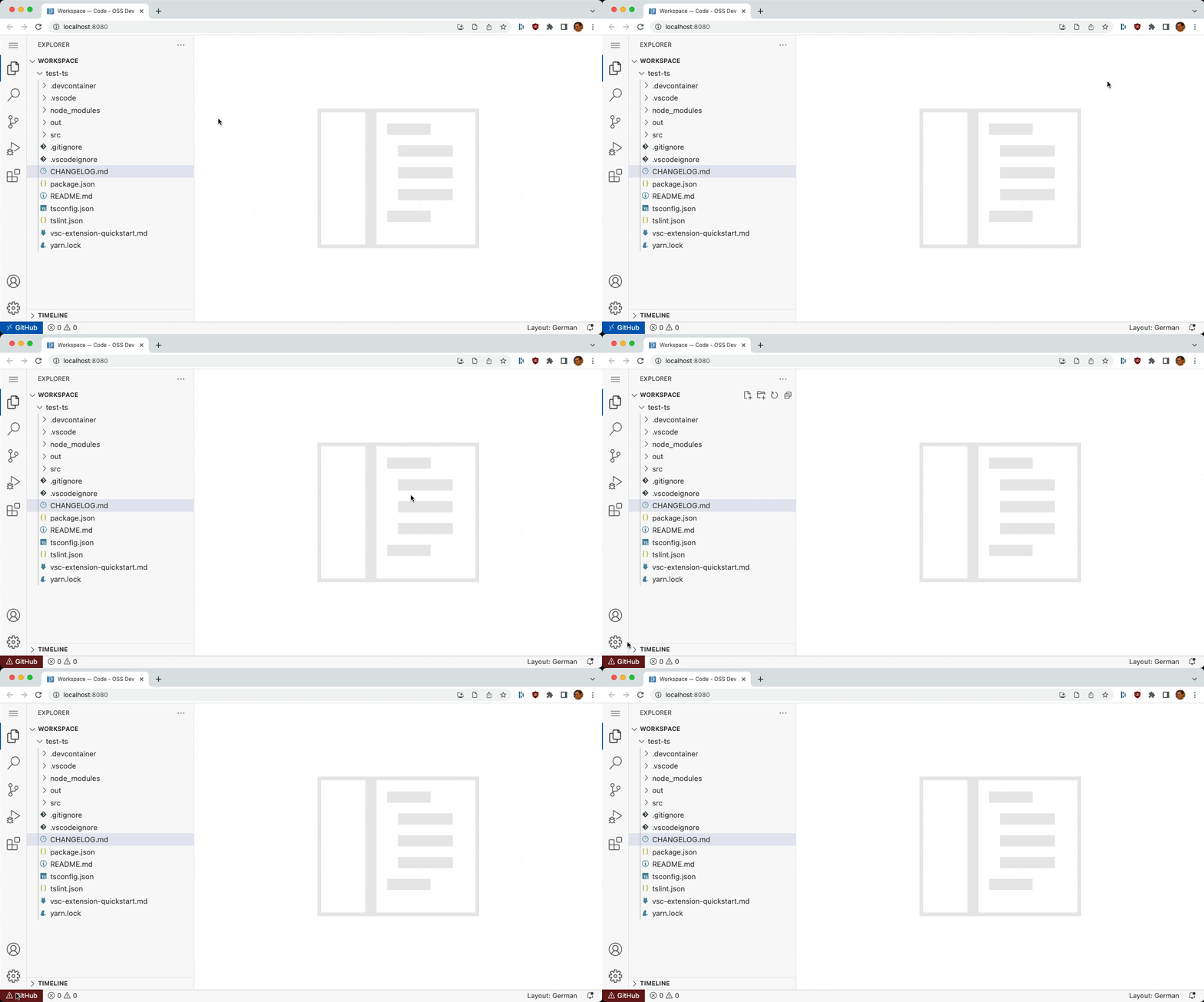
Web offline detection displaying "Network appears to be offline" message from the Status bar

Continue Working On

The Continue Working On feature allows you to store and retrieve working changes between VS Code development environments for the same repository, for example, when you upgrade from a local Git repository to a GitHub codespace, or when you switch between different machines for the same repository.

You can now transfer working changes between development environments for a GitHub repository even if it is configured with an HTTP remote in one environment and an SSH remote in another. Additionally, we have started to transfer additional workbench state, such as your Source Control view state preference, for a more seamless transition.

Editor

Paste as

When pasting a file into a text editor, there are multiple ways you might want to insert it. You may want an absolute path point to the file. You may want a path relative to the current workspace. Or you may even want something specific to the current editor’s language, such as inserting a Markdown link to the file when pasting into Markdown. VS Code’s new ‘paste as’ functionality gives you control over how the pasted content is inserted.

After pasting, VS Code now shows a small ‘paste as’ control if there are other ways the pasted content could have been inserted:

You can open the ‘paste as’ control by clicking on it or using the ⌘. (Windows, Linux Ctrl+.) keyboard shortcut. The paste selector goes away as soon as you start typing or move the cursor outside of the inserted text. You can also fully disable the drop selector control using "editor.pasteAs.showPasteSelector": "never".

When you paste content into a Markdown cell in a notebook, for example, the ‘paste as’ control lets you switch between:

  • Inserting the image as an attachment
  • Inserting a Markdown image reference
  • Inserting a relative path (for files in the workspace)
  • Inserting an absolute path

If you prefer selecting how content in the clipboard should be pasted before actually pasting, you can instead use the new Paste As… command. This lets you select how the content should be pasted:
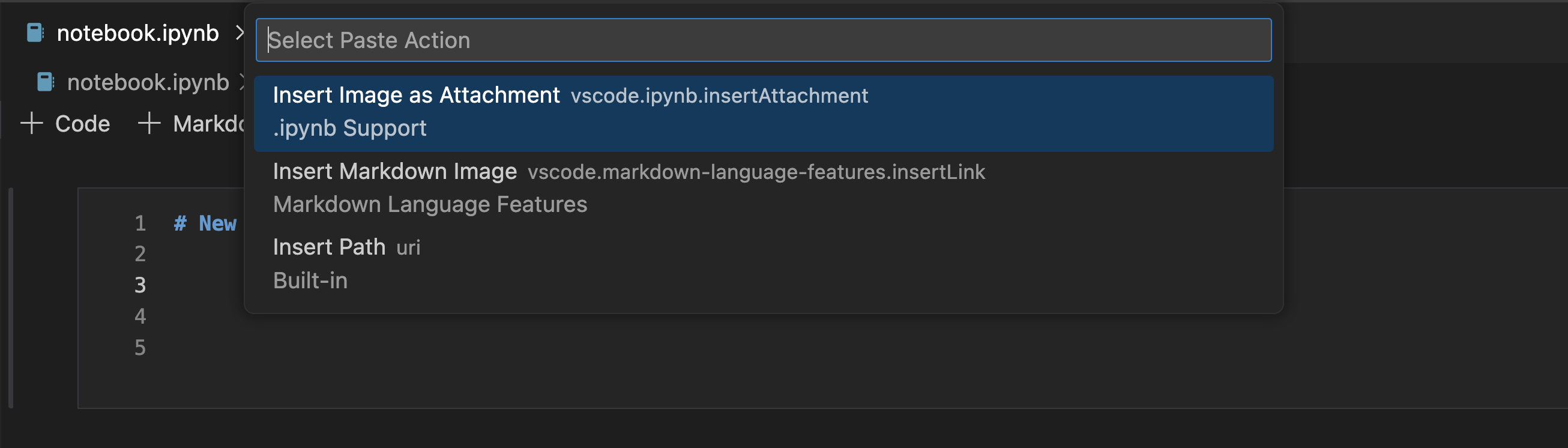
Using the Paste As... command to select how content is pasted

Quick suggestions and snippets

Quick suggestions mean that VS Code shows suggestions as you type, without having to press ⌃Space (Windows, Linux Ctrl+Space). This feature is widely popular, around 90% of all suggestion sessions are started by typing. A large number of suggestions are accepted via Tab (versus Enter and typing accept characters).

When a snippet is being inserted, the Tab key is used to navigate between snippet placeholders. Now, when quick suggestion becomes active while a snippet is being inserted, the Tab key can accept a completion or navigate to the next snippet placeholder. To resolve this conflict, there is the editor.suggest.snippetsPreventQuickSuggestions setting to disable quick suggestions when a snippet is inserted. It defaulted to true and as long as this setting existed, we received feedback that it was confusing. So we have decided to change its default value to false, so that typing inside a snippet placeholder will trigger quick suggestions.

You can then use the following keystrokes:

  • Press Tab to accept a completion.
  • Press Escape to hide quick suggestions.
  • And Tab without suggestions navigates to the next snippet placeholder.

Terminal

Automatic shell integration for fish shell

Shell integration and its enhanced user experience will now automatically activate for fish shell. You may need to update fish for this to work.
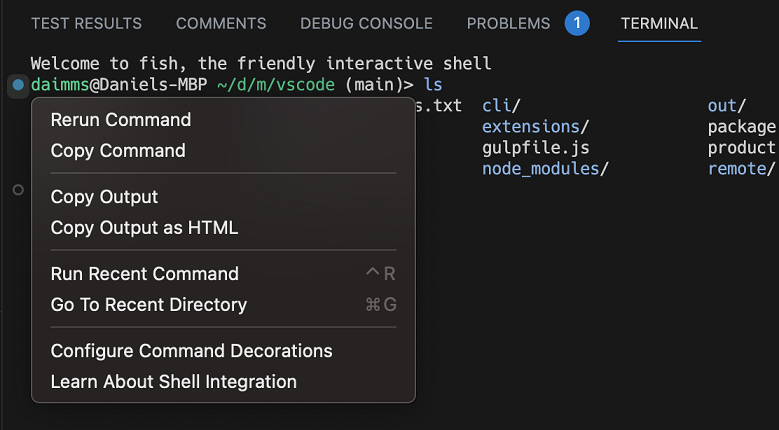
Shell integration in fish enables several features

Overline support

The overline escape sequences (SGR 53, SGR 55) specified in ECMA-48 are now supported in the terminal. The most common use of this sequence is to add a line above an app’s “status bar” on the bottom row of the terminal.

The overline feature is similar to underline but will draw a line on top of the text

Source Control

Default branch name

Starting with this milestone, all new Git repositories created using VS Code set main as their default branch. If you prefer a different name for the default branch, you can change it with the git.defaultBranchName setting. When the setting is set to empty, VS Code defers to the default branch name configured in Git. Publishing a folder to GitHub also honors the default branch name configured on GitHub.

Branch picker integration with vscode.dev and GitHub

You can now checkout a branch in vscode.dev or open it on GitHub.com from the branch picker on VS Code desktop.

In the short video below, each branch listed in the branch picker dropdown has buttons on the right to either Open on GitHub or Checkout on vscode.dev.

Similarity threshold

Git status uses a similarity index (number of additions/deletions compared to the file’s size) to determine whether an add/delete pair is considered a rename. You can now configure the similarity threshold with the git.similarityThreshold setting, which takes a value between 0 and 100. The default value is 50.

Notebooks

You can now search for rich content in open notebooks from the Search control. If your notebook is open, the Search control shows results based on how it appears in the notebook editor (rather than searching the content of the raw source file). This also allows for replacing text in the notebook inputs.

Using the new notebook search toggle, you can also filter which types of cell content you would like to search in.

Improved cell output interaction

The new context key notebookOutputInputFocused was added to determine if a text box within a cell output has focus, so that raw hotkeys a/b/j/k can safely be used while the output has focus. Focusing on an input box prevents those hotkeys from triggering.

Format on Run

Notebooks now can format cells upon cell execution. This will trigger using Run Cell, Run All, Run Above/Below, and combined kernel+run commands. This feature can be turned on via setting "notebook.formatOnCellExecution": true.

Code Actions on save

Notebooks now support Code Actions being run upon save. Code Actions can be specified under the notebook.codeActionsOnSave setting. Extension authors can define providers using the standard typings for cell level Code Actions, or use the new notebook. prefix to define Code Actions that manage the entire notebook. You can review the clean-nb-imports-ext sample extension to learn how extensions can use this new setting.

Languages

TypeScript 5.1

VS Code now ships with TypeScript 5.1.3. This major update brings new TypeScript language features, better performance, and many important improvements and bug fixes. You can read about TypeScript 5.1 on the TypeScript blog.

Linked editing for JSX tags

With linked editing, when you change an opening JSX tag VS Code will automatically update the corresponding closing tag. This can be a great time saver:

The feature is off by default but can be enabled by setting:

"editor.linkedEditing": true

You can also explicitly start linked editing with the Start Linked Editing command.

Rename matching JSX tags using F2

When you trigger rename on a JSX tag, VS Code now renames just the matching tag instead of trying to update all references to the tag:

This requires TypeScript 5.1+ and matches how rename works in HTML.

You can disable this behavior using javascript.preferences.renameMatchingJsxTags and typescript.preferences.renameMatchingJsxTags.

JSDoc @param completions

When writing JSDoc comments, VS Code now shows suggestions for all missing parameters:
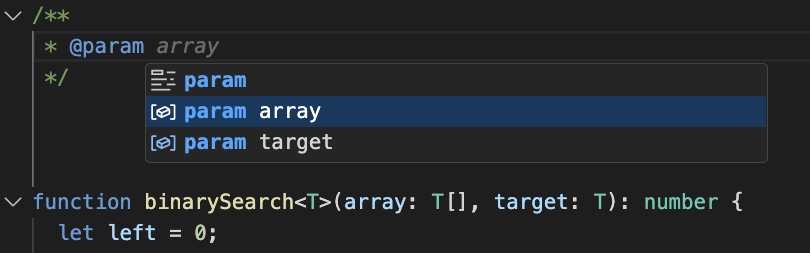
JS Doc @param completions in a TypeScript file

This can help you quickly fill in the documentation.

In JavaScript files, @param completions create placeholders for the parameter type description:

Copy external media files into workspace on drop or paste for Markdown

Want to add an image or video into a Markdown document? Instead of wasting time first manually copying the file into your workspace and then adding a link to it, now you can just drop or paste the file into your Markdown. If the file currently isn’t part of the workspace, VS Code will automatically copy the file into your workspace and insert a link to it:

This also works great for image data in the clipboard. For example, if you take a screenshot with the Snipping tool on Windows, you can press Paste in a Markdown file and VS Code will create a new image file from the clipboard data and insert a Markdown image link to the new file. This also works on macOS if you hold the Ctrl key while taking a screenshot to copy it to the clipboard.

You can also customize the behavior of this feature using a few settings:

markdown.copyFiles.destination

The markdown.copyFiles.destination setting controls where new media files are created. This setting maps globs that match on the current Markdown document to image destinations. The image destinations can also use some simple variables. See the markdown.copyFiles.destination setting description for information about the available variables.

For example, if we want every Markdown file under /docs in our workspace to put new media files into an images directory specific to the current file, we can write:

"markdown.copyFiles.destination": {
  "/docs/**/*": "images/${documentBaseName}/"
}

Now when a new file is pasted in /docs/api/readme.md, the image file is created at /docs/api/images/readme/image.png.

You can even use simple regular expressions to transform variables in a similar way to snippets. For example, this transform uses only the first letter of the document file name when creating the media file

"markdown.copyFiles.destination": {
  "/docs/**/*": "images/${documentBaseName/(.).*/$1/}/"
}

When a new file is pasted into /docs/api/readme.md, the image is now created under /docs/api/images/r/image.png.

markdown.copyFiles.overwriteBehavior

The markdown.copyFiles.overwriteBehavior setting controls whether newly created media files overwrite existing files.

By default, VS Code will never overwrite existing files. Instead if you have a file called image.png and try pasting it into a Markdown document in a workspace where an image.png already exists, VS Code will instead create a new file called image-1.png. If you then try pasting another file called image.png, it will instead be created as image-2.png.

If you prefer having existing files be overwritten by new files, set "markdown.copyFiles.overwriteBehavior": "overwrite". Now VS Code will always use the original file name, overwriting any existing files that that path.

Disabling copying files into the workspace

VS Code will only try copying files into your workspace if they are not already part of workspace. Additionally, we currently only copy media files (images, videos, audio) into the workspace.

However if you find this new behavior too intrusive, you can disable it for both drop and paste by setting:

"markdown.editor.drop.copyIntoWorkspace": "never"
"markdown.editor.filePaste.copyIntoWorkspace": "never"

IntelliSense for HTML paths in Markdown files

Many Markdown dialects allow raw HTML tags to be used in Markdown documents. In this update, we’ve extended most of VS Code’s Markdown IntelliSense features to file paths used in these HTML tags. This includes support for:
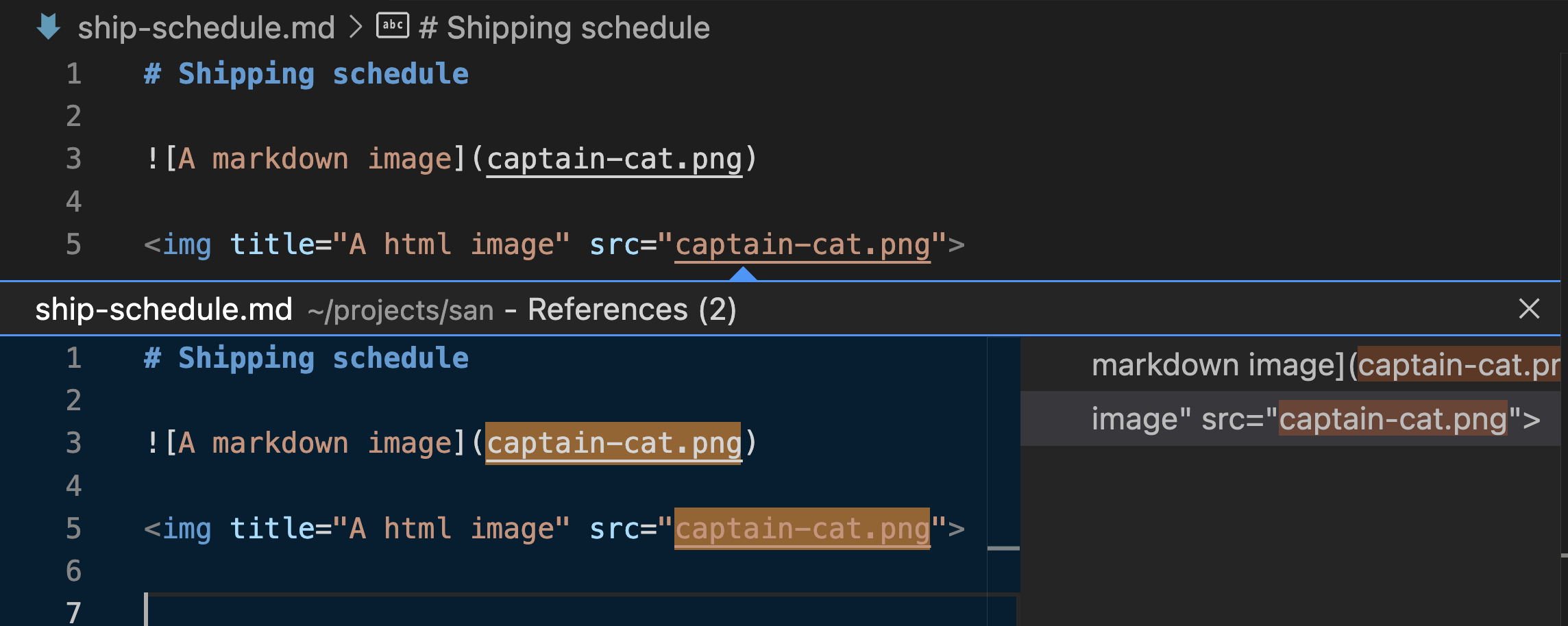
Finding all references to an image file used in an HTML tag

Insert audio into Markdown

When you drag and drop or copy and paste an audio file into a Markdown document, VS Code now inserts an <audio> element.

Syntax highlighting for JSON with Lines (JSONL) files

JSON with Lines describe a sequence of JSON objects separated by newline characters. If the file extension jsonl is used, VS Code provides syntax highlighting.

Remote Development

The Remote Development extensions, allow you to use a Dev Container, remote machine via SSH or Remote Tunnels, or the Windows Subsystem for Linux (WSL) as a full-featured development environment.

Highlights include:

  • Open new Remote connections (via a Remote Tunnel, to a Dev Container) in either the current or a new VS Code window.
  • Easier workflow to make a forwarded port public.
  • Preliminary support for connecting to WSL from VS Code for the Web (vscode.dev).

You can learn about new extension features and bug fixes in the Remote Development release notes.

Contributions to extensions

GitHub Copilot

Use Copilot Chat in Stable VS Code

Previously, you had to use VS Code Insiders to use Copilot Chat. As of VS Code 1.79, you can use Copilot Chat in stable VS Code as well. You will still have to install the GitHub Copilot Chat extension.

Editor chat

We have improved editor chat, most notably we have changed its default mode to be “livePreview”. In this mode, changes are applied directly to the document and shown with an embedded diff view. Let’s look at the example below:

  • A new property was added to the IUserFriendlyStatusItemEntry type and
  • Copilot updated the isUserFriendlyStatusItemEntry check accordingly.
  • The reply is shown in the editor using an embedded diff view. Its right hand side is editable and checked by VS Code’s language extensions.
  • This lets you spot an error in the reply (below the isMarkdownString function doesn’t exist) and you can fix it before accepting the suggestion.
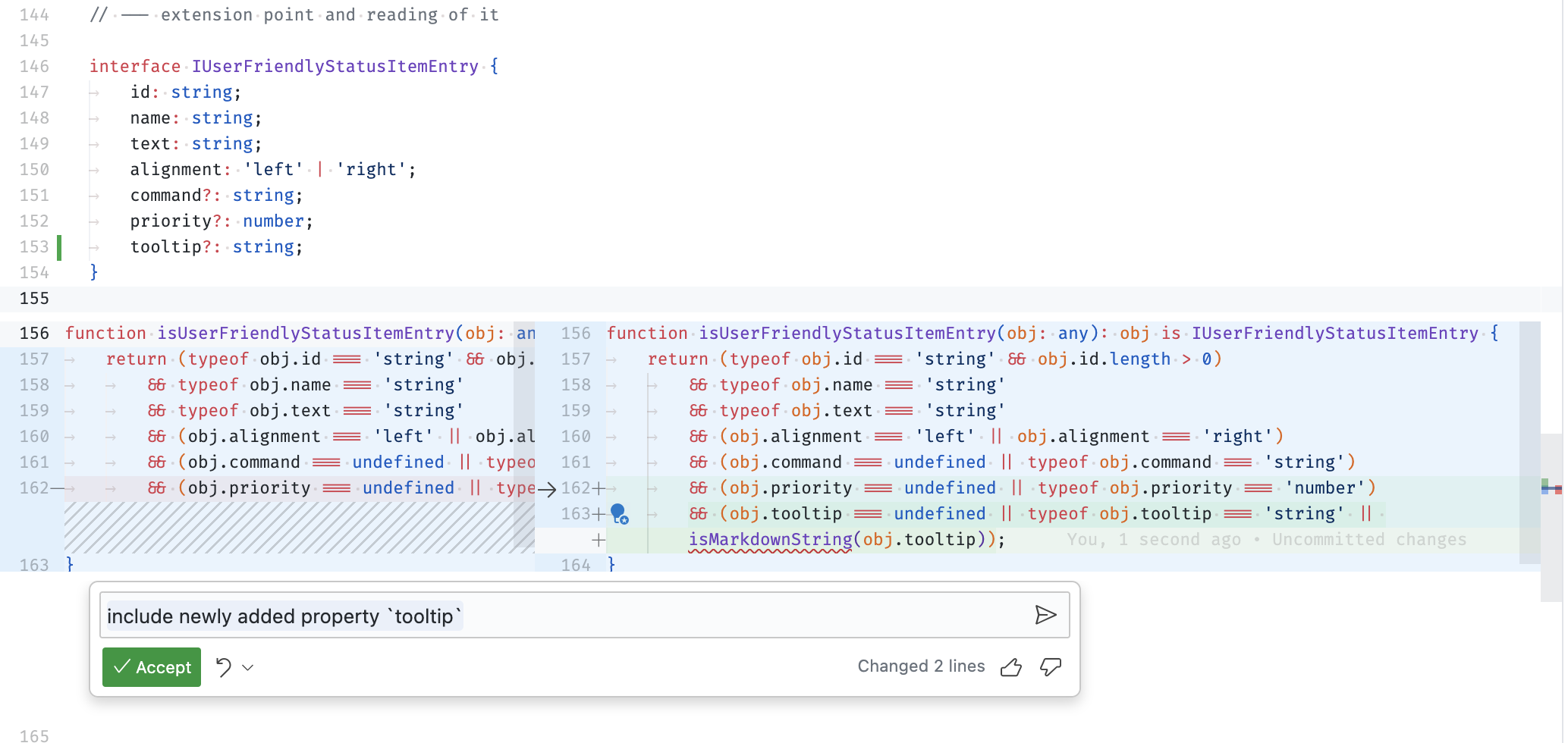
Copilot inline chat suggestion with proposed code change displayed as a live preview

Notebook improvements

We have improved the chat experience in notebook editors this month. When using Copilot in a notebook document, Copilot can use the notebook context to provide more relevant suggestions. For example, the code suggestions use variables or modules defined in previous cells without recreating or re-importing them.

When running notebook cells, Copilot now also provides suggestions for cell execution failures. You can display these by selecting the Fix using Copilot action on the cell status bar.

The Copilot suggestions are also accepted automatically on cell execution, so you don’t have to accept them manually.

GitHub Pull Request and Issues integration

When the GitHub Pull Requests and Issues extension is installed and enabled and you are viewing a review thread, it is now possible to directly apply a review comment using Copilot. You can do this via the Apply Suggestion with AI button in the comment menu.

Experimental Quick Question experience

Theme: Panda Theme (preview on vscode.dev)

This iteration, we experimented with using chat to ask quick programming questions without leaving context. If you have access to the chat experience, you can enable this feature with the following setting:

"chat.experimental.quickQuestion.enable": true

Feature overview:

  • Ask Copilot a quick question.
  • Toggle the experience with ⇧⌘I (Windows Ctrl+Shift+I, Linux Ctrl+Shift+Alt+I) (state is remembered for 30s so you can easily show, hide, and show again).
  • An Open in chat button for continuing the conversation to a long form chat in the chat view.

Delete chat entry

You can now delete a chat request/response pair by clicking the X icon in the chat request.

A chat request with X icon

Why would you want to do this? Sometimes, Copilot provides a response that is off topic or incorrect. You can ask your question again, but removing the bad response from your session’s chat history may also help keep the conversation on track. There is also a limit to the amount of context that can be included with each chat request, so removing a long poor response might help save your context budget for more useful information.

It was already possible to open a chat session in an editor by running the Chat: Open Editor command, but now it is also possible to move chat sessions back and forth between the sidebar and editor. You can find the Open Session in Editor and Open Session in Sidebar commands under the “…” menu in the chat view title or the editor title menus.

Chat session history

Your chat sessions are now saved to history, which you can browse by selecting the Show History button in the chat view title menu. You can select a history entry to load that conversation into a chat editor, and then seamlessly continue where you left off. You can remove sessions from history by clicking the X button on each row.

Export chat sessions to JSON file

We’ve added a command, Chat: Export Session, which exports the current focused chat session to a JSON file. You can then run the Chat: Import Session command to import this session and continue your conversation. You can check this file into your repo, share it with others, or just save your conversation for reference later. Note that when you are continuing your conversation in an imported chat session, those new messages won’t be saved unless you export the session again.

Codeblock navigation and keybindings

We’ve added some commands and keybindings that make it easier to work with codeblocks in chat responses. Chat: Next Codeblock (⌥⌘PageDown (Windows, Linux Ctrl+Alt+PageDown)) and Chat: Previous Codeblock (⌥⌘PageUp (Windows, Linux Ctrl+Alt+PageUp)) move the cursor to the next or previous codeblock in the current chat response. When a codeblock is focused, the commands in the codeblock toolbar can also be invoked from the Command Palette, or you can assign keybindings to them. Run in Terminal has a keybinding assigned by default, ⌃⌥Enter (Windows, Linux Ctrl+Alt+Enter). And the Copy command will now be run when you press the normal copy keybinding in the codeblock without having a selection.

We’ve also added keybindings to focus the chat window (⌃⌘I (Windows, Linux Ctrl+Alt+I)) and to clear the chat session ().

Copilot YouTube playlist

To learn more about GitHub Copilot as well as tips and tricks and best practices, have a look at the VS Code Copilot Series on YouTube. There you’ll find an introduction to GitHub Copilot, language-specific usage, and guidance on effective prompting when using Copilot for development.

Python

Run Python file in dedicated terminal

The Python extension will now create a new terminal for each file you run using the Run button on the top of the editor or the Python: Run Python File in Terminal command, and will keep using this file’s “dedicated” terminal every time you re-run it.

Any time you wish to run the same file in a separate terminal, you can run select Python: Run Python File in Dedicated Terminal under the Run button menu.
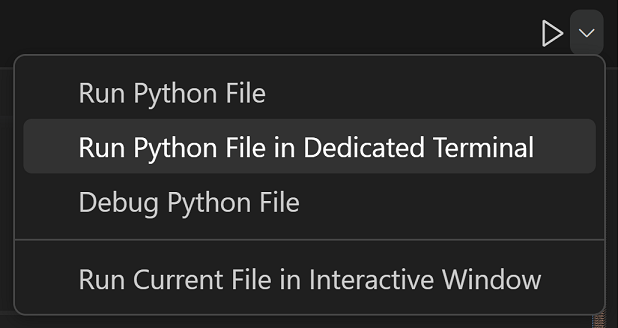
Options under the run button menu

Test discovery and run rewrite

This month, we are beginning the roll out of our testing rewrite as an experiment. This rewrite redesigns the architecture behind test discovery and execution for both unittest and pytest in the extension. While it does not provide any additional functionality exposed to the user, it reduces buggy behavior and opens up new functional opportunities moving forward. The rewrite is being rolled out behind the experiment pythonTestAdapter, which you can opt in and out of using python.experiments.optInto in your settings.json. Eventually, we plan to remove this setting and adopt this new architecture. If you have any comments or suggestions regarding this experiment or rewrite, you can share them in the vscode-python repository.

Configurable indexing limits with Pylance

There’s a new Pylance setting that allows you to configure the file count limit for indexing: "python.analysis.userFileIndexingLimit", which is set to 2000 by default. This setting can be helpful when working with very large projects and you’re willing to compromise performance for an enhanced IntelliSense experience.

Jupyter

Resume execution of cells against remote Jupyter kernels

The Jupyter extension now supports resuming execution of cells against remote Jupyter kernels, if the cell is still busy executing, even when reopening the Notebook after having shutdown VS Code.

For instance, assume you execute a long running section of code such as training of a model against a remote Jupyter kernel. This could take a few minutes or longer, so you might decide to shut down VS Code in the interim. A few minutes later VS Code is restarted with the same notebook opened and if the cell is still busy executing, this state is reflected in the Notebook cell and any new output is displayed in the cell output.

If on the other hand, the cell completed execution while VS Code was shut down, the outputs generated in the interim would not be preserved in the notebook. Resuming executions in this manner and displaying new output is limited to simple output such as plain text, HTML, images, images, and the like. Restoring the state of widgets and other such complex outputs is not supported.
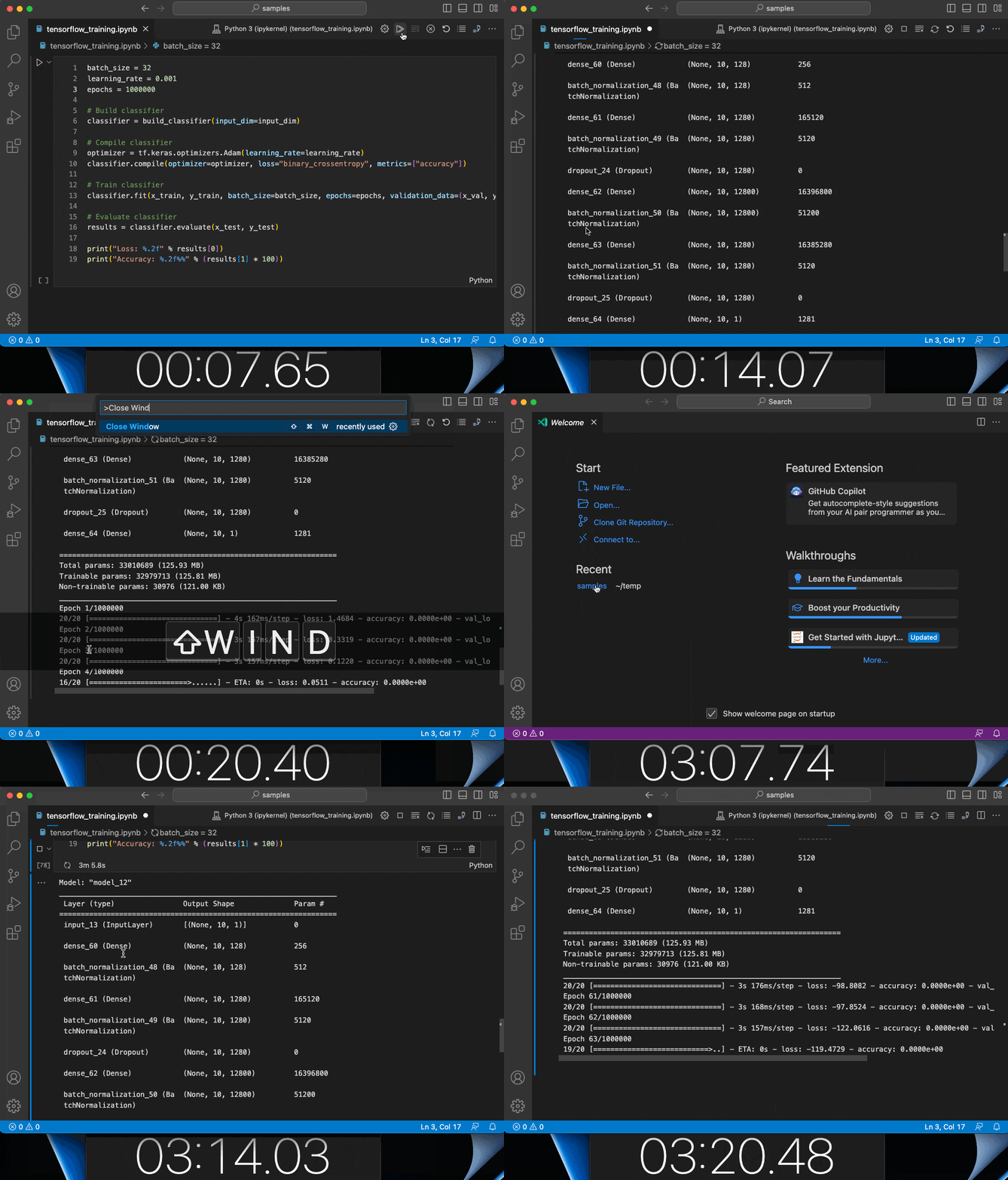
Resuming notebook cell execution after closing and reopening VS Code

GitHub Pull Requests and Issues

There has been more progress on the GitHub Pull Requests and Issues extension, which allows you to work on, create, and manage pull requests and issues. Highlights include:

  • Two new actions for viewing diffs of checked out PRs: Compare Base With Pull Request Head (readonly) and Compare Pull Request Head with Local.
  • The new setting "githubPullRequests.pullPullRequestBranchBeforeCheckout" can be used to turn off pulling a previously checked out PR branch when checking out that same branch again.

Review the changelog for the 0.66.0 release of the extension to learn about the other highlights.

Preview features

Project wide JS/TS IntelliSense on insiders.vscode.dev

vscode.dev is a lightweight version of VS Code running fully in your browser. This iteration, we’ve significantly enriched vscode.dev’s JavaScript and TypeScript support so that it can analyze all files in your workspace instead of being limited to currently opened files. This greatly improves navigation through code, letting you Go to Definition and Find All References to a symbol. It also improves IntelliSense by making sure settings from your tsconfig.json / jsconfig.json are respected. We even now support auto-imports while writing code.

In the image below, the References view is displaying all references to ITextDocument in the workspace.
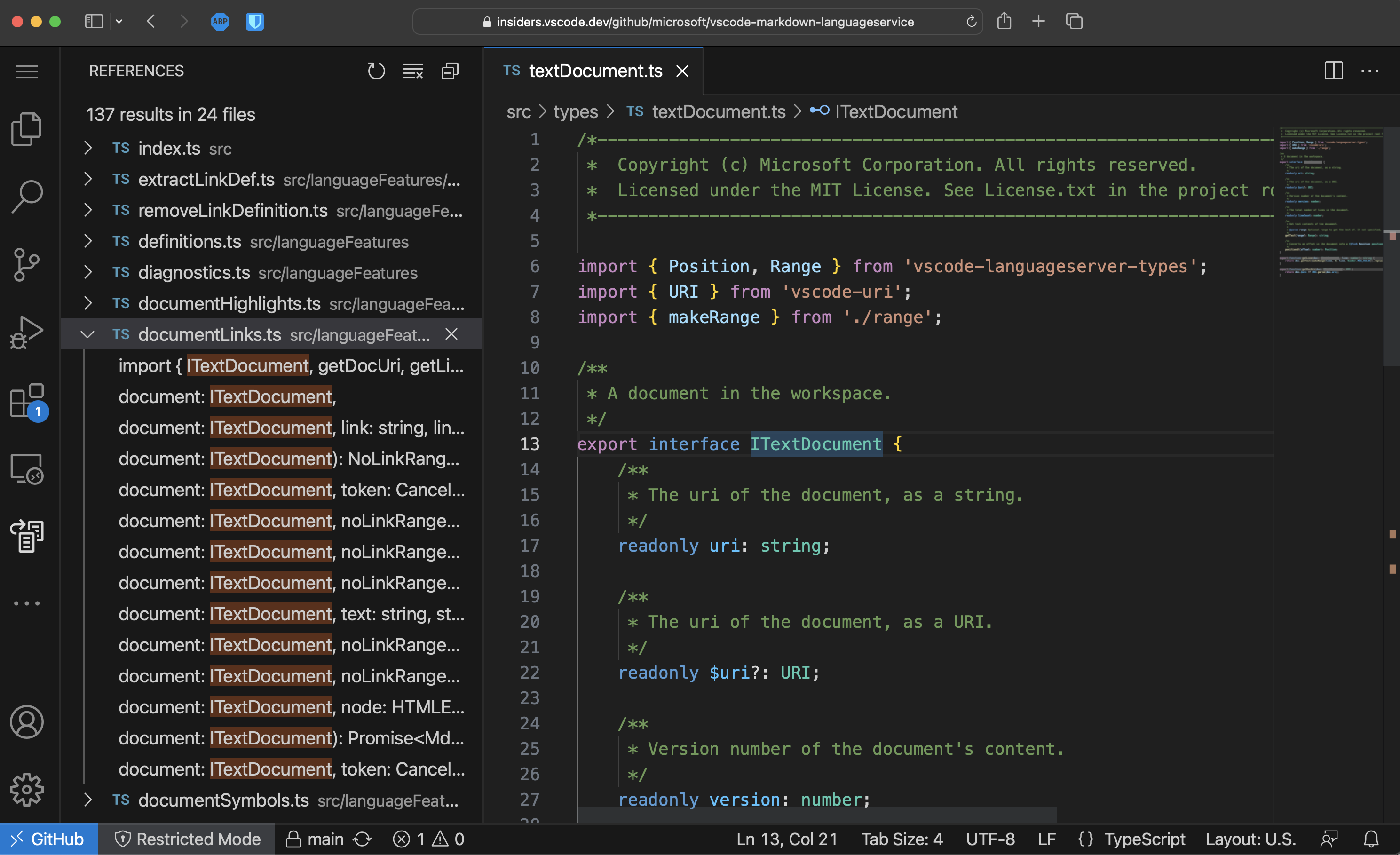
Find All References in a TypeScript project on vscode.dev

These new IntelliSense features work for folders you open from your local machine and in GitHub repos you open using vscode.dev’s built-in GitHub Repositories extension.

Keep in mind that there are still a few limitations with JS/TS IntelliSense on vscode.dev:

  • There is not currently IntelliSense support for third party libraries.
  • There is not currently support for automatic type acquisition for JavaScript projects.
  • Because of the above limitations, all typing errors are disabled on vscode.dev.
  • Project wide IntelliSense is currently only enabled on the Insiders version of vscode.dev: insiders.vscode.dev. This feature is currently disabled on github.dev.

We plan on addressing these limitations going forward, and are excited to continue enriching our JavaScript and TypeScript support on the web!

Images in the terminal

There is now experimental support for images in the terminal. Images in a terminal typically work by encoding the image pixel data as text, which is written to the terminal via a special escape sequence. The current protocols that are supported are sixel and the inline images protocol pioneered by iTerm.

Enable this feature by setting:

"terminal.integrated.experimentalImageSupport": true

Once enabled, to test it, you can download and cat a .six example file from the libsixel repository:

Running cat with a sixel file will print an image

Or use the imgcat python package or imgcat script with a png, gif or jpg file:
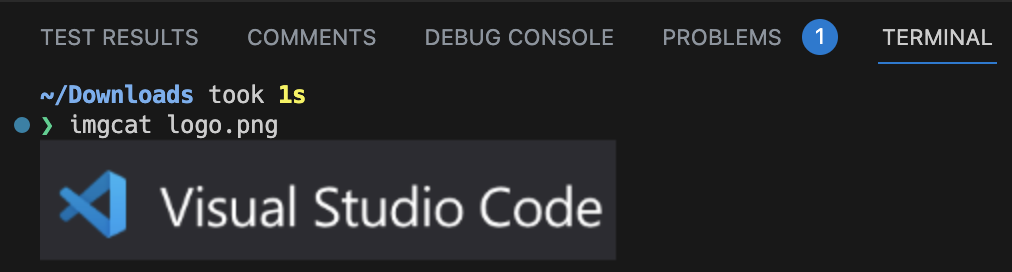
Running imgcat with a png file will print the image

The current limitations of this feature are:

TypeScript 5.2 support

This update includes support for the upcoming TypeScript 5.2 release. Check out the TypeScript 5.2 iteration plan for more details about what the TypeScript team is currently working on. Some exciting upcoming tooling highlights include:

  • A new Inline constant refactoring.
  • A new Move to file refactoring that lets you move a symbol into an existing file.

To start using the TypeScript 5.2 nightly builds, install the TypeScript Nightly extension.

Move to file refactoring for JavaScript and TypeScript

The Move to file refactoring in TypeScript 5.2 nightly lets you move a class, function, or constant into an existing file. This will also automatically update all references to the symbol and also update imports as needed:

When you select Move to file, VS Code shows you a list of all files in the current TypeScript or JavaScript project. You can start typings to quickly find the file you want.

Alternatively, you can use Select existing file… to select a file using the normal file picker or Enter new file path… to specify a new file that should be created.

This feature is still being actively developed, so give it a try and share your feedback!

WebAssemblies in VS Code for the Web

To add more programming language support to vscode.dev, the VS Code team has been investigating how to run general WebAssembly in VS Code for the Web. If you are interested in this approach and want to learn more, check out the recent VS Code and WebAssemblies blog post.

Extension authoring

Improved vscode.fs performance for local files

When you are using vscode.fs API to work with files (you should!), operations to files that are local to the extension host will now resolve much faster.

Previously the extension host would delegate these operations to the VS Code client for execution, but now they execute directly inside the extension host, saving round trips.

Stricter Status bar API

The API to create a Status bar item createStatusBarItem lets extensions pass an identifier. This identifier is used to control hiding and showing the Status bar item. The identifier should be unique for the extension but until now this wasn’t enforced. With this release, we make this a little more strict and Status bar items that are created by the same extension with the same identifier will now be merged into one.

Tasks

The task presentation option to close the terminal on task completion has been finalized.

Proposed APIs

Every milestone comes with new proposed APIs and extension authors can try them out. As always, we want your feedback. Here are the steps to try out a proposed API:

  1. Find a proposal that you want to try and add its name to package.json#enabledApiProposals.
  2. Use the latest @vscode/dts and run npx @vscode/dts dev. It will download the corresponding d.ts files into your workspace.
  3. You can now program against the proposal.

You cannot publish an extension that uses a proposed API. There may be breaking changes in the next release and we never want to break existing extensions.

EnvironmentVariableCollection.description

This proposal allows specifying a description for EnvironmentVariableCollection, displayed to the user in the terminal tab hover, explaining what exactly the change is doing.

// Example of what the Git extension could use
context.environmentVariableCollection.description = 'Enables a Git authentication provider';
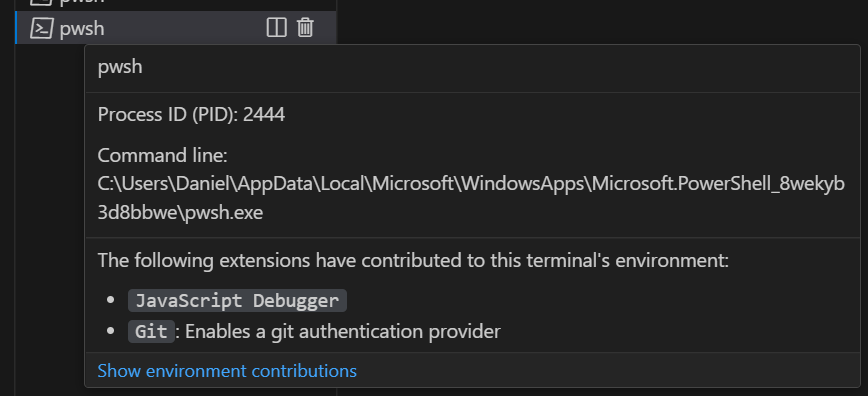
Environment variable collection descriptions are explained in a terminal tab's hover

EnvironmentVariableMutator.options

This proposal adds options that can be provided to EnvironmentVariableMutators, allowing you to specify exactly when the environment variable change is applied, either on process creation or in the shell integration script (after shell init scripts have run).

const collection = context.environmentVariableCollection;
// Apply only when the process is created
collection.replace('FOO', 'bar');
// Apply only during the shell integration script
collection.replace('FOO', 'bar', {
  applyAtProcessCreation: false,
  applyAtShellIntegration: true
});
// Apply twice, during process creation and the shell integration script
collection.replace('FOO', 'bar', {
  applyAtProcessCreation: true,
  applyAtShellIntegration: true
});

Share provider

The Share API proposal allows extensions to provide ways to share resources in VS Code.

Share provider results are currently surfaced as a top-level Share… Command Palette action and as a new icon near the Command Center, provided you have opted in with "workbench.experimental.share.enabled": true and "window.commandCenter": true.

You can leave feedback in the API proposal issue #176316.

Static Status bar items

Status bar items can now be contributed statically via package.json#contributes/statusBarItems. With this contribution point, an extension can delay its activation and only activate when the Status bar item is interacted with, for example, on the command. Once activated, extensions can access their static Status bar items via the vscode.window.createStatusBarItem API.

workspace.save and workspace.saveAs

The Save Editor API proposal allows extensions to trigger the flow of saving an editor either to its resource or by asking the user to provide a resource.

All the methods for saving will return the resulting Uri or undefined if the operation was canceled. Untitled files will always ask the user for a destination unless a path is already associated.

Authentication authGetSessions proposed API

As we move closer to having Multiple GitHub account support, we have a new proposed authentication API that lets your extension get all accessible sessions for a specific set of scopes. The proposal for these API additions has several things to call out:

  • The introduction of vscode.authentication.getSessions to get sessions for each account that your extension has access to. If you want to request an additional account, use { createIfNone: true, clearSessionPreference: true } to ask the user to choose an account.
  • The forceNewSession property now can take in a { sessionToRecreate: session } object so that consuming extensions can specify the exact session they want to be recreated.
  • The createSession function that an Auth Provider implements will now get passed in the session to recreate (using the extension’s session preference if true is used for the value of forceNewSession).

There is still more work involved to make this ready for adoption in the GitHub Authentication extension so if you’re interested, you can follow along and provide feedback in the issue that tracks this proposal.

Window Activity API

A new API is available to notify extensions if the window becomes active or inactive. This can be used to dispose of or create persistent resources or processes that can be idled to save resources.

This is implemented by the addition of a new active boolean to the existing WindowState type.

vscode.window.onDidChangeWindowState(state => {
  if (state.active && !longRunningProcess) {
    longRunningProcess = startLongRunningProcess();
  } else if (!state.active && longRunningProcess) {
    longRunningProcess.end();
    longRunningProcess = undefined;
  }
});

Engineering

Electron sandbox enabled for all users

We are happy to announce that the Electron sandbox is rolling out to all of our users. This was a journey that started in early 2020 and now finally comes to an end. You can refer to the Migrating VS Code to Process Sandboxing blog post for more details.

Extension host restart participation

Certain actions in the workbench can lead to the extension host restarting without reloading the current window. For example, when you switch profiles, VS Code restarts the extension host to handle running a different set of extensions for that profile.

Some custom and notebook editors however may no longer be functional after having switched profiles because a required extension is not installed in that profile. If the editor has unsaved changes, this could cause data loss. As a fix, components in VS Code can now participate in extension host restarts and make sure any unsaved changes are saved before the extension host restarts.

We plan to further develop this experience in the next milestone so stay tuned for more!

Windows 8 and 8.1 support has ended

As mentioned in our v1.77 release notes, v1.79 is the last release that supports Windows 8 / Windows Server 2012 and Windows 8.1 / Windows Server 2012 R2. Refer to our FAQ for additional information.

Milestone automation

We have implemented automated milestone replication throughout all of our GitHub repositories. This means that the monthly milestones established in microsoft/vscode serve as the foundation for all other milestones that are created and maintained.

VS Code at Microsoft Build

If you didn’t get a chance to watch Microsoft Build 2023 live, you can catch up on the keynotes and sessions on the Microsoft Developer YouTube channel.

Some sessions of particular interest to VS Code users include:

Notable fixes

  • 165933 [emmet] http-equiv=”X-UA-Compatible” in 2023
  • 181889 treeView.reveal with expand: 3 only expands the first level 3 folder

Thank you

Last but certainly not least, a big Thank You to the contributors of VS Code.

Issue tracking

Contributions to our issue tracking:

Pull requests

Contributions to vscode:

Contributions to vscode-css-languageservice:

Contributions to vscode-js-debug:

Contributions to vscode-pull-request-github:

Contributions to monaco-editor:

Persuasive Tone Words – How to Persuade Your Readers


Effective writing isn’t just about what you say; it’s about how you say it.

Persuasive tone words are key to inciting your readers’ engagement and action.

This guide demystifies the strategic use of these words, providing you with the knowledge to influence your readers’ perceptions and decisions directly and effectively.

What are persuasive tone words?

an illustration of a public speaker using persuasive tone words to influence people

Persuasive tone words are those selected to influence the reader’s thoughts, feelings, or actions.

These words are meticulously chosen to enhance the persuasiveness of the text, making arguments more compelling and messages more impactful.

They go beyond mere information delivery, actively working to sway the reader’s emotions and decision-making processes.

The distinction between persuasive tone words and regular tone words lies in their intent and impact.

While all tone words affect how a message is received, persuasive ones are specifically aimed at steering the reader’s response in a desired direction.

This strategic choice can dramatically alter the effectiveness of communication, making it crucial for writers to understand and utilize these words skillfully.

What is the impact of persuasive tone words?

The influence of persuasive tone words extends deep into the reader’s psyche, tapping into emotions, biases, and cognitive processes to guide their perceptions and actions.

Check out these five psychological principles leveraged by persuasive tone words.

  1. Emotional Resonance: Words that evoke strong emotions can significantly increase the reader’s engagement and memory of the message.
  2. Cognitive Bias: Certain words can trigger biases or heuristics, leading readers to process information in a way that favors the writer’s argument.
  3. Social Influence: Words suggesting social approval or consensus can motivate readers to conform to the implied group norms or behaviors.
  4. Sense of Urgency: By suggesting immediacy or scarcity, these words can spur readers into action more quickly.
  5. Perceived Authority: Words that convey expertise or authority can enhance the credibility of the message, making readers more likely to accept it.

Hopefully you now see that persuasive tone words have the potential for deep psychological impact.

Examples of persuasive tone words

Understanding how persuasive tone words function in practice is the best way to become comfortable with their use.

Here are seven basic examples to give you an overview of the concept.

1. “Revolutionary”: Implies groundbreaking change, encouraging enthusiasm and adoption.

2. “Exclusive”: Suggests privilege and rarity, making the offer more desirable.

3. “Proven”: Establishes credibility, increasing trust in the claim or product.

4. “Instantly”: Creates a sense of immediacy, encouraging quick action.

5. “Guaranteed”: Offers certainty, reducing perceived risk.

6. “Limited”: Indicates scarcity, heightening the sense of value and urgency.

7. “Free”: Appeals to the universal desire to gain something without cost, increasing interest and engagement.

Now that you have a high-level overview of the type of tone words classed as persuasive, let’s drill deeper and look at different categories and the impact they have.

Categories of persuasive tone words

Effective persuasive writing leverages specific categories of tone words to achieve its impact.

While persuasive tone words are themselves a subcategory of tone words in general, they can be further divided into different types depending on your intended message and impact.

Let’s take a look at the main categories of persuasive tone words.

Rationality persuasive tone words

Rationality words are used to appeal to the reader’s logic and reason.

By grounding arguments in logic and fact, these words help to build a solid foundation for persuasion, making the message more credible and compelling.

They are instrumental in cases where the goal is to convince through evidence and rational argumentation.

Here are six examples.

  1. Logical”: Implies a clear, reasoned approach to an argument or decision.
  2. Evidence”: Refers to the data or facts that support a claim, enhancing its credibility.
  3. Reason”: Suggests a rational basis for actions or beliefs.
  4. Analyze”: Invites the reader to examine the details or logic of an argument critically.
  5. Principle”: Indicates a fundamental truth or proposition that serves as the foundation for a system of belief or behavior.
  6. Fact”: A piece of information presented as having objective reality, reinforcing the argument’s truth.

Inclusive persuasive tone words

Inclusive words foster a sense of community and belonging among readers.

These words are powerful in persuading by creating an emotional connection, making readers feel part of a group or movement.

This connection can motivate individuals to act in alignment with group norms or goals.

Here are some of the most effective.

  1. Together”: Emphasizes unity and collective action.
  2. Community”: Refers to a group of individuals with common interests or values.
  3. Shared”: Highlights common experiences or goals among a group.
  4. Us”: Creates a direct connection between the writer and the reader.
  5. Collective”: Pertains to the efforts or responsibilities of a group as a whole.
  6. Universal”: Appeals to a broad, inclusive concept that applies to all people or situations.

Anticipation persuasive tone words

Anticipation words generate excitement and curiosity about what is coming next.

These words are particularly effective in maintaining the reader’s interest and engagement, encouraging them to continue exploring the message or to await future developments eagerly.

Let’s look at some of the most effective examples.

  1. Coming soon”: Builds excitement for future events or announcements.
  2. Preview”: Offers a glimpse of what is to be expected, increasing interest.
  3. Unveil”: Suggests the revealing of something new and exciting.
  4. Discover”: Invites the reader to find out more, promising new information or experiences.
  5. Launch”: Indicates the start of something new, often used to generate buzz.
  6. Sneak peek”: Provides a brief look ahead, creating anticipation for the full reveal.

Empowerment persuasive tone words

Empowerment words are chosen to inspire action and confidence in the reader.

By conveying a sense of strength and potential, these words motivate readers to believe in their ability to make changes or take decisive action.

See the following list to witness this concept in action.

  1. Empower”: Suggests giving power or authority, boosting the reader’s sense of control.
  2. Transform”: Indicates significant change or improvement, inspiring the reader to aspire for more.
  3. Achieve”: Implies reaching a goal, emphasizing the reader’s capability for success.
  4. Overcome”: Refers to conquering obstacles, encouraging resilience.
  5. Enable”: Gives the means or opportunity, suggesting facilitation of action.
  6. Unlock”: Implies freeing or releasing potential, enhancing the sense of discovery and capability.

Power persuasive tone words

Power words are crafted to convey strength, action, and confidence.

These words can dramatically increase the persuasiveness of a message by depicting decisiveness and authority, making the call to action more compelling.

Consider this list of powerfully persuasive tone words.

  1. Command”: Implies authority and control, strengthening the message’s impact.
  2. Triumph”: Conveys victory or success, inspiring confidence in the outcome.
  3. Dominate”: Suggests a position of superiority or control, emphasizing power.
  4. Master”: Indicates expertise or dominance, reassuring the reader of their capability.
  5. Conquer”: Refers to overcoming challenges, portraying strength and resilience.
  6. Prevail”: Implies winning or succeeding, especially over adversity, boosting morale and determination.

Incorporating these categories of persuasive tone words into your writing not only enriches the text but also strategically influences the reader’s emotions, thoughts, and actions.

By understanding and applying these nuanced word choices, you can significantly enhance the effectiveness and impact of your communication.

How to use persuasive tone words effectively

Mastering the use of persuasive tone words is crucial, but integrating them effectively into your sentences is where the true art of persuasion lies.

Let’s explores strategies and examples to help you construct sentences that not only sound compelling but also drive your readers to think, feel, and act in ways that align with your goals.

The subtle power of persuasive language

Integrating persuasive tone words into sentences requires a delicate balance between subtlety and impact.

The goal is to enhance the persuasive power of your sentences without making them seem forced or obvious.

Here are seven strategies to achieve that:

1. Start Strong: Begin sentences with persuasive tone words to grab attention immediately.

2. Use Variance: Mix short, impactful sentences with longer, more detailed ones to keep the reader engaged.

3. Appeal to Emotions: Place emotional tone words in pivotal points to connect with the reader on a personal level.

4. Incorporate Facts: Use rationality words alongside data or evidence to bolster your argument’s credibility.

5. Create Imagery: Employ sensory words to paint vivid pictures in the reader’s mind, enhancing their connection to the message.

6. Question Effectively: Pose rhetorical questions followed by persuasive answers to engage the reader’s thought process.

7. Call to Action: End with powerful action-oriented words, urging the reader to take the desired step.

Balancing emotional and logical appeal in sentence construction is key.

Too much emotion can undermine the credibility of your argument, while too much logic can fail to connect on a human level.

The most effective persuasive sentences weave together emotional resonance with logical foundations, creating a compelling narrative that speaks to both the heart and mind of the reader.

Why your choice of persuasive tone words depends on context

If you fail to consider the context of your writing when using persuasive tone words, you run the risk of lessening the impact of your writing rather than enhancing it.

To give you an overview, consider the different types of tone words and their suitability to the following writing contexts.

Marketing: Here, words that evoke desire, such as “exclusive,” “revolutionary,” or “unveil,” can make products or services irresistible.

Opinion Pieces: Strong, opinionated words like “unjust,” “triumphant,” or “flawed” help to clearly communicate the writer’s stance.

Storytelling: Sensory words and emotional appeals draw readers into the narrative, making the story come alive.

Speeches: Words of empowerment and action, like “overcome” or “achieve,” inspire and motivate audiences.

Educational Content: Rationality words such as “evidence,” “analyze,” and “logical” bolster arguments and aid in clear, effective teaching.

Common mistakes to avoid when using persuasive tone words

In persuasive writing, the line between influence and imposition can be thin.

We’ll now outline common pitfalls to steer clear of, ensuring your persuasive efforts enhance rather than detract from your message.

How to persuade authentically

a diverse and inclusive group of people feeling empowered by persuasive tone wordsa diverse and inclusive group of people feeling empowered by persuasive tone words

Overusing persuasive tone words can lead to a decrease in their effectiveness.

When every sentence is loaded with power or emotional words, the message can become overwhelming or lose its authenticity. The key is to use these words strategically, ensuring they add value and impact without saturating your message to the point of dilution.

Similarly, choosing the wrong tone words for your intended audience or message can disconnect or even alienate your readers.

It’s crucial to understand your audience’s values, expectations, and the context of your message.

You know you’ve chosen suitable tone words when they resonate with your readers, reinforcing your message’s relevance and enhancing its persuasive power.

To maintain authenticity and avoid manipulation:

1. Know Your Audience: Tailor your language to their values and expectations.

2. Use Tone Words Sparingly: Focus on strategic placement for maximum impact.

3. Balance Emotion and Logic: Ensure your message appeals to both aspects.

4. Fact-Check: Support your persuasive words with accurate information.

5. Be Transparent: Make your intentions clear to avoid mistrust.

6. Practice Empathy: Consider how your message will be received emotionally.

7. Revise: Revisit your text to refine the balance and impact of your persuasive elements.

By avoiding these common mistakes and applying the outlined strategies and tips, you can craft persuasive content that resonates deeply with your readers, compelling them to engage with your message in meaningful ways.

How to practice using persuasive tone words

To truly excel in persuasive writing, you must constantly refine your craft through practice and learning.

We’d like to share targeted exercises designed to sharpen your ability to choose and use persuasive tone words effectively, enhancing your overall writing prowess.

Developing a keen sensitivity to tone and mastering the use of persuasive tone words requires deliberate practice.

Here are nine exercises to help you achieve this:

1. Daily Writing Prompts

Start each day with a prompt focused on a specific persuasive goal (e.g., convince someone to start a new hobby).

This hones your ability to craft messages with intent and enhances your adaptability and creativity in persuasive writing.

2. Tone Word Replacement Exercise

Take a piece of your writing and replace neutral words with persuasive tone words.

This exercise helps identify opportunities to add persuasive power to your writing.

3. Audience Analysis

Write the same message for different audiences, altering only the tone words used.

By doing this, you develop an understanding of how tone impacts different audiences.

4. Emotion Journaling

Keep a journal where you describe daily events using emotional tone words.

This type of journalling improves your ability to connect with readers on an emotional level.

5. Logical Argument Building

Practice writing arguments for various topics, emphasizing rationality words.

Over time, you will strengthen your skill in constructing logical, persuasive arguments.

6. Sensory Detail Challenge

Describe objects, scenes, or experiences using rich sensory details and sensory appeal words.

Doing so boosts your ability to create vivid, engaging descriptions that persuade.

7. The Persuasion Swap

Pair up with another writer and swap pieces, focusing on enhancing each other’s work with persuasive tone words.

This collaborative approach offers new perspectives and insights on using persuasive language effectively while also allowing you to deepen your connection with other writers.

8. Call to Action Creation

Craft calls to action for various scenarios, experimenting with different power words. If you write to inspire action in your reader, this exercise is invaluable as it refines your ability to achieve your desired outcome through concise, powerful language.

9. Revision Practice

Regularly revisit and revise older pieces of writing to improve their persuasive impact.

This not only evelops your critical eye for optimization and persuasive effectiveness, but allows you to gain a feel for your evolution as a writer over time.

Are you ready to use your powers of persuasion?

Now that you’ve armed yourself with knowledge and strategies for using persuasive tone words, it’s time to put this insight into action.

Why not start by incorporating one new exercise into your daily writing routine, or experiment by applying the various categories of persuasive tone words in your current projects?

Remember, the key to mastering persuasive writing is practice and continuous learning.

If you’re willing to put the effort in, you stand to gain one of the most valuable skillsets a writer can ever possess.

Best King-Size Mattress for 2024


To get the most room out of your bed, you’ll want to pick up a king-sized mattress, but not just any king mattress will do. The best king mattress will give you comfort and support based on your sleeping position, firmness preference, and more.

We’ve put together this list of the best king-size mattresses from testing experience spanning over 200 mattresses. For this list, we considered the accommodating features (especially for couples), quality construction, fair price and performance of these mattresses. We have options for everybody, whether you need to swap out your current mattress for something more modern or if you’re looking to upgrade to a king bed. Read on to find out the best king-size mattress models for your needs. 

What is the best king mattress overall? 

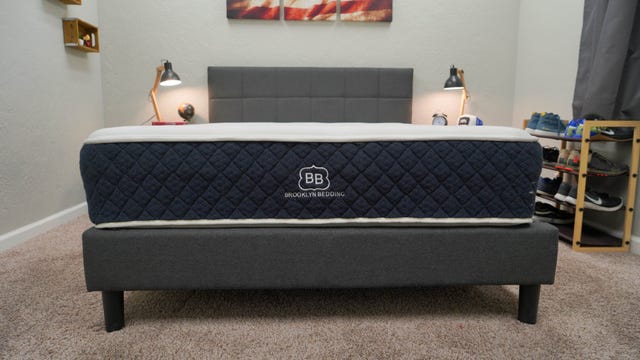
A mattress from Brooklyn Bedding Signature on a nice bed frame in a bright bedroom. A mattress from Brooklyn Bedding Signature on a nice bed frame in a bright bedroom.

The best king-size mattress overall should check several boxes. It should be accommodating for a wide range of sleeping positions and body types, and have solid edge support and motion isolation for couples who share a bed. The Brooklyn Bedding Signature mattress fits the bill to a tee. Plus, it offers excellent value. 

Video: Best king mattress for 2024

Watch CNET Video Producer Owen Poole review the best king mattresses for 2024.

Read more: Best California King Mattresses for 2024

Best king size mattresses of 2024

Mattress price scale:

$ = Budget: $799 and below

$$ = Average: $800 to $1,699

$$$ = Premium: $1,700 and up

These reflect MSRP or list prices. Sales might make a mattress less expensive, but are always changing.

My Slumber Yard

Type Hybrid mattressFirmness 3 firmness levels | Soft: Medium-soft to soft or 2 | Medium: Medium to medium-soft or 4 | Firm: Medium-firm or 7Trial 120 nightsWarranty 10-year limited warranty Price $$

Why we picked the Brooklyn Bedding Signature mattress: Kicking off our best king-size mattress review is the Brooklyn Bedding Signature mattress. It fits the bill for your average sleeper looking for a quality king bed that won’t cost too much.

What impressed me the most about this one is that although this is a high-quality hybrid mattress, it costs less than the foam Casper. That’s pretty uncommon since hybrid beds are typically more expensive than all-foam ones, so they offer exceptional value. 

It’s offered in three different firmness levels, giving you the option to cater exactly to your primary sleeping position. It’s suitable for all sleepers, whether they prefer sleeping on their back, stomach, side or a combination. I liked the firm option because it sat around a medium-firm, and I’m a stomach sleeper who needs that additional support. Side sleepers may want to consider the medium or soft model instead for more plushness. 

Brooklyn Bedding Signature also has a hybrid construction containing almost 1,000 pocketed coils, making it durable and supportive enough for any body type from petite to heavy. As a plus for couples looking for the best king-size mattress, the outer perimeter of the coils is designed to be extra supportive and strong for enhanced edge support. If you’re looking for a quality king bed at a very reasonable price, this is a great pick.

Pros:

  • Suits all sleeping positions because of its three firmness options
  • Hybrid construction suits all body types
  • Great bang for your buck

Cons:

  • You’ll have to spend an extra $300 if you want the optional pillow top

Brooklyn Bedding Signature Hybrid

Jonathan Gomez/CNET

Type Memory foam mattressFirmness 5 or mediumTrial 365 nightsWarranty Forever warranty Price $$

Why we picked the Nectar Premier mattress: It’s the best king-size bed for people who want the traditional memory foam feel you can find in a Tempur-Pedic mattress at a more wallet-friendly price. It has a thick memory foam construction, giving it a relieving and slow-responding memory foam feel. It takes a few seconds for your body to activate the foam, but once it does, the memory foam slowly contours around your curves and nestles you into the bed. 

The Nectar Premier mattress is the replacement for the mattress company’s upper-level model called Nectar Lush. Inside the bed’s gel memory foam comfort layer is a phase-change material that helps keep your temperature neutral, unlike old memory foam beds that are notorious for retaining heat. For even more cooling abilities, you can also take a look at the Nectar Premier Copper model. 

I think Nectar Premier falls around a 6 out of 10 on the firmness scale, making this king mattress suitable for most sleeping positions, especially back or stomach sleepers. If you’re a side sleeper under 150 pounds, it might not be soft enough for what you need. The memory foam nature of this mattress will also give some resistance to combination sleepers who switch positions during the night.

Editors’ note: The US Product Safety Commission recently issued a recall for Nectar Premier king- and queen-size mattresses manufactured on Sept. 24, 2021. Look for a model number CHILL and Prototype ID:ECS2003RHCH on a tag on the bottom of your mattress to find out if yours has been recalled. We have reached out to Nectar for comment and will update the story if they respond. 

Pros:

  • Good for combination, back and stomach sleepers
  • Strong memory foam feel for people who like hugging, contouring memory foam

Cons:

  • Might not be supportive enough for sleepers over 230 pounds

Read more in our full Nectar Premier mattress review

Nectar Premier

My Slumber Yard

Type Hybrid mattressFirmness 3 firmness levels | Medium-soft or 3 | Medium or 5 | Medium-firm or 7Trial 120 nightsWarranty Lifetime warranty Price $$$

Why we picked the WinkBed mattress: WinkBed is an affordable luxury mattress that’s widely accommodating. The steel coils and fluffy pillow top make the WinkBed mattress a standout choice if you’re looking for a supportive and durable bed. 

The WinkBed mattress is available in different firmness levels, which I always like to see, especially for couples trying to find a bed that works for both of them. The Firm model of WinkBed is our pick for the best king-size firm mattress because of how supportive it is while still being extremely comfortable. 

You can think of the WinkBed mattress as a classic innerspring-style bed with modern upgrades. The light and airy pillow top is seriously comfortable. It’s also easy to move around on. If you’re a pillow top lover, I cannot recommend the WinkBed mattress enough.

The WinkBed king mattress retails for around $1,799. While that’s still a lot of money, the quality of this bed makes it a great deal. Especially considering how often WinkBed runs sales, you can often get around $300 off. 

Pros:

  • Accommodates all sleeping positions and body types
  • Great price for the quality
  • Cloud-like pillow top

Cons:

  • Not a true budget option
  • Not for people who want a memory foam feel

Read our WinkBed mattress review for more.

WinkBed Mattress

Jonathan Gomez/CNET

Type Responsive memory foam mattressFirmness Medium to medium-firm or 5 to 6Trial 365 nightsWarranty Lifetime warrantyPrice $$$

Why we picked the DreamCloud Premier Hybrid mattress:

The DreamCloud Premier Hybrid is the best king-sized bed in a box mattress. It’s a premium, 13-inch-thick bed that combines layers of gel memory foam and durable coils. The hybrid construction gives the DreamCloud Premier mattress a nice mix of pressure relief and durability, with reinforced edges and reduced motion transfer. 

Although it has memory foam, you don’t get the sinking-in feel you expect. We found this bed to have a responsive memory foam feel that cradles your curves without sucking you in. It has a medium to medium-firm profile, which is the most accommodating firmness for the average person. 

The DreamCloud Premier mattress retails for $2,169, although DreamCloud does some of the best deals in the industry. I’ve seen 50% sales on DreamCloud mattresses twice so far this year. 

Pros:

  • Supportive design that is suitable for any body type
  • Responsive foam feel 
  • DreamCloud offers great sales 

Cons:

  • May be too firm for petite side sleepers
  • Not everyone likes the feel of memory foam

DreamCloud Premier Hybrid Mattress

Jonathan Gomez/CNET

Type Hybrid MattressFirmness 6 or medium to medium-firmTrial 100 nightsWarranty 10-year limited warranty Price $

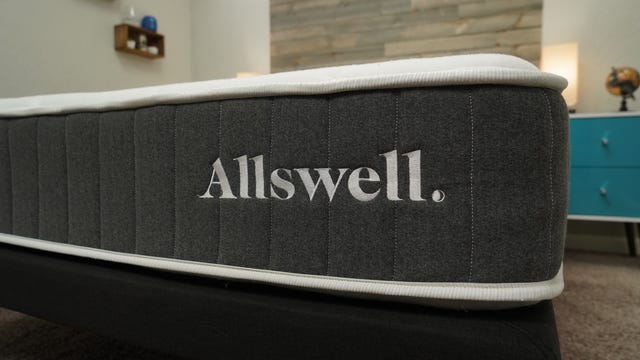
Why we picked the Allswell mattress: You may not be familiar with Allswell, but you’re likely familiar with its parent company Walmart. As its entrance to the bed-in-a-box game, Walmart introduced the affordable Allswell mattress. The Allswell mattress is a good hybrid mattress for the price of a low-budget foam mattress, giving it a well-deserved spot on this best king bed list. 

Inside is a simple construction with a foam base layer, a 6-inch thick pocketed coil system and a poly foam top layer. It is quick to respond to pressure and you sit more on top of the bed than you do inside. If you’re a combination sleeper, this is music to your ears because it doesn’t give resistance like memory foam does when you switch positions. Also, thanks to its hybrid construction, it’s suitable for all body types. It’s a tad on the firm side and best for back, stomach and combo sleepers.

In short, the Allswell mattress is a generally accommodating mattress that sells for a great price. You’ll be hard-pressed to find a quality king mattress that’s as wallet-friendly.

Pros:

  • One of the most affordable hybrid beds on the market
  • Suits back, stomach and combination sleepers
  • Accommodating for all body types

Cons:

  • A little too firm for side sleepers

Read more in our Allswell mattress review

Allswell

My Slumber Yard

Type Hybrid mattressFirmness MediumTrial 365 nightsWarranty Lifetime warrantyPrice $$$

Why we chose the Saatva Rx mattress:

If you live with back pain, you need a king-sized mattress that relieves it, not adds to it. The Saatva Rx mattress was designed to alleviate back pain from chronic conditions like scoliosis or sciatica. 

The Saatva Rx mattress has a noticeable zoned support design that ensures your back gets the extra support it needs without being too firm. The support doesn’t stop there. The coils are topped with two additional inches of foam for added pressure relief. Then there is a layer of 2.75-inch micro coils wrapped in high-density foams. 

We rate the Saatva Rx mattress a medium or four to five out of 10. That might be too soft for some stomach or back sleepers. The Saatva Classic mattress is a firmer alternative that will give you the same support and durability you expect from the brand. 

Pros: 

  • Zoned support 
  • Unique features like foam-topped coils and an additional micro coil layer
  • Designed specifically to relieve back pain

Cons: 

  • Potentially too soft for some back and stomach sleepers
  • Only one firmness option 
  • Expensive 

Saatva Rx Mattress

Jonathan Gomez/CNET

Type Flippable hybrid mattressFirmness Firm: 5 or medium | Soft: 3 or medium-softTrial 120 nightsWarranty 10-year limited warranty Price $$

Why we picked the Layla Hybrid mattress: In a sea of bed-in-a-box mattresses, brands have to add a little sauce to their designs to make them stand out. The Layla Hybrid is unlike most other hybrid mattresses because it comes with a two-in-one deal. What I mean is that it’s flippable, and you can sleep on each side of the mattress comfortably. 

The memory foam inside the Layla Hybrid is quite pleasant. It’s more light and airy than the typical dense, hugging memory foam I’m used to. It feels like you’re laying on a big fluffy pillow that supports your back.

The soft side is perfect for side sleepers who want an ultralight yet plush feel. I rate it around a medium-soft or a 3 out of 10 on the firmness scale. On the flip side, the firm profile of Layla isn’t a true firm. It’s more like a medium to medium-firm or a 6 out of 10 on the firmness scale. This makes it a good choice for most sleeping positions, but I also think it’s a good pick for heavier side sleepers who want a soft feel with extra support. 

In the center of the Layla Hybrid is a system of strong pocketed coils that act as the support layer. The edges of the coils have an even stronger, dual-coil design to make the perimeter of the mattress more supportive. The comfort layers of the soft side are made of two thick foam slabs including copper-infused memory foam to help regulate temperature. The firm side is made with the same materials, but firmer and thinner so you get a more supportive feel. 

Pros:

  • Flippable design allows for two firmness levels in one bed
  • Great pick for side sleepers who want a plush, light and airy feel
  • Is suitable for all body types

Cons:

  • Heavy back and stomach sleepers will likely think it’s too soft

Read our Layla Hybrid review.

Layla Hybrid

* Pricing based on Queen model

Other mattresses we’ve tested

Brooklyn Bedding Aurora Luxe: Many mattresses make embellished claims about their cooling abilities, but the Brooklyn Bedding Aurora Luxe effectively works to cool. With multiple cooling enforcements including cooling foam, Titan Cool technology and a cooling cover. With three firmness levels to choose from and a strong hybrid construction, it’s a versatile mattress that works for any sleeping position and body type.

Purple mattress: There aren’t many mattresses out there like the Purple. It’s made with a special gel-like material the brand calls its GelFlex Grid. It’s squishy and firm at the same time, offering a nice balance of support and pressure relief. It has a medium firmness level that suits all sleeping positions.

How we test king size mattresses

CNET editors pick the products and services we write about based on editorial merit. When you buy through our links, we may get a commission. 

Testing a king mattress is similar to how we test most of our mattresses, and we pay attention to a handful of important factors. 

  • Firmness: The measure of how firm or soft a mattress feels is an important factor in deciding if a bed is suitable for you or not. Firmness, a lot of the time, indicates how pressure-relieving or supportive a mattress feels. Side sleepers usually like a softer mattress because it offers more give, and thus, more pressure relief around the hips and shoulder areas. Back and stomach sleepers, on the other hand, tend to sleep better on firm beds that keep the spine properly supported. We test firmness by using our judgment and deliberating amongst team members. It’s easier to test firmness when you have 100 different mattresses to compare it to.
  • Construction and features: We take a close look at the construction of a mattress, which is a good tell on how it feels and how supportive it is for certain body types. We also consider any extra or special feature a mattress might have to stand out from the rest of the competition. Is it cooling? Does it have a special cover made with Celliant fabric or cashmere? Does it have an extra durable construction? We take all of this into consideration when testing mattresses and delegating best list picks. 
  • Performance: This refers to motion isolation, temperature regulation and edge support abilities. How well does a mattress perform when we put it to the test? We test motion isolation by having couples judge how it sleeps, or placing a glass of water at the end of the bed to see how much it shakes when we move. Edge support is tested by laying on the sides, bouncing and checking how sturdy it feels. Personal experience is also how we test temperature, with the help of a thermometer gun. 
  • Feel: Feel is a separate topic from firmness. This refers to how a mattress’ materials are perceived. Is it dense and morphy like memory foam, neutral and soft like neutral foam, or supple and bouncy like latex foam? We like to describe the feel as best we can since you’re unable to feel it through your computer screen. 

Read more on how we test mattresses.

What to look for in a king mattress

When looking for the best mattress, you should take in some key considerations. You should follow the same guidelines when looking for a king-size bed, with the same considerations. 

  • Hybrid vs. foam: The more you weigh, the more supportive your mattress should be. Hybrid beds are best for all body types, including those over 230 pounds, while foam beds are typically ideal for people under 230 pounds. 
  • Firmness is a key indicator of how accommodating a bed will be. One of the first things to think about while looking for the best king mattress is firmness. Are you a side sleeper, back sleeper or stomach sleeper? Side sleepers typically need softer mattresses, while back and stomach sleepers benefit from a firmer mattress because having a firm bed will help support the spine, decreasing back pain. Medium beds right in the middle are perfect for combination sleepers. 
  • Key features like cooling tech, edge support reinforcements and Celliant covers can help you decide if a bed fits your lifestyle and circumstances. Strong edge support is great for couples who share a mattress, while beds with Celliant covers are perfect for people with active lifestyles. 
  • Price matters when looking for a king bed. The bigger the bed the more expensive it is. King beds are often more than $1,000, but there are budget options like Allswell to consider if you’re looking for maximum savings. 

Check out our size guide to compare mattress sizes. If you’re looking to upgrade your whole sleep setup, we have suggestions for sheetspillows and other sleep essentials

Who is a king mattress best for?

Not everyone needs a king-size bed, but it is mighty convenient and comfortable during these situations:

  • Couples who want more space than a queen size offers
  • Taller people who don’t want to feel cramped (queen beds are about 6.6 feet long)
  • Sleepers who share a bed with their kids (king beds are wider than California king beds)

King and California king mattresses are the most popular of the king variety, but a host of beds are technically classified as king. Here’s an overview of the different types of king beds if you’re looking for something a little different. 

King-size mattress types

Type Dimensions
Standard king (aka Eastern king) 76 x 80 inches
California king 72 x 84 inches
Split king Two twin beds (36 x 80 inches)
Split California king Two twin XL beds (36 x 84 inches)
Alaskan king 108 x 108 inches
Wyoming king 84 x 84 inches
Texas king 80 x 98 inches

The average king mattress costs around $1,000 or more, depending on how premium of a mattress you’re looking to buy. More affordable options are available for around $500 for budget shoppers who are looking to pay a little less.

A king-size mattress measures 80 inches long by 76 inches wide and 4 inches thick. Compared to a queen-size mattress, it offers the same length but with 16 additional inches in width.

Typically, the best king-size mattress is a bed that’s able to accommodate two sleepers because it’s the most popular size among couples. Some of the best king beds have pocketed coils and reinforced edge support, can isolate motion well and/or have a breathable design. Some of CNET’s picks include:

  • Brooklyn Bedding Signature
  • Winkbed
  • Nectar Premier 
  • Layla Hybrid
  • Allswell 


5 Types of Artificial Intelligence That Bring Value to Business


Similar to a constellation where you can spot different stars, artificial intelligence (AI) can be brought down into different types. To help you decide what AI type will shine brightest and contribute to your business’ stellar performance, our data science consultants will define each. However, let’s first dispel the clouds to have a clear look at AI as a whole.

AI defined

Artificial intelligence enables a computer system to be trained and apply the gained knowledge to new inputs. This ability rests upon math and algorithms and is applicable only to the tasks that the system has been trained to perform.

To visualize the AI concept clearer, you may think of a chatbot whose task is to help restaurant visitors to book a table. By nature, this chatbot is a computer program that is trained on tons of booking-a-table questions and relevant answers. That’s how it learns of a typical conversation flow on the topic. After the training, the chatbot can dialogue with customers. However, if a customer deviates from the main topic of booking a table and asks for food recommendations, the chatbot in question is of little help as it is not trained to perform this task.

Types of artificial intelligence

Types of AI

To help you decide how exactly AI can be put into practical use, we offer our classification based on our 34 years of experience in data science. For each AI type, we’ll give a brief explanation, name the most prominent business use cases, as well as share real-life examples from our artificial intelligence consulting practice.

Analytic AI

Powered with machine learning (including its most advanced deep learning techniques), analytic AI scans tons of data for dependencies and patterns to ultimately produce recommendations or provide a business with insights, thus contributing to data-driven decision-making.

Sentiment analysis and supplier risk assessment are just a few examples of analytic AI in action. If you’d like to get a complete picture of how such a solution works, our experts have summarized the insights gained from their experience with two of the use cases – inventory optimization and demand forecasting.

Functional AI

Functional AI is very similar to analytic AI – it also scans huge amounts of data and searches for patterns and dependencies in it. However, instead of giving recommendations, functional AI takes actions. For instance, being the part of the IoT cloud, it can spot a machine-breakdown pattern in the sensor data received from a certain machine, and trigger a command to turn this machine off. Another example: robots that Amazon uses to bring the shelves with the goods to the pickers, thus speeding up the picking process.

Interactive AI

This type of AI allows businesses to automate communication without compromising on interactivity. To envisage this type of AI, think of chatbots and smart personal assistants whose abilities can vary from answering pre-built questions to understanding the conversation context.

Interactive AI can serve another purpose – improving a company’s internal processes. For example, one of our projects was dedicated to creating a chatbot to facilitate the corporate process of vacation booking.

Text AI

Businesses that use text AI can enjoy text recognition, speech-to-text conversion, machine translation, and content generation capabilities. Even if a company is not Google or Amazon, or any other giant company that provides text AI as a service, it can still take advantage of this AI type. For example, the company can use text AI to power an internal corporate knowledge base.

Contrary to a traditional knowledge base that rests upon a search by keywords, an AI-powered one can find the document containing the most relevant answer even if the document doesn’t have full keywords. This is possible thanks to semantic search and natural language processing, which allow AI to build semantic maps and recognize synonyms to understand the context of the user’s question.

Visual AI

With visual AI, businesses can identify, recognize, classify and sort objects or convert images and videos into insights. A computer system that helps an insurer to estimate damage based on damaged car photos or a machine that grades apples based on their color and size are the examples of visual AI. This type of AI covers computer vision or augmented reality fields.

To get the real feel of the value that visual AI can bring, you can read in more detail about a face recognition solution that we developed to help a retailer enhance and personalize their customer service; or about an application for automated inspections that allowed a manufacturer to immediately control the quality of the produced details.

In the finale

AI has become a trend that cannot be disregarded: hardly any report or survey doesn’t mention its growing importance. Gartner names AI a top priority for CIOs. Accenture Technology Vision 2019 Report cites that 89% of businesses either have already adopted or are experimenting with AI. And PWC 2019 AI Predictions Survey of 1,000 executives reveals that they expect the following value from AI investments: increased revenue and profits (48%), better customer experience (46%) and improved decision-making (40%). However, to take advantage of AI, companies have to overcome some obstacles. For example, a survey by McKinsey&Company names top 3 barriers: the lack of a clear strategy for AI (43%), the lack of the talent with appropriate skills (42%) and functional silos that constrain end-to-end AI solutions (30%).

And what about your business? We have shown the multifaceted nature of AI for you to find your way to get value from it. You can opt for any of 5 AI types – analytic, interactive, text, visual, and functional – or wisely combine several ones.


Maximize the power of artificial intelligence with our professional consulting services. Get in touch with us to embark on your path to AI-driven excellence!

Tinkerlands: A Shipwrecked Adventure is a free demo of 2D crafting and spider fights


I spend a portion of my every week surviving and crafting. And in the game, where the game is called Minecraft. I still have appetite left for Tinkerlands: A Shipwrecked Adventure, a demo that offers topdown, 2D construction and fights with giant frog bosses, among others.

Continue reading “Tinkerlands: A Shipwrecked Adventure is a free demo of 2D crafting and spider fights”

Revolutionizing Trial Preparation: The Power of Epiphan Pearl-2 in Aut


Discover how Verdict Advantage, a leading legal consulting firm, leverages Epiphan Pearl-2 to create immersive live jury focus groups, enhancing trial preparation and delivering unprecedented insights for legal teams.

Introduction

In the realm of trial preparation, authenticity is paramount. Learn how Verdict Advantage, a California-based legal consulting firm, is transforming the landscape of mock-trial experiences with the innovative use of Epiphan Pearl-2.

Creating Authenticity in Mock-Trial Experiences

Verdict Advantage’s commitment to authenticity led them to construct a meticulously detailed faux courtroom environment. Explore how every aspect of this environment, from seating arrangements to podium placement, contributes to a truly immersive trial experience.

The Need for Comprehensive Video Production

Discover why Verdict Advantage sought a versatile and high-performance video production solution to capture live focus group sessions from multiple angles. Learn how Epiphan Pearl-2 emerged as the ideal choice to meet their diverse needs.

Empowering Legal Teams with Epiphan Pearl-2

Explore the capabilities of Epiphan Pearl-2 and how it facilitates simultaneous recording from various cameras, enabling legal teams to scrutinize every aspect of trial proceedings. Understand the significance of real-time viewing and independent channel recording for post-analysis.

Unveiling Success Stories

Delve into real-world success stories where legal firms, empowered by Verdict Advantage’s methodology and Epiphan Pearl-2’s capabilities, achieved remarkable outcomes in trial preparation. Gain insights into how focus group recordings led to significant increases in settlement amounts for clients.

Unlocking Growth Opportunities

Learn how Verdict Advantage leverages Epiphan Pearl-2 beyond its initial objectives, exploring avenues such as video training for trial attorneys. Understand the SEO importance of expanding service offerings and how Pearl-2 enables diversification for business growth.

Looking Ahead: Expansion and Innovation

Discover Verdict Advantage’s plans for expansion across the United States and their unwavering reliance on Epiphan Pearl-2 as a cornerstone of their video production capabilities. Gain insights into the future of mock-trial experiences and the role of innovative technology in legal consulting.

Conclusion

Wrap up with a summary of the transformative impact of Epiphan Pearl-2 on Verdict Advantage’s mock-trial experiences and the broader implications for trial preparation. Emphasize the SEO significance of authenticity, innovation, and technological integration in legal consulting practices.

Read the full Case Study from Epiphan HERE

c++ – I can’t use allegro draw function in function on visual studio2022


(sorry for my bad english)
I want to create a pong game whit classes on c++. So i used classes and object using allegro5 as graphic library, i installed it whit the NutGen.
I create the class of the rectangle and the class of the ball, but i have an issues when i call their methods render. To make this project i used visual studio. The error is

Severity    Code    Description Project File    Line    Suppression State   Details
Error   LNK2019 unresolved external symbol __imp_al_draw_filled_circle referenced in function "public: void __cdecl Pallina::render(void)" (?render@Pallina@@QEAAXXZ)   Pong122 C:\Users\user\source\repos\Pong122\Pong122\Pallina.obj  1       

So the compiler don’t find the function al_draw_filled_circle, so how can i solve? it’s a problem of allegro or visual studio?

I creathed this class, it’s named pallina(it’s ball in italian)

Pallina.h

#pragma once
#include "Intestazione.h"
#include "Rectangle.h"

class Pallina
{
private:
    float x;
    float y;
    float ray;
    bool condx;
    bool condy;
        //CollisonSchreen it's used to make the ball bounce when touch the schreen
    collissionSchreen* scr;

public:
    ~Pallina();

    Pallina(collissionSchreen* schren);
    void movement(Rectangle p);
    void render();
};

Pallina.cpp


#include "Pallina.h"

Pallina::~Pallina() {
    delete scr;
}

Pallina::Pallina(collissionSchreen* schren) {
    x = schren->x / 2;
    y = schren->y1 / 2;
    condx = rand() % 1;
    condy = rand() % 1;
    scr = schren;
    ray = 10;
}


void Pallina::movement(Rectangle p)
{
    //Mov on x
    if (condx) {
        if (x + ray < scr->x) {
            x += MOVEMENTBALL;
        }
        else {
            condx = false;
        }
    }
    else {
        if (x - ray > p.getx2())
            x -= MOVEMENTBALL;

        else if ((x-ray) <= p.getx2() && (x+ray) > p.getx1() && (y-ray) > p.gety1() && (y+ray) < p.gety2()) {
            condx = true;
            p.gotaPoint();
        }

        else
            x -= MOVEMENTBALL;
    }

    //Mov on Y
    if (condy) {
        if (x + ray < scr->y1)
            x += MOVEMENTBALL;
        else
            condy = false;
    }
    else {
        if (x - ray > scr->y2)
            x -= MOVEMENTBALL;
        else
            condy = true;
    }
}

void Pallina::render(){
    al_draw_filled_circle(x,y,ray,al_map_rgb(255,255,255));
}

So what can i do?
(Edit)
I forgot to say all the other function work, but only the draw function in function i create cause the problem

How Old Is the Solar System, and How Did It Form?


Credit: ESO/Y. Beletsky

And the earth was without form and void, and darkness was upon the face of the deep.

Sometimes, if the night is dark and clear enough, you can look up and see the Milky Way in its arc across the sky. That’s our galaxy, and so are most of the other stars visible to the unaided eye. Many, if not most, stars are thought to have planets—some like ours, some fascinating and strange, and a few subject to such extremes they could never harbor anything we recognize as life. Does it ever make you wonder how all those different systems could come together, from dust and cold gas floating in the void? How our own Solar System came to be? How we could know?

Telescopes, microscopes, spectrometers, and gravitational wave detectors all help to piece together the deep history of our Solar System. Thanks to new measurements of very old meteorites, the current consensus on the Solar System’s age is 4.5684 billion years old, with an uncertainty of 240,000 years—a tiny fraction of a percent. To learn the age of our home in the cosmos is to learn its story.

How Did the Solar System Form?

The tale of our sun may begin with another star: a predecessor whose fiery death brought about the birth of our solar system. According to the nebular hypothesis, our star system formed from the gravitational collapse of part of a giant molecular cloud, most likely at the edge of a Wolf-Rayet bubble. (More on these in a moment.) Evidence of our solar system’s history comes from its chemical composition and physical organization, along with observations of light sources in the night sky.

Like most stars, the Sun likely formed as part of a young star cluster, in our case including other nearby stars such as Alpha Centauri. Within half a billion years of its birth, it had drifted well away from its stellar nursery, moving some three kiloparsecs to its current home on the Orion Arm of our barred spiral galaxy. (A parsec is about 3.26 light-years, so 3 kiloparsecs or kpc is about 9,800 light-years.)

Wolf-Rayet Bubbles

Stars give off a constant stream of ions and plasma known as their stellar wind. This creates a low-density radius of stellar influence mostly cleared of debris, surrounded by a denser shell of material like the surface of a soap bubble. Invisible to the eye, it still marks a star’s position in the sky.

Blue is hydrogen and red is oxygen in this recolored palette.

A Wolf-Rayet bubble: The Crescent Nebula is the stellar wind bubble blown by a Wolf-Rayet star in the constellation of Cygnus, about 5000 light-years from Earth.
Credit: Don Christopher Deaver | CC BY-SA 4.0

Long before quantum physics explained the 21 cm line*, astronomers had spotted colorful points of light in the sky that were big enough to be planets but didn’t move like planets, dubbing them planetary nebulae. With modern telescopes, these points of light often resolve themselves into bubbles of color surrounding a brilliant central star—or the place where a star ought to be. The Voyager I and II probes established that our own star has just such a bubble. What lies within it, our Sun’s material radius of influence, is called the heliosphere.

* The 21 cm line is the spectral evidence of infrared light with a wavelength w ≈ 21 cm, which is emitted by cold molecular hydrogen. Its existence confirms aspects of quantum physics, and its presence or absence in a given region helps astronomers understand the 3D structure of the visible cosmos.

Sometimes, when a bubble is in want of a star, the star is absent because it has exploded in a supernova. However, sometimes it’s because the star is just throwing off light we can’t see. For example, Wolf-Rayet stars are enormous, surprisingly dim stars that burn so hot they mostly radiate in the ultraviolet band—invisible to the unaided eye. Their powerful stellar wind blows a larger bubble around them. These stars have lost all the hydrogen in their outer layer and begun fusing more massive elements such as helium, nitrogen, and carbon. Wolf-Rayet stars are marked by their abundance of heavy elements, including a rare isotope of aluminum (²⁶Al) mostly found where a Wolf-Rayet star is or has recently been. And when they die, they also happen to explode in a supernova.

Wolf-Rayet stars may play a key role as the source of the explosive shockwave that created regions of greater density out of the diffuse interstellar fluff: a supernova that left behind stellar ashes from which our solar system was born. That shockwave flung away the material the star had already shed as solar wind. Evidence for this hypothesis lies in rare fragments of very old meteorites. Traces of ²⁶Al found in inclusions within ancient meteorites, thought to be some of the first solid matter to condense in the solar system, may represent specific evidence of a Wolf-Rayet star.

If the nebular hypothesis holds true, the star that went supernova and caused our nebula to begin its collapse probably lived about 3 kpcs closer to the galactic center.

Coalescence

Based on the distribution of mass in and around our local interstellar cloud, the original giant molecular cloud was thousands of times the mass of our sun and about 20 parsecs (65 light-years) in diameter, with numerous satellite “fragments” roughly a parsec (a little more than three light-years) from edge to edge. Gravitational attraction within the fragments led to their collapse into denser “cores” just 0.01–0.1 parsecs (2,000–20,000 AU) wide. The presolar nebula that would one day become the solar system condensed out of one such fragment over about 100,000 years.

Comparison of Hubble Space Telescope views of the Pillars of Creation in infrared vs. visible light

What does a presolar nebula look like? Something like this. The Hubble space telescope captured these images of the Pillars of Creation, a star-forming region in the Eagle Nebula. At left, what Hubble saw in the infrared band: dreamy clouds, illuminated from within by the light they cast. At right, true color: the visible spectrum.
Credit: NASA

Tidal forces from the greater mass of the galaxy tend to drag matter inward toward Sagittarius A*, the supermassive black hole at the center of the Milky Way. Meanwhile matter within the galaxy is subject to its rotational forces. The difference in direction between those forces is enough to create an axis of rotation: an eddy, transient on cosmological time scales, with a vortex at its center. Heavier elements fell in and concentrated toward the center of mass, while lighter elements, such as hydrogen gas, lingered around the edges. Conservation of momentum made the collapsing cloud spin faster, and it heated up as it collapsed.

Within 500,000 to a million years, the presolar nebula had differentiated into a hot, dense, spheroid protostar core of some three solar masses and an accretion disc of perhaps twenty percent of the protostar’s mass.

Wandering Planets

Just a few hundred thousand years after the protostar had distinguished itself from its disc, well before it had driven off or ingested enough matter to clear its environment, the inner Solar System was populated by perhaps a hundred protoplanets, each about five percent of the Earth’s mass and sized between the Moon and Mars. Then, a phase of collision and merging began, lasting perhaps a hundred million years and ending with four surviving terrestrial (rocky) inner planets.

The largest celestial bodies in our solar system that still exist—massive asteroids and minor planets—are thought to be the last vestiges of this era of planetary formation. This is the period during which many scientists believe the young Earth collided with another nascent planet called Theia, forming the Moon. Closer to the Sun, another such giant impact is thought to have torn away the outer layers of the young Mercury, leaving a small planet dominated by its iron core.

Radiation from the Sun warms everything around it, and this effect is key to how the planets formed. Terrestrial planets formed nearest to the Sun, devoid of volatile gases and ice because only rocky material could withstand the heat. However, the nebula contained very little such material, which limited the size of the rocky planets. Between the orbits of Mars and Jupiter, there is a band where liquid water can persist. Most, if not all, stars have such a band, sometimes called the “Goldilocks zone.” The outward boundary of that band is known as the snow line.

Earth, between sweltering Venus and frozen Mars, formed and orbits within a band where water could persist in solid, liquid, and gaseous phases. Mars had surface water, but not as much as Earth, and not for very long. Instead, Mars is so cold its poles are covered in drifts of dry ice: frozen carbon dioxide that falls out of the atmosphere as snow.

Carbon dioxide ice (in blue) on the shaded inward edge of a crater on Mars

Carbon dioxide ice (in blue) on the shaded inward edge of a crater on Mars
Credit: NASA

Meanwhile, the volatiles (gases, liquids, and ice) driven off from the inner planets condensed in a ring or disc beyond the snow line in the outer regions of the young solar system. Gravity pulled these materials together, and that is where we find gas giants Jupiter and Saturn, and the ice giants Uranus and Neptune.

One popular hypothesis of Jupiter’s origin holds that it formed at more than twice the distance at which it currently orbits from the Sun, then swooped inward, trading places with Saturn due to an orbital resonance. However, that model challenges the current narrative of a Late Heavy Bombardment with a calamitous peak in impact frequency toward the end. In either case, Jupiter’s gravity played and still plays a major role in clearing out the inner Solar System of the largest (and most dangerous) debris.

The Sun accounts for some 99.86% of the mass in our Solar System; of the remaining fraction of a percent, fully two-thirds is embodied in Jupiter, which itself contains more than 70% of the total combined mass of all the planets in the Solar System. After the planets, the last scrum of remaining matter—rocky material, ice, dust, and cold gas—resides in the asteroid belt between Mars and Jupiter, the Kuiper belt beyond the orbit of Neptune, and the Oort cloud.

Where No One Has Gone Before

Our Solar System is full of mysteries, but if the inner planets are a puzzle, the boundary between the Solar System and interstellar space is a secondhand puzzle with half the pieces missing. Here, the solar wind finally exhausts its momentum and comes to a turbulent halt at a place called the termination shock. A little farther out, the Sun’s magnetic field tails off and starts to blend in with the interstellar medium. Still another, more distant boundary is the outer edge of the Oort cloud: the place where the Sun’s gravity yields to the galactic tide.

The Oort cloud is a gigantic spherical shell of debris surrounding our Solar System, the most distant objects that the Sun can keep in its gravity well. Every star should have one. Based on their orbits, some of our comets and asteroids must have originated in the Oort cloud as debris that was never incorporated into a planet. No human has ever gone there, but two NASA spacecraft launched in 1977 have crossed the termination shock: Voyager 1 in 2004 and Voyager 2 in 2007. Voyager 1 officially reached interstellar space in 2012, and Voyager 2 did so in 2018. But it will be many thousands of years before the two Voyagers exit the Oort Cloud. Sadly, their instruments will have long since shut down for good.

As the boundary between our stellar bubble and the larger galaxy, the Oort cloud also plays a surprising role as our cosmic threshold. In about 1.3 million years, a nearby star called Gliese 710 is likely to make a close pass by our Solar System: so close that it will go right through our Oort cloud, dragging its own along for the ride. If it does, we may have to get ready for a new Late Heavy Bombardment, as asteroids and other rocks of unpleasant size come pelting in toward the inner Solar System. Happily, we’ve got a while to figure it out.

For more on where Earth and our Solar System fit into the deep history of the cosmos, check out the other posts in this series: How Old is the Universe? and How Old is the Earth?