Common AUTOCAD Mistakes to Avoid for Perfect Drawings Every Time!!


Hey All,

Happy Thursday! I hope you’re having a great week so far, it’s been a busy one here and I’m looking forward to sharing 2 new AutoCAD Videos with you all.

I’ll jump right in since I want to keep today’s email short, in the first video this week we are taking a look at some of the most Common AutoCAD Mistakes that I see new and experienced users consistently making and how to easily avoid them!

Whether you’re a beginner or an experienced user, these essential tips will help you improve your workflow, enhance your design accuracy, and save valuable time.

Common AUTOCAD Mistakes to Avoid!

Let me know in the comments what some common Mistakes you run into or find yourself making on the regular!

Next up we’ve got the second video this week, in it we are taking a look at how to set up Dark Mode in AutoCAD and in particular, how to create a custom dark mode for paper or layout space! Dark mode in software has been around for quite a while, it is well known that it is easier on your eyes and much better when working at a computer for prolonged hours of work.

AutoCAD in DARK MODE is a GAME CHANGER! – Custom Dark Mode for Layouts / Paper Space

That’s all for today, I hope you enjoyed this week’s email and I would love to hear what you think? Be sure to let me know by hitting reply or sending me a message over on twitter @cadintentions ! 

As always, thank you so much for reading and watching, I am super excited for the rest of the year, growing the content, tutorials, and blog with you all. 

Cheers and happy Drafting!

The following two tabs change content below.

Brandon is a Civil Designer, Aspiring Blogger/Creator, Husband, Father to two Amazing Kids and Tech Aficionado from a small town in Canada. He has been obsessed with design and technology since he can remember and working as a Civil Designer for nearly as long. Brandon’s blog and Youtube channel, CADIntentions.com has been his outlet and excuse for keeping up with new tech and trends in the CAD design world for the last 10 years growing to more than 60,000 subscribers and over 15,000,000 views, while also being the source of many great friendships and unique opportunities.

If you would like to Sponsor CAD Intentions or Work together in some way, Please visit my About Page and send me an email: http://cadintentions.com/about-me/


AutoCAD Scaling Tips & Best Practices!


Arguably one of the more confusing topics in AutoCAD to newer designers and those that learned prior to paper space/annotative text is scaling within AutoCAD.

I can’t remember how many times I’ve been asked about setting up scales, fixing viewports, annotative text, what size to draw things in model space, and so much more…

Today I wanted to share a few best practice tips when it comes to scale and designing in AutoCAD.

While there are always exceptions to every rule, if you can follow these tips, your drawings are going to be off to a great start!


This one is pretty straightforward but not always followed. It’s best practice to do all of your drawing and design work within model space in AutoCAD. (Learn about the difference between Model/Layout Spaces)

Layout tabs or paper space are there to create our drawings and model space is for our model and design.

Whether you’re doing floor plans, simple details, detailed design drawings, or schematics, there’s no reason or benefit to not use model space when drawing.


  • Only draw/ design at 1:1 scale aka real size.

Similar to the last tip, there’s no benefit or reason not to draw everything in AutoCAD at one-to-one or full scale.
You’re not going to run out of room and you can always adjust and change up the scale by using your viewports later on.

Doing all of your design work at one to one. Can eliminate issues later on, especially if someone else starts working on your drawings and doesn’t realize you’ve scaled things.
It can also eliminate issues and errors by accidentally scaling incorrectly, as well as make things easier when getting quantities, areas, etc.


To show different scales and areas of your design, use multiple viewports in your layouts to convey the different details required for your drawing.
Viewports allow you to easily show different areas or scales at any point and can be created quickly without the need to scale or redraw anything in your model space or design.


  • Use annotative text and dimensions when labeling your design.

These pieces of text and dimensions when set up properly will automatically adjust their size to be consistent across all of your drawings and viewports regardless of the scale of your viewport.
Annotative elements in AutoCAD are dynamic and will save you time and headache if you’re drawing size or scale ever needs to change down the road.


  • Add your Notes & Tables in Layouts


Depending on the drawing type and situation, tables (Dynamic Excel Table in AutoCAD), drawing lists (Make Dynamic Drawing Lists in AutoCAD) and general notes can be added directly to your layout tabs, this can help keep your model space from getting cluttered with a lot of notes. It can also make copying general note sheets and title sheets from another project easier since the text is already on them and not in model space.


That’s all for today’s post, I hope you all were able to take something away from it, and if you have any questions be sure to leave a comment or reach out on Twitter @cadintentions.

As always, thank you so much for reading, I am excited to be back and posting regularly on the blog and hope you all will follow along.

Cheers and happy Drafting!

PS. If you are looking to learn more about AutoCAD and jump start your learning, be sure to check out my AutoCAD Fundamentals & Workflows Course (Available for Instant Download NOW): https://gum.co/learnautocad
I’ve packed over 15 years of tips, tricks, and experience into easy to follow videos that I’m sure you will enjoy!


Also published on Medium.

The following two tabs change content below.

Brandon is a Civil Designer, Aspiring Blogger/Creator, Husband, Father to two Amazing Kids and Tech Aficionado from a small town in Canada. He has been obsessed with design and technology since he can remember and working as a Civil Designer for nearly as long. Brandon’s blog and Youtube channel, CADIntentions.com has been his outlet and excuse for keeping up with new tech and trends in the CAD design world for the last 10 years growing to more than 60,000 subscribers and over 15,000,000 views, while also being the source of many great friendships and unique opportunities.

If you would like to Sponsor CAD Intentions or Work together in some way, Please visit my About Page and send me an email: http://cadintentions.com/about-me/


AutoCAD Viewports Explained! Layout / Paper Space Tutorial & Must-Know Tips


Hey All!

I hope you’re off to a great week so far and getting some good weather in you’re area. It’s already warming up here and we’re back to an unusually warm “winter”.

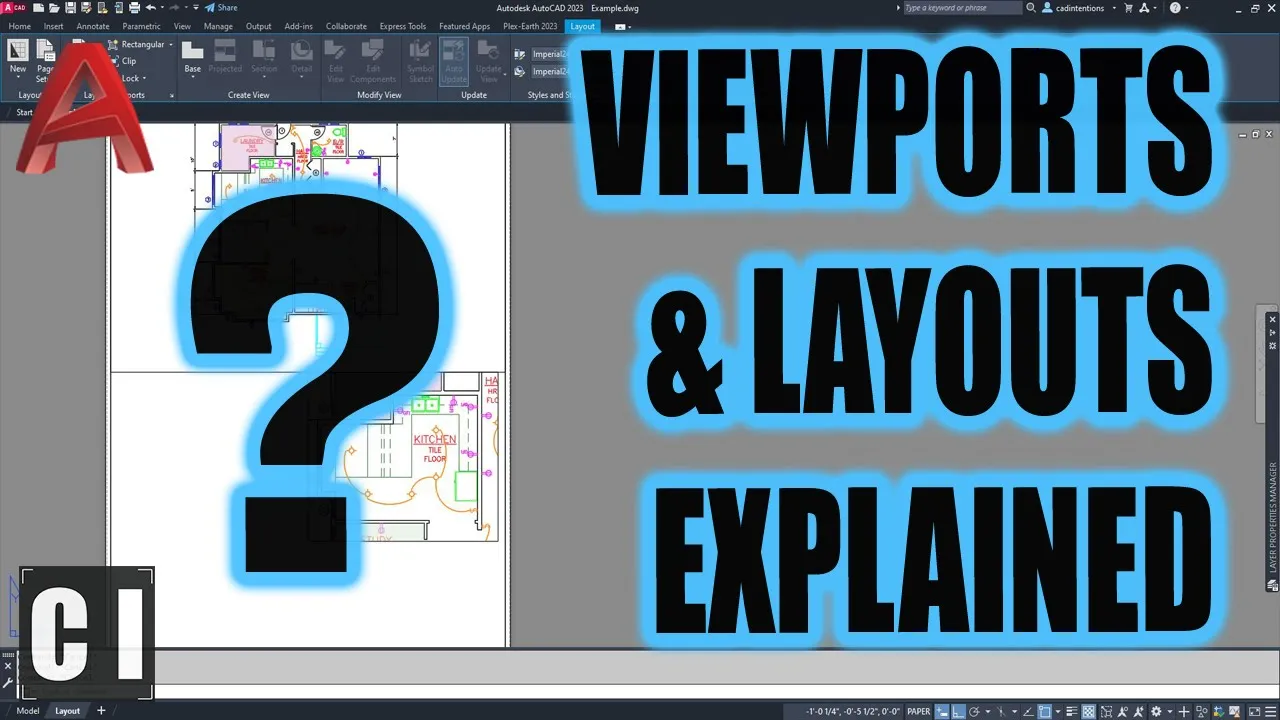
This week, I wanted to share a new video where we are diving into how viewports work in AutoCAD.

Easily one of the most common questions and sticking points when learning AutoCAD is the difference and use for Model space versus Paper or Layout Space.

A big part of the confusion or learning curve is many users have difficulty fully understanding what or how a viewport is used. Along with what it can do for us as designers!

In today’s video we take a look at many of the common questions that come up when learning to create drawings/sheets in AutoCAD, including; what is a viewport? what’s the difference between model space and paper/layout space? How do we create viewports? How to lock/unlock them? How to move them? How to make multiple viewports and much more!

Check out this week’s video below or here: https://youtu.be/5QheAJYcd9o

That’s all for today, I hope you were able to take something away from the tutorial, and if you have any questions be sure to leave a comment below or reach out on Twitter @cadintentions.

As always, thank you so much for reading, I am excited to be back and posting regularly on the blog and hope you all will follow along.

Cheers, and happy Drafting!

PS. If you liked today’s video or any of my videos/tutorials and you want to learn over 15 years of AutoCAD Tips & Tricks in a hurry, you can use this link to get my AutoCAD Fundamentals Course and join 100’s of fellow drafters/designers and get started right now!

The following two tabs change content below.

Brandon is a Civil Designer, Aspiring Blogger/Creator, Husband, Father to two Amazing Kids and Tech Aficionado from a small town in Canada. He has been obsessed with design and technology since he can remember and working as a Civil Designer for nearly as long. Brandon’s blog and Youtube channel, CADIntentions.com has been his outlet and excuse for keeping up with new tech and trends in the CAD design world for the last 10 years growing to more than 60,000 subscribers and over 15,000,000 views, while also being the source of many great friendships and unique opportunities.

If you would like to Sponsor CAD Intentions or Work together in some way, Please visit my About Page and send me an email: http://cadintentions.com/about-me/