Everything New in iOS 26.1 Beta 2


Apple released the second beta of iOS 26.1 and iPadOS 26.1, introducing useful changes to alarms, multitasking on the iPad, and more. There are also subtle tweaks to some of the Liquid Glass design elements as Apple continues to refine iOS 26.
iOS 26

Alarms and Timers

Alarms set using the Clock app now have a slide to stop button rather than a tap to stop button on the Lock Screen. To snooze an alarm, you can tap, but to turn it off from the Lock Screen, you need to use a slide gesture.

ios 26 1 slide to stopios 26 1 slide to stop
The change makes it much harder to dismiss an alarm when you’re trying to tap on the snooze button. Slide to Stop is also used for timers.

Background Security Improvements

The Privacy and Security section of the Settings app now has a toggle to automatically download and install security improvements. It’s a revamp of the prior Rapid Security Responses feature.
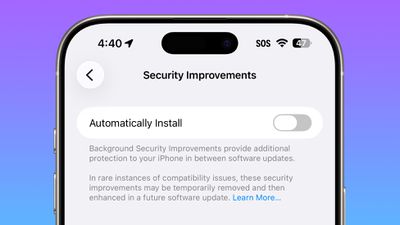
ios 26 1 security improvementsios 26 1 security improvements

Fitness App

You can now create custom workouts in the Fitness app on iPhone. There are options for selecting workout type, estimated Active Calories, effort, duration, and start time.

ios 26 1 custom workoutios 26 1 custom workout

Settings App

Apple changed the alignment of icons and text in the Settings app. All settings with headers that feature text now have that text aligned to the left instead of center aligned.
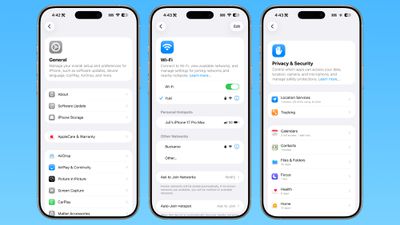
ios 26 1 left aligned settingsios 26 1 left aligned settings
This includes General, Bluetooth, Wi-Fi, Cellular, Personal Hotspot, Accessibility, and more.

Display Settings

The Display section of the Settings app now has iOS 26-themed wallpaper instead of iOS 18 wallpaper.
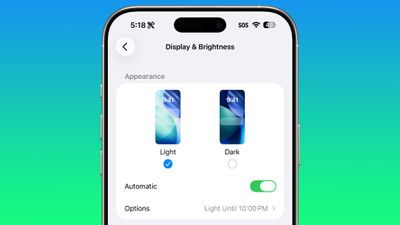
display brightness setting ios 26 1display brightness setting ios 26 1

Home Screen Folders

When you tap into a folder on the Home Screen, the name of the folder at the top is left aligned instead of center aligned.
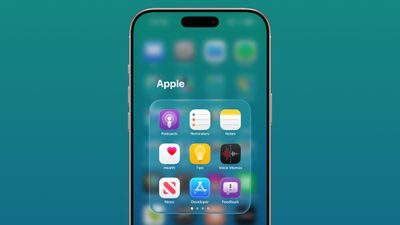
ios 26 1 folder alignmentios 26 1 folder alignment

iPadOS 26.1 Slide Over

With iPadOS 26.1 beta 2, Apple reintroduced Slide Over. Slide Over works alongside the window-based iPadOS 26 multitasking functionality, so you can have multiple windows open and still swipe over to quickly access a Slide Over app.
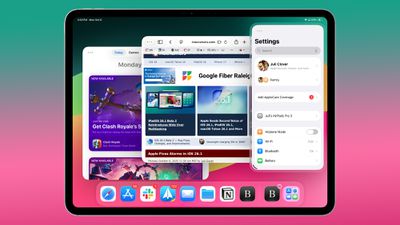
ipados 26 1 slide overipados 26 1 slide over
You can only have one Slide Over app at a time in iPadOS 26.1, and you can use the feature by tapping on the green window resizing button and
toggling on Enter Slide Over.

External Microphones on iPad

There’s now an option to adjust input gain on the ‌iPad‌ when using an external microphone.

Liquid Glass

The light refraction effect around apps is now more subtle with darker icon colors and background colors.

Wallpaper

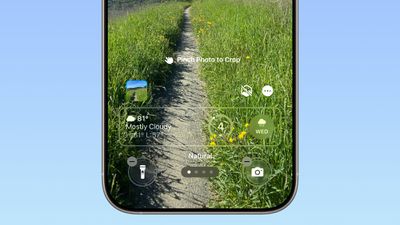
When setting a wallpaper on the Lock Screen, instructions like Pinch to Crop show up momentarily and then disappear, rather than being shown all the time.
ios 26 1 wallpaper cropios 26 1 wallpaper crop

Display Accessibility

Under the Display and Text Size section in the Accessibility settings, there is a new “Display Borders” toggle. It adds a border to all buttons, and replaces the prior “Button Shapes” setting.

Calendar

The Calendar app change that showed events with a full color background in iOS 26.1 beta 1 has been removed.

Photos App

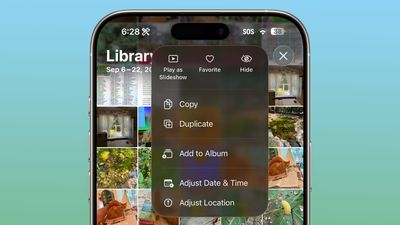
The interface for managing multiple photos that you’ve selected has been tweaked slightly. Play as Slideshow, Favorite, and Hide are now at the top of the menu.
ios 26 1 photos appios 26 1 photos app

More Features

Know of something new in iOS 26.1 that we missed? Let us know in the comments below.
iOS 26: Eight New Features in Apple Music


Apple has made several updates to the Apple Music app in iOS 26, and it has AutoMix, which has become one of the most popular additions. ‌Apple Music‌ also features the Liquid Glass redesign like the rest of Apple’s apps, along with new translation features and other quality of life improvements.

iOS 26 Music Glass Feature

AutoMix

AutoMix is an upgrade to the crossfade feature in ‌Apple Music‌, and it is designed to provide more seamless song transitions. It transitions from one song to another as the song that’s playing ends, using time stretching and beat matching for an undetectable shift.

apple music automix ios 26apple music automix ios 26
Apple says that AutoMix is meant to work like a DJ, with songs transitioning at the “perfect moment” based on an on-device analysis of the key and tempo of the music.

AutoMix can be enabled when opening up the ‌Apple Music‌ app for the first time after installing ‌iOS 26‌.

The feature isn’t perfect and it works better with some genres than others, but it is a work in progress that Apple is improving over time. AutoMix is not an Apple Intelligence feature, but it does require an ‌Apple Music‌ subscription.

Lyric Translation

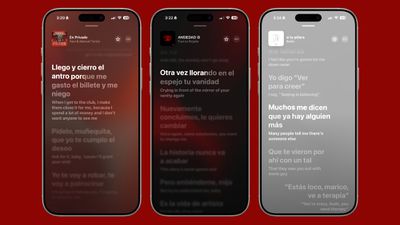
If you’re listening to a song in a different language, you can now open up the lyrics and get a real-time translation so you know what it’s about. The translated lyrics are displayed alongside the original lyrics.

ios 26 lyrics translationios 26 lyrics translation

Lyric Pronunciation

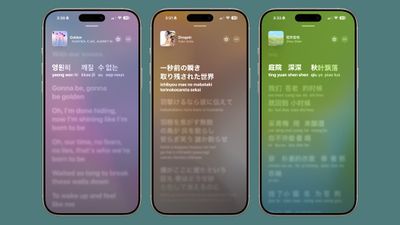
For songs in another language, you can also get a phonetic pronunciation guide for singing them aloud, which is useful when taking advantage of the ‌Apple Music‌ Sing karaoke feature.

ios 26 music app lyrics pronunciationios 26 music app lyrics pronunciation

Pinned Favorites

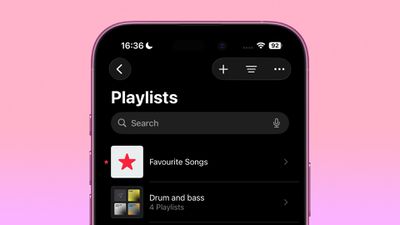
There’s now an option to pin up to six playlists, albums, artists, or songs to the top of the ‌Apple Music‌ library.

pin apple music app iospin apple music app ios

Playlist Folders

Playlists can be organized into folders in the iOS ‌Apple Music‌ app, a feature that has previously been limited to the Mac.

music playlist foldersmusic playlist folders

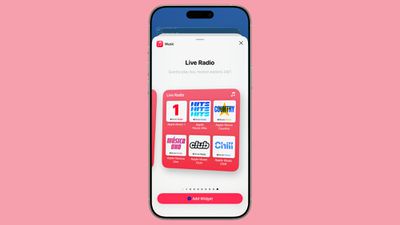
There are new Home Screen widgets that show your pinned ‌Apple Music‌ content. There’s a medium-sized widget and a larger widget for pins, along with a new large Live Radio widget.

ios 26 live radioios 26 live radio

Animated Lock Screen Artwork

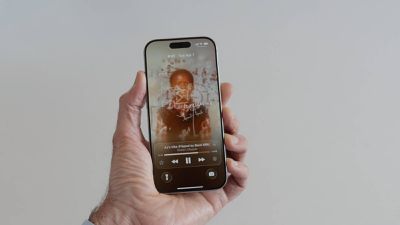
The Lock Screen now features full-screen animated art for the Now Playing widget while music is playing.

liquid glass music lock screenliquid glass music lock screen

Karaoke Microphone

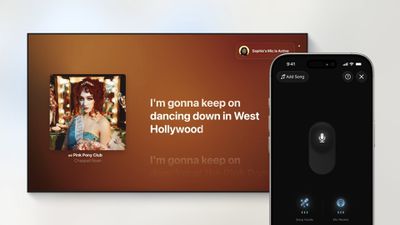
tvOS 26 and ‌iOS 26‌ turn the iPhone into a wireless microphone for karaoke on the Apple TV. When using ‌Apple Music‌ Sing, each participant can sing through their ‌iPhone‌, queue songs up, and send emoji reactions.

apple music sing tvos26apple music sing tvos26

Read More

More on the features that are available in ‌iOS 26‌ can be found in our iOS 26 roundup. ‌iOS 26‌ will launch in September.

Is your iPhone compatible? Here’s a list which devices can download it today


All the new features iOS 26 has to offer.

iPhone devotees, listen up: Tons of new updates are coming to Apple’s operating system this fall that you’ll be excited to try out. But instead of being named iOS 19, it’ll be called iOS 26. The biggest change? The new Liquid Glass design (think Windows Vista, but arguably more thoughtful), which looks to be Apple’s largest visual update in years. We spent two weeks test-driving it — you can check out our detailed hands-on iOS 26 preview, or you can try it out yourself by downloading and installing the public beta, available now. Before you dive in, we’ll help you answer this question: Will my iPhone be able to run iOS 26?

Last year, Apple didn’t nix any iPhones from its eligibility list, but that’s not the case for 2025 — a few models are getting cut this time. All iPhone 8 models and the iPhone X were the last to get the boot in 2023, and this year the 2018 models are getting left behind. If you have an ineligible device, you won’t be able to download iOS 26 when it becomes available this fall.

We’ll get to the bottom of which iPhones will support iOS 26 this year. To see what’s coming with the latest OS and more, check out everything announced at Apple’s WWDC June 9 event.

Unlike last year, several iPhone models won’t be eligible to download the newest iOS when it makes its debut this fall. This trio of models first released in 2018 won’t be coming to the iOS 26 party:

  • iPhone XR

  • iPhone XS

  • iPhone XS Max

While we don’t yet know the new iPhones Apple will be dropping this fall — though there are iPhone 17 rumors — we do know, per Apple’s site, that the phones listed below will be compatible with iOS 26. Basically, if you have an iPhone that was announced in 2019 or later, you’re in the clear:

If you want to continue using your older iPhone that isn’t supported by iOS 26, that’s fine. However, you’ll miss out on security updates which could potentially put your phone at risk for malware and other threats. Additionally, some apps may stop working if they require a certain version of iOS or later. And of course, you won’t be able to access the latest features iOS 26 offers.

Apple usually rolls out its latest iOS in mid-September, just a few days before the new iPhones hit store shelves. Last year, it released iOS 18 on Monday, Sept. 16. Expect a confirmation of the release date at the iPhone 17 event, expected in early September.

Liquid Glass design: Your home screen is getting revamped with new app icons, including dark mode and all-clear options. You’ll also notice buttons with a new floating design. Liquid Glass was designed to make all of Apple’s OSes more cohesive.

Phone app redesign: You’ll finally be able to scroll through contacts, recent calls and voicemail messages all on one screen. It also comes with a new feature called Hold Assist that’ll notify you when an agent comes to the phone so you can avoid the elevator music.

Live Translate: iOS 26 is bringing the ability to have a conversation via phone call or text message with someone who speaks another language. Live Translate will translate your conversation in real time.

Polls feature: Coming to group messages in the Messages app, chat members will be able to create polls. This can help prevent the unwanted 30+ messages when it comes to deciding which restaurant you’re meeting at this weekend.

Apple Maps in iOS 26: Track Your Location History and Get Smarter Route Alerts


The Apple Maps app in iOS 26 includes some useful new features for keeping track of where you’ve been and getting alerts if there are any delays that will impact your daily commute. In this guide, we’ve rounded up a list of everything new with Maps.

iOS 26 Maps Glass

Visited Places

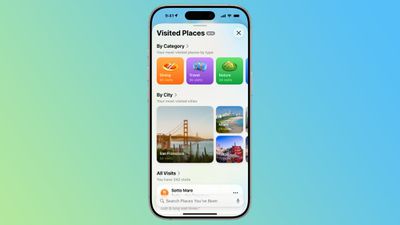
‌Apple Maps‌ is able to keep track of the places that you’ve visited, either in your hometown or while traveling. It can track the restaurants, shops, parks, and landmarks that you go to, so you can look back and remember where you’ve been.

ios 26 visited placesios 26 visited places
Google has long offered a timeline that automatically saves visits to places, and Apple’s new Visited Places option matches the functionality available in the Google Maps Timeline.

After you upgrade to ‌iOS 26‌, the Maps app pops up an alert letting you know about the new feature, so that you can opt in or opt out.

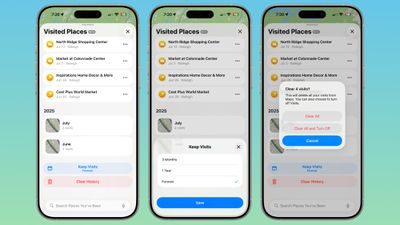
You can see your Visited Places by opening up the Maps app, tapping on your profile picture, tapping on Places, and then tapping into Visited Places. In this interface, the locations that you’ve visited are listed by month, plus there’s a search option.

There are options to change how long visits are kept (three months, one year, and forever), and to clear your current history. You can also remove locations one-by-one by tapping on them, and report incorrect location readings. When you clear your history, ‌Apple Maps‌ pops up an option that lets you clear everything or clear everything and turn off Visited Places entirely.

ios 26 maps app visited places overviewios 26 maps app visited places overview
If you want to turn Visited Places off or enable it at a later date, you can do so by going to Settings > Apps > Maps > Location. From there, toggle off Visited Places. You can also access the toggle by going to Privacy and Security > Location Services > Maps.

Precise Location needs to be toggled on for Visited Places to work, and places that you’ve been are stored on-device. The information is not uploaded to Apple’s servers.

Preferred Routes

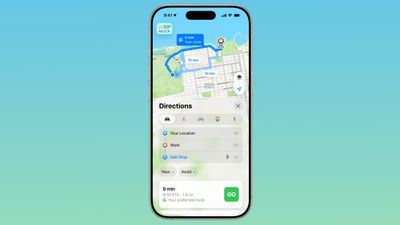
Using on-device intelligence, ‌Apple Maps‌ is able to learn the routes that you prefer to take to locations that you visit frequently, such as work, home, and school, and it keeps track of when you typically visit those places.

ios 26 maps app preferred routeios 26 maps app preferred route
If there’s a road closure or traffic that’s going to impact your commute, the Maps app is able to alert you about the issue and offer up an alternative route so you can get there on time.

A Maps Suggestions Home Screen widget shows the same information if there are any route issues. This is an under-the-hood feature that only shows up when it’s needed, so if you have a short commute that doesn’t involve roads that frequently see traffic, you might not have it pop up.

You can turn it on or off by going to Settings > Maps > Location and toggling off the “Preferred Routes and Predicted Destinations” setting.

Liquid Glass Redesign

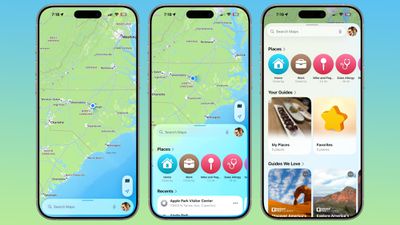
The Maps app has adopted Apple’s Liquid Glass redesign, and it brings some subtle interface changes. The search bar and navigation menu are translucent so you can see some of the Maps background behind it, and place icons are larger than before.

ios 26 maps app interfaceios 26 maps app interface
Icons have the layered glass look, and the various menus, cards, and buttons are more rounded than before. The Share Sheet has a popover design and it too is transparent.

The Library tab that was accessible when you tap your profile picture is now called Places, and it has improved spacing and a new Visited Places section.

Turn-by-turn directions are in a smaller pop-up bar rather than taking up the top of the Maps display, and time of arrival, length of travel, and distance are shown more prominently.

Voice Controls

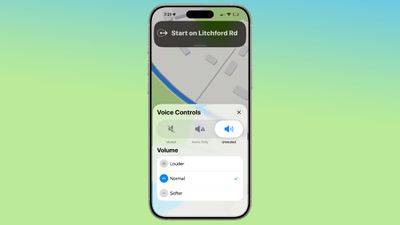
The Voice Volume section in the Maps app is now Voice Controls, and there are added toggles for Muted, Alerts Only, or Unmuted so adjusting how turn-by-turn directions are communicated is more intuitive.

ios 26 maps voice controlios 26 maps voice control
These controls did exist in iOS 18, but only as toggles that had no explanation on the right side of the display when turn-by-turn directions are in progress.

Place Information

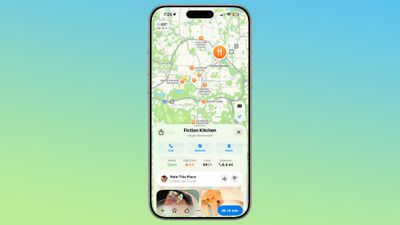
When you tap into or type a location on the Maps app, the Call, Menu, and Website buttons are now more prominently listed at the top of the interface, as are the location’s hours and the order option if one is available. There’s now a floating button to get directions to a place, and it’s always available at the bottom right of the app.

ios 26 maps place interfaceios 26 maps place interface

Improved Incident Reports

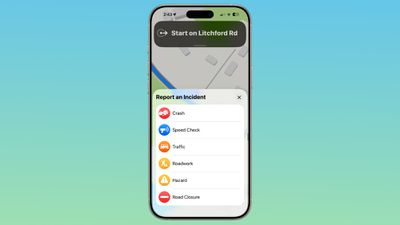
It’s easier to report an incident like a crash with a new incident button that’s located on the right side of the iPhone when getting turn-by-turn directions, and more incident types have been added.

ios 26 maps report incidentios 26 maps report incident
You can report a crash, speed check, traffic, roadwork, hazard, or road closure. In ‌iOS 18‌, options are limited to crash, speed check, and hazard.

Read More

We have a dedicated iOS 26 roundup that goes into detail on all of the new features that are available in the update.

6 AirPods Changes Coming in iOS 26


iOS 26 adds new functionality to the AirPods, which will be available this fall when Apple releases ‌iOS 26‌ and new AirPods firmware to the public.

6 AirPods Changes Coming in iOS 26 Feature

Camera Remote

The AirPods can be used as a camera remote for the Camera app or third-party iOS camera apps. Just connect your AirPods to your iPhone, open the Camera app, and then press and hold on the AirPods stem to take a photo or start a video recording.

When you’re finished, a second press and hold gesture will stop the recording. If you have an Apple Watch, you can already control your ‌iPhone‌ remotely from your wrist, but the AirPods have the potential to be even quicker since it’s a physical gesture rather than a series of steps that include opening an Apple Watch app.

Studio-Quality Recording

The AirPods 4 and the AirPods Pro 2 support recording studio-quality audio for interviews, podcasts, songs, videos, and more. Apple says that the feature can be used to record high-quality vocals while on the go, with background sounds filtered out thanks to Voice Isolation.

You can record higher-quality audio when making videos or using your devices to do things like record a podcast.

Improved Audio Quality

The H2 chip in the ‌AirPods 4‌ and ‌AirPods Pro‌ 2 brings more natural vocal texture and clarity to ‌iPhone‌ calls, FaceTime calls, and all CallKit-enabled apps like Zoom.

Studio-quality audio recording and improved call quality are available across ‌iPhone‌, iPad, and Mac, and support the Camera app, Voice Memos, Messages dictation, third-party camera apps, and video conferencing apps.

Beta Updates

With ‌iOS 26‌, Apple is adding an option to more easily install beta updates on AirPods. There’s a new update interface when you connect your AirPods to your ‌iPhone‌ and tap into them in the Settings app.

Pause Audio for Sleep

If you’re listening to music, a podcast, or a book while you’re in bed and you’re wearing AirPods, the AirPods will pause your audio when you fall asleep if you toggle on the new “Pause Media When Falling Asleep” option.

You’ll find it in the AirPods settings after connecting your AirPods to your ‌iPhone‌, but you’ll need the new AirPods firmware and ‌iOS 26‌. In addition to saving your spot in an audiobook or podcast, it will also preserve battery by turning your AirPods off so they’re not running all night.

This feature also works with Beats earbuds.

Keep Audio in Headphones

‌iOS 26‌ addresses an irritating issue that happens with CarPlay and AirPods. There’s a new “Keep Audio in Headphones” option that prevents audio from switching to car speakers or Bluetooth speakers when you’re listening to music through the AirPods.

With the option on, your music will continue playing in your AirPods when you get in the car. You can turn it on in ‌iOS 26‌ by going to Settings > General > AirPlay and Continuity.

Read More

We have a dedicated iOS 26 roundup that goes into detail on all of the new features that are available in the update.