Your Privacy Choices Opt-Out Icon


Today I will modernize a .NET Framework application to .NET 10 using the GitHub Copilot modernization tooling built-in to Visual Studio.


The tooling helps us upgrade applications running on legacy versions of .NET and also migrate them to Azure. Today we’re going to focus on the upgrade portion.


And, the tooling will do all the work for us! But it doesn’t do everything at once, and that’s good. It introduces checkpoints into the .NET upgrade process to tell us what it has been up to we can then guide it towards the outcome we want. And at each of those checkpoints it creates a markdown file that we can check in to source control – in other words, a record of both what came out of and what went in to the upgrade process.

The app we’re modernizing

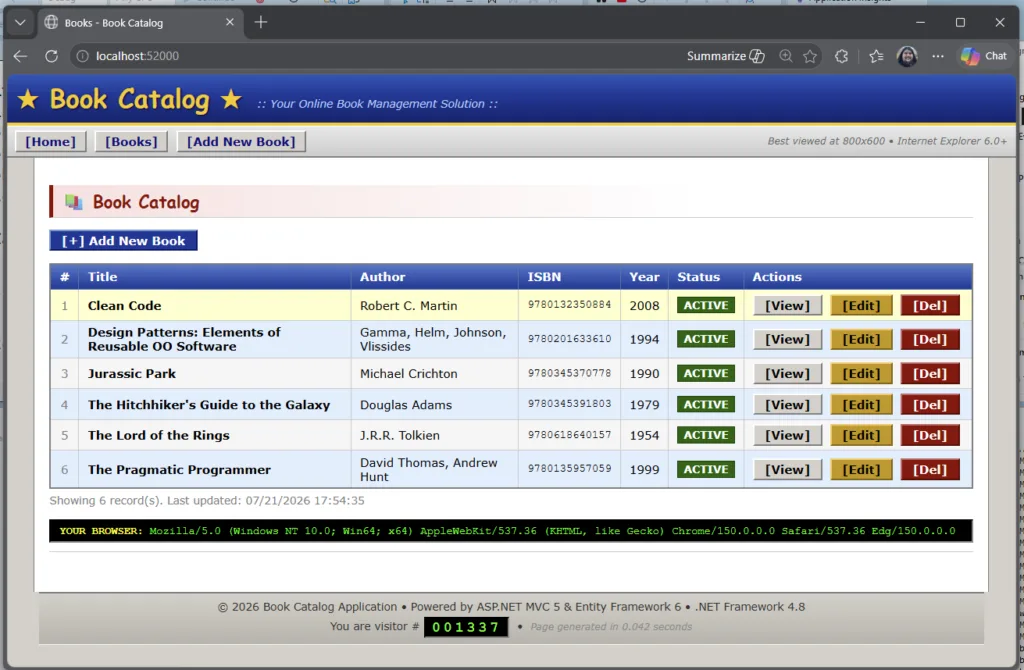
BookCatalog is a simple .NET Framework forms-over-data app. You can list books, add one, edit, delete.
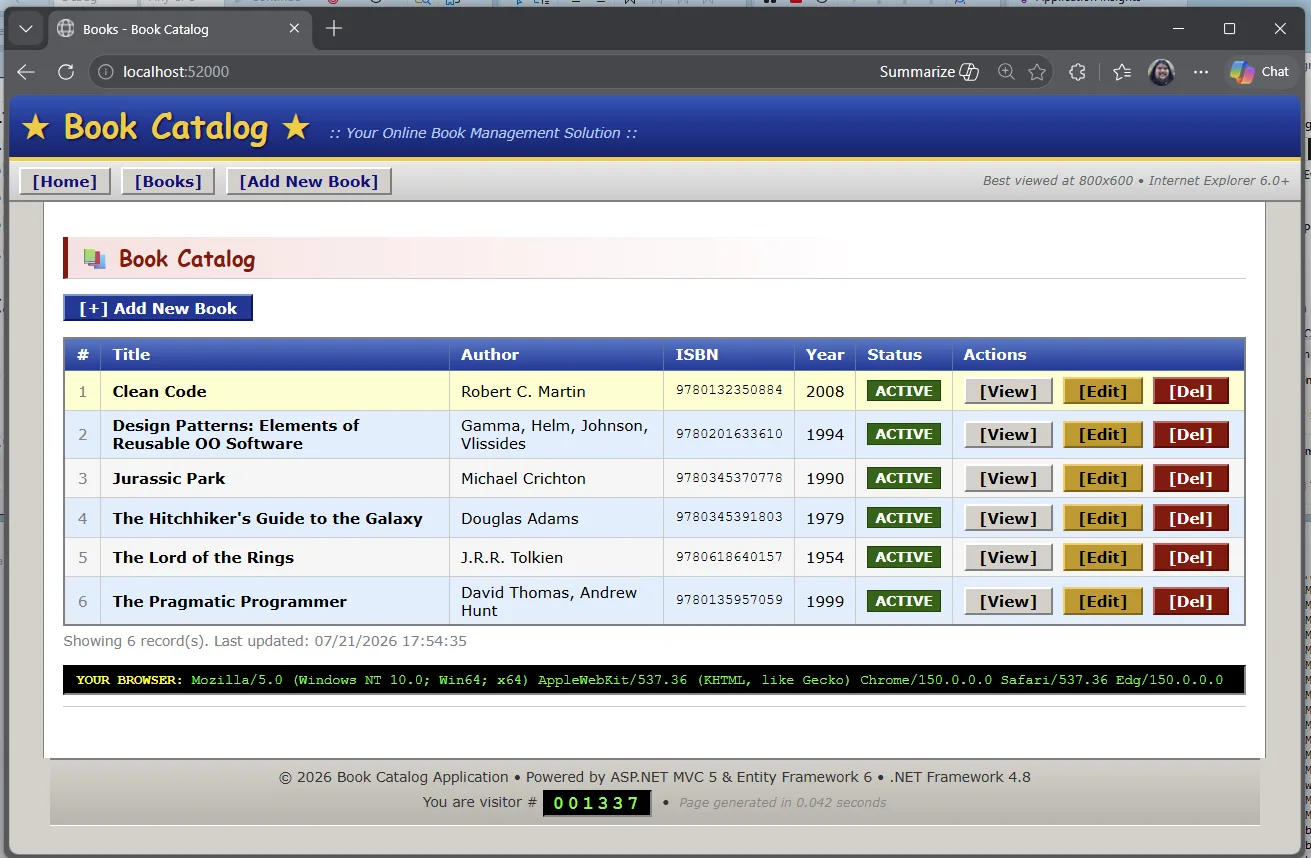
screenshot of the book catalog application

Step 1: Open the sample

Clone the repo and open BookCatalog.sln from shared-legacy-app/.
  1. git clone https://github.com/microsoft/dotnet-modernization-for-beginners.git
  2. Open BookCatalog.sln in Visual Studio 2022+ from the shared-legacy-app in the folder you cloned.

Step 2: Start modernization

In Visual Studio, right-click the project or solution and select Modernize. You can also start from Visual Studio with @Modernize.
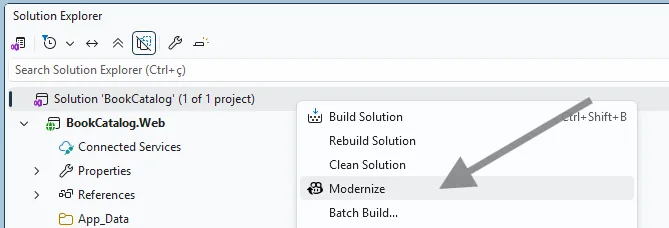
Screenshot howing the option to start the modernize agent That opens the GitHub Copilot chat window with a customized modernization agent / experience loaded up. This agent is specifically tuned to go through the process of modernizing applications.
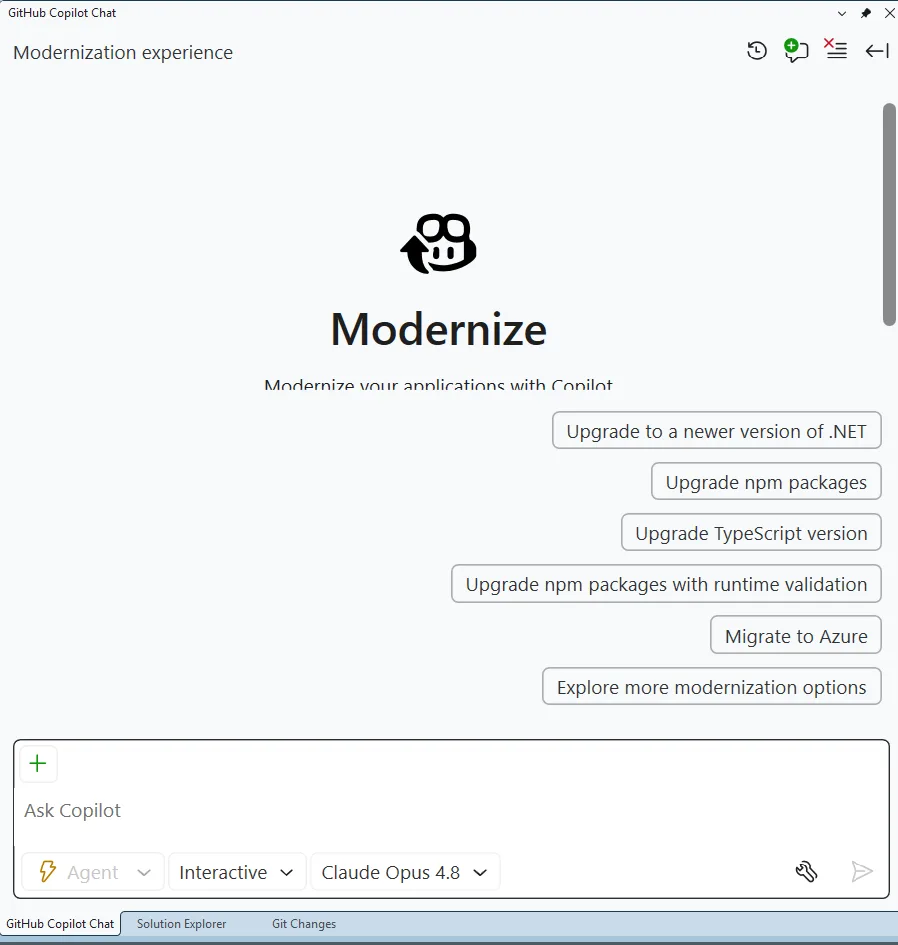
Screenshot of the GitHub Copilot chat experience for the modernization agent

It provides several sample prompts, but you can also tell it what to do in natural language.

But for today, pick the top suggested prompt Upgrade to a newer version of .NET.

The agent will then ask you 2 questions. The first is which target framework to upgrade to – pick .NET 10.
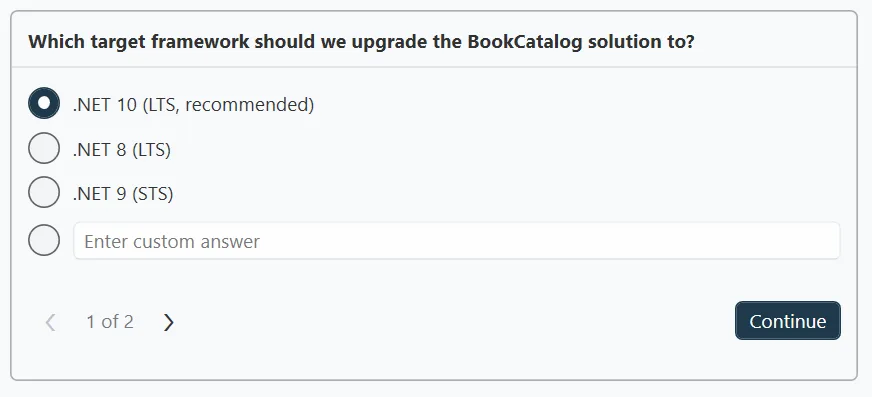
screenshot of the agent asking which .NET target framework to upgrade to

And then the flow mode. Remember when I said the modernization process would stop at checkpoints along the way – well, it’ll only do that if we pick Guided so pick that.
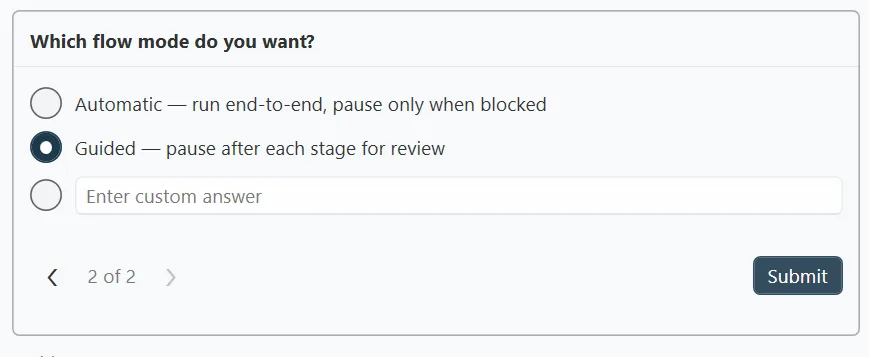
Screenshot of the modernization agent asking the type of flow mode to use

What Guided is going to do is it will pause and let you check its work.

The agent will first assess our project and create a report. The guided mode allows us to review that report and make any changes to it. And … we can check that report in to source control. (It looks good – show it to your boss you’ll look super productive! 😉)

Then it will create a plan to fix any issues and do the upgrade. Guided mode lets us review and update that plan should we want to. Guided mode shows us a step-by-step execution of the upgrade itself. You get the picture.

Step 3: Review the assessment

The first thing it rolls through is the assessment. The assessment helps separate blockers, warnings, and informational findings before the upgrade itself starts to run.
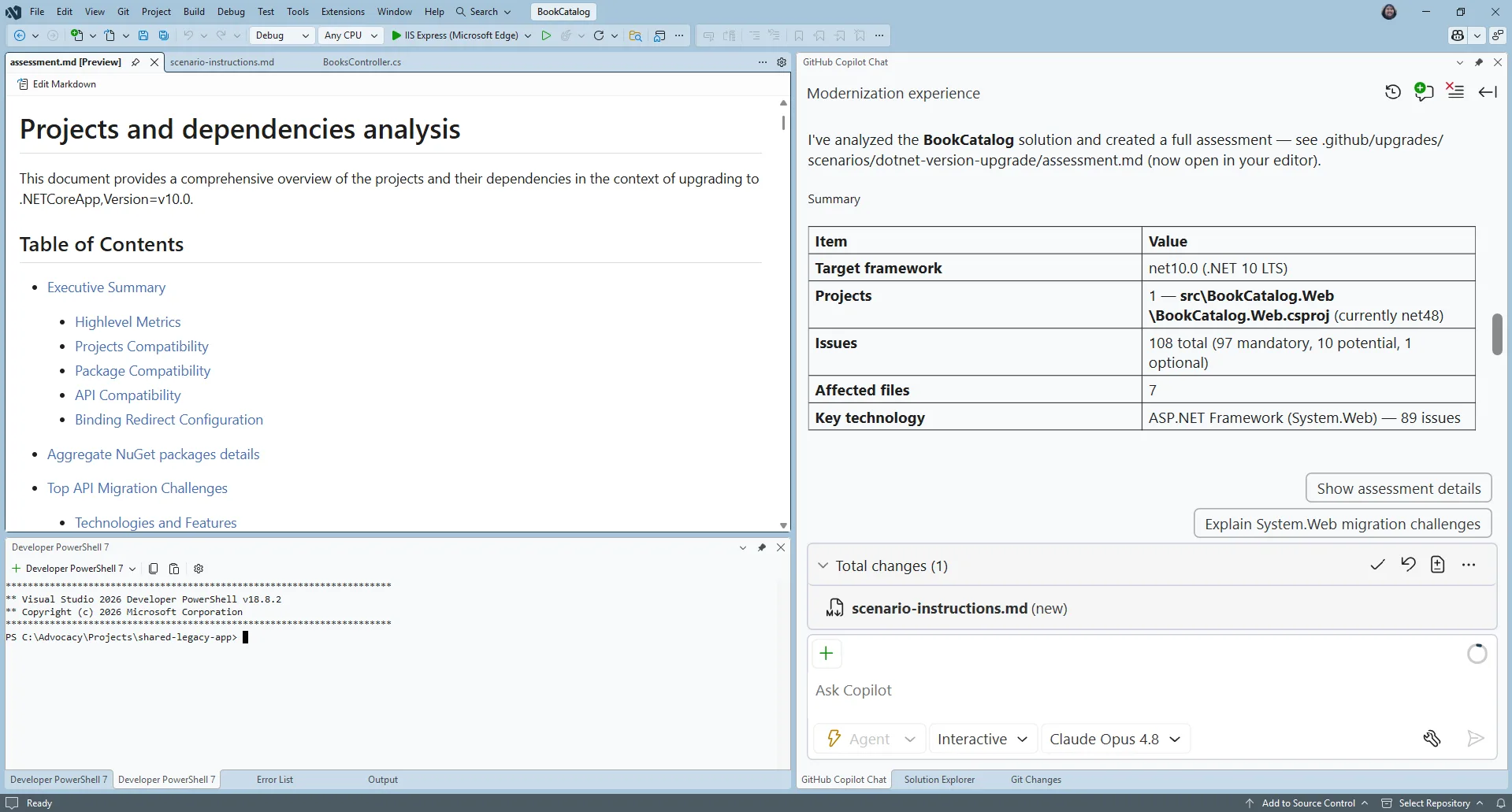
Screenshot of reviewing the assessment

The assessment helps you understand what must change first. In this sample, the modernization work includes moving from System.Web.Mvc patterns toward ASP.NET Core equivalents and moving the data layer from Entity Framework 6 to EF Core.
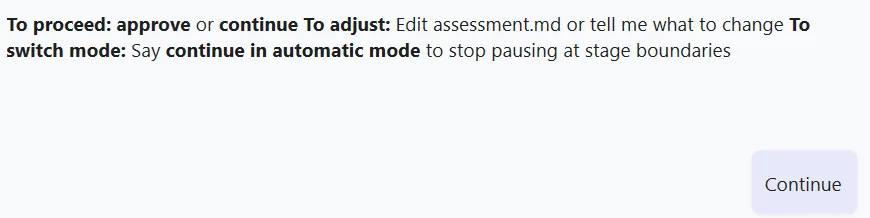
Screenshot of the way to approve the assessment and continue

Step 4: Review the upgrade plan

Once you approve the assessment, the agent will start to create a plan on how it will do the upgrade and it’ll present you with some options on how it can do it.
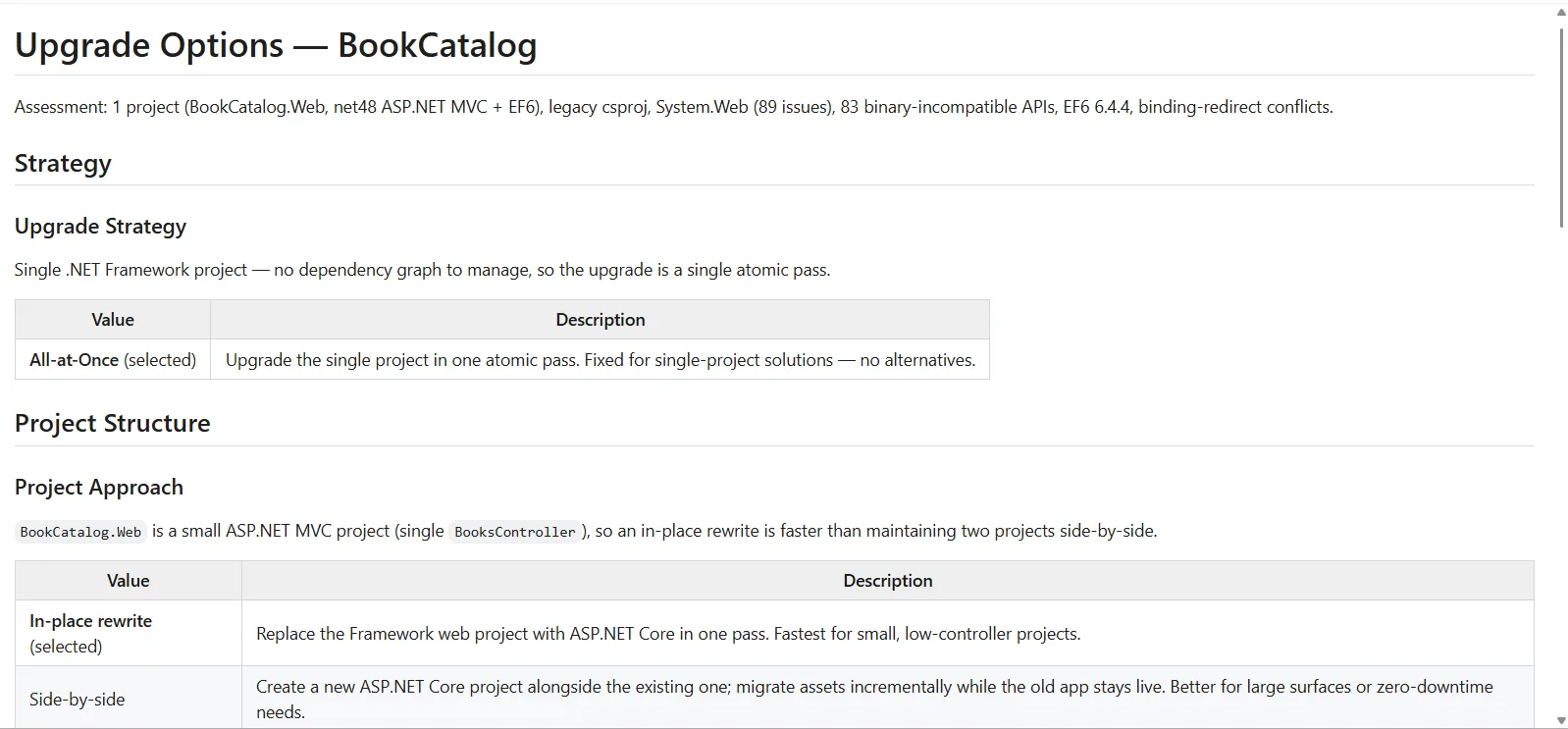
Screenshot of the upgrade options window for modernization

We could modify the options of how the agent creates the upgrade plan, but we’ll take the default.
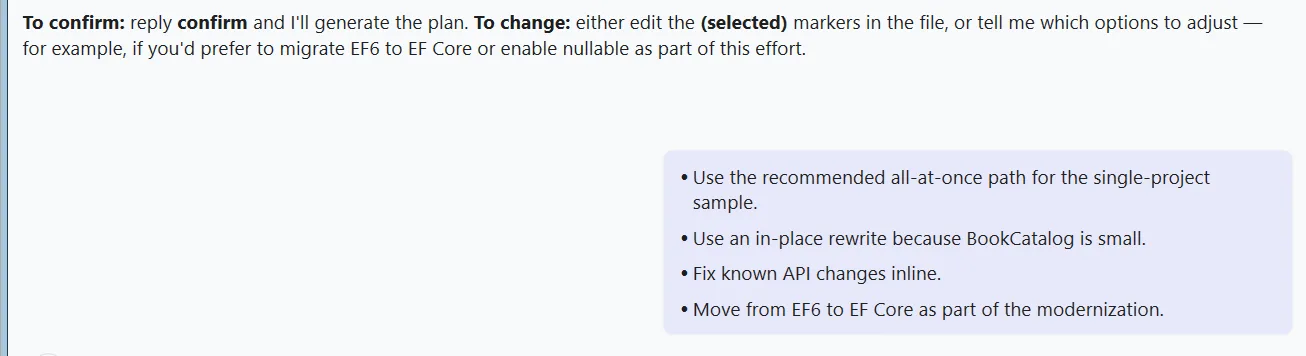
screenshot of accepting the default options for upgrading.

Then it produces the plan. It’s a good idea to read that through. This forms the basis of how the agent will upgrade the app.
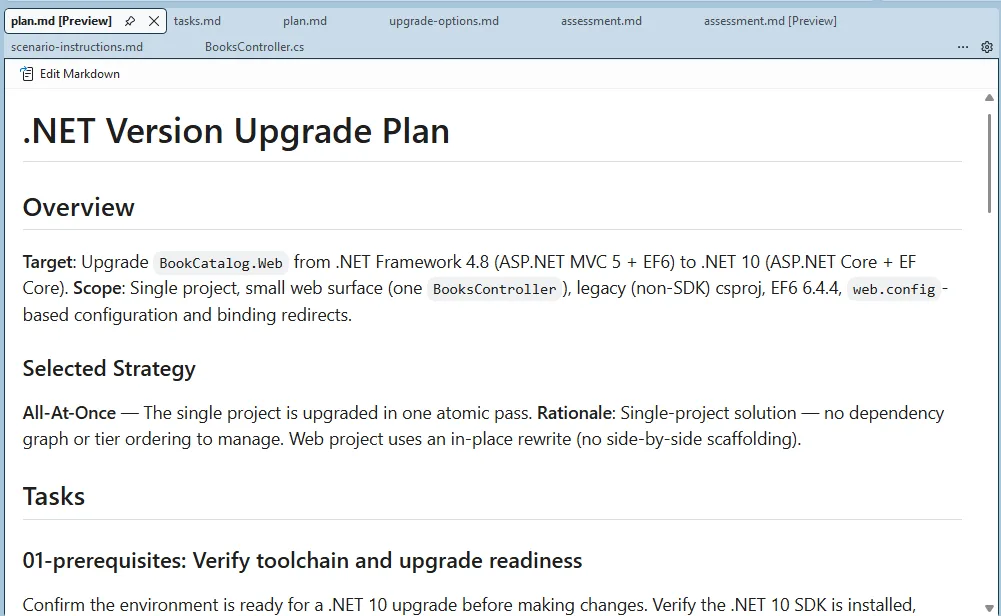
Screenshot of the upgrade plan

Step 5: Upgrade!

Approve the plan and the agent starts working through the tasks one at a time.
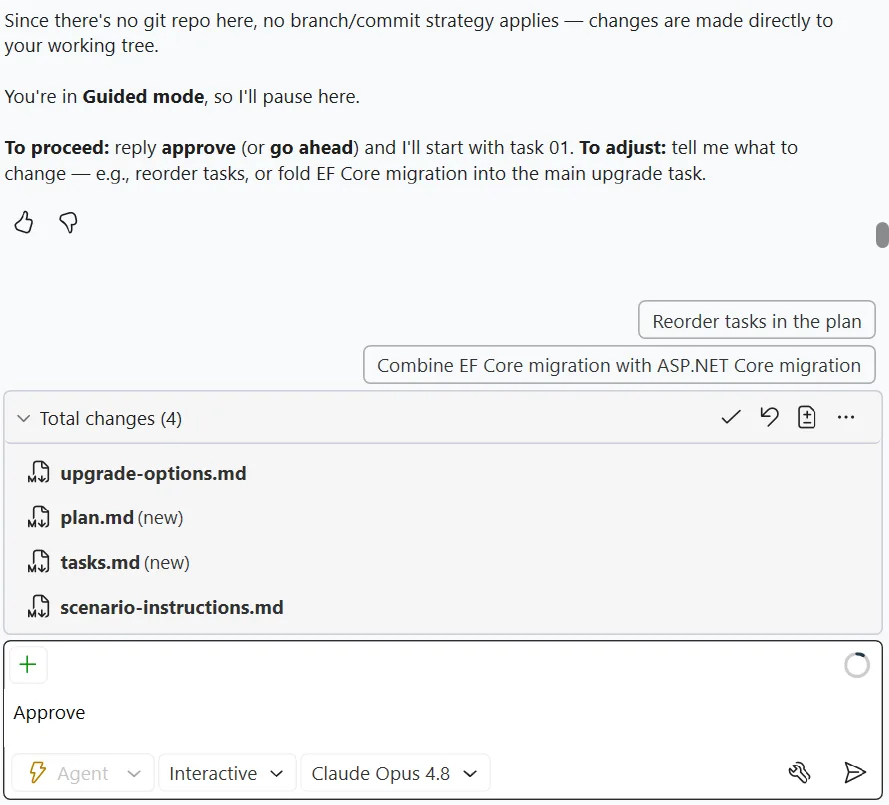
screenshot of approving the plan in the github copilot chat window   Guided mode will pause between the tasks so you can check on its work.
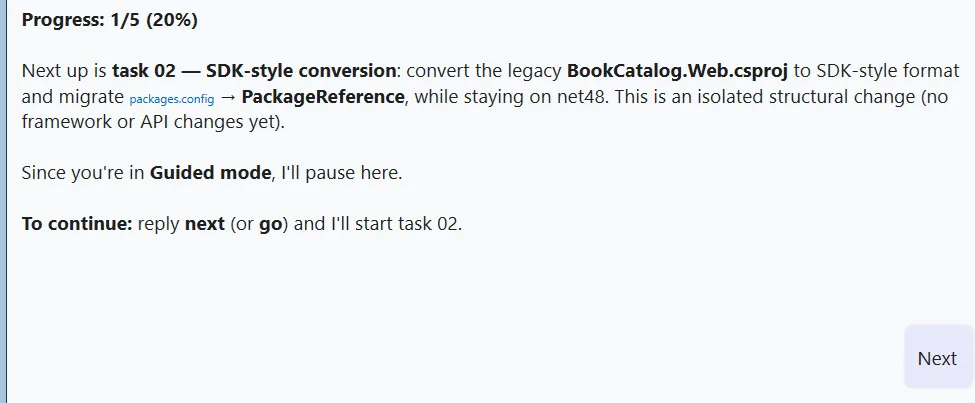
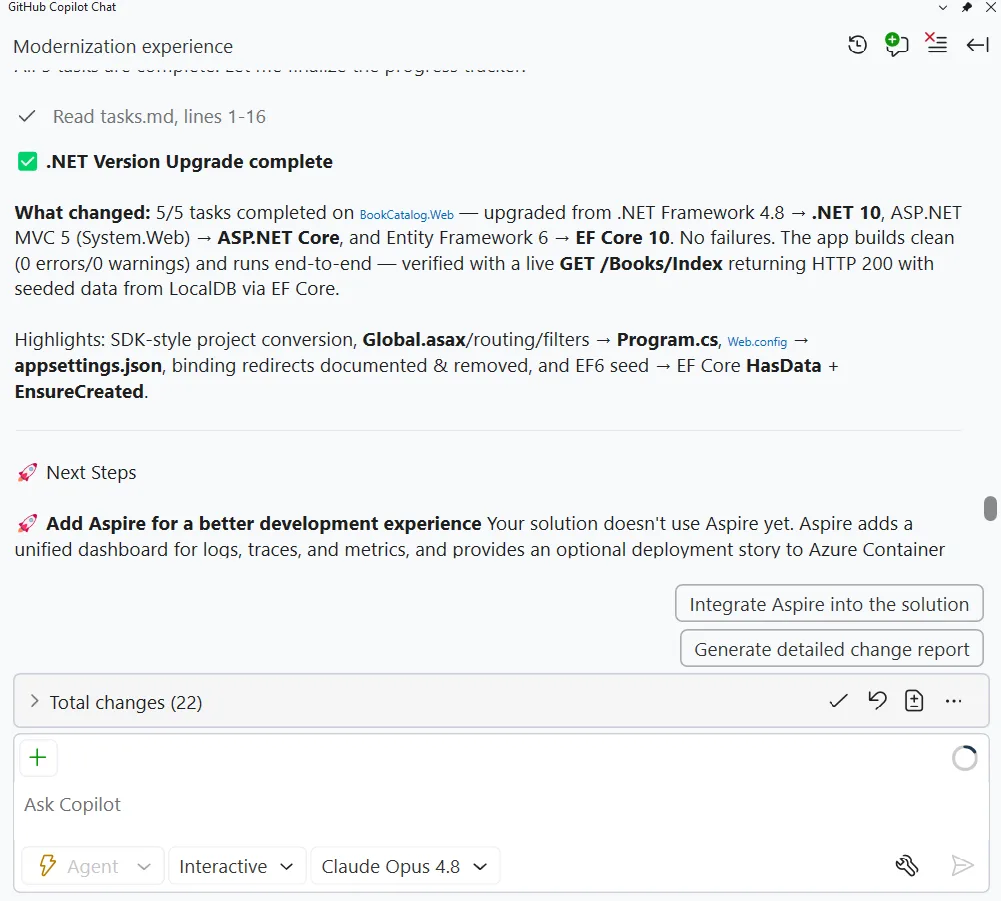
Screenshot of ugided mode in copilot stopping to ask questions during the upgrade   Five tasks later, it’s done!

Screenshot of GitHub Copilot reporting the upgrade process is finished

Verify it

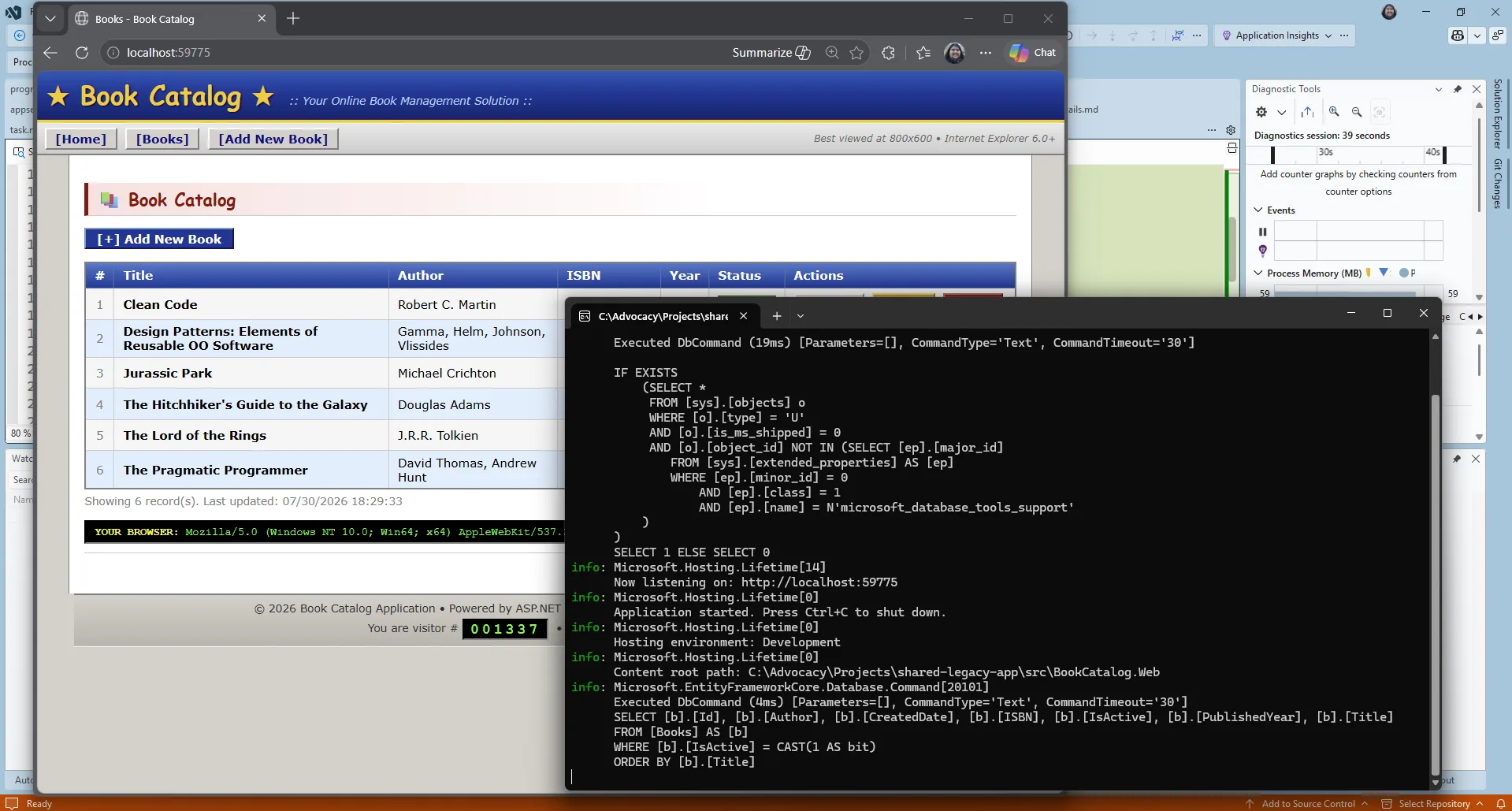
Screenshot of the newly upgraded application running

F5 the application and it should start up. Now, of course AI did the work. And it may not have worked the first time through. You never get the same thing twice with AI. In that case, use Visual Studio’s GitHub Copilot debugging features and you should get it up and running very quickly.

And once the app does start up… it looks exactly the same! The modernization agent doesn’t upgrade the UX for you – that’s for you to vibe on your own.

Wrap-up

The app is upgraded to .NET 10. If you want you can use the GitHub Copilot modernization for .NET tooling to migrate it to Azure too.
We’ve created a course : .NET Modernization for Beginners that goes more in-depth into both the upgrade and migration flows. Check it out. And of course, leave some comments on this post to let us know your experiences.

What’s Coming Next in Visual Studio: Our Microsoft Build 2026 Announcements


Microsoft Build kicks off today in San Francisco, June 2 and 3. If you cannot make it in person, the sessions are streaming online for free, and I want to walk you through what we are announcing for Visual Studio this week.

One idea tie most of it together. Code is an asset, not just an artifact. The tools around it should help you keep it healthy, correct, and easy to evolve as your codebase grows. Every announcement below is a step toward that.

Agents that participate in the work, not next to it

GitHub Copilot in Visual Studio is moving beyond chat and completions. The direction is agents that can participate more actively in the development lifecycle, helping with debugging, profiling, and testing alongside you.

This is not about replacing the tools you already rely on. It is about connecting them more effectively. The debugger, profiler, and test tools already provide deep insight. Agents help turn that insight into action:

  • Identify issues faster
  • Explain what is going on
  • Suggest concrete fixes
  • Help validate the results

This matters most if you work in large C# or C++ codebases where the hard problems are not “write this function” but “figure out why this thing is slow under load.” That is the work Visual Studio has always been built for. Agents extend it.

Catching errors before the build starts

This one is small and I think you will notice it daily.

Today, a build can still run even when there are obvious errors already sitting in the Error List. The build runs, you wait, the build fails on something you could have seen up front.

We are changing that flow so Visual Studio checks errors and warnings before the build starts. Simple change. Real time saved. The kind of thing that adds up across a week.

Merge conflicts with less manual work

Merge conflicts are something every developer runs into, and they are rarely a good use of anyone’s time.

We are working on AI-assisted conflict resolution to reduce the manual effort these situations require. The goal is not to auto-merge everything. The goal is to help you understand the conflict, make a sensible decision, and get back to the work you were actually doing.

Modernization that moves your apps forward

This summer, we are bringing new capabilities to GitHub Copilot modernization, the integrated agent experience built into Visual Studio that helps you upgrade your applications to the latest .NET stack.

You can migrate Web Forms applications to Blazor for a modern, component-based web stack. You can add Aspire to existing apps for cloud-ready observability and orchestration. The modernization agent assesses your project, builds a plan, and executes upgrades step by step, helping you improve performance and security without starting from scratch.

If you have been carrying a Web Forms app for years because the rewrite math never penciled out, this is worth a fresh look.

Skills that show up when you need them

One of the harder problems with AI tooling is that the right capability often exists, but it shows up at the wrong moment, or you have to know to ask for it.

We are introducing Microsoft-authored skills that apply automatically based on your project type and the task at hand. Less prompting. Less guesswork. A more helpful experience overall. The right capabilities show up when you need them, without requiring you to already know they exist.

Bring your own key, bring your own model

This is the one I have been waiting to talk about.

Historically, AI integration in Visual Studio has been limited to a small set of sanctioned endpoints. That works for a lot of developers, but it has left real customers behind, including teams whose environments call for different choices.

We are moving toward a BYOK approach, bring your own key or model, so you can use different AI models whether they run locally or in the cloud. That gives you more flexibility around performance, cost, and compliance based on the needs of your environment.

If you have been waiting for Visual Studio to meet your environment instead of asking your environment to bend, this is the announcement to watch.

Built on the GitHub Copilot SDK

Underneath all of this is a more unified foundation. Visual Studio is moving to the GitHub Copilot SDK as the foundation for its AI integration going forward.

This one sits below the surface. You will not see it in a menu. What it means in practice is that we can move faster, stay aligned with the broader ecosystem, and bring new capabilities into Visual Studio sooner. Worth knowing about, even though you will mostly feel it through everything else getting better.

Where this is heading

If there is one way to sum up this roadmap, it is this. We are focused on a set of meaningful improvements that remove friction from the inner loop and make day-to-day development feel better.

Code that compiles by default. Faster feedback before you build. Smarter handling of real-world pain points like merge conflicts. AI that works with your tools, not next to them. Flexibility in how you bring AI into your environment.

All of it is designed to fit how you already use Visual Studio, not force you into a different workflow.

Watch it live at Build this week

If you want to see this work in action, here are the sessions I would put on your schedule. All times in Pacific.

Microsoft Build opening keynote (KEY01) Tuesday, June 2, 9:30 AM to 12:00 PM PT Satya Nadella and Microsoft leaders open the week with how Microsoft is creating new opportunities for developers across our platforms in this era of AI. This is the one that sets the frame for everything else.

GitHub, Copilot, VS Code, and More: Live from San Francisco (LIVE104) Wednesday, June 3, 9:00 AM to 11:00 AM PT The closest thing Build has to a hallway conversation with the engineers shipping the work. Live demos, surprise guests, live coding, straight from the teams. Watch this one live if you can.

GitHub Copilot in Visual Studio: Agents That Debug, Profile, and Test (BRK207) Wednesday, June 3, 4:00 PM to 4:45 PM PT This is the demo-heavy session on the agents work above, with Mads Kristensen and Nik Karpinsky from the Visual Studio team. You will see agents root-cause bugs using live runtime behavior, pinpoint performance bottlenecks, and build test coverage to catch regressions before they ship. If you work in enterprise C#, .NET, or C++, this is the one.

Make GitHub Copilot Work Your Way: Custom Tools, Context and Workflows (LAB502D) Self-paced lab, opens Tuesday, June 2, at 12:00 PM PT Build custom Copilot agents from scratch, create reusable Agent Skills, and connect to external services via MCP. Works across VS Code, Visual Studio, CLI, and Copilot coding agent. Complete it on your own schedule.

The full Build schedule, including everything streaming online for free, is at build.microsoft.com.

If something we announced today changes how you think about your day-to-day in Visual Studio, I want to hear about it.