NASA Is Testing A Rover That Can Drive Faster And Lift Its Wheels To Climb Obstacles


NASA’s Mars rovers have accomplished a whole lot since the first one landed on the red planet in the late ’90s, but even the latest members of the fleet still have plenty of limitations. For one, they’re very slow; Perseverance, which NASA considers a “standout,” achieves a top speed of just under .1 mph on flat ground. On top of that, the rough terrain is hard on the rovers’ wheels, and steep slopes with hazards like rocks and sand pose a real challenge, sometimes requiring long detours to reach certain targets. But this week, NASA showed off its progress on a prototype that boasts more advanced capabilities: the Exploration Rover for Navigating Extreme Sloped Terrain, or Ernest.

The space agency has been testing Ernest in the Colorado Desert, exploring new approaches that could be used for future missions on Mars and the moon. Ernest has four wheels, in contrast to the current Mars’ rovers’ six, and is four feet long, though a version that would be used for an actual mission would be double the size. And, it can individually lift its wheels to step on or over obstacles. In the recent tests in the desert, the prototype drove for a total of over 37 hours across seven days, covering roughly 16 miles, according to NASA. It hit a top speed of about .6 mph.

“You could do a science road trip across the Moon — or Mars — with this vehicle,” said James Keane, a JPL planetary scientist working on lunar missions. Going back to NASA’s Sojourner rover, the Mars rovers have relied on a passive suspension system, the rocker-bogie system, to keep the weight constant across their wheels. Now, though, engineers are trying out active suspension with Ernest to achieve greater mobility. “Two powered joints in front articulate a gimbal that allows the rover to drive using different gaits like squirming, wheel-walking, and obstacle-climbing,” NASA says.

It can switch between active and passive suspension depending on the task and energy needs, and thanks to its four steerable wheels, it can drive in any direction. There have already been multiple iterations of the Ernest prototype since the program began in 2022, and the team has tested nearly a dozen active suspension configurations. The latest version also has “enhanced independent decision-making capabilities.” The goal with Ernest is to develop the technology for rovers that can cover more ground than those that came before them, and faster, with less reliance on human controllers back on Earth.

4 easy tweaks you can make to your TV soundbar for more immersive audio


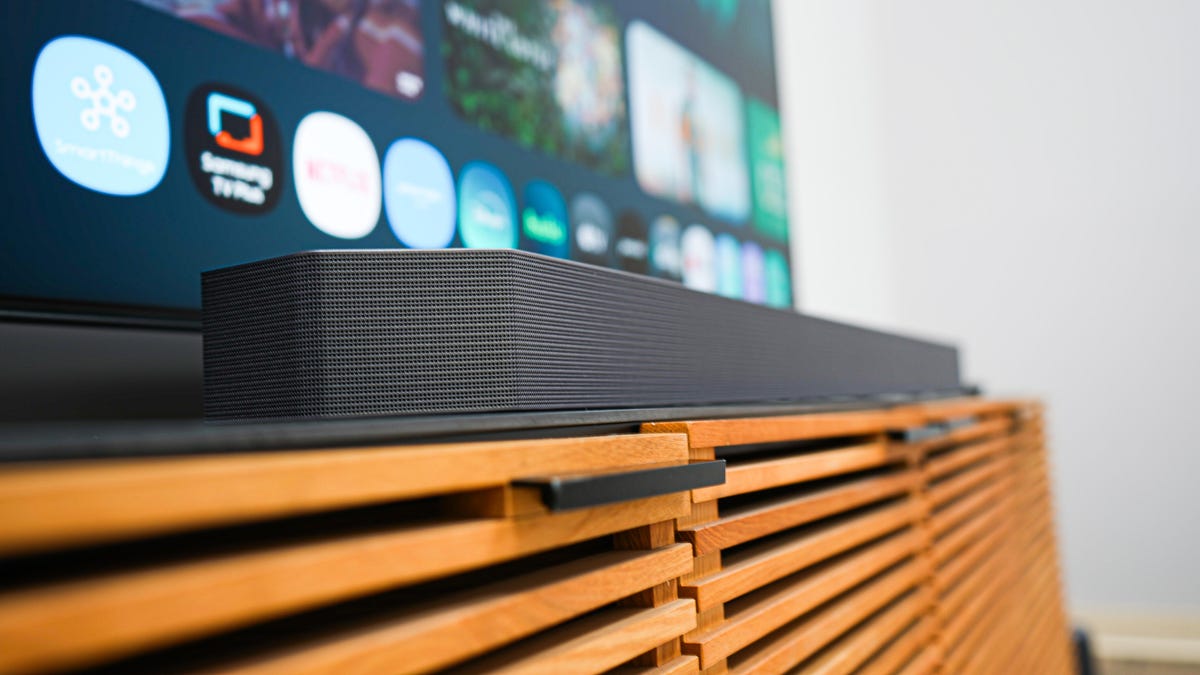
Samsung HW-Q990F soundbar

Kerry Wan/ZDNET

Follow ZDNET: Add us as a preferred source on Google.


As much fun as it is going to a professional sporting event, nothing beats watching the big game in the comfort of your own home. If you’re watching who’s going to take it all on the basketball court, diamond, soccer pitch, or gridiron, you need to ensure your soundbar’s audio settings are ready before the first ball is in play.

Also: How I tweaked my Sonos speakers to upgrade their audio performance – easy and free

If you’re watching the game on an over-the-air cable or satellite broadcast, you may notice fuzzy or degraded audio quality. The good news is that your soundbar likely has some features that can help.

1. Use room calibration

Most soundbars have a room calibration feature that will use either built-in microphones or the microphones in your mobile device to measure your room’s acoustics. This feature will account for your room’s size, shape, and furniture to optimize the soundbar’s audio output.

This feature is easy to overlook, but tuning your soundbar to your room can make a tangible difference in your soundbar’s performance. Room calibration can level bass response, eliminating or significantly decreasing a muddy or overpowering bass response. 

Room correction can also improve your soundbar’s dialogue performance by leveraging your room’s characteristics to balance audio channels.

2. Reduce bass

Sporting events can be full of bass, either from backing musical strings or from roaring crowds in the stadium. If you’re having trouble hearing a commentator highlight a player’s stats when music plays in the background, you could reduce the bass to keep it from muddying dialogue.

Also: How to watch the FIFA World Cup 2026: I found 10 ways to stream (including free options)

If you’re hearing booming crowd noise instead of commentators, on-field action, and referees, your soundbar’s bass is likely too high. 

3. Turn on dialogue or speech enhancement

In your soundbar’s settings, there’s likely a dialogue or speech enhancement feature. Turning this feature on or adjusting its strength will enhance midrange frequencies and damped high and low-range frequencies.

Human voices primarily exist in the midrange; reducing the extremes while enhancing the midrange should make voices clearer. 

4. Try night sound

If your soundbar has a night sound or night listening mode, use it when you’re catching the tail end of a primetime game to hear it clearly without disturbing your housemates. This feature, along with dialogue enhancement, dampens the intensity of loud sounds while preserving dialogue volume.

Bonus: invest in rear speakers

If you already have a soundbar, there are several included features you can try to adjust its output to your liking. However, rear speakers take some of the audio output load off your soundbar, introducing ambient crowd noise and allowing it to focus on dialogue.

Also: Bose Lifestyle Ultra vs. Sonos Era 100: I compared both smart speakers, and this one wins

Some streaming services, like Peacock, allow users to stream sporting events in Dolby Atmos. If you’re preparing to watch an upcoming season in spatial audio, rear speakers will add a layer of immersion that your soundbar can’t deliver on its own. 


I’ve tried nearly every iOS 27 feature, and these 3 are why I’m still excited about the update


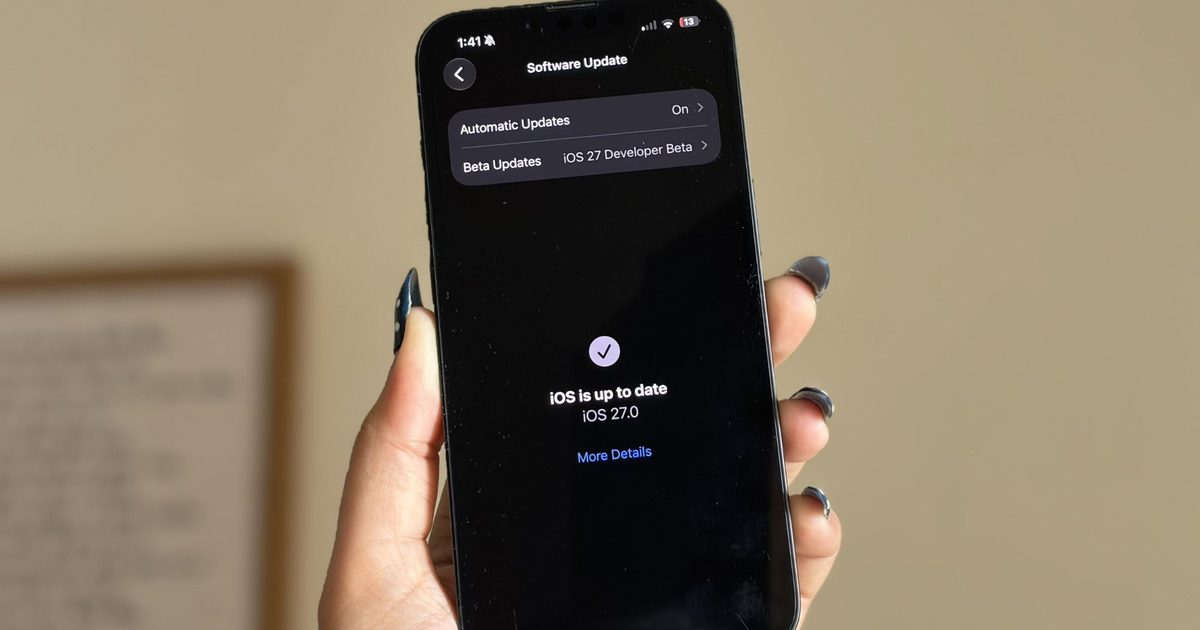
It’s been a little over a week since Apple’s WWDC keynote, and the iOS 27 beta is already out in the wild. While Apple spent plenty of time talking about its Gemini-powered Siri, the thing I was most excited about was getting the update onto my iPhone 16e and seeing what it was actually like to live with.

I’ve been using the beta every day since then, and one thing has become pretty clear: not every new feature lived up to the hype for me. Some felt more interesting during the announcement than they do in everyday use, while others simply haven’t found a place in my routine. But a few features have been the complete opposite. They’re the ones I’ve found myself returning to again and again without even thinking about it. After spending more than a week with iOS 27, these are the three features that have stood out the most — and the biggest reason I’m still excited about this update.

The fitness app finally feels like a fitness app

I’m a bit of a fitness nerd. Whether it’s squeezing in a workout after a long day or making sure I close my Activity rings, I’m always keeping an eye on my progress. That’s why the Fitness app is one of the apps I use the most on my iPhone, and honestly, I’ve felt for a while that it deserved a refresh. The old design wasn’t bad by any means. It was clean, familiar, and easy to navigate. But it also felt a little static, especially compared to modern fitness apps that do a much better job of making your workout data feel engaging and meaningful. There was plenty of information there, but not always in the most exciting way.

The redesigned workout experience in iOS 27 changes that. Everything feels better organized, and the information I care about is much easier to spot at a glance. More importantly, the app finally feels built around the workout itself rather than just a place to store data. For example, I went on a 10km run this morning, and one of the first things I noticed afterward was how prominently my route map was displayed. Instead of digging through menus to find it, the map was right there, front and center. It reminded me of a presentation you’d expect from dedicated fitness apps like Strava. This isn’t the biggest change in iOS 27, but it makes reviewing a workout feel far more rewarding. That’s really what I like about the redesign. The Fitness app finally feels more alive. Rather than simply showing me numbers and charts, it does a better job of highlighting the moments and milestones that make working out feel satisfying.

The cleanup tool finally cleaned up its act

I never thought I’d be talking about photo editing tools as one of my favorite parts of iOS 27, but here we are. The updated Cleanup tool and the new Reframe feature have genuinely made me spend more time editing photos directly on my iPhone 16e. And honestly, that’s saying something. Before this update, Apple’s Cleanup tool was one of those features I wanted to like but rarely used. Compared to the object-removal tools on Pixel and Samsung phones, it often struggled with anything more complex than a simple background distraction. The results were hit-or-miss, and most of the time I’d rather leave the photo alone than risk making it look worse. Thankfully, that has changed.

Over the past week, I’ve used Cleanup on everything from random objects in the background to people accidentally walking into a shot, and the results have been surprisingly good. One example that genuinely impressed me was when I tried removing a book that was partially covering my face in a photo. I expected the tool to either leave behind a blurry mess or distort my face. Instead, it removed the book cleanly and reconstructed the missing area so well that it looked like the book had never been there in the first place.

For the first time, Apple’s Cleanup tool feels reliable enough that I actually want to use it. The new Reframe feature is interesting for a different reason. Using generative AI, it can virtually adjust the framing of a photo after it’s been taken, giving you a little more flexibility if you didn’t quite nail the shot. I don’t see myself reaching for it every day, but that’s okay. It feels more like a feature you’ll appreciate when you need it, rather than one you’ll use constantly. And that’s what I like about both additions. One solves a problem I run into regularly, while the other serves as a safety net for moments when a photo isn’t quite framed the way I want. 

Every “what is that?” now has an answer

Of all the new AI-powered additions in iOS 27, on-screen awareness is probably the one I’ve used the most. And yes, the moment you hear about it, you’ll probably think, “Wait, isn’t this just Circle to Search?” Honestly, that’s not a bad comparison. Circle to Search is easily one of my favorite features on my Google Pixel 10a. I use it all the time. If I’m scrolling through Pinterest and spot a chair I’d love to buy, I can instantly search for it. If I’m watching a YouTube video and notice a pair of sneakers someone is wearing, I can quickly find out what they are. Sometimes I’ll come across a landmark in a travel reel, a gadget in a review video, or even an unfamiliar dish in a food post, and Circle to Search gives me answers in seconds without forcing me to switch apps or start a new search from scratch.

That’s the same reason I’ve grown to like on-screen awareness on the iPhone. Instead of manually copying text, taking screenshots, or opening Safari to search for something, I can simply ask Siri about what’s currently on my screen. For example, while reading an article, I used it to learn more about a company mentioned in the article. When browsing online stores, I used it to identify products and compare them with similar options. I even found myself using it while planning a trip after spotting a location in a social media post and wanting to learn more about it. What makes the feature feel useful is that it understands both the visual and textual information on your screen. Siri can analyze what you’re looking at and use that context to answer questions or help you take action. Apple is also opening this up to developers through dedicated APIs, allowing apps to expose relevant information that Siri can understand and interact with. This feature removes a lot of tiny bits of friction throughout the day. And those are often the features that turn out to be the most valuable.

A week later, these are still my favorites

I’m still spending time with iOS 27 on my iPhone 16e, and if there’s one thing I’ve learned over the past week, it’s that the best features aren’t always the ones that are advertised. Sometimes they’re the smaller additions that become part of your daily routine. For me, that’s exactly what happened with these three features. Whether it’s the refreshed Fitness app making my workout data more enjoyable to revisit, the improved Cleanup tool saving photos I would’ve otherwise ignored, or on-screen awareness helping me find information without jumping between apps, they’ve all earned a place in my everyday use.

There’s still plenty of iOS 27 left for me to explore, and I’m sure I’ll discover more favorites as I continue using the beta. But if you’re wondering which features have stood out after a week of real-world use, these are the ones I’d point to first.

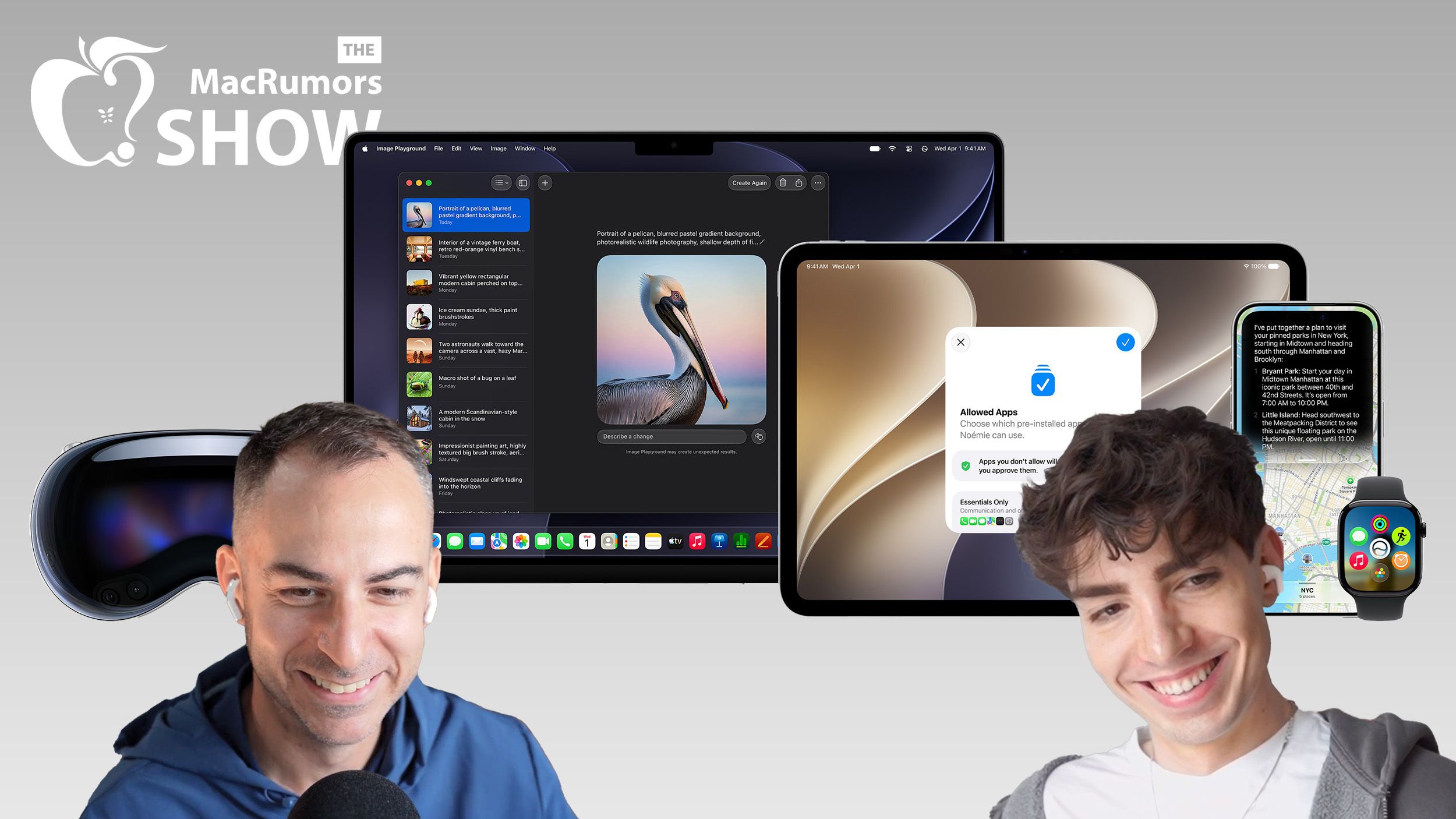
The MacRumors Show: Hands-On With iOS 27, Brutal watchOS 27 Cuts, and More


On this week’s episode of The MacRumors Show, we continue unpacking WWDC 2026 and take a closer look at iOS 27, macOS Golden Gate, and Apple’s other new software updates coming this fall.

iOS 27 supports the same iPhones as iOS 26, including the iPhone 11 and second-generation iPhone SE, giving the update the widest device compatibility of any iOS release to date.

macOS Golden Gate drops Intel Macs entirely, confirming the end of an era that Apple flagged a year earlier when it said macOS Tahoe would be the final release for pre-Apple silicon machines. Four models that ran Tahoe miss out: the 16-inch MacBook Pro (2019), the 13-inch ‌MacBook Pro‌ with four Thunderbolt 3 ports (2020), the 2020 iMac, and the 2019 Mac Pro. Golden Gate is also the last version with full Rosetta 2 support, meaning the translation layer that keeps Intel-built apps running on Apple silicon will disappear entirely after this release.

iPadOS 27 raises its hardware floor to the A14 Bionic or M1 chip, cutting the fifth-generation iPad mini, the eighth-generation iPad, the third-generation iPad Air, the first-generation 11-inch iPad Pro, and the third-generation 12.9-inch ‌iPad Pro‌.

watchOS 27 makes the steepest cuts in Apple Watch history, dropping the Series 6, Series 7, Series 8, original Ultra, and second-generation SE in a single wave and effectively erasing three years of device support at once. The only models that remain compatible are the Series 9, Series 10, Series 11, Ultra 2, Ultra 3, and SE 3.

tvOS 27 drops two Apple TV models, the Apple TV HD from 2015 and the first-generation ‌Apple TV‌ 4K from 2017, leaving only the second- and third-generation ‌Apple TV‌ 4K boxes supported.

In ‌iOS 27‌, notifications now slide in from the left edge of the screen rather than dropping down from the top, and reaching Notification Center requires swiping down from the top-left corner instead of the center, freeing up that gesture for Siri. Other changes include colorful sidebar icons, real-time widget updates when an app is already open, extra-large Home Screen widgets, and web audio that no longer interrupts other system audio.

The centerpiece of the update is Siri AI, which replaces Spotlight with a “Search or Ask” interface accessed by swiping down from the center of the display. ‌Siri‌ is designed to tone-match a user’s own writing style when composing messages. Apple’s pill-shaped ‌Siri‌ indicator is seemingly a hardware workaround for current Dynamic Island constraints, and a smaller ‌Dynamic Island‌ on the iPhone 18 Pro could allow the indicator to become a true circle. On the Apple Watch, ‌Siri‌ AI requires pairing with an iPhone that supports Apple Intelligence. In the European Union, ‌Siri‌ AI is available on macOS and visionOS at launch but not on the iPhone or ‌iPad‌.

‌Apple Intelligence‌ is also getting smarter Writing Tools and a composition assistant in Mail and Messages that adapts to how a user typically communicates with different contacts. Apple has overhauled Genmoji, adding a “Describe a change” interface for iterating on existing creations and the ability to start a new Genmoji from an existing emoji, a photo, or a person tagged in the user’s photo library. Image Playground similarly adds support for multiple aspect ratios for wallpapers, Contact Posters, and social media images, alongside new photorealistic image generation.

Visual Intelligence, meanwhile, gets a new primary entry point called ‌Siri‌ Mode, though holding down Camera Control still works as an alternative. The feature is expanding to the ‌iPad‌ and Mac, and now supports importing multiple calendar events from a single photo of a flyer, as well as importing contacts directly from a photographed business card.

On the Mac, ‌macOS Golden Gate‌ extends toolbars and sidebars to the edges of the screen with a more consistent, tighter corner radius across windows. iPadOS 27 adds undo and redo for ‌Home Screen‌ edits, extra-large widgets in Today View, an optional persistent menu bar, and Visual Intelligence support for screenshots combined with Apple Pencil highlighting. Notes gains an Image Wand tool that generates photorealistic images from rough sketches, the ‌Siri‌ app gets a dedicated sidebar with full windowing support, and Shortcuts adds support for Magic Keyboard triggers.

watchOS 27 drops the Walkie-Talkie app entirely, with the feature missing from both the app list and Control Center in the first developer beta, while adding new Smart Stack suggestions, more accurate step tracking, and a consolidated Find My app. visionOS 27 lets users activate ‌Siri‌ simply by looking at its on-screen bubble rather than requiring a button press, and adds a redesigned Control Center along with new curved windows. tvOS 27 brings a redesigned Podcasts app, Hi-Res Lossless audio support in Apple Music, and on-device processing for HomeKit Secure Video.

The MacRumors Show has its own YouTube channel, so make sure you’re subscribed to keep up with new episodes and clips.

You can also listen to ‌The MacRumors Show‌ on Apple Podcasts, Spotify, Overcast, or other podcast apps. You can also copy our RSS feed directly into your player.

If you haven’t already listened to the previous episode of The MacRumors Show, catch up to hear our discussion about all of the major announcements Apple unveiled at WWDC 2026, including ‌Siri‌ AI, new ‌Apple Intelligence‌ features in apps, and system-wide performance and design improvements.

Subscribe to ‌The MacRumors Show‌ for new episodes every week, where we discuss some of the topical news breaking here on MacRumors, often joined by interesting guests such as Kayci Lacob, Kevin Nether, John Gruber, Mark Gurman, Jon Prosser, Luke Miani, Matthew Cassinelli, Brian Tong, Quinn Nelson, Jared Nelson, Eli Hodapp, Mike Bell, Sara Dietschy, iJustine, Jon Rettinger, Andru Edwards, Arnold Kim, Ben Sullins, Marcus Kane, Christopher Lawley, Frank McShan, David Lewis, Tyler Stalman, Sam Kohl, Federico Viticci, Thomas Frank, Jonathan Morrison, Ross Young, Ian Zelbo, and Rene Ritchie.

‌The MacRumors Show‌ is on X @MacRumorsShow, so be sure to give us a follow to keep up with the podcast. You can also email us at podcast@macrumors.com or head over to The MacRumors Show forum thread. Remember to rate and review the podcast, and let us know what subjects and guests you would like to see in the future.


Microsoft discovers new lightweight backdoor that steals cryptocurrency


Microsoft says it has detected new self-propagating malware that spreads through USB drives in search of cryptocurrency credentials, which it then sends to attacker-controlled servers.

The company named the worm Crypto Clipper because it monitors the contents of device clipboards for patterns consistent with wallet addresses or seed phrases. When found, the malware also takes five screenshots over a 10-second period. Both the credentials and the screenshots are then sent to the attacker through Tor, a network protocol that provides anonymous routing by sending traffic through redundant nodes so logs can’t capture both the sending and receiving IP addresses. Crypto Clipper establishes the Tor connection by using a SOCKS5 proxy, a network protocol that sends traffic through a proxy server, which then forwards it to its final destination.

A lightweight backdoor

“The execution of this clipper is notable because it does not depend on a traditional installer or exposed IP-based C2 infrastructure,” Microsoft said Thursday. “Instead, it deploys a portable Tor client, routes traffic through a local SOCKS5 proxy, and blends data theft with remote code execution, turning a financially motivated stealer into a lightweight backdoor.”

Microsoft said it observed Crypto Clipper spreading through .lnk file on a USB drive. These files store executable code. When an infected USB drive is plugged into a device, the code checks whether it is already installed on the machine. If it isn’t, the malware downloads it through the Tor proxy. To better conceal evidence of the worm, the malware scans the infected USB drive and names the .lnk files with similar names.

Adobe Adds Its AI Assistant To Premiere, Illustrator and InDesign


Adobe is expanding its Firefly AI assistant into Premiere, Illustrator, InDesign, and Frame.io, where it can automate all sorts of tasks such as organizing clips, renaming assets, adding interview markers, rearranging layers, and finding missing fonts. It’s available starting today as part of a public beta. TechCrunch reports: Adobe is slowly transforming Firefly to increasingly resemble Canva, at least when it comes to AI features, loading up the app with AI tools that can generate images, videos and storyboards. The company is now adding a new feature called Elements that can save AI-generated characters, objects and locations for later use.

Firefly is also getting a Projects feature that can store existing assets in one place, and share context. This could be useful for teams creating a video series or brand campaigns. Both of these features are currently available in a private beta.

The company said users can now describe a brand and its style, or upload existing collateral, in Firefly to have it generate a brand kit, complete with logos, brand identity and color palettes, or even generate product videos from photos. Users can also create storyboards to create videos.

iPhone Ultra leak reveals Apple’s Samsung-inspired foldable design


iPhone Ultra in two colors

TL;DR

  • Apple’s rumored iPhone Ultra could debut in September with a wider foldable design that aims to feel like an iPhone when closed and an iPad when opened.
  • The foldable is tipped to feature a nearly crease-free display, an advanced hinge, and a 4.5mm unfolded profile — just 0.3mm thicker than Samsung’s Galaxy Z Fold 7.
  • With a rumored price above $2,000, the iPhone Ultra would enter a foldable market already dominated by Samsung’s Galaxy Z Fold 7 and upcoming Fold 8 series.

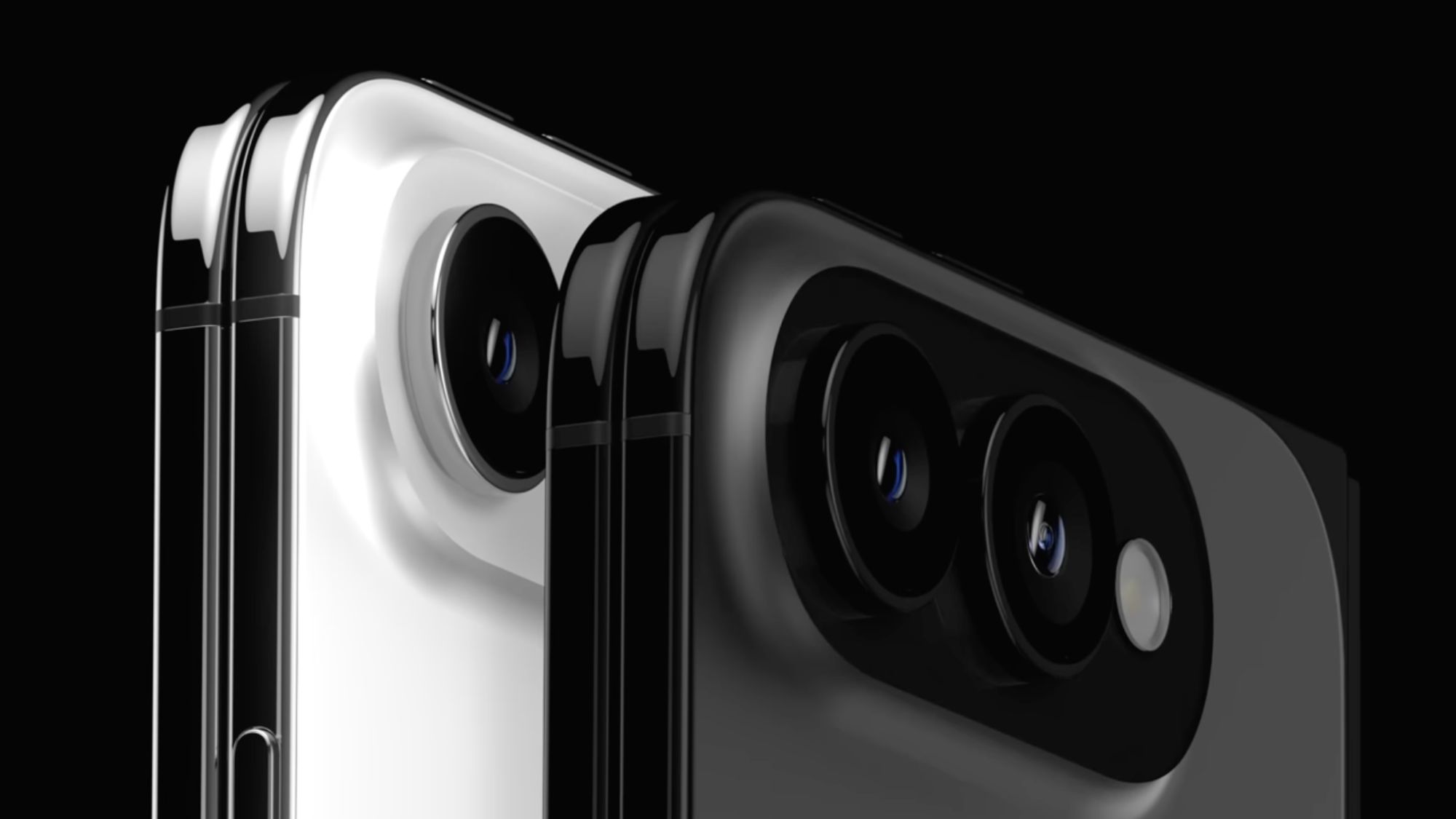
Fresh off WWDC 2026 and Apple’s cozy relationship with Gemini-powered Siri features, the rumor mill has already moved on to Apple’s next big swing: its first foldable iPhone. According to a new video and renders shared by Jon Prosser, the so-called iPhone Ultra could finally make its debut alongside the iPhone 18 Pro lineup this September.

If the renders are anywhere close to reality, Apple doesn’t appear interested in copying the narrow foldables of the past. Instead, the iPhone Ultra is said to embrace a much wider design philosophy. The idea is that when folded shut, it should feel like a regular iPhone in your pocket. Open it up, and it transforms into something much closer to a compact iPad.

iPhone Ultra when unfolded

The design philosophy also feels strikingly familiar. After years of criticism over the narrow cover screens on earlier Fold models, Samsung finally embraced a wider, more phone-like display with the Galaxy Z Fold 7. That change made the Fold feel much more like a regular smartphone when closed. Based on these latest renders, Apple appears to be borrowing that exact roadmap.

Prosser also claims Apple is preparing a remarkably thin foldable with a nearly invisible crease and a hinge mechanism reportedly imbued with Apple’s trademark obsession with over-engineering. Whether that translates into a meaningful real-world advantage remains to be seen, but Apple has rarely entered a new hardware category without first addressing the industry’s most obvious complaints.

The rumored dimensions are particularly ambitious. When unfolded, the iPhone Ultra could reportedly measure just 4.5mm thick, making it thinner than even Apple’s ultra-slim iPhone Air. That’s undeniably impressive, though it would still be around 0.3mm thicker than Samsung’s Galaxy Z Fold 7, which currently sits at an astonishing 4.2mm when unfolded. Even so, for Apple’s first foldable attempt, matching Samsung this closely on thickness would be a notable achievement.

iPhone Ultra camera island

Of course, that kind of engineering won’t come cheap. Early whispers point to a price tag north of $2,000, putting it firmly in luxury-device territory. Then again, premium pricing has never stopped Apple fans before.

What’s particularly interesting is the timing; Samsung isn’t standing still. By the time Apple enters the foldable race, Samsung will have the Galaxy Z Fold 7 firmly established and will launch the next chapter with the Galaxy Z Fold 8 and the rumored Fold 8 Wide. If those devices continue Samsung’s push toward wider displays and thinner bodies, Apple won’t be entering an empty field — it’ll be stepping into a category that’s already rapidly maturing.

For years, foldables have largely been Samsung’s playground. The iPhone Ultra could change that overnight. Whether Apple ends up leading the category or simply joining it fashionably late is the question we’ll be asking for the rest of 2026.

Thank you for being part of our community. Read our Comment Policy before posting.

How to turn off AI in your Google Docs


It happened to me: I opened a Google Doc to write an article, and I was immediately confronted with a text box inviting me to “write with Gemini.” I looked for some button to swipe away the garish AI display, but I could not find it. It made me mad.

Now, instead of writing the article I’m supposed to be working on, I am writing about how to get the AI pop-ups off of your Google Docs screen, since it took me some time to figure out. You’re welcome.

What is this monstrosity? Why won’t it just go away?Image Credits:Screenshot from Google Docs

The first fix is pretty straightforward:

  • Click “Gemini” on the top menu bar above your document.
  • On the drop-down menu, select “bottom bar preferences.”
  • You can choose to turn off that bottom bar, which will get rid of that AI box at the bottom of your screen.
Image Credits:Screenshot from Google Docs

Full disclosure: I was so enraged when I set out to find “bottom bar preferences” that I initially missed it entirely. Instead, I clicked “Ask something else” and asked Gemini to help me remove itself from my life. AI may not be human, but Gemini seemed to have some sort of survival instinct, because it told me to click the “X” icon. That does not remove Gemini. It simply closed the conversation, the one in which I was asking it how to turn itself off. Suspicious!

Image Credits:Screenshot from Google Docs

Other aggrieved Google Docs users have reported features that I have yet to encounter, like a “help me write” feature that hovers over your cursor while you work. This seems like something that would upset me, so it’s probably worth nipping that in the bud before it’s too late. Benjamin Franklin once said, “An ounce of prevention is worth a pound of cure.” (He was talking about fire safety. I am talking about product design.)

Instead of turning off each individual AI feature like a game of whac-o-mole, we can disable “smart features” across our Google workspace via Gmail.

  • First, navigate to your Gmail inbox.
  • From there, find the gear icon for Settings and click it.
  • Then, at the top of the menu, click “See all settings.” (But while you’re here, you should pick out a fun theme for your inbox. Would a little bit of whimsy kill you?)
  • After clicking “See all settings,” scroll about half way down the page to find “Google Workspace smart features,” then click “Manage Workspace smart feature settings.”
Image Credits:Screenshot from Gmail
  • Here, you’re presented with two options: one that lets you toggle off smart features in Google Workspace (like those annoying Gemini pop-ups in Google Docs), and one that applies to other smart features (which I personally find less annoying). I only toggled off the first option, but if for some reason you hate when Gmail automatically makes calendar events for your flights, this is where you can fix that.

You should now be safe from annoying Gemini pop-ups that disrupt your writing process in Google Docs. You can rest easy.

When you purchase through links in our articles, we may earn a small commission. This doesn’t affect our editorial independence.

Nintendo responds after alleged third-party data breach


Nintendo of North America says it’s aware of what’s been described as a small third-party data breach affecting some of its employees.

“Nintendo’s systems have not been compromised,” the company told Mashable in a statement, acknowledging that a third-party service was affected by an “issue.”

Earlier this week, a hacking group calling itself ShadowByte$ posted a threat on a “well-known cybercrime forum,” according to CyberNews. The group alleged it stole 859MB of internal corporate data from a third-party service called TinyPulse, which collects employee feedback for companies.

The stolen data reportedly includes the results of employee satisfaction surveys, private messages, and the names of Nintendo employees. According to a LinkedIn profile, TinyPulse is part of WebMD Health Services.

The hacking group reportedly issued a $2 million ransomware demand to prevent the release of the data. Per Kotaku, after failing to get results with Nintendo, the extortion group reportedly tried its luck with TinyPulse as well. However, Nintendo downplayed the sensitivity of the data, telling Mashable the alleged TinyPulse breach is “limited to internal survey content comprising a small subset of our employees.”

We are aware of an issue involving TinyPulse, a third-party service used for internal employee surveys at Nintendo of America. Nintendo’s systems have not been compromised, and no personal customer or financial data has been accessed. The data involved is limited to internal survey content comprising a small subset of our employees, and most of the information dates back several years.   

We appreciate our employees’ willingness to share their perspectives, take all feedback seriously, and take action when needed. We are working with the service provider to address the issue.

In recent years, ransomware-as-a-service tools have made it easier for bad actors — even those without sophisticated coding or hacking skills — to obtain sensitive data from companies and individuals.

Mashable reached out to WebMD Health Services about the alleged TinyPulse data breach, and we’ll update this story if we receive more information.

Stearns and Foster Promo Codes: $300 Off in June 2026


For 180 years, Stearns & Foster has been making mattresses before expanding into bedding, pillows, and frames. Throughout their history, the brand has continuously brought its trademark old-school style of craftsmanship. Now owned by Tempur Sealy, the iconic Stearns & Foster look features hand-stitched details and an elevated design seen in luxury hotels like the Ritz-Carlton. Today, Stearns & Foster is known for using premium materials, hand-tufted covers, patented IntelliCoil technology with an innerspring-in-innerspring design, moisture-wicking Tencel, and memory foam for pressure relief. If you’re looking for reliable, hotel-like sleep night after night for decades to come, investing in a Stearns & Foster mattress is a good idea. This luxury brand is on the pricier side, so we have a Stearns & Foster promo code and Stearns & Foster coupons to make this investment more affordable.

Stearns & Foster Promo Code: $200 Off Base

The Ease Power Base is Sterns & Foster’s bestselling smartbed frame. Rated 4.7 out of 5 stars with over 2,000 five-star reviews, people love the adjustable frame to personalize their sleep experience, with a wireless remote to change their base position. The frame even has a Zero Gravity setting to help the body feel weightless with pressure relief for aches and back pain. When you purchase a Ease Power Base, you’ll get complimentary white-glove in-home delivery and a 25-year warranty for extra peace of mind with a purchase made to last decades. Plus, right now, you’ll get a $200 instant credit when you buy a qualifying mattress with Stearns & Foster promo code 200GIFT.

Get Free Pillows With Stearns & Foster

For a limited time, when you buy a qualifying Sterns & Foster mattress, you’ll get up to $300 in free accessories, including pillows and sheets. Perhaps best of all, there’s no catch: This Stearns & Foster deal automatically applies to your cart when you purchase a qualifying mattress. If you’d rather customize your free accessories, you’ll need to remove the pre-created bedding bundle from the cart and manually add the accessories of your choosing to the cart. Use Stearns & Foster coupon code 300FREE for this offer.

Stearns & Foster Free In-Home Delivery

One of the benefits of buying from a high-end brand like Stearns & Foster is their white glove delivery service and 25-year warranty for even more peace of mind. As a mattress reviewer on the WIRED Gear team, I hauled over a dozen mattresses in and out of my home. I can confidently say it was not fun. With this Stearns & Foster deal for free in-home delivery, their shipping team will set up your new mattress in the room and remove and discard all packaging materials, so you don’t have to do any of the grunt work. They’ll even dispose of your existing mattress and box spring if you request it for free.