A lot of people started to care about “high resolution” digital audio when Apple launched its upgraded music service to the masses. Call that the “Apple effect,” as infuriating as it may be, but the iPhone maker isn’t the only one in the hi-res audio game: Qobuz, Tidal and Deezer have been doing it for a while, and Spotify has been toying with releasing its own version for a while. However, as many were quick to point out, some of Apple’s own products don’t necessarily support the higher sample rate and bit-depths on offer. No worries, there’s a dongle for that, and there are options for Android and desktop, too. We’ve tested dozens of these devices and the best DACs listed in this guide will play nice with any of the aforementioned services (aside from Tidal’s MQA, which is a little more specific).
What is a DAC?
James Trew / Engadget
A digital-to-analog converter takes the digital (D) music from your phone or computer and converts (C) it into analog (A) sound you can hear. All phones and PCs have them, but since handsets moved to USB-C, Lightning or Bluetooth for music, the task of converting that signal was generally outsourced to either your adapter or your wireless headphones.
DACs can be used with phones, laptops and desktops but tend to be much simpler than a regular external audio interface. One basic distinction is that DACs are usually for listening only whereas an audio interface might have ports to plug in microphones and instruments (but an external audio interface is also technically a DAC). Some high-end DACs even include XLR outputs for better connectivity with professional audio equipment.
The best DACs tend to be lightweight, making them more suitable for mobile use, although it still gets a little tricky with the iPhone as you still might need to add another dongle to make it play nice with Lightning. Also, not all DACs support all the higher audio resolutions like DSD. Most standalone DACs require external power or an onboard battery, though some can use the power from whatever you plug them into — in which case expect a hit to your battery life.
Best DACs for 2024
HiFiGo
Outputs: 3.5mm singled-ended | Inputs: Available in USB-C and Lightning versions | Max file support: 32-Bit/384kHz | Bluetooth: No
If you’re looking for the simplest way to listen to Apple Music Lossless, then the company’s own $8 dongle is hard to beat in terms or quality to price. But it has a maximum resolution of 24-bit/48 kHz. If you want to break into Hi-Res Lossless then the KA11 from Fiio — with support for audio at an eye-watering 32bit/384KHz — is the easiest way. At $30, it’s also pretty affordable, too.
Fiio’s years of experience making portable hi-fi has been distilled into this tiny little dongle. Available in both Lighting and USC-C models (love the color of the Apple model), the KA11 packs a lot of punch for something so small. On top of the support for extremely high audio resolutions, the KA11 also has a much higher output than most adapters — including Apple’s. The result is much louder music than your phone offers for most headphones, and with a better DAC like this, you’ll notice a significant improvement in your audio system. If you already have a pair of expensive headphones with a low sensitivity (as many higher end models tend to be) then the KA11 will likely still be able to drive them. You might even consider pairing it with a headphone amp for even more power.
This little dongle isn’t restricted to phones: the USB-C model is compatible with laptops and PCs, too. In fact, it’s likely a decent upgrade over the built-in sound for almost anything you plug it into. That’s true for all of the products recommended in this guide, but you might be surprised to find that something this small can give your PC’s audio system a serious boost. If there was a minor negative, it would be that the KA11 doesn’t support headset microphones, so if you were hoping to be able to handle calls with your headphones then bear that in mind.
With the KA11 being so small, there are no physical controls, so you’ll adjust volume directly on the phone or computer. The only feedback you have is a single LED that will change color depending on the audio it’s receiving (yellow indicates Hi-Res). Fiio also has a mobile app to access additional settings for its mobile products which, right now does include the KA11, but only on Android at time of publication.
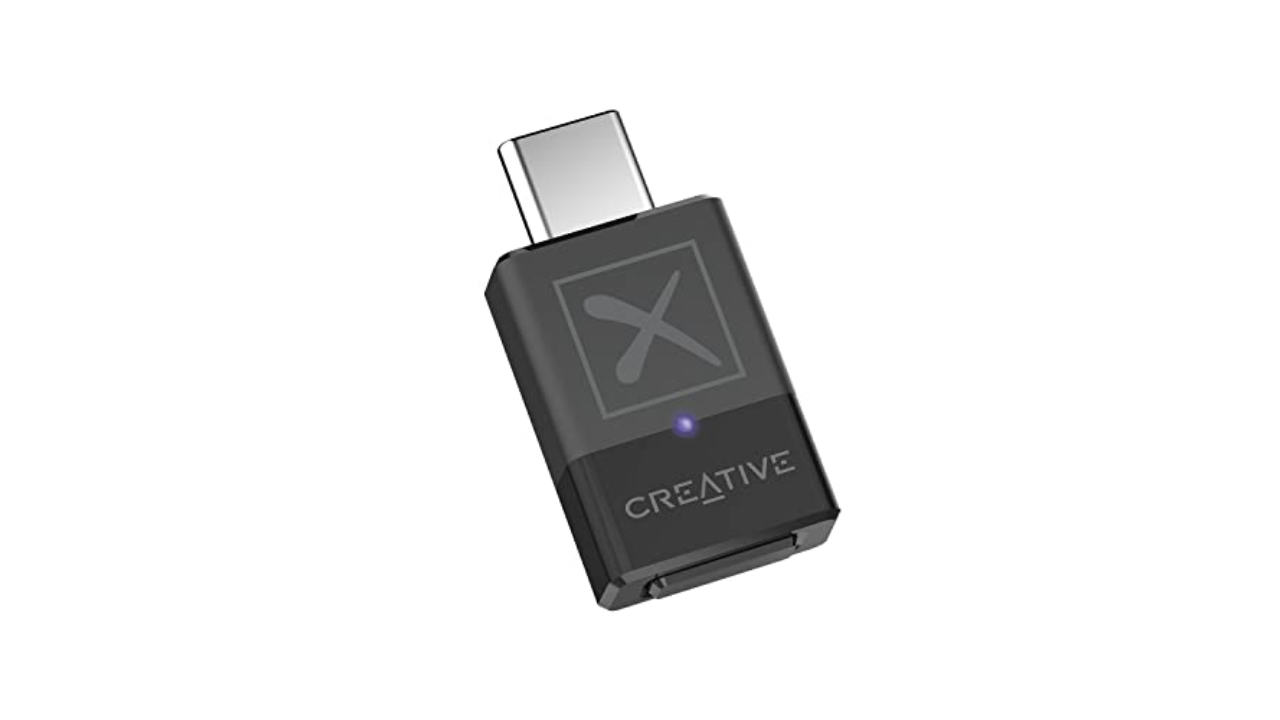
Outputs: Bluetooth | Inputs: USB-C | Max file support: 24-Bit/96kHz | Bluetooth: Yes | Weight: 0.16 ounces
While most Android devices support some form of aptX, your PC might not. If you have an iPhone, it definitely doesn’t support aptX and neither will any Macs — Apple devices only offer standard Bluetooth with AAC encoding (320 kbit/s max bitrate). If you want to make sure you’re getting more bits (up to 430 kbit/s) out of your music, across all your devices, Creative’s BT-W5 Bluetooth adapter is both practical and affordable.
The BT-W5 offers aptX, aptX HD and aptX Adaptive (which supports up to 24-bit/96 kHz) and it’ll automatically choose the best one for your headphones. Once you pair them with the adapter you can plug the BT-W5 into any music source with USB-C for improved Bluetooth audio — there’s even a low latency mode perfect for streamers or playing games on Switch, for example, without any lag.
If you have an iPhone with a Lightning connector, the BT-W5 won’t work without an adapter, but it’s a neat way to get the most out of your headphones without having to upgrade everything else. The BT-W5 can remember up to four sets of headphones, too, so if you have a pair for the commute and another set for the gym, just plug in the dongle and you’re all set.
Pros
Designed for use with Bluetooth headphones
Low-latency mode for use with devices like Nintendo Switch
Cons
Will not work with Lightning iPhones without adapter
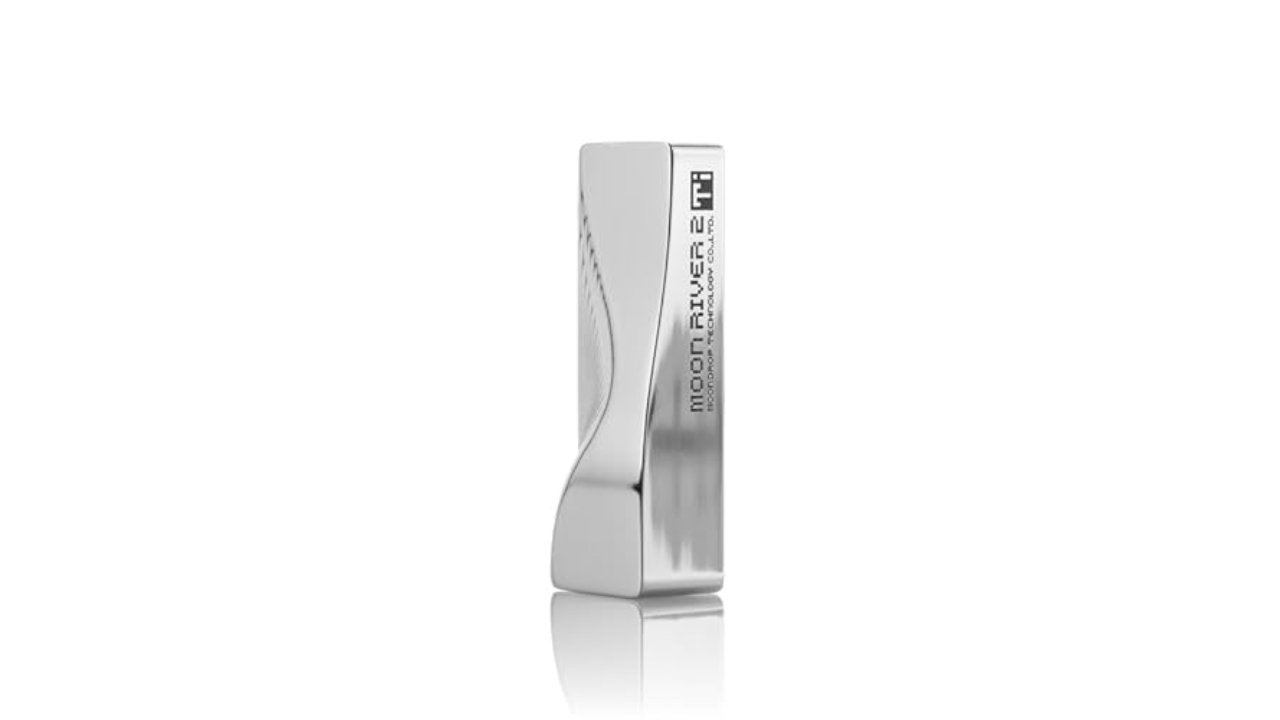
While you can squeeze an impressive amount of audio tech into a headphone adapter, a slightly bigger device affords a decent step up in both specs and features. Moondrop’s Moonriver T2i DAC is slightly larger than a pack of gum, and it has a stylish design that doesn’t look like a boring, generic dongle.
Importantly, the Moonriver T2i builds on the success of the company’s Moonriver 2 DAC. The “2” partly refers to the use of dual DAC chips here, which delivers a “balanced” signal. Each channel can handle up to 32bit/384KHz resolution and there are two headphone ports. One for standard 3.5mm headphones and another for 4.4mm connections — making use of that balanced output. If this is your first step into the world of Hi-Fi DACs, you’re totally fine with 3.5mm headphones, but some prefer the 4.4mm connector as it provides more power and potential signal benefits, especially if you’re using a headphone amp.
With the Moonriver T2i you have a couple more practical advantages. For one, there are physical volume controls on the device itself. If you ever felt that the 16 levels of loudness on the iPhone (I just counted) weren’t enough, then the 100 steps of adjustment on the Moonriver T2i (via companion software) eliminate any worries about setting the music to the perfect level. If your headphones have an in-line microphone, the good news is that this dongle will pass that through to your phone or PC so you won’t need a separate device for calls.
Most importantly, the sound that comes out of the Moonriver T2i is bright and bold. You’ll hear audiophiles talk about sound stage, detail and width, all you need to know is that this DAC ticks off all the buzzwords and serves up bright, robust sound that’s going to make any lossless/hi-res music really shine.
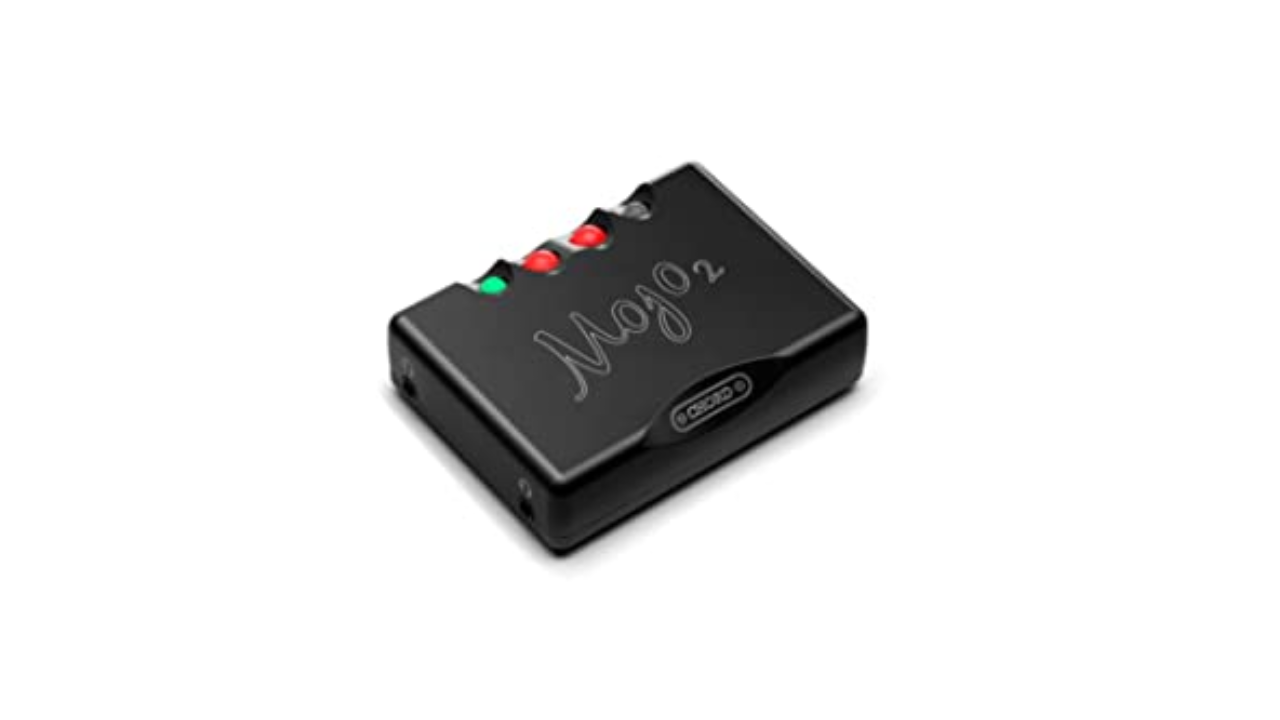
If you’ve had some experience with DACs and are looking to ratchet things up a notch or three, then the Mojo 2 from British company Chord wants to have a word. At $650, this is definitely in the high-end price range, but the experience and features it offers make it worth considering for serious audiophiles. But the brains behind the Mojo 2 have been making digital to analog converters pretty much since there was digital music to even convert. That experience is what makes the Mojo 2 a favorite among music fans.
Most options in this guide are designed for mobile devices first, the Mojo 2 is more of a hybrid device. The mobile dongles above all take their power from the player you connect them to, which is convenient, but obviously is less kind to your phone’s battery life. The Mojo 2 has an internal cell so won’t tax the one in your phone or laptop. It’s small enough to be portable, but substantial enough to live on your desk.
Unlike most DACs that use off the shelf chips to handle the digital-to-audio conversion, the Mojo 2 uses field programmable gate array (FPGA) technology to create its own custom “chip.” It’s also powerful enough to act as both a DAC and a preamp, driving even power-hungry headphones with ease. We’ve seen FPGA gain popularity in gaming circles for its ability to imitate various consoles, but that same flexibility is what makes it interesting to the audio engineers at Chord.
If you need something that’s capital L loud, then the Mojo 2 will not disappoint. Proceed with caution here. It’s actually powerful enough to drive two pairs of headphones at the same time and has two 3.5mm ports so you can do exactly that. The curious circular buttons can also be used to change sound profiles with an excruciating level of detail.
The Mojo 2 has standard USB-C, microUSB, optical and coax inputs so it’s more flexible than a lot of its competition in this regard. Although it’s worth noting that you can only charge the Mojo 2 via microUSB. Of course, there’s a cable provided for this, but if you’ve fully made the switch to USB-C, it’ll mean you have to guard the charging cable closely.
Outputs: 1x 3.5mm singled-ended, 1x 4.4mm balanced | Inputs: 1x USB, 1x optical, 1x coaxial, 1x AUX | Max file support: 32-Bit/384kHz | Bluetooth: No | Weight: 2.51 pounds
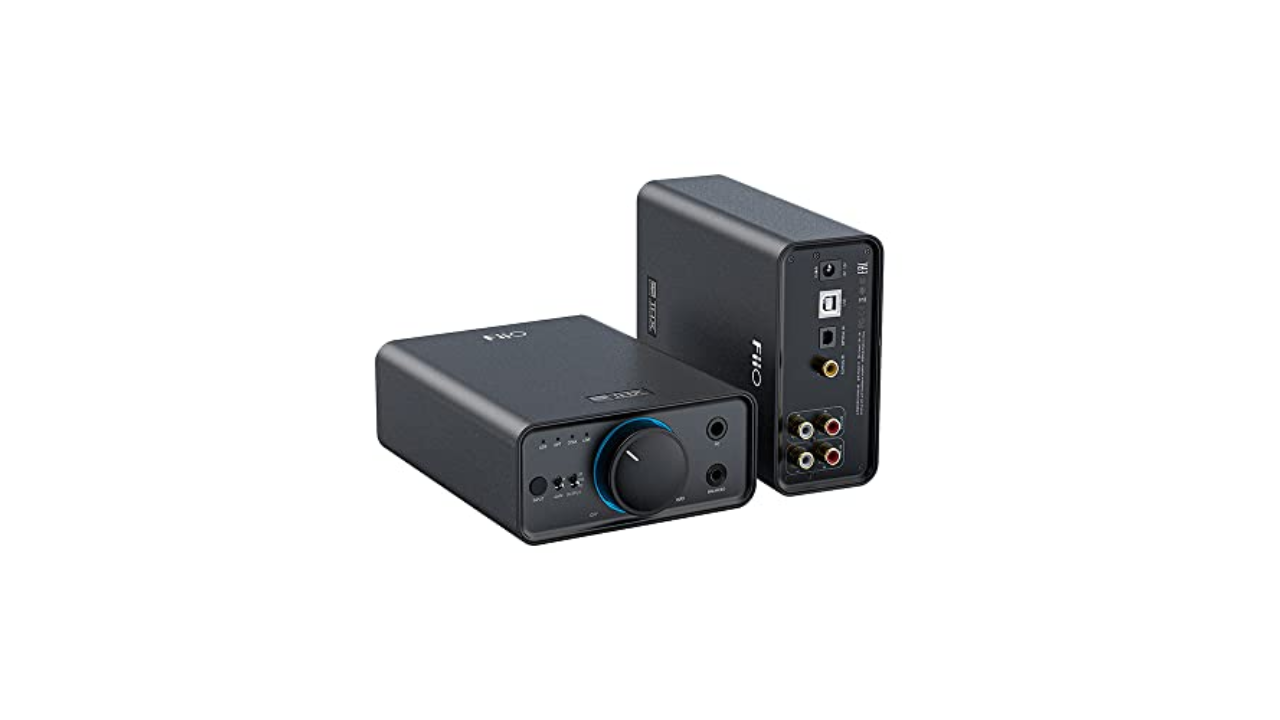
If you do most of your listening at home, the K7 from Fiio is a great place to start. The world of desktop DACs and headphone amplifiers could fill its own guide, but the K7 is both capable, feature-filled and reasonably priced. It functions as both a DAC and a headphone amp, making it a solid all-in-one solution for audiophiles building a home audio system.
With phono, coaxial, optical and USB inputs, the K7 from Fiio is able to handle music and audio from almost any high fidelity source. Most traditional desktop audio interfaces support playback of up to 24 bit/48 kHz, the K7 can handle files all the way up to 384 kHz at 32-bit – perfect for those who demand a better DAC for high-resolution files, whether you’re listening via headphones or a full audio system.
On the front you’ll find two inputs: a 1/4-inch jack and a 4.4mm balanced headphone port along with a big ol’ volume dial. While its Hi-Fi aesthetic might not be the most razzle-dazzle, it does have an RGB LED around the dial to give it a pop of color (it also changes color depending on the “quality” of your audio source).
There are two versions of the K7, and if you plonk down another $50 you get Bluetooth receiver functionality. This doesn’t mean you can connect wireless headphones, rather you can listen to music from wireless sources, such as your phone while maintaining a physical connection to your PC. If your phone can serve up music in higher-resolution codecs like aptX HD, aptX Adaptive or LDAC (or if it can’t, read about the BT-W5 above) you can listen to it through the K7.
DAC stands for digital to analogue converter. It’s a device that takes digital files, stored on a laptop, computer, etc., and converts them into audio that we can listen to with better clarity and depth. Devices that provide sound, like a CD player, Blu-ray player, TV box, and so on, require good DACs so that the digital files can be decoded in order to output audio. Most of the time, a DAC is built-in to these devices, but sometimes they are external and require a power supply.
Why do I need new hardware to listen to music?
The short answer is, you don’t. You can play “hi-res” audio files on most phones and PCs, you just might not be getting the full experience. If your device’s audio interface tops out at 44.1 or 48kHz (which is fairly common and covers the vast majority of music online) then that’s the experience you’ll get. If you want to enjoy better sounding music at a higher sample rate and bit-depth (aka resolution), you’ll need an interface that supports it and wired headphones, potentially using a headphone amp for an enhanced experience.
It’s worth pointing out that “lossless” and “hi-res” are related terms, but not the same thing and will vary from service to service. Apple uses ALAC encoding which is compressed, but without “loss” to the quality (unlike the ubiquitous .aac or .mp3 file formats). CDs were generally mastered to at least 16-bit / 44.1kHz which is the benchmark that Apple is using for its definition of lossless. In audio circles, a general consensus is that hi-res is anything with a sample rate above 44.1kHz. Increasingly, though, the term is being used for anything 96kHz and above.
This, of course, isn’t only about Apple’s new streaming formats. External DACs and audio interfaces are a great way to get the best sound and upgrade your listening experience generally. Especially if you want to get into the world of more exotic (read: pricey) headphones, as they often even require a DAC to provide enough clean digital signal to drive them. For audiophile headphones, a phone or laptop’s internal sound chipset often doesn’t have the oomph needed to deliver a hi-fi experience, meaning a better DAC could make all the difference in sound quality.
Okay, but can’t I just use the headphone adapter for my phone?
No. Well, yes, but see above. A Lightning or USB-C to 3.5mm headphone adapter often is an audio interface and most of the ones you’re buying for $7 (or that come free in the box) do not support hi-res audio beyond 48kHz / 24-bit. Android is a little more complicated, as some adapters are “passive” and really just connect you to the phone’s internal DAC like old school headphones. Others (active ones) have a DAC built-in and good luck finding out what your specific phone and the in-box adapter delivers. (Hint: connect it to a PC and see if it comes up as an audio interface. You might find some details there if it does).
What about Bluetooth headphones?
Chances are that over the last few years you’ve migrated from wired to wireless headphones (thanks, Apple). The world of Bluetooth headphones changes things a little when it comes to seeking better audio performance. What matters here is twofold, the headphones you’re using (as those will technically be the “DAC”) and the codec — the method used to send the musical data over to the headphones. It’s worth checking to see if your headphones support aptX and which version — aptX HD, aptX Adaptive are better than standard and becoming more common. Other systems exist, like Sony’s LDAC, but Qualcomm’s AptX has wider support thanks to its prevalence in Android devices. Some high-end wireless headphones might even come with a headphone jack for wired connections when higher-quality audio is needed.
Choosing the best Windows laptop can be overwhelming with the wealth of options available. And with Microsoft’s recent announcements at Microsoft Build, we can expect lots of exciting things coming out in the next few months as more Copilot PCs become available. Whether you need a premium ultraportable, a powerful gaming rig, or a versatile mobile workstation, our current list of the best Windows laptops highlights our favorites that have been rigorously tested by our team. You may even find a Windows laptop that suits you better than an Apple MacBook if you’re looking to make the switch. For those on a budget, check out our list of the best cheap Windows laptops to find great options that won’t break the bank.
What to look for in a Windows laptop
Performance
The challenge when thinking about performance is figuring out your sweet spot. That’s because while a Microsoft Windows laptop with blazing speed is nice, you may be paying for more oomph than you need. But if you skimp and get a weak processor, even simple tasks can become a chore and you might end up in a situation where you need to upgrade again sooner than you’d like. Thankfully, many laptops come in multiple configurations at the point of purchase. You can opt for a model with more processing power or discrete graphics, for example, if you want to do more than just web browsing. Good performance is more than just clockspeeds too, so we also consider things like fast wake times, storage speeds, multitasking and more advanced features like support for ray tracing, especially when a high-end graphics card is involved.
Display and webcams
Regardless of whether a notebook has a touchscreen or a more traditional panel, we look for bright displays (300+ nits or more) that are easy use outdoors or in sunny rooms, accurate colors and wide viewing angles. Screens with high refresh rates are great for competitive gamers, while those with wider color gamuts are important for content creation and video editing. And even if you don’t plan on spending a ton of time on video calls, every laptop needs a decent webcam (1080p or higher).
Ports and connectivity
Even with advancements in cellular modems and WiFi, dedicated ports for transferring data or connecting peripherals can make or break a laptop. Ideally, all but the thinnest and lightest systems come with three USB ports, while things like built-in SD card readers can be extremely handy when trying to import media from a camera. And if a notebook is saddled with a slow or outdated WiFi modem (we’re looking for Wi-Fi 6 or later), that’s basically an immediate disqualification.
Battery life
It doesn’t matter how powerful a laptop is if it conks out when you need it the most. Typically we look for runtimes of at least eight hours on a charge, but when it comes to good battery life, longer is always better. That said, on gaming machines with thirsty graphics cards, you may have to settle for a bit less. And on bigger machines, it’s also important to consider if the system can charge via USB-C or if it needs a larger, proprietary power brick.
Best Windows laptops for 2024
Photo by Devindra Hardawar / Engadget
Screen size: 13-inch | Touchscreen: Can be configured | Processor: Intel Ultra 7 Processor 155H or Snapgradon X Elite | Installed memory: Up to 64GB | Storage: Up to 2TB | Weight: 2.6 pounds | Battery life: Up to 18 hours
It’s no surprise that we love the Dell XPS 13. It’s thin, lightweight and it has one of the best screens you can find on a 13-inch ultraportable. The latest XPS 13 model is the slimmest yet, though it loses the headphone jack in the process. But it also includes either Intel’s Ultra 7 Processor 155H or the new Snapgradon X Elite CPU, so you’re getting the most up-to-date processor options available. Aside from a somewhat tricky to use “invisible” trackpad, we have few gripes with the lates XPS 13. It has a stellar, svelte design, a gorgeous display, a fantastic keyboard and solid performance to match. Just be prepared to pay a premium for all of the new features and upgraded specs.
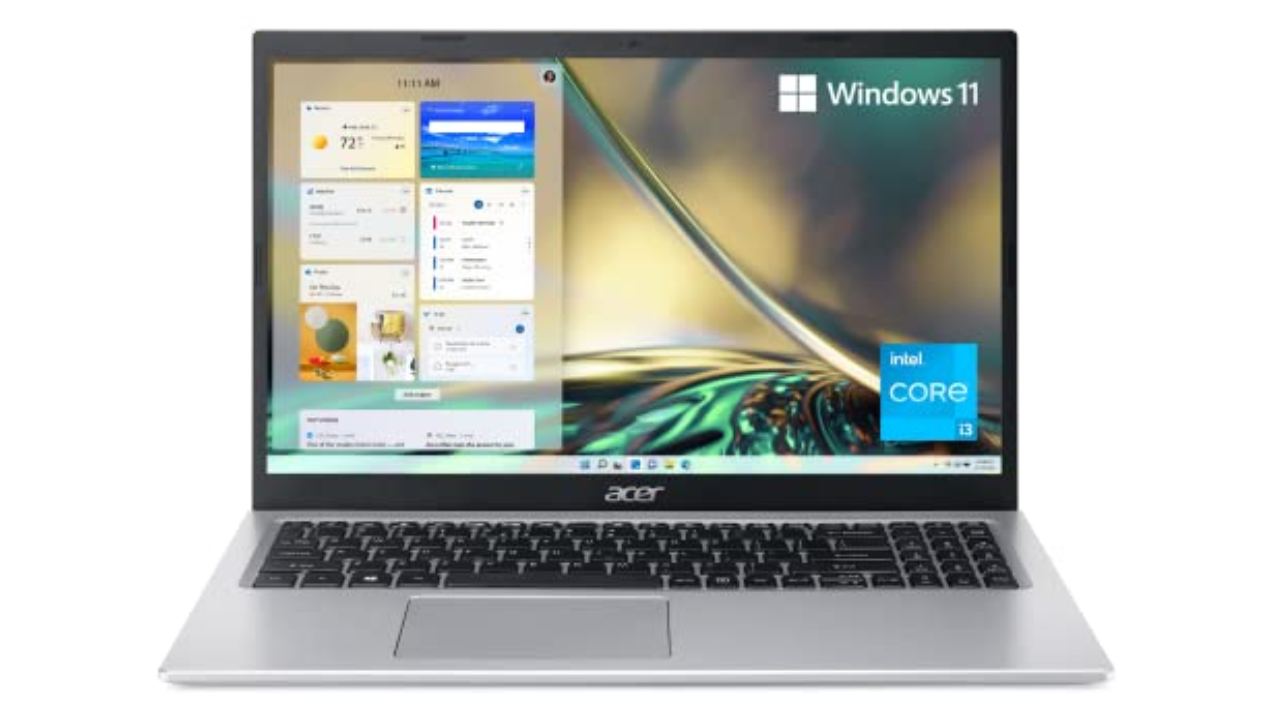
Screen size: 15-inch | Touchscreen: No | Processor: 11th-gen Intel Core i3 | Installed memory: 8GB | Storage: 128GB | Weight: 3.64 pounds | Battery life: Up to 10 hours
There’s a reason we selected the Acer Aspire 5 as our top choice in our best budget Windows laptop guide: It’s sturdy, fast enough and offers good battery life. It also comes with a Windows 11 Home (S Mode) operating system with advanced security features. We typically don’t expect much with laptops under $500, but the Aspire 5 has consistently been a solid performer. It’s an ideal laptop for students or kids, or for anyone who isn’t particularly demanding. We’re also surprised by the port selection it offers, including HDMI and Ethernet. While we normally don’t recommend laptops with just 8GB of RAM and tiny 128GB SSDs, those specs are more excusable in the Aspire 5 since it’s so darn cheap. Just think of it as a slightly more capable Chromebook, but one that can launch multiple apps and do a bit more than just web browsing.
Screen size: 14-inch | Touchscreen: No | Processor: AMD Ryzen 7/9 | Installed memory: Up to 16GB | Storage: Up to 1TB | Weight: 3.53 pounds | Battery life: Up to 10 hours
One of our favorite gaming PCs for years, the ROG Zephyrus G14 remains our choice as the best gaming laptop for most users. It weighs just 3.5 pounds, it sports AMD’s powerful new Ryzen chips and it also has the company’s fastest Radeon RX 6000-series mobile graphics. The ROG Zephyrus G14 has a sleek retro-future aesthetic, a comfortable keyboard and a smooth 144Hz, 14-inch screen. While you’d be more immersed in a 15-inch notebook, those typically cost more and are far heavier than the Zephyrus G14. If you’re looking for a balance between good performance, style and value, the G14 is an excellent option.
Screen size: 13-inch | Touchscreen: Yes | Processor: Snapdragon X Plus/X Elite | Installed memory: Up to 32GB | Storage: Up to 1TB | Weight: 1.97 pounds | Battery life: Up to 14 hours
The Surface Pro is everything we’ve wanted the Surface tablet line to be for years. It’s incredibly fast and efficient, thanks to Qualcomm’s new Snapdragon X Elite and Plus chips. Its neural processing unit (NPU) also enables potentially powerful AI features, though the current crop won’t be useful to everyone. We’re also still waiting to see Microsoft’s controversial Recall feature in action, which has been delayed to address its many security concerns.
The new OLED screen option looks wonderful: It makes colors pop off the screen and also ensures inky dark black levels. Coupled together with surprisingly powerful speakers, the Surface Pro is a solid option for watching video on the go.
When it’s paired together with the new Surface Pro Flex keyboard ($350), you can type and mouse around the Surface completely wirelessly, which opens up entirely new ways of using it. As long as there’s a small table nearby, or somewhere to prop up the tablet, you can work with just a thin and light keyboard on your lap. It’s also nice to see Microsoft pack in 16GB of RAM with the base Surface Pro model.
While we’d still like to see the company bundle in a keyboard and refine its kickstand, the Surface Pro remains one of the most innovative PCs available today.
Pros
Snapdragon X Elite and Plus chips are wonderfully fast
Adaptability is the biggest strength of a 2-in-1, with devices like the Yoga 9i capable of transforming into a number of different modes at a moment’s notice. And even though it’s got a relatively portable 14-inch OLED display, Lenovo still found room on the Yoga 9i for three USB-C ports, a fingerprint scanner and a clever rotating soundbar to ensure audio sounds good in any position. Lenovo also includes a free stylus in the box though, sadly, unlike previous models there isn’t a dedicated storage slot for it on the machine anymore. And while its general design hasn’t changed much, Lenovo has improved the Yoga 9i’s performance with updated 13th-gen Intel processors. There are also various configurations to choose from, including the choice between a Windows 11 Home or Pro operating system.
Screen size: 14-inch | Touchscreen: No | Processor: 12th-gen Intel Core i5/i7 | Installed memory: Up to 16GB | Storage: Up to 1TB | Weight: 3.75 pounds | Battery life: Up to 5.5 hours
Regardless of if you’re editing videos or playing games, MSI’s Stealth 14 Studio packs a lot of processing power in a very portable package. The base model comes with a 1080p screen, but if you have the money, you’ll want to consider the optional 2,560 x 1,600 display, which boasts a faster 240Hz refresh rate and wider color gamut (100% of DCI-P3). At just 3.75 pounds, the Stealth 14 Studio weighs half a pound less than similarly sized rivals while still supporting up to an NVIDIA RTX 4070 GPU. And the redesigned model has a stunning magnesium and aluminum chassis that’s also available in a larger 16-inch model.
Screen size: 18-inch | Touchscreen: No | Processor: 13th-gen Intel Core i9 | Installed memory: Up to 64GB | Storage: Up to 1TB | Weight: 6.75 pounds | Battery life: Up to 3 hours
Razer’s revamped Blade 18 is a monster. It packs full-fat versions of the most powerful components you can put in a laptop including up to an Intel Core i9 13-980HX CPU and an NVIDIA RTX 4090 GPU that runs at up to 175 watts. You also get a massive 18-inch QHD+ display with a 240Hz refresh, tons of ports (including an SD card reader) and gorgeous per key RGB lighting. Holding everything together is Razer’s unibody aluminum chassis, which offers some of the best build quality on any Windows laptop. The one big downside is price: Starting at $2,900 (or closer to $5,000 for a fully loaded model), the Blade 18 is not for people with limited budgets.
Screen size: 13.8- or 15-inch | Touchscreen: No | Processor: Snapdragon X Plus or Elite | Installed memory: Up to 32GB | Storage: Up to 1TB | Weight: 2.96 pounds | Battery life: Up to 17.5 hours
After more than a decade of tests and trials for Arm-based Windows PCs, Microsoft’s Surface Laptop 7 feels like a breakthrough. It’s fast, it’s quiet and thanks to Qualcomm’s Snapdragon X Elite chip, it delivers well above average performance and battery life. Meanwhile, on the inside, Microsoft’s Prism emulator has almost completely smashed the barrier between Arm and x86, so aside from gaming, almost all of your favorite apps just work. Tack on a bright 120Hz display and excellent build quality and you get something really close to an ideal ultraportable PC.
Pros
Slick design
Excellent battery life
Good performance
Bright display
Powerful Prism emulator
Responsive haptic touchpad
Cons
Some apps and games still don’t play nicely with Arm-based chips
What’s the difference between a Windows laptop and a Chromebook?
The main difference between a Windows laptop and a Chromebook lies in their operating systems. Windows laptops run on Microsoft’s Windows OS, whereas Chromebooks use Google’s Chrome OS.
Aside from using different operating systems, performance is one of the major differences between a Windows laptop and a Chromebook. Windows laptops can be equipped with powerful processors and discrete graphics, making them suitable for demanding tasks like gaming or video editing. Chromebooks, on the other hand, are generally optimized for speed and simplicity, focusing on lighter tasks like word processing and web browsing.
In terms of software, Windows laptops support a range of desktop programs, whereas Chromebooks primarily use web apps or Android apps from the Google Play Store. Because of their differences, Chromebooks tend to be more affordable since they are primarily designed for basic, everyday tasks. Windows laptops can range in price from budget to premium, with the latter suitable for gaming, professionals or creatives.
What’s the difference between macOS and Windows?
When it comes to macOS and Windows, they’re basically two different worlds in the realm of computers, each with its own personality. MacOS is sleek, minimal and feels pretty intuitive, especially if you like things that just “work” out of the box. Apple designs macOS to work in tandem with its hardware, so if you have an iOS device like an iPhone or an iPad, the whole ecosystem syncs up seamlessly.
Windows is more like the jack-of-all-trades. It’s known for being super flexible and customizable. Whether you want to tweak how things look or run a wide variety of software, Windows gives you that freedom. It’s also more widely used in business settings, mainly because it’s been around longer and is compatible with tons of different programs and hardware.
Recent updates
September 2024: Added an FAQ section.
July 2024: We updated our top picks to include the Microsoft Surface Laptop 7th Edition.
While the latest wireless earbuds from Apple, Sony, Bose and other big-name brands may dominate the headlines, you absolutely do not need to spend triple digits to get something good. These days it’s more than possible to find a clean-sounding, richly-featured pair for well under $100, but navigating the bargain bin still brings its share of challenges.
If you want to upgrade without breaking the bank, allow us to help. Whether you’re looking for active noise cancellation, great sound, a gym-friendly design or just something dirt cheap, here are the best budget wireless earbuds we’ve tested. This is a busy market with new models arriving all the time, but we’ll keep this guide as up-to-date as possible as we test out recent releases.
The Anker Soundcore Space A40 is often available for $60 but offers the kind of performance and features you’d see from a pair of earbuds that costs twice as much. Its little round earpieces are light and evenly balanced, so they shouldn’t be a pain for most to wear for hours at a time. The default sound profile is good enough: It’s warm, with a bump in the upper-bass and a dip in the treble that can dull some finer details, but pleasant on the whole. Unlike many cheaper headphones, it doesn’t completely blow out the low-end. As with many modern pairs, you can tweak the sound with custom EQ tools in the Soundcore app. Using these won’t make the Space A40 sound as nice as the best wireless earbuds on the market, but it can give them a touch more deep bass or high-frequency emphasis. The app in general is easy to use, and it saves any changes you make directly to the earphones.
The Space A40’s best feature is its active noise cancellation (ANC), which is outstanding for the money. It won’t totally block out higher-pitched sounds, but it’s plenty effective at muting the rumbles of a train or jet engine. By default, Anker uses an adaptive ANC system that automatically tweaks the intensity based on your surroundings, though you can manually set it to strong, moderate or weak levels, too. That’s great for those with sensitive ears. There’s also a transparency mode, which isn’t nearly as good as what you’d find on a high-end pair like the AirPods Pro but works in a pinch.
Most of the little touches you’d want from a modern set of headphones are here as well. The Space A40 can connect to two devices simultaneously, and you can use one earbud on its own. Battery life is solid at eight-ish hours, while the included charging case can supply another 40 or so hours and supports wireless charging. The IPX4 water resistance rating isn’t anything special but still means the earphones can survive light rain and everyday sweat. The touch control scheme can feel somewhat busy, as it lets you assign up to six different shortcuts to different taps and long presses and effectively forces you to omit a function or two, but it works reliably. We’ve had no real connection issues, either.
The only major shortcomings are the mic quality and the lack of auto-pausing when you remove an earbud. The former doesn’t handle sibilant sounds very well and can lose your voice in particularly noisy areas, so this isn’t the best option for phone calls, but it’s usable.
Pros
Excellent ANC for the money
Pleasant, warm sound
Multi-device connectivity and wireless charging support
Comfortable
Good battery life
Cons
No automatic wear detection
Call quality is mediocre
Audio performance isn’t as detailed as higher-end options (as expected)
The Anker Soundcore Liberty 4 NC is a commendable option if you prefer a larger “stem” design akin to Apple’s AirPods. In many ways, these earphones are just the Space A40 in a different shape. Like our top pick, they deliver an impressive adaptive ANC system, a relatively stable fit, wireless charging, an intuitive app, IPX4-rated water resistance and the ability to connect with two devices at once. Battery life is about the same as well, but we were usually able to get a half-hour or so more out of the Liberty 4 NC.
By default, this pair has an exciting sound with big, thumpy bass and a noticeable spike in the treble. It’s a good example of the “fun” EQ curve we often see from mainstream headphones these days, one that lends a nice sense of clarity to vocals and higher-range instrumentation. It fits especially well with EDM and pop music. That said, it’s intense, so some might find it fatiguing. The Space A40 doesn’t exactly sound neutral, but it comes off as easygoing by comparison, so it should be more agreeable for most. You can still personalize the Liberty 4 NC’s sound profile through a variety of EQ settings in the Soundcore app, but it’s hard to fully rein in the bass even with those.
Beyond that, you can manually adjust the strength of this pair’s ANC on a five-step scale, which is a little more granular than the Space A40’s three-step option. The touch controls are slightly more extensive, as you can triple-tap each earbud to change volume or access other commands. It also supports wear detection, plus its integrated mics are a bit better at resisting wind noise. However, it’s sluggish to auto-pause whenever you remove an earbud, and call quality is still mediocre in general. The included transparency mode is still merely serviceable too. And at $100, it’s right on the edge of our “budget” limit.
Pros
Strong ANC for the money
Multi-device connectivity and wireless charging support
Bluetooth: v5.2 | ANC: No | Transparency mode: No | Custom EQ: Yes | Charging port: USB-C | Wireless charging: Yes | Water resistance: IPX7 | Multipoint connectivity: No | Wear detection: No | Battery life (rated): 7 hrs, 30 hrs w/ case | Fast charging (rated): 10 mins = 2 hrs | Codecs: SBC, AAC, aptX | Warranty: 18 months
If you don’t want to spend more than $50 on a set of true wireless earbuds, consider the Earfun Free 2S. Similar to the Liberty 4 NC, this pair has a big bass response and a smaller bump in the treble. It misses details in the mids and can feel exhausting to listen to over extended periods, but it’s a richer take on this kind of sound signature than most pairs in the price range. You can adjust the sound through EarFun’s app as well, though there’s fewer EQ presets to choose from than with the Space A40.
The earpieces themselves are well-shaped and not oversized; combined with their soft silicone ear tips, they should be comfortable for most to wear over long periods of time. An IPX7 rating means they’re fully waterproof, too. There’s a suite of reliable touch controls and battery life sits at around seven hours. The included case adds another 30 or so hours and supports wireless charging, too. It’s not the smallest case we’ve used, but it’s not so large that it can’t fit in a pocket, either.
That said, you start to run into more “you get what you pay for” situations once you drop into this price range. In addition to not sounding quite as sharp as our pricier picks, the Free 2S lacks active noise cancellation, multi-device connectivity, auto-pausing and a transparency mode. And though their mic quality is decent in most cases, it’s pretty susceptible to wind noise.
Pros
Very affordable
Comfortable and compact fit
IPX7 waterproof rating
Lively, customizable sound
Cons
No ANC or ambient sound modes
No wireless charging, wear detection or multi-device connectivity, either
Sound quality is still less balanced than our top picks
Bluetooth: v5.1 | ANC: No | Transparency mode: No | Custom EQ: Yes (presets only) | Charging port: USB-A (integrated) | Wireless charging: No | Water resistance: IP55 | Multipoint connectivity: No | Wear detection: No | Battery life (rated): 8 hrs, 32+ hrs w/ case | Fast charging (rated): 10 mins = 1 hr | Codecs: SBC | Warranty: 2 years
Any of our picks above will be perfectly fine for working out. But if you want a set of cheap earphones specifically for the gym, the JLab Go Air Sport are worth considering. Engadget’s Valentina Palladino recommends this pair in our guide to the best running headphones and, at $30, it is indeed a strong value. It uses an around-the-ear hook design that keeps everything secure while you’re on the move, and the hooks themselves are soft and flexible, so they shouldn’t be a pain to wear regardless of your ear size. The design is IP55 water-resistant, which isn’t the absolute best but is enough to survive sweaty, non-swimming workouts. (Just note that the rating doesn’t apply to the charging case.) Battery life is solid at roughly eight hours, and the touch controls generally work well.
The Go Air Sport doesn’t have a dedicated app but comes with three EQ modes built in. Unfortunately, all of them are somewhat boomy. A bass-heavy sound isn’t the worst thing for pumping yourself up at the gym, but the Space A40 should be better for enjoying music everywhere else. This pair is also light on features: no ANC, transparency mode, wireless charging, auto-pausing or multi-device connectivity. The case has a short USB-A cable hardwired in, which is sort of convenient but demands extra care — if that cord breaks, you’ll need a whole new case. The case could stand to be a bit smaller as well. But for $30, there’s plenty to like about the Go Air Sport as a cheap beater set used strictly for workouts.
Bluetooth: v5.2 | ANC: No | Transparency mode: No | Custom EQ: Yes | Charging port: USB-C | Wireless charging: No | Water resistance: IPX2 | Multipoint connectivity: Yes (2 devices) | Wear detection: Yes | Battery life (rated): 5 hrs, 6 hrs w/ wake word off, 20 hrs w/ case | Fast charging: 15 mins = 2 hrs | Codecs: SBC, AAC, aptX | Warranty: 1 year
All of our picks so far are technically earphones, meaning they extend into your ear canal. For some people, that is inherently uncomfortable. Unfortunately, the market for decent yet affordable “earbuds,” which rest on the concha instead of going all the way in your ear, is spotty. If you can’t bring yourself to pay for a pair of AirPods, though, the Amazon Echo Buds are a worthy compromise at $50.
The plastic earpieces here aren’t exactly premium, but they rest lightly in the ear and feel sturdily put together. They let in and leak noise more easily than in-ear headphones, but if you prefer open earbuds, that’s more of a feature than a bug. If the fit doesn’t feel right, you can shed a little bulk by removing the pre-installed silicone covers. (Like most open earbuds, though, comfort here is dependent on your ear shape.) Mic quality is more than adequate, and the circular touch panels give ample room for using the controls, which are customizable and consistently responsive. Battery life sits aroundfive hours, which is middling but not out of character for budget earbuds.The pocket-friendly case adds about three full charges, but it’s worth noting that Amazon doesn’t include a USB-C charging cable. A poor IPX2 water resistance rating means you should avoid the gym with these, too.
While the Echo Buds sound fine out of the box, I’d use the EQ sliders in the Alexa app to bring down the treble a click or two. By default, the highs are a bit too edgy. That said, this emphasis lends a nice crispness to things like vocals, cymbals and strings, and there’s enough separation to keep complex tracks from sounding totally muddled. The profile here isn’t as full-bodied as the latest AirPods, and no open earbuds deliver true sub-bass, but there’s at least some rumble for hip-hop and EDM.
Unlike many cheap earbuds, the Echo Buds support auto-pausing and multi-device pairing. I often had to manually pause playback on one device before I could switch to the other, but having the feature at all at this price is great. Unsurprisingly, they also come with Alexa baked in, which you can access hands-free. You manage the Echo Buds through the Alexa app, which is much more cluttered than a dedicated audio app but includes extras like a lost device tracker and sidetone control for phone calls. And if you want nothing to do with Alexa, it also lets you turn off the mics and wake-word support.
Pros
Actually decent unsealed earbuds that cost less than $50
Lightweight
Pocket-friendly case
Automatic wear detection
Multi-device connectivity
Hands-free (and optional) Alexa
Cons
Open design means you’ll hear external noise all the time
Our former runner-up pick, the EarFun Air Pro 3 offers a similar shape, feature set and bass-heavy sound profile as the Soundcore Liberty 4 NC. Its call quality and IPX5-rated water resistance are a touch superior as well. But its battery life is shorter at six to seven hours per charge, and its ANC, while serviceable, is neither as comprehensive nor customizable. Anker’s pair also sounds better, with richer bass and greater clarity in the treble range. The main reason to consider the Air Pro 3 is because it often goes on sale for much less than the Liberty 4 NC, so if you prefer a stem-style design and really need to save cash, it’s worth a look. Be aware that EarFun recently released an updated model called the Air Pro 4, though we haven’t been able to test that $80 pair just yet.
If you just want a competent pair of wireless earbuds for as little money as possible, take a look at the JLab Go Air Pop. For $25, it has a light design with decent isolation, plus eight to nine hours of battery life, IPX4 water resistance and a full set of touch controls that actually work. As with the Go Air Sport, there’s no companion app but JLab lets you swap between three built-in EQ presets from the buds themselves. It’s still worth upgrading to the EarFun Free 2S if you can afford it, as the Go Air Pop sounds boomier by comparison and isn’t as clear in the treble and upper-mids. But at this price, those shouldn’t be dealbreaking trade-offs.
The Beats Solo Buds. (Photo by Billy Steele / Engadget)
Note: This is a selection of noteworthy earbuds we’ve put through their paces, not a comprehensive list of everything we’ve ever tried.
Beats Solo Buds
The $80 Beats Solo Buds are comfortable and long-lasting, with an impressive 18 hours of battery life. But they sound a bit flat, and they’re severely lacking in features. There’s no ANC, wear detection or official water-resistance rating, and the included case can’t wirelessly charge the earbuds on its own. You can read our full Beats Solo Buds review for more details.
EarFun Free Pro 3
The EarFun Free Pro 3 are totally solid, but the Space A40 gets you superior ANC, longer battery life and a more comfortable design for a lower price these days.
EarFun Air 2
Along those lines, the EarFun Air 2 are a good alternative to EarFun’s Free 2S if you’re partial an AirPods-style stem design, but they cost $10 more and aren’t significantly better.
Baseus Bowie MA10
The Baseus Bowie MA10 are saddled with a ginormous charging case, a sloppy app and bulky earpieces that we found uncomfortable to wear over time.
Baseus Eli Sport 1
The Baseus Eli Sport 1 have a fully open design that wraps around the ear and rests outside of your ear canal entirely. That’s nice for staying alert to the outside world, but it’s less so for getting the most detail out of your music. This is another pair with an oversized case, too.
OnePlus Buds 3
The OnePlus Buds 3 have an excited sound and a stylish design in the same vein as the Soundcore Liberty 4 NC, and their mic is a bit clearer for phone calls. They fall short of Anker’s pair when it comes to noise cancellation and battery life, however.
Skullcandy Dime 3
The Skullcandy Dime 3 deliver a surprisingly neutral sound profile for their dirt-cheap price, so they’re worth considering over the JLab Go Air Pop if you see them in the $25 range. Unlike that pair, they can also connect to two devices simultaneously. But their overall battery life is shorter, their call quality is poor and their physical controls are both unintuitive and uncomfortable, since they lead you to push the buds deeper into your ear canals.
Skullcandy Smokin’ Buds
The Skullcandy Smokin’ Buds are another ultra-budget option with a sick name, brah, but they sound harsher in the treble than the JLab Go Air Pop and offer worse battery life through their charging case. This pair does use tap-based controls, but they can be finicky, and they still aren’t the most straightforward things to operate.
Recent updates
September 2024: We’ve added notes on a handful of other budget wireless earbuds that we’ve tested but fall short of our top picks, which remain unchanged. We’re still evaluating a few other models from the likes of Samsung, JBL, EarFun and Tribit for our next update.
June 2024: We’ve checked this guide to ensure that all of our picks are still in stock. Accordingly, we’ve removed the Nothing Ear Stick as an honorable mention, as it no longer appears to be available — though it remains a decent option if you do see it and want an unsealed alternative to the Amazon Echo Buds. We’re also still in the process of testing several other sub-$100 wireless earbuds for an update that we hope to complete in the coming weeks.
There’s never been a better time to get a smart speaker, especially if you’re a music fan. When voice assistants first started infiltrating these devices, hands-free controls were really the star of the show. Even now, one of the most common ways that people interact with Siri, Alexa and Google Assistant is through a smart home speaker. But now you have dozens of options to choose from, and most of them sound much better than the first smart home products did. Sonos recently entered the game with its own voice assistant on its stellar-sounding speakers, and even lower-end models like the Echo Dot and Nest Mini have better audio quality than their first iterations did. If you’re struggling to pick the best smart speaker for your needs, we at Engadget can help. We’ve outlined our top picks below, plus all of the things you should consider before buying a smart speaker today.
Picking an assistant: Google vs. Alexa
The first thing most people should do is decide what voice assistant they want to use. Google Assistant and Amazon’s Alexa are both well-supported options that are continually evolving, with new features added at a steady clip. A few years ago, Alexa worked with more smart home products, but at this point, basically any smart device worth buying works with both.
It’s mostly a matter of personal preference. If you’re already entrenched in the Google ecosystem and own an Android phone, it makes sense to stick with that. And if you have multiple Google-based smart devices in your home, you can use Google Home to easily control and navigate your devices. But while Alexa isn’t quite as good at answering general knowledge questions, it syncs just fine with things like calendars from your Google account. And it works with perhaps the widest variety of smart home products as well. If you’ve never used Alexa or Google Assistant, you can download their apps on your iOS or Android phone and spend some time testing them out before buying a speaker.
There are downsides to having a smart home device that’s always listening for a wake word, as giving more personal information to Amazon, Apple and Google can be a questionable decision. That said, all these companies have made it easier to manage how your data is used — you can opt out of humans reviewing some of your voice queries, and it’s also less complicated to manage and erase your history with various digital assistants, too.
Sonos vs. Apple
If you buy a Sonos device with a microphone, you can also use the company’s own voice assistant, voiced by Giancarlo Esposito. It’s focused purely on music control, so you won’t use it to do things like send messages or ask the weather forecast. But as a music assistant, Sonos Voice Control is generally quite fast and reliable.
As for Apple, you won’t be surprised to learn the HomePod and HomePod mini are the only Siri-compatible speakers on the market. It’s rumored that Apple will potentially release a new range of smart displays, like its HomePod with a touchscreen, sometime soon. Apple’s Siri has a reputation for not being as smart as Alexa or Google Assistant, but it’s totally capable of handling common voice queries like answering questions, controlling smart home products, sending messages, making calls and streaming music via AirPlay. Technically, Siri and Apple’s HomeKit technology doesn’t work with as many smart home devices as the competition, but it’s not hard to find compatible gear. And Apple has most definitely improved Siri’s functionality over the last couple years, with handy features like and Intercom tool and routines that take advantage of the built-in temperature sensor in the HomePod and HomePod Mini.
Most people’s entry point into the smart speaker world will not be an expensive device. Amazon’s fourth-generation Echo Dot and Google’s Home speaker, the Nest Mini, are the most obvious places to start for two important reasons. One, they’re cheap: Both the Nest Mini and Echo Dost cost $50. Two, they’re capable. Despite the low price, these speakers can do virtually the same things as larger and more expensive devices, offering essential functionality
The Google Nest Mini was released in late 2019, but Amazon just refreshed the Echo Dot recently. The Echo Dot is the best small speaker with a smart assistant for most people and one of the most compact Alexa-enabled wireless speakers, period. Amazon keeps improving the audio performance across its Echo device line, and the Echo Dot is no exception. It produces much louder and clearer audio than I’d expect from a $50 speaker. The Nest Mini doesn’t sound bad, and it’s perfectly fine for listening in the bedroom while getting ready for the day, but the Echo Dot is a better all-purpose music listening device.
From a design perspective, Amazon broke the mold with the latest Echo Dot. Instead of a small puck like the Nest Mini, the new Dot is shaped like a little globe. It’s much bigger than the Nest Mini, but that size gives it room for higher-end audio components. Although mostly hands free, relying on Alexa to answer questions, set timers, work as an alarm clock and more, the Dot keeps the physical volume buttons and mute switch on top, along with a button to activate Alexa’s voice control. While the Dot doesn’t look as sleek as the Nest Mini, having physical buttons makes it easier to adjust volume and mute the mic. I do wish the Dot had a way to physically pause music; on the Nest Mini, if you tap the middle of the device, the music stops.
Overall, the Dot is the best budget choice for most people, but I wouldn’t hesitate to recommend the Nest Mini as another affordable smart speaker option. I generally prefer using Google Assistant over Alexa, and anyone who feels the same should go ahead and get the Nest Mini. The Dot does sound notably better, so if you plan to listen to audio on a regular basis, that’s probably the way to go. But if you only plan to use it for a quick song or podcast when you’re getting ready in the morning, just pick your favorite assistant and go from there.
Amazon, Apple and Google all have $100 smart speakers: the fourth-generation Echo, the HomePod mini and the Nest Audio, respectively. All three companies claim superior audio quality, so for lots of people these speakers will be the sweet spot between small speakers like the Echo Dot and Nest Mini and bigger, more expensive models like the Sonos Era 100.
Once again, Amazon punches above its weight. Like the Dot, the latest Echo is totally redesigned and the new internals were made with music in mind. It combines a three-inch woofer with two 0.8-inch tweeters — a more advanced setup than either the Nest Audio or HomePod mini. (The Google Nest Audio uses a three-inch woofer but only a single 0.75-inch tweeter, while the Apple HomePod mini makes do with a single “full range” driver and two passive radiators.)
In practice, this means the Echo is noticeably louder than either the Nest Audio or HomePod mini and much better suited to play room-filling sound than the competition. It also delivers an impressive bass thump and powerful mid-range frequencies. In fact, my main complaint with the speaker is that highs aren’t quite crisp enough. Compare the Echo to an Era 100 and the 100 sounds much more lively, while the Echo comes off a bit muddy. Then again, the 100 costs more than twice as much as the Echo.
While the Echo speaker may beat the Nest Audio and HomePod mini on volume and bass, Google and Apple’s speakers are not bad options. The HomePod mini is the quietest of the three speakers, but it still sounds balanced across the entire audio spectrum. The bass isn’t too assertive, but there’s more presence than I would have expected given its tiny size (it’s by far the smallest of these three speakers).
And it has a few nice perks if you’re using an iPhone 11 or newer. Thanks to the U1 “ultra-wideband” chip in recent iPhones, the HomePod mini can tell when there’s a phone near it, which makes handing off music from your phone to the speaker (or vice versa) quite simple. Playback controls for the HomePod mini will automatically pop up as well, and your phone’s lock screen will display music suggestions if the speaker isn’t currently playing. Setup is also dead-simple — just bring an iPhone or iPad near the speaker and it’ll automatically start the process.
Google’s Nest Audio is also quite pleasant to listen to. It’s a little louder than the HomePod mini, and has stronger bass, to boot. It doesn’t have the same overall power and presence that the Echo does, but for $100 it’s a well-balanced speaker that should serve most people’s needs.
All three of these speakers support stereo pairing as well, if you want more volume or crave a more immersive experience. For $200, two Echoes will fill a large room with high-quality sound and enough bass to power a party. A pair of HomePod mini or Nest Audio speakers aren’t quite as powerful, but it makes for a great upgrade if you’re a more avid listener. A pair of Nest Audio or HomePod mini speakers sounded great on my desk during the workday. I don’t need overwhelming volume but can appreciate the stereo separation. And two of those speakers together can easily power a larger living space, although the Echo is the better choice if volume is a priority.
Here too, I think that picking the smart assistant that works best in your house and with your other gadgets is probably the most important factor — but given Alexa’s ubiquity and the new Echo’s superior sound quality, it’s the best smart speaker at this price point.
Connectivity: Bluetooth, Wi-Fi | Assistant support: Amazon Alexa, Sonos Voice Control | Max wattage: 10W | Battery life: N/A
If you have more than a passing interest in music, the Echo Dot and Nest Mini aren’t really going to cut it. Spending more money to upgrade to a speaker designed with audio quality in mind is one of the best decisions I’ve made. For years, I didn’t have a proper home music solution, but in the end the modest investment has made my life much more pleasant.
For years, the Sonos One has been a favorite of mine, combining a reasonable price with good sound quality and a plethora of useful features like easy multi-room audio, stereo pairing and compatibility with tons of services. This year, Sonos replaced the One with the Era 100, a $250 speaker that is an improvement in almost every way you can think of. Most importantly, it uses a new speaker array that includes two tweeters instead of just one as well as a woofer that’s 25 percent bigger. The end result is that the Era 100 handily bests the One in sound quality, with impressive bass, surprisingly huge volume and increased high-end clarity thanks to the additional tweeter.
There are a lot of other improvements beyond just sound quality. The Era 100 uses its built-in microphones for much easier Trueplay tuning, which optimizes the speaker’s output based on where you place it. Previously, you had to use an iPhone and walk around the room waving the phone to optimize your Sonos speaker, but now the process is much simpler. The Era 100 also includes line-in via a USB-C port and also has Bluetooth for when you just want to quickly connect a device to the speaker. It’s a bummer that you need to buy an adapter to hook up a turntable or other audio equipment to the Era 100, but since the One didn’t support line-in at all, I’m still glad it’s an option. You can also pair two Era 100s with a Sonos soundbar to get a solid home theater setup with surround sound.
There are a handful of other small but solid improvements, like redesigned controls on the top that make it easier to skip tracks and a mic mute switch that cuts the power to the mic for extra security. Like the One, it’s easy to set up Alexa or the Sonos voice assistant here, but the Era 100 doesn’t support the Google Assistant – so if you were previously using a Sonos speaker and relied on Google, you’re unfortunately out of luck here. Other than that one change, though, the Era 100 is an excellent all-around performer. It’s a great speaker on its own and is also a great starting point if you want to build a multi-room audio setup.
The Amazon Echo Studio remains an excellent-sounding speaker as well, and at $199 it’s a good bit cheaper than the Era 100 as well. If you want to save some cash or already have a bunch of other Echo devices in your smart home ecosystem, it makes sense as a speaker for higher-quality music playback. But given that it’ll be four years old this fall, I think it makes sense to opt for a newer device that’ll get longer support and updates.
Pros
Excellent sound quality
Gets loud
Built-in mics for Trueplay tuning and voice control
Connectivity: Bluetooth, Wi-Fi | Assistant support: Amazon Alexa, Sonos Voice Control | Max wattage: Not specified | Battery life: N/A
As nice as the Era 100 and Echo Studio are, there’s only so much you can get out of them. If you crave more bass, clarity and stereo separation, the $550 Sonos Five is the best sounding smart speaker on this list. It has many of the conveniences in the Era 100 and sounds significantly better than any other Sonos speaker. It also sounds much better than the Echo Studio and anything Google is currently selling.
That said, the Five stretches our definition of a smart speaker here because it doesn’t have a built-in voice assistant. But it’s so good at music playback that it’s worth recommending you pick one up along with an Echo Dot or Nest Mini. Both of those speakers work with Sonos, so you can use voice commands to control the Five just as you would a dedicated Alexa or Google Assistant device. Sonos also refreshed the speaker two years ago with a new wireless radio as well as more memory and a faster processor. This means it should stay current and work with future Sonos software updates for years to come.
Since we’re talking “best” here, I’m going to go ahead and recommend that true music junkies splash out on two Five speakers and pair them in stereo. Put simply, it’s the most enjoyable experience I’ve had listening to music in years; I found myself picking up new details while listening to albums I’ve heard over and over again. It’s a wonderful experience and worth saving for if you’re a music lover. I didn’t know what I was missing until I tried the Five.
The Sonos Era 300, also recently released, is a $450 speaker that supports Dolby Atmos spatial audio from Apple Music and Amazon Music Unlimited. I’ve found that the quality of spatial audio mixes can be very hit or miss, but the good news is that the Era 300 sounds outstanding whether it’s playing back Atmos content or just standard tracks. It’s not quite as good as the Sonos Five, but it does have built-in microphones for voice assistants and easy Trueplay tuning as well as Bluetooth and the redesigned controls on the Era 100. Again, the main downside is that Google Assistant isn’t supported here.
Finally, if you’re an Apple Music user or have a lot of Apple hardware in your home, the second-generation HomePod is definitely worth considering. At $300, it’s a lot cheaper than these Sonos speakers but supports spatial audio like the Era 300. The Era 300 and Sonos Five are better speakers overall (and certainly much louder), but there’s a lot to like about the HomePod’s audio quality at its price point. It’s a clear, crisp vocal-forward speaker, and its design and software processing does a great job of making music sound like it’s all around you, even if you’re not playing back Dolby Atmos tracks.
Connectivity: Bluetooth, Wi-Fi | Assistant support: Amazon Alexa, Sonos Voice Control | Max wattage: 10W | Battery life: 10 hours
While many people will be happy with a few speakers strategically placed throughout their home, you might want something that works outside as well as inside. Fortunately, you can find speakers that pair voice controls and strong music playback performance with portable, weatherproof form factors. For my money, it’s hard to beat the Sonos Roam for sheer versatility, not to mention audio quality.
When used inside the home, the Roam works like any other Sonos speaker. It fits in with an existing multi-room Sonos setup, or you can get a pair for stereo playback. Like most other Sonos speakers, it works with the Sonos Voice Assistant or Amazon Alexa, and it supports essentially every major music service available. It sounds very good given its tiny size; it’s quieter and not quite as clear as the Sonos One or the Era 100, but it still packs a surprising bass thump and distinct highs.
Since it was designed with on-the-go usage in mind, the Roam has a battery and Bluetooth so you can take it anywhere and use it far away from your Wi-Fi network. And its diminutive size makes it easy to take it everywhere, both around the house and out and about. It’s also the first Sonos speaker that is fully waterproof, as well as dust- and drop-resistant, so you shouldn’t worry about taking it to the pool or beach.
The Roam gets about 10 hours of battery life, whether you’re on Wi-FI or Bluetooth. There are other portable speakers that last longer, so if you’re really going to push the battery you might be better served by another option.
Another wireless portable speaker option is the $449 Sonos Move 2. It’s much larger and louder than the Roam, which is unsurprising given how much more expensive it is. It’s a nice upgrade over the previous Move, with two tweeters for more detailed sound, a battery that lasts more than a day and redesigned touch controls up top. It also has a line-in jack via USB-C, so you can hook up a turntable when you’re using it inside. If you’re willing to sacrifice portability for power and better sound quality (and can afford it), the Move 2 will be more satisfying than the Roam.
A better choice than the Move, unless you already have other Sonos products, is the $399 Bose Portable Smart speaker. It supports Alexa and Google Assistant commands, and since it can connect to WiFi, you can ask your preferred assistant to play music from Spotify, Amazon Music and other services. On top of that, it produces well-rounded sound, sports an IPX4 design with a convenient carry handle and will last up to 12 hours on a single charge.
Bose also has a good alternative to the Roam. The $149 SoundLink Flex supports Siri and Google Assistant commands, plus it has an IP67 design that’s roughly the size of a small clutch bag. It pumps out bright, dynamic sound and can pair with other speakers for stereo sound, too – it’s excellent and slightly cheaper than the Roam.
While this guide is all about smart speakers, we’d be remiss if we didn’t mention all of the solid portable speakers out there that either have limited smart features or none at all. We have an entire guide to the best portable Bluetooth speakers, so if you’re purely concerned with portability and less about having an ecosystem of connected speakers, there are lots of options worth investigating.
While no gaming mouse will magically stop you from getting wrecked in Counter-Strike or Call of Duty, the right model can give you a greater feeling of control and make your downtime altogether more comfortable. Which one is “best” for you ultimately comes down to preference: Shape is king, as they say, and everyone’s hands are different. Nevertheless, we’ve tested dozens of well-regarded gaming mice over the past several months and picked out a few options that glided above the rest. After countless hours in CS2, Overwatch 2, Halo Infinite, Final Fantasy XIV and more PC games, these are our picks for the best gaming mice you can buy, plus some general tips to keep in mind during your search.
Best gaming mouse
Photo by Jeff Dunn / Engadget
If money is no object, the best gaming mouse with a symmetrical design that we’ve tested is the Razer Viper V3 Pro. It costs a hefty $160, but it’ll give you little to complain about if you play a ton of competitive PC games and can stomach the price.
With its lightly grooved sides, noticeable but not aggressive hump and gentle flare-outs toward the back, the Viper V3 Pro’s shape should be comfortable for a wide range of hand sizes and grip types. It’s a bit on the wider side, and it probably works best with a claw or fingertip grip, but it’s not so short or flat that it can’t accommodate palm grippers. The main mouse buttons are contoured in a way that gives your fingers a natural resting place, and there are little ledges on either side to subtly nudge them to the right spot when you’re scrambling in-game. Put another way, this is one of the safer shapes we’ve tested.
The Viper’s build quality is excellent. It’s impressively light at 54 grams, which makes it a breeze to flick around in fast-paced games, yet its matte plastic frame isn’t covered in dust-inviting holes like many other options around the same weight. We’ve seen zero hints of creaking, flexing or rattling after months of testing. The finish picks up some finger smudges but is grippy and delightfully soft to the touch. The main click buttons use durable optical switches but aren’t especially loud. Though they aren’t quite as full or crisp as the absolute best mechanical switches, they’re still snappy to press, neither too firm nor too light. The two programmable side buttons are well-sized and easy to reach. The scroll wheel, meanwhile, is tight and quiet, with clearly defined steps and a textured finish.
Performance, as is the case with many high-end gaming mice these days, is effectively flawless. Razer’s Focus Pro 35K Optical Sensor Gen-2 — say that five times fast — is basically overkill from a technological perspective but makes the mouse exceptionally accurate and consistent all the same. It’s aided by amply-sized, smooth-gliding PTFE feet and a rock-solid connection to an included “HyperPolling” dongle. The latter lets the mouse reach a maximum polling rate of 8,000Hz, but as noted below, few people will actually noticed any benefit from jumping that high. Mostly, it’ll just zap battery life: Razer says the Viper V3 Pro can get up to 95 hours at 1,000Hz, which is fine for this market and roughly consistent with our experience, but that drops to just 17 hours at 8,000Hz.
If the price didn’t make it obvious, the Viper V3 Pro is for gaming enthusiasts. As such, it gives up some of the perks you’d find on more mainstream mice: There’s no RGB lighting or Bluetooth, while the power button/DPI switcher is located on the bottom of the device to make it harder to hit by accident. Since the device uses a special dongle instead of a traditional receiver, it still requires you run a separate USB-C cable from your PC. You can connect over that cable when the battery is low, thankfully, but it’s relatively thick. And while Razer’s Synapse software makes it simple enough to adjust settings, it’s something of a resource hog. It’s also Windows-only. These are all nitpicks, though. The Viper V3 Pro is outstanding, and it should feel right at home in the hands of committed FPS players.
If you want a premium gaming mouse with a more ergonomic shape, get the Razer DeathAdder V3 Pro. It packs most of the same strengths as the Viper V3 Pro but has a taller, slightly wider and more dramatically flared design that’s tailored to right-handed users. Most people with medium to large hands should find it to be a natural fit with a palm or claw grip, though it’ll probably be a touch too fat for smaller-handed folks and fingertip grippers. This kind of shape isn’t as easy to whip around as the Viper, but its high, sideways-sloping hump should provide a more relaxing place to rest your hand over the course of the day.
Razer sells two variants of the DeathAdder V3 Pro: one with a similar soft-touch finish as the Viper V3 Pro, and one with a more textured matte plastic coating. We tested the latter; it’s not as grippy or smooth to the touch, but it’s still good, and it’s much less of a fingerprint magnet.Also, the side buttons are bigger, closer together and a smidge less tight, but they’re still difficult to hit by accident. The design is heavier at 63 grams, too, but still seriously lightweight. The PTFE feet are smaller but still glide reliably. And while the sensor is technically a generation older, performance is effectively flawless.
Otherwise, you’re looking at a similar feature set. The optical main buttons are satisfying and consistent but not overly sensitive. The lightly notched scroll wheel is soft, quiet and resistant enough, if not firm. Battery life is rated at a decent 90 hours, and you can connect a lighter and more flexible USB-C cable in a pinch. Both versions of the mouse also support polling rates up to 8,000Hz, though only the SKU with the “smooth-touch” texture comes with a dongle that enables those higher rates in the box. The textured “classic base” model comes with a smaller USB receiver that “only” goes up to 1,000Hz, but since it’s often available for less at third-party retailers, it’s probably a better value. In general, the biggest knock against the DeathAdder V3 Pro is that it’s expensive, with the 8,000Hz model priced at $160.
The newer DeathAdder V3 HyperSpeed, which costs $99, is a “1B” pick here. Although it’s positioned below the Pro in Razer’s lineup, it’s more of a “DeathAdder V3 Pro Mini” than a clear downgrade. It doesn’t give up the rechargeable battery, cutout-free shell, optical switches and soft (if smudge-heavy) coating of its bigger sibling, and while its sensor is technically worse, it still performs wonderfully. Its battery life rating is actually 10 hours higher at 1,000Hz, plus it has a built-in storage compartment for its USB receiver. The major difference is that it’s lighter (55g) and more compact, with a lower-profile scroll wheel and a marginally shorter hump. If your hands are on the smaller side, it’s worth grabbing instead.
If you don’t mind connecting over a cable, our favorite wired gaming mouse with a symmetrical design is the Endgame Gear OP1 8K. It weighs just 50 grams and has a simple design with flat sides and a reasonably-sized hump sloping down the back. It’s a bit smaller and more narrow than most mice we’ve tested, so it’ll be comfiest with a claw or fingertip grip, though a palm grip can also work in smaller hands. The whole thing is incredibly sturdy, with no flex or rattle, while the smooth matte plastic coating gives a fair bit of grip. The built-in cable is light, flexible and cleverly titled upwards at the base of the mouse, all of which helps reduce any dragging sensation as you throw your hand around.
The OP1 8K uses mechanical switches, but the mouse is designed in a way that makes them (relatively) easy to swap out in a worst-case scenario. In general, the device’s openness to customization is commendable — there are readily exposed screws on the bottom and a screwdriver, optional side grips and larger PTFE feet in the box.
By default, the main clicks are on the stiffer side but fast to actuate and noticeably crisp. You can actually set these switches to use a “speed mode” that reduces click latency even further, but either way the buttons are easy to spam. The right mouse button on our unit does sound a little sharper than the left, but the difference isn’t severe and you can pop in quieter switches on the cheap if you want a different noise profile. The notched scroll wheel and two side buttons are well-tensioned, too. The latter feel somewhat hollow, but they’re hard to hit by accident.
Sensor performance is predictably excellent; we saw no accuracy or motion delay issues across a range of games. With its light weight, fast clicks and smooth stock skates, everything about it feels tailor-made for snapping around in esports-style games like Counter-Strike 2 that prioritize quick reactions. The mouse also supports polling rates up to 8,000Hz — that’s still far from essential, but it’s at least easier to turn on when there’s no battery drain to worry about. We also like Endgame Gear’s configuration software, which looks like something out of the Windows 95 era but is simple to grok and takes up next to no resources.
At $75, the OP1 8K certainly isn’t the cheapest wired mouse, but it’s still a good way less than wireless high-performance models. The most pressing issue may be that it can fall out of stock from time to time, as Endgame Gear is a relatively small company out of Germany.
It’s a few years old, but the Razer Basilisk V3 remains our favorite wired gaming mouse with an ergonomic design. This one is more aggressively contoured than “ergo” mice like the DeathAdder V3 Pro, with a large rubberized thumb rest, long main buttons and a rounded, moderately-sized hump running down its middle. It’s fantastically comfy for palm grippers with medium- to large-sized hands, but it’ll also play well with claw grips. Those who prefer a fingertip grip or just have smaller hands will likely find it too chunky, however.
The design as a whole feels robust; there’s some minor flexing on the bottom-right side when you press down hard, but you’d have to go out of your way to notice it. The matte plastic finish is pleasingly textured and sufficiently grippy. The cable is plenty flexible, while the PTFE feet glide smoothly. We also dig the fun-but-not-garish RGB lighting around the mouse’s underside and scroll wheel. There are 11 customizable buttons in total, including two easy-to-reach side buttons and a dedicated “sensitivity clutch” that lets you momentarily drop to a lower DPI for moments where you may need to aim more precisely. The latter will be particularly tough for the smaller-handed to reach comfortably, though.
The Basilisk V3 uses older optical switches than our other Razer top picks, but we haven’t had any double-clicking issues after well over a year of testing. While main clicks aren’t nearly as fast as those on the Endgame Gear OP1 8K, they strike an agreeable balance between firmness and speed. They aren’t all that loud, either. Similar to the Viper V3 Pro, the buttons are grooved in a way that naturally invites your index and middle fingers.
The scroll wheel might be the weakest element: It has clearly defined steps and an easily identifiable texture, but it’s fairly loud and a bit wobbly. That said, it can tilt side-to-side — which helps explain the wobbliness — and there’s a built-in toggle that lets you swap between a normal ratcheted scroll and a free-spin mode. That can be handy outside of games — say, when you need to scroll through a giant document or Excel sheet.
Razer’s Synapse software is still naggy with updates and Windows-only, but it makes customizing DPI levels, macros and RGB effects simple enough. You can save up to five different profiles to the mouse itself, though your lighting customizations won’t carry over.
We haven’t had any major issues with sensor accuracy, either, but at roughly 100 grams, the Basilisk V3 is obviously heftier than the ultralight mice we highlight above. While you absolutely can go off in Counter-Strike or Valorant with it, the mouse’s weight and wide frame mean it’s not expressly designed for games like those. It also can’t go above a 1,000Hz polling rate. In many ways, this is the exact opposite of the OP1 8K, a device that feels designed from the ground up for competitive fare. Instead, the Basilisk V3 makes sense for righties who want a comfy and reliable mouse they can turn to for more casual gaming across genres. Razer sells it for $70, but since it’s usually available for less than $50 at third-party retailers these days, you can consider it our favorite “value” model as well.
If you want a mouse specifically designed for MMO and MOBA games, get the Corsair Scimitar RGB Elite. It does the most important thing any MMO mouse can do, which is let you access several in-game actions with minimal effort. That’s thanks to its 12 programmable side buttons, all of which deliver a comfortable, firm-but-not-stiff sensation when pressed. Two of the panel’s four button rows are textured, which makes them easier to distinguish without having to look down. Uniquely, you can physically reposition this side panel with an Allen key included in the box, so if you find the buttons difficult to reach by default, you can address that. Either way, having a host of buttons right under your thumb makes it much easier to play MMOs like Final Fantasy XIV or even single-player RPGs like Baldur’s Gate 3, which ask you to navigate multiple “hotbars” of commands at any given time.
Like most MMO mice, the Scimitar RGB Elite is on the larger and heavier (108g) side, but it’s not the bulkiest model we’ve seen. Its shape should be accommodating to palm and claw grips, and most hand sizes. The middle has a rounded, not-overly-aggressive hump, while the bottom is more gently sloped than rivals like Razer’s Naga lineup. The overall construction feels well-built, with a smooth matte finish, a grippy pinky rest and decent PTFE feet. Internally, its optical sensor (the Pixart PMW 3391) isn’t exactly advanced these days, but it’s more than consistent enough for MMOs and MOBAs, which don’t rely on precise, quick-twitch movements. It has no significant issues with latency, either.
However, there are a few downsides. The braided cable feels durable but somewhat stiff. The scroll wheel is grippy and accurate enough, but it’s a touch too recessed between the main buttons, and it could be firmer. Those main buttons never feel mushy, but they use mechanical switches, so they carry more of a long-term durability risk than optical alternatives. (Corsair rates them at 50 million clicks.) And Corsair’s iCue software is, frankly, the worst: You can use it to customize key bindings, assign macros, adjust the (mild) RGB lighting and save profiles to the mouse, but figuring out how is wildly unintuitive.
Nevertheless, the MMO gaming mouse market doesn’t really have one killer option these days. At a price that usually hovers in the $60 to $75 range, the Scimitar RGB Elite offers better value than most. If you hate cables, Corsair sells a wireless version of the device too.
Pros
Cleverly textured side buttons make MMOs easier to navigate
While our top wireless picks are great, we realize that they aren’t cheap. If you want a performance-focused model with a symmetrical shape that isn’t as pricey, consider the Lamzu Atlantis OG V2 4K. Clunky name aside, it tracks accurately and feels well-built. Its mechanical clicks are crisp and full, while its scroll wheel is quiet and sufficiently tight. The design is lightweight (57g) and soft in the hand, though it’s another one that can pick up smudges fairly easily. It has a wider and lower-profile shape than the Viper V3 Pro, particularly toward the front, with a centered hump that isn’t quite as aggressive. It’ll feel at home with a claw grip for any hand size, but fingertip grippers should find it comfortable too. (Just stick with the Viper if you use a palm grip.) Beyond that, Lamzu’s companion software is ugly but functional, and the included charging cable is suitably flexible.
The main knock against the Atlantis is the set of cutouts strewn about its baseplate, which reduce the weight but leave the mouse’s interior open to dust and debris. It’s better to have these holes on the bottom than the top if they must be there, but the Viper avoids this risk entirely. That said, the Atlantis costs $60 less, so it’s a decent value for a premium mouse.
Pros
Satisfying clicks and quiet scroll wheel
Comfy for claw or fingertip grips
Decent value
Cons
Holes in baseplate leave interior open to dust and debris
The Pulsar Xlite V3, meanwhile, is an excellent alternative to the DeathAdder V3 Pro if you want a right-handed design. It has a similar contoured shape, so it’s great for palm and claw grips, but it’s a pinch lighter. Notably, Pulsar sells mini, medium and large variants, so you can choose a size that fits your hands best. Each have rigid outer shells and snappy optical buttons, though the smooth plastic coating isn’t as grippy as either of the DeathAdder’s finishes and the side buttons aren’t as crisp.
Like the Atlantis, the Xlite V3 also has cutouts across the bottom, making it more susceptible to gunk. Still, this is a light, comfortable and highly responsive ergo mouse. For a typical street price of $70, it’s a strong buy.
Pros
Solid value
Well-suited for palm and claw grips
Available in different sizes
Cons
Holes in baseplate leave interior open to dust and debris
The Logitech G Pro X Superlight 2. (Photo by Jeff Dunn / Engadget)
Note: The following is a selection of especially noteworthy mice we’ve tested, not a comprehensive list of every single model we’ve put through its paces.
Logitech G Pro X Superlight 2
The Logitech G Pro X Superlight 2 is a close rival to the Razer Viper V3 Pro for those who want a no-frills, high-end wireless gaming mouse. It has a similar “potato”-style shape, its tracking is similarly tremendous and its optical-mechanical switches have a distinct feel. Unlike the first Superlight, it also charges over USB-C. But the Viper’s main clicks are crisper and more pleasant-sounding, its side buttons aren’t as mushy and its scroll wheel is both firmer and grippier. It’s also slightly lighter.
Razer ViperV3 HyperSpeed
Much like the DeathAdder V3 HyperSpeed, Razer’s ViperV3 HyperSpeed is a lower-cost variant of the top-end Viper V3 Pro. (Confusing, we know.) At $70, it’s a solid value. Its symmetrical shape and soft-touch finish are virtually identical to the more premium model, and though it technically has a worse sensor, the drop-off is hardly noticeable. The main trade-off is that it’s heavier (about 82g), as it requires a AA battery for power. That doesn’t make it outright hefty, but you can feel the difference in twitchier games. It uses older mechanical switches and smaller PTFE feet, too, plus it lacks a port for connecting a cable. So it’s not as close to its big sibling as the mid-tier DeathAdder. Some may prefer that its DPI button is located on the top of the mouse, though, and its simpler on-off switch is nice.
Razer Basilisk V3 X HyperSpeed
The Razer Basilisk V3 X HyperSpeed is a more affordable wireless version of the Basilisk V3 with the same comfortable shape and layout, plus a quieter scroll wheel. Because it requires a AA battery for power, though, it weighs around 115g. That’s not great for fast-paced games. The scroll wheel can’t tilt left or right, either, nor can it switch between a ratcheted and free-spin mode. It also uses less durable mechanical switches and only supports one onboard profile. All that said, it’s a decent value at $70.
Left to right: the Logitech G309 Lightspeed, the Razer Viper V3 HyperSpeed and the Pulsar X2 V2. (Photo by Jeff Dunn / Engadget)
Pulsar X2 V2
The Pulsar X2 V2 is a good alternative to the Lamzu Atlantis OG V2 4K if you want a high-performing symmetrical mouse for less than the Viper V3 Pro. It has a broadly similar shape as Lazmu’s mouse but is marginally lighter. Its plastic shell is nice and sturdy, but we find its flatter sides and hump make it a little less inviting to palm and claw grips. It does use optical switches, but its main clicks aren’t as quiet or full-feeling as those of the Atlantis. It, too, has cutouts across the bottom shell. We’ve seen the X2 V2 go for $70 on Amazon in recent months — at that price, it’s still better for FPS players than the Viper V3 HyperSpeed, but we prefer the Atlantis when both are at their normal MSRP of $100.
Pwnage Stormbreaker
The Pwnage Stormbreaker is a superlight (51g), exceptionally sturdy and premium-feeling wireless mouse that’s largely made from magnesium alloy instead of plastic. It performs about on par with our top picks, which is excellent, while its right-handed, medium-sized shape should suit palm and claw grippers well. (If you know BenQ’s Zowie EC line, the shape is basically that.) However, the extensive cutouts all over the sides and top shell are noticeable in the hand and make the device more susceptible to debris buildup than the DeathAdder V3 Pro. While the buttons and scroll wheel are impressively tight, the main clicks are a bit too stiff and high-pitched for our liking. We also noticed more connection stutters than usual on our test PC, and it’s expensive at $169.
Zowie U2
Speaking of BenQ, its Zowie U2 is a perfectly decent alternative to the Viper V3 Pro that costs about $30 less. It tracks great, it’s lightweight (60g) and its mechanical clicks feel fine. It also comes with two receivers, one of which doubles as a handy charging dock. It has a symmetrical shape with sides that curve inwards and a decently-sized hump at the back; BenQ says it’s designed for claw grips, and it is indeed good for that, but it should also work for fingertip grippers with larger hands or palm grippers with smaller ones. Alas, the scroll wheel is gratingly loud and the plastic coating picks up smudges and hand oils like it’s its job. There’s also no configuration software, which can make adjusting settings a little cumbersome, though some may prefer not having to install any extra bloat on their PC. This mouse also maxes out at a fairly basic 1,000Hz polling rate — that’s not a huge deal in practice, but it is technically behind many other mice in this price range.
The Pwnage Stormbreaker (left) and BenQ Zowie U2 (right). (Photo by Jeff Dunn / Engadget)
Logitech G309 Lightspeed
There isn’t much wrong with the Logitech G309 Lightspeed in a vacuum. It’s built like a tank, its sensor is accurate and its egg-like shape should feel OK, if not superlative, in most hand sizes and grip types. It uses the same hybrid switches as the G Pro X Superlight 2, so the clicks don’t sound great but are fast. It also has a supercapacitor inside, which gives it effectively infinite battery life if you own Logitech’s (costly) PowerPlay charging mat. That’s neat! Most people, though, will need to pop in a AA battery, which pushes the weight up around 85 grams. As most of that weight is felt toward the back, the mouse can feel relatively clunky to fling around in FPS games. We’re not fans of the ugly recess across the middle of the device, either, as it creates a space for dust to collect. At $80, the G309 is still fine for more casual types who’ll only buy from a name brand. But unless you use PowerPlay, it doesn’t do much to stand out from other options around the same price.
HyperX Pulsefire Haste 2
The HyperX Pulsefire Haste 2 is a decent wired model for those who want a flatter ambidextrous shape. It performs well for competitive play, and it’s plenty light (53g) thanks to a clever design with cutouts on the bottom that are covered by the mouse’s label. But the Endgame Gear OP1 8K is better-built and more comfortable, so we think it’s worth the extra cash. The Razer Viper 8KHz was another solid, albeit heavier, option with a similar shape, but it’s no longer available for purchase.
A few more gaming mice we’ve tested. Left to right: the Glorious Model I 2 Wireless, the Razer Cobra Pro, the Razer Basilisk V3 X HyperSpeed and the HyperX Pulsefire Haste 2. (Photo by Jeff Dunn / Engadget)
HyperX Pulsefire Haste 2 Core Wireless
The HyperX Pulsefire Haste 2 Core Wireless is a budget-friendly wireless variant of the Haste 2. It may be OK if you must go wireless and only have $50 to spend, as its shell feels sturdy and its low-profile shape is well-suited to claw or fingertip grips. It’s a bit weightier than the wired Haste 2 (about 70g) since it runs on a AAA battery, but that’s nowhere near heavy. That said, its main buttons feel somewhat mushy, and we observed a few sensor hiccups and inconsistencies, particularly when we had HyperX’s Ngenuity software open.
Logitech G502 X
The Logitech G502 X has a generally similar shape as the Razer Basilisk V3, with a lower weight (84g) and more side buttons. However, its main buttons are noisier, it’s a slightly more awkward fit for most hands, its rubber cable isn’t as flexible and it lacks RGB.
Logitech G203 Lightsync
The Logitech G203 Lightsync is our former budget pick. It’s often available in the $30 range these days, and at that price it’s still fine if you want a competent gaming mouse for as little money as possible. You can feel the cost cutting in its rubbery cable and mushy scroll wheel, however, and its shape is a bit too small and flat for larger hands. The Logitech G305 Lightspeed is a wireless model with more or less the same shape, but it requires a AA battery to work and thus weighs just over 100g. It, too, feels somewhat outdated in 2024.
Razer Cobra
The Razer Cobra is another value-oriented wired option with a compact shape. It’s much lighter (58g) than the Logitech G203, with a more flexible cable and optical switches instead of mechanical ones. It’s priced at $40, though, putting it in something of a no man’s land between the G203’s and Basilisk V3’s usual going rates. The Endgame Gear OP1 8K still feels higher-quality across the board, but if you have smaller hands, use a fingertip grip and want a symmetrical mouse on the cheap, go for it.
The Logitech G203 Lightsync (Jeff Dunn / Engadget)
Glorious Model I 2 Wireless
There’s plenty to like about the Glorious Model I 2 Wireless: an ergonomic shape that’s reminiscent of the Basilisk V3/Logitech G502 X but lighter at 75g, four customizable side buttons, the ability to connect over a USB receiver or Bluetooth, a smooth scroll wheel and tasteful RGB lighting, all for $100. However, its honeycomb-style design and mechanical switches both raise concerns about its long-term durability.
Glorious Model D 2 Wireless
The Glorious Model D 2 Wireless also has holes all over its shell yet doesn’t perform or feel significantly better than other mice around the $100 mark. Reviews from other sites say it has latency issues, too. The ergonomic Model D 2 Pro and symmetrical Model O 2 Pro aren’t loaded with cutouts, but their main buttons are relatively loud and sticky-feeling.
Razer Naga Left-Handed Edition
The Razer Naga Left-Handed Edition isn’t nearly as good of a value as the Scimitar RGB Elite, but it’s one of the few MMO mice that’s actually built for lefties.
Logitech G600
We would continue to recommend our former MMO pick, the old but wonderfully versatile Logitech G600, but sadly it’s been discontinued.
What to look for in a gaming mouse
Wired vs. wireless
Buying a wireless gaming mouse used to mean sacrificing a certain level of responsiveness, but thankfully, that’s no longer the case. Over the last few years, wireless connectivity has improved to the point where the difference in latency between a good wireless model and a tried-and-true wired gaming mouse is barely perceptible.
Note, however, that we’re strictly talking about mice that use a 2.4GHz connection (over a USB dongle), not Bluetooth. Many of the best wireless gaming mouse models support both connection options, which is great for travel, but Bluetooth’s latency is generally too high to be reliable for gaming.
Going wireless still has other trade-offs, too. Battery life is improving all the time, but with their higher performance demands and RGB lighting, most wireless gaming mice usually don’t last as long as “normal” wireless models. You shouldn’t expect more than a few days of power from a rechargeable gaming mouse you use regularly. Some gaming mice offer wireless charging too, which makes things a bit easier. Good wireless gaming mice usually come at a much higher cost than their wired counterparts as well.
That’s not to say the premium is never worth it: Who wants yet another cable on their desk? You may need a wireless model if you hate the feel of “cable drag” or if your gaming PC is located in an awkward spot. Many wireless gaming mice come with a cable you can hook up in a pinch as well. But if price is your primary concern, a good wired mouse is usually a better value.
Comfort and grip types
Everyone’s hands are different, so at the end of the day, calling one mouse “more comfortable” than another is mostly subjective. Ensuring your comfort is the most essential step when buying any mouse, though, so we’ve done our best to consider how each device we tested works with smaller, average-sized and larger hands alike.
We also considered how each device accommodates the three grip styles most people use while holding a mouse: palm, fingertip and claw. As a refresher, a palm grip is when your whole hand rests on the mouse, with your fingers resting flat on the main buttons. A fingertip grip is when you steer the mouse solely with the tips of your fingers, with your palm not in contact with the device at all. A claw grip is when your palm only touches the back edge of the mouse, with your fingers arched in a claw-like shape toward the buttons.
In general, most people use a palm grip, which tends to offer the greatest sense of control — though, depending on the size of your hand, you may need your mouse to be a specific length to use it comfortably. A fingertip grip can allow for more rapid movements, while a claw grip is something of a balance between the two. Switch and Click has a good breakdown if you’d like a bit more detail, but we’ve noted above if a mouse isn’t well-suited for a particular grip style. For what it’s worth, yours truly is a claw gripper most of the time.
Build quality and design
A good gaming mouse feels sturdy and won’t flex or creak when used strenuously. We valued mice without any overly sharp angles or grooves that could be awkward for most people to hold. And while most gaming mice have plastic exteriors, not all plastic is created equal, so we looked for finishes that were smooth, not too slick and capable of withstanding the sweaty palms that often come with competitive gaming sessions.
The gaming mouse market is mostly split between two design styles: ergonomic and ambidextrous. Ergonomic mice are almost always made with right-handed users in mind and often feature dedicated thumb rests. Ambidextrous mice are more symmetrical and designed to be used with either hand (though they may not have extra buttons on both sides). Whether an ergonomic or ambidextrous gaming mouse works best for you is largely a matter of personal preference.
A gaming mouse’s feet, meanwhile, should provide a consistent glide and reduce the friction between your mouse and mouse pad beneath it as much as possible. For the best performance, look for feet made from PTFE (aka Teflon). All feet will eventually wear down, but many mice come with spares, and most manufacturers sell replacements if needed.
As for flashy RGB lighting, it’s a nice bonus, but little more than that. Still, if you’ve already kitted out your setup with RGB, having a mouse with adjustable lighting effects can add to the gaming experience (and more consumer tech could stand to do things for pleasure’s sake). More practically, some mice let you assign custom lighting settings to separate profiles, which can make it easier to see which one you’re currently using.
Weight
Gaming mice have gotten lighter and lighter over the years, with some recent releases weighing less than 40 grams. Your mouse doesn’t need to be that feathery — anything under 80g is still reasonably light, and it’s not like a 100g mouse feels like a total anchor. Regardless, a lightweight mouse makes it easier to pull off fast movements repeatedly, with less inertia. That said, some players still enjoy a little bit of bulk in their gaming mouse (relatively speaking), especially with games that aren’t as reliant on twitchy reactions.
To reach those lightest weights, some manufacturers have released gaming mice with “honeycomb”-style designs, which feature an array of cutouts in the outer shell. These mice can still perform great, but having a bunch of holes that expose the internal circuit board to possible sweat, dust and detritus isn’t the best for long-term durability.
Switches, buttons and scroll wheel
A growing number of gaming mice use optical switches instead of mechanical ones. Since these involve fewer bits making physical contact, they should generally be more durable and less prone to unwanted “double-clicks” over time. Many gamers still find good mechanical switches more satisfying to press, so it’s not like you should avoid mechanical mice altogether. They just carry a little more long-term risk in a vacuum.
Since most people will use their gaming mouse as their mouse-mouse, you may want main buttons that have a softer feel when pressed, with enough travel to make inadvertent actuations less frequent. But even that is a matter of preference: You may want lighter buttons if you play games that call for constant clicking. We also looked to testing from sites like Rtings to ensure each mouse we recommend has a sufficiently low click latency, meaning your clicks will register with minimal lag.
Beyond the standard click panels, a good gaming mouse should also have programmable buttons for quick macros or shortcuts. For most games, shoot for at least two extra buttons on the thumb-side panel that are easy to reach and difficult to press by accident. Many mice have more buttons, which can be a plus, but not if they force you to contort your fingers to avoid hitting them. For MMO mice, having at least 12 side buttons is preferable in order to access as many hotbar commands as possible.
As for the scroll wheel, it should have distinct, ratcheted “steps” that aren’t too resistant but make it clear when you’ve actually scrolled. Its texture should be grippy, and it shouldn’t make a distracting amount of noise when used. The wheel should also be clickable, giving you another input to customize for certain games (e.g., to control the zoom on a sniper rifle).
Sensors and performance
Some are more proficient than others, but generally speaking, the optical sensors built into most modern gaming mice are more than fast and accurate enough for most people’s needs.
While shopping for gaming mice, you’ll see a number of terms related to sensor performance. To be clear, a gaming mouse’s responsiveness doesn’t come down to just one spec. But for clarity’s sake, here’s a rundown of the more noteworthy jargon:
DPI, or dots per inch, is a measure of a mouse’s sensitivity. The higher the DPI setting, the more your cursor will move with every inch you move the mouse itself. Many of the best gaming mice advertise extremely high DPIs that top out above 30,000, but that’s largely marketing fluff: Few people play above 3,000, with 800 a common sweet spot. This concept is also referred to as CPI (counts per inch), which is probably the more accurate term, though DPI is used more often.
IPS, or inches per second, refers to the maximum velocity a mouse sensor supports. The higher the IPS, the faster you can move the mouse before it becomes incapable of tracking motions correctly.
Acceleration goes with IPS. In this context, it refers to how many Gs a mouse can withstand before it starts to track inaccurately.
Polling rate is a measure of how often a mouse tells a computer where it is. In general, the more frequently your mouse reports information to your PC, the more predictable its response time should be. Anything at 500Hz or above is fine for gaming. The sweet spot for most is 1,000Hz. Many newer mice can go all the way up to 8,000Hz, but you start to see diminishing returns the higher you go unless own a powerful PC and play on a gaming monitor with a particularly high refresh rate.
Lift-off distance is the height at which a mouse’s sensor stops tracking the surface below it. Many competitive players like this to be as low as possible in order to avoid unintended cursor movements while repositioning their mouse.
Software and onboard memory
It doesn’t take long to find horror stories about bugs and other niggling issues caused by gaming mouse software, so the ideal app is one that doesn’t force you to use it all the time. It should let you adjust as many of the aspects above as possible, ideally to several distinct profiles. Preferably, you can save your settings directly to the mouse itself, letting you pick your customizations back up on another device without having to redownload any software. All this is most important on Windows, but Mac compatibility is always good to have.
Warranty and customer support
Most major gaming mice brands offer warranties between one and three years. The longer and more extensive a manufacturer’s program is, the better. This is the case with most consumer tech, but we note it here because the gaming mouse market is particularly flush with products from less-than-household names, many of which you may see hyped up on YouTube, Reddit or elsewhere around the web. A bunch of these more obscure mice are genuinely great, but if you ever buy from a more niche brand, it’s worth checking that some level of customer support is in place. We’ve made sure our picks for the best gaming mice aren’t riddled with an abnormal amount of poor user reviews.
Recent updates
September 2024: We’ve completely refreshed this guide for late 2024, adding new main picks based on shape alongside notes on several other gaming mice we’ve tested in recent months. We’re now in the process of testing Logitech’s new G Pro X Superlight 2 DEX, a flagship ergonomic mouse that the company announced right as we were putting the finishing touches on this update.
Once you’ve decided which Apple iPad you want, the next step is finding the right accessories. For getting work done, you’ll likely want a mouse and keyboard. For drawing and note-taking, a stylus is the obvious choice, but we also recommend a paper-like screen protector for added texture. Power banks let you recharge your slate whenever you need to and a hub helps you get the most out of your iPad’s processing power with connections for wired peripherals. After testing (and owning) iPads over the years, we’ve singled out a dozen-plus accessories that help expand what Apple’s tablets can do.
Which iPad generation do you own?
Before you splurge on a bunch of accessories, you should double check which iPad generation you own. There are a couple of ways to do this: first, you can check the back of your tablet for its model number, which will start with an “A” and end with a series of numbers. You can also go into Settings on your iPad, then General and look up the model number in the top section. If you see a series of letters and numbers with a slash (“/“) in it, just tap that to reveal the iPad’s true model number.
The most important iPad details to consider before buying accessories are the charging port, screen size and Apple Pencil compatibility. Most iPads now have USB-C charging, save for the 9th-gen iPad that still uses a Lightning connector (and is on the way out anyway). Make sure to double check your iPad’s screen size before buying a case or a screen protector. As for the Apple Pencil, check out this guide to how to choose the right Apple Pencil to make sure you’re getting the right one for the tablet you have.
Best iPad accessories for 2024
OtterBox
Otterbox is an expert when it comes to protection, as seen with their phone cases, but its Symmetry Series 360 series shows that it has design chops, too. Symmetry cases look similar to the Apple’s Smart Cover, but the clear, scratch-resistant back is sturdy without adding a lot of weight to the iPad. Plus, the edge protection is substantial, so you won’t have to worry about damage from the inevitable, accidental bumps your tablet takes. I also like the extra flap Otterbox added that keeps the iPad screen cover closed and holds the second-generation Apple Pencil to the side of the iPad Pros. Symmetry Series 360 cases are available for most iPad models, and while they’re more expensive than some no-name iPad case you might find on Amazon, they’re worth it if you want a great balance of protection and style.
Speaking of cheaper iPad cases that fill up Amazon’s search result pages, some that are actually worthwhile are from Moko and ProCase. If you like the look and feel of Apple’s Smart Cover, but don’t want to drop $50-plus on one, both of these brands have dupes that give you that style at a fraction of the cost of the first-party option. — Valentina Palladino, Deputy Editor
Of the plethora of iPad stands I’ve used, Twelve South’s HoverBar Duo is the one that has come closest to perfect. The “duo” in the name refers to the fact that the gadget can either prop your iPad up using an arm attached to a weighted base, or the same arm just attached to a desk or table using its included clamp. The stand comes fully assembled on the weighted base, but it’s pretty easy to switch to the clamp thanks to the included instructions and basic tools in the box. If you spring for the latest model, it’ll be even easier thanks to a new quick-switch tab that lets you swap between the weighted base and the clamp attachment with any extra tools.
It wasn’t hard to secure my 11-inch iPad Pro in the vice-grip that is the HoverBar Duo’s tablet clip, although it did take some force to move the arm into the right position. That’s probably for the best because it showed how strong the arm is; it stayed in place without buckling, sliding down or otherwise breaking a sweat. I mostly used the HoverBar Duo with the clamp attachment, which allowed me to use my iPad Pro as a secondary screen while working. The included clamp should fit most desks and tables too, as it can accommodate surface thickness from 0.4 inch to 1.4 inches.
If you’re willing to sacrifice flexibility for something more elegant, Elago’s P2 stand for iPad may be a good fit. It’s made of a single piece of aluminum with a ledge for your iPad and a few well-placed cutouts that you can snake a charging cable through. The ledge is also wide enough to accommodate most iPad cases. It may not be foldable or adjustable, but its minimalist design will make it an attractive addition to your desk. — V.P.
One of the best Bluetooth keyboards I’ve used recently is the Logitech MX Keys Mini. It’s not designed specifically for the iPad, but it works quite well with it. It combines a lot of the ergonomics and the general look and feel of the MX lineup into a compact and portable keyboard. The Keys Mini has a slim profile that’s slightly raised due to its top bar, plus comfortable backlit keys that are a dream to type on. The backlight is one of my favorite features because it automatically comes on when it senses your hands getting close to the keyboard. That way it only stays illuminated when you’re typing, conserving battery life in the long run. Logitech estimates the Keys Mini will last up to 10 days, depending on backlight use, or up to five months without any backlight use.
Logitech’s $100 MX Keys Mini may be on the expensive side, but it’s one that could be both your iPad keyboard and your main desk typing device. It can connect to up to three devices at the same time, allowing you to swap between them quickly with just a press of a key, and it has a few other handy keys too like one that brings up the emoji picker and another that mutes your microphone (quite useful on Zoom calls). But if you want an iPad keyboard that’s even more affordable, or even thinner, we still like the Logitech Keys to Go, which we’ve recommended in the past and you can usually find for between $50 and $70. — V.P.
If you really want to indulge, Apple’s own Magic Keyboard is the way to go. This expensive keyboard case magnetically attaches to the latest iPad Pros and keeps them “floating” above the keyboard and trackpad. We praised the Magic Keyboard for its typing comfort and precise trackpad, but dinged it for its limited range of motion. It’s easily the fanciest keyboard case available for the iPad and it’s one to consider if money is no object — or if you want the most stylish iPad keyboard money can buy. — V.P.
This likely won’t come as a surprise, but the Apple Pencil Pro is the best stylus you can get for the iPad. All models of the Apple Pencil are designed to work specifically with iPads and it shows in their smooth writing performance. The latest stylus has a double-tap feature that you can customize to a certain degree, and pressure-sensitivity allows you to add as much or as little detail as you want to digital artwork. Plus, it still supports wireless charging when you snap it magnetically to the side of your tablet. I highly recommend shelling out the extra money for an Apple Pencil if you’re an artist — you won’t be disappointed. — V.P.
There are other options that are more affordable than the Apple Pencil, though, like Logitech’s Crayon. It’s just as good in terms of latency and accuracy — drawing in Procreate was a lag-free experience and my strokes always ended up exactly where I wanted them to be – and it’s even more grippy by default thanks to its oval-shaped design. But as someone who primarily uses an Apple Pencil for digital art, I missed pressure sensitivity when using the Crayon.
Aside from that, the other biggest annoyance is that you have to use a Lightning or USB-C cable to charge it. (Even the newest model for the iPad Pros doesn’t magnetically attach to the tablet for charging.) While I wouldn’t suggest the Crayon for serious artists, I would recommend it for anyone who’s on a strict budget, especially digital journal-keepers, committed note-takers and the like. — V.P.
We called Logitech’s MX Anywhere 3S a “nearly ideal travel mouse.” It’s light at just 95 grams and the buttons are nearly silent so you won’t bug anyone in the room with your furious clicking. The improved 8K DPI optical sensor works on just about any surface — including, for example, the upholstered arm of your couch. Depending on the color you pick, the MX Anywhere 3S is made from between 61 and 78 percent post-consumer recycled plastic. And the rechargeable battery lasts around 70 days on a charge. This generation doesn’t include a USB dongle (which wouldn’t work with your iPad anyway) but we never noticed any lag in Bluetooth performance in our tests anyway. — Amy Skorheim, Reporter
Working at a computer can be a pain in the neck (literally), so I wanted a way to play with my iPad after work without having to lift my head off the couch. Sure, I could use my arms, but that gets tiring. This Tablift iPad holder looks a little funny, like some mech-spider attacking your chest, but it works exactly as I’d hoped. The adjustable legs are repositionable but quite sturdy once they’re in place, and three slots hold your tablet at different angles, including a forward-leaning one that’s particularly nice for lying down. It’s a little bulky, so I curl up the legs and store it under my couch. The slots and securing clip perform best if your device is naked, though I’ve been able to use it with a Smart Folio attached with little issue. — A.S.
If you plan on pushing your iPad Pro to its limits as a daily driver, you’ll probably need more than the tablet’s single USB-C port. Apple has provided little guidance to which USB-C hubs and adapters work best with the iPad Pros — there’s no MFi certification for accessories like this yet. Some hubs specifically advertise that they work with the newest iPad Pros, and if you want to be extra safe, I recommend buying one of those that comes from a reputable brand.
Satechi’s $100 Aluminum Stand and Hub is a favorite for its foldable design and how it packs ports and charging capabilities into a compact iPad accessory. The holder itself rotates outward, revealing a hidden, attached USB-C cable and a rubber bumper that keeps the stand in place in your desk. On the back edge are a 4K HDMI socket, one USB-A port, a headphone jack, both SD and microSD card slots and a 60W USB-C connection for charging.
I liked the versatility of Satechi’s hub. I could easily use it when I needed to prop my iPad up to watch a YouTube video, and by just plugging in the attached cable, I could switch to using my iPad as more of a work device with all of the necessary connectors in place. It’s also surprisingly light at 10 ounces. Combine that with its foldable design and you have a full-featured hub that can easily be stuffed in a bag. — V.P.
Not everyone needs, or wants, to spend $100 on a dock for their iPad. (If you’re using it as a laptop replacement, it’s worth the investment.) If you’d rather spend less, or just want something a bit more lightweight, Anker’s 7-in-1 USB-C hub is a good choice. It has most ports that you could ever want, with the only exception being an Ethernet jack. The slim dongle houses two USB-A ports, two USB-C connections, SD and microSD card slots and a 4K/30Hz HDMI port. We also like that it provides up to 85W of pass-through charging, which means you can power up your iPad while using Anker’s hub as the main connector between the tablet and its charging cable. Anker makes a couple of versions of this hub, including one that does have that coveted Ethernet port, but it’s hard to beat $35 for the standard 7-in-1 model. — V.P.
Apple and other tech companies are increasingly leaving wall adapters out of their devices’ boxes, so it’s worth picking up a couple that can handle charging a couple of pieces of tech as quickly as possible. Anker’s 45W Nano II GaN adapter is a good one because it can fast-charge iPhones and iPads, plus the gallium nitride technology built into it helps prevent overheating. In just a half hour of charging, I got about a 33 percent boost in battery life on my 11-inch iPad Pro when using this accessory. Gallium nitride is also a big reason why the 45W adapter is smaller than a lot of competing adapters available now, including Apple’s. We also like its foldable design, which will allow it to fit better in cramped spaces and in travel bags. — V.P.
Of all the power banks we tested, the Nimble Champ Pro was the second fastest to refill an iPad. The fastest overall was Mophie’s massive Powerstation Pro, but that one is really overkill if you’re just using it for a tablet. The Champ Pro, on the other hand, has a slim profile, a handy carrying strap and two USB-C ports. On a fifth-generation iPad Air, it moved the battery gauge from five percent to full in under two hours — and it still had enough juice leftover to give it another 75 percent bump. This is the pack I grab when I’m enjoying my iPad on the couch and don’t want to get up to revive its dying battery. — A.S.
If you’re a heavy user of the Apple Pencil or some other stylus, you should consider getting a screen protector for your new iPad. They pull double-duty: Not only do they act as a first line of defense if your iPad goes careening onto concrete, but they can also enhance the digital drawing and writing experience. Using a stylus on an iPad is strange at first because gliding the stylus nib over a glass surface feels nothing like “normal” writing. Matte screen protectors can get closer to replicating the pen-on-paper experience, and they also prevent the stylus nib from wearing down as quickly.
Paperlike
Paperlike is the most popular brand in this space, with matte screen protectors for every model of iPad. A set comes with two sheets and includes guide stickers to help you get the protector positioned properly. The two-pack typically sells for $40 ro $45, depending on the size of your iPad. For something a little cheaper, Bersem’s screen protectors are a great value at $11 for a pack of two. Not only does the matte finish help when you’re drawing or taking digital notes, but it also reduces screen glare and doesn’t interfere with FaceID on the newest iPads. — A.S.
Bellemond’s “Kent Paper” overlay has the most satisfying texture of the paper-feel screen protectors I’ve tried. The blur is minimal and the friction between the stylus and the screen is just right for drawing. I miraculously managed to get the Bellemond affixed with minimal bubbles after watching the video linked with the QR code on the box. Two sheets come in a pack, so you can revert to a naked screen for a while then go back to the paper-feel down the road. If you’d like a little more help with proper placement of your screen protector, you might appreciate Zagg’s GlassFusion+ Canvas which comes with a mounting tray for application. It’s also made from a polymer designed to absorb and protect your screen from impact. — A.S.
All paper-feel protectors impart a slight blur, which is why magnetic covers that you can reposition make solid alternatives. They offer texture when you’re drawing or writing, but you can remove them easily when you want to watch Star Trek with full clarity. The PenMat from PenTips uses thin magnets along the edges to affix the film to your screen and comes with a plastic sleeve to store the cover when you’re not using it. Application and removal is dead simple, and also, there are no bubbles! The hold is surprisingly secure and the mat has a pleasing, velvety texture. I did notice a few faint squeaks when drawing with the Pencil, which didn’t bother me but might bug those who are sensitive to sounds. — A.S.
Folding smartphones have come a long way since the original Samsung Galaxy Fold came out in 2019. They’re smaller, more durable and, even if they aren’t exactly the most budget-friendly phones, they’re more affordable now, too. Whereas you may not have considered a foldable phone as your daily driver five years ago, they’re much more viable options today — and you have many more to choose from. If you’ve been toying with the idea of switching to a folding phone, or you’re ready to upgrade the foldable you already have, we at Engadget can help with your decision-making process. We’ve spent hundreds of hours and many days testing and reviewing the best foldable phones on the market right now — here’s everything you need to know before picking one up.
Note: For this guide, we’re focusing on devices that are widely available in North America and Europe. That’s because while there are even more options for people who live in Asia (especially China), they are often difficult to buy from abroad and may not support your local carriers.
How we test foldable smartphones
When evaluating foldables, we consider the same general criteria as we do when we’re judging the best smartphones. Devices need to have good battery life (at least a full day’s use), bright displays (peaks of at least 1,000 nits), sharp cameras and responsive performance. That said, foldable phones come in different shapes (and sizes); there are varying designs that may appeal to different types of people.
For those who prefer more compact and stylish devices, flip-style foldables resemble old-school namesakes but with flexible interior displays (typically six to seven inches diagonally) and smaller exterior screens. Alternatively, for power users and people who want to maximize mobile productivity, there are larger book-style foldables (with seven to eight-inch main displays) that can transform from a candy bar-style phone to essentially a small tablet when opened.
Are foldable phones worth it? A note on durability
Aside from their displays, the biggest difference between foldable phones and more traditional handsets is durability. That’s because while some models like the Pixel 9 Pro Fold and Samsung’s Galaxy Z line offer IPX8 water resistance (which is good for submersions of up to five feet for 30 minutes), their flexible screens – which are largely made from plastic – present some unique challenges.
Most foldables come with factory-installed screen protectors. However, unlike regular phones, users are instructed not to remove them without assistance from approved service centers. Thankfully, Samsung does offer one free screen protector replacement for its foldables, while Google charges between $29 and $129 depending on the warranty status of your device. That said, while we can’t do long-term testing for every foldable phone on the market, after personally using the Galaxy Z Fold 3 and Galaxy Z Fold 4 each for a year, I’ve found that Samsung’s pre-installed screen protector tends to start bubbling nine to 12 months after purchase. So you’ll probably want to factor in that your foldable may need some sort of servicing after about a year unless you plan on removing the screen protector entirely (which is possible, but goes against most manufacturers’ instructions).
Furthermore, foldable phone owners need to be mindful about keeping sharp objects away from their flexible displays, as rocks, keys or even pressing down very hard with a fingernail can leave permanent marks. In the event that you need to get a flexible screen serviced, you’re potentially facing a much higher repair bill when compared to a typical phone (up to $500 or more depending on the model and the severity of the damage). In short, while the ruggedness of foldable phones has improved a lot, they’re still more delicate than traditional handsets, which is something you need to account for.
Full screen size: 8 inches | Folded screen size: 6.3 inches | Storage capacity: Up to 512GB | Weight: 9.1 oz | Max battery life: Up to 27 hours
The small but mighty improvements Google brought to its second-gen foldable have pushed it to the front of the pack. The Pixel 9 Pro Fold turns the somewhat unfinished original Pixel Fold into a solid handset ready for prime time. Google refined its design to have an aspect ratio that mimics the standard Pixel 9 smartphones, with a familiar 6.3-inch, 20:9 external display, that’s both easier to use and hold. The internal display has a more square aspect ratio as well with a bit more screen real estate than before. The handset overall has a more premium feel and certainly a more polished look thanks to its matte back and satin metal frame.
Along with solid performance (and battery life) and an upgraded design to match, the Pixel 9 Pro Fold still has the best cameras out of any foldable handset we’ve tried, despite not having any hardware upgrades from the original version. Plus, Google’s AI image editing tools like Magic Editor give you more control over your photos, and Pixel-only software like Made You Look make Google’s handset a more compelling foldable. — Valentina Palladino, Deputy Editor
Full screen size: 7.6 inches | Folded screen size: 6.3 inches | Storage capacity: Up to 1TB | Weight: 239g | Max battery life: Up to 23 hours
While we would have liked to see some more drastic design changes, Samsung’s Galaxy Z Fold 6 remains one of the most versatile and well-rounded examples of a big, premium foldable phone. Its new Snapdragon 8 Gen 3 chip delivers strong performance and improved energy efficiency while its Enhanced Armor Aluminum chassis is noticeably lighter than before (and a bit more durable too). There’s also a new ultra-wide angle camera sensor and a boatload of AI-powered features scattered throughout the phone. Plus, the Z Fold 6 remains one of the few foldables with native stylus support, though you’ll need to pay extra for one of Samsung’s S Pens. Perhaps the biggest downside is that Samsung’s latest flagship now costs $100 more than its predecessor. — Sam Rutherford, Senior Reporter
Full screen size: 7.8 inches | Folded screen size: 6.3 inches | Storage capacity: Up to 512GB | Weight: 239g | Max battery life: Up to 25.5 hours
For those who want a big foldable that isn’t quite as expensive, the OnePlus Open is a very interesting option. Starting at $1,700, its Snapdragon 8 Gen 2 chip offers similar performance to the Z Fold 5, but the Open features displays that are slightly larger and brighter. It’s also thinner and lighter while packing a larger battery and its Open Canvas software delivers an innovative tile-based UI for multitasking. Sure, its triple rear camera module is bulky, but image quality is as good if not slightly better than the Z Fold 5 (though, still short of the Pixel Fold). But the best part is that, thanks to OnePlus’ trade-in deal, you can exchange any old phone you have lying around for $200 off, which brings the Open’s final price down to $1,500. That still isn’t cheap, but it pushes the Open closer to being somewhat affordable. — S.R.
Full screen size: 6.7 inches | Folded screen size: 3.4 inches | Storage capacity: Up to 1TB | Weight: 187g | Max battery life: Up to 23 hours
Samsung’s Galaxy Z Flip 6 has an upgraded camera and a larger battery than its predecessor. Those two specs alone make the latest Galaxy flip-phone a more tempting option, in the face of rival flagship phones. The leap from a 12-megapixel to 50MP camera means you can choose to capture more detail, or crop in for, effectively, a digital zoom. The front screen has plenty of space for framing your selfie shots, and a new Auto-Zoom feature means it can even frame unsupervised group shots for you. Photography is augmented by Samsung’s improved AI photo editing tools, which is much easier to use.
The Z Flip 6 now has a powerful Snapdragon 8 Gen 3, so it’s just as powerful as the S24 Ultra and Z Fold 6. Unfold the main screen and you’ll find one that’s brighter than ever (up to 2,600 nits). Samsung says this is its brightest foldable display yet, making it easier to use and read outdoors.
The design hasn’t changed much and a focus on new AI software and tricks comes at the cost of limited cover screen utility, but it’s still as pocketable as ever and is still the most mainstream foldable yet. — Mat Smith, Editor, UK Bureau Chief, Newsletter
Full screen size: 6.9 inches | Folded screen size: 3.6 inches | Storage capacity: Up to 256GB | Weight: 189g | Max battery life: Up to 23 hours
While the Razr+ (or the Razr 40 Ultra for those outside North America) may not be quite as sophisticated as the Galaxy Z Flip 5, what it lacks in tech it makes up for with its personality. It’s available in three colors, with the magenta model featuring a soft vegan leather back. In addition, its exterior display features a neat cutout that wraps around its cameras and compared to Samsung’s flip-style foldable, it’s actually a touch easier to use. There’s no need to fool around with extra settings just to view all your favorite Android apps. And for those who are nostalgic for the original Razr from the early 2000s, Moto even included an easter egg that features a retro UI. Unfortunately, its water resistance is much less substantial, as it’s only rated to withstand spills or small splashes. — S.R.
Pros
Useful and roomy external display
Folds in half to become very compact
Can be own tripod for photos or videos
Cons
Cameras cannot compare to flagships
Long-term durability and security remains a concern
Full screen size: 6.9 inches | Folded screen size: 1.5 inches | Storage capacity: Up to 256GB | Weight: 189g | Max battery life: Up to 23 hours
The non-plus Moto Razr (aka the Razr 40 internationally) is the company’s first attempt to make a more affordable flip-style foldable. Starting at £800 (U.S. pricing still TBA), it’s one of the least expensive options on sale today. However, it features a much smaller 1.5-inch exterior display along with a slower Snapdragon 7 Gen 1 chipset and somewhat underwhelming cameras. On the bright side, it features the same display you get on its more expensive sibling. The one difference is that it’s limited to 144Hz instead of 165Hz due to its less powerful processor. And, similar to the magenta Razr+, all the colors of the basic Razr (Sage Green, Vanilla Cream, Summer Lilac) come with a soft vegan leather back. — S.R.
The best gaming TVs aren’t much different from the best TVs you can buy in general. But if you’re looking to make your PlayStation 5 or Xbox Series X games look their best, there are a handful of key features to keep in mind. To help you get the most from your living room setup, we’ve broken down a few tips for buying a good gaming TV below. We’ve also scoured the current TV market and picked out a few well-reviewed options from across the price spectrum.
What to look for in a gaming TV
Whether you use it for gaming or not, all good TVs are built on the same foundations. You want a 4K resolution, high-enough brightness to overcome glare and make HDR content pop, a relatively high contrast ratio with deep and uniform black tones, colors that find the right balance between accuracy and saturation and wide viewing angles. For video games specifically, you want a TV with minimal input lag and fast motion response, with no blur or other unwanted artifacts behind quick-moving objects. Of course, finding a set that does all of this well and fits into your budget can be tricky.
OLED and LCD
For now, top OLED TVs generally offer the best picture quality for gaming or otherwise. But good OLED sets usually cost more than their LCD counterparts, and some models may not get bright enough for those who have their TV set in a particularly bright room.
More specifically, modern OLED TVs may utilize different types of OLED display tech: WOLED (i.e., “White OLED”) or the newer QD-OLED. We won’t dig too deep into how the two diverge in panel composition and subpixel structure, but the simplified version is that QD-OLED displays use a layer of quantum dots (hence the “QD”) to deliver a wider gamut of more vibrant colors and higher overall brightness than traditional WOLED sets.
This doesn’t mean all QD-OLED TVs are inherently better: How well an individual set performs is more important than the panel it uses, and some premium WOLED TVs like the LG G4 utilize a new form of display tech called Micro Lens Array (MLA) to greatly improve brightness themselves. Those can be better at keeping colors natural in the face of reflections as well. And virtually all OLED TVs share the same core strengths. But as good QD-OLED sets have come down in price, they’ve started to look like the standout for those looking to balance value and superior picture quality.
If you opt for an LCD TV— whether to save cash or stick in room with poor light control — an advanced backlight with smaller and more precise mini LEDs and effective full-array local dimming will usually improve contrast and lighting detail. Many of these TVs, including some budget-level models, also use quantum dots to enhance colors. They usually aren’t as vivid or fast in motion as the top OLED sets, but they’re often brighter and more affordable, and the best can still produce an excellent image in their own right.
HDMI 2.1
To get the most out of a PlayStation 5 or Xbox Series X/S, your TV should have full HDMI 2.1 support. This is the latest major update to the HDMI spec, enabling a higher maximum bandwidth — 48 gigabits per second, up from HDMI 2.0’s 18 Gbps — and a handful of features that are beneficial for gaming performance specifically. These include variable refresh rate (VRR) and automatic low latency mode (ALLM), which we detail further below.
Beyond that, perhaps the chief perk of HDMI 2.1 is its ability to transmit sharp 4K video up to a 120Hz refresh rate with modern consoles like the PS5 and Xbox Series X, or up to 144Hz with a powerful gaming PC. Not every PS5 or Xbox Series X/S game supports frame rates that high — and some only do at lower resolutions — but those that do will look and feel especially fluid in motion. HDMI 2.1 also includes support for Enhanced Audio Return Channel (eARC), which allows you to pass higher-quality lossless audio from a source device connected to the TV to a compatible soundbar or receiver.
The more full HDMI 2.1 ports your TV has, the better. “Full” is the key word there. As reported by TFT Central, because HDMI 2.1 is backwards compatible with HDMI 2.0, TV and monitor manufacturers have been allowed to brand HDMI ports as “HDMI 2.1” even if they lack full (or any) support for the spec’s upgraded features. We recommend a few TVs below that have true HDMI 2.1 ports, but if you’re buying a new TV for gaming, make sure your chosen set isn’t trying to hide any capabilities you may consider essential.
HDR — High Dynamic Range
HDR refers to a TV’s ability to display a wider range between the darkest and brightest parts of a picture. This broader range can bring out details that would otherwise be missing on a standard dynamic range (SDR) TV, in both the very dark and (especially) very bright areas of an image. HDR typically comes with an improvement to color reproduction as well, displaying a larger palette of more vibrant colors that brings content closer to its creator’s original vision.
To get an HDR picture, you need both content that is mastered to take advantage of the tech and a TV capable of displaying that content. HDR also comes in a variety of formats, which are generally split between those that utilize static metadata (e.g., HDR10) and those that utilize dynamic metadata (e.g., HDR10+, Dolby Vision). In short, the latter allows a TV to optimize its brightness and colors on a per-scene or even per-frame basis, while the former uses one set of optimized settings for the entirety of the given content. Support for these formats can differ depending on the TV, content and game console you use. The Xbox Series X and S, for example, support Dolby Vision for gaming, while the PS5 does not.
The good news is that most TVs you’d buy in 2023 are HDR-ready in some fashion, even on the budget end of the market. The catch is that some TVs are much better at getting the most out of HDR than others. The same goes for actual content mastered in HDR. With video games in particular, there aren’t quite as many titles designed to take advantage of HDR as there are movies (though the number is growing all the time), and the variance in HDR quality tends to be wider.
HGiG — HDR Gaming Interest Group
HGiG stands for the HDR Gaming Interest Group. Sony and Microsoft are both members, as are many TV makers and game developers. What this means is that, ideally, all the groups communicate information so that you can start up a new game on a console or PC and have it automatically recognize your display. Once that happens, the game can adjust the internal settings to adjust for that display’s capabilities and give you the best picture quality possible, without losing details in the brightest or darkest areas of the screen. For example, daylight at the end of a dark tunnel may portray a brightly lit environment instead of looking like an overexposed white blob.
This is a good thing, but the reality is a bit more complicated. Not all TVs highlight HGiG compatibility in their settings menu, while only some PlayStation and Xbox games recognize and follow the guidelines. If an HGiG option is listed in your TV’s tone mapping settings, you should turn it on prior to running the console’s HDR settings. Then, if you’re playing a game that supports HDR and HGiG, you should be in good shape without having to adjust the various luminance levels again. Still, how all of this looks to you might differ depending on your TV and the game you’re playing. Owners of certain LG OLED TVs, for instance, may prefer their TV’s Dynamic Tone Mapping setting. Use whatever settings you think look best.
ALLM — Auto Low Latency Mode
ALLM allows a source (like your PS5 or Xbox) to tell the display to switch into a picture mode that reduces lag between receiving each frame of an image and displaying it on the TV. This cuts out additional processing that could be the milliseconds of difference between landing a precise input or not. A good modern TV can automatically switch to game mode, then back out when you’d rather watch a movie or TV show.
VRR — Variable Refresh Rate
VRR will sound familiar if you’re a PC gamer. Most players have experienced slowdown, screen tearing or stuttering as a system struggles to render each frame at the target speed, which is most commonly 30 or 60 fps on a TV. With VRR, everything stays in sync: Your display won’t show the next frame until it’s ready, which can make things feel smoother and more responsive, even if the system fails to deliver on its target frame rate.
There are a few different implementations of VRR available, including Nvidia’s G-Sync, AMD’s FreeSync and the HDMI Forum’s VRR spec, which is part of the full HDMI 2.1 standard. Both a TV and an input device need to support the same VRR tech for it to work, and different devices may only support VRR within a specific refresh rate window. On a 120Hz display, for instance, the PS5’s VRR only works between 48Hz and 120Hz.
As a reminder, the PS5 supports HDMI Forum VRR, the Xbox Series X/S support HDMI Forum VRR and FreeSync, while gaming PCs may support G-Sync or FreeSync depending on whether they use a Nvidia or AMD graphics card. A great gaming TV supports all the big VRR formats, but missing, say, G-Sync, isn’t a killer if you only game on a PS5 or Xbox.
8K (You don’t need it)
One thing you don’t need to worry about is 8K support. Although the PS5 and Xbox Series X are technically capable of outputting 8K video, very few games are made for that resolution, and 8K’s practical benefits are extremely minimal unless you plan on sitting unreasonably close to a massive TV. The few 8K TVs on the market are also very expensive.
Good gaming TVs you can get right now
There’s never a perfect time to buy a new TV. Prices on current models are always dropping, and next year’s upgrades are always just around the corner. But if we had to narrow it down, the best times to pounce would be right around Black Friday — when we usually see larger-than-usual discounts on the newest sets — and during the late spring to early summer period, when last year’s models steadily drop in price as manufacturers clear out inventory.
As of this writing, we’re still in the middle of the latter. The latest TVs from Samsung, LG, Sony, Hisense and the like are now readily available, so many of the better sets from 2023 are in the process of being phased out. If you can grab one of those older models while they’re still available and on sale, that should get you the most bang for the buck. Many of those older sets are now totally out of stock, though. While we at Engadget do not formally review TVs, we’ve researched the market and rounded up a few sets that have been widely well-reviewed by other professional review sites we trust, including Rtings, Wirecutter, Reviewed and PCMag, among others.
The Samsung S90C has a QD-OLED display that combines an OLED panel with a layer of quantum dots. This allows it to display the high contrast and deep blacks of any good OLED TV without sacrificing as much in the way of peak brightness or color saturation. It should deliver consistently smooth motion, and it has four HDMI 2.1 ports that can play up to 4K 144Hz. It also supports HDR10 and HDR10+, ALLM and the major VRR formats. Sizes range from 55 to 83 inches, though the latter uses a more traditional WOLED panel. Like the rest of Samsung’s TV lineup, however, it doesn’t work with Dolby Vision HDR.
We’ll also note the Samsung S95C, a higher-end model. It, too, can play in 4K up to 144Hz, and some reviewssay it can get a bit brighter than the S90C in HDR. Since it runs its ports through an external box, its actual hardware is thinner as well. But it costs a few hundred dollars more, so it’s harder to justify unless money is no object.
Samsung has released the 2024 version of the S90C, the S90D. However, the company is selling it with both QD-OLED and lesser WOLED panels depending on your country and chosen size. In North America, the 55-, 65- and 75-inch models still use the superior QD-OLED display, but the rest may lose some of the aspects that make the TV stand out in the first place. Given that the QD-OLED version doesn’t appear to be more than a minor upgrade over the S90C in the first place, it’s hard to fully recommend right now.
The new Samsung S95D, meanwhile, is notable for having a matte finish, which seems to help it reduce glare. It’s far more expensive than the S95C as of this writing, though.
Beyond Samsung, the Sony A95L is another QD-OLED TV that’sreceivedpracticallyuniversalpraise, with many reviewers saying it tops any alternative from Samsung or LG. It’s technically a 2023 model, but Sony will continue to sell it through 2024. But it’s another super expensive one — a 55-inch model currently costs $2,800 — and it only has two HDMI 2.1 ports, one of which is the eARC port you might need for a soundbar or receiver. That makes it a bit less convenient if you want to keep multiple consoles hooked up at once.
The LG C3’sWOLED panel can’t get as bright as a QD-OLED TV like the Samsung S90C, but it still performs excellently in terms of contrast, input lag, motion response and viewing angles. It’s occasionally available for a little bit less than the S90C, too. It follows the HGiG’s HDR guidelines, supports ALLM, works with all the major VRR formats and has four full HDMI 2.1 ports capable of outputting 4K 120Hz with a PS5, Xbox or PC. It also supports all the major HDR standards, including Dolby Vision, and it’s available in a wide variety of sizes, from 42 to 83 inches. If the S90C runs out of stock, it’s a fine alternative. It’s just a bit less color-rich, and it doesn’t support a 144Hz refresh rate for those who may want to get the most out of a gaming PC.
The new adds 4K/144Hz support for PC players, and it should bring a slight upgrade in overall brightness and color performance. If the C3 goes out of stock for good, or if you see the C4 available for nearly the same price, just get the latest version instead.
Screen sizes: 55″, 65″, 75″, 85″ | Display type: QLED with mini-LED backlight (ADS Pro panel on 75″, VA panel on others) | Resolution: 4K | Maximum refresh rate: 144Hz | HDR formats: Dolby Vision, HDR10, HDR10+, HLG | HDMI ports: 2x HDMI 2.1, 2x HDMI 2.0 | VRR: HDMI Forum VRR, FreeSync Premium Pro, G-Sync compatible | Smart OS: Google TV | Screen form: Flat | ALLM: Yes | TV tuner: ATSC 3.0
The TVs above are all pretty expensive. If you’re on more of a budget, the new Hisense U7N, another QLED TV with mini LEDs, should be a strong value. It’s not a better gaming TV than the QN90C in a vacuum, as it only has two full HDMI 2.1 ports, it can’t get as bright and its image will wash out more dramatically when viewed from an angle. You may need to tinker with the default picture to get the most out of it, too.
But reviewerssuggestthat, for hundreds less, it’ll still look good in any lighting condition, with impressive brightness levels for the money, 4K 144Hz support, all the main HDR formats, VRR, ALLM and low input lag in its game mode. You’ll still sacrifice contrast compared to a good OLED TV, however, and motion won’t look quite as fast or smooth. It’s also worth noting that the 75-inch model uses a different panel type than the others, one that should improve its viewing angles but lessen its contrast.
If you’re willing to pay more for a higher-end LED TV, the Hisense U8N is the company’s step-up model for 2024. It should deliverbetterbrightness, colors and contrast, though somereviews say that it may have accuracy issues out of the box. And again, the OLED TVs above will generally look better so long as you don’t need something searingly bright. Other recent options in this range like the Samsung QN90D (which has two more HDMI 2.1 ports but no Dolby Vision) and Sony Bravia 7 look promising as well, though they’re much more expensive.
Screen sizes: 55″, 65″, 75″, 85″ | Display type: QLED with mini-LED backlight (ADS Pro panel on 75″, VA panel on others) | Resolution: 4K | Maximum refresh rate: 60Hz (120Hz at 1080p or 1440p) | HDR formats: Dolby Vision, HDR10, HDR10+, HLG | HDMI ports: 4x HDMI 2.0 | VRR: HDMI Forum VRR, FreeSync compatible, G-Sync compatible | Smart OS: Google TV | Screen form: Flat | ALLM: Yes | TV tuner: ATSC 1.0
On the lower end of the price spectrum, this year’s is one of the few budget-level TVs with quantum-dot color, a mini-LED backlight and full-array local dimming. this helps it deliver better contrast and color volume than most value-oriented models. ALLM and the major HDR standards are supported as well. Technically, it’s a VRR display as well— but, like many cheaper TVs, the U6NK is limited to a 60Hz refresh rate in 4K, so that support only goes so far. You can drop the resolution to 1080p or 1440p and play at 120Hz, which is nice, but VRR won’t work in that case so you might see more screen tearing. There are no HDMI 2.1 ports either, and the TV’s brightness levels and motion handling will still be a clear step down from more expensive options. But at $450 or so for a 55-inch model as of this writing, all of that should be easier to overlook.
Air fryers are fast becoming a staple gadget in many people’s homes, likely because they are fast, convenient and don’t cost a small fortune. And with recent technological advancements, there are air fryers on the market that can cook, bake, saute, dehydrate, pressure cook and more. If you’ve been mulling over the thought of investing in an air fryer, now’s the time to jump on the bandwagon — let us help you choose the best air fryer for your needs.
Whether you’re up for roasting a whole chicken, making a meal for the entire family or want to try your hand at the infamous air-fryer muffins (yes, you read that right), there’s an air fryer to suit everyone. And with Prime Day on the horizon, you will likely be able to get a great deal on a new machine that could make all the difference to those dreaded mealtimes.
What does an air fryer do?
Let’s clear one thing up first: it’s not frying. Not really. Air fryers are more like smaller convection ovens, ones that are often pod-shaped. Most work by combining a heating element and fan, which means the hot air can usually better crisp the outside of food than other methods. They often reach higher top temperatures than toaster ovens – which is part of the appeal.
For most recipes, a thin layer of oil (usually sprayed) helps to replicate that fried look and feel better. However, it will rarely taste precisely like the deep-fried version when it comes out of the air fryer basket. Don’t let that put you off, though, because the air fryer, in its many forms, combines some of the best parts of other cooking processes and brings them together into an energy-efficient way of cooking dinner. Or breakfast. Or lunch.
You probably know the “Instant” brand from the line of very popular Instant Pot pressure cookers, but did you know that the company makes great air fryers too? We’re especially impressed by the Instant Vortex Plus with ClearCook and OdorErase, which features a clear viewing window so you can see the air fryer basket while your food is cooking, plus an odor-removing filter. In our testing, we found that it didn’t completely eliminate smells, so if you’re whipping up an air fryer salmon it might be obvious, but it seemed significantly less smoky when compared to our Breville Smart Oven Air. We love its ease of use, intuitive controls, the easy-to-clean nonstick drawer basket, plus the roomy interior – it’s big enough to fit four chicken thighs. Plus, this top pick heats up very quickly with virtually no preheating time.
A slightly more affordable option is its predecessor, the Instant Vortex Plus 6-Quart. It lacks the viewing window and the odor-removing filters, but it still has the same intuitive control panel and roomy nonstick interior, so you can easily cook a chicken breast or smaller meals from your favorite cookbooks. If you want an even bigger option, Instant also offers Instant Vortex Plus in a 10-quart model that has a viewing window and a rotisserie feature.
Pros
ClearCook window lets you see your food as it cooks
Most machines can make one thing at a time, but Ninja’s Dual Zone digital air fryer can handle two totally different foods simultaneously, making it a top air fryer by our standards. Available in 8- and 10-quart capacities, this dual-basket air fryer isn’t compact, so it won’t be a good option for those with small kitchens. However, if you have the counter space, it could be the best air fryer to invest in especially if you cook for a large family. You can prep two totally different foods, like a chicken breast and brownies, at the same time with totally different cooking modes, or use Match Cook to prepare foods in the dual baskets the same way. The heating zones are independent, so if you only want to fill up one side with french fries and leave the other empty, you can do that as well.
We appreciate how quickly the Ninja air fryer heats up (there’s little to no preheating time at all) and how it runs relatively quietly. It also has a feature called Smart Finish that will automatically adjust cooking times so that your fried chicken thighs in the first chamber and asparagus in the second will finish at the same time, so you don’t have to wait for one part of your meal to be ready while the other gets cold. In general, dual-zone air frying capabilities aren’t necessary for most people, but those who cook often will get a lot of use out of machines like the Ninja Foodi.
Pros
Two separate chambers for cooking different foods
Smart Finish feature adjusts cooking times so foods finish simultaneously
Not only is the Instant Vortex Mini budget-friendly with a $60 price tag (and you can often find it on sale for less), but it’s also the best small air fryer on this list. Most air fryers will take up a lot of precious countertop space, but this two-quart model is great for those who don’t have a lot to spare and are looking for something that’s particularly user-friendly. The Vortex Mini can air fry, bake, roast and reheat, and you can control the temperature and cook time using the dial sitting in the middle of its touchscreen. Unlike some of the other, more expensive air fryers we tested, which have a variety of modes and settings, the Vortex Mini is dead simple to use. Just plug it in, press the preset cooking method of your choice, customize the temperature and cook time and press Start. The machine will beep about halfway through the cycle to let you know when to flip your food, and it’ll chime again once it’s finished.
Arguably the biggest caveat to the Vortex Mini is also its biggest strength. It’s so compact that cooking more than one thing, or a lot of one thing, won’t be easy. But I was able to cook a whole block of tofu cut into cubes (with a bit of overlap) and reheat (and re-crisp) leftovers in it for myself and my fiancé with no problems. Overall, this compact air fryer will be hard to beat for those with tight budgets and tiny kitchens.
Listen, most people don’t need the Breville Smart Oven Air Fryer Pro. But if you love to cook, have a large family or throw a bunch of parties, you’ll likely get a ton of use out of this machine. This stainless steel countertop oven is a beast, measuring one cubic foot, so be prepared to carve out some space in your kitchen for it. But its size allows it to cook an entire 14-pound turkey and fit things like a five-quart dutch oven and a 9 x 13 pan inside of it. This large air fryer basically acts like a second oven, or even a primary one if your main oven is out of commission.
As the best air fryer toaster oven on this list, it’s quite capable and its size helps since you can spread your food out to ensure things are as crispy as possible. It also helps that you can cook a lot of servings at once, which will make it easier if you’re preparing snacks like bagels for brunch, appetizers for a party or a side dish for a family dinner. In addition to air frying, it has a number of other cooking modes including toast, broil, bake, pizza, dehydrate, slow cook and proof. Despite the “smart” moniker, this model doesn’t have app connectivity – but you can get that feature if you upgrade to the Joule. That’ll allow you to get push notifications when your food’s ready, and the companion app also has guided recipes which you can follow along with. Unsurprisingly, like most Breville gadgets, both the Joule and the standard Smart Oven Air Fryer Pro are quite expensive, coming in at $500 and $400, respectively. But if you’re looking to add the versatility of a multi-use machine to your kitchen, Breville has you covered.
You can separate most air fryers into two types and each has different pros and cons. Convection ovens are usually ovens with air fryer functions and features. They might have higher temperature settings to ensure that food crisps and cooks more like actually fried food. Most convection ovens are larger than dedicated air fryers, defeating some of the purpose of those looking to shrink cooking appliance surface area. Still, they are often more versatile with multiple cooking functions, and most have finer controls for temperatures, timings and even fan speed.
You may never need a built-in oven if you have a decent convection oven. They often have the volume to handle roasts, entire chickens or tray bakes, and simply cook more, capacity-wise, making them more versatile than the pod-shaped competition.
The flip side of that is that you’ll need counter space in the kitchen to house them. It also means you can use traditional oven accessories, like baking trays or cake tins, that you might already own.
Pod-shaped air fryers
Pod-shaped air fryers are what you imagine when you think “air fryer.” They look like a cool, space-age kitchen gadget, bigger than a kettle but smaller than a toaster oven. Many use a drawer to hold ingredients while cooking, usually a mesh sheet or a more solid, non-stick tray with holes to allow the hot air to circulate. With a few exceptions, most require you to open the drawer while things cook and flip or shake half-cooked items to ensure the even distribution of heat and airflow to everything.
That’s one of a few caveats. Most pod-shaped air fryers – there are a few exceptions – don’t have a window to see how things are cooking, so you’ll need to closely scrutinize things as they cook, opening the device to check progress. Basket-style air fryers also generally use less energy – there’s less space to heat – and many have parts that can be put directly into a dishwasher.
Some of the larger pod-shaped air fryers offer two separate compartments, which is especially useful for anyone planning to cook an entire meal with the appliance. You could cook a couple of tasty chicken wings or tenders while simultaneously rustling up enough frozen fries or veggies for everyone. Naturally, those options take up more space, and they’re usually heavy enough to stop you from storing them in cupboards or shelves elsewhere.
As mentioned earlier, you might have to buy extra things to make these pod fryers work the way you want them to. Some of the bigger manufacturers, like Philips and Ninja, offer convenient additions, but you’ll have to pay for them.
Air fryer pros and cons
Beyond the strengths and weaknesses of individual models, air fryers are pretty easy to use from the outset. Most models come with a convenient cooking time booklet covering most of the major foods you’ll be air frying, so even beginners can master these machines.
One of the early selling points is the ability to cook fries, wings, frozen foods and other delights with less fat than other methods like deep frying, which gets foods the crispiest. As air fryers work by circulating heated air, the trays and cooking plates have holes that can also let oil and fat drain out of meats, meaning less fat and crisper food when you finally plate things up. For most cooking situations, you will likely need to lightly spray food with vegetable oil. If you don’t, there’s the chance that things will burn or char. The oil will keep things moist on the surface, and we advise refreshing things with a dash of oil spray when you turn items during cooking.
Most air fryers are easy to clean – especially in comparison to a shallow or deep fryer. We’ll get into cleaning guidance a little later.
With a smaller space to heat, air fryers are generally more energy-efficient for cooking food than larger appliances like ovens. And if you don’t have an oven, air fryers are much more affordable – especially the pod options.
There are, however, some drawbacks. While air fryers are easy enough to use, they take time to master. You will adjust cooking times for even the simplest types of food – like chicken nuggets, frozen French fries or brussels sprouts. If you’re the kind of person that loves to find inspiration from the internet, in our experience, you can pretty much throw their timings out of the window. There are a lot of air fryer options, and factors like how fast they heat and how well distributed that heat is can – and will – affect cooking.
There’s also a space limitation to air fryers. This is not a TARDIS – there’s simply less space than most traditional ovens and many deep fat fryers. If you have a bigger family, you’ll probably want to go for a large capacity air fryer – possibly one that has multiple cooking areas. You also might want to consider a different kitchen appliance, like a multicooker, sous vide or slow cooker to meet your specific cooking needs.
You may also struggle to cook many items through as the heat settings will cook the surface of dishes long before it’s cooked right through. If you’re planning to cook a whole chicken or a roast, please get a meat thermometer!
Best air fryer accessories
Beyond official accessories from the manufacturer, try to pick up silicone-tipped tools. Tongs are ideal, as is a silicon spatula to gently loosen food that might get stuck on the sides of the air fryer. These silicone mats will also help stop things from sticking to the wire racks on some air fryers. They have holes to ensure the heated air is still able to circulate around the food.
Silicone trivets are also useful for resting any cooked food on while you sort out the rest of the meal. And if you find yourself needing oil spray, but don’t feel like repeatedly buying tiny bottles, you can decant your favorite vegetable oil into a permanent mister like this.
How to clean an air fryer
We’re keeping clean up simple here. Yes, you could use power cleaners from the grocery store, they could damage the surface of your air fryer. Likewise, metal scourers or brushes could strip away the non-stick coating. Remember to unplug the device and let it cool completely.
Remove the trays, baskets and everything else from inside. If the manufacturer says the parts are dishwasher safe – and you have a dishwasher – the job is pretty much done.
Otherwise, hand wash each part in a mixture of warm water, with a splash of Dawn or another strong dish soap. Use a soft-bristled brush to pull away any crumbs, greasy deposits or bits of food stuck to any surfaces. Remember to rinse everything. Otherwise, your next batch of wings could have a mild Dawn aftertaste. Trust us.
Take a microfiber cloth and tackle the outer parts and handles that might also get a little messy after repeated uses. This is especially useful for oven-style air fryers – use the cloth to wipe down the inner sides.
If Dawn isn’t shifting oily stains, try mixing a small amount of baking soda with enough water to make a paste, and apply that so that it doesn’t seep into any electrical parts or the heating element. Leave it to work for a few seconds before using a damp cloth to pull any greasy spots away. Rinse out the cloth and wipe everything down again, and you should be ready for the next time you need to air fry.
How to find air fryer recipes
Beyond fries, nuggets and – a revelation – frozen gyoza, there are a few ways to find recipes for air-fried foods. First, we found that the air fryer instruction manuals often have cooking guides and recipe suggestions for you to test out in your new kitchen gadget. The good thing with these is that they were made for your air fryer model, meaning success should be all but guaranteed. They are often a little unimaginative, however.
Many of the top recipe sites and portals have no shortage of air fryer recipes, and there’s no harm in googling your favorite cuisine and adding the words “air fryer” on the end of the search string. We’ve picked up some reliable options from Delish, which also has a handy air fryer time converter for changing oven and traditional fryer recipes. BBC Good Food is also worth browsing for some simple ideas, as is NYT Cooking, with the ability to directly search for air fryer suggestions. Aside from that, you can also grab plenty of cookbooks from your local bookshop with lots of recipes that you can use in your favorite air fryer.
And if you have a killer recipe or unique use for your air fryer, let us know in the comments. What’s the air fryer equivalent of the Instant Pot cheesecake? We’re ready to try it.
If vacuuming is your least favorite chore, employing a robot vacuum can save you time and stress while also making sure your home stays clean. While once most robo-vacs landed on the higher end of the price spectrum, that’s not the case anymore. Sure, you could pick up a $1,000 cleaning behemoth, but it would be incorrect to assume that you need to spend that much money to get a good machine. Now, you can get an autonomous dirt-sucker with serious cleaning chops for $500 — sometimes even $300 or less. But you get what you pay for in this space; don’t expect affordable robot vacuum cleaners to have all of the bells and whistles that premium machines do. After testing dozens of robot vacuums at various price points, I’ve narrowed down our top picks for the best budget robot vacuums you can buy right now.
Are robot vacuums worth it?
Since I’ve tested dozens of robot vacuums, I’m often asked if these gadgets are “worth it” and I’d say the answer is yes. The biggest thing they offer is convenience: just turn on a robot vacuum and walk away. The machine will take care of the rest. If vacuuming is one of your least favorite chores, or you just want to spend less time keeping your home tidy, semi-autonomous robotic vacuum is a great investment.
There are plenty of other good things about them, but before we dive in let’s consider the biggest trade-offs: less power, less capacity and less flexibility. Those first two go hand in hand; robot vacuum cleaners are much smaller than upright vacuums, which leads to less powerful suction. They also hold less dirt because their built-in bins are a fraction of the size of a standard vacuum canister or bag. And while robo-vacs are cord-free, that means they are slaves to their batteries and will require docking at a charging base.
When it comes to flexibility, robot vacuums do things differently than standard ones. You can control some with your smartphone, set cleaning schedules and more, but robo-vacs are primarily tasked with cleaning floors. On the flip side, their upright counterparts can come with various attachments that let you clean couches, stairs, light fixtures and other hard-to-reach places.
What to look for in a budget robot vacuum
When looking for the best cheap robot vacuum, one of the first things you should consider is the types of floors you have in your home. Do you have mostly carpet, tile, laminate, hardwood? Carpets demand vacuums with more suction power that can pick up debris pushed down into nooks and crannies. Unfortunately, there isn’t a universal metric by which suction is measured. Some companies provide Pascal (Pa) levels and generally the higher the Pa, the stronger. But other companies don’t rely on Pa levels and simply say their robots have X-times more suction power than other robot vacuums.
So how can you ensure you’re getting the best cheap robot vacuum to clean your floor type? Read the product description. Look for details about its ability to clean hard floors and carpets, and see if it has a “max” mode you can use to increase suction. If you are given a Pa measurement, look for around 2000Pa if you have mostly carpeted floors.
Size is also important for two reasons: clearance and dirt storage. Check the specs for the robot’s height to see if it can get underneath the furniture you have in your home. Most robo-vacs won’t be able to clean under a couch (unless it’s a very tall, very strange couch), but some can get under entryway tables, nightstands and the like. As for dirt storage, look out for the milliliter capacity of the robot’s dustbin — the bigger the capacity, the more dirt the vacuum cleaner can collect before you have to empty it.
You should also double check the Wi-Fi capabilities of the robo-vac you’re eyeing. While you may think that’s a given on all smart home devices, it’s not. Some of the most affordable models don’t have the option to connect to your home Wi-Fi network. If you choose a robot vac like this, you won’t be able to direct it with a smartphone app or with voice controls. Another feature that’s typically reserved for Wi-Fi-connected robots is scheduling because most of them use a mobile app to set cleaning schedules.
But Wi-Fi-incapable vacuums usually come with remote controls that have all the basic functions that companion mobile apps do, including start, stop and return to dock. And if you’re concerned about the possibility of hacking, a robot vac with no access to your Wi-Fi network is the best option.
Obstacle detection and cliff sensors are other key features to look out for. The former helps the robot vacuum navigate around furniture while it cleans, rather than mindlessly pushing its way into it. Meanwhile, cliff sensors prevent robot vacuums from tumbling down the stairs, making them the best vacuum for multi-level homes.
How we test
When we consider which robot vacuums to test, we look at each machine’s specs and feature list, as well as online reviews to get a general idea of its capabilities. With each robot vacuum we review, we set it up as per the instructions and use it for as long as possible — at minimum, we’ll use each for one week, running cleaning cycles daily. We make sure to try out any physical buttons the machine has on it, and any app-power features like scheduling, smart mapping and more.
Since we test robot vacuums in our own homes, there are obstacles already in the machine’s way like tables, chairs and other furniture — this helps us understand how capable the machine is at avoiding obstacles, and we’ll intentionally throw smaller items in their way like shoes, pet toys and more. With robot vacuums that include clean bases, we assess how loud the machine is while emptying contents into the base and roughly how long it takes for us to fill up the bag (or bagless) base with debris.
Best budget robot vacuums in 2024
iRobot
Max mode: No | Wi-Fi capabilities: Yes | Object detection: Yes | Charging dock: Yes | Self-emptying dock: No
Both iRobot and Shark impressed with their affordable robo-vacs. But we think iRobot’s Roomba 694 will be the best cheap robot vacuum cleaner for most people thanks to its good cleaning power and easy-to-use mobile app. The Roomba 694 replaced the Roomba 675 last year but, aside from an updated exterior, it has the same build quality and is fundamentally the same vacuum. It looks much sleeker now with its new all-black design, giving it an aesthetic similar to some of the more expensive Roomba models. It has three physical buttons on it — start, dock and spot — and it connects to Wi-Fi so you can control it via the iRobot app. Unfortunately, your $274 gets you the vacuum and its necessary parts only so you’ll have to pay up immediately when you need a replacement filter or brushes.
Setting up this powerful robot vacuum is straightforward: Open the companion app and follow the instructions. Once it’s connected to your home Wi-Fi network, you’re able to use the app to control the vacuum whenever you don’t feel like using the physical buttons. However, the spot-clean function is only available as a button, which is a bit of a bummer.
iRobot’s app is one of the biggest selling points for any Roomba. It’s so easy to use that even someone with no prior experience will be able to quickly master the robot’s basic functions. iRobot’s app puts most pertinent controls on the homepage, so you rarely (if ever) need to navigate through its menu to do things like set a cleaning schedule.
We recommend setting cleaning schedules to really get the most out of the device. After all, these are semi-autonomous robots, so why not make it so you rarely have to interact with them? Doing so will ensure the Roomba runs through your home on a regular basis, so you’re always left with clean floors. The Roomba 694 in particular did a good job sucking up dirt and debris on my carpets as well as the tile flooring in my kitchen and bathrooms. The only thing I try to do before a cleaning job is get charging cables off of the floor – the Roomba will stop if it sucks something like that up and it’s relatively easy to extract a cable from the machine’s brushes, but I’d rather not have to do so if I can avoid it.
When it comes to battery life, the Roomba 694 ran for around 45 minutes before needing to dock and recharge. iRobot says run times will vary based on floor surfaces, but the 694 is estimated to have a 90-minute battery life when cleaning hardwood floors. While 45 minutes may be enough time for the robot to scuttle around most rooms in my apartment, those with larger homes may have to wait for it to recharge in order to clean everywhere.
iRobot has made a name for itself in the autonomous vacuum market for good reason. Its machines are polished, dead simple to use and the accompanying app is excellent. That ease of use (and the reputation of the iRobot name) comes with a slightly higher asking price, which many will be willing to pay. But there are plenty of solid options now that didn’t exist even just three years ago.
The Shark RV765 is the updated version of the RV761 that we previously recommended. Like the Roomba 694, the Shark RV765 has a slightly different design and a longer run time than the RV761, but otherwise they’re the same vacuum. You can still find the RV761, but it’s a little difficult to do so now that the latest model is available. Although we haven’t tested the RV765, we feel comfortable recommending it since we found the previous version to be a great affordable robot vacuum.
One thing that the RV765 fixes about the previous version is the latter’s ugly bowling-shirt design. The new model nixes that and opts for a sleeker, all-black look with three buttons for docking, cleaning and max mode. You could rely just on the buttons, but it also connects to Wi-Fi so you can use the Shark Clean app. As for the longer run time, that’s just a bonus. The RV761 ran for about 90 minutes before needing to recharge, which was plenty of time for it to clean my two-bedroom apartment. The additional 30 minutes of battery life on the RV765 should allow it to clean larger spaces more efficiently.
Some other things we liked about the RV761 include its spot-clean feature; adjustable wheels, which raise and lower automatically depending on the “terrain” and the obstacles in its path; and its intuitive companion app that allows you to start and stop cleaning jobs, set schedules and more.
Max mode: Yes | Wi-Fi capabilities: No | Object detection: Yes | Charging dock: Yes | Self-emptying dock: No
Anker’s $250 Eufy RoboVac 11S was one of the cheapest vacuums I tested but it also proved to be one of the most versatile. First thing to note: This robot vacuum doesn’t have Wi-Fi, but it does come with a remote that gives you most of the functions and smart features you’d find in an app (including a schedule feature). Eufy also includes additional brushes and filters in the box.
The “S” in this robot’s name stands for slim, and it’s roughly half an inch thinner than all of the other vacuums I tested. Not only does this make the 11S Max lighter, but it was the only one that could clean under my entryway table. This model has a physical on-off toggle on its underside plus one button on its top that you can press to start a cleaning. It always begins in auto mode, which optimizes the cleaning process as it putters around your home, but you can use the remote to select a specific cleaning mode like spot and edge clean.
The 11S Max has three power modes — Standard, BoostIQ and Max — and I kept mine on BoostIQ most of the time. It provided enough suction to adequately clean my carpeted floors, missing only a few crumbs or pieces of debris in corners or tight spaces around furniture. The cleaning session lasted for roughly one hour and 15 minutes when in BoostIQ mode and it has remarkable obstacle avoidance. Sure, it bumped into walls and some large pieces of furniture, but it was the only budget vac I tried that consistently avoided my cat’s play tunnel that lives in the middle of our living room floor.
As far as noise levels go, you can definitely hear the difference between BoostIQ and Max, but none of the three settings is offensively loud. In fact, I could barely hear the 11S Max when it was on the opposite end of my apartment running in BoostIQ mode. Thankfully, error alert beeps were loud enough to let me know when something went awry, like the machine accidentally getting tripped up by a rogue charging cable (which only happened a couple of times and neither robot nor cable were harmed in the process).
Overall, the Eufy RoboVac 11S Max impressed me with its smarts, despite its lack of Wi-Fi. The lack of wireless connectivity is arguably the worst thing about the robot and that’s saying a lot. At this point, though, the 11S Max is a few years old, so you could grab the RoboVac G20 if you want something comparable but a bit newer. We recommend getting the $280 G20 Hybrid if you’re just looking for a Eufy machine with some of the latest technology, but don’t want to spend a ton. It has 2500Pa of suction power, dynamic navigation and Wi-Fi connectivity with support for Alexa and Google Assistant voice commands.
Max mode: Yes | Wi-Fi capabilities: Yes | Object detection: Yes | Charging dock: Yes | Self-emptying dock: No
Roborock has made many improvements to its fleet of robot vacuums in recent years and the Roborock Q5 is a good, basic option that you can often find it on sale for between $200 and $300. There aren’t a ton of bells and whistles on this particular model, but it gets the basics right. It supports 2700Pa suction power, precision mapping with LiDAR and app and voice control, plus its dustbin is fairly large at 470ml.
During my testing, I found the Roborock Q5 to be a capable cleaning machine, even on carpet that’s excellent at hiding a ton of cat hair. Its mapping capabilities are solid as well, and after each cleaning job, the Roborock mobile app shows you exactly where the machine went with small squiggly lines that follow its path. That’s handy because, if for some reason the vacuum doesn’t hit every single spot in a room that you want it to, you can send it back out to target using the “pin and go” feature.
Roborock’s app experience has improved as well: it’s no longer as confusing and nonsensical as it was in previous years. It’s still not the most polished app, but it’s much easier to find the controls for basic actions like starting a cleaning, choosing specific rooms or zones to clean and the like. I only wish the scheduling tool was more front-and-center — it’s buried in a menu, but also tucked away in that menu is a personal favorite feature that isn’t super common on robot vacuums: remote control. Roborock’s gives you the choice of on-screen buttons or a joystick to manually control the machine’s movements. While totally unnecessary, it’s a convenient feature to have if you’re very particular about where you want your robot vacuum to clean — or if you just miss the experience of driving an RC car.
First and foremost, always empty your robot vacuum’s dustbin after every cleaning job. Simply detach and empty the dustbin as soon as the robot is done cleaning, and then reattach it so it’s ready to go for the next time. It’s also a good idea to take a dry cloth to the inside of the dustbin every once in a while to remove any small dust and dirt particles clinging to its insides.
In addition, you’ll want to regularly examine the machine’s brushes to see if any hair has wrapped around them, or if any large debris is preventing them from working properly. Some brushes are better than others at not succumbing to tangled hair, but it’s a good idea to check your robot’s brushes regardless — both their main brush and any smaller, corner brushes they have. These parts are often easy to pop off of the machine (because they do require replacements eventually) so we recommend removing each brush entirely, getting rid of any tangled hair or other debris attached to them and reinstalling them afterwards.
Robot vacuums also have filters that need replacing every couple of months. Check your machine’s user manual or the manufacturer’s website to see how long they recommend going in between filter replacements. Most of the time, these filters cannot be washed, so you will need to buy new ones either directly from the manufacturer or from other retailers like Amazon or Walmart.