Google reportedly replaced automatic code updates for Pixel hardware with a manual Google Forms request system.
Developers report waiting weeks for Google Drive links instead of receiving instant code downloads.
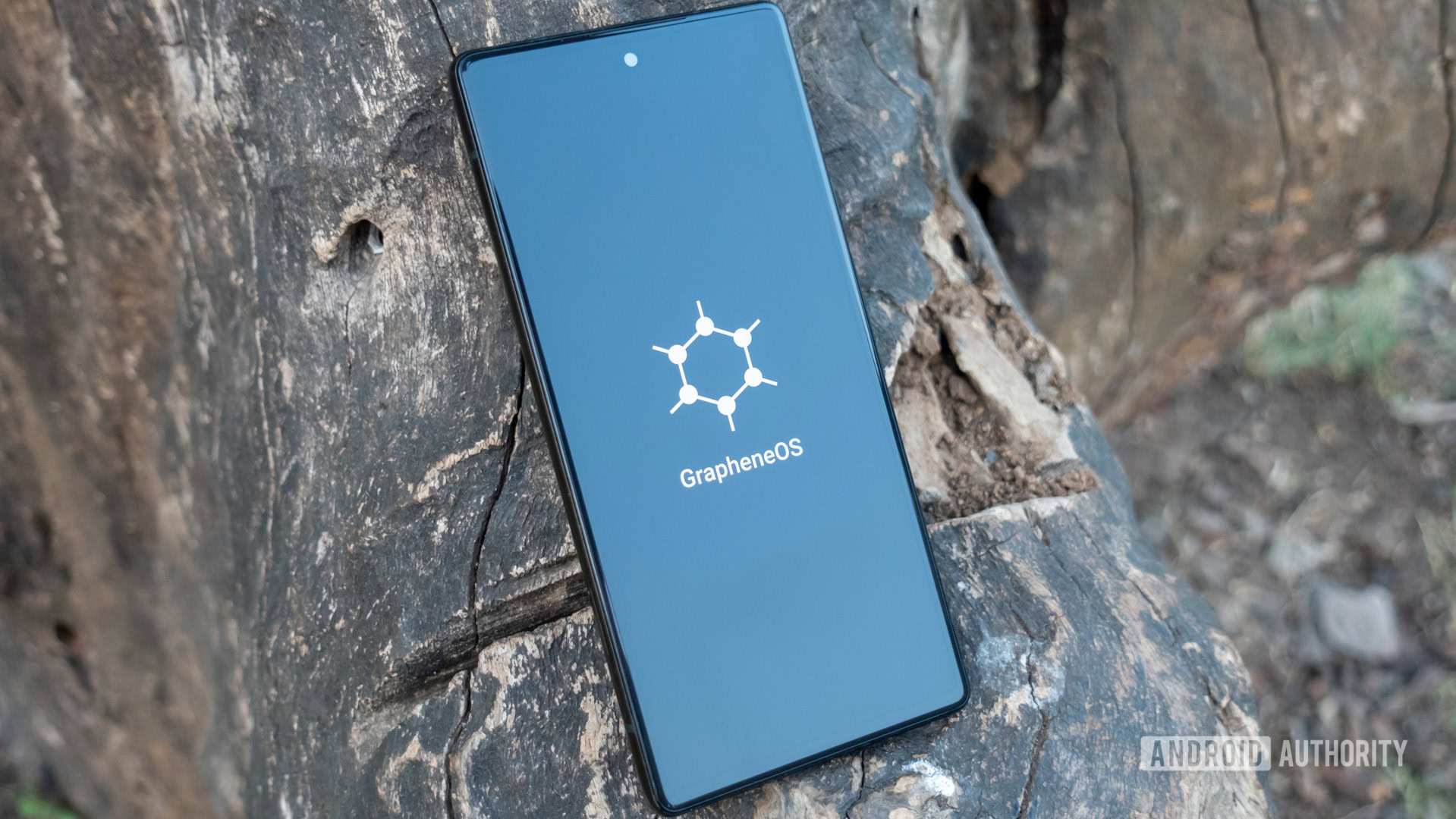
The upcoming GrapheneOS-powered Motorola phones are built specifically to avoid this exact problem.
Unlike some of the best Android phones on the market, Google Pixels have traditionally given developers a clean, transparent canvas to inspect software, test early builds, and run alternative operating systems like GrapheneOS. However, a quiet shift in how Google handles Pixel source code is reportedly threatening that open reputation, and it could soon impact anyone using custom software on their phone.
According to GrapheneOS on X, Google has apparently replaced public, instant code downloads for Pixel phone drivers with a manual request form. Instead of publishing code directly to open developer platforms where anyone can grab it, Google now requires developers to fill out a Google Form and wait for someone to send them a Google Drive link.
What used to take a couple of hours is now taking weeks.
What actually changed?
Custom software relies on two distinct components: custom ROMs (alternative operating systems like GrapheneOS) and the low-level kernel (the code that bridges your phone’s hardware to its software).
Google is legally required under open-source licenses like GPLv2 to share the low-level kernel code. Previously, it posted kernel code as automatic updates to a public developer platform. Now, GrapheneOS says Google requires developers to manually request Pixel kernel code through a Google Form and wait weeks for a Google Drive link, all while squashing the update history into a single, hard-to-read file.
Because custom ROMs cannot function reliably without a working kernel, this change creates a major double bottleneck. Kernel developers lose visibility without a step-by-step update history to trace bug fixes. Meanwhile, custom ROM projects face multi-week delays waiting for kernel files, grinding their security patches and new Android ports to a halt.
An operating system like GrapheneOS cannot release new Android updates or security patches for Pixels until it receives the kernel source code and tests the kernel. Waiting weeks for a Drive link brings their entire pipeline to a crawl.
How does this affect you as a Pixel owner?
If you use your Pixel out of the box with standard Android, you won’t notice a difference today. Your regular software updates and security patches will still arrive directly from Google as usual. However, if you buy Pixels specifically to run custom, privacy-centric operating systems like GrapheneOS, this change hits home:
Slower security updates for custom software: Alternative operating systems rely on early code drops to test and port new Android updates ahead of time. Multi-week delays mean your custom ROM could lag far behind standard Pixel updates.
Less transparency: Without a clear view of code history, independent security researchers have a harder time auditing what Google is changing under the hood.
Pixels are becoming less developer-friendly, while competing brands are stepping up: GrapheneOS noted that its upcoming hardware partnership with Motorola won’t suffer from these delays because they deal directly with the hardware maker.
The GrapheneOS team clarified that this doesn’t touch Android as a whole, and it won’t touch Motorola’s upcoming GrapheneOS phones either. It’s aimed squarely at Pixel. In fact, the team claims Motorola’s long-term partnership with GrapheneOS, which ends GrapheneOS’ years-long Pixel exclusivity, exists in large part because Google made building alternative Android versions for Pixel so difficult. Motorola will host its own code going forward, sidestepping Google’s approval process entirely.
Just a few years ago, Google used to go above and beyond, releasing not only the GPL-mandated kernel source code but also the full kernel commit history. In fact, Google used to go two steps beyond by also releasing device trees and driver binaries, which it was under no obligation to release at all.
The company’s reason for doing so was that the Pixel was treated as a reference platform for AOSP, so developers needed an easy way to build for it. With the release of Android 16, Google shifted the AOSP reference target from Pixel to a virtual device called “cuttlefish” and subsequently stopped supplying Pixel device trees and driver binaries. And now, as GrapheneOS highlights, Google is also making it very difficult to access the kernel source code for Pixels.
In that sense, the Pixel is no longer better than any other Android phone. The only developer-focused reason to buy a Pixel now is that they remain easy to unlock the bootloader on, and their factory images are easily available.
We’ve reached out to Google to ask why this manual process was introduced and whether they plan to speed up turnaround times for developers. We will update this story as soon as we hear back.
Thank you for being part of our community. Read our Comment Policy before posting.
The past few weeks have been nonstop leak after leak for Samsung’s next foldables. We’re expecting there to be three new models. The main upgrade across the foldables should be Samsung’s Flex Titanium technology, which both strengthens the durability of the screens and reduces the visibility of the crease on the inner screen.
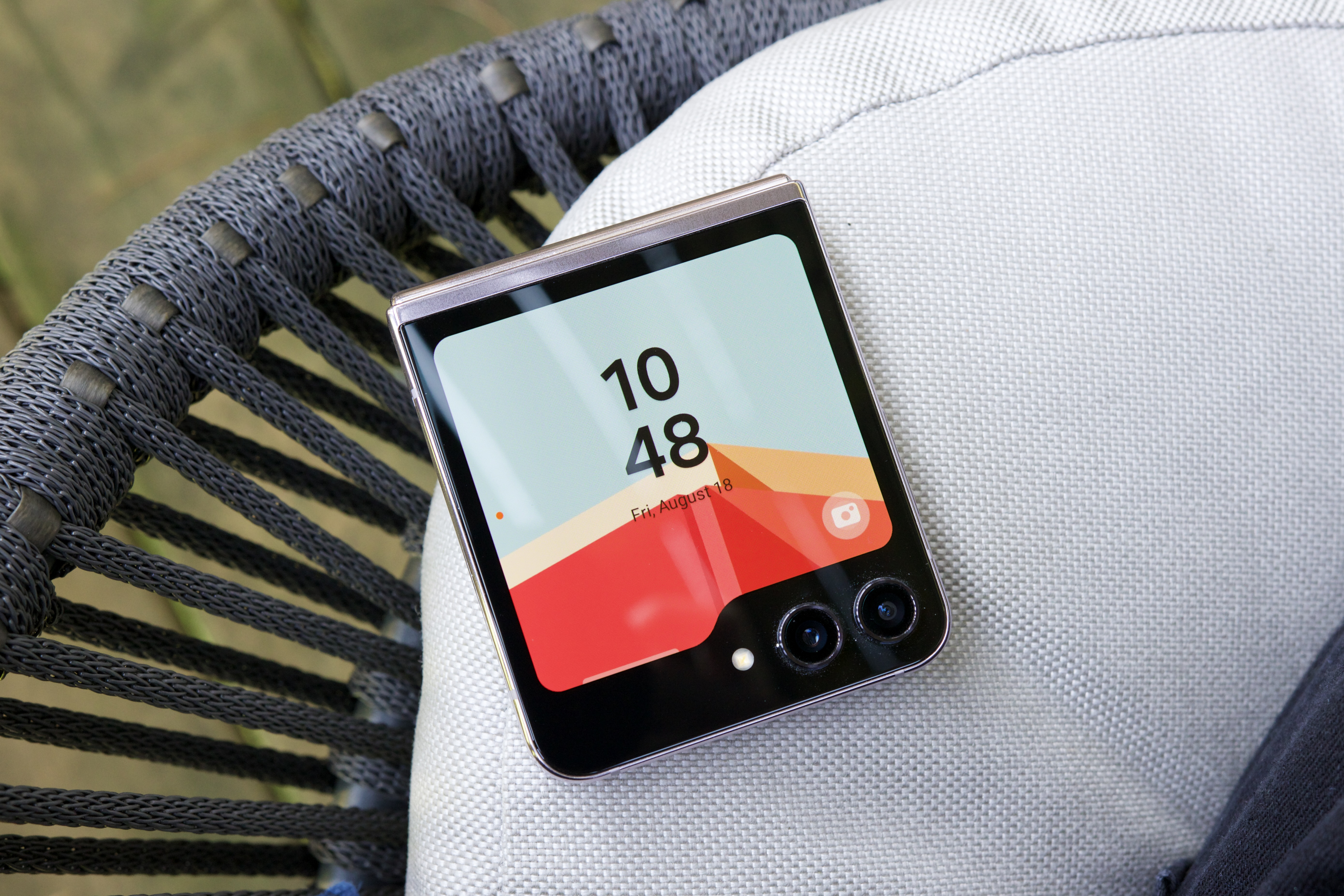
The new Galaxy Z Flip 8 should be the successor to last year’s Z Flip 7. WinFuture has shared product images and what it claims are full details for the new flip-style foldable. While I was hoping for a thinner device, it looks like the Z Flip 8 will be marginally thicker, though it should be lighter at 180g versus the Z Flip 7’s 188g. Otherwise, we’re looking at more or less the same features, but with a newer Exynos 2600 chip. According to WinFuture, the Z Flip 8 will have a 6.9-inch Dynamic AMOLED 2X inner screen with 120Hz refresh rate, a 4.1-inch Super AMOLED cover screen, three cameras (a 50-megapixel main and a 12-megapixel ultrawide on the outside and a 10-megapixel selfie lens on the inside), the same 4,300mAh battery as before but now with faster 45W charging, and storage options of 256GB or 512GB paired with 12GB of RAM.
The middle foldable is expected to be the new shorter and wider Galaxy Z Fold 8. This is supposed to be Samsung’s answer to Apple’s upcoming foldable iPhone. We’ve been staring at leaked images of the Z Fold 8 for weeks, but now we have full specs, also hailing from WinFuture. When unfolded, the Z Fold 8 is said to measure 4.5mm thick, and the whole thing weighs 201g. The report says the Z Fold 8 has a 7.6-inch inner Dynamic AMOLED 2X screen with 120Hz, a 5.5-inch cover screen, dual rear cameras (both 50 megapixels), and two 10-megapixel hole-punch cameras (one on the cover display and one on the inner screen). It should be powered by a Qualcomm Snapdragon 8 Elite Gen 5 for Galaxy and have options for 256GB of storage (with 12GB of RAM) or 512GB and 1TB (with 16GB of RAM). Battery capacity is said to clock in at 4,800mAh, which would be pretty respectable.
On the high-end, we’re expecting to see the Galaxy Z Fold 8 Ultra. As its name suggests, it’s projected to have the better cameras (200-megapixel main camera, 50-megapixel ultrawide, and 10-megapixel 3x telephoto) and longer battery life (5,000mAh). WinFuture’s leak claims the foldable will slim down by 1mm (from 4.2mm to 4.1mm), but gain 3g (from 215g to 218g). The screen aspect ratios will match the Z Fold 7’s closely, with an 8-inch inner screen and 6.5-inch cover screen, both with 120Hz refresh rates. Chipset, storage, and RAM configurations appear to be the same as the Z Fold 8.
On the Samsung smartwatches front, we should be looking at two new models: the Galaxy Watch Ultra 2 and the Galaxy Watch 9. They’re both said to be thinner and lighter than before and use Qualcomm’s latest Snapdragon Wear Elite chip with 2GB of RAM, according to WinFuture.
The Galaxy Watch Ultra 2 will reportedly have an 800mAh battery, which would be a significant jump up from the 590mAh one in the first-gen Watch Ultra. Leaked specs include a titanium case with 10ATM water resistance, a 1.5-inch screen, Bluetooth 6.0, NFC, and LTE.
The Galaxy Watch 9 is expected to come in two sizes again: 40mm with a 1.3-inch screen and 44mm with a 1.5-inch display. Compared to the Galaxy Watch Ultra 2, the water resistance for the Galaxy Watch 9 could be lower at 5ATM. Battery life improvements could be more minimal year-over-year, too: the same 325mAh on the smaller model and a 445mAh for the larger version (a 100mAh bump up from the Galaxy Watch 8’s 435mAh).
It appears Samsung won’t have a new version of the Galaxy Watch 8 Classic, which returned last year with a physical rotating bezel. Maybe the bulkier smartwatch wasn’t popular at all.
More Galaxy AI
One thing that I am certain that Samsung will announce more of is additions to Galaxy AI, its own suite of artificial intelligence features. Whether it’s features from the Galaxy S26 Ultra being brought to the new foldable phones or smartwatches, Samsung has used every Unpacked in recent years to squeeze AI into its apps. It wouldn’t surprise me to see more predictive AI, automations using agentic AI, and generative AI for photo editing. Whether you’ll find them useful is a different question.
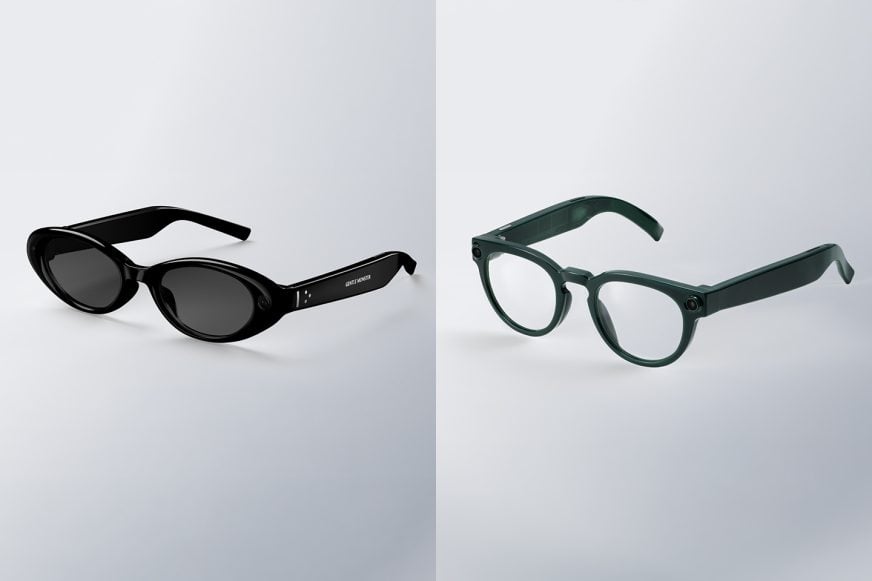
It’s a big year for smart glasses, and Samsung has been very tight-lipped about its plans. Other than a partnership with Google that announced “intelligent eyewear” created with Gentle Monster and Warby Parker at Google I/O this past May, there’s been little additional info. We know that both models have built-in cameras for photos and videos and speakers for music, calls, and audio notifications, which sounds exactly like Meta’s AI glasses. But how much will they cost and what kind of privacy policies will be in place? We have no clue. The latter is especially important considering how Meta keeps making it feel gross to wear any of its smart glasses.
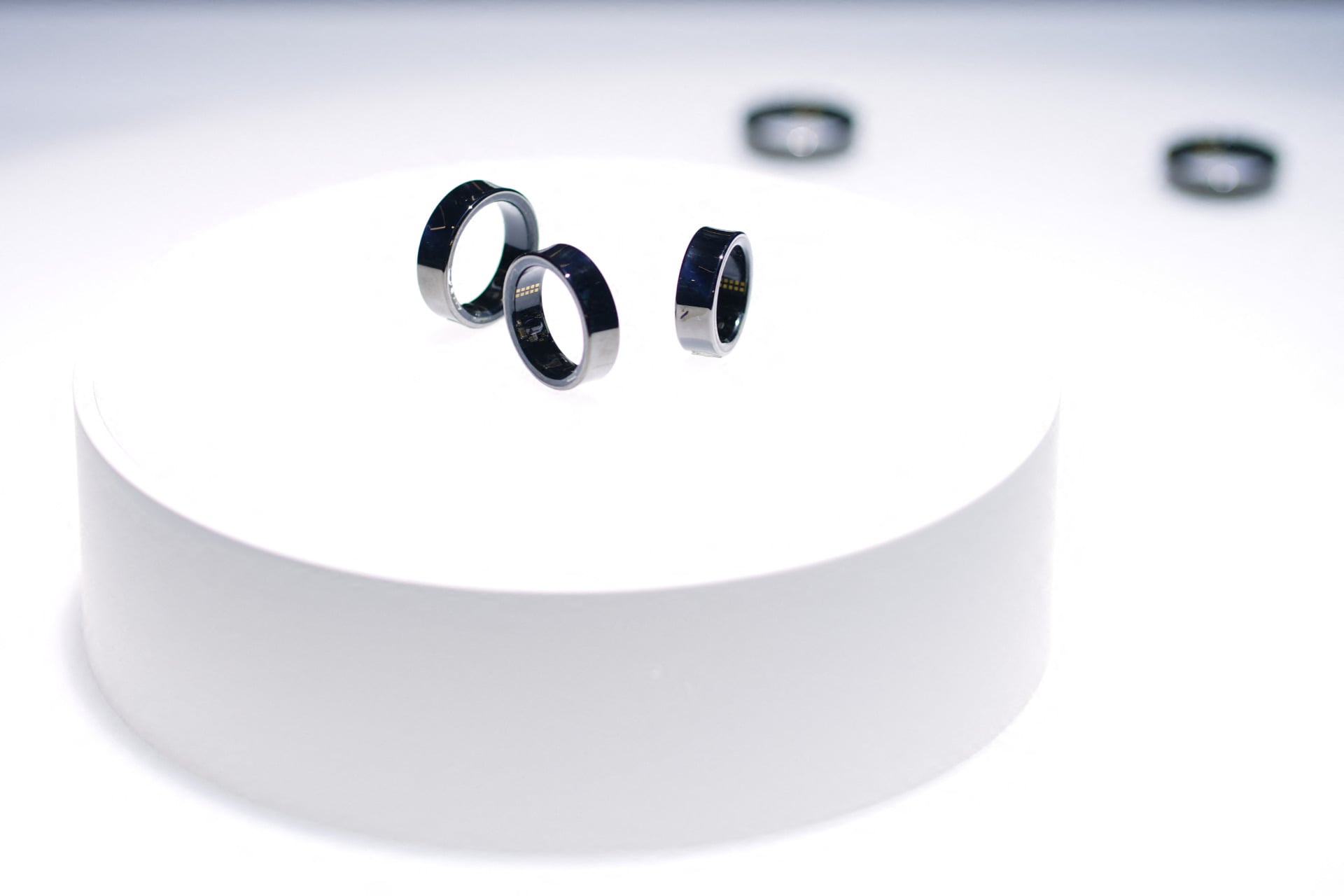
Then, there’s the smart ring. Might we get a tease for a Galaxy Ring 2? It’s been two years since the Galaxy Ring came out. Oura now has a slimmer and longer-lasting Oura Ring 5 and Vital Signals’ Signal Ring could be a game-changer, replacing traditional blood pressure cuffs. What’s next for Samsung’s smart ring?
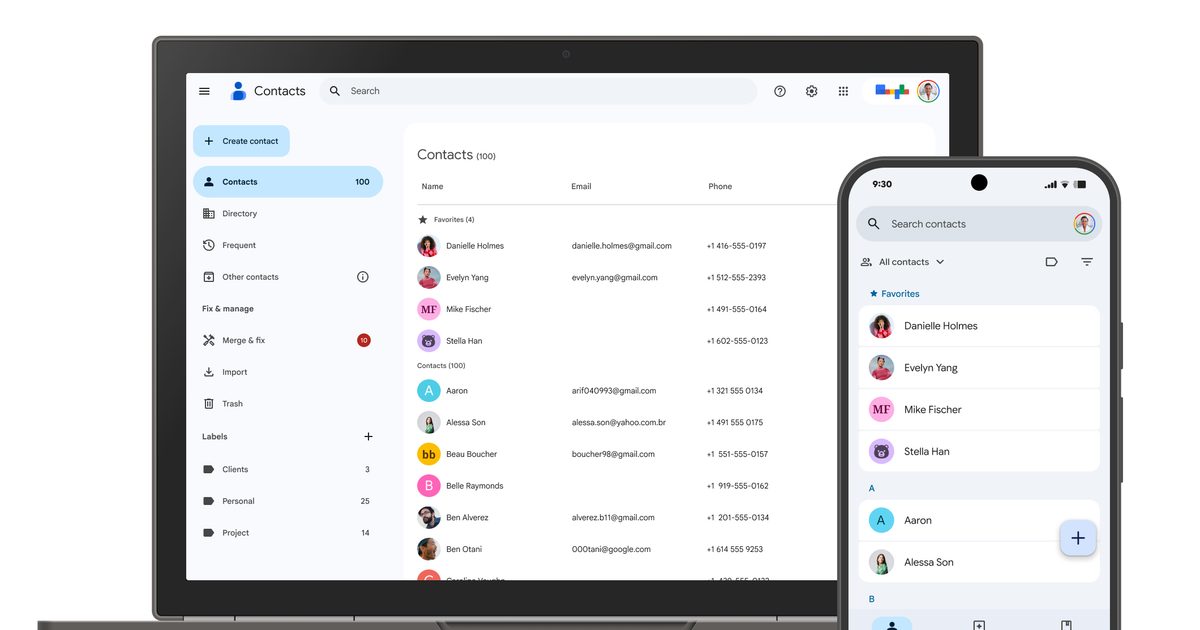
Google is rolling out a small but useful update to the Contacts app on Android that makes it much easier to find and share your own contact details. Instead of digging through settings or creating a separate contact for yourself, you’ll now see a dedicated ‘Your Info’ card at the very top of your contacts list.
The feature gives you quick access to your phone number, email addresses, and other personal details while also adding a faster way to share them with others. The update is arriving with Google Contacts version 4.83.13.940538822 and is rolling out widely (via 9to5Google).
What does the new ‘Your Info’ card do?
Daniel Romero / Unsplash
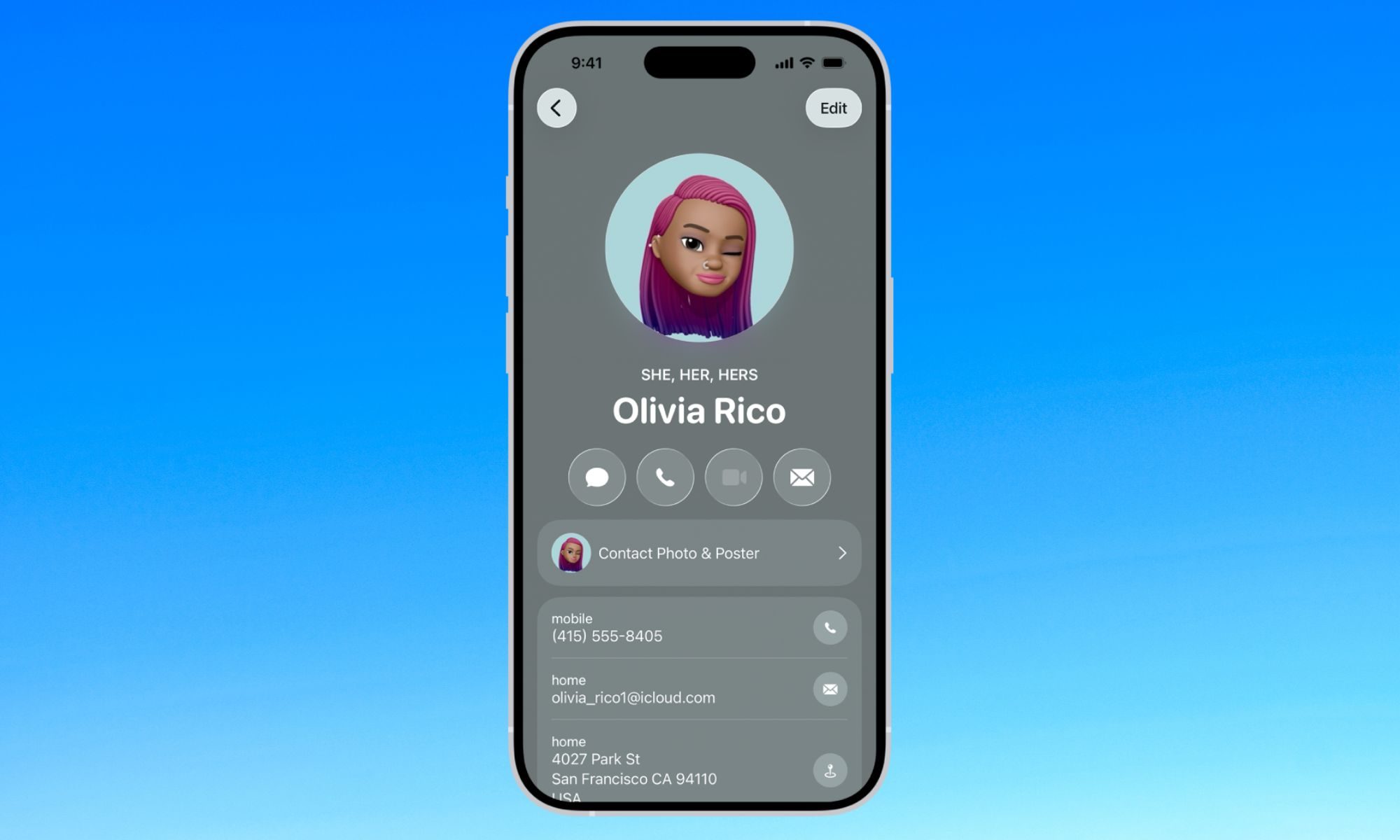
Tapping into the Your Info card pulls up your profile picture, phone numbers, email addresses, and any other details you have chosen to add. If your device has a number tied to it, that one gets labeled as your device number and automatically appears first in the list. Right next to your info sits a dedicated share button, letting you send your contact card as a VCard file to anyone who needs it.
If this setup sounds a lot like something you have seen before, that is because it basically is. iPhone users have had a nearly identical feature for years, called My Card, which also sits at the top of the Contacts app for quick access
This follows Google’s earlier rollout of the Calling Card feature, which lets you personalize how your own contact photo and name appear during calls. Google has also published a support page explaining how the feature works as it rolls out to more Android users.
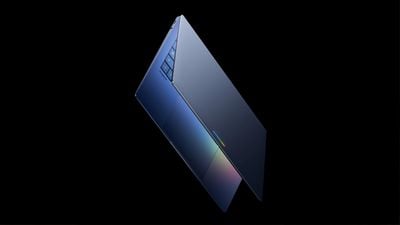
Google today announced a new series of Googlebook laptops that will be built with Gemini at the core. Googlebooks will run software built on a foundation that combines Android and ChromeOS.
Google says the new laptops are designed for Gemini Intelligence for a more personalized and proactive experience.
Instead of a cursor, Googlebooks have a Magic Pointer that users can wiggle to activate Gemini. Gemini can then provide contextual suggestions and answers based on whatever the user is pointing to on the screen. Pointing at a date in an email sets up a meeting, and selecting two images allows them to be visualized together. There are ask, compare, and combine tools available with the Magic Pointer.
Create My Widget, a new Android feature, is coming to Googlebooks. Users can create custom widgets with a Gemini prompt. Gemini is able to search the internet and connect with Google apps like Gmail and Calendar to create a personalized dashboard that can be used for widget creation.
Since Googlebooks will run Android, it will be easier to switch between a Googlebook and an Android smartphone. Apps from a connected Android smartphone will be available on the Googlebook, with a feature set similar to Apple’s iPhone Mirroring.
Quick Access will let users view, search, or insert files from a smartphone on the laptop, with no transfer needed.
Google says it is working with Acer, ASUS, Dell, HP, and Lenovo to make the first Googlebooks. The machines will be built with “premium craftsmanship and materials, coming in a variety of shapes and sizes.” Each one will have a “glowbar” on the lid, making it clear that it’s a Googlebook.
Google has not given insight into Googlebook pricing, but with the specific “premium” build language, they could be priced above the low-cost MacBook Neo that Apple recently came out with. It’s also possible that Googlebooks will have MacBook Neo-level pricing to better compete with Apple’s laptop in on pricing and build quality.
The first Googlebooks are set to launch this fall.
Google has rolled out a fresh Android Canary build, and it looks more complete than you might expect from an experimental release. The catch is simple. This version exists to test ideas, not to promise them.
Android Canary 2603 bundles practical additions like app lock, chat bubbles, and a redesigned screen recorder. It’s available across a wide range of Pixel devices, but this update is meant for developers rather than everyday use
That context matters when reading into any of these changes. Features shown here can still be removed before a stable release, even if some eventually appear in beta builds.
Even so, this build offers a useful snapshot of where Android may be heading next.
New features worth watching
App lock is one of the most practical additions. You can now long press an app and secure it directly, which adds a layer of privacy without digging through settings menus
That same menu also activates bubbles more fully. Conversations can float on screen as overlays, making multitasking feel more natural than before
The screen recorder has also been reworked into a floating pill interface. It lets you quickly choose between recording the full screen or a single app, then moves you into a preview flow where you can edit, delete, or share the clip
Google has even refined smaller details. The long press menu now groups shortcuts into a cleaner layout that expands only when needed.
Why this update isn’t final
There’s a reason none of this should be taken as final. This channel exists for developers to explore early features and APIs, not as a preview of what will ship next
That gap between polish and certainty is important. Some features already feel complete, but they can still be adjusted or dropped before Android 17 reaches stability. Even changes that move into beta are not guaranteed to stick.
There’s also a tradeoff to consider. Canary builds aren’t designed for daily use, so most people won’t try them unless they’re comfortable dealing with bugs or manual installs.
What you’re seeing here is Android in an active state of change, with ideas being tested in public before decisions are locked.
What to expect next
Some of the smaller changes hint at a broader direction. The return of separate Wi-Fi and mobile data toggles suggests a rethink of earlier design decisions, while heavier use of blur points to ongoing visual refinement
There’s still no clear timeline for what carries forward. Google hasn’t confirmed which of these features will land in Android 17 or when they might reach stable devices, even on supported Pixel models.
If you’re tracking Android’s evolution, the next step is to watch what shows up in beta builds. That’s usually where experimental ideas start turning into features you’ll actually use.
On an iPhone: Tap and hold on the home screen until the icons wiggle, then drag them around to rearrange or tap the X to uninstall them.
Add Shortcuts for Useful Tasks or Apps
One of the best things you can do is place shortcuts on the home screen to make it easier for them to call or message their closest contacts with a single tap.
On an Android phone: Tap and hold on the home screen and select Widgets, choose the Browse tab, then scroll down to Contacts, choose Direct dial, and select a contact. You can place the shortcut anywhere on the home screen, and they can call that person simply by tapping it. You can add Direct message shortcuts in the same way.
On an iPhone: Use the Shortcuts app. If you create a folder for the home screen, you can potentially add multiple shortcuts. You can tap the plus (+) icon at the top right to add a new shortcut, search for or scroll down to Phone or FaceTime, tap on it again, then tap Contact and pick the contact you want to add. Tap at the top and choose Rename to give the shortcut a name, choose the icon, and Add to Home Screen. You can also tap and hold on the home screen until the icons wiggle and tap Edit at the top left, then Add Widget, and choose Contacts, then select the contact you want to add, but this will require an extra tap when they want to call.
Call contact shortcut on Android
Screenshots: Simon Hill
Consider a Simple Launcher (Android Only)
With Android phones, you can change the “launcher,” which determines the look of the whole interface, including things like app icons and font size.
Samsung phones have an alternative launcher called Easy Mode built in. To toggle it on, go to Settings, Display, and choose Easy Mode. There are loads of alternative Android launchers that you can install, and several simplify the phone experience with big icons. Simple Launcher, Big Launcher, or Senior Home are all worth a look.
On an Android phone: Go to Settings, Display and touch, and choose Display size and text, then drag the slider to adjust. You can also get there via Settings, Accessibility, then Display size and text.
Don’t let Google know, but I’d be quite lost without YouTube. I use the video platform daily for background noise during the workday and for enjoying my favorite creators’ content in the evenings.
The platform doesn’t offer the best user experience, at least not one that prioritizes the content. Constant interruptions and visual clutter within the app have prompted me to seek alternative ways to watch YouTube. And you don’t need to put up with them, either.
There are various ways to use YouTube interruption-free. What follows are your options.
How do you watch YouTube interruption-free on Android?
191 votes
Use a browser with dedicated video controls
Andy Walker / Android Authority
You don’t necessarily need to use an app to view YouTube content; Android browsers will serve just as well. Some browsers are more adept at displaying and controlling video than others, though, and while the likes of Google Chrome seem like an excellent fit for a fellow YouTube product, there are better options.
Personally, I’ve gravitated towards Banana Browser as my preferred video web browser. It packs a dedicated video player that supports numerous content sources, including YouTube and TikTok. It also includes ad-blocking smarts and SponsorBlock support — a tool that skips past sponsor slots and other interruptions — while background play and picture-in-picture modes are also available.
As far as user-friendliness is concerned, Brave is perhaps the best option on Android for casual users. It supports background playback for audio tracks, picture-in-picture mode, and dedicated settings to block recommended content, “distracting elements,” and YouTube Shorts.
Use one of the many Android YouTube apps available
Andy Walker / Android Authority
There are many apps that present YouTube content in a more user-friendly manner, free from annoying content. My current favorite example is Tubular, a fork of NewPipe. What makes Tubular better is its inclusion of SponsorBlock, which skips video sections based on crowdsourced info, and ReturnYouTubeDislike, which does exactly what it says on the tin. It’s also extremely easy to use, so even non-techies can easily adopt it.
Notably, NewPipe remains a pretty great alternative, especially if you’re running an older Android smartphone.
Tubular and NewPipe are excellent open source Android YouTube alternatives.
PipePipe is a hard fork of NewPipe, featuring a nifty keyword filter system and support for other platforms, including Bilibili.
For something more democratic, Grayjay is not simply a YouTube alternative. It’s effectively a content aggregator and supports a host of big-name platforms serving audio and video. It’s also built with privacy in mind, keeping subscription information locally.
Desktop user? FreeTube does the trick
You can use a web browser for your YouTube needs on Windows, but I’ve found a standalone app to be a far better solution. As Google doesn’t offer a dedicated Windows app, I have to look elsewhere. For the most part, FreeTube covers pretty much all of my bases.
FreeTube is a free and open source program that bills itself as a privacy-first client. It keeps all your subscription, playlist, and history data on your local machine, doesn’t display ads, and uses a UI consistent with YouTube itself. The most significant appeal is its support for macOS and Linux as well.
As an unofficial product, FreeTube occasionally breaks due to YouTube’s changes to its backend. But, thanks to the power of open source collaboration, these problems are usually remedied in a day or a few.
Use this popular Google TV app
Most of my YouTube viewing takes place on my TV via my Chromecast with Google TV. While I could use the official YouTube app for the platform, I find it somewhat lacking in customization, video controls, and quality adjustments. It’s why SmartTube is one of my essential Google TV apps.
SmartTube is a brilliant piece of free and open source software that’s updated regularly and supported by a thriving community. The app itself feels quicker, offers more UI options to enhance accessibility, and boasts numerous advanced features compared to YouTube’s official production. It just so happens to support SponsorBlock, ad suppression, and gives me complete control over the types of videos I want recommended to me. It’s a far more personal way to consume YouTube.
SmartTube offers more accessibility and video quality options than YouTube on Google TV.
Of course, being a third-party app that’s not directly available from the Play Store on Google TV, installation is a bit of a chore. It requires installing a prelude app before you can access SmartTube itself. Nevertheless, jumping through this hoop is well worth it.
Don’t want to miss the best from Android Authority?
Actually pay for YouTube Premium
Rita El Khoury / Android Authority
Look, as much as thrifty consumers hate to admit it, paying for YouTube Premium may actually be the best solution for watching YouTube without ads. While parting with cash monthly is a painful prospect, Premium is the only solution if you want to access YouTube unabated on every supported device.
Premium also offers a few valuable perks, including YouTube Music Premium access, offline viewing, additional playback options, and the super helpful skip-ahead smarts. And, of course, paying for Premium is one way to support the creators you watch every day.
Paying for YouTube is the only way you’ll get Premium features across all supported devices.
My primary concern with this approach is the YouTube experience itself. As I mentioned in the SmartTube section, YouTube is overly rigid in its UI and controls on its supported platforms. Although most consumers won’t need options to increase the scale of thumbnails on TV or hide Shorts from view, many power users do. Paying for YouTube won’t magically produce these features.
At $13.99 monthly, Premium isn’t what I’d call cheap. And, arguably, you could access the lion’s share of its features with one of the solutions outlined above. Nevertheless, I did want to mention purchasing YouTube as an option because it genuinely is.
How do you watch YouTube interruption-free? Let me know your solution in the comments below.
Thank you for being part of our community. Read our Comment Policy before posting.
It’s still May, which means it’s still Google time. After showing off Android’s new look at The Android Show, the company still has its developer conference to check off the list. Google I/O 2025 is scheduled to start on May 20 at 1PM ET / 10AM PT, and Engadget will be covering it live, via a liveblog and on-the-ground reporting from our very own Karissa Bell.
To view this content, you’ll need to update your privacy settings. Please click here and view the “Content and social-media partners” setting to do so.
The company made it clear during its Android showcase that Android XR, its mixed reality platform, will also be featured during I/O. That could include the mixed reality headset Google and Samsung are collaborating on, or, as teased at the end of The Android Show, smart glasses with Google’s Project Astra built-in.
To find out for yourself, you can watch Google’s keynote in the embedded livestream above or on the company’s YouTube channel. The event starts at 1PM ET on May 20 and the company plans to hold breakout sessions through May 21 on a variety of different topics relevant to developers.
Android 16, the next major revamp for Google’s smartphone operating system, has already reached platform stability. And now that all the key changes and upgrades have been locked in place, Google has finally shed light on its public release, sort of.
During a press briefing for The Android Show ahead of the Google I/O developers conference, a Google executive confirmed that the stable build of Android 16 will land on Pixel phones in June, with a fresh aesthetic makeover in tow.
It won’t feature the entire design UI overhaul with the new Material 3 Expressive elements in one go, as Google apps will continue to adapt it in the subsequent months. However, a beta build of Android 16 that lands later this month will give users a taste of the changes to come.
Google says Material 3 Expressive is the company’s “most researched update to the design system since its launch in 2014.” It embraces a youthful new UI design with bolder colors that brings over a dozen changes to elements such as app bars, button groups, and navigation bar, among others.
In addition to a June release schedule for Android 16 on Pixel devices, Google also revealed that it will land on Samsung phones later this Summer. That is likely going to begin with a beta program for One UI 8, which has already been spotted testing on Samsung’s flagship phones.
What’s new in Android 16?
As far as features go, Android 16 brings a host of notable changes. For photography enthusiasts, they will be greeted with new temperature and tint adjustment controls for more precise grading controls in the camera app, alongside a hybrid auto-exposure system. Support for the Advanced Professional Video (APV) codec is also part of the package to allow high-quality video recordings.
Tushar Mehta / Digital Trends
“Android 16 adds the capability for users of LE Audio hearing aids to switch between the built-in microphones on the hearing aids and the microphone on their phone for voice calls,” says Google. Notably, it enables support for the Wi-Fi 6 802.11az standard, which is more secure and scalable.
The Live Updates system in Android 16 introduces a new, and more minimalist approach to notifications that cover ongoing activities such as navigation and food delivery. Extensions, now going by the name “apps,” will also be a huge part of Android 16, allowing the Gemini assistant to get work done across different apps.
It already supports the Google suite of apps, such as Docs, Drive, Gmail, and Maps, alongside a small number of third-party options like Spotify, but more names will adopt it later this year. I already have the latest beta build running on my Pixel 9, and will soon report on the design and functional changes as the final set of changes start appearing in the coming weeks.
Summer is fast approaching, and that means it won’t be long before we see Samsung’s new Galaxy Z Flip 7 make its debut. While the Galaxy Z Flip 6 is a top-notch foldable, it also felt like Samsung phoned it in last year. That new model offered mostly modest improvements over the Z Flip 5, with the most significant ones being hidden under the hood, like thermal improvements, or generally underwhelming, like a larger cover screen that didn’t improve in any other meaningful way.
We’re hoping that Samsung does better with the Galaxy Z Flip 7 this year. The good news is that plenty of leaks and rumors suggest the company is on the right track to hit it out of the park in its seventh inning. Let’s dig in and go over everything we’ve heard so far about what to expect from Samsung’s flagship flip phone this year.
Samsung Galaxy Z Flip 7: Design
Joe Maring / Digital Trends
We’re not expecting any radical changes in the overall design of the Galaxy Z Flip 7 this year compared to its predecessor. Samsung generally takes a more iterative approach to the design of its foldables, refining the design each year with modest style and usability enhancements rather than making broader changes.
Some rumors have suggested that Samsung could move away from the softer, rounded edges of the Galaxy Z Flip 6 and prior models, adopting a “boxier” aesthetic this year. The theory is that this might be needed to accommodate new displays and a larger batter without compromising its slimness. However, most of the leaked renders we’ve seen indicate that if any such changes occur, they’re likely to be subtle. All the renders we’ve seen suggest that the button placement will remain the same.
The Galaxy Z Flip 7 may grow slightly taller and wider — some leaks have suggested dimensions of 166.6 x 75.2 x 6.9mm, compared to the Galaxy Z Flip 6, which comes in at 165.1 x 71.9 x 6.9mm, but other renders are barely distinguishable from the current model. Unconfirmed rumors point to the possibility of a titanium build, but we’d take those with a grain of salt, as Samsung has thus far reserved that material for its top-of-the-line Galaxy S25 Ultra.
Galaxy Z Flip 6 (left) and Galaxy Z Flip 5Joe Maring / Digital Trends
Samsung made some significant improvements to the hinge on the Galaxy Z Flip 6 last year, featuring a new “dual rail hinge” design that offers better shock distribution and moves more fluidly than ever while being rigid enough to let you prop the phone up at any angle. Samsung says that the Z Flip 6 hinge is rated for 200,000 folding and unfolding cycles. We were impressed with what Samsung did here, but it may not be finished if the rumors are accurate. The company has repeatedly said it’s focused on improving its hinges’ long-term reliability and durability as much as possible, and several sources suggest some of those improvements could arrive in this year’s model.
It’s an open question how much practical difference this will make in everyday use, but it could ensure that Galaxy Z Flip 7 owners can continue enjoying a solid and reliable hinge mechanism even if they hold onto their phone for several years. Sadly, there’s been little reporting on whether an improved hinge might also improve dust resistance. The Galaxy Z Flip 6 has an IP48 rating, which provides excellent water protection, but falls short on dust resistance compared to premium non-foldables, which typically carry an IP68 rating. The lower score for dust resistance is mainly due to the hinge and the flexible inner display, and there’s only so much Samsung can do here. Beach sand won’t be a problem — IP48 is enough to protect against particles larger than 1mm — but fine dust may remain an issue.
There’s been no word yet on what colors we can expect the Galaxy Z Flip 7 to arrive in. Samsung typically has some pretty fun shades for its Z Flip series, and we expect that will continue. However, what we’d really like to see is a return of the Bespoke Edition initiative that Samsung from the Galaxy Z Flip 3 and Galaxy Z Flip 4 era.
Samsung Galaxy Z Flip 7: Displays
Samsung Galaxy Z Flip 5 (left) and Galaxy Z Flip 6Andy Boxall / Digital Trends
Reliable sources, including display analyst Ross Young, believe the main foldable display will grow from the 6.7-inch size that’s been the norm for the past few years to an even larger 6.8-inch or 6.85-inch screen. While the width and height may increase to make room for this larger screen, Samsung is also expected to reduce the bezels.
Samsung’s display division showed off some impressive creaseless screen technology at this year’s Mobile World Congress (MWC), rivaling what we’ve seen in the Oppo Find N5. This has made some hopeful that the Galaxy Z Flip 7 could finally rival what OnePlus, Oppo, and Honor have already managed to pull off. Sadly, we’re not holding our breath on this one, as it’s probably too early for Samsung’s bleeding-edge screen tech to be ready for this year’s model. Multiple reports say Samsung will noticeably reduce the crease in this year’s model, which is still good news, but it may not go away entirely until the Galaxy Z Flip 8 comes around next year.
Samsung Galaxy Z Flip 6 (left) and Galaxy Z Flip 5Andy Boxall / Digital Trends
Meanwhile, the cover screen is rumored to become both larger and more functional. Most reports agree on a 4-inch display — a healthy increase from the 3.4-inch one of the Galaxy Z Flip 6. Some reports call it a “full-sized” or “full-width” screen, suggesting it could cover most of the front. Again, some of this increase will come from slimmer bezels. There’s a preponderance of evidence for this new cover screen, including comments from Young, leaked CAD renders, and images of early Z Flip 7 case designs.
Several sources suggest Samsung’s goal is to finally make the cover screen fully functional. Previous Galaxy Z Flip models limited the cover screen mostly to notifications, quick settings, and widgets. Even when the display went from 1.9 to 3.4 inches on last year’s Galaxy Z Flip 6, Samsung did little to improve the experience — it just made it bigger. The 720 x 748 resolution and 60Hz display made everything look sluggish and fuzzy, and you still couldn’t run apps on it without fiddling with settings and third-party tools.
We’re hoping that Samsung has listened to user feedback and taken a cue from the Motorola Razr Plus, which has a cover screen that leaves Samsung in the dust; a 4-inch display that’s just as limited as the current 3.4-inch one would be a major disappointment. Based on everything we’ve heard, the outlook is good, but we won’t know for sure until Samsung unveils this year’s foldables.
Samsung Galaxy Z Flip 7: Camera
Samsung Galaxy Z Flip 6Andy Boxall / Digital Trends
While the Galaxy Z Flip 7 is expected to take a nice leap forward in screen technology, it doesn’t look like Samsung will do the same for its camera system. By all reports, this year’s model will feature identical camera specs to the Galaxy Z Flip 6: a dual-camera array with a 50-megapixel (MP) primary wide lens and a 12MP ultra-wide, joined by a 10MP selfie camera under the main display.
Some of those cameras may gain new sensors under the hood for better light sensitivity and color reproduction, but most of the camera improvements will likely come from a more powerful image signal processor (ISP) inside this year’s model and the AI computational photography improvements from a more advanced neural processing unit (NPU).
Along those lines, Samsung may introduce more AI-driven features for editing and optimizing photos, further expanding its Galaxy AI Suite like it did for the Galaxy S25 lineup earlier this year. However, most of those also came to older Galaxy S-series and Z-series phones, so they may not be unique to the Galaxy Z Flip 7.
Samsung Galaxy Z Flip 7: Specs
Andy Boxall / Digital Trends
There’s been a running debate among analysts and leakers about whether this year’s Galaxy Z Flip 7 will pack in Qualcomm’s custom Snapdragon 8 Elite for Galaxy or Samsung’s own flagship Exynos 2500 chip. Early speculation pointed to the Exynos, but Samsung has reportedly been having production problems in producing enough chips to meet expected demand.
This is the same issue that reportedly led to Samsung scrapping its Exynos plans for the global Galaxy S25 models and going all-in on the Snapdragon 8 Elite. While there’s still evidence that the Exynos 2500 could be used in the rumored Galaxy Z Flip FE, it’s looking more likely that the Galaxy Z Flip 7 will follow the S25 lineup and go exclusively with Qualcomm chips, at least for its first run. North American models will likely use the Snapdragon 8 Elite either way, as Samsung hasn’t used Exynos chips in any of its flagships sold in the U.S. since 2015 and in Canada since 2016.
Memory and storage specs are likely to remain unchanged this year. The Galaxy Z Flip 6 was available in 256GB and 512GB storage capacities, both with 12GB of RAM, and all rumors point to the same for the Z Flip 7, so don’t hold your breath for a 1TB model.
Samsung Galaxy Z Flip 7: Battery and charging
Samsung Galaxy Z Flip 6 (bottom) and Samsung Galaxy Z Flip 5Andy Boxall / Digital Trends
The Galaxy Z Flip 7 could see a modest battery size increase, with reports pointing to a 4,300mAh cell — a 7.5% bump from the 4,000mAh battery in the Galaxy Z Flip 6. However, the real battery life improvements will likely come from other efficiency improvements, both technical and practical.
The Snapdragon 8 Elite chip has already proven itself a winner in battery efficiency, and several rumors suggest that the new displays will adopt a more power-efficient Color Filter on Encapsulation (CoE) technology, or what Samsung Display calls Eco²OLED. This first came to the Galaxy Z Fold 3 and has been refined on subsequent Z Fold models. There have also been rumors it could appear on next year’s Galaxy S26 Ultra.
Potential cover screen usability improvements will also offer a more practical way of increasing battery life. Since a four-inch panel draws less power than a 6.85-inch screen, the more you can do with the phone closed, the longer the battery will last. Most Galaxy Z Flip users find themselves flipping their phones open several times a day, even just to read an email or text message. If our experience with Motorola’s recent flip phones is any indication, we expect Galaxy Z Flip 7 users will need to do this far less often.
Leaks from early prototype testing indicate that the Galaxy Z Fold 7 could run for nearly an hour longer on a single charge despite having the same battery as its predecessor. This makes us optimistic that we can expect comparable improvements for the Galaxy Z Flip 7.
Unfortunately, there’s some bad news on the charging front: According to information from China’s 3C certification database, the Galaxy Z Flip 7 is expected to retain the same paltry 25W wired charging speeds as its predecessors. That’s disappointing but not altogether surprising; Samsung tends to take a conservative approach to charging speeds. The specific reasons for this aren’t entirely clear, but it helps reduce excessive heat in a cramped folding design and ensures the battery stays healthier in the long term.
Samsung Galaxy Z Flip 7: Software and features
Tushar Mehta / Digital Trends
In a surprising twist, the Galaxy Z Flip 7 could be one of the first Samsung phones to launch with One UI 8. That’s thanks to Google releasing Android 16 earlier than usual this year, with the next major release expected to land in June.
This means that Android 16 will be out by the time the Galaxy Z Flip 7 launches. It’s unlikely Samsung wants to be left behind, so it’s reportedly been hustling to have One UI 8 ready to go in time to take advantage of all the latest Android enhancements.
In addition to upgraded health tracking features, Audio Sharing, and enhanced anti-theft protections, Android 16 offers a native Desktop mode for the first time, allowing users to project a Chrome OS-like interface onto a larger screen. This has led to speculation that Samsung might include DeX support on the Z Flip 7 to provide its own desktop computing experience rather than simply relying on what Android 16 offers.
Some have even suggested that DeX could work with Samsung’s Flex Mode, allowing it to be used as a dedicated webcam for video calls on a larger screen. Nevertheless, these rumors remain speculative, and it’s equally possible that Samsung may choose to retire DeX in favor of Android’s more standard desktop mode.
Beyond the Android 16 features that One UI 8 will embrace, it’s a safe bet that we can also expect to see some new Galaxy AI features show up. There’s been no word on what these might be, and much of what Samsung has offered so far has leaned more toward the gimmicky. Most of the really useful ones, like Circle to Search, Magic Editor, and Gemini Live, come from Google, not Samsung.
Samsung Galaxy Z Flip 7: Release date and pricing
Samsung Galaxy Z Flip 6 (left) and Samsung Galaxy Z Flip 5Andy Boxall / Digital Trends
There’s been no reliable information about when Samsung plans to release the Galaxy Z Flip 7, but the odds are on a July event. While Samsung’s summer Galaxy Unpacked events were typically held in August, the company switched things up in 2023 by moving to July 26 for the Galaxy Z Flip 5 reveal. That continued into 2024, when Samsung went even earlier, with a July 10 event in Paris to unveil the Galaxy Z Flip 6.
Still, we don’t think that’s a trend. The July 10 event was likely scheduled to beat the 2024 Summer Olympics rather than a sign that Samsung plans to keep moving its events to earlier dates. If anything, the new timing for Android 16 and Samsung’s need to have One UI 8 ready will likely push things into late July or possibly even August.
As for the price, the Galaxy Z Flip 6 got a $100 price bump last year, raising the starting price to $1,099. This makes it more likely that Samsung will hold the line on pricing for this year’s models, which are expected to be available in the same 256GB and 512GB capacities for $1,099 and $1,219, respectively.