Buried in a garbage dump in Wales, U.K., is a hard drive containing Bitcoin worth a colossal $765 million, according to computer engineer James Howells.
Howells accidentally discarded the smartphone-sized drive in 2013, but his local council has repeatedly refused him permission to enter the landfill site and search for it, citing factors such as environmental concerns and arguments over who is the lawful owner of the device now that it’s part of the dump.
But there’s been a new twist in this long-running story, as Newport Council recently revealed that it’s planning to close down the site in the next 12 months so that it can transform it into a solar farm to power the council’s new garbage trucks. The decision to close it has given Howells a new idea for how he might be able to get hold of his much-missed hard drive.
“I would be potentially interested in purchasing the landfill site,” he said in comments reported by the BBC this week. “I have discussed this option recently with investment partners and it is very much on the table.”
The entire site is filled with more than 1.4 million tons of waste, and Howells thinks the hard drive is in an area containing around 100,000 tons of it.
To find the drive and its 8,000 Bitcoins, Howells said he would deploy a team of human sorters, robot dogs, and an AI-powered machine that’s capable of identifying a hard drive as it passes by on a conveyor belt. But if the drive has suffered damage, there’s a chance he won’t be able to ever recover his precious Bitcoins.
But if the endeavor succeeded, Howells has said he would keep around 30% of the Bitcoins for himself, with 30% going to the recovery team, 30% to investors, and the remainder shared among local causes and Newport residents.
Digital Trends reported on Howells’ lost hard drive in 2020, when the Bitcoin on it was valued at $75 million, around $700 million less than what it’s worth now.
Howells told Business Insider in 2022 that he tries not to think too much about what his share of the money will enable him to do if he ever recovers it, “otherwise you just drive yourself crazy.”
It looks like I may have played myself again. I was genuinely excited about AMD’s RX 9070 XT, but now, I’m starting to worry about its future. I always knew that the new AMD flagship wouldn’t be able to compete against some of Nvidia’s best graphics cards, but I had a lot of hope that it’d still be a great competitor for a number of other reasons.
I’m not doubting the performance of the RX 9070 XT. I have no reason to, as we don’t know a thing about it — and that’s exactly why I’m worried. Not only are the GPUs still a complete mystery, but they’ve also reportedly been delayed. At this rate, I fear that AMD may have lost the war before it even started, and I’m not alone.
I felt pretty excited for the RX 9070 XT, but so far, the launch of RDNA 4 has been a harsh lesson in managing your expectations.
Get your weekly teardown of the tech behind PC gaming
First, the GPUs barely got a mention during AMD’s 45-minute-long CES 2025 keynote. Then, the few slides that AMD released to the press offered very little information; we basically only learned a little bit about the RDNA 4 architecture and AMD’s performance goals. The information was vague, too — think “improved ray tracing performance” and the like.
The GPUs themselves were spotted at CES, but only those made by AMD’s partners, and they didn’t come with any specifications. So, at this stage, it’s been revealed that the RX 9070 XT comes with three fans in its Gigabyte design. That’s… not a lot.
But wait — there’s hope, or so I thought. AMD told Digital Trends that RDNA 4 would be released “in a matter of weeks,” and that the company thought that the new RX 9000 series deserved its own event. But only silence has followed.
The first update came not from AMD itself, but from B&H. The retailer put the RX 9070 XT up for sale with a January 22 preorder date. The cards had been taken down, but then they reappeared with a release date of March 22. Finally, this tracks.
Radeon 9000 series hardware and software are looking great and we are planning to have a wide assortment of cards available globally. Can’t wait for gamers to get their hands on the cards when they go on sale in March!
David McAfee, AMD’s vice president and general manager of the Ryzen CPU and Radeon graphics division, revealed on X (Twitter) that the cards will go on sale in March. McAfee later added that AMD is holding onto the GPUs a little while longer in order to optimize their software stack, including FSR 4.
Meanwhile, various leakers and tipsters are having a field day with AMD’s troubled RDNA 4 launch. Recent whispers point to AMD still holding off to see how Nvidia fares. At this rate, AMD will likely get to see the RTX 5070 Ti and the RTX 5070 in their full glory before it launches the RX 9070 XT.
AMD wanted to announce its new graphics cards alongside Nvidia, but it clearly didn’t have a solid plan for actually releasing them. Now, we’ve had to cobble together various ideas about the cards from leaks, board partners, and social media posts, which doesn’t inspire a lot of confidence.
As soon as I saw David McAfee announce that RDNA 4 wouldn’t be here until March, I knew what was coming — and I wasn’t wrong. PC gaming enthusiasts, including both AMD and Nvidia fans, weren’t happy with the way it’s all gone down.
Scrolling through the hundreds of comments under McAfee’s post reveals just how badly the general public wants to know what’s going on.
Not even, a proper announcement with slides of performance, features. Could be even "price will be reveled at, a later date". This is so bad PR… i have no words.
Sitting at over 500 likes, a comment from GawroskiT on X makes a dig at AMD’s PR team. “Not even a proper announcement. […] This is [such] bad PR. I have no words.”
Another user, PlaysRingle, promises to ditch AMD for Nvidia based on how things are going. “AMD is going to make me upgrade my RX 7900 XTX to an RTX 5080. I can’t keep defending AMD when it keeps doing these things.”
I know that I’m being fairly critical of AMD here myself, but I can’t help feeling bad when reading these comments and seeing the reactions. Some of it is really quite harsh, such as this comment from noremac258: “Does AMD ever not fail to capitalize on an opportunity? […] AMD’s graphics division is a disaster.”
What ARE you guys doing? What sort of "marketing" is this "stealth" reveal??? Your CES presence was so uninformative you'd have been better off not showing up at all, and all we get since then is THIS?
I tried to find more supportive comments, but there are very few of those to be found. However, Hardware Unboxed made a separate post defending AMD, which is what prompted McAfee to clarify that the delayed launch comes down to software optimization.
AMD delaying the launch of RDNA4 to March is the right move. The last thing they want is stuffing up the launch yet again, which they risk doing if they launch before Nvidia.
And very few people would have bought a 9070 XT just because it launched a week or two before the 5070.…
I know that X is a tough crowd, so I decided to check Reddit for more reactions. Long story short — it wasn’t pretty.
The comments under this post, sharing that RDNA 4 won’t arrive until March, are still harsh. One commenter said: “Nvidia’s release was looking rather underwhelming, so AMD had to pull out all the stops to make sure they miss the opportunity this time.”
“I perceive this as having no confidence in your own product. [AMD] had the opportunity here to seize this midrange market segment by coming out first,” said another user, pointing out that waiting for Nvidia’s RTX 5070 might backfire.
In search of people who are more in favor of AMD than Nvidia, I ventured into the r/AMD community. This post quickly showed me that people aren’t willing to cut AMD any slack.
Other than the top comment thread pictured above, all the other highly-rated comments criticize AMD. “Absolute incompetence from AMD’s GPU division, again,” says one poster. “Doesn’t a significant amount of retailers already have the cards in stock? What a fumble,” adds another.
I could go on, but you get the gist. It’s clear that people aren’t pleased, and while the internet at large is hardly ever satisfied, some of this might’ve been avoided if AMD had been more forthcoming about the RX 9000 series. People are frustrated with the delay, but also with the lack of information.
AMD could still make the RX 9070 XT a success
Jacob Roach / Digital Trends
Things are looking a little bleak for RDNA 4 right now, but the internet is quick to forget. It’s still entirely possible for AMD to turn this around and make the launch of the RX 9000 series a success.
My opinion is that sharing some information would be better than sharing next to none; even a basic spec sheet would go a long way. Although McAfee plays a key role in AMD’s GPU strategy, most fans don’t check his X account on a daily basis. Those people are either kept in the dark or they’re left to rely on third parties to tell them what’s going on.
Letting the general public figure out AMD’s plans based on social media means that a lot of people who might have otherwise been happy to wait will now be influenced by people who are decidedly not happy. If there are hundreds of comments all saying that AMD is doing a bad job, it’s easy to start believing it yourself if you don’t have anyone telling you otherwise.
Unfortunately, right now, AMD is really not doing much to dispel that notion. A quick X post, even when coming from an AMD executive, doesn’t cut it.
Aside from some marketing efforts to drive up the hype, I think it’s now more important than ever for AMD to lean into that performance-per-dollar metric that makes GPUs like Intel’s Arc B580 such a great deal. The fact is that the RX 9070 XT might still be an exceptional GPU even if it won’t be able to beat all of its Nvidia rivals.
Most people won’t be spending $2,000 (or more) on an RTX 5090. The GPU market needs graphics cards that provide value while being able to run the latest games, and to that end, AMD’s usually done a pretty good job. Strangely enough, some of its best GPUs are the ones that didn’t get a lot of love from the marketing department, such as the RX 7900 GRE — but that’s no reason for the RX 9070 XT to also be launched with so little fanfare.
In the consumer graphics market, AMD is a small fish; Nvidia is a massive shark. Following a troubled launch, AMD may therefore now face an uphill climb with the RX 9070 XT — but I’m still hopeful.
If AMD gets the pricing right, the RX 9070 XT might still turn out to be an amazing card. On the other hand, if it’s too expensive when compared to its Nvidia rivals, it might end up being overlooked regardless of AMD’s marketing efforts. And let’s hope that those efforts actually begin soon, because so far, Nvidia’s winning the battle — but AMD could still walk away unscathed from the war.
“The Lenovo ThinkPad P16 Gen 2 is a very fast workstation, but it has some significant downsides for the cost.”
Pros
Excellent productivity performance
Strong creativity performance
Wide range of options
Solid build quality
Tons of ports
Cons
Extremely expensive
Thick and heavy
Poor review display quality
Touchpad is too small
We don’t typically review laptops like the ThinkPad P16 Gen 2. It exists in a category solely for creative professionals working at large organizations — a commercial PC designed with performance in mind above all else.
I was curious though: How does this stack up against more mainstream devices? I’ve reviewed a number of laptops over the last few months aimed at balancing efficiency and performance in thin-and-light chassis. A few are legitimate contenders to make our list of the best laptops, but none provide the kind of performance that gamers and creators require.
Are one of those a better option for IT departments than a traditional workstation like the Lenovo ThinkPad P16 Gen 2? After all, it’s thick and heavy, but it packs in more powerful components aimed purely at speeding through demanding workflows and with some gaming thrown in. You won’t want to lug it around, and while the ThinkPad P16 delivers its promised performance, it just costs too much for almost everyone.
Nvidia RTX A1000 Nvidia RTX 1000 Ada Nvidia RTX 2000 Ada Nvidia RTX 3500 Ada Nvidia RTX 4000 Ada Nvidia RTX 5000 Ada
RAM
32GB 64GB 128GB 192GB
Display
16.0-inch 16:10 4K+ (3840 x 2400) IPS, 60Hz 16.0-inch 16:10 4K+ (3840 x 2400) OLED 60Hz, 16.0-inch 16:10 QHD+ (2560 x 1600) IPS, 165Hz 16.0-inch 16:10 FHD+ (1920 x 1200) IPS, 60Hz
Storage
Up to 2x 4TB SSD
Touch
No
Ports
2 x USB-C with Thunderbolt 4 1 x USB-C 3.2 Gen 2 2 x USB-A 3.2 Gen 1 1 x HDMI 2.1 1 x 3.5mm audio jack 1 x SD card reader
Wireless
Wi-Fi 6E and Bluetooth 5.3
Webcam
1080p with infrared camera for Windows 11 Hello facial recognition
Operating system
Windows 11
Battery
94 watt-hour
Price
$2,519+
As is often the case with laptops offering a ton of configuration options, it’s not always possible to buy every given combination at a given point in time. As of right now, the $2,619 base model has an Intel Core i7-14700HX CPU, 32GB of RAM, a 1TB SSD, an Nvidia RTX 1000 Ada GPU, and a 16.0-inch FHD+ IPS display.
My review unites has the same CPU, RAM, and storage but upgrades to an RTX 4000 Ada GPU and a QHD+ IPS display, and it’s priced at a whopping $5,614. The biggest jump is in the GPU, which by itself adds $1,560 to the price. The most expensive model is a truly stratospheric $10,453 with a Core i9-13980HX, 192GB of RAM, two 4TB SSDs in RAID 1, an RTX 5000 Ada GPU, and a 4K+ OLED display. Again, the GPU upgrade is very expensive at $3,050 over the base model and the RAM adds $1,120.
Those are very expensive prices, no matter how you cut it. You’re getting a laptop that’s designed to meet the very exacting requirements of applications like AutoCAD where rock-solid reliability is vital, and you’re paying a premium for that level of certification. If you don’t care about that, then you can get an equally powerful gaming laptop like the Lenovo Legion 9i Gen 9 for less, or even an Apple MacBook Pro 16 that can get quite expensive, but not this expensive.
Design
Mark Coppock / Digital Trends
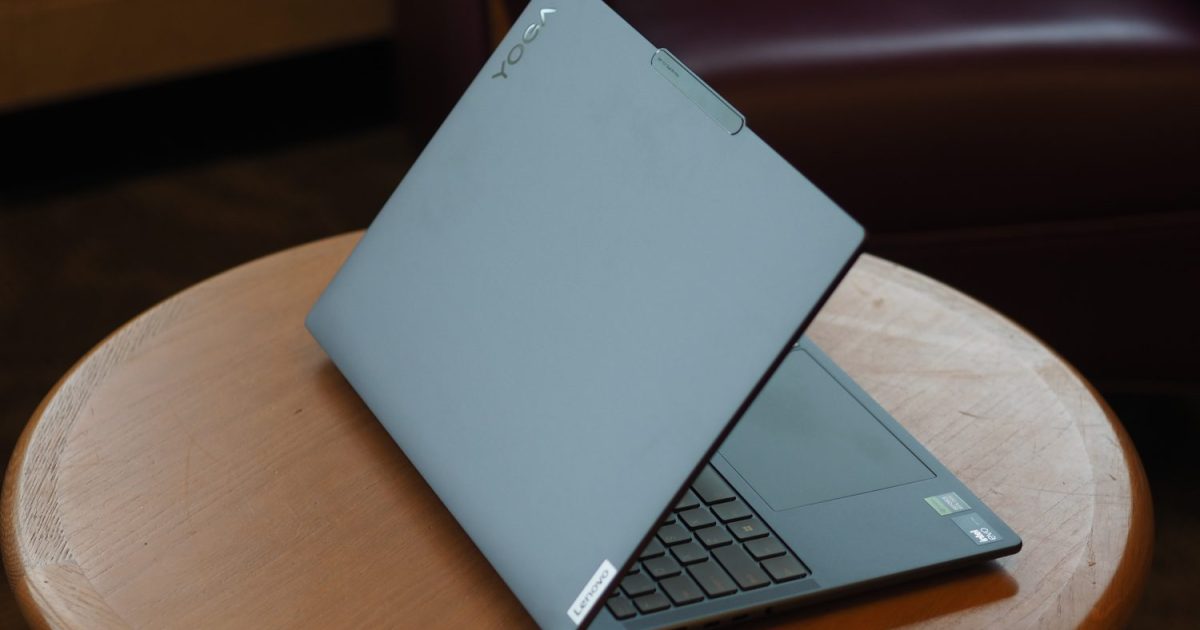
I was a little shocked when I pulled the ThinkPad P16 Gen 2 out of the box, because it’s so much larger than any laptop we’ve reviewed in a long time. This is a proper mobile workstation, through and through.
It’s larger even than most gaming laptops, particularly in its 1.2-inch thickness and 6.5 pound weight. The Asus ProArt P16 is another powerful laptop aimed at creators, and it’s considerably smaller even with its own large 16-inch display. Not only is it thinner and shallower but it’s a lot thinner at a maximum of 0.68 inches and lighter at 4.08 pounds. The last gaming laptop we reviewed, the Lenovo Legion 9i Gen 9, is roughly as large in width and depth but thinner at 0.89 inches and lighter at 5.51 pounds.
Those two are also very powerful machines with great performance, so it’s a little harder to justify the ThinkPad P16’s sheer size. My wife uses an Alienware M16 that’s also very powerful, and it feels a lot smaller. But the ThinkPad P16 does offer a great thermal design that moves a lot of air around, and it’s more expandable than many laptops with the ability to equip dual SSDs for faster storage performance. And Lenovo built the laptop to achieve Independent Software Vendor (ISV) certification, which relies on stable performance to ensure reliability for professionals. But is the ThinkPad P16 too big? I think it might be.
It’s also constructed of plastic with glass fiber on the outside, with a magnesium shell internally. It’s quite robust, with no bending, flexing, or twisting in the lid, keyboard deck, or bottom chassis. But it doesn’t feel the same as many other laptops in the same price range. The Apple MacBook Pro 16 is an example of a laptop that exudes a feeling of higher quality, even if it’s no more robust than the Thinkpad P16. Probably, the plastic was used in part because it’s already 6.5 pounds, which is pretty heavy. If the chassis were all-metal, it would only be heavier.
The aesthetic is rather bland. Most laptops have a minimalist design today, with very little if any of the bling of several years ago. But the ThinkPad P16 takes that to an extreme, with almost no character whatsoever. It’s a dull gray with boring lines, and it’s only saved from being downright fugly by a couple of the usual ThinkPad splashes of red. It’s there in the dot on the “i” in the logos on the lid and palm rest and the TrackPoint nubbin embedded in the keyboard.
But it doesn’t follow either the old-school black-on-black ThinkPad aesthetic or their newer, more modern look. And then there’s a red strip along the lower edge of the back chassis. Gaming laptops and the MacBook Pro 16 are either more exciting or more elegant.
Keyboard and touchpad
Mark Coppock / Digital Trends
The ThinkPad P16 Gen 2 has Lenovo’s non-ThinkPad keyboard, oddly enough, which is shallower than the ThinkPad version but has the same large sculpted keycaps and lots of key spacing. The switches are light and snappy, although the bottoming action isn’t quite smooth enough to rank as one of my favorite keyboards. As usual, Apple’s Magic Keyboard remains at the top of my list.
The touchpad is a mechanical version that’s OK. There’s the TrackPoint nubbin embedded in the keyboard as a nod to ThinkPad fans, but its two buttons take up space from the touchpad. That makes the swiping surface even smaller.
Connectivity and webcam
As is usual with large laptops like this, there’s plenty of connectivity. There’s a mix of modern Thunderbolt 4 ports and legacy connections, along the side and the back of the chassis. The power connector is proprietary. Wireless connectivity is one generation behind.
The webcam is a 1080p version, so it meets the new standard. It’s fine. There’s no neural processing unit (NPU) on board, so the ThinkPad 16 can’t take advantage of today’s AI with a fast but efficient chip. The GPU can be used, though, and it will provide very fast AI processing at the cost of more power usage.
Performance
Mark Coppock / Digital Trends
The ThinkPad P16 Gen 2 uses Intel Raptor Lake CPUs in the 13th or 14th generations. That iteration has had some issues with instability that Intel has been working on, specifically those rated with a TDP of 64 watts or higher. That’s something to keep in mind. My review unit used the Core i7-14700HX, a 55-watt part with 20 cores (eight performance and 12 Efficient) and 28 threads, running at up to 5.5GHz Max Turbo frequency. It’s a fast and power-hungry chipset that provides very good performance for demanding creative and, e.g., engineering applications.
It also uses the Nvidia RTX 4000 Ada GPU, which is aimed at those professional applications and, as mentioned above, is ISV-certified and so it provides some assurance that its performance will be reliable. This part is the main difference that comes with a workstation product like this — you can’t find it on consumer mainstream laptops. The RTX 4000 Ada uses the latest CUDA, RT, and Tensor cores for fast performance and houses 20GB of GPU memory with advanced AV1 encoders. It’s not optimized for gaming, but it performs a lot like the GeForce RTX 4070 and in some cases like a 4080.
The ThinkPad P16 does very well against a variety of other machines Core Ultra Series 1 chipsets and the RTX 4070. It also kept up with the AMD Ryzen AI 9 HX 370. It’s particularly fast in single-core tasks, and the RTX 4000 Ada churns through Cinebench R24.
Most telling among our benchmarks is the laptop’s performance in the Pugetbench Premiere Pro benchmark that runs in a live version of Adobe’s Premiere Pro and can utilize the GPU for faster performance. It’s one of the fastest laptops we’ve tested, coming in behind the MacBook Pro 16 with various CPU optimizations that help out but GPU cores that aren’t quite as fast. Note that I included results from the MacBook Pro 16 with the previous-gen M3 Max; the M4 Max was recently released and is likely to be even faster.
Simply put, the ThinkPad P16 is a very fast laptop for professionals, and it can be even faster with a Core i9 CPU and an RTX 5000 Ada GPU that rivals the GeForce RTX 4090. Whether it’s fast enough given the high price comes down more to whether you need an ISV-certified laptop because your livelihood depends on rock-solid reliability.
When you have a laptop with these kinds of components, you’ll naturally want to consider playing some games. The RTX 4000 Ada isn’t aimed at gaming and it doesn’t use the standard Nvidia gaming-oriented drivers. But even so, it’s a capable gaming GPU.
To begin with, it scores 15,993 in the 3DMark Time Spy benchmark, which is faster than the usual RTX 4070 score of around 11,000. In fact, the Alienware M16 with an RTX 4080 scored 17,659 in this benchmark while the Legion 9i Gen 9 with the RTX 4090 score 20,293. That places the ThinkPad P16 closer to the RTX 4080 — at least, in this synthetic benchmark.
Looking at a couple of real-life gaming benchmarks paints a similar picture. The ThinkPad P16 hit 102 frames per second (fps) in Assassin’s Creed Valhalla at 1600p and ultra-high graphics. That’s a bit slower than the 114 fps hit by the Asus ProArt P16 with its RTX 4070. In Cyberpunk 2077, the Thinkpad P16 managed 74 fps at 1600p and ultra graphics with FSR 2.1 enabled, compared to the Legion 9i Gen 9 at 106 fps. So, the RTX 4090 is a lot faster. With ray tracing turned on, the ThinkPad P16 hit 60 fps compared to the Legion 9i Gen 9’s 88 fps.
Ultimately, you’ll be able to run modern titles at 1600p with graphics turned up at least as well as an RTX 4070.
Battery life
Mark Coppock / Digital Trends
There’s a large 94 watt-hour battery packed into the ThinkPad P16, but also some power-hungry components and a large, reasonably high-res display. You don’t expect great battery life from a laptop like this, and you don’t get it.
I saw just 4.25 hours in our web browsing test and around five hours in our video looping test. Those are pretty bad, but then I got just 42 minutes in our Cinebench R24 test that runs the CPU at full speed. That means you’ll need to carry around the very heavy power brick to get any real work done away from your office. That makes for well over 7 pounds to carry around, making this a less-than-portable solution.
Display and audio
Mark Coppock / Digital Trends
Lenovo offers several display options for the ThinkPad P16, all 16.0 inches in the 16:10 aspect ratio. You can get FHD+ (1920 x1200) IPS, QHD+ (2560 x 1800) IPS, 4K+ (3840 x 2400) IPS, and 4K+ OLED. The QHD+ IPS panel, which was on my review unit, runs at up to 165Hz, while the rest are limited to the more pedestrian 60Hz. I think QHD+ is just sharp enough at this display size, although I prefer 4K+ for the sharpest text. Subjectively, the display was good but not great — but I’m very spoiled by reviewing so many excellent OLED and mini-LED displays that are spectacular out of the box.
When I tested the display with my colorimeter, I ran into some issues. Lenovo includes the X-Rite Color Assistant utility to select various factory calibrations, and none of them provided very good results. The best result came from the “Not calibrated” setting, and those weren’t very good at all for a laptop intended for professionals who tend to demand a display with wide and accurate colors. Those results were very poor, at 99% of sRGB, 76% of AdobeRGB, and 77% of DCI-P3, which are just average for IPS displays today. Color accuracy was terrible, at a Delta-E of 7.19, and Gamma was way too bright at 1.7 (2.2 is standard and the vast majority of today’s displays hit that value).
The display was bright at 498 nits and contrast was good at 1,100:1. But no matter which calibration I selected, the colors were just unacceptable. The worst value came with the Rec. 709 setting that’s supposed to be optimized for video work, at a Delta-E of 11.88. That just won’t cut it. That’s bad enough that there may something wrong with my review unit, but that’s the data I collected from my colorimeter.
Lenovo may just need to do some work on those settings or my review unit might just be a dud. But when you spend this kind of money for a laptop, you expect better. I’m sure the 4K+ OLED display is excellent, and that would certainly be my choice if I bought the ThinkPad P16.
Audio is provided by two upward-firing speakers, and there’s plenty of volume with clear mids and highs. But bass is lacking, so you’ll want a pair of headphones or a Bluetooth speaker for anything more than YouTube videos and system sounds.
A laptop that you’ll only want if you really need it
Professional workstations like the ThinkPad P16 Gen 2 are invariably expensive because of the engineering needed to be ISV-certified, and professionals who rely on them to get paid can justify the price to gain the highest possible level of reliability. They’re not always the fastest options unless you’re using an application that takes direct advantage of the capabilities of a specific component.
The ThinkPad P16 is definitely very expensive, and it’s likely very reliable for that select group of buyers. The performance of the commercial GPU is also really impressive. But it’s also almost unreasonably thick and heavy, and it’s not that much faster than less-costly alternatives (or at all). Meanwhile, the display on my review unit was very disappointing. Even those who demand ISV certification can likely find a better alternative.
A budget of $1,000 usually isn’t enough for a fantastic gaming machine, but Walmart is making it happen with this offer for the iBuyPower Y40. The gaming desktop, which is powered by the Nvidia GeForce RTX 4070 graphics card, is currently available for only $999, following a $601 discount on its sticker price of $1,600. This is one of the most attractive gaming PC deals that we’ve found in recent memory, even with Black Friday less than a month behind us, so you’re going to want to take advantage of it before the stock is sold out.
Why you should buy the iBuyPower Y40 gaming PC
The iBuyPower Y40 gaming PC is packed with components that will let you play the best PC games without any issues. In addition to the Nvidia GeForce RTX 4070 graphics card, it’s equipped with the AMD Ryzen 7 7700 processor and 16GB of RAM, which is the best place to start for a gaming desktop according to our guide on how much RAM do you need. The gaming PC also comes with a liquid-cooling system, so it won’t suffer from overheating if your gaming sessions last for several hours at a time.
The 1TB SSD of the iBuyPower Y40 gaming PC provides enough storage space for several AAA titles, and it comes with Windows 11 Home out of the box. That means you can start downloading and installing your favorite games right after setting up the gaming desktop with your gaming monitor. Your purchase of the iBuyPower Y40 will also get you a gaming keyboard and gaming mouse, which match the gaming PC’s aesthetic with its tempered glass case and internal RGB lighting.
For a pre-built gaming PC that focuses on delivering excellent performance without going overboard on price, check out the iBuyPower Y40. It’s originally sold for $1,600, but it will be yours for $999 after Walmart’s $601 discount. We’re not sure how much time is remaining for you to be able to buy this machine for less than $1,000, but if you think the iBuyPower Y40 gaming PC is perfect for your needs, we highly recommend pushing through with the transaction immediately so you don’t miss out on the savings.
AMD and NVIDIA could be on a collision course for CES. AMD CEO Lisa Su has confirmed for the first time that the company is set to release its next-gen PC GPUs early next year.
“In gaming graphics, revenue declined year-over-year as we prepare for a transition to our next-gen Radeon GPUs based on our RDNA 4 architecture,” Su told investors on AMD’s third-quarter earnings call. “In addition to a strong increase in gaming performance, RDNA 4 delivers significantly higher ray-tracing performance and adds new AI capabilities. We are on track to launch the first RDNA 4 GPUs in early 2025.”
The timing very much suggests that AMD will reveal those RDNA 4-based graphics cards at CES in early January. It’s rare for the company to unveil desktop GPUs at the trade show (laptop cards are generally the order of the day for AMD at that event). However, it’s widely expected that NVIDIA will use its CES keynote to debut its next-gen 50-series GeForce RTX GPUs. We might get a little more clarity on that front when NVIDIA announces its own Q3 earnings results on November 19.
As PCWorld notes, AMD’s first RDNA 4 GPUs are expected to deliver mid-range performance at an equivalent price point in a bid to increase its market share. AMD’s gaming business (which includes the company’s GPU division) saw a 69 percent year-over-year drop in revenue to $462 million in Q3.
Intel recently introduced its new Core Ultra Series 2 chipsets, otherwise known as Lunar Lake, that are a part of Microsoft’s AI initiative caled Copilot+ PC. Its goal: to make longer-lasting Windows laptops that better compete with Apple’s very efficient MacBook lineup. But Intel isn’t alone, with Qualcomm also introducing new chipsets that also ramp up the efficiency of Windows laptops.
Two laptops are among the first to sport Lunar Lake, and both are from Asus. The Zenbook S 14 is a very good initial entrant, while the ExpertBook P5 is less expensive, but that’s about all. Read on to learn why the Zenbook is the better Lunar Lake representative and more likely to end up on our list of the best laptops.
2 x USB-C with Thunderbolt 4 1 x USB-A 3.2 Gen 2 1 x HDMI 2.1 1 x 3.5mm headphone jack
1 x USB-C with Thunderbolt 4 1 x USB-C 3.2 Gen 2 1 x USB-A 3.2 Gen 2 1 x HDMI 2.1 1 x 3.5mm headphone jack
Wireless
Wi-Fi 7 Bluetooth 5.4
Wi-Fi 6E Wi-Fi 7 Bluetooth 5.3 or 5.4
Webcam
1080p with infrared camera for Windows 11 Hello
1080p with infrared camera for Windows 11 Hello
Battery
72 watt-hour
63 watt-hour
Operating system
Windows 11
Windows 11
Price
$1,399+
$1,100+
Rating
4 out of 5 stars
2.5 out of 5 stars
The ExpertBook P5 costs has an attractive starting price of $1,100, which includes an Intel Core Ultra 5 226V chipset, 16 GB of RAM, a 512GB SSD, and a 14-inch QHD+ IPS display (the only option). I reviewed the higher-end version, which is $1,300 for a Core Ultra 7 258V, 32GB of RAM, and a 1TB SSD.
The Zenbook S 14 is more expensive, starting at $$1,500 for a similar configuration with a Core Ultra 7 258V, 32GB of RAM, a 1TB SSD, and a 14-inch 2.8K OLED display.
As we’ll see, while the ExpertBook P5 is less expensive, it’s not necessarily the better value.
Design
Mark Coppock / Digital Trends
The Zenbook S 14 follows Asus’ usual design for its premium consumer lineup. It uses an aluminum lid that’s been treated to act like a “high-tech ceramic,” which it calls “Ceraluminum.” That makes it very light and yet it remains very rigid. The lid has a texture that’s comfortable in hand. Its hinge is smooth and allows opening the lid with one hand. It looks great, with an attractive geometric design on the lid and a choice of either gray or white. It’s a sharp laptop.
The ExpertBook P5 is a lot less impressive. Its all-aluminum chassis is light enough, but it’s not as thin and the screen is surprisingly flexible. For a business-class machine, the ExpertBook just doesn’t give off the same quality feel. Its design is minimalistic and just fine, but it doesn’t have the sort of modern appeal of the Zenbook S 14. And its lid is too stiff when opening the laptop up. Simply put, it’s not nearly as nicely designed.
The Zenbook and ExpertBook have similar keyboards, although the Zenbook’s switches are snappier, while the ExpertBook gives more of an impression of bottoming out. They both have large keycaps and plenty of key spacing. Both also have mechanical touchpads, and neither is all that great. Haptic touchpads are preferable and increasingly common.
Connectivity is similar, although the ExpertBook P5 offers more legacy ports and the Zenbook an additional Thunderbolt 4 port. Both support the latest wireless connectivity, while the ExpertBook also offers the previous generation, likely to meet the needs of businesses.
Finally, both laptops have 1080p webcams with infrared cameras for Windows 11 Hello facial recognition. Both have equally fast Neural Processing Units (NPUs) for faster AI performance on-device.
Performance
Mark Coppock / Digital Trends
Both laptops use Intel’s latest Core Ultra Series 2 chipsets, specifically the Core Ultra 7 258V. This is an 8-core (four Performance and four Low Power Efficient), 8-thread chipset running at up to 4.8GHz. It’s a 17-watt chipset that can boost to 37 watts, putting it somewhere in between Intel’s Meteor Lake 15-watt U-series and 28-watt H-series chipsets. In addition, the chipset introduces Intel’s latest integrated Intel Arc 140V GPU, which falls somewhere in between the older Intel Arc and entry-level discrete GPUs.
According to our benchmarks, the two laptops perform similarly. The Zenbook S 14’s GPU performance is better, as is its single-core performance in Cinebench R24. But the differences wouldn’t be noticeable in practice. And while these results are slower than those from new chipsets from Qualcomm and AMD, they’re fast enough for even demanding productivity users. Neither laptop is better for gamers or creators.
Geekbench 6 (single/multi)
Cinebench R24 (single/multi/battery)
Handbrake
3DMark Wild Life Extreme
Asus Zenbook S 14 (Core Ultra 7 258V / Intel Arc 140V)
The Zenbook S 14 uses a 14.0-inch 2.8K (2880 x 1800) OLED display running at up to 120Hz, while the ExpertBook P5 uses a 14.0-inch QHD+ (2560 x 1600) IPS display running at up to 144Hz. That makes the Zenbook’s display a bit sharper and, of course, it has OLED’s usual dynamic colors and inky blacks. The ExpertBook’s display has a faster refresh rate, but that’s not much of an advantage given the relatively slow GPUs on these laptops.
Simply put, the Zenbook’s display has wider colors and much deeper contrast. Oddly, its color accuracy was very poor, but that’s unusual for OLED and is either a physical flaw or could be a software bug. The ExpertBook P5’s display has very good measurements for an IPS panel, but it won’t be nearly as competent for creative work or streaming high dynamic range (HDR) content. It’s much brighter, though, which is good for anyone who needs to work in bright ambient lighting.
Asus Zenbook S 14 (OLED)
Asus ExpertBook P5 (IPS)
Brightness (nits)
313
482
AdobeRGB gamut
100%
99%
sRGB gamut
95%
77%
DCI-P3 gamut
100%
79%
Accuracy (DeltaE, lower is better)
4.92
1.18
Contrast
28,310:1
1,510:1
Portability
Luke Larsen / Digital Trends
The Zenbook S 14 is considerably thinner than the ExpertBook P5, but both are around the same width and depth and the same weight. As with many 14-inch laptops, these two offer a good balance between display size and portability.
More important is their battery life. Intel’s Lunar Lake chipsets are aimed at being more efficient and competitive with the likes of Qualcomm’s Snapdragon X and Apple’s M3 (and soon, M4) chipsets. And it’s here that perhaps the most significant difference exists between the two. The Zenbook is a very long-lasting machine, competing strongly with, say, the MacBook Air M3 in all three of our tests — web browsing, video looping, and running the demanding Cinebench R24 multi-core test. The MacBook only beats the Zenbook in web browsing, by around two hours.
However, the ExpertBook isn’t nearly as long-lasting. It’s only about half as strong in web browsing and falls significantly short in the other two tests. It does have a smaller battery, but not enough to explain these results. And the same with its less power-hungry IPS display.
Web
Video
Cinebench R24
Asus Zenbook S 14 (Core Ultra 7 258V / Intel Arc 140V)
The Zenbook is a much better Lunar Lake representative
These two laptops are among the first to introduce Intel’s new and very important Lunar Lake chipsets. Windows needs a shot in the arm to compete with Apple’s hyper-efficient MacBooks and Qualcomm, which has stepped up. But Qualcomm runs on Windows on Arm, with at least the potential for spotty performance and incompatibility.
Simply put, the Zenbook S 14 is a much better representative of the new chipset’s potential. It’s not terribly fast, but neither is the ExpertBook P5. But it lasts a lot longer on a charge, and it’s a much more attractive laptop overall. The ExpertBook is cheaper, but not so much so that it’s an even match.
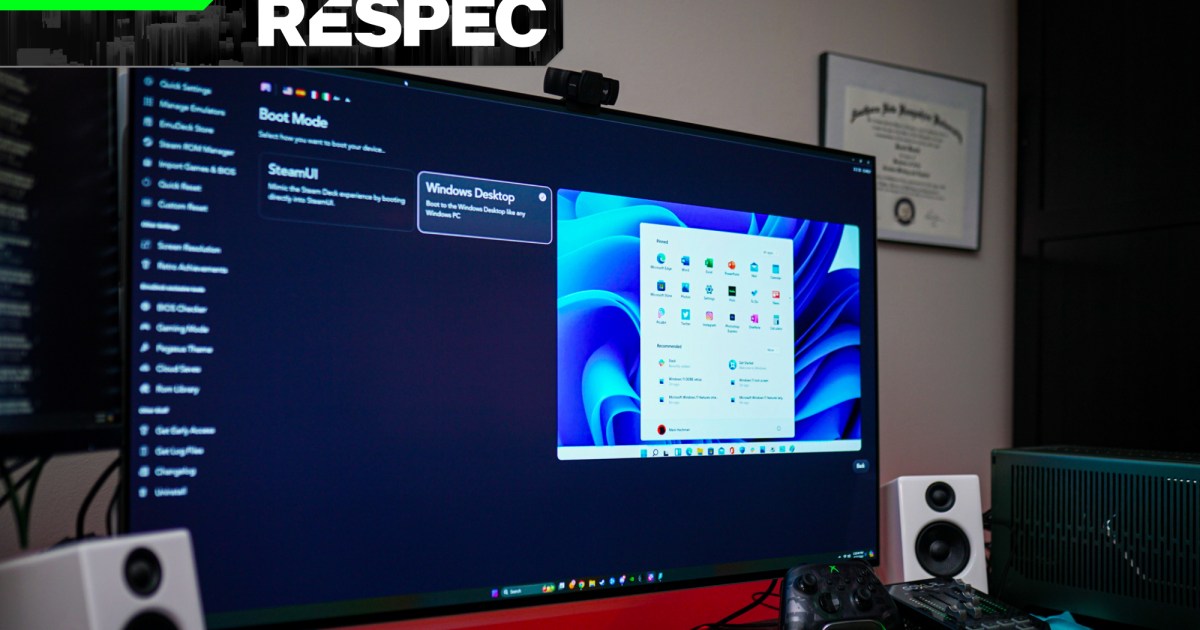
I was once like you. I thought EmuDeck was just a quick and easy way to set up emulators on my Steam Deck, and despite using it for years, I never thought more of it than that. But slowly over the past few months, EmuDeck has become one of the most essential apps I have installed on my gaming PC.
EmuDeck showed up on the scene in 2022, originally built as a “collection of scripts that allows you to autoconfigure your Steam Deck” for emulation. It will install your emulators, configure them, create directories for your games, and hook into apps like Steam ROM Manager so you can see all of your emulated games in your Steam Deck library. It’s been an essential tool for retro and emulation enthusiasts since release, but EmuDeck has grown into something much more powerful — and it’s not slowing down.
Always humble beginnings
Jacob Roach / Digital Trends
Although most of the documentation for EmuDeck is signed by the “EmuDeck team,” a sole developer remains the main producer of the project — DragoonDorise on GitHub. Speaking with the developer, he told me that the Steam Deck actually wasn’t the inspiration behind the project. “The very first code I built was because when I bought my Odin,” he told me. The Odin is a handheld emulator built on Android. “I didn’t want to do all the setup manually again.”
Get your weekly teardown of the tech behind PC gaming
EmuDeck was originally built for Android, and it was under the name Pegasus Installer. “Everything started with the RetroidPocket 2 and the Pegasus frontend. Setting that up was a chore, so I tried to automate it,” the developer told me. Eventually, the Steam Deck was revealed, and DragoonDorise said it was “a huge deal” for him. “I was lucky enough to get [a Steam Deck] on the first wave and that’s how EmuDeck was born. It took me a weekend to release the first version, and boy, it was rough… but it worked.”
Pegasus Installer became EmuDeck, and at first, it was just for the Steam Deck. Given the handheld form factor and problems getting around desktop mode without a keyboard and mouse, EmuDeck made perfect sense. If nothing else, it minimized the amount of time you’d need to spend on the desktop, all while installing and configuring everything you need through a single, easy-to-use package. But it didn’t stop there.
Eventually, the ROG Ally came out, following on the Steam Deck’s success. And EmuDeck responded in kind by developing a Windows version of the utility. Now, you’ll find installers for SteamOS, Windows, ChimeraOS, Android, and general Linux distros. You can get EmuDeck on just about any platform now as a quick and easy way to set up your emulators, but I’ve been so drawn to the utility for everything it does beyond its core function.
More than emulation
Jacob Roach / Digital Trends
EmuDeck could’ve stopped at just being a utility that automatically configures a bunch of emulators, but it’s grown to encompass a ton of additional features. Here’s a sampling:
Compressor — Compresses your ROM library to reduce its size.
Auto save — Automatically saves your progress in emulated games when closing them so you don’t need to manually create a save state.
Cloud sync — Uses an online storage service like Box or Google Drive to store and sync your save files for emulated games.
EmuDecky — A plug-in specifically for the Steam Deck that allows you to access emulator hotkeys from the Steam Deck’s game mode.
Local multiplayer — Allows you to start local multiplayer games for emulated titles.
Rom Library — A dedicated second Steam Library for the Steam Deck filled only with emulated games.
Game mode — A tool that bypasses Windows processes to launch directly into Steam Big Picture mode.
That is just a sampling, too. EmuDeck has a slew of smaller features, from a BIOS checker to Retro Achievements support to migration utilities that allow you to carry your entire library to other systems. All of these features were developed on top of the “gazillion of hours invested in testing” of the core of EmuDeck, too, according to DragoonDorise.
There’s even a collection of homebrew games built into the app.Jacob Roach / Digital Trends
Although I’ve used most of EmuDeck’s features on various machines, game mode has really made the difference in the way I play PC games. As anyone who’s tried to set up a console-like PC knows all too well, you need a keyboard and mouse on hand to at least get into whatever controller-support interface you’re using (usually Steam), and even then, notifications, start-up apps, and other pesky windows can get in the way. With game mode, I’m finally able to have the console-like PC experience I’ve dreamt about for years.
Rebirth of the Steam Machine
Digital Trends
Ever since Valve tried (and failed) to get the Steam Machine to catch on, there’s been countless attempts to make a small form factor PC behave like a console. You start it, grab a controller, and plop down on the couch to start playing games. Although there are ways to get close to that experience — specifically with Linux distros like ChimeraOS or HoloISO — you’ve always needed to settle either for a portable keyboard or spotty compatibility due to Linux. Game mode gets around that entire issue.
DragoonDorise describes it like this: “What it does is replace your Windows desktop with Steam, so it boots faster into Big Picture mode — it’s kind of like a Steam Deck.” You can already have Steam immediately launch into Big Picture mode — the controller-friendly interface that mirrors the Steam Deck — and you can set Steam as a startup app. But game mode is doing more than that in EmuDeck.
Jacob Roach / Digital Trends
From what I can tell, it’s doing two main things. First and most important is that it never starts (or at least significantly limits) Windows File Explorer. You might think of File Explorer as just a way to browse your files, but the process in Windows actually does a lot more. It commands the taskbar, your desktop wallpaper, the Start menu, and even your desktop icons. EmuDeck runs a PowerShell script to bypass all of the junk you don’t need for a living room setup and goes directly into Big Picture mode. It takes only a few seconds — if I don’t turn on my TV fast enough, I’ll completely miss the script running.
The other thing it does is suppress notifications and other windows that try to go on top of the Big Picture interface. In my case, I have a VPN installed on my living room PC, along with an outdated AMD driver that I don’t use. I may get everything in order for the PCs I use for work, but when I’m sitting down to relax and game, I’m lazy. They aren’t causing problems, and I couldn’t care less. Both want to command the screen when I sit down and power on my PC and EmuDeck’s game mode stands in the way to block them.
Jacob Roach / Digital Trends
As impressive as game mode is, it can’t actually log you into Windows. Thankfully, I’ve found a simple way around that if you aren’t concerned about security. Go to the Registry Editor and head to the following path: HKEY_LOCAL_MACHINE\SOFTWARE\Microsoft\Windows NT\CurrentVersion\PasswordLess\Device. Then, set the value of DevicePasswordLessBuildVersion to 0. Restart your PC, press Windows + R and enter netplwiz. Uncheck the box that requires a password, click Apply, enter your current password, and you’re done.
With this setup, I’m able to press the power button on my PC, turn on a controller, and start playing. Since I started using EmuDeck in this way, I haven’t had to break out a Bluetooth keyboard. It feels like I’m properly playing on a console — just with much better performance.
An essential app
Jacob Roach / Digital Trends
EmuDeck started as a way to set up emulators on the Steam Deck, but it’s become a critical part of my PC setup since then. Never since I installed Special K — make sure to read my column on that app — have I found something that will go on any new PC I build. Game mode is the main draw for me, but I’ve engaged with EmuDeck’s other features, too. I have a treasure trove of ROMs on an external hard drive, and EmuDeck allows me to sync my saves between my PC and Steam Deck, as well as keep my configuration consistent between devices.
Even better, most of what EmuDeck offers is free. New features, particularly those developed by EmuDeck alone, first show up for members of its Patreon, but you can get a lot of functionality out of EmuDeck — including its core function of setting up emulators — free of charge. And if you want to sign up and get the latest features, it’ll run you about $35 per year.
Since installing EmuDeck, I’ve played retro classics I would’ve never touched, modded modern games in ways I never thought was possible, and let my consoles gather dust as I transition all of my gaming to PC. If you’re even remotely interested in emulation, give EmuDeck a shot — you’ll be impressed by how powerful it really is.
One of the big reasons that Apple is popular is because of its very straightforward ecosystem, which lets you use all your devices almost as if they’re one, making it great for those who want something that isn’t difficult to use and learn. Luckily, Apple also makes some of the best wireless earbuds, the best smartwatches, the best laptops, and even the best tablets, so if you’re in the Apple ecosystem, you can expand without having to worry about buying something subpar. Of course, higher quality does mean having to spend more money, and if you’re planning to grab something from Apple, then you’ll likely want a deal.
That’s why we’ve gone out and searched through various big retailers to find you some of the best deals we can find. That includes everything from the MacBook deals, AirPods deals, Apple TV deals and Apple Watch deals to the AirTag, so hopefully, you can find the perfect deal that fits your needs and budget.
Apple AirTag (4-Pack) — $80, was $99
Apple
Insert the Apple AirTag into your bag, gadget, or any item that you may misplace, so that you can track it if you lose it. The Apple AirTag is one of the best Bluetooth trackers if you’re using an iPhone or iPad because not only does it offer a one-tap setup, but it can utilize the millions of devices in Apple’s Find My network to help you find your stuff if it goes beyond the Bluetooth range of 30 feet. It’s powered by a replaceable battery that can last for more than a year before you need a new one.
Apple AirPods Pro 2nd Gen — $190, was $249
Zeke Jones / Digital Trends
The Apple AirPods Pro 2 with USB-C and MagSafe introduces new charging methods to one of the best wireless earbuds in the market, especially for Apple fans. They provide amazing active noise cancellation to help keep you focused on your music or videos, excellent audio quality so you can better appreciate your favorite tracks, and battery life of up to 6 hours on a single charge and up to 30 hours if you include the juice from their charging case.
Apple Watch Series 9 (45mm, GPS) — $359, was $429
Andy Boxall / Digital Trends
It’s no surprise that among the best smartwatches, the Apple Watch Series 9 is our top choice for iPhone owners. It may look like its predecessors, but the wearable device features the S9 chip for fast and smooth performance, and extensive health and safety features that will make you want to always have it on your wrist. The Apple Watch Series 9 is extremely comfortable to wear, and it can run for up to 18 hours before you need to recharge it.
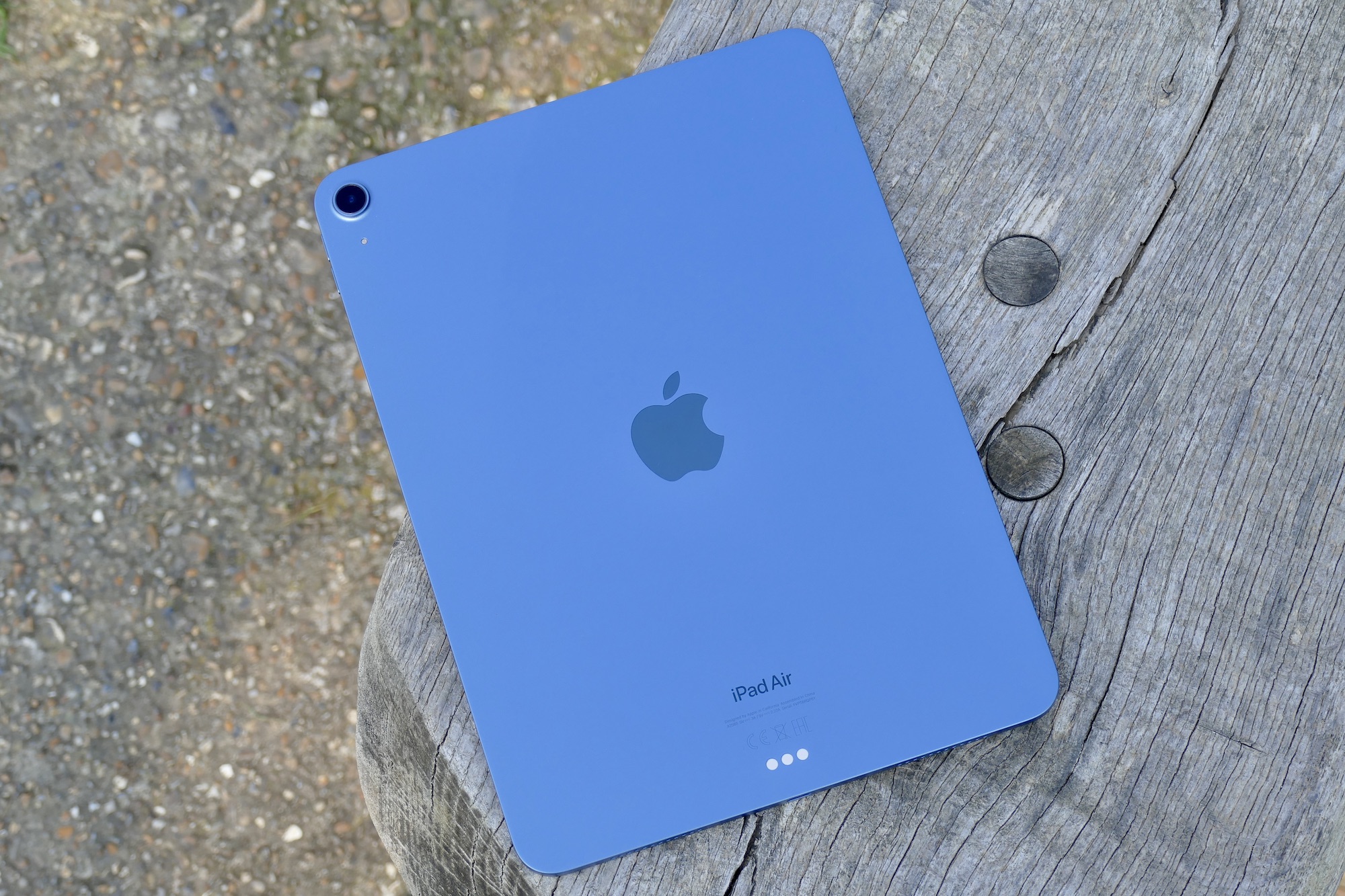
Apple iPad Air 5th Gen (Wi-Fi 256GB) — $699, was $749
Andy Boxall / Digital Trends
The fifth-generation Apple iPad Air ranks first among our top picks as the best tablets for a variety of reasons, starting with the high-performance M1 processor that makes the device run very fast and smooth. The fifth-generation Apple iPad Air is equipped with a 10.9-inch Liquid Retina display that’s bright and colorful even under direct sunlight, a 12MP Wide back camera that can record 4K footage, and a 12MP Ultra Wide front camera with Center Stage to keep you in the frame during video calls even when you move around.
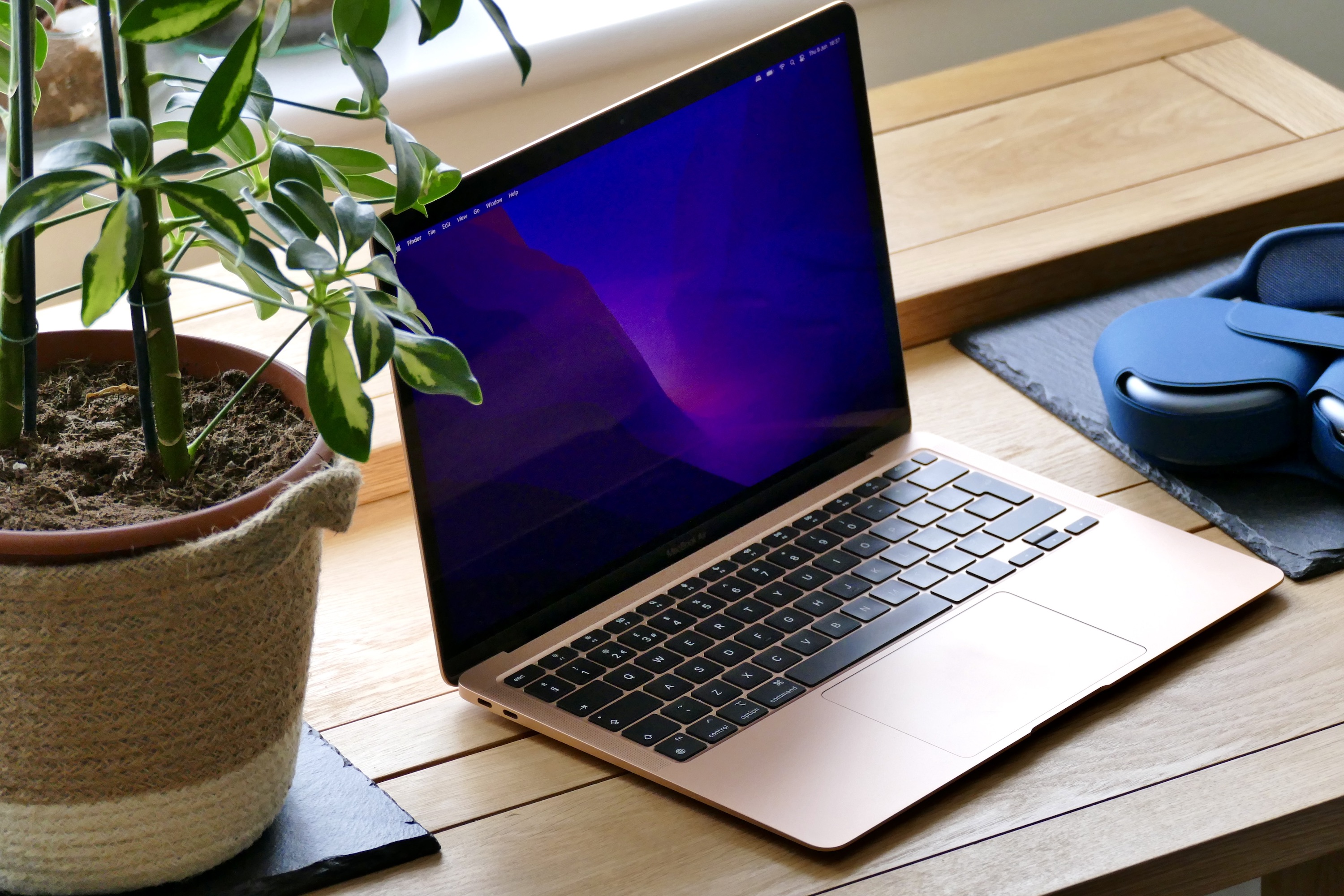
Apple M2 MacBook Air 15 — $1,000, was $1,299
Andy Boxall / Digital Trends
The M2 MacBook Air is a pretty unique laptop because it was the first Apple laptop to actually have a 15-inch screen compared to all the previous generations. It also comes in both an M2 and an M3 chip variety, although the M2 chip model is more affordable and still has a ton of power under the hood. Luckily, the 15-inch MacBook Air also has great battery life and a gorgeous retina display, so it’s great to use for long periods without getting a ton of eye strain.
More Apple deals we love
Joe Maring / Digital Trends
There are more Apple deals that you can shop right now in addition to our favorite bargains above, and we’ve already done the hard part of getting the best offers in one place. You’ll now just have to choose which device you want to add your growing Apple ecosystem — or which one you’d want to start it with. You need make your decision quickly though, as there’s a chance that these prices will no longer be the same tomorrow.
The back-to-school season is just a couple of weeks away, and we’ll have our sights set on all kinds of Best Buy deals as they roll in. For now though, there are still plenty of great laptop deals to sort through, and one of them is actually a Best Buy exclusive: While the sale lasts, you’ll be able to take home the Lenovo 14-inch Ideapad 1 for only $150. That’s $100 off its normal selling price.
Why you should buy the Lenovo Ideapad 1
This time of year is one of the best times to invest in a new laptop. Most companies know that student laptop deals are going to be at the top of many shoppers’ back-to-school essentials, and the Lenovo Ideapad 1 is an ideal PC for word processing, browsing the web, and taking an online course or two. The 14-inch screen uses Lenovo’s SuperBright technology in addition to a matte coating to preserve colors and contrast in the movies, shows, and games you decide to play on the Ideapad 1. And while the pixel count only tops out at 1366 x 768, that’s still an HD display.
As far as processing power, the Ideapad 1 is equipped with an Intel Celeron N4020 CPU with Intel UHD Graphics. These core peripherals run off 4GB of RAM, with up to 128GB of internal storage available. The latter should be enough bytes to store word docs, PDFs, and other important files, though you may want to invest in an external drive to add additional storage.
On a full charge, you should get about 10 hours of battery life. That should be enough life for a full day of classes, but we do recommend bringing your charger with you just in case. Last but not least is ports, and the Ideapad 1 contains several USB connections, HDMI, an SD card reader, and 3.5mm auxiliary for hooking up headphones.
Lenovo laptop deals are just about everywhere you look, but this is definitely one of the best pre-back-to-school offers we’ve seen. For a limited time, save $100 when you purchase the Lenovo 14-inch Ideapad 1 from Best Buy!
Along with companies like Dell and HP, Lenovo is probably one of the best-known brands when it comes to things like desktops and laptops, whether you’re looking for a gaming device or a general day-to-day one. That’s why it’s great to see some excellent deals coming from Lenovo as part of the early Memorial Day sale, with a ton of deals on some of the best laptops and best desktops out there. Of course, Lenovo has a huge inventory of devices, which is why we’ve gone through it all and selected some of our favorite deals to save you the hassle.
Best Lenovo Laptop Memorial Day Deals
Lenovo
Lenovo’s general laptops are perfect for those who want something that is more budget-friendly but will still work well for school, work, or just use in day-to-day activities such as streaming content. There are a lot of sizes to pick from, too, so you can pick something smaller if you want a more easy-to-carry laptop or a massive 16-inch screen if you want a lot of screen real estate. You can also check out some other great laptop deals if you don’t quite find what you’re looking for below.
Lenovo 15-inch IdeaPad Slim 3 —
Lenovo 14-inch IdeaPad Flex 5 —
Lenovo 16-inch IdeaPad Slim 5i —
Lenovo 13-inch ThinkPad L13 Yoga Gen 3 —
Lenovo 14-inch ThinkPad E14 Gen 5 —
Lenovo 15-inch ThinkPad P15v Gen 3 —
Lenovo 16-inch ThinkPad P16v Gen 1 —
Best Lenovo Monitor Memorial Day Deals
Mark Coppock / Digital Trends
You might be surprised to find out that Lenovo actually makes monitors as well, and they aren’t too bad, especially some of the more interesting versions of their products, such as the 15.6-inch portable monitor. Luckily, there is a wide range of options here too, so you can find monitor deals on everything from basic work monitors to high-end curved and gaming monitors.
Lenovo D27-40 27inch Monitor —
ThinkVision 23.8 inch Monitor —
Lenovo 15.6 inch Portable Monitor —
Lenovo 27 inch Monitor —
Lenovo 28 inch 4K Monitor —
Lenovo 34 inch Gaming Monitor —
ThinkVision 31.5 inch Monitor —
ThinkVision 34 inch Curved Monitor —
Best Lenovo Gaming PC Memorial Day Deals
Jacob Roach / Digital Trends
If you’re looking for a solid gaming desktop, Lenovo actually has some great affordable options, and with these gaming PC deals, that gets even cheaper. For example, you can absolutely grab an entry-level gaming PC with an RTX 3050 or RX7600, but one of the RTX 4070 Ti options is going for just over $1,500, and that’s perfect for gaming at 1440p.
Legion Tower 5 Gen 8 with RTX 3050 —
Legion Tower 5 Gen 8 with RX 7600 —
Legion Tower 5i Gen 8 with RTX 4060 —
Legion Tower 5 Gen 8 with RTX 4070 Ti Super —
Legion Tower 5i Gen 8 with RTX 4070 Ti Super —
Legion Tower 7i Gen 8 with RTX 4080 Super —
Best Lenovo Gaming Laptop Memorial Day Deals
Jacob Roach / Digital Trends
Lenovo is one of the top choices when it comes to gaming laptops that don’t just immediately scream “gaming laptop,” which is great for those who want to take them to work or school without looking like they’re just going to be playing games the whole day. There are a lot of options here, too, and while you can get some really great budget options for less than $1,000, if you’re going to grab one of these gaming laptop deals, we’d probably suggest going for at least an RTX 4060 or RTX 4070 option.
Lenovo 15-inch LOQ with RTX 3050 —
Lenovo 15-inch LOQ with RTX 4050 —
Lenovo 14-inch Legion Slim 5 Gen 8 with RTX 4060 —
Lenovo 16-inch Legion Slim 5 Gen 9 with RTX 4070 —
Lenovo 16-inch Legion Pro 5i Gen 9 with RTX 4070 —
Lenovo 16-inch Legion Pro 7 Gen 8 with RTX 4080 —
Lenovo 16-inch Legion Pro 7i Gen 9 with RTX 4090 —